


 Video Converter Ultimate
 Perekam Layar
 Perbaikan Video
4 Cara termudah untuk Mengonversi File F4V ke Format File Media AVI
Macromedia memperkenalkan F4V, dan kemudian, Adobe mengembangkannya untuk bersaing dengan penyimpanan video modern dan berkualitas tinggi. Juga, ini dibuat sebagai format pengganti FLV karena FLV memiliki batasan. Penjelasan lebih lanjut adalah bahwa file F4V menggunakan format file media dasar ISO dengan codec H.264 untuk menurunkan ukuran file. Meskipun formatnya mengandung output berkualitas tinggi, F4V memiliki kompatibilitas yang lebih rendah daripada format lainnya. Dan tidak hanya itu, format ini juga telah dihapus karena Adobe Flash Player telah dihentikan.
Jadi jika Anda memiliki masalah yang sama dengan orang lain karena file .f4v mereka tidak dapat diputar di pemutar media, lanjutkan membaca di bawah ini. Kami mengumpulkan berbagai alat yang akan membantu Anda memutar file .f4v yang tidak bisa diputar dengan cara mengonversi formatnya menjadi AVI. Sekarang, mari lanjut dan pelajari cara mengonversi F4V ke AVI dengan alat online dan offline yang tersedia.

Bagian 1. Pelajari Cara Mengonversi F4V ke AVI dengan Konverter F4V ke AVI yang Fenomenal
Jika Anda mencari konverter terbaik yang dapat membantu mengatasi masalah Anda, maka FVC Video Converter Ultimate adalah jawabannya. Kami telah menguji alat ini sendiri dan membaca beberapa komentar; “ultimate” bukan hanya nama, tetapi juga mencerminkan kinerja dan fitur perangkat lunak ini yang benar-benar unggul. Salah satu fitur paling mengesankan yang ditawarkan alat ini adalah kecepatan konversi yang tinggi dan akselerasi perangkat keras sehingga pengguna tidak perlu menunggu lama.
Selain itu, jika Anda ingin membuat GIF, mempercepat atau memperlambat video, membalik video, menguatkan audio, dan sebagainya, alat ini juga menyediakannya sebagai fitur lanjutan. Namun, Anda perlu membayar sebelum bisa menggunakannya, tetapi tidak perlu khawatir karena biayanya tidak sampai ratusan dolar. Jadi sekarang, jika Anda masih dalam tahap mempertimbangkan untuk membeli alat ini, coba baca langkah-langkah di bawah dan konversi file F4V ke AVI dengan mengikuti langkah-langkah berikut.
Langkah 1. Sebelum Anda dapat menggunakan alat yang kuat ini, Anda harus mengunduhnya terlebih dahulu di desktop Anda. Kemudian instal dan lakukan pengaturan dengan cepat; klik Start Now untuk membuka perangkat lunak.
Unduh GratisUntuk Windows 7 atau yang lebih baruUnduhan Aman
Unduh GratisUntuk MacOS 10.7 atau yang lebih baruUnduhan Aman
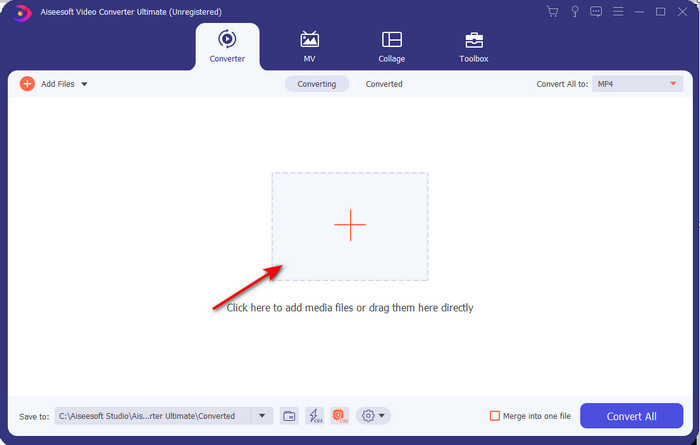
Langkah 2. Jika alat sudah terbuka, buka Add Files atau klik tombol +, lalu sebuah folder akan muncul. Cari file dengan ekstensi .f4v dan klik Open.
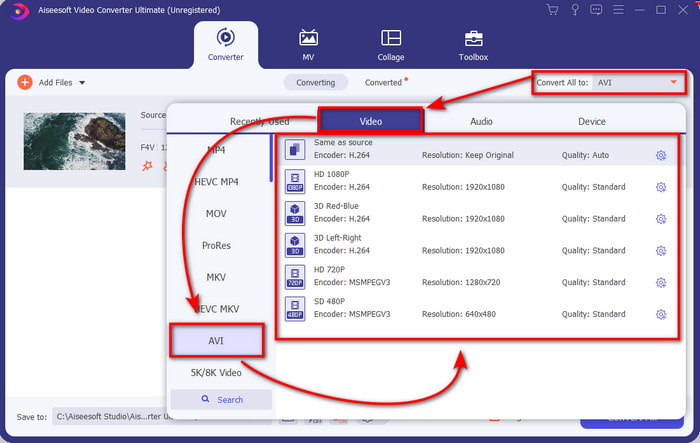
Langkah 3. Setelah memasukkan file, klik Convert All to di bagian kanan atas antarmuka dan pilih format AVI.
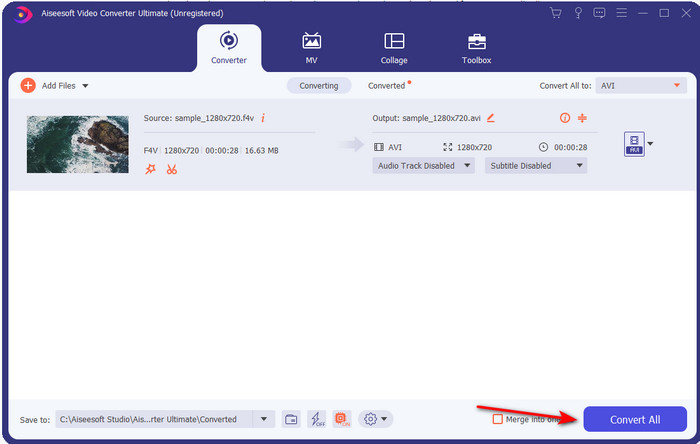
Langkah 4. Sekarang, untuk memulai proses konversi, klik Convert All. Tunggu beberapa menit hingga proses mengubah F4V ke AVI selesai.
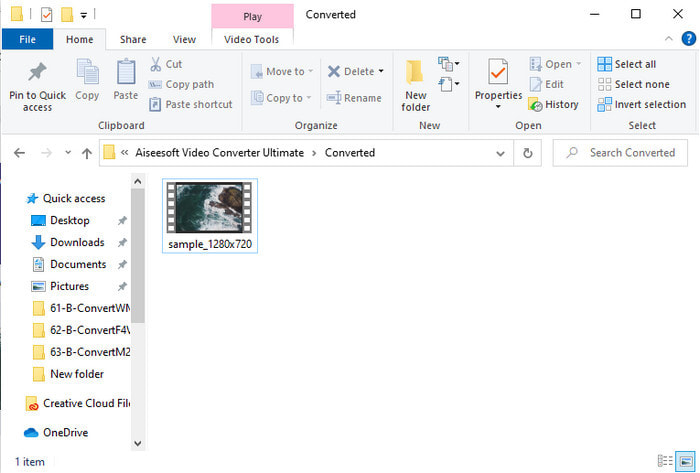
Langkah 5. Sebuah folder akan otomatis terbuka di desktop Anda yang berisi file .f4v yang sudah dikonversi. Klik file video tersebut untuk menonton video yang sebelumnya tidak dapat diputar di desktop Anda, atau pindahkan ke ponsel jika ingin.
Bagian 2. Pelajari Cara Mengonversi F4V ke AVI Online dengan 3 Konverter Web yang Tersedia
1. Konverter Video Online Gratis FVC
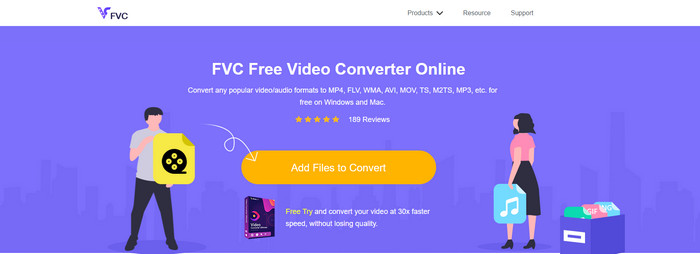
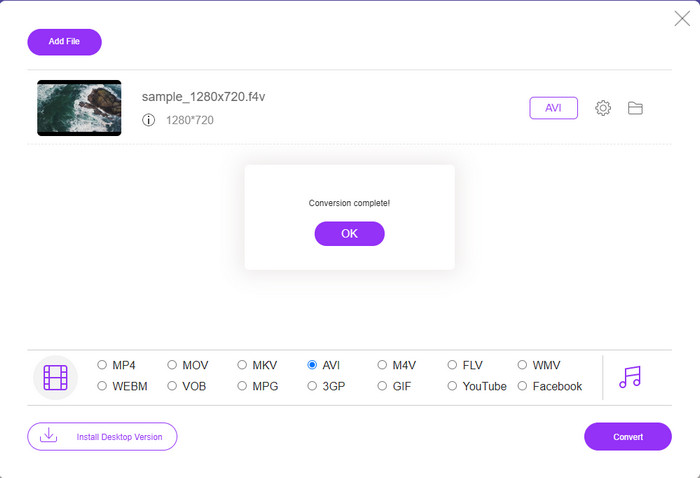
Jika Anda ingin tahu konverter web mana yang terbaik, FVC Free Video Converter Online mungkin jawabannya. Semua fitur yang mungkin Anda sukai tersedia di sini, seperti mengubah bitrate dan fps video untuk meningkatkan kualitas sebelum dikonversi. Jutaan pengguna internet sudah memuji kinerja keseluruhan alat web ini. Selain itu, alat ini mendukung rentang format yang cukup banyak untuk Anda pilih dan unggah. Namun, Anda tidak bisa membuat video terlihat sekeren ketika menggunakan alat ultimate. Meski begitu, jika Anda ingin mencoba dan mengonversi F4V ke format AVI, ikuti langkah-langkah berikut.
Langkah 1. Klik tautan ini untuk pergi ke FVC Free Video Converter Online.
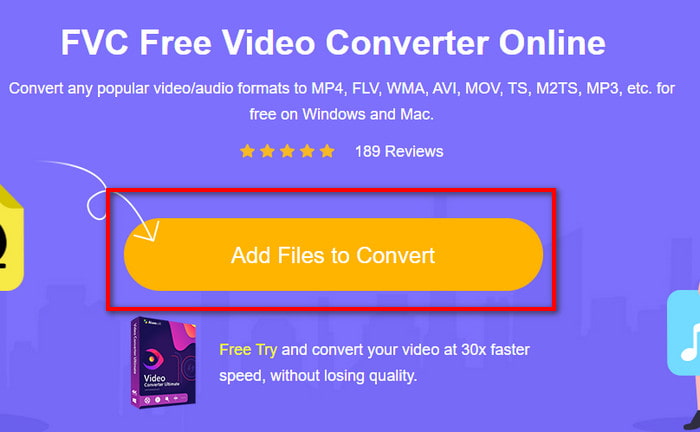
Langkah 2. Kemudian tekan Add Files to Convert untuk meluncurkan alat dan pilih file yang ingin Anda konversi ke format baru di folder dengan mengklik Open.
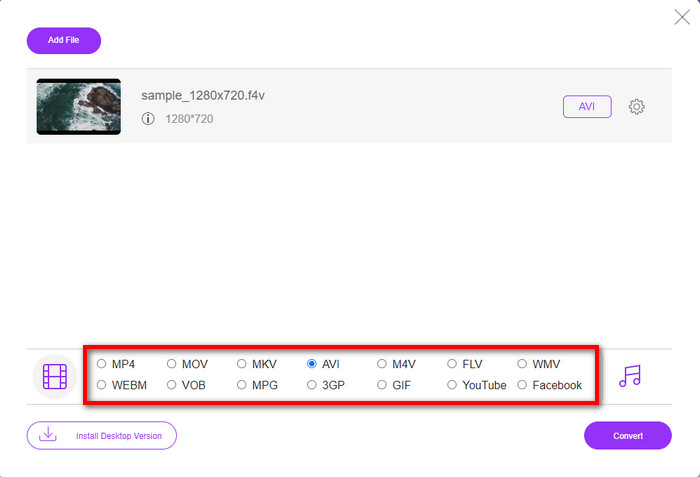
Langkah 3. Setelah file masuk, pilih format AVI di bagian bawah di antara format apa pun yang Anda inginkan.
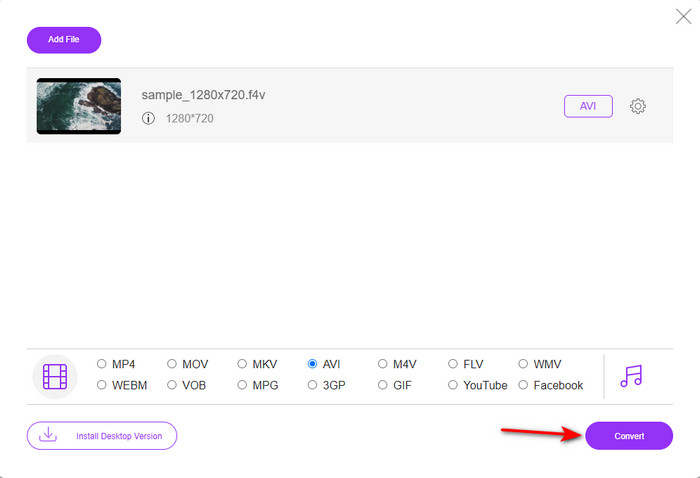
Langkah 4. Setelah memilih format AVI, sekarang saatnya untuk mengonversi dengan mengklik tombol Convert.
Langkah 5. Tunggu beberapa menit hingga file selesai diunduh, lalu sebuah folder akan muncul berisi file yang telah dikonversi.
2. Zamzar
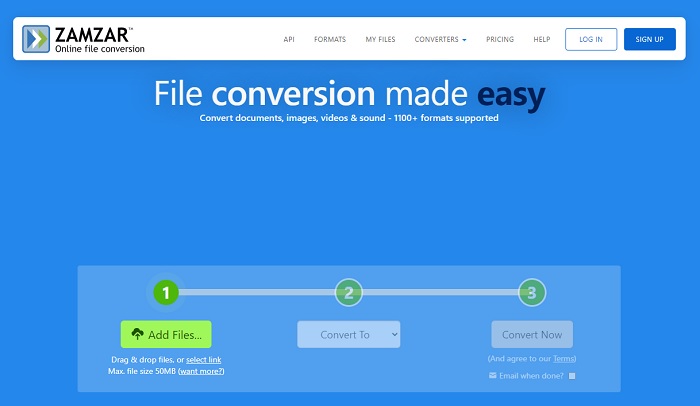
Alternatif konverter lain yang dapat Anda gunakan secara online adalah Zamzar. Sama seperti konverter lainnya, alat ini memerlukan koneksi internet untuk digunakan atau diakses. Semua alat web yang kami sebutkan di sini memang membutuhkan internet untuk menjalankan proses konversi. Karena banyak pengguna memakainya, Zamzar menjadi populer karena mendukung banyak format yang bisa Anda gunakan dan pilih. Selain itu, alat ini dapat digunakan secara gratis, namun ada batasan ukuran file yang bisa dikonversi. Jadi, jika file .f4v Anda lebih dari 50MB, Anda tidak bisa mengonversinya di sini seperti yang dijelaskan di bawah. Jika ukuran file Anda lebih kecil dari itu, Anda dapat mencoba menggunakan alat ini untuk mengonversi F4V ke AVI secara online dengan mengikuti prosedur di bawah ini.
Langkah 1. Buka peramban web Anda dan cari Zamzar.
Langkah 2. Tekan Add Files dan cari file yang ingin Anda konversi. Lalu pilih format AVI pada bagian Convert to, setelah itu klik Convert.
Langkah 3. Tunggu prosesnya; kemudian antarmuka baru akan muncul, dan klik Download untuk menyimpan file.
3. Konversi File
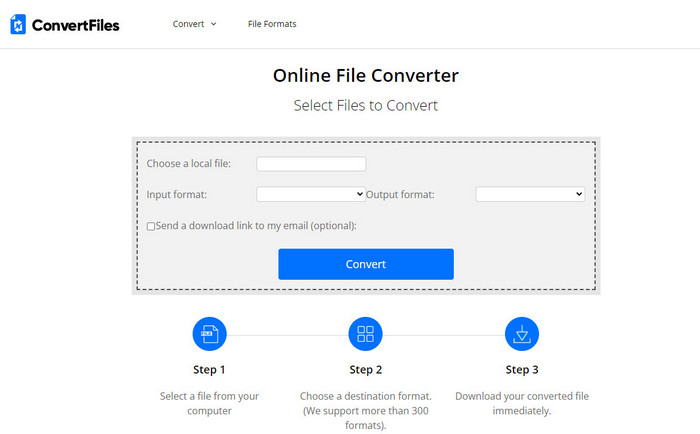
Jika Anda menginginkan proses konversi yang lebih sederhana dan hanya memakan beberapa menit, cobalah menggunakan ConvertFiles. Alat ini bekerja dengan baik selama proses konversi maupun setelah konversi selesai. Tetapi iklan yang terlalu banyak di antarmuka web membuat alat ini kurang nyaman digunakan. Selain itu, prosesnya memakan waktu lebih lama dibandingkan konverter lain, baik online maupun offline. Namun ukuran file yang dapat Anda masukkan di sini lebih besar daripada di Zamzar. Jadi, jika Anda ingin menggunakan alat ini untuk mengonversi file F4V ke AVI, ikuti langkah-langkah berikut.
Langkah 1. Buka peramban web Anda dan cari ConvertFiles, lalu buka situsnya.
Langkah 2. Klik Choose a Local File untuk membuka folder dan mencari file, kemudian di bawah Output Format pilih AVI. Lalu klik Convert untuk memulai proses konversi.
Langkah 3. Setelah konversi selesai, klik URL berwarna biru yang akan membawa Anda ke halaman web baru. Klik tautan tersebut untuk mengunduh format yang telah dikonversi.
Bagian 3. Format Mana yang Lebih Baik; F4V vs. AVI
Nah, F4V dan AVI melakukan pekerjaan mereka sebagai wadah yang terbaik. Namun, ada banyak kesamaan dari format ini, dan tujuannya tidak sama. Misalnya, jika Anda ingin menyimpan video berkualitas tinggi dalam ukuran file kecil dan menyimpan serta melindungi data video DRM MPEG-4, F4V adalah pilihan terbaik. Tetapi misalkan Anda ingin menyimpan video berkualitas tinggi yang mendukung pemutaran media yang disinkronkan. Dalam hal ini, Anda harus memilih format AVI karena memiliki wadah yang berbeda untuk audio dan video. Meskipun demikian, ukuran file AVI terlalu banyak untuk ditangani oleh banyak perangkat dan bahkan desktop karena tidak terkompresi.
Bagian 4. FAQ tentang Konversi F4V ke AVI
Apakah mengonversi F4V menurunkan resolusi setelah mengonversi?
Resolusi video harus mempertahankan kualitas aslinya bahkan setelah Anda mengubahnya menjadi format baru. Dalam beberapa kasus, banyak pengguna mengalami bahwa kualitas F4V mereka menjadi lebih rendah. Salah satu alasannya pasti karena tingkat kualitas yang Anda tetapkan rendah, atau alat yang Anda gunakan tidak mendukung video 1080 atau 4k.
Mengapa F4V tidak dapat diputar di pemutar media saya?
Format ini dapat diputar di beberapa pemutar media, tetapi tidak semua pemutar media mendukung format ini. Jadi, jika Anda ingin menonton video dalam format ini, pilihan terbaik adalah mengonversinya ke format baru atau mencari pemutar media pihak ketiga untuk menonton video F4V Anda.
Apakah saya perlu mengompres F4V agar ukurannya lebih kecil?
Ukuran file F4V tidak terlalu besar dibandingkan format AVI. Namun jika Anda mencoba mengompres wadah file ini, ada kemungkinan kualitas video akan menurun. Di sini Anda dapat mempelajari cara mengompres video F4V Anda.
Kesimpulan
Saat kami mengakhiri artikel ini, kami sekarang memiliki wawasan tentang apa itu F4V dan mengapa Anda perlu mengonversinya. Semua perangkat lunak online dan offline yang disebutkan dalam artikel ini berfungsi dengan baik. Meskipun semua alatnya bagus, FVC Video Converter Ultimate tetap menonjol di antara yang lain. Karena perangkat lunak ini bekerja dengan baik, Anda tidak memiliki koneksi internet, dan alat ini dapat menyelesaikan proses konversi dalam sekejap mata. Jadi sekarang, jika Anda ingin mengalami konversi fenomenal yang sedang kita bicarakan, maka unduh sekarang.
-
 Cara Mengonversi TS menjadi AVI / MKV / MOV / WMV Online & Gratis di Win / Mac
 Ingin mengonversi file TS ke AVI / MKV / MOV / WMV dengan cepat? Artikel ini menunjukkan konverter video online dan offline dengan panduan lengkap. Mungkin Anda bisa mendapatkan konverter TS gratis terbaik di sini.
-
 [Gratis & Daring] 7 Cara Mengonversi MTS ke AVI di Komputer Mac/Windows
 Bagaimana cara mengubah MTS ke AVI dengan mudah? Dalam panduan ini, Anda akan menemukan 7 cara gratis dan mudah untuk mengonversi file MTS ke AVI di Windows atau Mac tanpa kehilangan kualitas.
-
 Tutorial untuk Mengkonversi File MP4 ke AVI dengan 7 Pengonversi Video Gratis
 Ingin mendapatkan semua cara gratis untuk mengonversi video AVI ke MP4? Anda tidak boleh melewatkan artikel ini. Berikut 7 cara mengonversi file AVI ke MP4 secara gratis di Windows, Mac, iPhone, Android, dan online.
