


 Video Converter Ultimate
 Perekam Layar
 Perbaikan Video
Konversi MPEG ke AVI dengan 5 Pengonversi Video MPEG ke AVI yang Dapat Diakses
MPEG adalah salah satu format terbaik yang mungkin sudah pernah Anda temui karena menyimpan file video dan audio. Selain itu, ini bukan hanya wadah (container), tetapi juga menggunakan kompresi MPEG‑1 dan MPEG‑2. Namun, MPEG‑1 dan MPEG‑2 adalah format lama yang dulu digunakan pada Blu‑ray. Jadi sekarang, kami akan menjelaskan cara meningkatkannya dengan mengonversi format tersebut ke AVI. Pada daftar di bawah ini, kami menyajikan berbagai alat yang dapat Anda gunakan untuk mengonversi MPEG ke AVI serta penjelasan lebih mendalam tentang MPEG dan AVI.
Bagian 1. Penjelasan Singkat Tentang Format File MPEG dan AVI
MPEG dan AVI adalah salah satu format terbaik yang dapat Anda gunakan untuk menyimpan file media. Meskipun bagus, masih ada beberapa alasan mengapa Anda perlu menggunakan konverter video MPEG ke AVI. Namun untuk saat ini, kami akan menjelaskan banyak detail tentang kedua format tersebut dan memiliki gambaran tentang MPEG dan AVI.
Seperti yang dikatakan sebelumnya, MPEG tidak hanya sebagai wadah, tetapi juga memiliki kompresor bawaan. Pada dasarnya, ini adalah format file tujuan ganda. Juga, format ini menjadi format yang paling banyak digunakan pada Blu-ray karena kualitas dan kompresi yang diberikannya. Selain itu, format MPEG diklasifikasikan menjadi 6 tetapi kami akan membahas dua yang umum digunakan dan itu adalah MPEG-1 dan MPEG-2. Selanjutnya, MPEG-1 adalah generasi pertama dari MPEG. Format ini menyimpan resolusi berbasis standar tetapi dibandingkan dengan resolusi format lain, MPEG-1 jauh lebih rendah. Meskipun MPEG-2 menawarkan kualitas yang jauh lebih baik daripada MPEG-1, namun MPEG-2 bekerja paling baik pada Blu-ray dan DVD. Selain itu, format ini paling sering digunakan oleh stasiun TV untuk mentransfer dan memutar video.
Namun AVI sangat berbeda dari MPEG karena tidak terkompresi. Kualitas yang diberikan format ini juga tinggi karena tidak mengompres file yang dikandungnya. Meskipun ukuran format ini sangat besar, format ini tetap mendapatkan banyak dukungan di semua platform dibandingkan dengan file MPEG.
Bagian 2. 2 Konverter Terbaik yang Digunakan untuk Mengonversi MPEG ke Format AVI Offline
1. FVC Video Converter Ultimate
Jika Anda mencari konverter dan pengunduh MPEG ke AVI serbaguna, maka FVC Video Converter Ultimate harus menjadi alat pilihan Anda. Alat ini sudah menempati posisi tinggi dalam artikel ini karena fitur dan kesederhanaan yang ditawarkannya. Meskipun mudah digunakan, Anda dapat memperoleh hasil luar biasa yang selalu Anda inginkan. Selain itu, tidak seperti konverter lain, perangkat lunak ini menetapkan standar pada level yang tinggi. Jadi, jika Anda ingin mencapai keberhasilan 100% sebelum, selama, dan setelah proses konversi, maka Anda wajib menggunakan alat ini. Sekarang, mari lanjut ke tutorial langkah demi langkah cara menggunakan FVC Video Converter Ultimate.
Langkah 1. Untuk mengunduh alat ini ke desktop Anda, klik tombol yang ditampilkan di bawah. Instal setelah proses pengunduhan selesai, lakukan pengaturan cepat dan klik Start Now.
Unduh GratisUntuk Windows 7 atau yang lebih baruUnduhan Aman
Unduh GratisUntuk MacOS 10.7 atau yang lebih baruUnduhan Aman
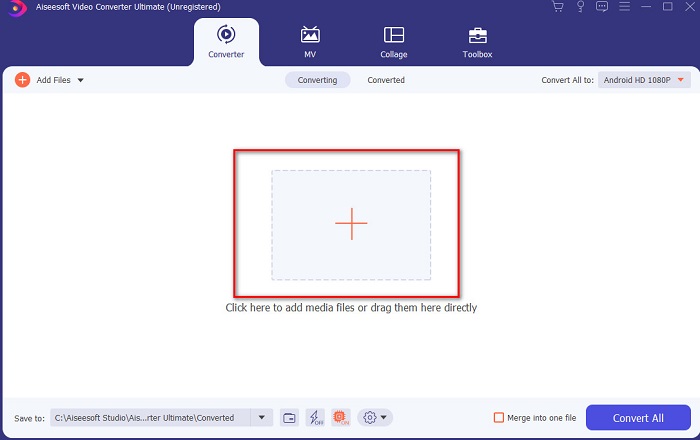
Langkah 2. Antarmuka alat akan terlihat seperti ini lalu klik tanda + di bagian tengah. Sebuah folder akan muncul di layar Anda, kemudian pilih file video MPEG yang ingin Anda konversi dan klik Open.
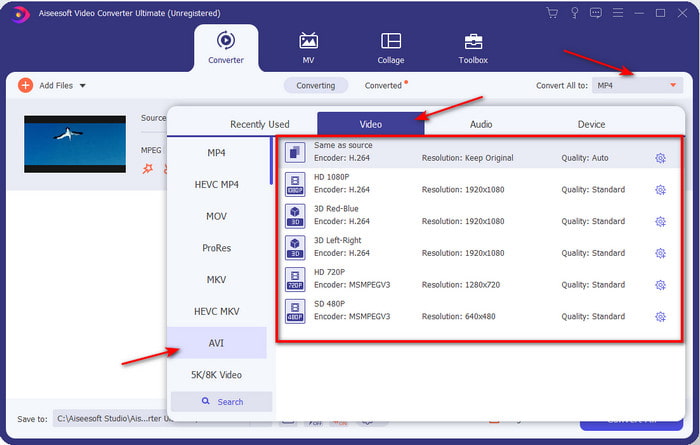
Langkah 3. Jika file sudah berada di antarmuka, klik Convert All to: dan cari format AVI.
Langkah 4. Sekarang, untuk memulai konversi film MPEG‑4 ke format AVI tekan Convert All.
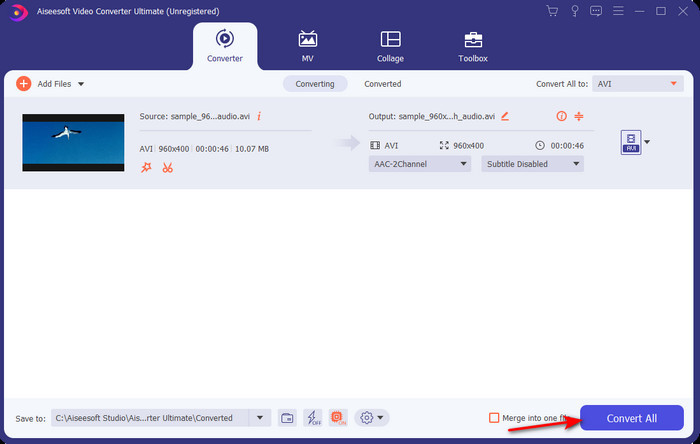
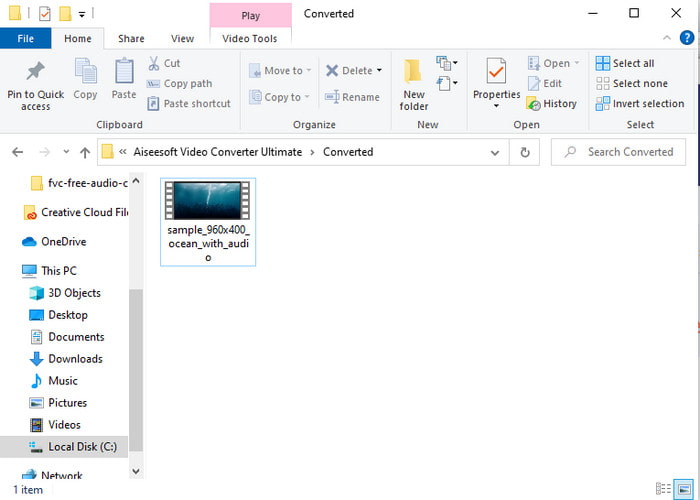
Langkah 5. Proses mengunduh file hanya akan memakan waktu beberapa menit dan jika sudah selesai, sebuah folder akan muncul berisi format yang sudah dikonversi. Sekarang, klik file tersebut untuk menonton format baru dari MPEG Anda.
2. FFmpeg
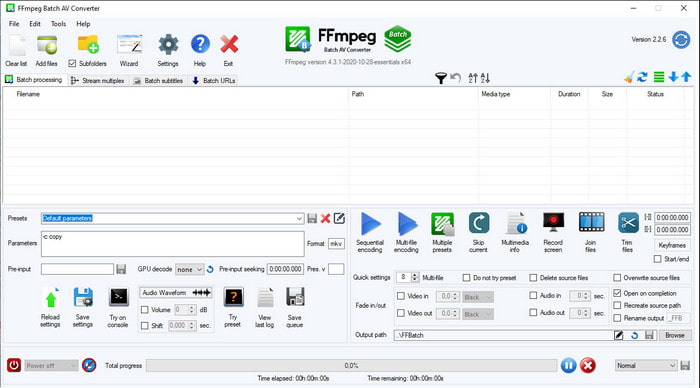
Perangkat lunak lain yang tersedia dalam daftar ini adalah FFmpeg. Jika Anda mencari perangkat lunak open‑source, ini adalah salah satu pilihan yang dapat Anda temukan di web. Namun, antarmuka alat ini cukup sulit dipahami, terutama bagi pemula maupun pengguna tingkat lanjut. Proses konversi di sini secara umum sangat baik dan menghasilkan keluaran berkualitas tinggi seperti konverter lainnya. Jadi, jika Anda ingin mengonversi MPEG ke AVI menggunakan FFmpeg, ikuti langkah‑langkah berikut karena kami telah menyusunnya agar mudah dipahami.
Langkah 1. Unduh FFmpeg ke desktop Anda dan buat folder baru lalu di dalamnya ekstrak (unzip) file tersebut.
Langkah 2. Cari CDM di Windows Anda dan buka.
Langkah 3. Temukan file menggunakan command prompt, lalu masukkan kode ini ffmpeg -i input.mpeg -vn -ar 44100 -ac 2 -b:a 192k output.avi dan tekan Enter pada keyboard Anda untuk memulai proses.
Bagian 3. 3 Konverter Terbaik yang Digunakan untuk Mengonversi MPEG ke Format AVI Online
3. Konverter Video Gratis FVC
Jika Anda mencari konverter MPEG ke AVI online gratis terbaik, maka FVC Free Video Converter adalah konverter online yang akan cocok dengan kebutuhan Anda, karena antarmuka web tool ini sangat sederhana. Hal hebat lainnya dari alat online ini adalah Anda dapat dengan mudah mengaksesnya melalui browser favorit Anda. Selain itu, konversi dengan alat ini tidak memiliki batasan, yang berarti Anda dapat mengonversi format apa pun kapan saja. Namun, Anda tidak dapat melakukan konversi batch di sini seperti pada FVC Video Converter Ultimate. Sekarang, jika Anda ingin mencoba dan menggunakan alat online ini, ikuti langkah‑langkah yang disediakan di bawah.
Langkah 1. Untuk pergi ke situs utama konverter FVC, Anda harus mengklik tautan ini terlebih dahulu.
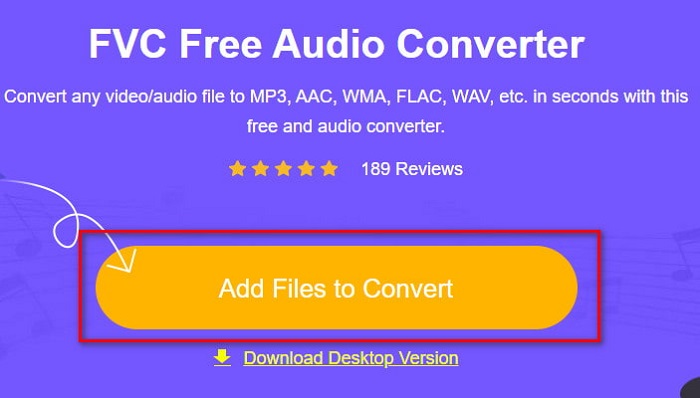
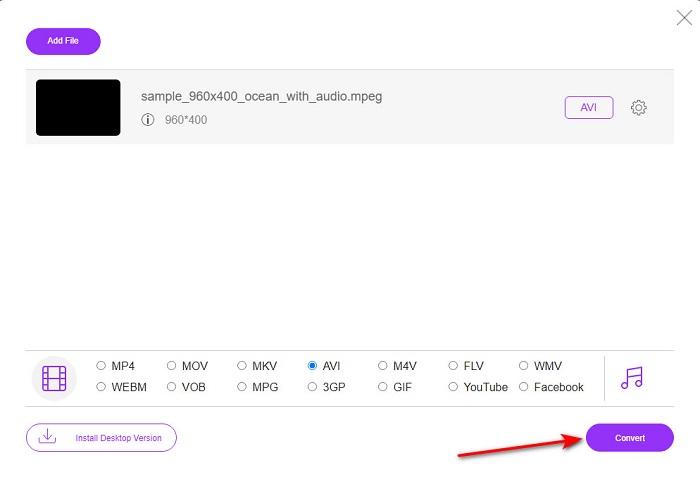
Langkah 2. Klik Add Files to Convert lalu web tool akan diluncurkan dan sebuah folder akan muncul. Temukan file tersebut dan klik Open.
Langkah 3. Setelah web tool diluncurkan, pilih format yang ditampilkan di bagian ini.
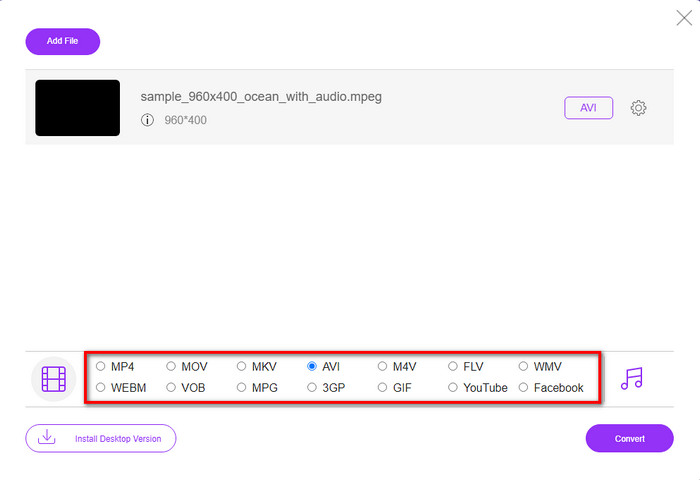
Langkah 4. Jika Anda sudah memilih formatnya, sekarang saatnya mengonversi dengan mengklik tombol Convert.
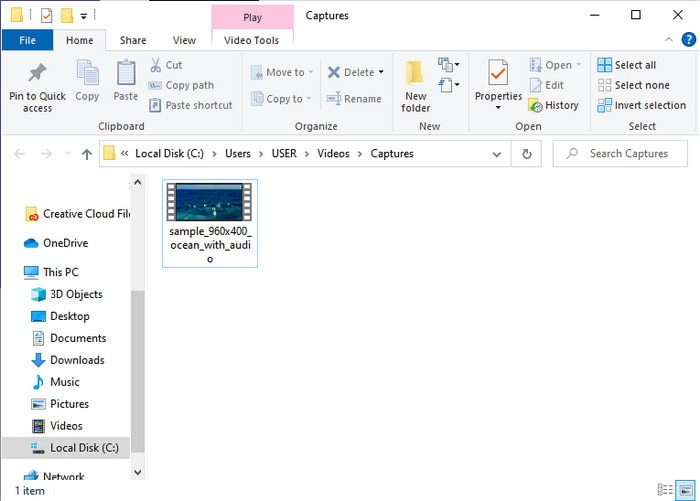
Langkah 5. Tunggu beberapa saat hingga proses segera dimulai. Jika proses sudah selesai, sebuah folder akan muncul berisi file hasil konversi yang Anda buat sebelumnya.
4. Freeconvert.com
Sama seperti alat online yang disebutkan di atas, ini adalah alat online lain yang dapat Anda gunakan, yaitu Freeconvert.com. Web tool ini sudah cukup populer di kalangan pengguna di internet. Banyak pengguna juga memuji alat ini karena kemudahan penggunaan dan berbagai fungsinya. Namun, jika Anda memilih web tool ini, ada kekurangan utama: format yang didukung oleh web tool ini terbatas. Selain itu, proses konversi di sini sedikit lebih lambat dari yang diharapkan. Sekarang, jika Anda ingin mengetahui cara menggunakan konverter online ini, ikuti langkah‑langkah berikut.
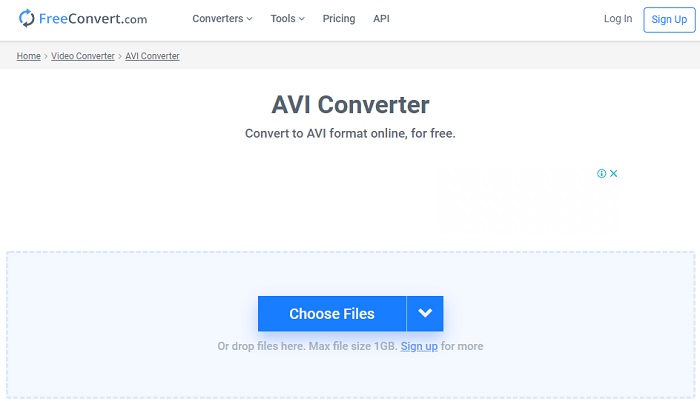
Langkah 1. Cari situs freeconvert.com di web Anda. Lalu klik AVI di bawah Video Converters.
Langkah 2. Tekan Choose File dan cari file MPEG di folder yang akan muncul berikutnya. Setelah pemilihan file selesai, klik Convert To AVI.
Langkah 3. Tunggu hingga proses pengunggahan selesai, lalu klik Download AVI untuk menyimpan file.
Bagian 4. FAQ tentang Konversi MPEG ke AVI
Apakah mengkonversi MPEG kehilangan kualitas?
Yah, itu tergantung pada format apa Anda akan mengubahnya. Jadi, jika Anda mengubah MPEG ke GIF, maka Anda akan mengharapkan perubahan drastis karena mendukung kombinasi warna yang lebih sedikit daripada format lainnya. Namun, jika Anda menggunakan format lain selain GIF, maka tidak ada kerugian.
Apakah MPEG lossy atau lossless?
MPEG mendukung kompresi lossy jadi jika Anda menggunakan format ini maka harapkan ukuran file yang lebih kecil bahkan jika Anda memiliki video dan audio yang panjang.
Apakah MPEG format yang bagus?
Sebelum itu adalah salah satu format terbaik yang dapat Anda gunakan untuk menyimpan data di DVD Anda. Namun, di era ini, MPEG bukanlah pilihan terbaik untuk menyimpan data. Tetapi jika Anda ingin menyimpannya di DVD, CD, atau Blu-ray dan mentransfernya lebih cepat, maka ini harus menjadi pilihan.
Kesimpulan
Singkatnya, semua perangkat lunak online dan offline yang disajikan di sini bagus untuk digunakan untuk mengonversi format. Namun, ada satu alat yang membuktikan bahwa Anda dapat mencapai konversi yang fenomenal dengan mudah dengan FVC Video Converter Ultimate. Bahkan, kami dapat menjelaskannya dalam 3 kata dan itu mudah digunakan, efektif, dan juga aman. Jadi, jika Anda ingin mencapai kehebatan, unduh alat ini sekarang dan coba.
-
 Cara Mengonversi File MPEG ke MP4 secara Gratis di Windows, Mac, Online
 Baca dan dapatkan 3 cara gratis untuk mengonversi file MPEG ke MP4 di komputer Anda. Anda dapat menggunakan konverter video online dan desktop untuk mengubah format MPEG ke MP4 dengan mudah.
-
 [2021] Alat Terbaik dan Cara Mudah Cara Mengonversi MPEG ke MP3
 Artikel ini terutama berbicara tentang bagaimana Anda dapat mengonversi video MPEG Anda ke MP3 dengan menggunakan alat paling andal dalam daftar.
-
 Tutorial untuk Mengkonversi File MP4 ke AVI dengan 7 Pengonversi Video Gratis
 Ingin mendapatkan semua cara gratis untuk mengonversi video AVI ke MP4? Anda tidak boleh melewatkan artikel ini. Berikut 7 cara mengonversi file AVI ke MP4 secara gratis di Windows, Mac, iPhone, Android, dan online.
