


 Video Converter Ultimate
 Perekam Layar
 Perbaikan Video
Proses Konversi Online dan Offline: SWF ke WMV
SWF adalah format file lama yang dibuat oleh Adobe untuk pemutar Shockwave Flash. Flash sudah tidak lagi didukung oleh banyak browser, tidak pernah didukung oleh perangkat iOS, dan format file SWF kini jarang digunakan karena masalah kinerja dan keamanan. Di sisi lain, WMV adalah sekumpulan codec kompresi video yang dibuat untuk streaming video internet pada masa awal dan media fisik seperti HD-DVD dan Blu-Ray. Video dengan format file ini dapat diputar secara native di perangkat Windows, sehingga Anda mungkin ingin mengonversi file SWF ke WMV karena pemutar Flash semakin tidak didukung dan Anda tidak lagi dapat memutar file SWF. Oleh karena itu, kami menyediakan dua opsi untuk mengonversi SWF Anda ke WMV.

Bagian 1. Cara Mengonversi SWF ke WMV di Windows dan Mac dengan Mudah
Video Converter Ultimate adalah konverter multimedia yang dapat mengonversi hampir semua file video dan audio utama ke format keluaran yang Anda inginkan. Perangkat ini dapat mengonversi file video secara batch, menjadikannya lebih kuat daripada yang terlihat. Fungsinya tidak berhenti pada konversi; ia juga memungkinkan pengguna memodifikasi video mereka dengan bantuan alat pengeditan yang bermanfaat. Selain itu, konverter video ini mendukung berbagai format, termasuk yang paling banyak digunakan saat ini. Lebih penting lagi, ia mengonversi dengan kecepatan lebih tinggi dibandingkan perangkat lunak sejenis. Untuk menggunakan perangkat lunak ini, ikuti langkah-langkah sederhana berikut:
Langkah 1: Klik tombol Free Download untuk mengunduh file .exe yang Anda perlukan untuk memasang perangkat lunak. Tunggu hingga selesai, buka file tersebut, dan ikuti proses instalasi sampai tuntas. Klik Start Now dan jalankan perangkat lunak.
Unduh GratisUntuk Windows 7 atau yang lebih baruUnduhan Aman
Unduh GratisUntuk MacOS 10.7 atau yang lebih baruUnduhan Aman
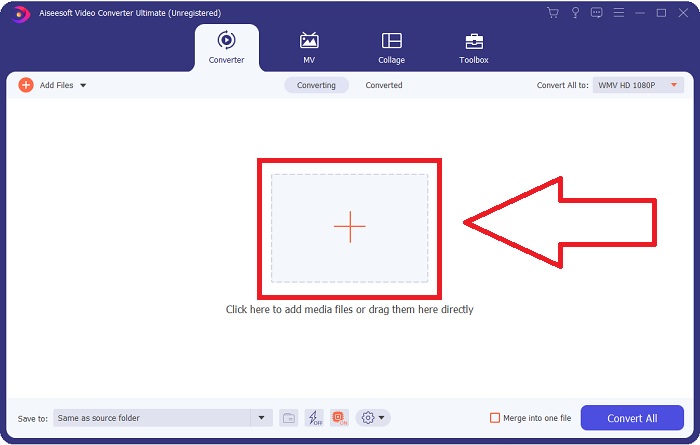
Langkah 2: Unggah file video yang ingin Anda konversi dengan mengklik tombol + di tengah antarmuka. Atau, seret file dari desktop dan jatuhkan ke antarmuka, dan file akan diimpor secara otomatis.
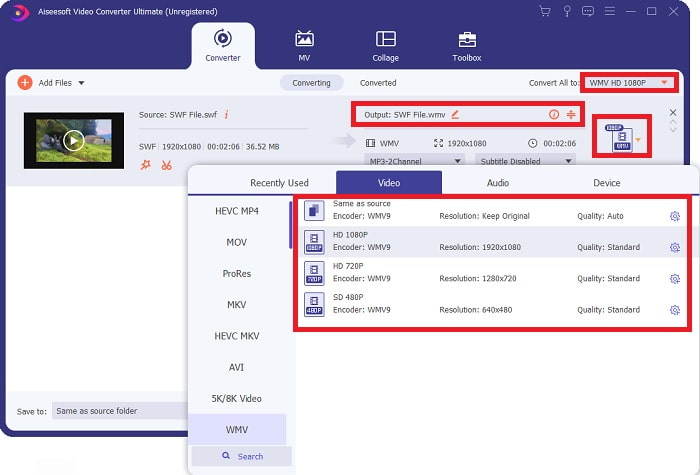
Langkah 3: Klik tanda panah drop-down di sebelah kanan, di mana Anda akan melihat format saat ini dari video Anda, dan akan ditampilkan semua format yang tersedia untuk dipilih. Dalam hal ini, gulir ke bawah dan pilih WMV atau cukup ketikkan di bilah pencarian. Semua kualitas video juga tersedia untuk dipilih pada panel kanan.
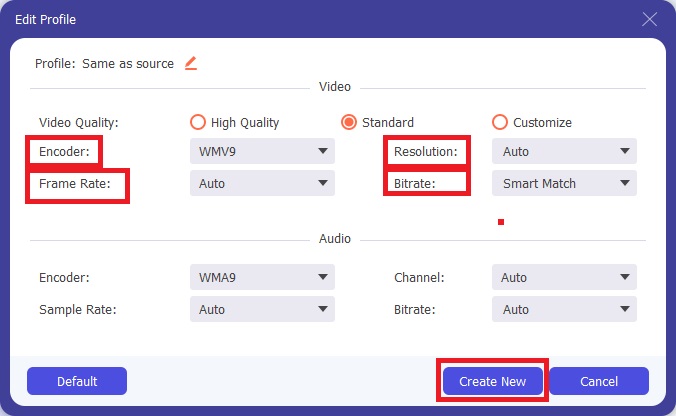
Langkah 4: Untuk mengedit video Anda lebih lanjut, klik ikon roda gigi di sebelah kanan untuk menampilkan semua alat pengeditan yang praktis. Dari sana, Anda dapat melakukan semua penyesuaian yang diperlukan yang paling sesuai dengan kebutuhan Anda. Cukup klik tombol Create New setelah Anda selesai.
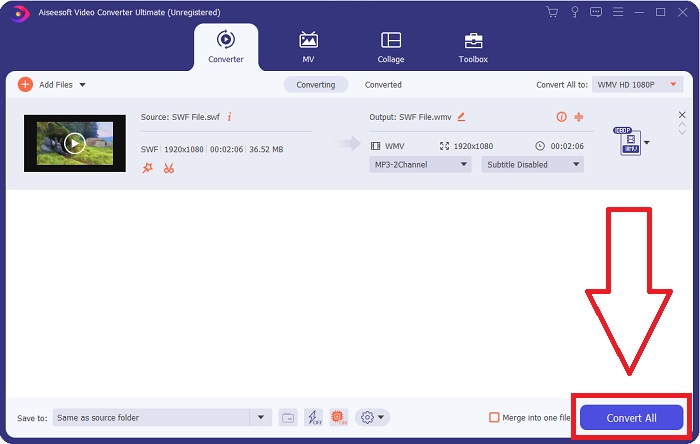
Langkah 5: Selesaikan proses konversi dengan mengklik tombol Convert All di sudut kanan bawah jendela dan tunggu hingga prosesnya selesai.
Bagian 2. Tip Lain untuk Mengkonversi SWF ke WMV Online
FVC Free Video Converter selalu gratis dan tidak memerlukan registrasi. Beberapa konverter video online gratis membatasi kerangka waktu konversi atau ukuran file. Jika Anda telah menggunakan semua waktu konversi gratis atau file Anda terlalu besar, Anda harus membeli paket, meskipun Anda jarang mengonversi video. Tetapi FVC Free Video Converter tidak memiliki batasan seperti itu dan dapat mengonversi video kapan saja.
Selain itu, layanan ini tidak memerlukan pendaftaran untuk mengonversi file yang lebih besar, tidak seperti kebanyakan konverter video online memerlukan pendaftaran untuk mengonversi video yang lebih besar dari 1GB. Berikut adalah langkah-langkah yang perlu Anda ikuti untuk alat yang fantastis ini:
Langkah 1: Untuk membuka situs web, klik tautan ini. Lalu, unduh peluncur dengan cepat dengan mengklik tombol Add Files to Convert dan tunggu hingga selesai.
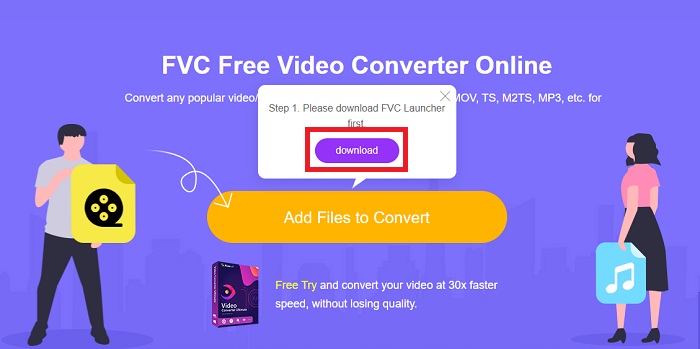
Langkah 2: Klik lagi tombol tersebut, dan kali ini Anda akan dapat mengunggah file video yang ingin Anda konversi. Setelah itu, pilih WMV di antara semua format yang tersedia.
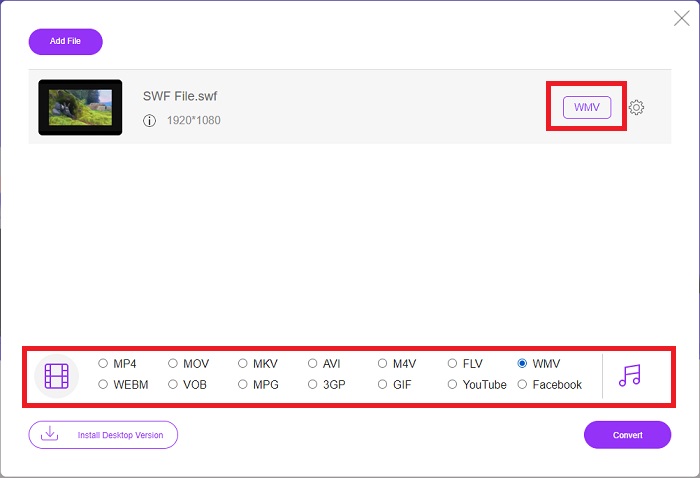
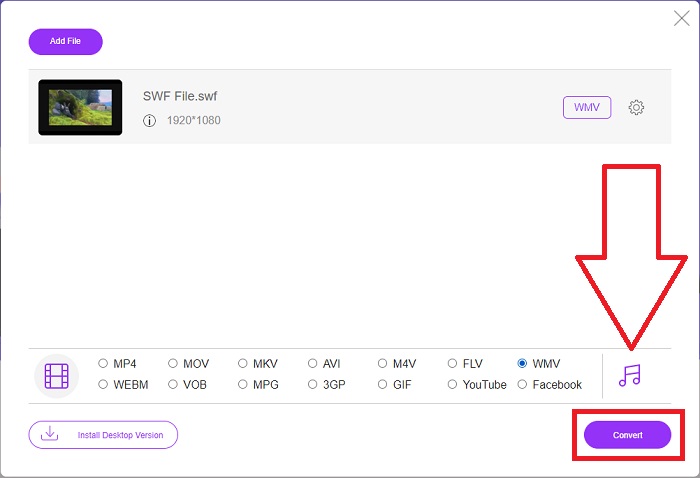
Langkah 3: Anda tetap dapat menggunakan alat pengeditan praktis seperti pada perangkat lunaknya. Cukup klik ikon roda gigi, dan akan ditampilkan semua penyesuaian yang dapat Anda lakukan. Untuk menyimpan perubahan yang dibuat, klik OK dan setelah Anda selesai menyesuaikan, klik Convert untuk memulai proses.
Terkait:
Bagian 3. Pengetahuan Luas Tentang Format SWF dan WMV
Jika Anda ingin tahu lebih banyak tentang kedua format tersebut, lanjutkan membaca artikel ini. Kami menyediakan semua informasi penting dan penting yang mungkin Anda perlukan sebagai latar belakang.
Adobe menggunakan format file SWF untuk menyimpan film dan animasi berbasis vektor. Small Web Format adalah singkatannya; namun, ini juga dikenal sebagai Format ShockWave. Biasanya digunakan untuk menyiarkan video melalui internet, terutama game berbasis browser. Sayangnya, Adobe menyatakan akan berhenti mendukung format Flash pada akhir tahun 2020 karena masalah kinerja dan keamanan.
Di sisi lain, file WMV adalah file Windows Media Video yang dapat dikompres menggunakan satu atau lebih format kompresi video Microsoft. Ini adalah format penyimpanan video yang populer di Windows, oleh karena itu digunakan oleh aplikasi pihak ketiga tertentu untuk hal-hal seperti animasi pendek. Ini dirancang untuk bekerja dengan pemutar media Microsoft seperti Windows Media Player dan Movies & TV. Untuk digunakan dengan sistem Manajemen Hak Digital (DRM), file WMV dapat dienkripsi.
| Format Web Kecil | Video Windows Media | |
| Ekstensi File | .swf | .wmv |
| Pengembang | Adobe Systems Incorporated | Microsoft |
| Program Pendukung | Adobe Flash Player Adobe Flash CC Profesional Pemain GOM Adobe Dreamweaver 2020 | Pemutar Media VLC MPplayer Pemutar Media Klasik Pemutar Media Windows |
Bagian 4. FAQ tentang Konversi SWF dan WMV
Apa gunanya file WMV?
File video WMV adalah format terbaik untuk menjual materi video secara online atau melalui HD DVD dan Blu-ray Disc.
Apa kegunaan file SWF?
File flash, atau file SWF, sering digunakan untuk distribusi informasi multimedia yang efisien melalui internet.
Bisakah file SWF diedit?
Adobe Flash adalah format file yang digunakan oleh Adobe. Tidak seperti file multimedia lainnya, dan file SWF memerlukan plugin Flash Player untuk melihat browser web. Selanjutnya, Pengguna tidak dapat langsung mengedit file SWF.
Kesimpulan
FVC Video Converter Ultimate adalah pilihan yang sempurna untuk Anda jika Anda seorang pemula atau hanya seorang amatir dalam hal konversi video. Anda tidak terlalu sering mengonversi format video. Manfaatnya, seperti konversi format video yang konstan, konversi file video yang cepat dibandingkan dengan program yang sebanding, pengoperasian yang sederhana, dukungan untuk berbagai format, dan sebagainya, membantunya menjadi pengonversi video terbaik di luar sana. Dalam hal konversi video, Video Converter Ultimate dan yang setara secara online adalah opsi yang paling dapat diterima.
-
 [2 Solusi] Cara Mengonversi File SWF ke GIF dengan Mudah Gratis
 Ketika Anda gagal mengekspor format GIF melalui perangkat lunak Flash, Anda dapat mencoba menyimpan file dalam format SWF terlebih dahulu. Kemudian Anda dapat mempelajari 2 cara mudah untuk mengonversi file SWF ke GIF dari artikel ini.
-
 Top of the Line 5 Pengonversi SWF ke AVI Gratis Terbaik [Berbasis Web & Desktop]
 Apakah Anda ingin tahu cara mengubah file SWF Anda menjadi AVI? Jadi jika tidak, baca artikel ini karena kami memberikan solusi untuk konversi masalah SWF Anda.
-
 [Gratis & Mudah] Alat Luar Biasa untuk Digunakan dalam Mengonversi SWF ke MOV
 Sudahkah Anda mencoba mengonversi SWF ke MOV karena Anda tidak dapat mengedit video? Siapa yang harus disalahkan atas ketidakcocokan editor video Anda? Lanjutkan membaca untuk solusi Anda.
