


 Video Converter Ultimate
 Perekam Layar
 Perbaikan Video
Memiliki Pemahaman Yang Dalam Tentang Penggunaan After Effects untuk Mencapai Gerakan Lambat
Bagi sebagian besar editor yang ingin membuat adegan sinematik dalam video mereka, internet hampir selalu merekomendasikan After Effects; jika tidak, produk Adobe lainnya. Namun bagi pemula yang ingin menggunakannya, After Effects akan selalu tampak seperti platform yang rumit untuk membuat gerak lambat karena langkah-langkah bermasalah yang terus-menerus ditampilkan di antarmukanya. Dalam artikel ini, Anda akan mengetahui semua detail dan prosedur yang akan memandu Anda menjawab pertanyaan tentang cara membuat slow motion di After Effects, sehingga Anda bisa menggunakannya dengan mudah dan menyebut diri Anda editor profesional.

Bagian 1. Cara Membuat Gerakan Lambat di After Effects
After Effects adalah alat penyuntingan video yang digunakan untuk menambahkan efek dan animasi pada film dan klip video; untuk produksi video yang lebih mulus, sebagian besar editor video menggunakannya untuk membuat judul, intro, dan transisi antar klip. Salah satu faktor yang membuat intro dan transisi terlihat bagus adalah menambahkan slow motion dalam suatu adegan, dan After Effects dapat bekerja dengan sangat baik dalam mengubah video berkecepatan normal menjadi slow motion. Sebagai bagian dari Adobe Creative Cloud, Anda bisa mengakses After Effects secara gratis. Alat ini termasuk dalam paket lengkap, tetapi Anda juga bisa membelinya secara terpisah jika hanya itu yang Anda butuhkan. Menggunakan rangkaian alat ini menawarkan keuntungan karena terasa familiar bagi siapa pun yang pernah menggunakan produk Adobe lainnya, sehingga mempelajari fungsi dan interaksi baru menjadi sangat mudah. Untuk membantu Anda lebih mengenal After Effects dan cara membuat slow motion, berikut langkah-langkah yang disediakan:
Langkah 1. Impor klip video Anda dengan mengeklik File di pojok kiri atas dan memilih Import. Lalu, pilih klip video yang ingin Anda edit dan kustomisasi.
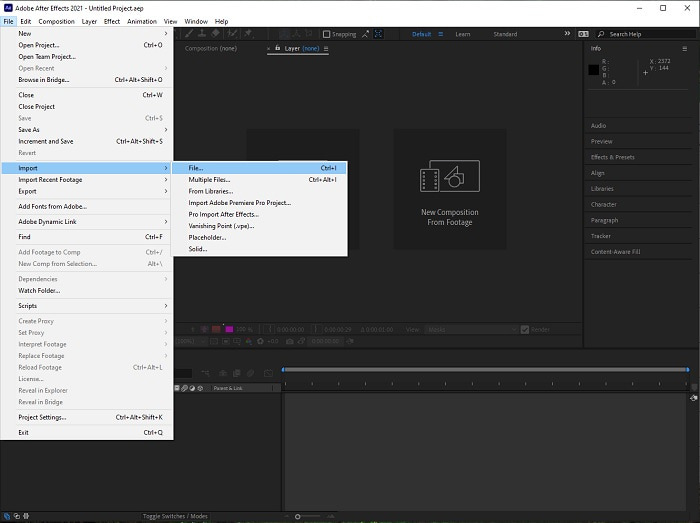
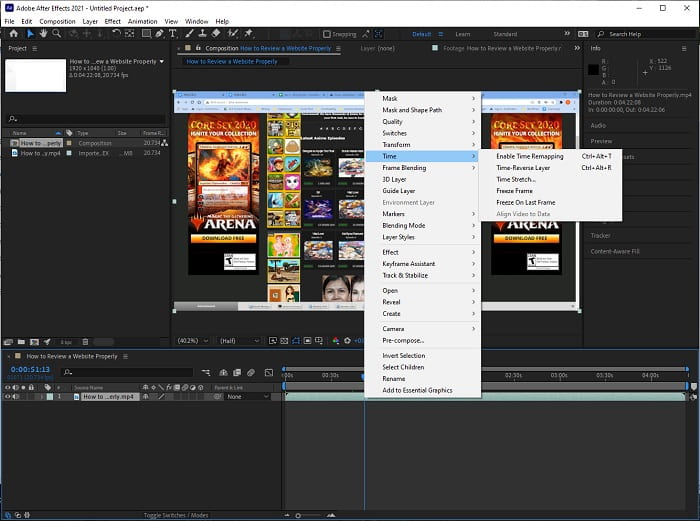
Langkah 2. Seret klip video yang sudah Anda impor ke trek video untuk mulai mengedit. Setelah itu, klik kanan pada file video dan pilih Time; berikutnya pilih Time Stretch.
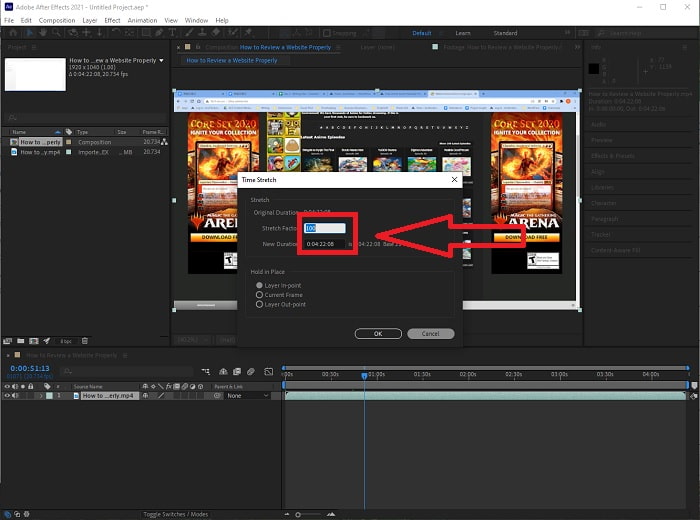
Langkah 3. Sesuaikan Time Stretch dengan menaikkan Stretch Factor dari 100 menjadi 500+ untuk menghasilkan kecepatan pemutaran yang lebih lambat.
Biasanya, ada banyak cara untuk menyesuaikan kecepatan pemutaran atau sekadar membuat video slow motion menggunakan After Effects; beberapa plugin diperlukan untuk membuat video slow-motion, sebagian lainnya hanya mengandalkan alat yang sudah tersedia dalam perangkat lunak yang disebutkan di atas.
Bagian 2. Pendekatan yang Lebih Mudah untuk Membuat Gerakan Lambat di PC Windows dan Mac
Metode 1. Gunakan Video Converter Ultimate
Video Converter Ultimate adalah salah satu perangkat lunak alternatif terbaik untuk After Effects dalam menyediakan alat yang mudah digunakan untuk mengedit dan mempercantik video, khususnya dalam mengontrol kecepatan pemutaran video dan mengubahnya menjadi gerak lambat. Salah satu alat yang tersedia di dalamnya adalah Video Speed Controller, yang memiliki prosedur mudah untuk diikuti dan digunakan agar penyesuaian kecepatan bisa dieksekusi dengan tepat. Selain itu, seperti After Effects, perangkat lunak ini dapat menghasilkan keluaran berkualitas tinggi meskipun Anda mengatur ulang berbagai detail dalam video. Untuk mengetahui lebih lanjut tentang prosedurnya, berikut langkah-langkah yang perlu Anda ikuti:
Langkah 1. Pilih Free Download untuk mulai mengunduh dan menyimpannya ke komputer Anda. Setelah itu, Anda dapat mempersonalisasi dan menyiapkan aplikasinya.
Unduh GratisUntuk Windows 7 atau yang lebih baruUnduhan Aman
Unduh GratisUntuk MacOS 10.7 atau yang lebih baruUnduhan Aman
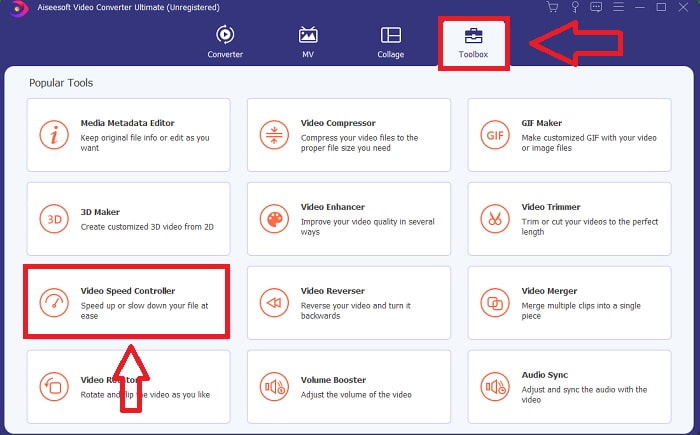
Langkah 2. Setelah perangkat lunak terpasang, jalankan dengan memilih opsi Toolbox dari bilah menu lalu pilih Video Speed Controller dari daftar yang muncul.
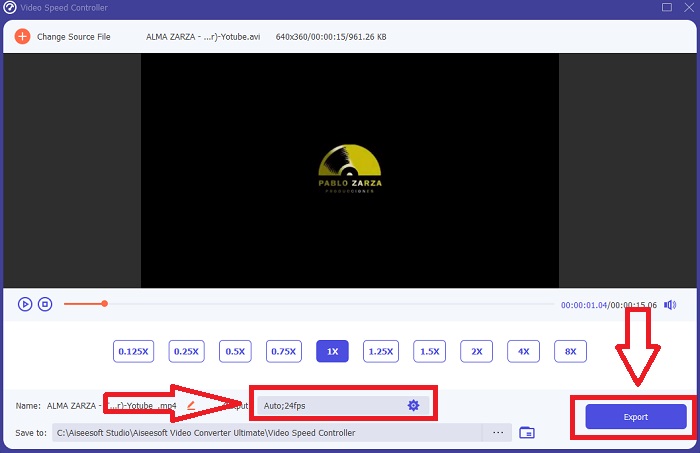
Langkah 3. Cukup jatuhkan file apa pun ke editor klip video dengan mengeklik tombol + di lokasi yang Anda inginkan.
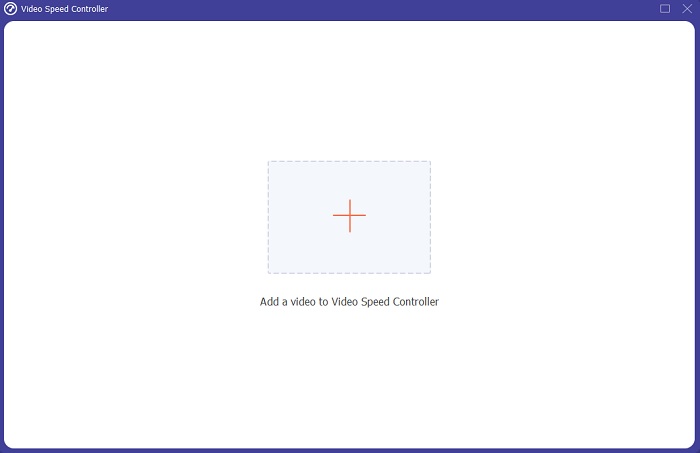
Langkah 4. Anda dapat mengubah kecepatan pemutaran dengan menentukan berapa kali laju video akan meningkat atau menurun selama pemutaran.
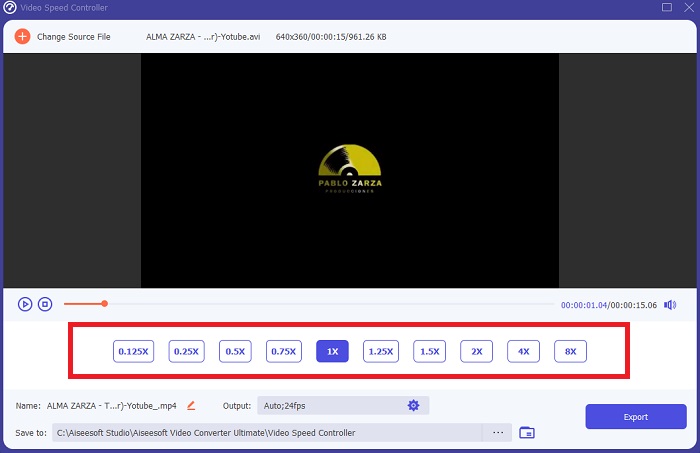
Langkah 5. Anda dapat memilih keluaran yang diinginkan dengan mengubah format, resolusi, dan kualitas klip video setelah selesai menyesuaikan kecepatan pemutaran, lalu periksa apakah slow-motion sudah halus saat Anda menggunakan perangkat lunak ini dibandingkan After Effects. Ketika Anda siap menyimpan hasilnya, pilih Export dari menu File dan tentukan lokasinya.
Terkait:
Metode 2. Gunakan DalamVideo
InVideo adalah alat penyuntingan video berbasis web yang ideal untuk bisnis dari berbagai skala ketika ingin membuat dan membagikan video untuk media sosial dan situs web; InVideo adalah solusi andalan. Juga tersedia pustaka konten gambar dan video yang diambil dari berbagai repositori online seperti Storyblocks dan Shutterstock yang dapat diintegrasikan ke dalam aplikasi. Berbeda dengan alat web sebelumnya yang dibahas dalam artikel ini, Anda harus terlebih dahulu memasukkan alamat email untuk dapat menggunakan InVideo. Alat berbasis web ini menyediakan banyak template yang bisa Anda pilih saat membuat video. Dengan fitur-fiturnya yang mengesankan, aplikasi web ini dapat menjadi alternatif yang layak untuk After Effects cs6, memungkinkan Anda meningkatkan kemampuan editing hingga setara editor profesional. Salah satu fiturnya memungkinkan Anda mengonversi video berkecepatan normal menjadi video slow-motion, dan untuk mempelajari lebih jauh mengenai detail prosedurnya, berikut langkah-langkah yang disajikan:
Langkah 1. Untuk mendapatkan akses, Anda harus terlebih dahulu membuat akun pada alat web tersebut. Langkah berikutnya adalah memilih template yang akan digunakan untuk proyek Anda. Untuk memulai proses unggah, klik tombol Upload di pojok kiri atas antarmuka.
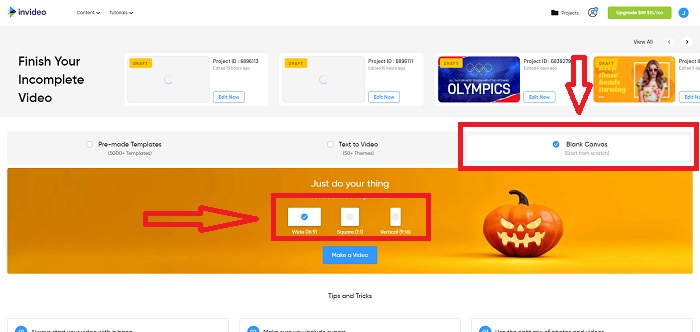
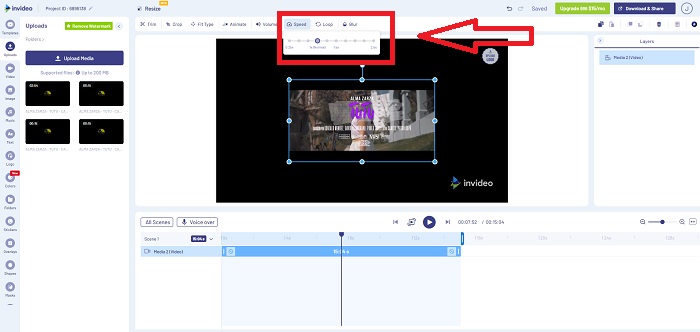
Langkah 2. Tab Speed di pojok kanan atas antarmuka dapat digunakan untuk mengubah kecepatan pemutaran klip video Anda. Seret ke trek yang ingin Anda ubah kecepatannya. Selain itu, Anda dapat menyesuaikan kecepatan klip video dengan menyeret Slider ke kanan atau kiri.
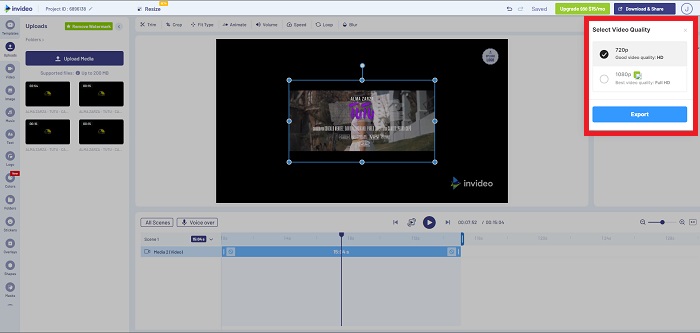
Langkah 3. Segera setelah Anda selesai mengedit, klik Download & Share untuk mendapatkan hasil efek slow-motion yang lebih baik seperti di After Effects dengan meningkatkan ke Premium.
Bagian 3. FAQ tentang Membuat Video Slow Motion di After Effects
Apa perbedaan antara After Effects dengan Premiere Pro?
Dalam hal animasi dan efek motion graphics, After Effects adalah perangkat lunak andalan; sedangkan Adobe Premiere Pro, yang terutama berfokus pada penyuntingan video, dimaksudkan untuk membantu Anda membuat semua elemen keren tambahan yang membuat motion graphics Anda lebih menonjol.
Apa itu plugin gerak lambat After Effects?
Meskipun Anda mungkin tidak memotret pada kecepatan bingkai yang lebih tinggi, Twixtor oleh RevisionFX adalah plug-in After Effects yang membantu Anda membuat rekaman gerakan sangat lambat.
Apa alat lain yang tersedia di After Effects?
Selain alat yang dapat mengatur kecepatan pemutaran video, ia memiliki alat pena yang dapat membantu Anda membuat sketsa, instruksi posisi, dan memasukkan teks ke dalam video Anda. Ini memiliki alat kamera yang dapat membantu terutama dalam proyek 3D, membentuk lapisan dalam proyek 2D, menyesuaikan lapisan untuk beberapa alasan penyesuaian, dll.
Kesimpulan
Sebagai penutup, After Effects adalah produk Adobe yang sangat baik yang umumnya memberikan tampilan yang mengesankan pada video. Perangkat ini dapat menambahkan filter untuk memperbanyak pilihan suasana adegan, menambahkan teks sebagai subtitle dan pengantar, penyesuaian bentuk, dan pengendali kecepatan yang dapat mengatur kecepatan pemutaran video Anda. Namun, perangkat lunak seperti After Effects mungkin tampak rumit bagi sebagian pemula; karena itulah kami merekomendasikan menggunakan Video Converter Ultimate untuk mendapatkan efek slow-motion yang ingin Anda terapkan pada video Anda. Aplikasi ini lebih mudah digunakan dan memiliki ukuran file yang lebih kecil dibandingkan setiap produk Adobe.
-
 [Terpecahkan] Cara Mengompresi File ASF Anda tanpa Kehilangan Kualitas
 Saat Anda ingin mengompres file video ASF untuk mengirimkannya dengan mudah melalui jaringan, Anda harus mempelajari lebih lanjut tentang detail cara mengompres file video ASF dari artikel ini.
-
 Cara Mengompres File DV Tanpa Kehilangan Kualitas di Windows / Mac
 Saat Anda ingin berbagi rekaman video DV dengan kamera Sony, Anda dapat mempelajari lebih lanjut tentang cara mengompres DV ke Email atau SNS tanpa kehilangan kualitas secara gratis.
-
 [Terpecahkan] Cara Menggabungkan File WebM Menjadi Satu Tanpa Rugi di Komputer
 Jika Anda ingin menggabungkan file video WebM untuk menonton video terus menerus atau ingin membuat video baru sesuai dengan file WebM, ada dua cara yang efisien untuk menggabungkan file WebM tanpa kehilangan kualitas.
