


 Video Converter Ultimate
 Perekam Layar
 Perbaikan Video
 Unduhan Aman
Cara termudah untuk menggabungkan trek di Audacity [Panduan 2025]
Menggabungkan elemen seperti suara, musik, atau trek lain sangat penting untuk membuat proyek audio menjadi kreatif dan unik. Proses ini biasanya dilakukan menggunakan aplikasi editor audio khusus yang memiliki fitur untuk menggabungkan trek menjadi satu. Saat ini, satu alat yang umum digunakan untuk menggabungkan beberapa trek adalah Audacity.
Alat ini dikenal banyak orang karena sifatnya yang gratis dan sumber terbuka, tetapi juga memiliki serangkaian fitur pengeditan yang sangat baik yang menarik bagi para penggunanya. Jadi, jika Anda mencari panduan tentang cara menggabungkan track di Audacity atau cara alternatif untuk melakukannya dengan mudah, lanjutkan membaca artikel ini.

Bagian 1. Cara Menggabungkan Trek di Audacity
Audacity adalah perangkat lunak penyuntingan audio gratis yang banyak digunakan dan menawarkan banyak fitur penyuntingan, termasuk penggabungan trek Audacity yang terkenal.
Dengan fitur ini, pengguna dapat dengan mudah mengimpor berbagai elemen suara ke dalam timeline penyuntingan. Kemudian, dari timeline penyuntingan, mereka dapat menyelaraskan trek menjadi satu trek dengan memindahkannya secara manual ke dalam urutan yang diinginkan. Selain itu, alat ini memiliki fitur penyuntingan hebat yang penting untuk menyempurnakan trek gabungan. Fitur fade-in dan fade-out dapat menciptakan transisi yang halus di antara trek. Sementara itu, fitur penyesuaian volume akan membuat semua trek terdengar seimbang saat digabungkan.
Sekarang, mengapa editor audio menggabungkan trek?
Untuk membuat transisi yang mulus. Menggabungkan beberapa track memungkinkan pengguna membuat transisi yang lebih halus tanpa potongan atau jeda yang jelas di antara berbagai track audio.
Untuk menyederhanakan alur kerja. Menggabungkan beberapa track akan mengonsolidasikan beberapa lapisan audio menjadi satu. Proses ini membuat track lebih mudah dikelola dan diedit tanpa harus repot dengan banyak file terpisah.
Untuk menciptakan suara yang seimbang. Menggabungkan berbagai elemen suara audio memungkinkan editor audio menyesuaikan level volume, menyinkronkan waktu, dan memadukan berbagai track.
Berikut cara menggabungkan trek pada Audacity:
Langkah 1: Pertama, unduh dan instal Audacity di perangkat komputer Anda.
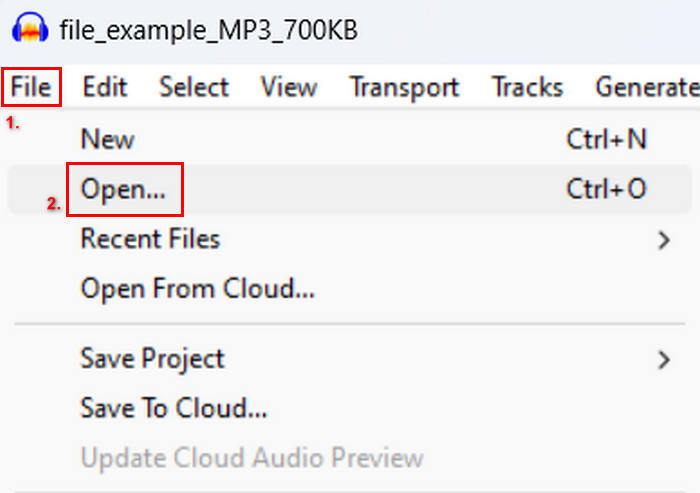
Langkah 2: Buka alatnya, buka tab File, klik Open, dan impor track yang akan Anda gabungkan.
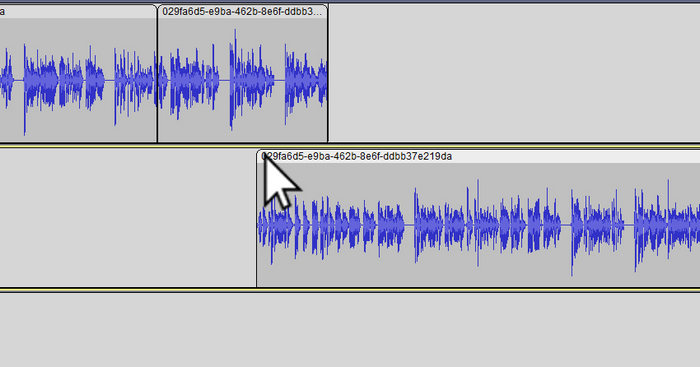
Langkah 3: Sekarang semua track Anda sudah diimpor ke timeline, hal berikutnya yang perlu Anda lakukan adalah mengklik bagian kepala Clip pada track untuk memindahkan dan mengaturnya sesuai urutan yang Anda inginkan.
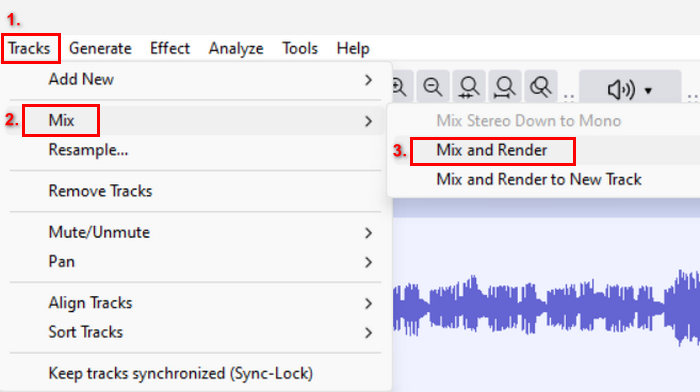
Langkah 4: Setelah Anda menyusun track, padukan semuanya menjadi satu komposisi. Untuk memilih track yang ingin Anda gabungkan, tekan dan tahan Ctrl sambil mengklik track tersebut. Setelah itu, untuk menggabungkan track yang dipilih menjadi satu track, buka menu Tracks, klik Mix, lalu pilih Mix and Render.
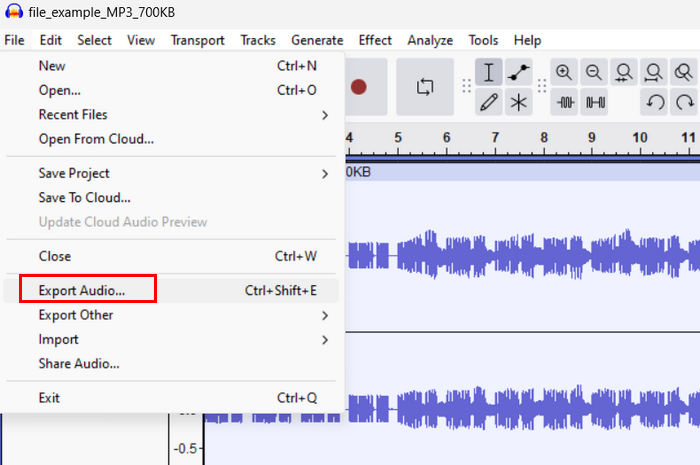
Langkah 5: Untuk mengekspor file, buka tab File dan pilih Export Audio.
Untuk memastikan transisi yang halus dan suara yang seimbang pada track audio yang digabungkan, gunakan efek Amplify atau Normalize di dalam alat tersebut. Selain itu, gunakan efek fade-in dan fade-out untuk membuat perpindahan antar track menjadi lebih mulus sehingga terdengar lebih profesional dan rapi. Lihat di sini untuk mempelajari cara membuat fade audio di Audacity.
Bagian 2. Gabungkan Trek dengan Alternatif Audacity
Jika Anda mencari alternatif yang sangat baik karena merasa sulit memahami cara kerja fitur penggabungan track di Audacity, Anda dapat menggunakan Video Converter Ultimate pilihan FVC. Ini adalah alat serbaguna yang menawarkan rangkaian fitur untuk kebutuhan audio dan video, termasuk penggabung audio. Setelah mengimpor audio yang ingin Anda gabungkan, Anda dapat dengan mudah mengubah urutan track sesuai keinginan dan langsung mengeditnya sebelum menggabungkannya hanya dengan satu klik.
Fitur Utama:
• Dapat menggabungkan beberapa file audio dalam 1.000 format seperti MP3, AAC, WAV, FLAC, OGG, dan banyak lagi.
• Berisi fitur pengeditan dasar seperti pemangkasan, pemisahan cepat, efek fade-in, dan fade-out.
• Memungkinkan untuk mengedit keluaran audio seperti encoder, sample rate, bitrate, channel, dan lain-lain.
• Proses penggabungan cepat.
• Tersedia untuk Windows dan MacOS.
Berikut cara menggabungkan trek dengan FVC yang dipilih Video Converter Ultimate:
Langkah 1: Pertama, Anda perlu mengunduh dan menginstal alat ini di perangkat Anda.
Unduh GratisUntuk Windows 7 atau yang lebih baruUnduhan Aman
Unduh GratisUntuk MacOS 10.7 atau yang lebih baruUnduhan Aman
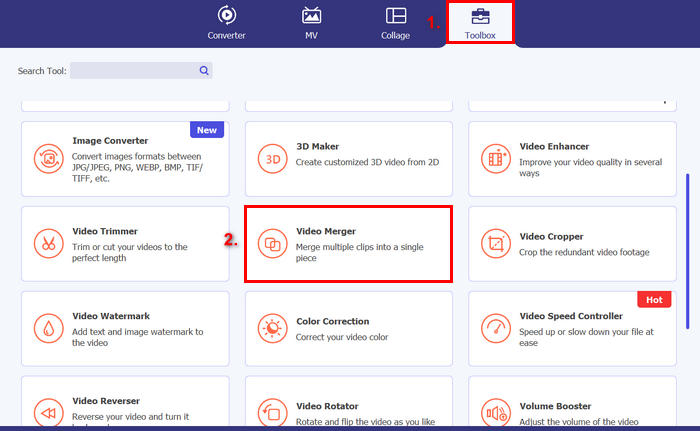
Langkah 2: Buka alatnya, buka tab Toolbox, lalu pilih Video Merger. Setelah itu, klik ikon Plus untuk dengan mudah mengimpor file audio yang akan Anda gabungkan.
Langkah 3: Sekarang semua track audio yang telah Anda impor dapat dilihat di bagian bawah. Jika Anda perlu menyesuaikan urutannya, cukup seret klip audio ke posisi yang tepat. Atau, Anda bisa memilih klip dan mengklik tombol Forward atau Backward. Setelah itu, klik tombol Export untuk menyimpan proyek Anda.
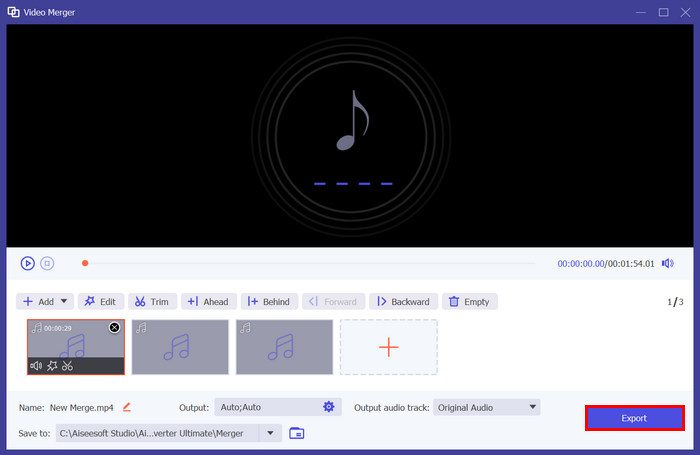
Catatan: Jika Anda perlu mengubah format audio atau menyesuaikan beberapa pengaturan audio, buka pengaturan Output. Dari sana, Anda dapat mengubah format, encoder, sample rate, channel, dan bitrate track audio Anda. Setelah selesai, klik tombol Export.
Nah, itu dia. Video Converter Ultimate yang dipilih FVC benar-benar merupakan alternatif yang hebat untuk Audacity. Dengan antarmuka yang sangat mudah digunakan dan intuitif, bahkan pemula pun dapat dengan mudah menggunakan alat ini saat menggabungkan beberapa trek.
Bagian 3. FAQ tentang Penggabungan Trek di Audacity
Bagaimana cara mengimpor beberapa berkas audio menjadi satu track di Audacity?
Untuk mengimpor beberapa file audio di Audacity, buka tab File, klik Open, dan pilih file audio yang ingin Anda gabungkan. Setiap file akan muncul pada track terpisah di timeline. Dari sana, Anda dapat menyelaraskan dan menggabungkan track secara manual menggunakan opsi Mix and Render di bawah menu Tracks.
Bagaimana cara memindahkan audio dari satu trek ke trek lain di Audacity?
Ada dua cara untuk memindahkan trek saat menggabungkan beberapa trek di Audacity. Untuk memindahkan satu trek, klik dan seret gagang klip trek dan posisikan dalam urutan apa pun yang Anda inginkan. Sementara itu, untuk memindahkan beberapa trek, pilih semua trek yang ingin Anda pindahkan dengan menggunakan Selection Tool. Kemudian, seret gagang klip apa pun di dalam area yang dipilih untuk memindahkan semua klip yang dipilih secara bersamaan.
Berapa banyak trek yang dimiliki Audacity?
Audacity tidak memiliki batasan tetap pada jumlah trek yang dapat diedit. Dengan itu, Anda dapat membuat dan mengimpor trek sebanyak yang diinginkan. Namun, saat bekerja dengan sejumlah trek, Anda harus mempertimbangkan kapasitas komputer karena kinerjanya mungkin bergantung pada daya pemrosesan dan memori sistem.
Kesimpulan
Sekarang setelah Anda tahu cara menggabungkan track di Audacity, Anda dapat dengan mudah membuat transisi yang halus dan audio yang seimbang untuk proyek Anda. Selain itu, Anda dapat mengeksplorasi fitur lain seperti fade-in, fade-out, dan penyesuaian volume untuk hasil suara yang lebih baik. Sementara itu, jika Anda menginginkan opsi yang lebih sederhana atau lebih canggih, cobalah Video Converter Ultimate pilihan FVC. Alat ini mudah digunakan dan menawarkan lebih banyak kustomisasi untuk file audio Anda.
-
 Cara Menggunakan Audacity untuk Membalikkan Audio di Windows 10/11
 Jika Anda mengedit berkas audio di Audacity dan bertanya-tanya cara membalikkan semua atau sebagiannya, baca di sini dan pelajari cara membalikkan audio di Audacity dengan mudah.
-
 Cara Memudarkan Audio di Audacity: 4 Cara Berbeda [2025]
 Temukan langkah-langkah tentang cara memudarkan audio di Audacity secara efektif dan beberapa pengetahuan tambahan tentang efek fade-in/out Audacity. Kencangkan sabuk pengaman sekarang, dan mari kita mulai.
-
 Cara Membagi Audio di Audacity dengan Presisi Tinggi [Panduan]
 Sedang mencoba mempelajari cara membagi trek di Audacity? Anda berada di halaman yang tepat! Dalam artikel ini, pelajari cara memisahkan satu trek menjadi dua dengan sangat mudah.
