


 Video Converter Ultimate
 Perekam Layar
 Perbaikan Video
Cara Mengubah Video Gerakan Lambat ke Kecepatan Normal Seperti Pro
Teknologi telah berkembang pesat selama bertahun-tahun. Berbagai perangkat lunak telah dikembangkan, dan peralatan canggih telah diciptakan untuk menghadirkan keunikan dan kreativitas hanya dalam sebuah video. Salah satunya adalah video gerak lambat (slow motion). Namun, kebanyakan orang hanya terbiasa membuat video tersebut dan tidak mengembalikannya ke kecepatan normal. Salah satu contohnya adalah penggunaan video acak atau video tertentu di internet untuk proyek sekolah atau aktivitas produksi video lainnya, yang mungkin memiliki kecepatan pemutaran yang tidak sesuai dengan preferensi pengguna. Oleh karena itu, artikel ini bertujuan untuk mengatasi masalah yang mungkin sering Anda hadapi dengan memberikan cara terbaik untuk mengubah video slow motion menjadi kecepatan pemutaran normal pada sistem operasi Mac, Windows, iOS, dan Android.

Bagian 1. Cara Mengubah Video Gerakan Lambat ke Kecepatan Normal di Mac dan Windows
Masalah mengubah kecepatan video slow motion menjadi normal dapat diatasi dengan mengunduh dan menggunakan konverter secara offline. Di sisi lain, Video Converter Ultimate adalah salah satu program penyuntingan terbaik yang tersedia, berkat banyaknya fitur yang disediakan. Karena aksesibilitas dan kemudahannya untuk digunakan oleh masyarakat umum, kami sangat merekomendasikannya bagi siapa saja yang ingin mengonversi video slow motion ke kecepatan normal di komputer Mac atau Windows. Berikut langkah-langkah yang disarankan untuk menggunakan perangkat lunak ini dengan tepat: gunakan dengan baik.
Langkah 1: Klik tombol Free Download untuk menyimpan program ke hard drive komputer Anda. Setelah itu, Anda dapat memasang perangkat lunak dan menyesuaikan pengaturannya.
Unduh GratisUntuk Windows 7 atau yang lebih baruUnduhan Aman
Unduh GratisUntuk MacOS 10.7 atau yang lebih baruUnduhan Aman
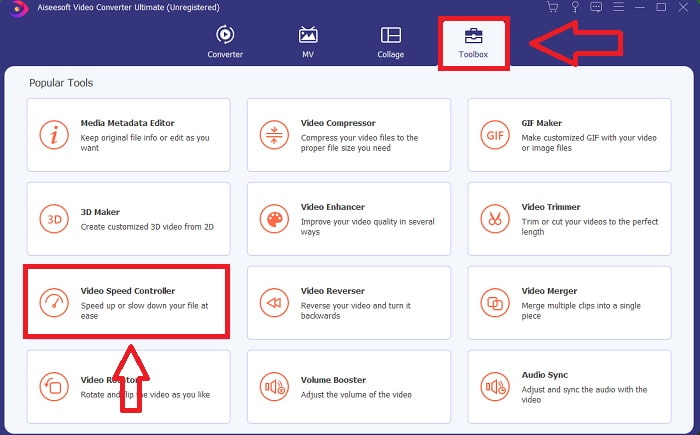
Langkah 2: Aktifkan perangkat lunak dengan mengklik ikon Toolbox di bilah menu dan memilih Video Speed Controller dari daftar.
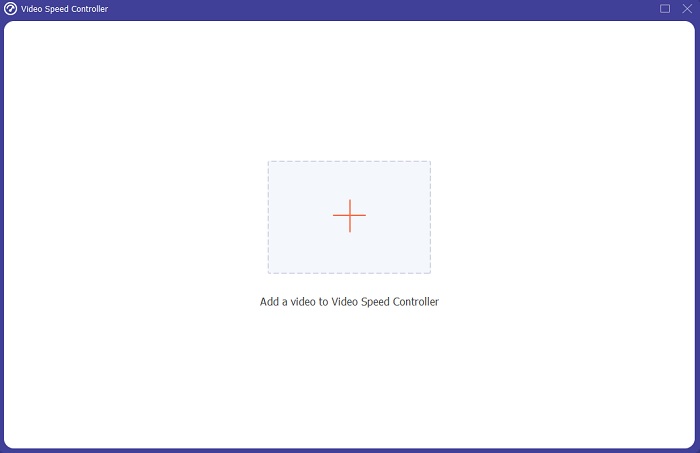
Langkah 3: Untuk menambahkan video slow motion, klik tombol + di bilah preferensi Anda lalu lanjutkan mengedit video tersebut.
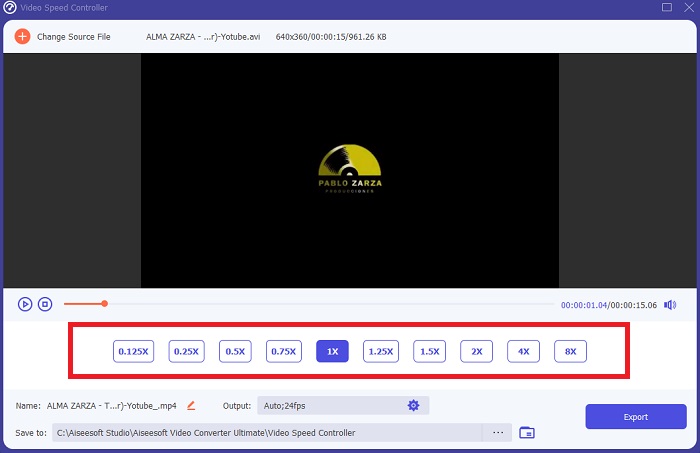
Langkah 4: Tingkatkan atau kurangi kecepatan video untuk menyesuaikan kecepatan pemutaran.
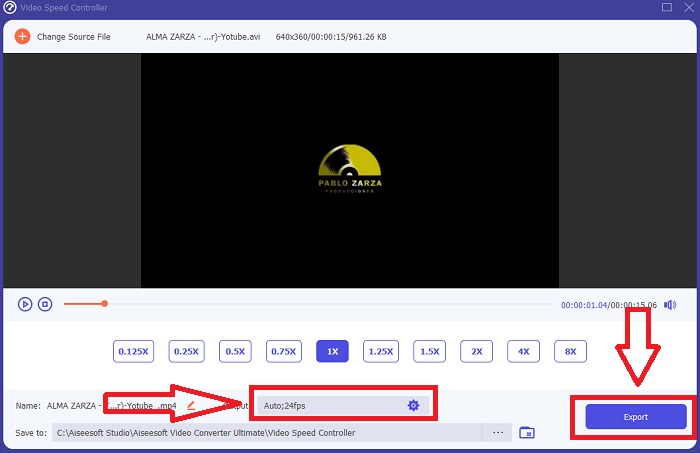
Langkah 5: Format keluaran, resolusi, kualitas, dan sebagainya dapat diedit setelah kecepatan pemutaran klip video Anda disesuaikan. Ketika Anda siap menyimpan hasilnya, klik Export dan pilih lokasi penyimpanan.
Bagian 2. Cara Mengubah Video Gerakan Lambat ke Kecepatan Normal di iPhone/iPad Menggunakan Foto
Video slow motion adalah salah satu pilihan terbaik yang dimiliki para kreator konten atau videografer untuk menambahkan efek dramatis pada klip hanya dengan menggunakan ponsel, seperti iPhone. Karena iPhone adalah salah satu ponsel yang memiliki kualitas kamera kelas atas yang dapat merekam video pada frame per detik yang tinggi, Anda bisa mendapatkan klip yang memuaskan untuk ditonton. Namun, video dengan kecepatan pemutaran yang lebih lambat tidak selalu menjadi pendekatan terbaik untuk setiap video yang Anda buat – ada jenis video yang efek slow motion tidak memadai atau bahkan tidak relevan. Maka, mengubah video slow motion menjadi kecepatan normal di iPhone menjadi satu-satunya pilihan Anda. Untuk melakukannya, berikut langkah-langkah mudah yang dapat diikuti:
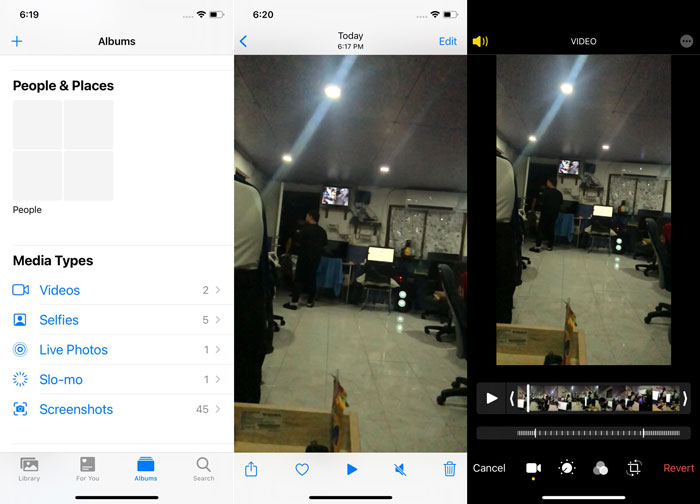
Langkah 1: Buka aplikasi Foto (Photos) di iPhone atau iPad Anda dan buka tab album. Gulir ke bagian bawah dan ketuk Slo-mo dari bagian Media Types. Untuk menampilkan video dalam layar penuh, ketuk video tersebut.
Langkah 2: Pilih Edit di sudut kanan atas.
Langkah 3: Sebuah slider kecil dengan garis-garis putih vertikal akan muncul. Efek slow motion diwakili oleh garis-garis yang berjauhan, sedangkan garis yang rapat mewakili efek kecepatan normal. Kedua bagian ini dipisahkan oleh dua slider. Seret sebuah Slider dari satu ujung layar ke ujung lainnya. Semua garis yang berjauhan akan tersusun rapat. Ini menandakan bahwa video kini akan diputar dalam kecepatan normal. Untuk melihat apakah pengaturannya sudah benar, tekan tombol putar berbentuk segitiga. Video yang sebelumnya slow motion sekarang berada pada kecepatan pemutaran normal. Namun, Anda dapat membatalkan tindakan ini dengan memilih Edit, Revert, Revert to Original. Anda juga dapat menggunakan slider untuk memilih bagian mana dari rekaman yang ingin diputar lebih lambat atau lebih cepat sesuai keinginan.
Terkait:
Cara Memperbaiki Video yang Tidak Dapat Diputar di iPhone
Pemutar Video Terbaik untuk iPhone
Bagian 3. Cara Mengubah Video Gerakan Lambat ke Kecepatan Normal di Android Menggunakan Foto Google
Pengguna Android dapat menyesuaikan kecepatan video slow motion menjadi normal secara gratis, sama seperti pengguna iPhone. Dalam hal ini, Anda perlu menggunakan aplikasi Google Foto yang sudah terpasang di ponsel Anda, meskipun Anda juga bisa memakai aplikasi pihak ketiga. Demi kemudahan akses dan kenyamanan, kita akan menggunakan Google Foto untuk mengubah video slow motion menjadi kecepatan normal di Android, dan berikut caranya:
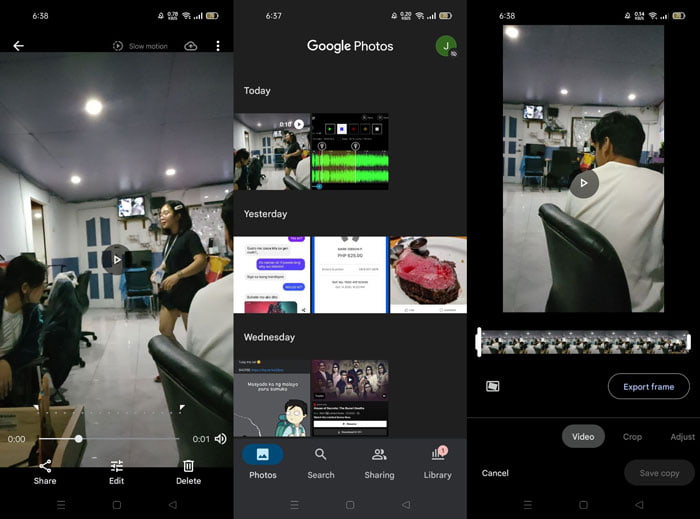
Langkah 1: Buka aplikasi Google Photos di ponsel Android Anda dan klik video yang ingin Anda percepat. Pilih Edit di bagian bawah layar, dan pengatur kecepatan pemutaran akan muncul.
Langkah 2: Seret Slider untuk meningkatkan kecepatan pemutaran menjadi 1,5x atau 2x, tergantung pada tingkat kelambatan video slow motion Anda.
Langkah 3: Klik tombol putar berbentuk segitiga untuk memeriksa apakah video sudah berada pada kecepatan yang Anda inginkan. Setelah puas, pilih Done untuk menyimpannya.
Bagian 4. FAQ tentang Mengubah Video Gerakan Lambat ke Kecepatan Normal
Bagaimana cara membalikkan video gerakan lambat?
Untuk berubah pikiran dan membuat video ini menjadi klip slo-mo sekali lagi, cukup buka video dan ketuk tombol Edit di bagian bawah layar. Kemudian klik Kembalikan dan pilih Kembalikan ke Asli untuk mengonfirmasi keputusan Anda.
Bisakah Anda mengonversi video fps rendah menjadi gerakan lambat menggunakan aplikasi Foto?
Aplikasi Foto tidak memungkinkan Anda mengonversi video iPhone normal yang direkam pada 30fps atau 24fps ke slo-mo. Namun, Anda dapat melakukannya menggunakan aplikasi pihak ketiga seperti iMovie atau aplikasi pengeditan apel lainnya.
Apakah Google Foto adalah aplikasi terbaik untuk mengonversi video gerakan lambat ke kecepatan normal?
Seperti yang bisa dibayangkan, ada beberapa kelemahan dalam menggunakan aplikasi gratis ini. Pertama dan terpenting, kecepatan pemrosesan video relatif lambat, terutama saat mengedit klip video yang panjang. Selain itu, jika Anda membagi video sebelum mengubah kecepatan pemutaran, audio latar atau narasi suara akan dimatikan. Terlepas dari itu, ini adalah aplikasi Android gratis yang bagus. Anda masih dapat menggunakan aplikasi pihak ketiga, tetapi sebagian besar yang nyaman digunakan tidak gratis.
Kesimpulan
Fleksibilitas video dapat memenuhi berbagai kebutuhan, dan hanya dengan mengubah kecepatan pemutaran saja sudah dapat menyesuaikan berbagai genre, baik untuk hiburan maupun tujuan edukasi. Fakta bahwa hal ini kini dapat dilakukan dengan mudah melalui aplikasi dan perangkat lunak yang mudah diakses akan memunculkan kreativitas kita dan memberi kenyamanan sesuai preferensi masing-masing. Meskipun mengubah video slow motion menjadi kecepatan normal secara online juga praktis, mengunduh perangkat lunak akan mengurangi kerepotan terkait masalah koneksi internet. Artikel ini dapat sangat membantu bagi mereka yang belum begitu memahami metode-metode tersebut dan memberikan jawaban atas pertanyaan mereka.
-
 Pemutar Video VR - Ulasan 5 Pemutar Video VR Terbaik tahun 2021
 Bisakah VLC memainkan VR? Apa pemutar video VR terbaik? Bagaimana cara memutar video di headset VR? Semua pertanyaan Anda tentang pemutar video VR dapat dijawab di sini.
-
 Cara Memutar DVD di Windows Media Player pada tahun 2021
 Mengapa DVD saya tidak dapat diputar di Windows Media Player? Bagaimana cara memutar DVD pada pemutar media Windows 7? Posting ini membagikan 3 cara untuk memutar DVD dengan atau tanpa WMP.
-
 Buka File MKV di Windows Media Player
 Bisakah Anda memutar file MKV di Windows Media Player? Bagaimana cara mengubah MKV ke Windows Media Player? Temukan 3 cara untuk membuka file MKV di Windows Media Player di sini.
