


 Video Converter Ultimate
 Perekam Layar
 Perbaikan Video
 Unduhan Aman
4 Cara termudah untuk Mengubah Pemutaran Kecepatan Video di Desktop, Web, & Ponsel
Kebanyakan pengguna mencari cara efektif untuk menonton video berdurasi satu jam dalam waktu kurang dari satu jam. Satu-satunya solusi yang dapat menyelesaikan masalah ini adalah mengubah kecepatan pemutaran video yang sedang Anda tonton. Mayoritas editor video yang bisa Anda temukan di pasaran dapat membantu menyelesaikan tugas ini, tetapi pertanyaannya, apakah mereka dapat diandalkan? Saat meneliti masing-masing, kami menemukan bahwa Anda dapat mengubah kecepatan video di desktop, secara online, serta di perangkat iOS dan Android. Jika Anda ingin tahu caranya, Anda harus terus membaca blog ini karena kami menyertakan alat dan aplikasi yang dapat membantu Anda.

Bagian 1. Cara Terbaik yang Direkomendasikan untuk Mengubah Kecepatan Video di Windows dan Mac dengan Mudah
Agar mudah mengubah kecepatan video, Anda harus memilih alat terbaik yang memberikan hasil maksimal hanya dengan beberapa klik sederhana—memperkenalkan FVC Video Converter Ultimate. Alat ini secara efektif memanipulasi kecepatan video yang Anda miliki kapan saja dan di mana saja. Selain itu, Anda dapat mengubah kecepatan video meskipun formatnya MP4, MOV, AVI, FLV, TS, RMVB, dan lebih dari 1000 format lainnya; mengunggah file Anda di sini cepat dan mudah. Baik Anda pengguna Windows maupun Mac, mengunduh perangkat lunak ini pada OS tersebut dapat membantu Anda menyelesaikan tugas mengubah kecepatan pemutaran hanya dengan beberapa klik.
Selain fungsi pengontrol kecepatan video, alat ini juga memiliki Kotak Alat multifungsi yang dapat membantu tugas lain. Seperti menambahkan metadata, membuat GIF, menghapus watermark, dan masih banyak lagi. Meskipun alat ini dapat diunduh, Anda akan melihat saat menggunakannya bahwa Anda tidak memerlukan banyak pengalaman dalam mengedit, karena mudah digunakan. Ada fungsi dan fitur yang belum kami tulis yang akan menonjolkan produk ini. Tetapi jika Anda ingin mempelajari cara mengubah kecepatan video, baca detailnya untuk mengetahui caranya.
Keuntungan Menggunakan Perangkat Lunak Ultimate sebagai Pengubah Kecepatan Video:
Antarmuka yang intuitif, sehingga mereka akan belajar cara menggunakannya dalam beberapa menit.
Unggah 1000+ video untuk mempercepat pemutaran yang dimilikinya.
User-Friendly untuk membantu pengguna merasakan pengalaman terbaiknya.
Fungsi lainnya ada di Toolbox, seperti pengeditan video dasar dan lanjutan.
Ini adalah pilihan pertama dari hampir satu juta pengguna yang mengunduhnya.
Tersedia di Windows dan Mac untuk mengunduh alat dengan mudah.
Langkah Cara Mengubah Kecepatan Video Menggunakan Software Ultimate:
Langkah 1. Anda dapat memiliki perangkat lunak ultimate ini di sistem Windows dan Mac dengan mengklik tombol unduh. Selesaikan proses instalasi setelah mengklik file yang Anda unduh, lalu jalankan perangkat lunak untuk melanjutkan.
Unduh GratisUntuk Windows 7 atau yang lebih baruUnduhan Aman
Unduh GratisUntuk MacOS 10.7 atau yang lebih baruUnduhan Aman
Langkah 2. Setelah membuka perangkat lunak, Anda harus masuk ke bagian Toolbox; di dalamnya, buka Video Speed Controller. Tidak perlu khawatir; Anda tidak perlu mengunduh sumber tambahan apa pun untuk menggunakan alat ini.
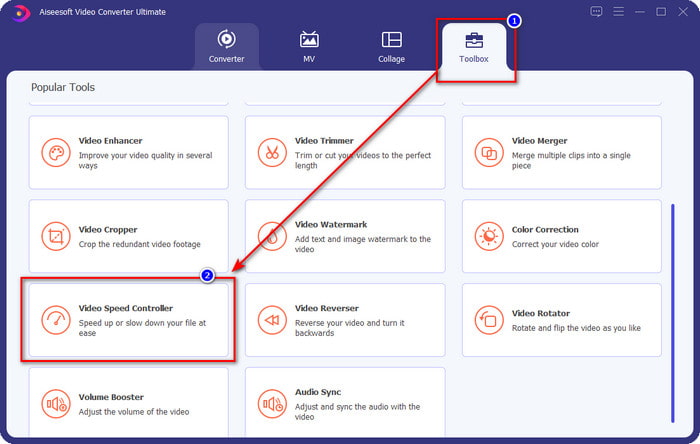
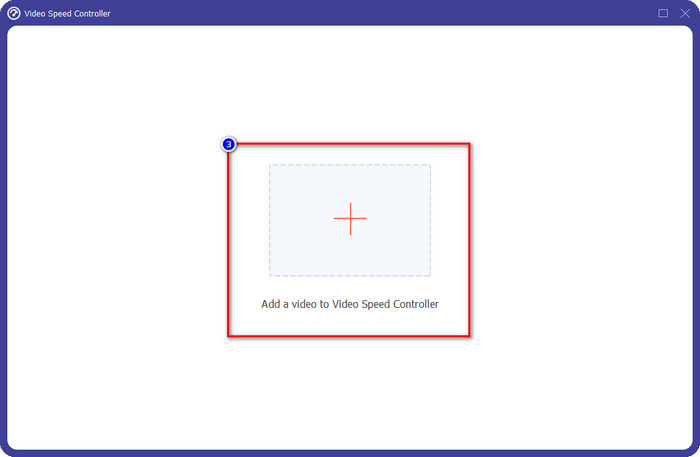
Langkah 3. Tekan ikon +, tambahkan file yang Anda miliki di folder, klik lalu tekan Open untuk mengunggah file video Anda.
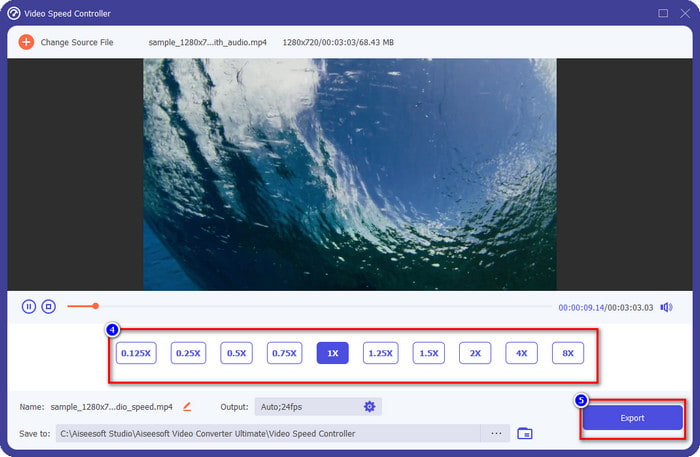
Langkah 4. Pilih dari daftar kecepatan pemutaran yang ingin Anda capai, karena kita semua memiliki kecepatan pemutaran yang berbeda-beda. Klik Export untuk menyimpan hasil akhir video yang sudah Anda ubah kecepatannya. Dalam waktu kurang dari satu menit, Anda sudah berhasil mengubah kecepatan video yang Anda miliki. Sekarang Anda dapat menikmati menontonnya dalam waktu yang lebih singkat.
Bagian 2. Cara Gratis Terbaik untuk Mengubah Kecepatan Video di Web
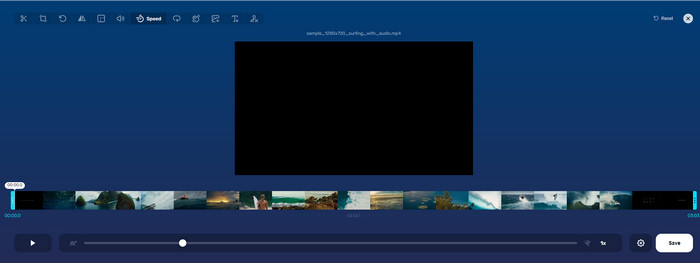
Dengan bantuan Online Video Cutter, Anda dapat mengubah kecepatan video secara online dan gratis. Berbeda dengan alat pertama, Anda tidak perlu mengunduh sumber daya tambahan atau penginstal di desktop untuk menggunakan alat web ini. Selain fungsinya untuk mengubah kecepatan, Anda juga dapat menggunakan alat ini untuk mengerjakan pengeditan dasar. Meskipun alat ini bagus, Anda tidak bisa mengunggah semua format yang Anda miliki karena format yang didukung masih terbatas. Untuk menggunakannya, ikuti langkah-langkah di bawah ini.
Langkah 1. Buka browser yang ingin Anda gunakan dan cari alat web ini.
Langkah 2. Buka alat web, klik Open File, cari file video yang Anda miliki dan unggah.
Langkah 3. Seret slider ke kiri atau ke kanan untuk mengubah kecepatannya; klik tombol Save jika Anda sudah puas dengan kecepatannya.
Bagian 3. Editor Video Terbaik di iOS untuk Mengubah Kecepatan Video Gratis
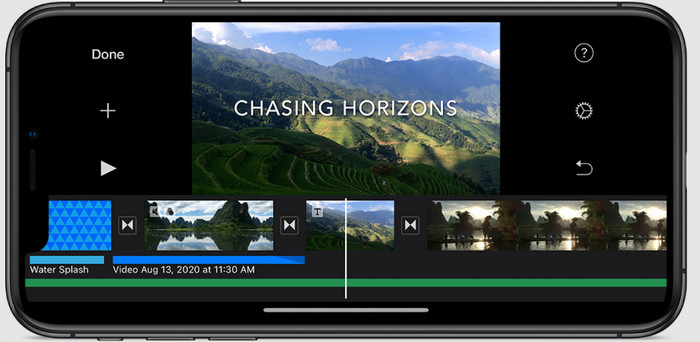
Untuk pengguna iOS, Anda dapat menggunakan iMovie untuk mempelajari cara mengubah kecepatan video di iPhone secara gratis. Meskipun alat ini adalah editor video asli di Mac, Anda masih memiliki pilihan untuk mengunduh aplikasi di perangkat Anda atau tidak. Pilihan ini membuktikan bahwa pengguna iOS dapat menyimpan editor atau tidak, untuk menghemat ruang di penyimpanan mereka. Tetapi jika Anda memiliki aplikasi di iPhone Anda, Anda dapat mengikuti langkah-langkah yang kami tambahkan di bawah ini untuk mengetahui bagaimana alat ini berfungsi.
Langkah 1. Unduh lalu buka aplikasi di iPhone Anda dan pada Project, ketuk tanda +, lalu ketuk Movie.
Langkah 2. Ketuk video yang ingin Anda percepat, lalu di bagian bawah layar, ketuk Create Movie untuk mengunggahnya ke timeline.
Langkah 3. Dengan mengetuk cuplikan yang sudah Anda unggah, klik ikon speed controller, lalu sesuaikan kecepatan video dengan menyeret slider di iPhone Anda. Klik Done untuk menyimpannya, lalu ekspor jika Anda mau.
Bagian 4. Cara Terbaik untuk Mengubah Pemutaran Kecepatan Video di Perangkat Android Menggunakan Editor Bawaan
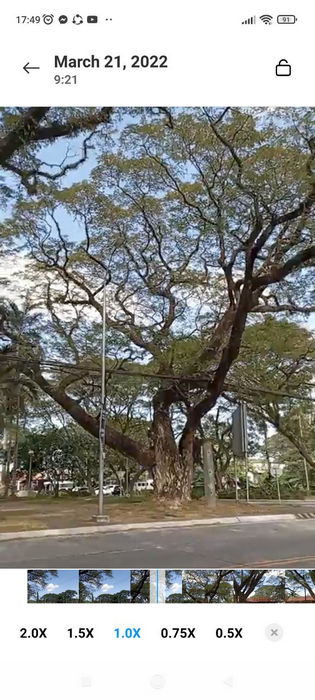
Mengunduh aplikasi tidak demikian jika Anda adalah pengguna Android; ubah kecepatan video di ponsel Anda dengan editor video bawaan. Dengan editor ini, Anda dapat melakukan pengeditan dasar yang diperlukan pada video Anda agar terlihat lebih baik dari sebelumnya. Anda dapat menemukan editor ini di Galeri atau Album di Android Anda. Jika Anda ingin tahu cara menggunakannya, informasi berikut akan membantu Anda.
Langkah 1. Buka Galeri atau Album Anda, lalu ketuk video yang ingin Anda ubah kecepatannya.
Langkah 2. Klik Edit untuk melanjutkan.
Langkah 3. Ketuk bagian Playback Speed, lalu ubah kecepatan sesuai kebutuhan Anda.
Bagian 5. FAQ tentang Mengubah Kecepatan Video
Bisakah saya mengubah kecepatan di YouTube?
Benar-benar ya, Anda dapat mengubah pemutaran video di YouTube meskipun Anda tidak mengunduh perangkat lunak untuk melakukannya. Ikuti langkah-langkah untuk mengetahui cara mengubah kecepatan video di YouTube. Pertama buka YouTube, temukan video yang ingin Anda tonton dalam gerakan yang dimodifikasi, klik ikon roda gigi, dan di bawahnya, Kecepatan Pemutaran, pilih kecepatan yang ingin Anda capai, dan nikmati.
Apakah mengubah kecepatan memperpendek durasi video?
Itu tergantung pada bagaimana Anda mengubah kecepatan; jika Anda memperlambat video, maka perkirakan durasinya akan terbentang karena Anda memutarnya dalam mode lambat. Namun jika Anda mengubah kecepatan menjadi tinggi, maka durasi video yang Anda putar akan lebih pendek dari aslinya. Untuk mengetahui lebih lanjut tentang mengubah kecepatan video, Anda harus membaca detail berikut yang kami tambahkan di atas.
Setelah mengubah kecepatan, apakah kualitasnya akan berpengaruh?
Tergantung pada kecepatan video yang Anda atur, kualitas mungkin menurun atau tetap. Jika Anda memutar video delapan kali atau lebih tinggi, harapkan video yang akan Anda putar. Namun, Anda tidak akan melihat banyak perbedaan selain pemutaran, dari segi kualitas, itu akan tetap sama.
Kesimpulan
Sekarang kita sudah punya gambaran cara mengubah kecepatan video di desktop, online, dan ponsel, saatnya memutuskan mana yang sebaiknya kita gunakan. Misalnya, jika Anda tidak ingin mengunduh perangkat lunak di desktop untuk menghemat ruang dan langkah instalasi, maka Anda perlu membaca bagian dua artikel ini. Namun jika Anda pengguna iOS atau Android, maka bagian tiga dan empat adalah untuk Anda. Jika Anda ingin menggunakan editor video terbaik di Windows dan Mac, Anda harus mengunduh FVC Video Converter Ultimate. Ini adalah pengontrol kecepatan video terbaik untuk mengubah pemutaran video yang Anda miliki di desktop dengan mudah. Apa yang Anda tunggu? Unduh sekarang dan dapatkan promo yang hanya untuk Anda!
-
 Cara Mempercepat Video di Premiere Pro dan Alternatifnya
 Ingin tahu cara menggunakan premiere pro untuk mempercepat video? Maka Anda berada di artikel yang tepat karena kami memberikan langkah-langkah dan alternatif terjangkau lainnya.
-
 2 Cara Mudah Cara Mempercepat Video di TikTok
 Mau tahu rahasia cara mempercepat video di TikTok? Kemudian baca artikel ini untuk mendapatkan ide tentang cara melakukannya dan mengetahui 2 alat lain apa yang akan membantu Anda.
-
 Kiat Luar Biasa tahun 2021: Cara Mempercepat Video di iMovie
 Teman Anda menyarankan iMovie untuk membantu Anda dengan masalah Anda tentang cara mempercepat video menggunakan sistem operasi iOS, tetapi Anda tidak tahu harus berbuat apa? Lihat lebih banyak tentang ini saat Anda membaca lebih lanjut artikel ini.
