


 Video Converter Ultimate
 Perekam Layar
 Perbaikan Video
 Unduhan Aman
2 Cara Efisien untuk Menggabungkan Video untuk Instagram
“Bagaimana saya bisa menggabungkan video untuk Instagram? Saya mengadakan pesta ulang tahun yang tak terlupakan dan mengambil banyak video selama itu. Sekarang saya ingin menggabungkan klip video menjadi satu dan mempostingnya ke Instagram. Tolong ajari saya bagaimana melakukannya…” Ada banyak kesempatan di mana banyak klip video menunggu untuk digabungkan menjadi satu. Untuk memenuhi kebutuhan tersebut, artikel ini akan membahas tentang 2 metode efisien untuk bergabung dengan video di Instagram.

Bagian 1: Menggabungkan Video untuk Instagram tanpa Kerusakan Kualitas
Untuk memulai, Anda memerlukan sebuah aplikasi untuk menggabungkan video untuk Instagram. Anda tidak membutuhkan program pengeditan video yang rumit seperti Adobe Premiere Pro atau Final Cut Pro hanya untuk tugas sederhana ini. Video Converter Ultimate sudah lebih dari cukup untuk Anda.
Ini dapat membantu Anda menggabungkan beberapa video untuk Instagram dengan mudah. Kecepatan pemrosesan dan kualitas gambar keduanya sempurna. Apa pun formatnya, Anda dapat menggunakan aplikasi ini untuk bergabung dengan video untuk Instagram tanpa batasan apa pun.
Fitur Utama:
- • Gabungkan video untuk Instagram apa pun format dan resolusinya
- • Teknologi akselerasi perangkat keras memastikan kecepatan proses 70x lebih cepat
- • Edit dan gabungkan video untuk Instagram tanpa meninggalkan tanda air
- • Pangkas dan menggabungkan video dengan resolusi berbeda untuk membuatnya mulus
- • Bergabunglah dengan video dengan fitur pemangkasan untuk menghapus segmen yang tidak diinginkan
- • Antarmuka pengguna yang halus dan intuitif untuk pemula dan profesional
Unduh GratisUntuk Windows 7 atau yang lebih baruUnduhan Aman
Unduh GratisUntuk MacOS 10.7 atau yang lebih baruUnduhan Aman
Langkah-langkah menggabungkan video untuk Instagram tanpa menurunkan kualitas
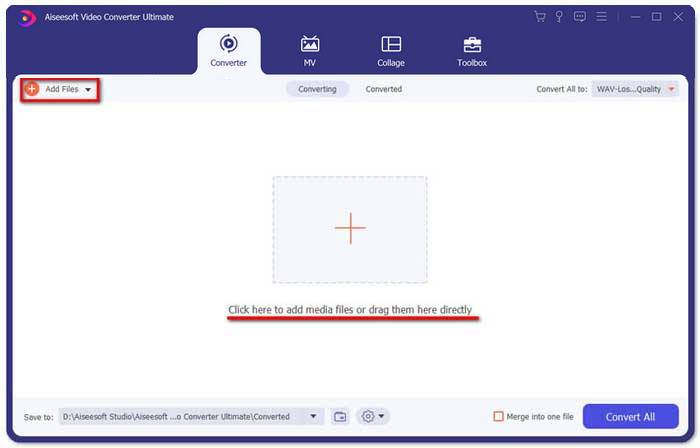
Langkah 1. Unduh gratis, instal, dan jalankan Video Converter Ultimate. Klik tombol Add Files untuk menambahkan video yang ingin Anda gabungkan untuk Instagram.
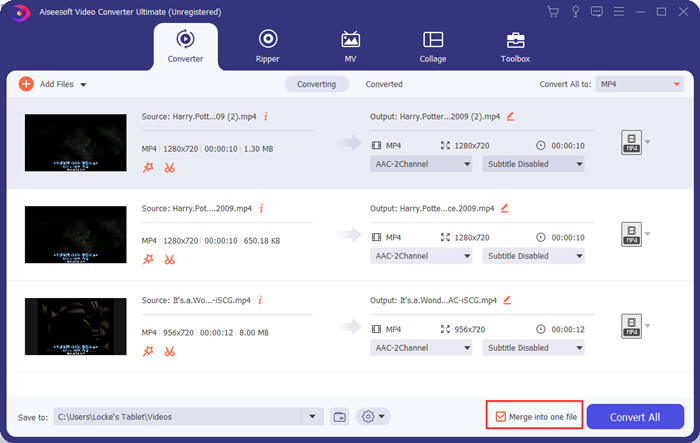
Langkah 2. Di antarmuka utama, Anda dapat menyeret video yang telah diimpor untuk mengubah urutannya secara bebas. Centang kotak Merge into one file agar video tidak dikonversi secara terpisah.
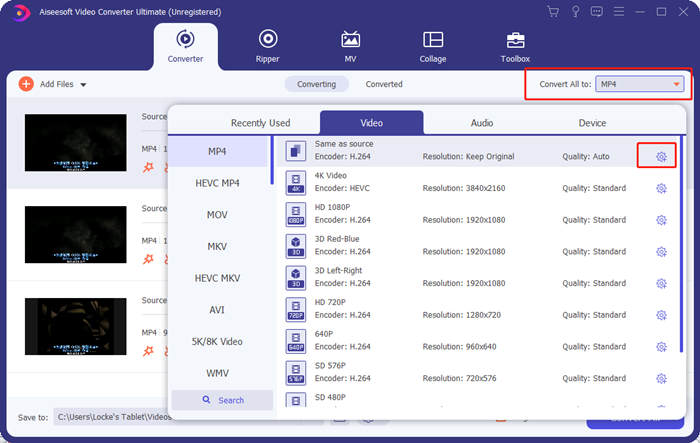
Langkah 3. Klik bingkai Convert All to untuk membuka menu profil. Lalu Anda dapat memilih format, resolusi, dan encoder yang diinginkan. Untuk menggabungkan video untuk Instagram, format MP4 sudah tepat. Anda juga dapat mengklik salah satu tombol Custom Profile untuk menyesuaikan pengaturan.
Di jendela Edit Profile, Anda bisa menyesuaikan encoder, resolusi, frame rate, bitrate, dan beberapa parameter audio.

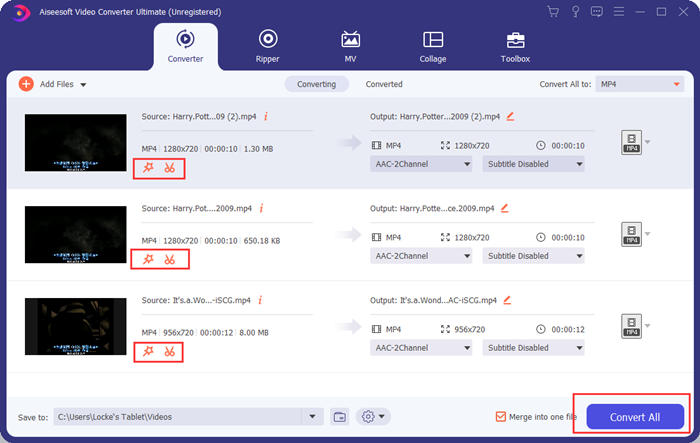
Langkah 4. Kembali ke antarmuka utama, Anda dapat mengklik tombol Convert All untuk mulai menggabungkan video untuk Instagram. Sebelumnya, Anda juga dapat menggunakan tombol Cut dan Edit untuk memotong, crop, memutar, dan beberapa fitur lain yang dapat membuat video Anda terlihat lebih baik.
Video Converter Ultimate nyaman dan kuat, tetapi tidak ada yang suka menunggu untuk mengunduh program besar. Kami juga tidak. Jadi, mungkinkah menggabungkan video untuk Instagram tanpa mengunduh program? Ya, silakan baca terus!
Bagian 2: Gabungkan Video untuk Instagram Online dan Gratis
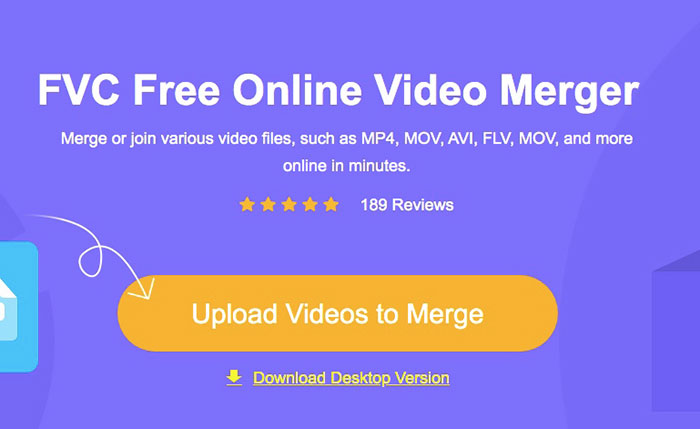
Berikut ini alat praktis lainnya, FVC Free Online Video Merger, sebuah alat berbasis web yang luar biasa untuk menggabungkan video untuk Instagram. Anda dapat memuat alat ini dalam satu detik, lalu mengunggah video Anda di detik berikutnya. Cukup sesuaikan pengaturan dan biarkan program menyelesaikan sisanya. Yang paling penting, alat ini sepenuhnya gratis untuk digunakan.
Langkah-langkah menggabungkan video untuk Instagram secara online dan gratis
Langkah 1. Klik FVC Free Online Video Merger untuk membukanya. Di tengah halaman web alat tersebut, klik tombol Upload Videos to Merge. Lalu jendela penjelajah file akan muncul, dan Anda perlu memilih video dan mengunggahnya.
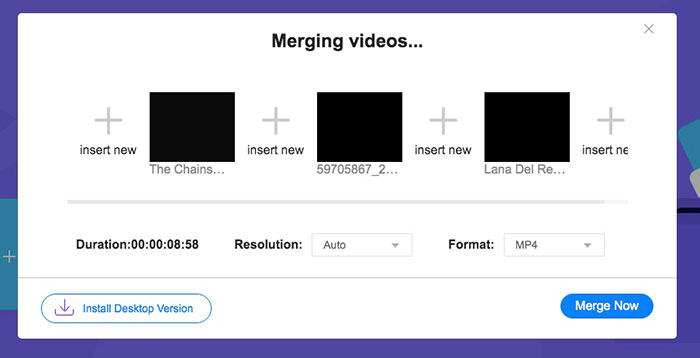
Langkah 2. Setelah video diimpor, Anda dapat menyesuaikan urutannya. Untuk melakukannya, Anda dapat menghapus video yang posisinya salah dan memasukkannya kembali ke posisi yang benar.
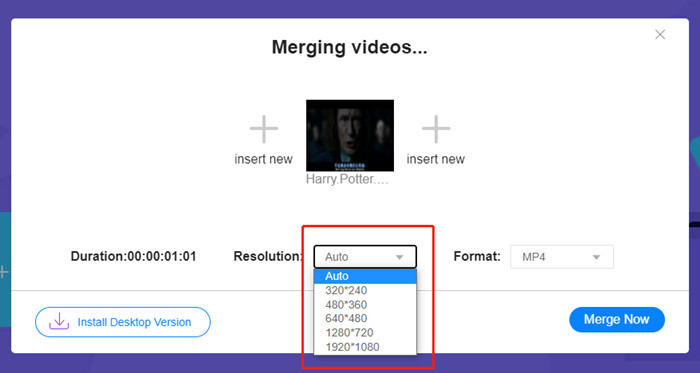
Langkah 3. Penggabung video online ini memungkinkan Anda menentukan Resolution dan Format video yang digabung untuk Instagram. Anda dapat memilih Auto untuk mempertahankan resolusi asli atau memilih salah satu dari lima opsi resolusi lainnya.
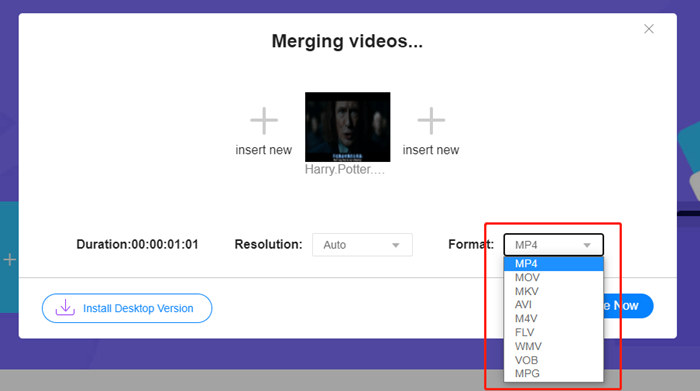
Penggabungan video online saat ini menyediakan sembilan format output untuk Anda pilih. MP4 mungkin yang terbaik untuk posting Instagram Anda.
Langkah 4. Klik tombol Merge Now dan tunggu hingga pemberitahuan Join Successfully muncul.
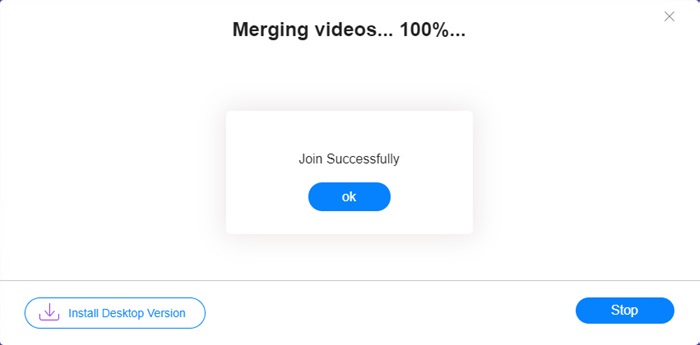
Meskipun nyaman, alat online ini tidak sesempurna Video Converter Ultimate. Di alat online, Anda tidak dapat menyesuaikan urutan video dengan mudah, mengubah encoder atau kecepatan bingkai, atau mengedit video. Plus, Video Converter Ultimate memberi Anda lebih banyak pilihan dalam resolusi dan format, dan memproses video lebih cepat.
Bagian 3: FAQ tentang Menggabungkan Video untuk Instagram
Spesifikasi apa yang bagus untuk video Instagram?
Rasio aspek 9:16 akan sempurna. Lebih tepatnya, gunakan saja 1080*1920 jika memungkinkan. Format video terbaik adalah MP4, meskipun format populer lainnya juga diterima.
Apa yang harus dilakukan jika video gabungan saya terlalu besar untuk Instagram?
Di bagian atas antarmuka utama Video Converter Ultimate, terdapat Toolbox tempat Anda dapat menemukan Video Compressor. Anda dapat menggunakannya untuk mengompres video ke ukuran yang diinginkan. Untuk Instagram, pastikan ukurannya tidak lebih dari 4GB.
Berapa lama video gabungan saya untuk Instagram bisa?
Itu tergantung di mana Anda memposting video. Batas untuk Video Umpan adalah 3 detik hingga 1 menit dan untuk Cerita lebih pendek dari 15 detik. Video IGTV dapat bertahan selama 60 menit, yang kemungkinan besar akan memenuhi kebutuhan Anda.
Kesimpulan
Artikel ini memperkenalkan dua cara efektif untuk menggabungkan video untuk Instagram. Anda dapat menggunakan Video Converter Ultimate untuk menggabungkan video untuk Instagram tanpa kehilangan kualitas gambar dan melakukan beberapa penyesuaian serta pengeditan pada video. Alat lainnya, FVC Free Online Video Merger, adalah solusi tercepat tetapi menyediakan lebih sedikit opsi dalam hal resolusi dan format. Selain itu, alat tersebut sama sekali tidak dapat mengubah encoder atau frame rate. Terakhir, jika Anda mengalami kesulitan dalam menggabungkan video untuk Instagram, tinggalkan komentar untuk memberi tahu kami.
-
 Cara Menggabungkan Video di iPhone dengan atau tanpa iMovie
 Baca dan dapatkan 4 cara mudah untuk menggabungkan video di iPhone. Semua model iPhone dan versi iOS didukung. Anda dapat menggabungkan 2 video dan lebih di iPhone menjadi video baru dengan cepat.
-
 2 Cara Terbaik untuk Bergabung dengan File MKV untuk Menonton Film Tanpa Henti
 Saat Anda mengunduh film favorit dengan file MKV terpisah dan ingin menggabungkan file MKV untuk menontonnya tanpa henti, Anda dapat mempelajari 2 cara efisien untuk menggabungkan file MKV dari artikel ini.
-
 6 Penggabung Video MP4 Terbaik untuk Menggabungkan Video MP4 secara Gratis
 Ada banyak penggabung MP4 yang tersedia untuk menghubungkan berbagai klip MP4. Pada artikel ini, kami telah memilih beberapa penggabung MP4 gratis untuk Windows 10/8/7 dan Mac.
