


 Video Converter Ultimate
 Perekam Layar
 Perbaikan Video
 Unduhan Aman
Kompres 3GP - Inilah Panduan Utama untuk Mengurangi File 3GP dalam Proses Batch
3GP terkenal dengan ukuran file yang kecil dan mobilitas yang kuat. Ketika Anda perlu melepaskan lebih banyak ruang di ponsel Blackberry Anda, backup dan kurangi file 3GP adalah cara yang paling efisien. Tentu saja, Anda cukup mengompres video 3GP online gratis untuk mengurangi ukuran video. Saat Anda perlu mengecilkan 3GP, atau bahkan mengelola video, Anda dapat memilih kompresor 3GP profesional dari artikel tersebut.

Bagian 1: Cara Gratis Batch Compress Video 3GP Online
Apa cara terbaik untuk mengompres beberapa video 3GP secara online? Sebagian besar kompresor video online hanya memungkinkan Anda mengurangi ukuran satu video saja. Free Video Compressor adalah kompresor video 3GP yang Anda butuhkan untuk mengecilkan banyak video hanya dalam beberapa klik. Alat ini memungkinkan Anda menyesuaikan parameter video, seperti resolusi, bitrate, dan lain-lain.
- 1. Kompres beberapa video 3GP online dengan langkah-langkah sederhana.
- 2. Tweak resolusi video, bitrate, ukuran video, dan banyak lagi.
- 3. Mudah digunakan tanpa menambahkan tanda air ke file video Anda.
- 4. Batch kompres 3GP dalam kecepatan 30x lebih cepat dari alat lain.
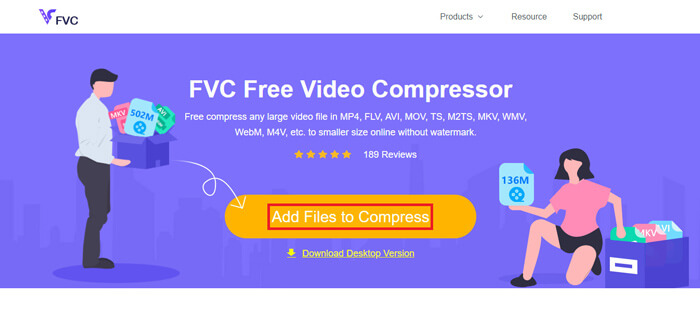
Langkah 1: Setelah Anda memindahkan video 3GP dari ponsel cerdas, Anda dapat membuka kompresor 3GP online gratis dan klik tombol Add Files to Compress untuk mengimpor file 3GP yang ingin Anda perkecil.
Langkah 2: Setelah itu, Anda dapat menyesuaikan resolusi, bitrate, dan parameter lainnya. Pratinjau ukuran video 3GP, lalu Anda dapat mengklik tombol Compress untuk mengompres video 3GP secara online.
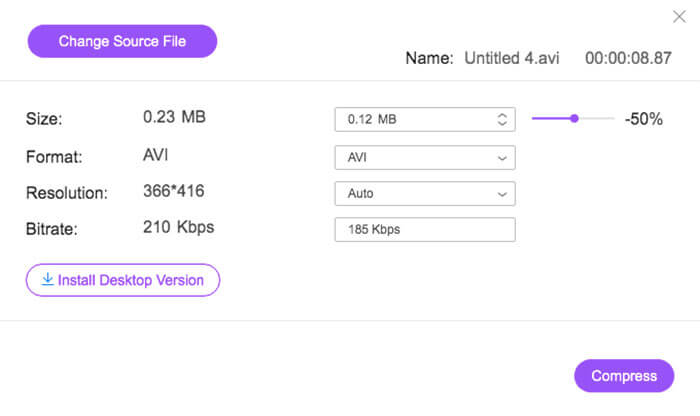
Langkah 3: Setelah Anda mengunduh file 3GP, Anda cukup mengklik tombol Change Source File untuk beralih ke file 3GP lainnya. Tidak ada batasan jumlah file video 3GP. Temukan lebih banyak pemutar 3GP di sini.
Bagian 2: Cara Profesional untuk Mengompresi File 3GP dalam Batch
Jika Anda perlu mengompres video 3GP secara bersamaan, atau bahkan membagi video menjadi ukuran yang lebih kecil, Video Converter Ultimate adalah kompresor 3GP dengan banyak fitur yang tidak hanya mengurangi ukuran video 3GP, tetapi juga membagi dan memotong video 3GP. Selain itu, Anda juga dapat mengonversi video 3GP ke MP4 dan format video lainnya.
- 1. Kompres beberapa video 3GP secara bersamaan dalam satu klik.
- 2. Pilih titik awal dan titik akhir untuk memangkas file 3GP yang diinginkan.
- 3. Kecilkan video 3GP dengan bitrate, format video, resolusi, dll.
- 4. Konversi 3GP ke MP4, dan lebih banyak format video lainnya ke ukuran yang lebih kecil.
Unduh GratisUntuk Windows 7 atau yang lebih baruUnduhan Aman
Unduh GratisUntuk MacOS 10.7 atau yang lebih baruUnduhan Aman
Setelah Anda menginstal Video Converter Ultimate, Anda dapat meluncurkan program di komputer Anda. Ini menyediakan 3 cara berbeda untuk mengompres video 3GP. Lihat saja proses terperinci di bawah ini.
1: Kompres File 3GP dari Toolbox
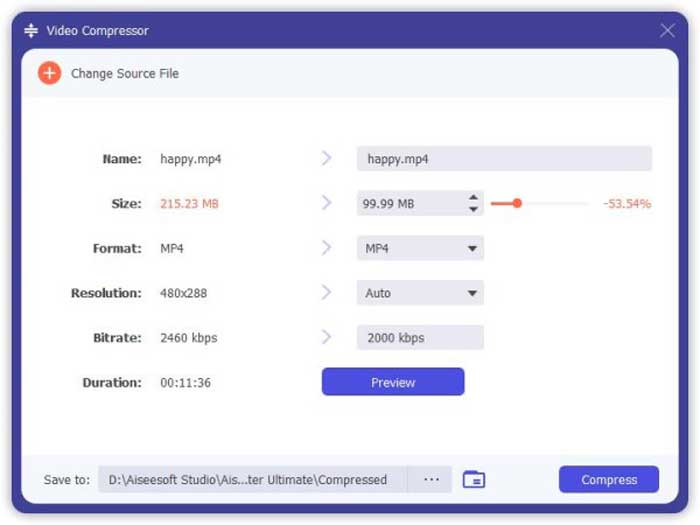
Masuk ke menu Toolbox di antarmuka pengguna, Anda dapat memilih opsi Video Compressor untuk mengurangi ukuran file 3GP. Anda dapat mengatur codec video, bitrate, resolusi, dan pengaturan lainnya. Setelah itu, Anda dapat mempratinjau ukuran video untuk mengompres file 3GP.
2: Kompres 3GP dalam Proses Batch
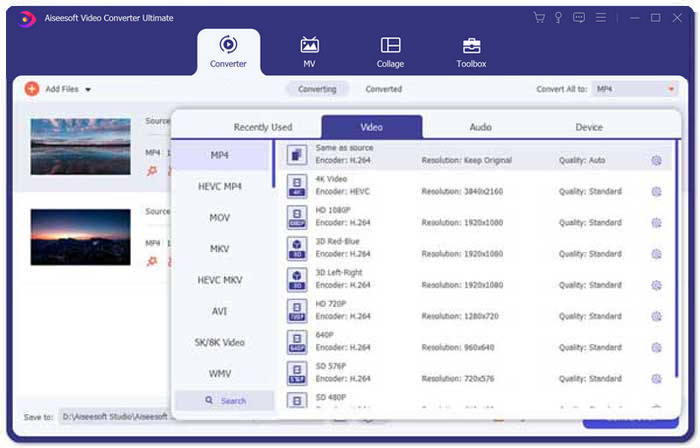
Masuk ke menu Converter dan pilih Add Files untuk mengimpor video 3GP ke dalam program. Lalu Anda dapat memilih MP4 sebagai format keluaran di kolom Convert All to:. Selain itu, Anda juga dapat menyesuaikan bitrate video, codec video, dan pengaturan lainnya untuk mengurangi ukuran file 3GP.
3. Pangkas Bagian Video 3GP yang Diinginkan
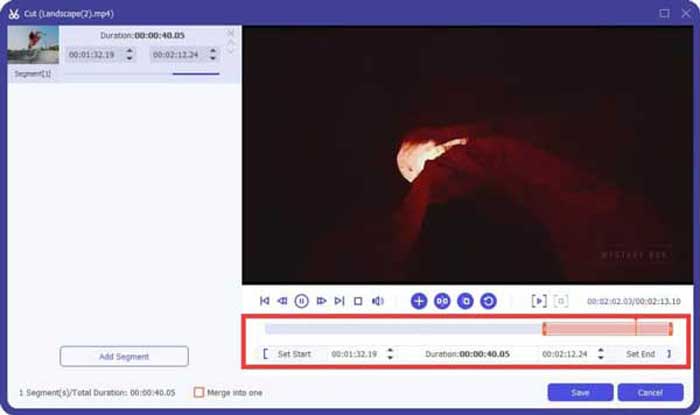
Ketika Anda hanya perlu memotong bagian tertentu saja, Anda dapat mengklik ikon Scissor untuk membagi video 3GP. Cukup pilih titik awal dan titik akhir untuk mengurangi ukuran 3GP. Setelah itu, Anda dapat mengklik tombol Convert All untuk mengekstrak bagian video 3GP yang diinginkan.
Bagian 3: FAQ tentang Cara Mengompres Video 3GP
1. Apa itu Format Video 3GP?
3GP juga dikenal sebagai Grup Proyek Kemitraan Generasi ke-3. Sebagai wadah file multimedia, 3GP bertujuan untuk menghemat ruang, penggunaan data, dan bandwidth. Jika Anda sering mengambil video di smartphone, Anda harus mengompres file 3GP.
2. Haruskah saya mengompres 3GP ke MP4?
Dibandingkan dengan 3GP, MP4 adalah format file yang jauh lebih populer dan fleksibel. Anda dapat memilih untuk mengompres 3GP ke MP4 jika Anda tidak dapat membuka atau memutar 3GP di perangkat Anda. Cukup tambahkan video 3GP ke konverter video apa pun. Anda dapat mengonversi format 3GP ke MP4 dalam beberapa klik.
3. Apakah Ada Kompresor Video 3GP untuk BlackBerry?
Iya. Anda cukup mencari editor video 3GP atau kompresor video 3GP untuk BlackBerry. Tentu saja, Anda juga dapat menggunakan Google Drive dan beberapa kompresor video 3GP online untuk mengurangi dan mengecilkan video 3GP sesuai kebutuhan Anda.
Kesimpulan
Artikel ini membagikan dua cara efektif untuk mengompres video 3GP. Jika Anda ingin mengompres 3GP online secara gratis, FVC Online Video Compressor harus menjadi pilihan yang tepat. Ketika Anda perlu mengurangi file 3GP dalam proses batch, Video Converter Ultimate harus selalu menjadi pilihan pertama Anda.
-
 3 Cara Mengompres dan Mengonversi File Video Besar untuk WhatsApp
 Dari artikel ini, Anda bisa mendapatkan 3 cara mudah untuk mengompres video online untuk WhatsApp. Mengapa Anda tidak dapat mengirim video di WhatsApp? Apa yang dapat Anda lakukan untuk memperbaiki batas ukuran video WhatsApp? Baca dan periksa saja.
-
 Tutorial untuk Mengompres GIF dan Mengurangi Ukuran File dengan Kualitas Tinggi
 Berikut adalah 2 cara mudah untuk mengompres GIF di komputer atau ponsel Anda. Anda dapat menggunakan Kompresor Video Online Gratis FVC dan Photoshop mengurangi ukuran file GIF dalam berbagai aspek.
-
 3 Metode untuk Mengonversi MP4 ke 3GP Tanpa Repot
 Ingin mengonversi MP4 ke 3GP dengan cara cepat dan mudah? Di sini kami akan membagikan 3 konverter MP4 ke 3GP untuk mengubah MP4 menjadi 3GP untuk diputar di berbagai ponsel.
