


 Video Converter Ultimate
 Perekam Layar
 Perbaikan Video
 Unduhan Aman
Panduan Lengkap tentang Cara Membalik Video untuk Efek Visual yang Memukau
Membalik atau mencerminkan video dapat menciptakan efek visual yang unik dan menambah dimensi baru pada footage Anda. Apakah Anda ingin membuat pengungkapan dramatis atau menambahkan sentuhan menyenangkan pada konten Anda, membalik video dapat menambah elemen dinamis pada proyek Anda. Teknik ini dapat dicapai dengan menggunakan berbagai perangkat lunak penyuntingan video, mulai dari opsi gratis seperti iMovie dan Shotcut hingga alat yang lebih canggih seperti Final Cut Pro dan Sony Vegas.
Dengan kemampuan membalik video secara horizontal, vertikal, atau bahkan dalam ruang 3D, ada peluang kreatif tanpa batas saat membalik atau mencerminkan rekaman Anda. Jadi, mengapa tidak bereksperimen dengan teknik ini dan melihat ke mana ia membawa proyek video Anda berikutnya? Dalam panduan ini, kami akan membahas dasar-dasar pembalikan video dan alat serta aplikasi terbaik untuk mencerminkan video dan mengedit rekaman favorit Anda. Di akhir artikel ini, Anda akan memiliki semua pengetahuan dan keterampilan yang Anda perlukan untuk menguasai seni pembalikan video dan menghasilkan visual menakjubkan yang memikat audiens Anda.

Bagian 1. Cara Sederhana dan Efektif untuk Membalik Video
Video Converter Ultimate oleh FVC adalah perangkat lunak konversi video yang komprehensif yang tidak hanya dapat mengonversi file video dan audio di antara berbagai format, tetapi juga menyediakan alat pengeditan yang kuat untuk menyempurnakan file media Anda. Salah satu fitur unggulannya adalah kemampuannya untuk membalik video dengan cepat.
Apakah Anda ingin memutar video yang direkam dengan orientasi yang salah atau membaliknya secara horizontal atau vertikal untuk tujuan artistik, Video Converter Ultimate dapat membantu Anda melakukannya dengan mudah. Dengan antarmuka yang intuitif dan langkah-langkah sederhana, Anda dapat membalik video hanya dengan beberapa klik. Selain itu, aplikasi ini mendukung pemrosesan batch, memungkinkan Anda membalik beberapa video sekaligus untuk menghemat waktu dan tenaga. Ikuti panduan di bawah ini untuk membalikkan video dengan program ini.
Langkah 1. Dapatkan program dan pasang
Pertama-tama, Anda perlu mengunduh salinan penginstal program dengan menekan tombol Unduh Gratis di bawah ini. Lalu, pasang program dengan bantuan panduan instalasi. Setelah itu, luncurkan di komputer Anda dan jelajahi antarmukanya.
Free DownloadUntuk Windows 7 atau yang lebih baruUnduhan Aman
Free DownloadUntuk MacOS 10.7 atau yang lebih baruUnduhan Aman
Langkah 2. Akses fitur pembalik video
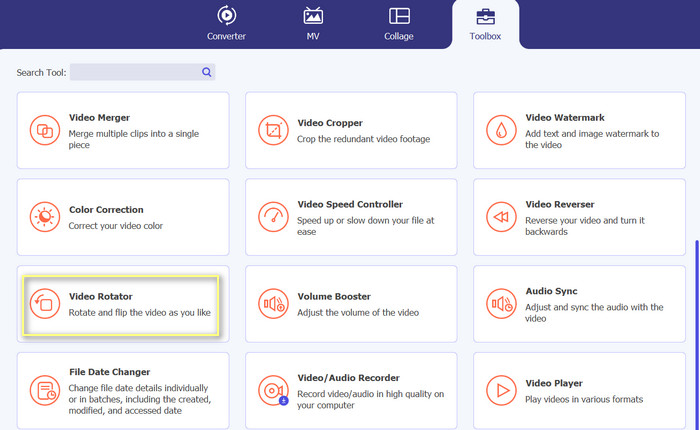
Sekarang setelah alat diluncurkan, Anda akan melihat empat tab utama dari antarmuka utama. Pilih Toolbox > Video Rotator. Atau, Anda bisa mencari alat tersebut menggunakan bilah pencarian untuk dengan cepat menemukan opsinya.
Langkah 3. Tambahkan file video
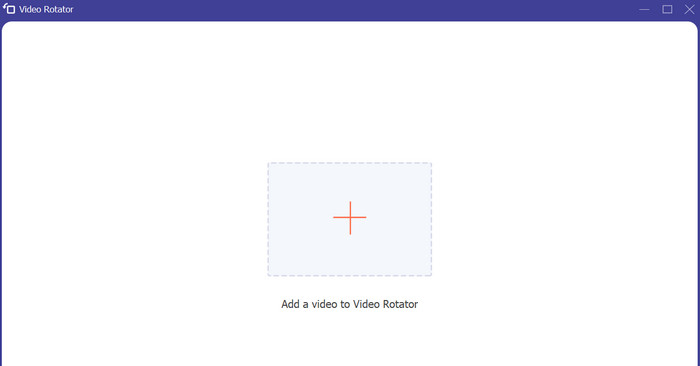
Anda bisa mengklik tombol tanda plus dari panel unggah Video Rotator. Setelah itu, Anda akan dibawa ke antarmuka pembalikan.
Langkah 4. Balik video
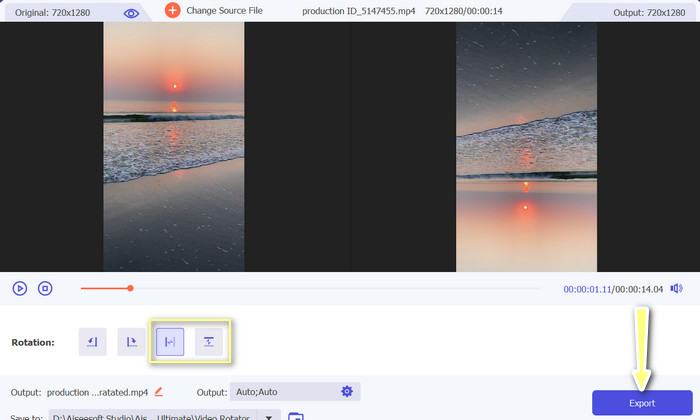
Setelah antarmuka pembalikan muncul, Anda kini punya akses ke tombol-tombol pembalikannya. Di sana Anda memiliki opsi untuk membalik video secara horizontal atau vertikal. Cukup pilih tombol yang sesuai dan tekan tombol Ekspor untuk menyelesaikan proses.
Bagian 2. Cara Membalik Video di Premiere
Adobe Premiere Pro mendukung berbagai format file video, termasuk MP4, FLV, MOV, WMV, dll. Kemampuan Premiere Pro untuk membalik video hanyalah salah satu dari banyak fitur yang membuatnya menonjol dari kompetisi. Fitur ini memungkinkan Anda membuat efek yang unik dan menakjubkan secara visual di video Anda hanya dengan beberapa klik. Ini mencakup efek Horizontal Flip dan Vertical Flip bawaan. Fungsi Flip Horizontal memungkinkan Anda membuat video yang merupakan bayangan cermin dari aslinya. Video terbalik saat menggunakan Flip Vertikal.
Fitur menonjol lain dari Premiere Pro adalah integrasinya dengan aplikasi Adobe Creative Cloud lainnya, seperti After Effects dan Photoshop. Integrasi ini memungkinkan Anda untuk dengan cepat berpindah antar aplikasi dan bekerja secara mulus di berbagai proyek. Selain itu, Premiere Pro menawarkan beragam plugin dan integrasi pihak ketiga, menjadikannya solusi pengeditan video yang sangat dapat disesuaikan dan serbaguna, seperti mempercepat video, menambahkan transisi, dan lainnya.
Kuasai cara membalik video di Premiere, simak langkah-langkahnya di bawah ini.
Langkah 1. Buka Adobe Premiere Pro dan mulai proyek baru
Klik menu File dan pilih New dari bilah menu utama.
Langkah 2. Masukkan video yang ingin Anda putar
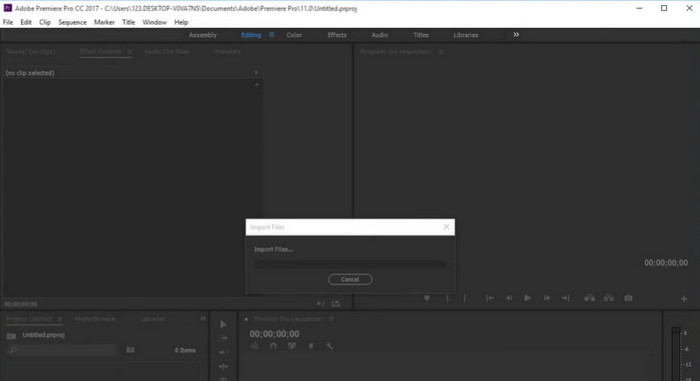
Pilih Import dari menu File di bilah menu. Lalu, gunakan penjelajah file Anda untuk memilih video dan klik Open.
Langkah 3. Letakkan video di Timeline Panel
Video yang baru saja Anda impor sekarang akan muncul di panel Project. Seret dan jatuhkan klip ke panel Timeline untuk menambahkannya ke timeline.
Langkah 4. Pilih video dari Timeline
Untuk memutar video, Anda perlu memilihnya. Klik video di panel Timeline untuk memilihnya.
Langkah 5. Putar video Anda
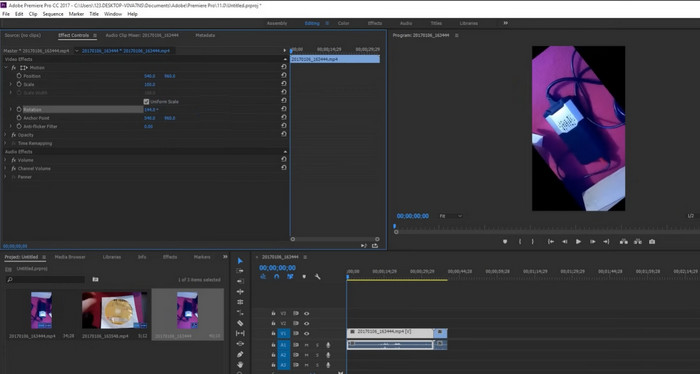
Klik dropdown Motion pada tab Effect Controls. Ini akan menampilkan menu dropdown untuk Rotation. Klik angka (teks biru yang menunjukkan derajat) di samping Rotation dan ketik jumlah derajat yang Anda inginkan. Video dapat diputar ke 90, 180, atau 270 derajat.
Langkah 6. Balik video
Buka tab Effects di panel Project Anda, klik dropdown Distort, lalu klik dua kali Transform dari menu dropdown yang muncul. Kemudian, hapus centang pada kotak Uniform Scale. Untuk membalik video Anda secara horizontal atau vertikal, ubah angka di samping Scale Width atau Scale Height menjadi -100.
Bagian 3. Cara Membalik Video di iMovie
Anda dapat menambahkan sentuhan kreatif ke proyek iMovie Anda dengan membalikkan klip. Hasilnya bisa sangat mengesankan. Atau mungkin Anda perlu membalik video agar dapat diputar dengan benar. Apa pun masalahnya, iMovie memudahkan untuk memutar, memutar, dan membalik video di Mac, iPad, dan iPhone. Kemampuan iMovie untuk bekerja dengan produk Apple lainnya seperti iPhone dan iPad adalah salah satu fitur terbaiknya.
Ini membuatnya sangat mudah untuk mengimpor video dan mengerjakan proyek di perangkat yang berbeda. iMovie juga memiliki beragam template dan tema yang memudahkan pembuatan video yang terlihat profesional hanya dengan beberapa klik. Selain membalik klip secara vertikal atau horizontal, Anda juga dapat memutarnya ke kiri atau ke kanan. Meskipun iMovie tidak memiliki banyak fitur canggih seperti beberapa pesaingnya yang lebih profesional, iMovie merupakan pilihan tepat bagi orang yang menginginkan cara yang mudah digunakan dan murah untuk mengedit video. Salah satu dari banyak hal yang menjadikannya pilihan populer di kalangan pengguna Mac adalah dapat membalik video.
Oleh karena itu, buka iMovie di Mac Anda dan lanjutkan dengan petunjuk di bawah ini untuk mempelajari cara membalik video di Premiere.
Langkah 1. Buka iMovie dan akses pemangkasan
Luncurkan iMovie dan jatuhkan file media ke timeline untuk mulai mengedit. Pilih video yang ingin Anda balik di timeline, lalu pilih simbol Cropping dari toolbar di atas jendela video.
Langkah 2. Pangkas video
Saat Anda berada di penampil alat pemangkasan, seret kotak persegi panjang ke ukuran yang Anda inginkan. Untuk menemukan tanda plus, gerakkan kursor ke sudut. Anda dapat mengubah ukuran video dengan menyeret penggeser. Untuk mempertahankan batas di sekitar film Anda, Anda dapat menggunakan opsi allow black. Ini adalah alternatif yang bagus jika Anda menginginkan bingkai virtual di video akhir Anda.
Langkah 3. Putar video
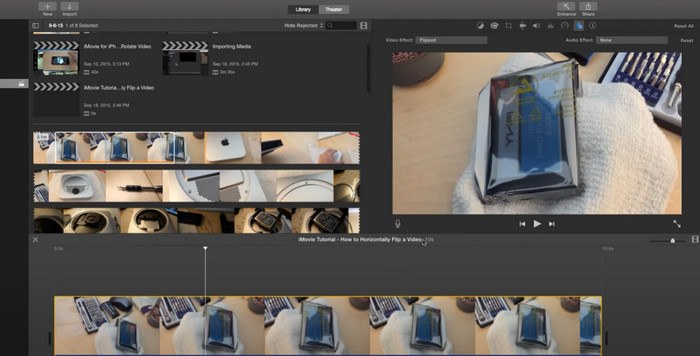
Untuk memutar gambar, gunakan tombol Rotate pada alat pemangkasan. Memutar video ke kiri atau kanan semudah memutar klip searah jarum jam atau berlawanan arah jarum jam. Klip video dapat dengan mudah dibalik atau dicerminkan di iMovie. Cukup pilih tombol Filter. Lalu, di jendela yang muncul, pilih Flipped filter dengan mengklik tombol Clip Filter.
Langkah 4. Balik rekaman
Segera setelah Anda mendapatkan tampilan yang diinginkan, pilih tombol Apply untuk menerapkan pilihan Anda. Hasil akhir dapat dilihat di area ini. Jika sudah puas, tekan tombol Finish. Video Anda akan disimpan secara otomatis.
Sedang mencari aplikasi iMovie untuk Windows?
Bagian 4. Tutorial Membalik Video VLC
Pemutar media VLC adalah pemutar media serbaguna dan banyak digunakan yang telah mendapatkan reputasi sebagai salah satu pemutar media paling andal dan penuh fitur yang tersedia saat ini. Dengan kemampuannya untuk memainkan berbagai format media dan codec, termasuk file audio dan video, ini telah menjadi pilihan utama bagi pengguna di seluruh dunia. Selain itu, aplikasi ini kompatibel dengan komputer Mac dan Windows. VLC untuk Windows dapat diunduh jika Anda belum memilikinya.
Namun yang benar-benar membedakan pemutar media VLC adalah komitmennya terhadap keragaman dan aksesibilitas. Ini tersedia di berbagai platform, termasuk Windows, macOS, Linux, dan bahkan perangkat seluler seperti Android dan iOS, membuatnya dapat diakses oleh berbagai pengguna. Selain itu, ini mendukung banyak bahasa, menjadikannya pilihan populer bagi pengguna yang berbicara bahasa selain bahasa Inggris.
Ikuti langkah-langkah di bawah ini untuk menggunakan fitur video flip VLC:
Langkah 1. Buka file video
Untuk membalik video yang Anda rekam di VLC di Windows, buka program dan tekan Media lalu klik opsi open file.
Langkah 2. Akses Filters and effects
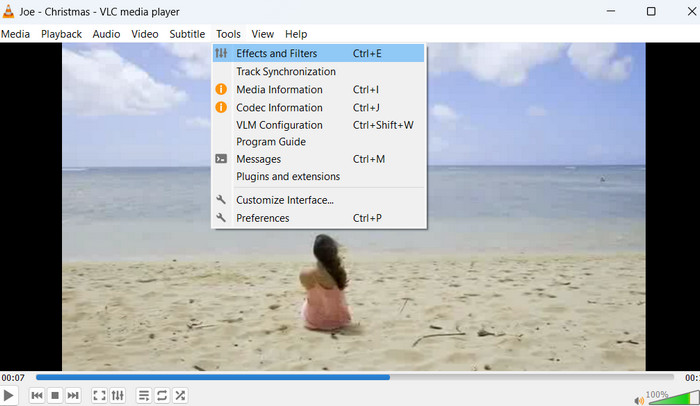
Dengan menekan ikon Tools, Anda dapat dengan cepat mengakses alat pengeditan video VLC. Dari sana, Anda dapat membuka berbagai Effects and Filters.
Langkah 3. Luncurkan video effects
Dengan mengetuk jendela Adjustments and Effects, sekarang Anda dapat masuk ke tab Video Effects.
Langkah 4. Buka Video Effects dan Geometry
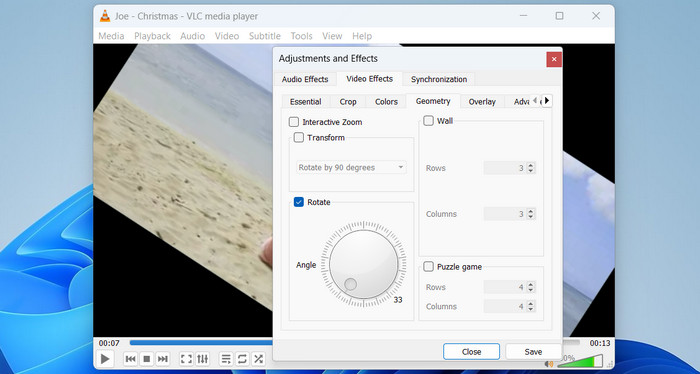
Klik opsi Geometry, yang merupakan salah satu sub-tab untuk video effects.
Langkah 5. Opsi pembalikan di kotak Transform
Anda dapat memutar video dengan dua cara berbeda. Anda dapat melakukan prosedur yang sama untuk menguasai cara membalik video di Windows 10.
Metode Satu. Putar dengan jumlah tertentu
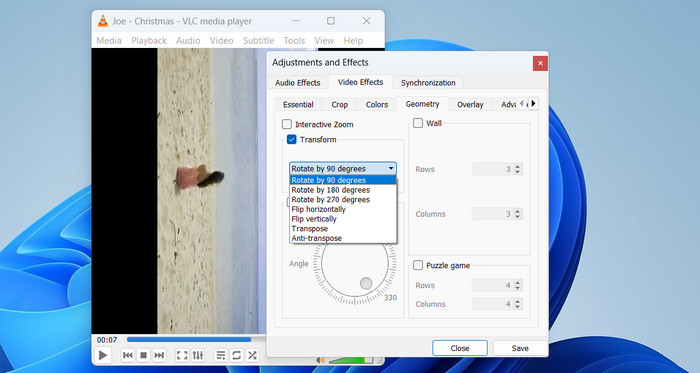
Salah satu caranya adalah memutar 90, 180, atau 270 derajat atau memutar video Anda secara horizontal dan vertikal. Untuk melakukannya, klik kotak Transform dan pilih salah satu opsi dari menu tarik-turun, seperti putar 90 derajat.
Metode Dua: Gerakkan lingkaran secara manual
Anda juga dapat memutar video dengan memilih sudut rotasi dengan tangan. Untuk menyelesaikannya, centang kotak di sebelah putar. Anda dapat memindahkan ikon lingkaran untuk menemukan sudut yang bagus. Di pojok kanan bawah, Anda akan menemukan sudut rotasi.
Bagian 5. Cara Membalik Video di Final Cut Pro
Final Cut Pro adalah perangkat lunak canggih untuk mengedit video yang dibuat untuk memenuhi kebutuhan para profesional. Kemampuan untuk membalik video adalah salah satu hal terbaik tentang Final Cut Pro. Fitur yang sangat berguna ini memungkinkan pengguna menambahkan efek khusus ke video mereka yang unik dan indah untuk dilihat. Inverter video ini memudahkan untuk membuat video terlihat seperti gambar cermin atau cukup membaliknya secara horizontal atau vertikal.
Namun itu hanya puncak gunung es jika berbicara tentang kemampuan Final Cut Pro. Perangkat ini menawarkan beragam alat dan efek tingkat lanjut yang memungkinkan pengguna membuat video berkualitas tinggi dengan mudah. Final Cut Pro memiliki semua yang Anda butuhkan untuk membuat video tingkat profesional, mulai dari color grading dan pengeditan audio hingga penghapusan watermark dan efek khusus.
Langkah 1. Pilih Klip dari Timeline
Awalnya, Anda harus mengimpor klip ke dalam program. Sekarang, di bagian bawah Final Cut Pro adalah timeline. Setelah menempatkan klip di garis waktu, Anda dapat memberinya judul dan teks sebelum memasukkannya ke dalam video Anda.
Langkah 2. Klik tombol Transform
Anda bisa mendapatkan alat Transform dari menu pop-up. Letaknya di sudut kiri bawah, sehingga mudah ditemukan. Anda juga dapat menggunakan pintasan dengan menekan (shift-T). Atau, klik Control pada penampil dan pilih Transform.
Langkah 3. Membalik klip video
Klik klip video yang ingin Anda balik di timeline dan pastikan klip tersebut tersorot. Lalu, klik ikon Inspector di kanan untuk membuka panel Inspector, tempat Anda akan melihat opsi Transform.
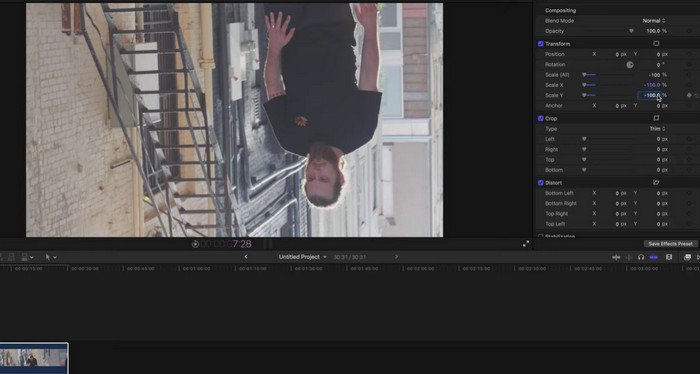
Tombol Skala memungkinkan Anda mengubah ukuran gambar. Jika Anda mengklik panah kecil di sebelahnya, Anda akan melihat X dan Y sebagai pilihan. Masukkan 1.00 di sidebar X dan tekan tombol Enter untuk membalik klip video. Kemudian Anda akan melihat bahwa klip yang dipilih di garis waktu telah dibalik secara horizontal. Jika Anda meletakkan -100 di sidebar Y, klip akan dibalik secara vertikal atau diputar ke arah yang salah.
Bagian 6. Cara Membalik Video di DaVinci Resolve
Jika Anda bosan menggunakan perangkat lunak pengeditan video yang tidak bisa memotongnya? Tidak terlihat lagi dari DaVinci Resolve, perangkat lunak standar industri untuk pengeditan video profesional. DaVinci Resolve juga sangat serbaguna, dengan kompatibilitas di berbagai perangkat dan platform, termasuk Windows, Mac, dan Linux. Ini menjadikannya pilihan ideal untuk editor video yang perlu bekerja di beberapa perangkat atau yang ingin berkolaborasi dengan orang lain dalam sebuah proyek.
Kemampuan membalik video adalah salah satu fitur terbaik DaVinci Resolve. Dengan fitur ini, Anda dapat menambahkan efek menakjubkan ke video Anda yang membuatnya menonjol. DaVinci Resolve memudahkan membalik video secara horizontal atau vertikal atau membuat efek gambar cermin. Ingin tahu cara membalik video di DaVinci Resolve? Ikuti langkah-langkah yang diberikan:
Langkah 1. Buka DaVinci
Di komputer Anda, buka DaVinci. Di jendela pertama, Anda dapat membuka beberapa proyek lama. Klik New Project jika Anda ingin membuat proyek baru. Masukkan nama proyek lalu klik Create.
Langkah 2. Masukkan video
Klik Media setelah Anda masuk ke File > Import. Anda juga bisa menggunakan pintasan keyboard Ctrl+I. Pilih sebuah video dari komputer Anda lalu klik Import. Video yang Anda impor akan berada di media pool. Sekarang, cukup seret video tersebut ke timeline.
Langkah 3. Cara membalik (mirror) video dengan DaVinci
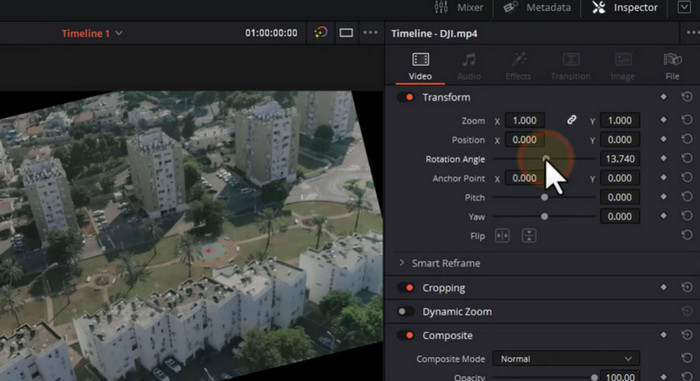
Anda dapat menemukan pengaturan flip di panel Inspector. Anda bisa membalik video dengan mengklik tombol Inspector di pojok kanan atas layar. Panel akan muncul di sebelah kanan. Cari opsi Flip. Akan ada pilihan flip ke kiri dan ke kanan. Anda bisa mengklik flip mana pun yang Anda inginkan.
Langkah 4. Modifikasi videonya
Terserah Anda ketika Anda ingin men-tweak video lebih banyak lagi. Dengan DaVinci, editor video berfitur lengkap, Anda dapat memoles video Anda secara profesional. Gunakan alat ini untuk menyempurnakan pekerjaan Anda menjadi piksel halus.
Langkah 5. Simpan video untuk dibagikan atau ditonton nanti
Cukup pilih Quick Export dari menu File. Setelah menyesuaikan video sesuai keinginan Anda, tekan tombol Export.
Bagian 7. FAQ tentang Membalik Video
Apakah ada batasan ukuran file atau panjang video yang dapat dibalik di OpenShot?
Tidak, Anda dapat menggunakan OpenShot untuk membalik video tanpa batasan khusus pada ukuran file atau panjang video yang dapat dibalik. Namun, video yang lebih besar dan lebih lama mungkin membutuhkan waktu lebih lama untuk diproses dan mungkin memerlukan lebih banyak daya pemrosesan dan memori di komputer pengguna.
Apakah mudah membalik video di PowerDirector?
Ya, membalik video di PowerDirector adalah proses yang sederhana. Pengguna menggunakan PowerDirector untuk membalik video dengan cepat dengan memilih klip video yang ingin mereka balik dan memilih alat Putar dan Balik dari bilah alat. Dari sana, mereka dapat memilih opsi Flip Horizontally atau Flip Vertically untuk membalik video.
Bisakah Shotcut mengekspor video dalam berbagai format dan resolusi?
Setelah fungsi video flip ShotCut, Anda dapat mengekspor video yang telah diedit dalam berbagai format dan resolusi, termasuk HD, 4K, dan bahkan resolusi khusus. Pengguna juga dapat memilih dari berbagai preset ekspor berdasarkan tujuan penggunaan video, seperti YouTube, Vimeo, atau media sosial.
Fitur pengeditan video apa lagi yang ditawarkan Sony Vegas selain membalik video?
Sony Vegas menawarkan sejumlah besar fitur pengeditan video, termasuk pemangkasan, pemisahan, dan penggabungan video, serta fitur lanjutan seperti penilaian warna, efek khusus, dan pengeditan 3D selain dari fitur video flip Sony Vegas. Ini juga memiliki rangkaian pengeditan audio yang kuat dengan alat untuk pengurangan kebisingan, pemerataan, dan pencampuran suara surround.
Kesimpulan
Sebagai kesimpulan, membalik video dapat menambahkan elemen yang menarik dan unik pada konten video Anda, memberikan sudut pandang baru dan efek visual yang dinamis. Baik Anda membuat postingan media sosial yang seru maupun produksi profesional, kemampuan untuk membalik gambar secara horizontal atau vertikal sangatlah berguna. Selain itu, ada beragam pilihan perangkat lunak pengeditan video yang tersedia, sehingga membalik video menjadi sederhana dan mudah, memungkinkan Anda bereksperimen dengan berbagai teknik dan menemukan gaya yang paling tepat untuk proyek Anda.
-
 Cara Mengompres Video Secara Gratis / Coba 7 Kompresor Video Online Ini
 Baca dan dapatkan 7 cara untuk mengompres video secara gratis di komputer atau ponsel Anda. Anda dapat mengurangi video besar menjadi ukuran file kecil untuk email, Twitter, Instagram, YouTube, WhatsApp, dan lainnya dengan mudah.
-
 4 Cara Menakjubkan untuk Menambahkan Filter ke Video di Windows & macOS
 Ingin tahu cara terbaik memasang filter pada video? Untungnya, kami menemukan tiga editor video yang dapat Anda gunakan untuk tugas ini; terus membaca posting ini untuk mengetahui lebih banyak.
-
 Cara Mempersingkat Video dengan Mudah Menggunakan Alat Terbaik
 Pelajari cara mempersingkat video menggunakan alat terbaik dan paling sering digunakan. Baca artikel ini untuk mempelajari detail lengkap tentang alat dan cara menggunakannya.
