


 Video Converter Ultimate
 Perekam Layar
 Perbaikan Video
 Unduhan Aman
Cara Mudah Memangkas Video MP4 & Solusi #91Mac dan Windows
Nowadays, trimming or splitting a video is a very useful thing to do, especially when you want to remove unnecessary and boring parts from a lengthy video. If you’re someone who wants to trim MP4 videos but doesn’t know how and what tools to use, we've got you covered! In this article, learn 6 video cutter tools that can help you easily cut down the unwanted videos on Windows and Mac.

Bagian 1: Cara Memangkas MP4 di Windows dan MacOS dengan Pemangkas MP4 Berfitur Lengkap
If you are a Windows or macOS user and want to cut a video using a full-featured MP4 trimmer video tool, FVC Video Converter Ultimate is the perfect for you. This is a video converter tool, but it comes with a lot of features, including a video trimmer. With this feature, users can split or cut any MP4 videos, especially those that are not practically lengthy and those that contain unwanted parts or segments. Moreover, you can manually select the part of the video that you want to cut or trim the segment automatically using its fast slip feature. Lastly, this powerful tool supports various video formats to ensure compatibility with video inputs like MP4, MKV, MOV, FLV, AVI, MP3, etc. Therefore, whether you're cutting out unnecessary footage, extracting specific segments, or refining timing, FVC Video Converter Ultimate is a perfect tool to seamlessly trim MP4 video on both Windows and macOS systems.
Langkah 1. Unduh dan instal FVC Video Converter Ultimate di komputer Windows atau Mac Anda.
Unduh GratisUntuk Windows 7 atau yang lebih baruUnduhan Aman
Unduh GratisUntuk MacOS 10.7 atau yang lebih baruUnduhan Aman
Step 2. Next, click on the Toolbox and look for the Video Trimmer.
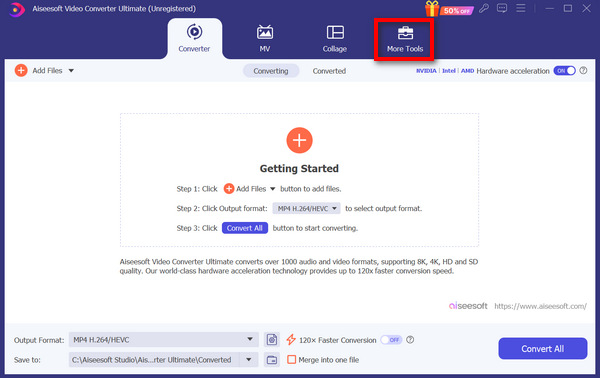
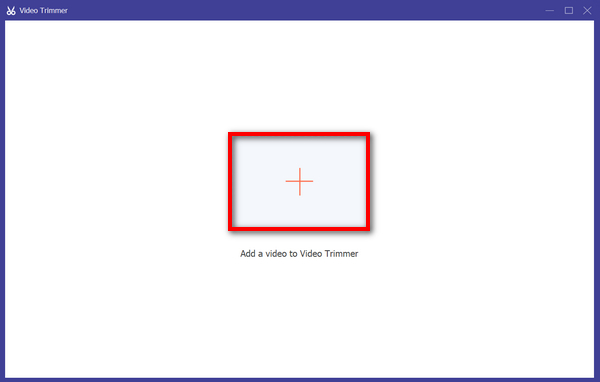
Step 3. Now, from there, click on the Add a Video to Video Trimmer button to add the MP4 file that you want to trim.
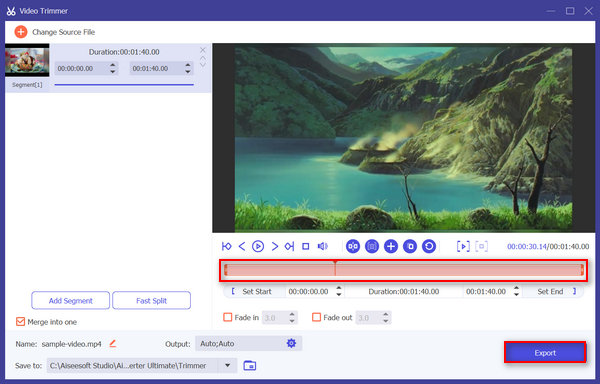
Step 4. To trim the video, you can do it manually by easily adjusting or moving the start and end bar on the clip by dragging, moving it from left to right, or typing in the start and end times of the part of the MP4 video that you want to trim.
Proses tersebut secara otomatis memotong bagian video berdasarkan waktu Anda ingin memulai dan mengakhiri pemangkasan.
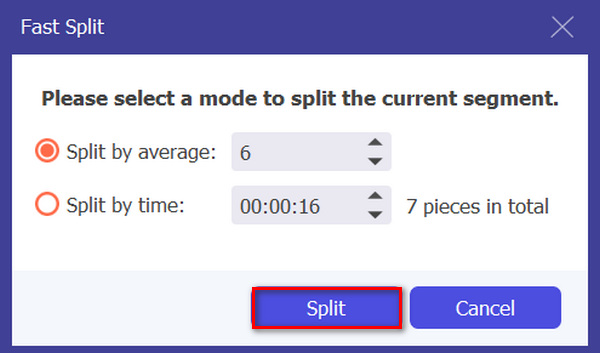
Meanwhile, if you want to cut it using the Fast slip trimmer feature. You just need to click on the Fast Slip button beside the Add Segment button. Next, select a mode in which you want to split the segment. If you choose to Split it by average, then just indicate the number, but if you want to split it by time, then indicate the time. After that, click the Split button.
Step 5. Lastly, to export the trimmed video, click on the Export button.
Ketika memotong file video MP4, FVC Video Converter Ultimate memang merupakan solusi yang tepat. Antarmuka intuitifnya memastikan Anda dapat dengan mudah dan tepat memotong video MP4 dengan mudah, dan berbagai opsi pemangkasannya memberi Anda fleksibilitas tentang cara Anda ingin memotong video dengan mudah.
Pro
- Mendukung berbagai format input video.
- Pemangkasan yang tepat.
- Antarmuka pengeditan intuitif.
- Mempertahankan kualitas video yang dipangkas.
- Telah Digabung menjadi satu fitur.
Kontra
- Mengakses fitur lengkapnya mungkin dibatasi jika menggunakan versi gratisnya.
Bagian 2: Cara Memangkas MP4 Online Gratis
Jika Anda mencari cara untuk memangkas video MP4 secara daring, ada beberapa alat yang gratis dan mudah diakses yang dapat Anda gunakan. Nah, menggunakan pemangkas video daring bisa sangat berguna, terutama jika Anda perlu mengedit video dengan cepat tanpa perlu perangkat lunak khusus atau unduhan. Tanpa basa-basi lagi, berikut adalah lima pemangkas video daring gratis tahun 2025 ini:
Ezgif
Ezgif is a free and simple toolset that allows users to trim GIF and MP4 online and for free. Also, it has a very simple and user-friendly interface. However, at some point the tool’s interface is sloppy and might be overwhelming for new users to use it. Nonetheless, this tool is still great when you want to trim short videos.
Step 1. First, go to their official website.
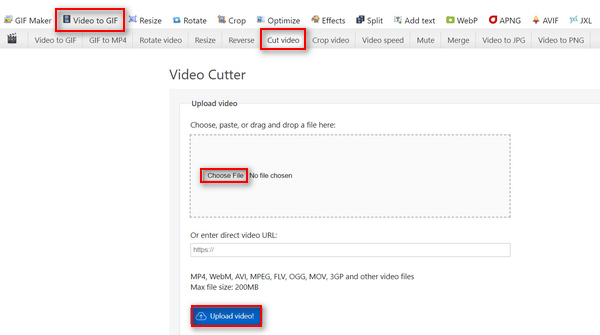
Step 2. Click on Video to GIF, select Cut Video, and upload the MP4 video that you want to trim from your device by clicking the Choose File button, or else paste the URL of the MP4 video in the space provided below.
Step 3. Now, once the video is uploaded, trim your video. Ensure to set the start and end times of the video that you want to trim.
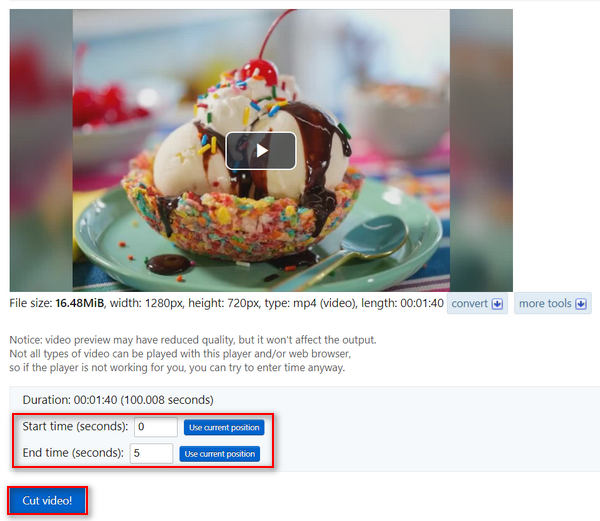
Step 4. Once you have set the time when you want to start and end the video that you want to trim, click the Cut the Video button.
Ezgif Video Cutter adalah alat yang hebat ketika Anda ingin memotong video MP4 yang tidak memerlukan pemangkasan yang rumit. Jadi, jika Anda membutuhkan pemangkas MP4 yang lebih canggih dan kompleks, ini bukan untuk Anda.
Pro
- Mudah digunakan.
- Mendukung berbagai format, seperti MP4, WebM, AVI, MPEG, FLV, OGG, MOV, dan 3GP.
- Bekerja pada URL.
Kontra
- Antarmuka yang ceroboh.
- Batas ukurannya hanya sampai 200 MB.
Fastreel
Fastreel adalah alat pengeditan video online sederhana yang dapat digunakan untuk memotong video MP4 dengan mudah karena antarmukanya yang ramah pengguna dan intuitif. Pengguna dapat dengan mudah menavigasi alat ini, dan mereka hanya perlu menarik dan melepas file mereka lalu dengan mudah menghapus bagian yang tidak mereka inginkan. Selain itu, alat ini mendukung berbagai format video seperti file MP4, MOV, MKV, AVI, dan WMV. Terakhir, dengan alat ini, Anda dapat menyimpan dan mengunduh video yang Anda edit secara gratis.
Step 1. Go to their official website.
Step 2. To upload the MP4 video that you want to trim, click on the Add Files button.
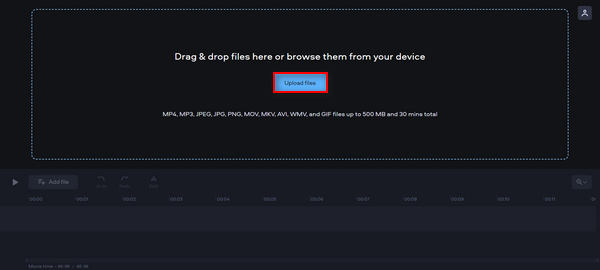
Step 3. Now, to trim the MP4 video, move the red marker to where you want to make a cut and click the Scissors icon.
Step 4. Lastly, after trimming the MP4 video, click on the Export button to save it.
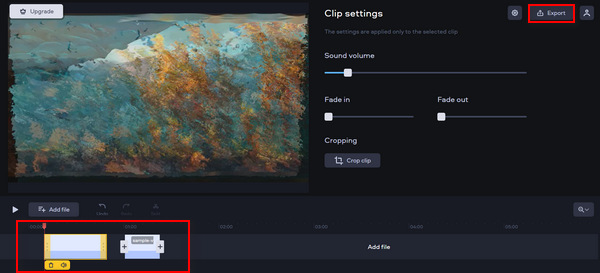
Alat ini dapat memotong video MP4 dengan sangat mudah. Namun terkadang, mengupload video yang ingin dipangkas membutuhkan waktu.
Pro
- Antarmuka yang ramah pengguna dan intuitif.
- Pengeditan yang tepat.
- Mendukung berbagai format video.
Kontra
- Upload videonya lambat.
- Video yang disimpan akan memiliki tanda air.
- Batas ukurannya hanya sampai 500 MB.
Pemotong Video Online
Online Video Cutter is an online video editing tool that you can use to trim MP4 videos online is the Online Video Cutter. With this tool, you can easily trim MP4 videos and further edit them using its other editing features. Moreover, compared to other free MP4 trimming tools, this free online MP4 trimmer can handle a much bigger video size, catering to a maximum of 4GB video file.
Langkah 1. Kunjungi situs resmi mereka.
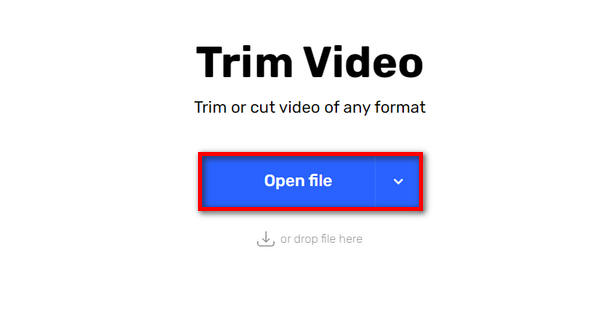
Step 2. To add the MP4 video that you want to trim, Click on the Open File button.
Step 3. Now, to trim MP4 video using this tool, click on the Trim or Cut menu above, then select the part of the video that you want to adjust by adjusting both the start and the end indicator. Once set, click on the Trim or Cut button below and click Save to save to export the video.
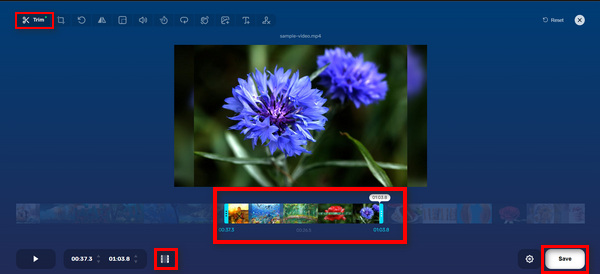
Dengan batas ukurannya yang besar, antarmuka yang sederhana, dan fitur pengeditan lainnya, Pemotong Video Online memang merupakan alat pemangkas MP4 online gratis yang menjanjikan.
Pro
- Dapat melihat pratinjau video selama 5 detik.
- Mendukung setidaknya file ukuran video maksimal 4GB.
- Memiliki fitur pengeditan lain dalam antarmuka pemangkasan video.
Kontra
- Upload videonya lambat.
- Video yang disimpan akan memiliki tanda air.
- Batas ukurannya hanya sampai 500 MB.
kapwing
Kapwing adalah alat pengeditan video online yang mudah digunakan dan dapat dengan mudah digunakan untuk memotong video MP4. Salah satu fitur luar biasa dari alat ini adalah mendukung video YouTube, memungkinkan pengguna memotong langsung video MP4 dari YouTube dengan menempelkan URL-nya ke sistem.
Step 1. Go to their official website.
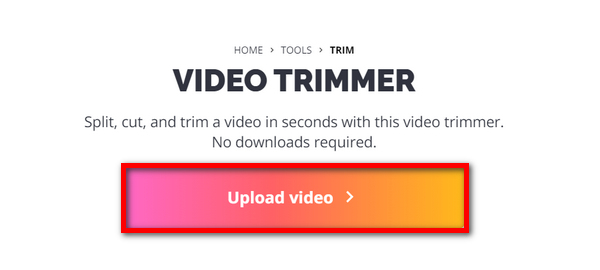
Step 2. Click on the Upload Video button to go to its main interface.
Step 3. From there, you have two options for how you can add your files. It’s either uploading the MP4 video by clicking the Click to Upload button or by pasting the YouTube URL if the video that you want to trim is from YouTube.
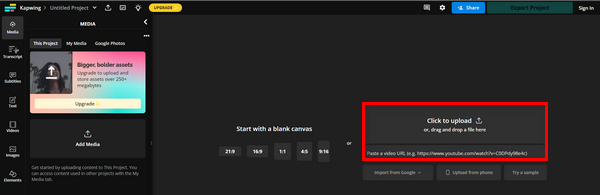
Step 4. Now, click on the Trim menu to be redirected to another Window where you can trim the video.
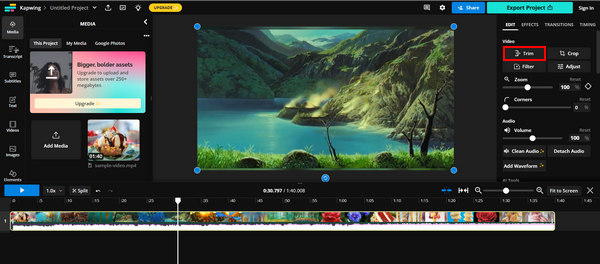
Step 5. To trim your video, just move on to the trim indicator, where you want to start the trim at where it ends, or else you can just type in the time where you want to start and end the trim. After that, click on the Trim button.
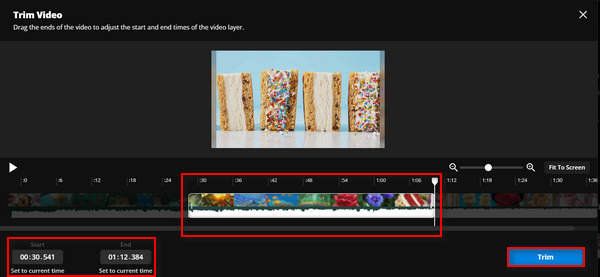
Step 6. To save the file, click on Export Project.
Pastikan Anda telah membuat akun agar Anda dapat mengekspor video yang telah dipotong.
Pro
- Mudah digunakan.
- Mendukung format video populer seperti file MP4, video MOV, WMV, dan lainnya.
- Tambahkan gratis.
Kontra
- Perlu mendaftar.
- Hanya mengizinkan hingga 250MB.
FreeConvert
FreeConvert.com is an online video editing platform that offers various multimedia conversion and editing tools. One of its prominent features is the video trimmer, which allows users to trim MP4 and other video formats up to 1GB in size. Moreover, with its intuitive interface, there's no doubt that users can easily navigate the trimming process of their videos.
Step 1. Go to their official website.
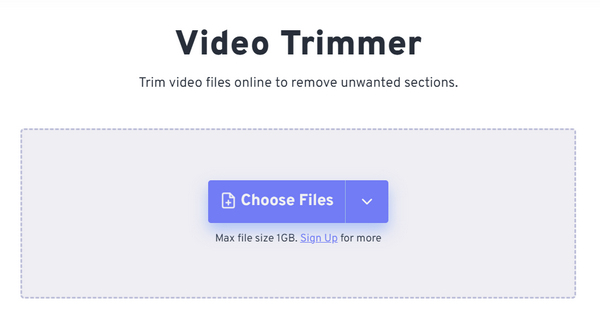
Step 2. Click on the Choose Files drop-down button and add the MP4 video that you want to trim from your Device, Dropbox, and Google Drive. You can also just paste the link of the video that you want to trim.
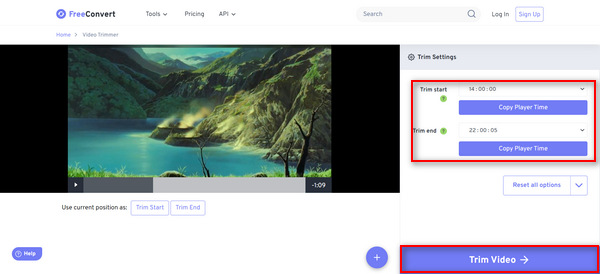
Step 3. Now, to trim the video, just indicate the time when you want to start the trim, as well as when you want the trim to end. After that, click the Trim Video button.
FreeConverter adalah alat MP4 online gratis yang tersedia saat ini. Meskipun gratis, iklan adalah hal yang sulit ditangani di alat ini. Jadi, jika Anda adalah seseorang yang tidak menginginkan hal tersebut, maka alat ini bukan untuk Anda.
Pro
- Tidak ada tanda air.
- Tidak memerlukan registrasi apa pun.
- Mendukung lebih dari 40 format video termasuk MP4, MOV, AVI, dan WebM.
Kontra
- Memiliki terlalu banyak iklan.
Bagian 3: FAQ tentang Pemangkas MP4
Apa perbedaan antara memotong video dan membagi video?
Memangkas video adalah saat Anda menghapus bagian awal atau akhir video. Di sisi lain, membagi video adalah saat Anda akan memotong klip video menjadi dua bagian terpisah.
Haruskah saya membayar perangkat lunak untuk memotong video saya?
Ini sangat tergantung pada kebutuhan dan preferensi spesifik Anda. Meskipun ada banyak pilihan perangkat lunak pengeditan video berbayar yang tersedia dengan fitur-fitur canggih, ada juga alat online gratis yang menawarkan kemampuan pemangkasan dasar tanpa perlu pembayaran. Namun, jika Anda ingin memiliki fitur pengeditan yang lebih canggih, berinvestasi pada perangkat lunak pemangkasan video berbayar mungkin sepadan.
Apakah pemangkasan video mengurangi kualitas?
Hal ini tergantung pada alat pemangkasan yang digunakan. Memangkas video tidak akan mengurangi kualitasnya secara signifikan selama proses pemangkasan dilakukan dengan benar dan video disimpan dalam format dan resolusi yang sama. Namun, jika video MP4 yang dipotong dikodekan ulang atau disimpan dalam resolusi yang lebih rendah, kualitas video akan berkurang.
Kesimpulan
Trimming MP4 videos is now a thing for most of us, especially in terms of editing and enhancing videos. So, whether you're a beginner or an experienced user, learning how you can benefit from trimming videos can greatly improve your video quality outputs, especially in this digital age. If you want to master this craft, don't hesitate and start trimming your videos today!
-
 5 Pemotong MP3 untuk Memotong Audio Apa Pun dengan Mudah [Diperbarui 2025]
 Apakah Anda memerlukan pemotong MP3 untuk memotong audio? Dalam hal ini, baca artikel ini karena kami menyediakan alat yang dapat diandalkan untuk memudahkan pemotongan audio.
-
 Cara Memangkas Video dengan TikTok [Petunjuk Lengkap]
 Apakah Anda ingin tahu cara mempersingkat video dengan TikTok? Kemudian, kami akan memberikan cara mudah. Selain itu, Anda juga akan mempelajari metode lain menggunakan aplikasi/program offline.
-
 3 Metode Unggulan Cara Memotong Video di Android
 Apakah Anda ingin menggunakan perangkat Android Anda untuk memotong video? Maka posting ini adalah untuk Anda. Kami akan membahas cara-cara berharga tentang cara mempersingkat video di Android.
