


 Video Converter Ultimate
 Perekam Layar
 Perbaikan Video
 Unduhan Aman
Bagaimana Menggabungkan File M4V? Berikut adalah 2 Solusi Tercepat
File M4V, juga dikenal sebagai file video MPEG-4, biasanya diunduh dari iTunes. File ini sangat mirip dengan file MP4 karena keduanya menggunakan format kontainer MPEG-4. Sangat mungkin terjadi bahwa Anda baru saja mengunduh beberapa klip video M4V yang belum lengkap dari iTunes dan kemudian ingin menggabungkan file M4V menjadi satu cerita utuh secara mulus. Bagaimana cara menggabungkan file M4V? Artikel ini bermaksud memberikan dua metode untuk melakukannya secara efisien tanpa kehilangan kualitas gambar.

Bagian 1: Solusi Tercepat - Gunakan Penggabungan M4V Gratis Secara Online
Untuk solusi paling cepat, Anda dapat menggunakan FVC Free Online Video Merger, yang tidak memerlukan waktu lama untuk mempelajari langkah dan pengaturannya. Cukup muat alat ini di browser Anda, tambahkan file M4V Anda, lalu klik satu kali untuk menggabungkan file M4V tersebut.
Fitur Utama
- • Gabungkan file M4V dalam jumlah dan ukuran berapa pun ke dalam satu file secara gratis.
- • Antarmuka yang mudah digunakan dan proses pra-penggabungan yang intuitif.
- • Anda dapat menyimpan file M4V yang digabungkan sebagai 9 format utama lainnya.
- • Tidak meninggalkan tanda air di video M4V gabungan.
- • Unggah file Anda dari berbagai ukuran hanya dalam 1 detik.
Langkah-langkah menggabungkan file M4V secara online secara gratis
Langkah 1. Klik di sini untuk memuat FVC Free Online Video Merger. Pada halaman alat online tersebut, klik tombol Upload Videos to Merge di tengah layar Anda.

Catatan: Alat ini akan meminta Anda mengunduh dan memasang peluncur jika Anda menggunakannya untuk pertama kali. Setelah Anda menginstal peluncur, klik kembali tombol Upload Videos to Merge.
Langkah 2. Sekarang jendela Open akan muncul. Di sini Anda perlu memilih file M4V lalu klik tombol Open di bagian bawah jendela.
Langkah 3. Setelah mengunggah file M4V, Anda bisa menyesuaikan urutan file M4V dengan menghapus yang ada dan menyisipkan file baru di posisi yang diinginkan.
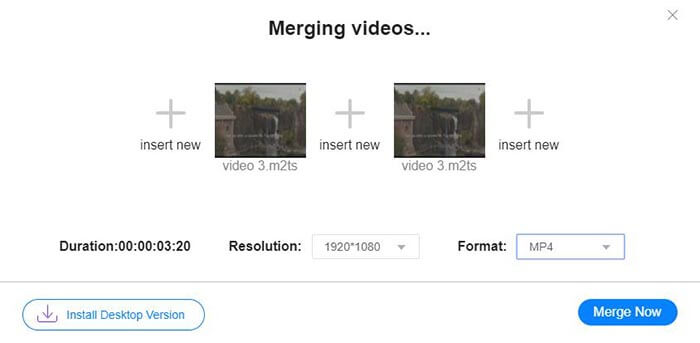
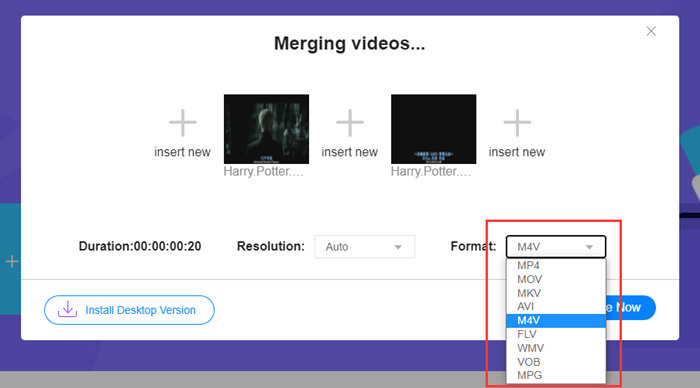
Langkah 4. Untuk mempertahankan file hasil gabungan dalam format M4V, Anda perlu memilih M4V pada daftar Format. Anda juga bisa memilih salah satu format yang tertera untuk mengonversi video M4V hasil gabungan.
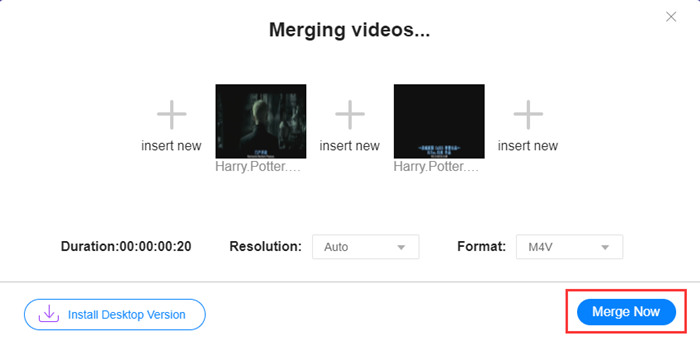
Langkah 5. Klik tombol Merge Now untuk mulai menggabungkan file M4V. Alat ini kemudian akan meminta Anda menentukan lokasi penyimpanan file keluaran.
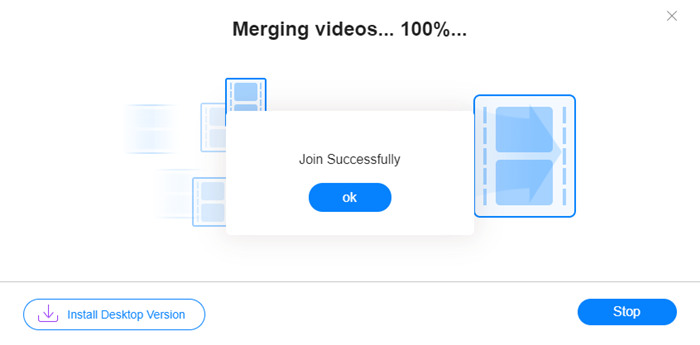
Saat Anda melihat pemberitahuan sukses di bawah, video yang digabungkan akan disimpan di komputer Anda.
Anda sudah mempelajari cara paling cepat untuk menggabungkan file M4V. Namun, metode ini hanya memungkinkan Anda menyambung video satu per satu di bagian akhir, dan tidak dapat membantu memangkas bagian yang tidak diinginkan, yang mungkin menyebabkan munculnya layar hitam pada beberapa bagian video. Mungkin Anda juga memerlukan metode berikutnya untuk tidak hanya menggabungkan file M4V, tetapi juga memotongnya dengan mulus. Anda dapat mengompres file M4V di sini.
Bagian 2: Metode untuk Menggabungkan File M4V dengan Mulus
Untuk mendapatkan video yang utuh dan mulus, hanya menyambung file M4V dari ujung ke ujung saja tidak cukup. Anda juga perlu memangkas segmen yang tidak diinginkan di awal dan akhir. Jadi ini memerlukan alat pengeditan video. Anda mempunyai banyak pilihan, tetapi di sini kami ingin merekomendasikan Video Converter Ultimate. Alasannya sederhana. Alat ini mudah digunakan dan fiturnya cukup kuat.
Fitur Utama
- • Gabungkan, potong, putar, potong, dan tambahkan efek ke video M4V.
- • Teknologi akselerasi perangkat keras membantu menyelesaikan penggabungan file M4V 70x lebih cepat.
- • Filter dan koleksi efek yang melimpah untuk memperindah video Anda
- • Gunakan penambah video bawaan untuk meningkatkan kualitas video Anda
- • Ubah video Anda menjadi 3D dan nikmati dengan kacamata 3D Anda
Unduh GratisUntuk Windows 7 atau yang lebih baruUnduhan Aman
Unduh GratisUntuk MacOS 10.7 atau yang lebih baruUnduhan Aman
Langkah-langkah menggabungkan file M4V secara mulus
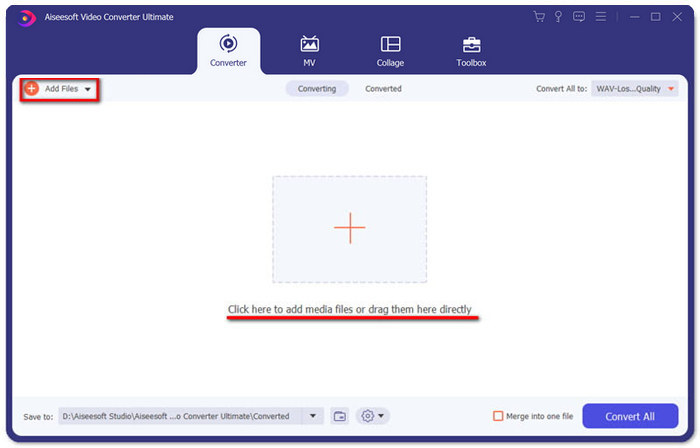
Langkah 1. Instal dan luncurkan Video Converter Ultimate. Klik tombol Add Files atau seret file ke dalam antarmuka untuk menambahkan video.
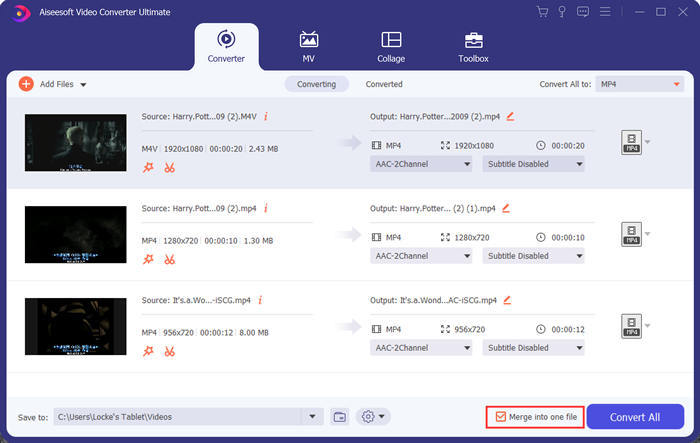
Setelah menambahkannya, Anda dapat menyeret file ke atas dan ke bawah untuk mengatur urutannya. Selain itu, Anda perlu mencentang kotak Merge into one file agar program tidak mengonversi video yang ditambahkan secara terpisah.
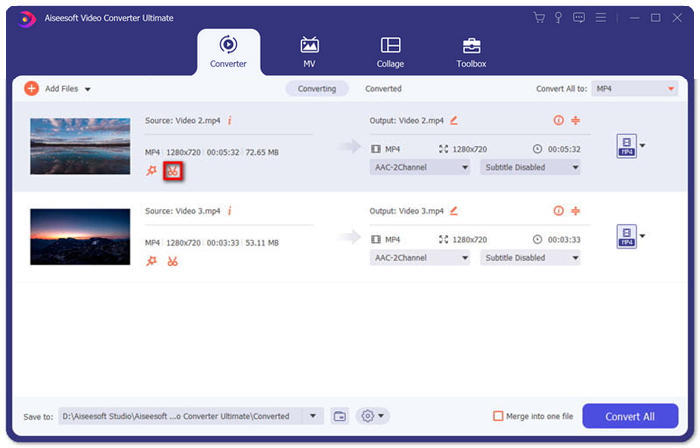
Langkah 2. Untuk menggunakan fitur pemangkasan, Anda dapat mengklik ikon Cut pada salah satu video yang ditambahkan.
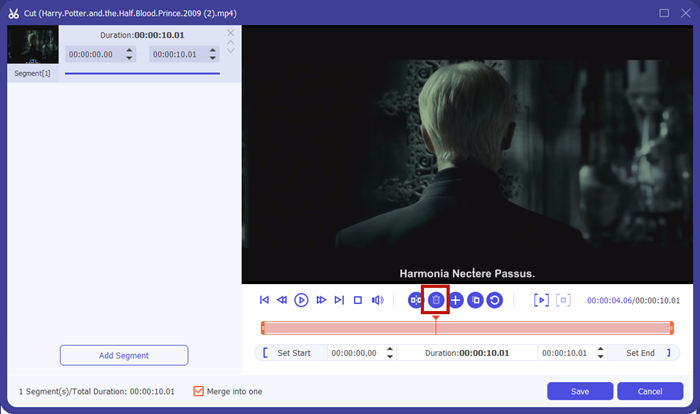
Di antarmuka Cut, Anda dapat dengan mudah memotong bagian video yang tidak diinginkan. Cukup pilih satu segmen dengan mengatur titik awal dan akhirnya, lalu klik ikon tempat sampah untuk menghapusnya.
Langkah 3. Kembali ke antarmuka utama, Anda dapat memilih file keluaran. Klik panah ke bawah di samping Convert All to. Lalu Anda bisa memilih M4V atau format lain sebagai format keluaran.
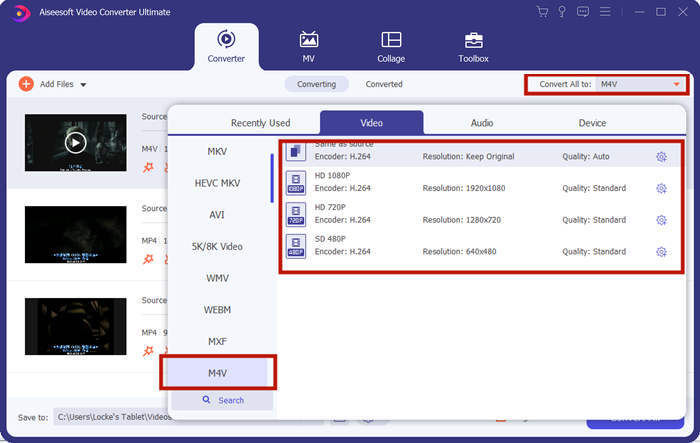
Langkah 4. Klik tombol Convert All di pojok kanan bawah program dan tunggu hingga program selesai menggabungkan file M4V.

Ketika penggabungan selesai, Anda akan melihat pemberitahuan sukses. Kemudian Anda dapat menemukan file M4V yang digabungkan di folder tujuan. Di atas adalah dua metode untuk menggabungkan file video M4V. Kami juga telah menyimpulkan beberapa pertanyaan yang paling sering diajukan di bawah ini.
Bagian 3: FAQ tentang Bergabung dengan File M4V
Apa itu file M4V?
M4V, dirancang oleh Apple, kadang-kadang juga disebut iTunes Video File. Ini mirip dengan MP4 karena keduanya didasarkan pada MPEG-4. Fitur paling istimewa dari M4V adalah iTunes dapat menambahkan perlindungan DRM di dalamnya untuk mencegah distribusi video iTunes yang tidak sah.
Bagaimana cara membuka file M4V?
Jika tidak dilindungi oleh DRM, file M4V dapat diputar di VLC, QuickTime, Windows Media Player, dan banyak pemutar media lainnya. Terkadang, mengganti ekstensi .M4V menjadi .MP4 juga dapat membantu untuk membukanya. Namun, file M4V dengan perlindungan DRM hanya dapat diputar pada perangkat yang telah diotorisasi.
Bisakah saya menghapus perlindungan DRM dari file M4V?
Ya kamu bisa. Anda dapat menemukan program penghapusan DRM yang tak terhitung jumlahnya di pasar. Berikut adalah beberapa di antaranya: TunesKit DRM M4V Converter, Aimersoft DRM Media Converter, Requiem DRM Remover, Ondesoft iTunes Convertert, Apple Music Converter.
Kesimpulan
Artikel ini telah memperkenalkan dua cara efektif untuk menggabungkan beberapa file video M4V menjadi satu. Untuk solusi paling cepat, FVC Free Online Video Merger adalah pilihan terbaik Anda. Anda dapat menggunakannya tanpa mengunduh program apa pun. Proses pengunggahan juga dapat selesai dengan segera. Namun, jika Anda menginginkan kualitas yang lebih tinggi, atau tidak hanya ingin menggabungkan file M4V tetapi juga memotongnya, Anda dapat beralih ke Video Converter Ultimate. Alat ini menyediakan fitur pengeditan yang kuat dengan antarmuka yang ramah bagi pemula. Jika Anda menemukan solusi lain yang lebih baik, kami ingin mengetahuinya. Cukup tinggalkan komentar Anda di bawah ini.
-
 Cara Mengonversi M4V ke MP4 dengan / Tanpa DRM
 6 Cara Gratis Mengonversi M4V ke MP4 (Termasuk Penghapusan DRM)
-
 5 Pemain M4V Terbaik untuk Memainkan File M4V dengan Mudah di Komputer / Ponsel
 5 Pemain M4V Teratas untuk Windows / Mac / Android / iOS yang Harus Anda Ketahui
-
 Cara Mengekstrak MP3 dari M4V dengan 4 Metode Luar Biasa yang Harus Anda Ketahui
 M4V ke MP3 Converter - 4 Metode Terbaik untuk Mengekstrak MP3 dari File M4V
