


 Video Converter Ultimate
 Perekam Layar
 Perbaikan Video
[Terpecahkan] Cara Memasang Filter pada Video Sesederhana Mungkin
Alih-alih melakukan pengeditan yang rumit, Anda bisa menggunakan filter untuk mengedit foto dengan lebih mudah. Memberi filter pada video adalah cara yang bagus untuk menambahkan nuansa pada proyek Anda, membuatnya tampak lebih gelap atau lebih terang, terlihat kasar atau halus, dan lain sebagainya. Namun, tidak semua aplikasi filter adalah yang terbaik untuk digunakan, jadi hari ini kami akan memperkenalkan kembali alat-alat yang sebenarnya sudah Anda kenal dan bisa Anda gunakan untuk menambahkan filter pada video apa pun yang Anda miliki. Sekarang, karena ada banyak hal yang akan kita bahas tentang cara menambahkan filter ke video, mari kita langsung mulai dan selamat membaca artikelnya.

Bagian 1. Cara Pertama. Cara Memasang Filter pada Video Menggunakan Video Converter Ultimate
Video Converter Ultimate memiliki serangkaian fitur pengeditan yang paling canggih namun tetap mudah dipahami yang bisa Anda gunakan. Ini adalah alat serbaguna dengan banyak kegunaan untuk hampir semua masalah video. Perangkat lunak ultimate ini menyediakan cara yang mudah untuk menambahkan filter ke video kapan pun Anda butuhkan, dan Anda bisa menggunakannya dengan mengikuti tutorial di bawah ini.
Langkah 1. Dengan mengunduh perangkat lunak ini ke desktop, Anda akan memiliki alat serba ada di Windows atau Mac Anda. Setelah mengunduh perangkat lunak, ikuti proses instalasi untuk menyiapkan alatnya dan kemudian jalankan.
Unduh GratisUntuk Windows 7 atau yang lebih baruUnduhan Aman
Unduh GratisUntuk MacOS 10.7 atau yang lebih baruUnduhan Aman
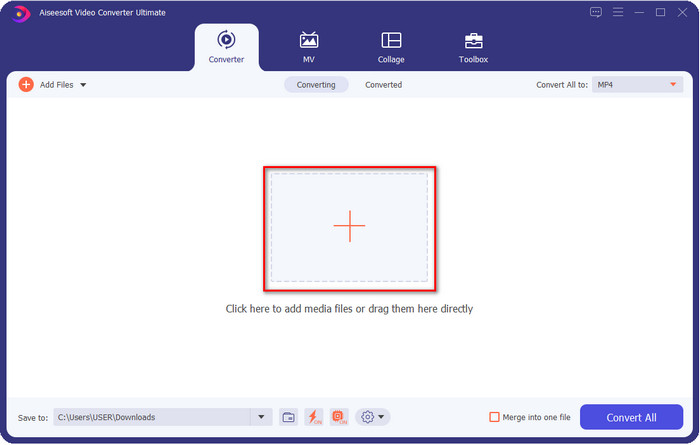
Langkah 2. Pada antarmuka alat, klik tombol + untuk mengunggah file video yang ingin Anda beri watermark. Cari file tersebut di folder komputer yang muncul di layar, klik filenya, lalu tekan Open untuk berhasil mengunggah file ke dalam daftar pemrosesan.
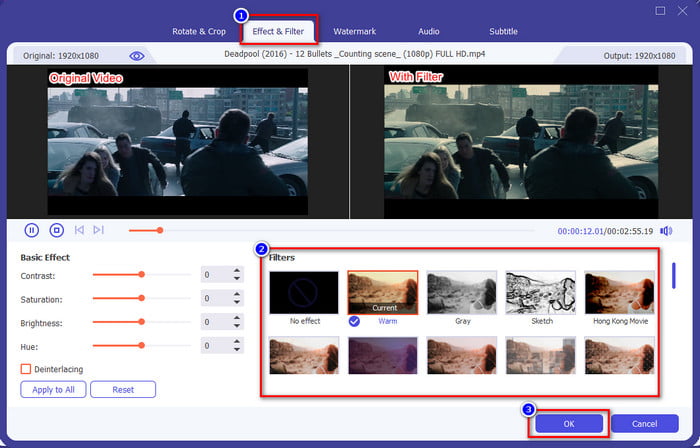
Langkah 3. Setelah mengunggah file video, klik tombol wand untuk menambahkan efek menarik pada video Anda. Buka bagian Effects & Filters untuk melihat filter dan efek yang tersedia; Anda bebas menggunakannya. Selain itu, kami menyarankan Anda mencoba semuanya untuk melihat apakah filternya cocok dengan video Anda, dan jika Anda sudah memilih filter yang diinginkan, klik OK untuk menerapkan perubahan.
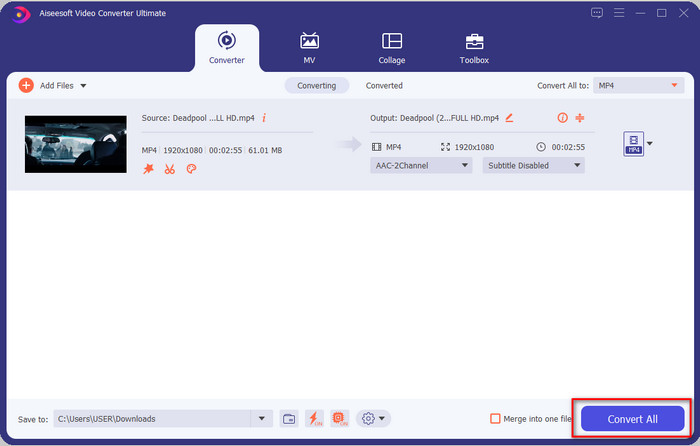
Langkah 4. Setelah Anda menambahkan beauty filter ke video atau filter lain yang Anda inginkan, klik Convert All, dan video dengan filter akan mulai dirender. Dengan begitu, Anda sekarang telah menambahkan filter pada video menggunakan editor video terbaik yang bisa digunakan di Windows dan Mac.
Terkait:
Bagian 2. Cara ke-2. Cara Menambahkan Filter ke Video Menggunakan iMovie di iPhone dan Mac
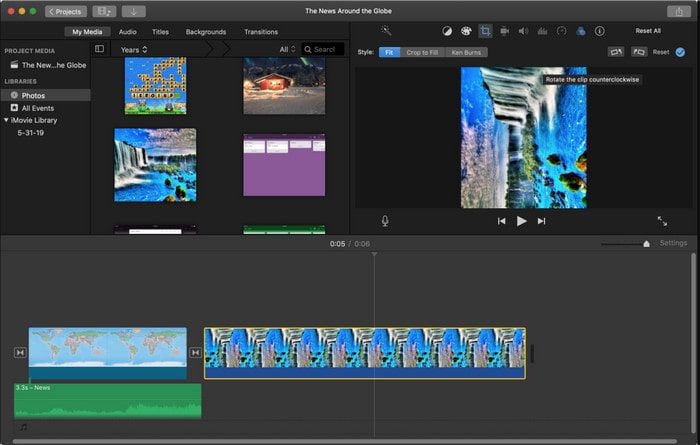
iMovie adalah editor video andalan yang bisa Anda gunakan di Mac secara gratis. Ia juga mendukung beragam filter video tingkat menengah dalam daftarnya untuk membuat video Anda terlihat menakjubkan. Selain itu, alat ini tersedia di Mac dan iPhone, jadi hari ini kami akan memaparkan dua cara dan mempelajari cara menambahkan filter ke video di iPhone dan Mac.
Opsi ke-1. Tambahkan Filter ke Video Menggunakan Mac
Langkah 1. Buka iMovie, masukkan file video dengan mengklik tombol import, lalu seret file tersebut ke Timeline.
Langkah 2. Klik video di Timeline dan pada panel pratinjau, klik tiga lingkaran, lalu klik Clip Filter dan pilih filter yang Anda inginkan dari daftar.
Langkah 3. Untuk menyimpan video dengan filter, klik tombol ekspor, lalu cari dan pilih Export File.
Opsi ke-2. Tambahkan Filter ke Video Menggunakan iPhone
Langkah 1. Jalankan aplikasi iMovie di ponsel Anda, klik tanda plus, lalu klik Movie. Tambahkan file yang ada di Foto Anda, kemudian lanjutkan.
Langkah 2. Klik video di Timeline dan klik tombol filter. Coba filter yang tersedia di aplikasi ini dan pilih salah satu.
Langkah 3. Setelah itu, klik Done, klik tombol ekspor, lalu Save Video untuk mengekspornya ke Foto Anda.
Bagian 3. Cara ke-3. Cara Memasang Filter pada Video Menggunakan Adobe Premiere Pro
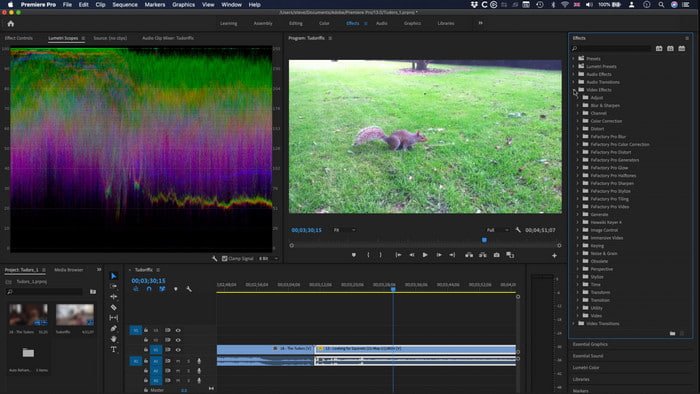
Dengan alat profesional dalam daftar ini, Anda bisa melakukan hampir semua hal untuk membawa video ke level berikutnya. Adobe Premiere Pro menawarkan pengeditan video yang efektif bagi penggunanya dan filter-filter paling canggih yang bisa Anda gunakan untuk membuat video Anda terlihat sangat berbeda dari yang lain. Sekarang pelajari cara menambahkan filter ke video di Premiere dengan mengikuti tutorial di bawah ini.
Langkah 1. Unduh editor video ini ke perangkat Anda lalu klik File untuk menambahkan video ke dalam alat.
Langkah 2. Tambahkan file video ke Timeline, buka panel Effects, buka Lumetric Presets, dan di sana tersedia lima set filter yang berbeda. Klik dan seret filter ke timeline video untuk melihat apakah tampilannya sudah bagus; jika belum, tekan Ctrl + Z untuk membatalkan, lalu lakukan hal yang sama dengan filter lain untuk mencoba semuanya.
Langkah 3. Untuk menyimpan video, Anda harus mengklik File lalu Save.
Bagian 4. FAQ tentang Menambahkan Filter pada Video
Mengapa saya perlu menggunakan filter pada video?
Untuk melihat potensi lain apa yang bisa Anda masuki dari pekerjaan Anda. Filter tidak dibuat dan digunakan hanya untuk mempercantik tetapi juga detail fotografi yang tepat. Juga, jika Anda seorang pemula atau tidak memiliki pengalaman dalam mengedit video, maka filter dapat membantu Anda meningkatkan nada fotografi sesuai dengan kebutuhan Anda.
Apakah filter membuat video saya lebih besar dalam ukuran file?
Ya, itu bisa menambah ukuran file pada video karena Anda menambahkan elemen video. Namun, ukuran file tidak akan terlalu berpengaruh karena Anda hanya menambahkan filter. Namun, jika Anda melakukan pengeditan tambahan, seperti menggabungkan satu video ke video lain, ukuran file akan bertambah karena Anda menggabungkan video lain.
Apakah Instagram mendukung filter video?
Instagram memiliki daftar filter bawaan yang bisa Anda gunakan sebelum memposting apa pun di Instagram. Jika Anda belum tahu di mana menemukannya atau cara menggunakannya, Anda bisa membaca artikel ini untuk menjawab semua pertanyaan seperti itu tentang filter Instagram terbaik.
Kesimpulan
Akhirnya, kita telah mempelajari tiga cara berbeda untuk menambahkan filter pada video; dengan bantuan alat-alat ini, Anda bisa mengunduhnya atau langsung menggunakannya di desktop. Alat yang diperkenalkan dalam posting ini dapat membantu Anda dalam berbagai tugas, terutama untuk pengeditan, karena mereka adalah yang terbaik di antara editor video lainnya. Namun, jika Anda ingin memiliki alat yang paling sederhana tetapi menawarkan hasil terbaik, Anda harus memilih Video Converter Ultimate. Mengapa? Karena alat ini adalah satu-satunya yang menyajikan langkah-langkah yang tidak rumit untuk Anda ikuti saat menambahkan filter ke video. Untuk menikmati pengalaman penuh dari alat ini, Anda harus membelinya dan mengunduhnya di situs resmi FVC.
-
 Cara Menambahkan Audio dan Musik ke Video secara Gratis di Komputer / Telepon Anda
 Artikel ini menunjukkan 4 cara mudah untuk menambahkan audio ke video secara gratis. Tidak peduli trek audio mana yang ingin Anda tambahkan ke video Anda, Anda bisa mendapatkan hasil yang memuaskan di sini.
-
 Ubah GIF menjadi Format Video: Ubah Meme GIF menjadi Video [2021]
 Tentukan cara mengubah GIF menjadi format video dengan bantuan alat yang tercantum di bawah ini. Pilih yang mana dan pelajari cara melakukannya, saat kami mengumpulkan cukup banyak bukti tentangnya.
-
 Aplikasi GIF ke Video yang Luar Biasa untuk Perangkat Android & iOS
 Tahukah Anda bahwa Anda dapat mengonversi GIF ke format video apa pun yang Anda suka menggunakan ponsel? Pilih aplikasi terbaik di Android atau iOS Anda.
