


 Video Converter Ultimate
 Perekam Layar
 Perbaikan Video
 Unduhan Aman
Cara Luar Biasa untuk Menghapus Logo dari Video Menggunakan Perangkat Anda
Menonton video favorit memang memuaskan, sampai video tersebut memiliki objek yang tidak diperlukan, seperti logo, watermark, teks, dan sebagainya. Jika Anda sedang mencari metode yang paling baik dan bermanfaat, maka Anda perlu membaca artikel ini untuk mendapatkan gambaran. Dengan menggunakan aplikasi yang unggul, Anda bisa mencoba banyak cara untuk menghapus logo dari video, baik secara offline maupun online. Dengan bantuan penghapus logo ini, Anda dapat menikmati menonton film favorit, klip video, slideshow, dan lain-lain. Dengan begitu, Anda tidak akan menemui masalah yang sama lagi. Jika Anda ingin mempelajari cara yang efektif untuk menghapus logo dari video Anda, jangan lewatkan membaca artikel informatif ini.

Bagian 1: Metode Terbaik untuk Menghapus Logo dari Video
Misalkan Anda sedang mencari penghapus logo gratis. Aplikasi terbaik yang bisa Anda gunakan adalah Video Converter Ultimate. Aplikasi ini dapat membantu Anda menghapus logo dari video. Bukan hanya logo, tetapi juga objek lain yang tidak diperlukan pada video Anda, seperti watermark, teks, gambar, dan sebagainya. Selain itu, Anda bisa menghapus logo dengan mudah karena hanya memiliki langkah-langkah sederhana yang bahkan pemula pun dapat mengikutinya.
Selain itu, Video Converter Ultimate memiliki proses penghapusan yang cepat, tidak seperti aplikasi lain yang menghabiskan banyak waktu untuk menghapus logo dari video. Dengan menggunakan aplikasi ini, Anda dapat menghapus logo dalam dua alat mudah, penghapus tanda air video, dan pemotong video. Selain itu, ia memiliki fitur yang dapat Anda nikmati, seperti konverter video, pengontrol kecepatan video, kompresor video, koreksi warna, pemotong video, pembuat kolase, dan banyak lagi. Jika Anda ingin mengetahui dua cara menghilangkan logo menggunakan Video Converter Ultimate ini, ikuti langkah-langkah di bawah ini.
1. Menggunakan fungsi Penghilang Tanda Air Video
Langkah 1: Untuk langkah pertama, Anda harus membuka situs web Video Converter Ultimate dan mengunduh perangkat lunaknya. Setelah mengunduh, lanjutkan ke proses instalasi dan jalankan Video Converter Ultimate di Desktop Anda.
Unduh GratisUntuk Windows 7 atau yang lebih baruUnduhan Aman
Unduh GratisUntuk MacOS 10.7 atau yang lebih baruUnduhan Aman
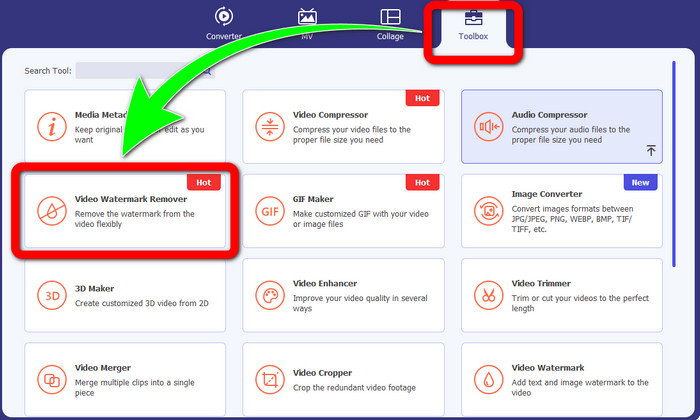
Langkah 2: Setelah menjalankan perangkat lunak, lanjutkan ke panel Toolbox. Selanjutnya, cari Video Watermark Remover, lalu klik.
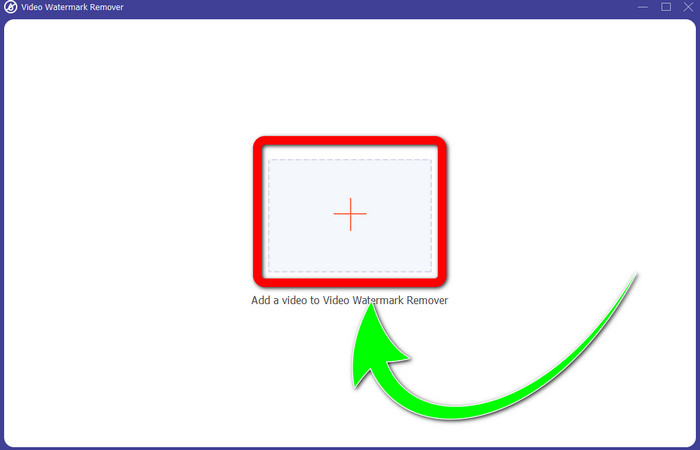
Langkah 3: Setelah Anda mengklik Video Watermark Remover, antarmuka lain akan muncul di desktop Anda. Pilih tombol tanda Plus dan impor video Anda yang memiliki logo.
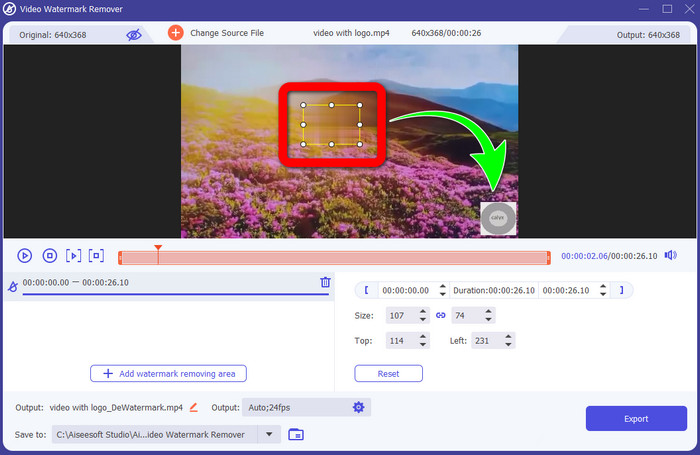
Langkah 4: Pilih tombol Add Watermark Removing Area. Kotak kecil akan muncul pada video Anda. Pindahkan kotak tersebut ke area logo untuk menutupinya.
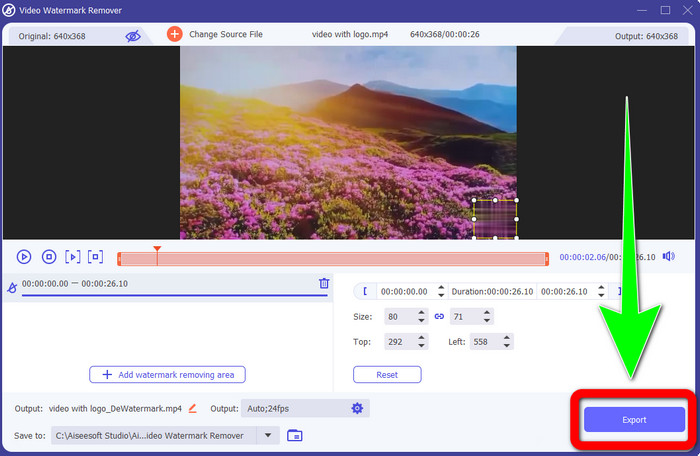
Langkah 5: Setelah selesai memindahkan kotak untuk menutupi logo, pilih tombol Export untuk menyimpan video final Anda.
1. Menggunakan fungsi Pemotong Video
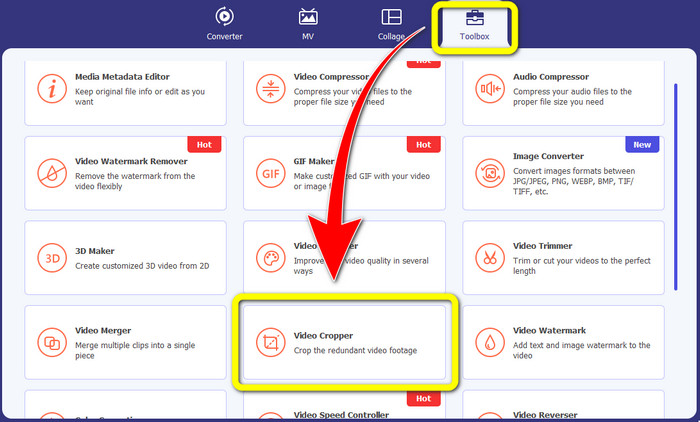
Langkah 1: Buka Video Converter Ultimate, masuk ke Toolbox, dan klik tombol Video Cropper. Lalu antarmuka lain akan muncul di layar Anda.
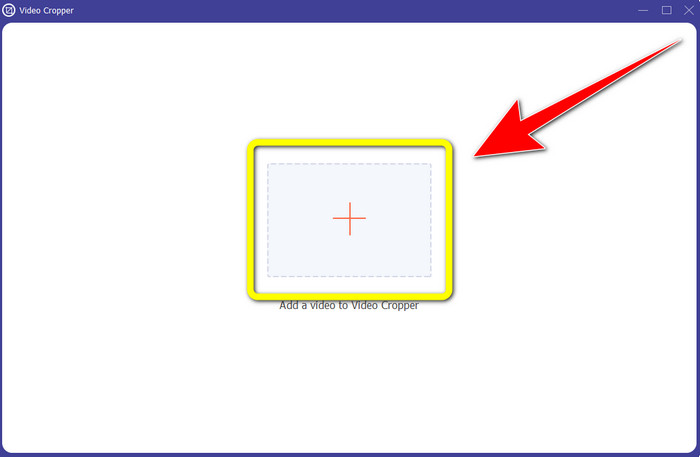
Langkah 2: Ketika antarmuka lain sudah muncul di layar, pilih tombol tanda Plus dan impor video Anda yang memiliki logo.
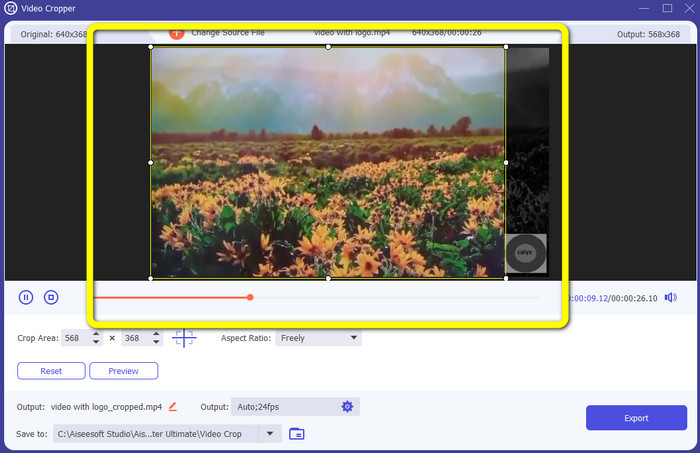
Langkah 3: Setelah mengimpor video, Anda dapat memotong (crop) video untuk menghilangkan logonya.
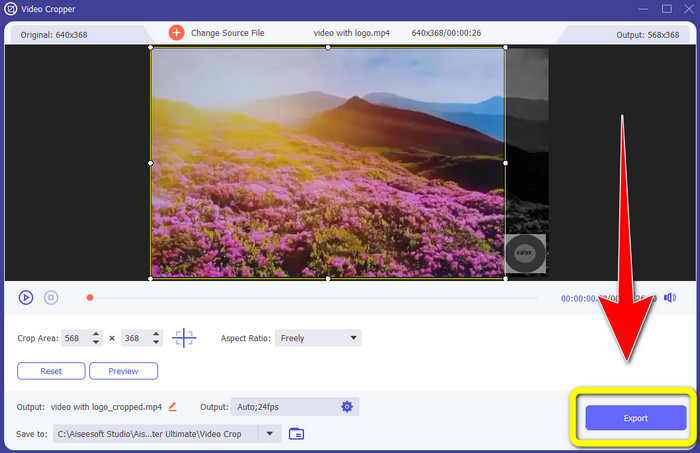
Langkah 4: Klik tombol Export setelah memotong video.
Bagian 2: Cara Menghapus Logo dari Video Online
Jika Anda mencari aplikasi luar biasa yang dapat membantu Anda menghapus logo dari video, Anda bisa menggunakan 123APPS. Aplikasi ini dapat membantu Anda menghapus logo dari video dengan cepat dan mudah, sehingga sangat cocok untuk pemula. Selain itu, alat online ini gratis, jadi Anda tidak perlu khawatir harus membelinya atau tidak. Di aplikasi ini, salah satu fungsi yang baik adalah menghilangkan objek yang mengganggu pada video Anda, seperti watermark, teks, gambar, dan sebagainya. Selain itu, aplikasi ini mendukung berbagai format file, seperti MOV, WMV, AVI, MP4, dan lain-lain. Namun, setiap kali Anda mengunggah file, proses unggahnya memakan waktu lama. Proses penghapusannya juga cukup lambat. Jika Anda ingin menghapus logo dari video, ikuti langkah-langkah sederhana berikut.
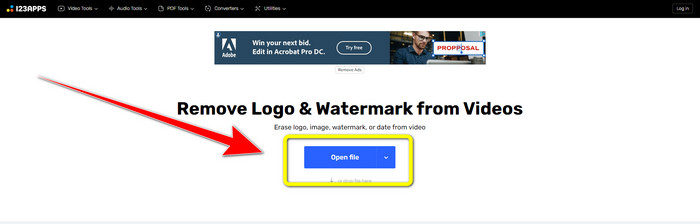
Langkah 1: Kunjungi situs web 123APPS. Klik tombol Open file dan tambahkan video Anda yang memiliki logo TikTok.
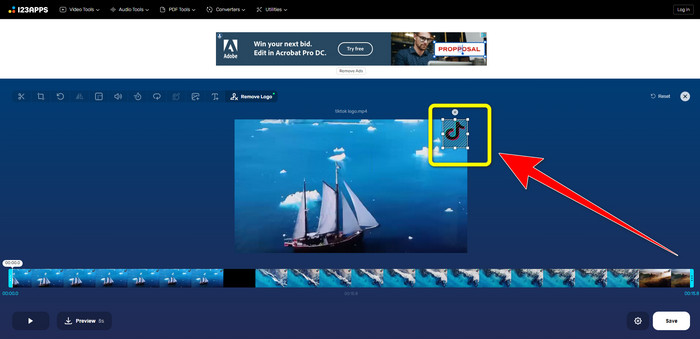
Langkah 2: Setelah Anda menambahkan video, buat sebuah kotak dengan menggunakan mouse pada layar dan tutup area logo untuk menghapusnya.
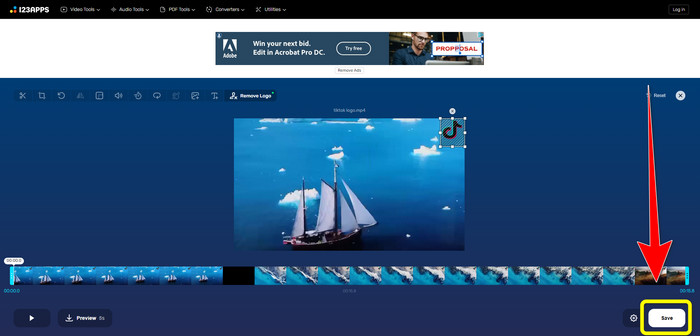
Langkah 3: Setelah menutupi logo, Anda dapat mengklik tombol Save untuk menyimpan hasil video akhir tanpa logo.
Bagian 3: Cara Menghapus Logo dari Video di iPhone dan Android
Cara Menghapus Logo dari Video di Android
Jika Anda ingin mengetahui cara menghapus logo dari video menggunakan Android, Remove and Add Watermark adalah aplikasi yang bisa Anda gunakan. Perangkat lunak ini dapat membantu Anda menghapus logo dari video secara instan. Selain itu, aplikasi ini tidak hanya andal untuk menghapus objek yang tidak diperlukan dari video. Anda juga dapat menghapus atau menghilangkan logo dari gambar, yang membuatnya praktis bagi pengguna. Ditambah lagi, penghapus ini sederhana dan mudah digunakan. Terakhir, aplikasi ini cepat saat menyimpan video Anda. Jika Anda ingin menghilangkan logo dari video, ikuti langkah-langkah sederhana di bawah ini.
Langkah 1: Unduh Remove and Add Watermark di perangkat Android Anda.
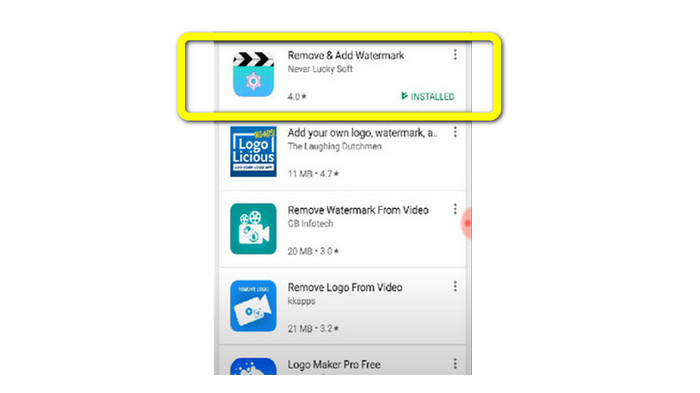
Langkah 2: Setelah mengunduh aplikasi, klik tombol Select Video > Remove Logo untuk menambahkan video Anda yang memiliki logo.
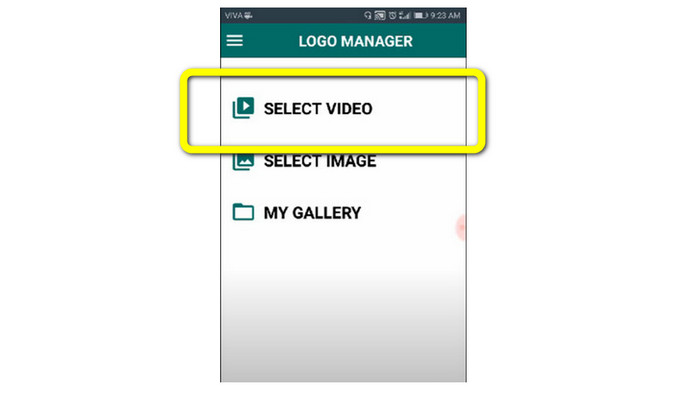
Langkah 3: Sebuah kotak kecil akan muncul di layar ketika Anda sudah menambahkan video. Gunakan kotak tersebut untuk menghapus logo.
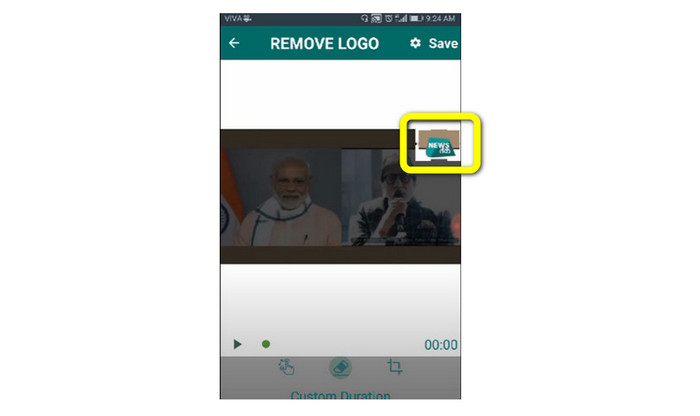
Langkah 4: Jika Anda sudah selesai menutupi logo, klik tombol Save untuk menyimpan video tanpa logo.
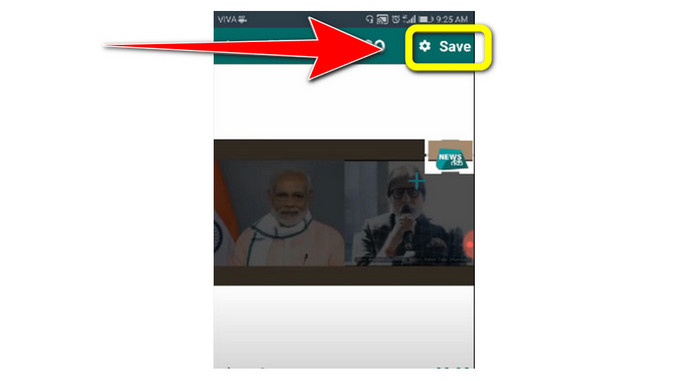
Cara Menghapus Logo dari Video di iPhone
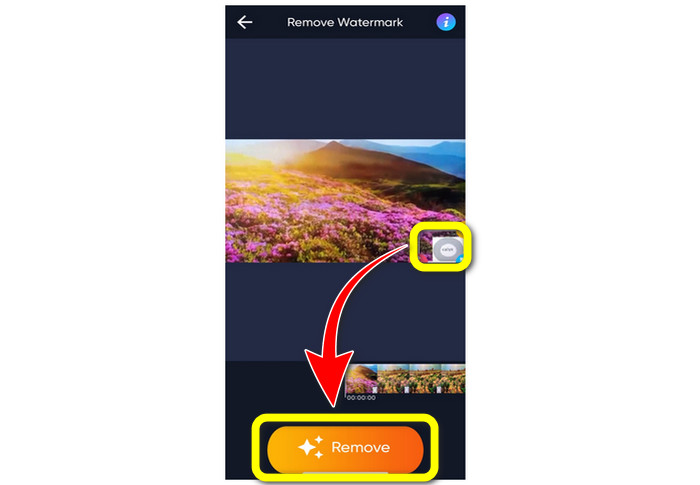
Jika Anda ingin menghapus logo dari video menggunakan iPhone, aplikasi terbaik yang dapat Anda gunakan adalah Watermark Remover Retouch. Aplikasi ini memungkinkan Anda menghapus objek yang tidak diperlukan dari video, seperti logo, watermark, teks, gambar, dan sebagainya. Selain itu, Anda dapat menghapusnya dengan cepat sehingga cocok untuk pengguna baru. Lebih jauh, aplikasi ini memiliki antarmuka yang sederhana sehingga Anda dapat menggunakannya dengan mudah. Jika Anda ingin menggunakan aplikasi ini untuk menghapus logo dari video di iPhone, ikuti langkah-langkah sederhana di bawah ini.
Langkah 1: Unduh Watermark Remover Retouch di iPhone Anda. Lalu jalankan aplikasi dan tambahkan video yang memiliki logo.
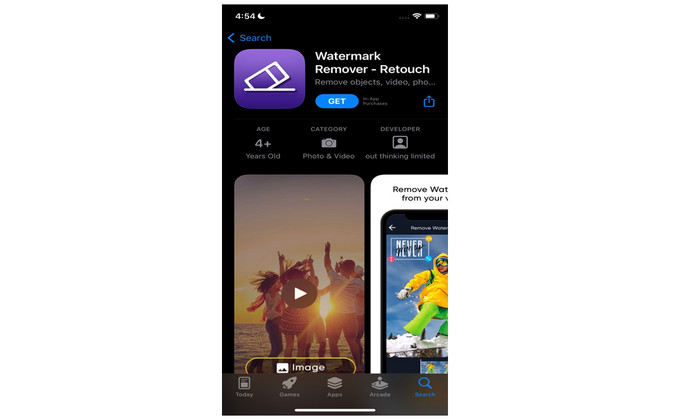
Langkah 2: Sebuah kotak kecil akan muncul pada video ketika video sudah ditambahkan. Gunakan kotak ini untuk menutupi logo. Lalu, klik tombol Remove dan simpan video Anda tanpa watermark.
Terkait dengan:
Cara Menghapus Watermark Filmora pada Video atau Proyek Anda secara Gratis
Trik Tercepat untuk Menghapus Watermark Adobe Stock dari Video [Tutorial[
Bagian 4: FAQ tentang Menghapus Logo dari Video
Apakah aman untuk menghapus logo secara online?
Ya itu! Aplikasi online aman dan aman untuk digunakan. Hal terbaik yang harus Anda lakukan adalah mencari aplikasi yang akan membantu Anda menghapus logo dan menggunakannya.
Apakah mungkin untuk menghapus tanda tangan dari video saya?
Ya, tentu saja. Anda dapat menghapus tanda tangan dari video menggunakan Video Converter Ultimate. Tanda tangan, watermark, logo, dan teks dapat dihapus dengan mudah menggunakan aplikasi yang sangat baik ini.
Apa aplikasi terbaik yang dapat saya gunakan untuk menghapus logo menggunakan Mac saya?
Aplikasi terbaik yang dapat Anda gunakan untuk menghapus logo di Mac adalah Video Converter Ultimate. Aplikasi ini tersedia bukan hanya untuk Windows tetapi juga untuk Mac, sehingga memudahkan pengguna.
Kesimpulan
Artikel ini telah memberikan cara yang efektif dan andal untuk menghapus logo dari video Anda. Dengan demikian, Anda dapat menikmati menonton video favorit tanpa logo. Terakhir, jika Anda menginginkan metode yang paling sederhana dan tanpa repot untuk menghapus logo dari video, Anda harus menggunakan Video Converter Ultimate.
-
 Cara Menghilangkan Watermark Animaker Tanpa Biaya [Cara Terbukti]
 Bagaimana cara menghapus tanda air Animaker? Dengan alat terbaik yang kami daftarkan di blog ini, Anda dapat menggunakannya untuk menghilangkan tanda air.
-
 Tutorial Menghapus Watermark dari Grafik Asal [100% Bekerja]
 Untuk menghapus tanda air dari Grafik Asal, Anda memerlukan bantuan. Bantuan yang Anda butuhkan termasuk dalam artikel ini, Anda dapat membaca ini untuk mengetahuinya.
-
 Cara Menghilangkan Watermark di SmartDraw dengan Mudah [2 Cara Terbukti]
 Bagaimana cara menghilangkan tanda air di Smart Draw? Jika Anda memiliki pertanyaan yang sama, Anda dapat mengandalkan artikel ini saat kami membantu Anda!
