


 Video Converter Ultimate
 Perekam Layar
 Perbaikan Video
Tingkatkan Keahlian Anda dalam Menjangkau Masalah seperti Cara Memperlambat Video
Anda adalah seorang seniman pemula dan ingin menonton tutorial desain seni untuk meningkatkan keterampilan Anda dalam bidang seni. Namun, sebagian besar tutorial ini dipercepat agar dapat mengumpulkan durasi tertentu dan diunggah dengan ukuran file kecil. Jadi, Anda memikirkan solusi yang perlu memperlambat kecepatan video. Tetapi Anda tidak tahu cara memperlambat video time-lapse seperti kebanyakan tutorial seni. Bacalah artikel ini untuk menambah wawasan Anda tentang masalah yang sering dialami para seniman pemula ini.

Bagian 1. 3 Langkah Mudah untuk Memperlambat Video [Desktop/Laptop]
Ada banyak pendekatan yang ditawarkan web, baik editor online maupun offline. Beberapa di antaranya perlu diunduh, terutama saat Anda menggunakan desktop atau laptop dalam mengedit. Ada perbedaan yang signifikan antara menggunakan desktop dalam hal detail penggunaan; itulah mengapa artikel ini memilih cara terbaik untuk memperlambat video offline atau online di desktop. Berikut adalah pendekatan dengan langkah-langkah yang disediakan:
Pendekatan 1. Gunakan Video Converter Ultimate
Dimungkinkan untuk mengunduh dan menggunakan banyak konverter bahkan ketika tidak sedang online. Untuk memperlambat video, Anda dapat menggunakan Video Converter Ultimate, salah satu alternatif terbaik. Perangkat ini mudah diakses dan dapat Anda unduh secara gratis. Anda tidak perlu khawatir tentang koneksi internet saat memperlambat video secara online karena software ini dapat memproses video Anda tanpa repot. Berkat alatnya yang mengesankan bernama Video Speed Controller, sekarang Anda dapat menyesuaikan kecepatan pemutaran video dalam waktu kurang dari satu menit. Sekarang setelah Anda tertarik bagaimana prosesnya, berikut adalah beberapa langkah panduan yang dapat Anda ikuti:
Langkah 1: Cukup klik tombol Free Download untuk mengunduh software ke desktop komputer Anda. Instalasi software dan penyesuaian pengaturan kemudian diselesaikan pada langkah-langkah berikutnya.
Unduh GratisUntuk Windows 7 atau yang lebih baruUnduhan Aman
Unduh GratisUntuk MacOS 10.7 atau yang lebih baruUnduhan Aman
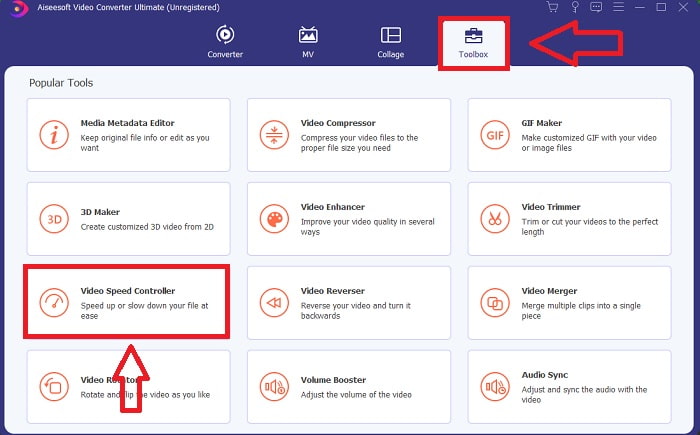
Langkah 2: Untuk menggunakan Video Speed Controller, jalankan software segera setelah instalasi dan pilih alat tersebut dari menu Toolbox.
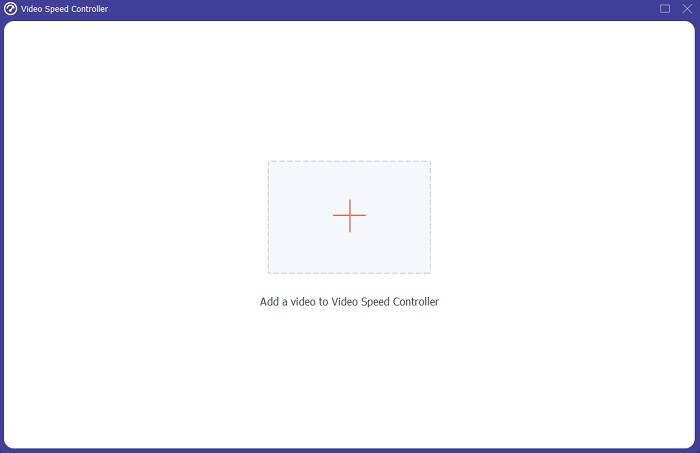
Langkah 3: Antarmuka Video Speed Controller akan muncul setelah Anda mengkliknya. Untuk mengunggah file, klik ikon +.
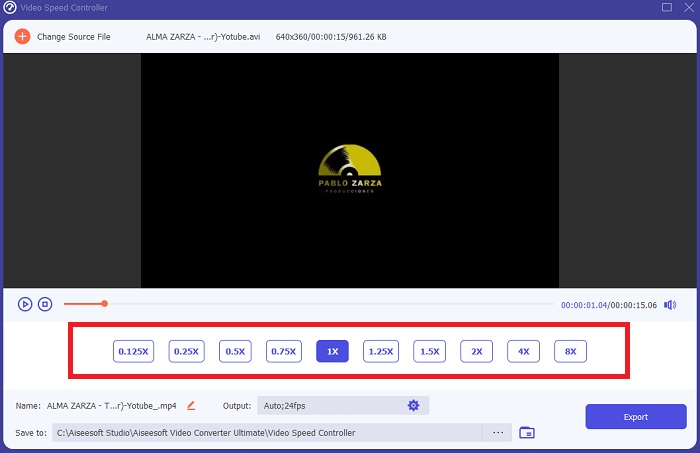
Langkah 4: Sekarang Anda dapat mulai memperlambat video dengan memilih angka yang lebih kecil dari kecepatan normal. Sebagian besar angka akan muncul di sisi kiri kecepatan asli video Anda.
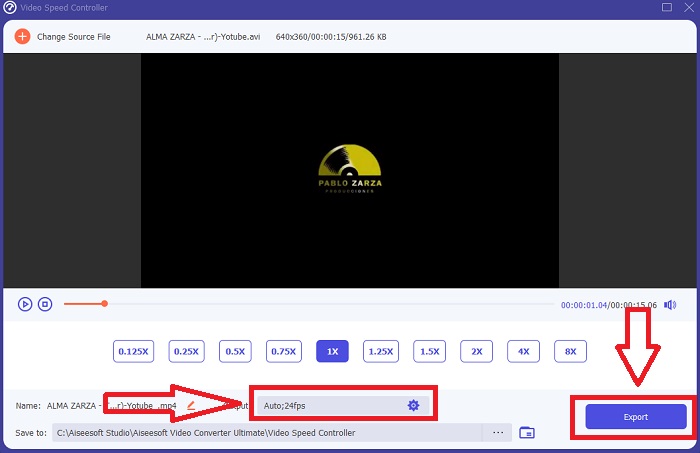
Langkah 5: Setelah Anda selesai mengubah kecepatan pemutaran klip video, Anda dapat memilih format output, resolusi, kualitas, dan parameter lain yang ingin digunakan. Jika sudah selesai, klik Export dan pilih lokasi penyimpanan file setelah semua proses tuntas.
Pendekatan 2. Gunakan VEED
VEED dan alat web sumber terbukanya diandalkan oleh pembuat konten di seluruh dunia untuk menghasilkan video untuk media sosial dan penggunaan lainnya. Ini adalah aplikasi web yang membutuhkan koneksi yang solid untuk bekerja dengan benar, tetapi Anda dapat mengunggah secara langsung dan mengubah kecepatan pemutaran di antarmuka penggunanya. Selain itu, ia memiliki berbagai fitur, salah satunya adalah penurunan kecepatan pemutaran video. Anda sekarang dapat memperlambat video tanpa mengunduh apa pun ke desktop Anda. Anda hanya memerlukan mesin pencari dan koneksi yang kuat untuk mengakses alat online ini. Ini memiliki antarmuka pengguna yang sederhana dan ramah pengguna yang dapat bermanfaat bagi sebagian besar pengguna pemula yang perlu memperlambat video tanpa mempelajari langkah-langkah rumit. Berikut adalah contoh prosedur untuk dicerna untuk mencapai penyesuaian yang Anda inginkan pada video Anda.
Langkah 1: Klik tombol Upload Your Video untuk mengirim file video dari komputer Anda ke server.
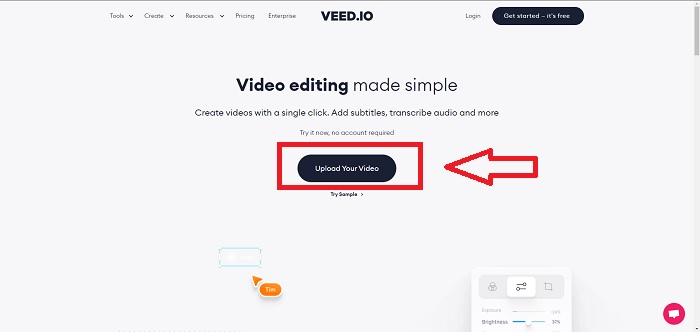
Langkah 2: Antarmuka pengeditan webtool dapat diakses dengan mengklik Video Track di sudut kiri atas. Pilih kecepatan pemutaran yang lebih cepat dengan mencari opsi Speed lalu mengkliknya. Jika kecepatan yang Anda inginkan tidak tersedia sebagai opsi, Anda dapat memilih Custom untuk mengganti pengaturan bawaan dan memutar klip video dengan kecepatan khusus.
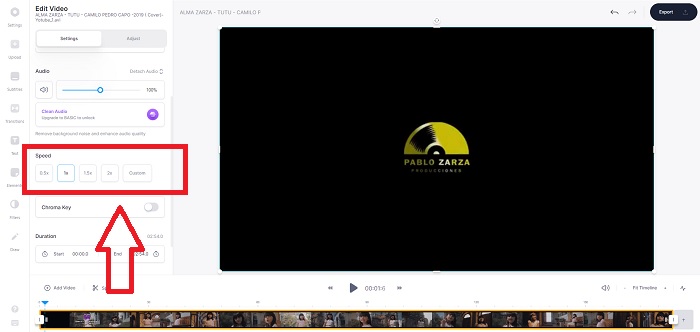
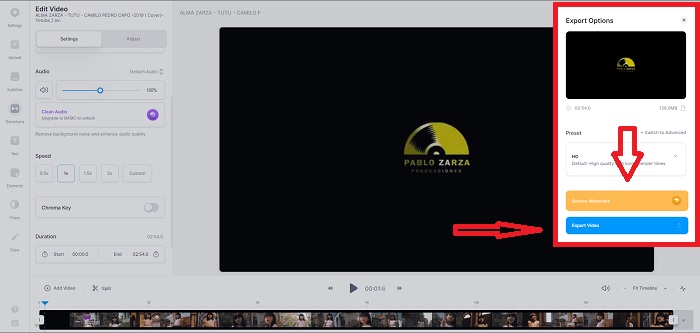
Langkah 3: Setelah Anda mengedit kecepatan video yang diinginkan, lanjutkan ke tab ekspor dengan mengklik Export. Sementara itu, Anda dapat memilih kualitas yang Anda inginkan untuk video dan menghapus watermark dengan membeli versi premium webtool tersebut. Jika semuanya sudah diatur, pindahkan video yang telah dikonversi ke komputer Anda dengan memilih Exporting Video.
Bagian 2. 3 Langkah Mudah untuk Memperlambat Video [Ponsel]
Apakah Anda lelah memikirkan solusi yang menjawab cara memperlambat video di iPhone atau Android? Ada banyak aplikasi dan alat yang tersedia di internet untuk digunakan untuk membenarkan bahwa ada jawaban untuk masalah yang diberikan. Tapi di sini ada alat terbaik dan paling mudah diakses yang kami sarankan untuk digunakan jika Anda seorang editor ponsel dan ingin membuat mahakarya dari perangkat kecil yang Anda miliki.
Pendekatan 1. Gunakan iMovie
Sekarang Anda dapat mengontrol kecepatan pemutaran atau memperlambat video di iPhone dan iPad dengan aplikasi gratis dan bermanfaat bernama iMovie. Ini adalah salah satu aplikasi tepercaya yang tersedia di perangkat dengan sistem iOS yang dapat mengedit video Anda dan, yang paling penting, mengedit kecepatan pemutaran video. Untuk mengetahui lebih lanjut tentang aplikasi ini, berikut adalah langkah-langkah yang perlu Anda lakukan untuk menyelesaikan masalah yang disebutkan di atas:
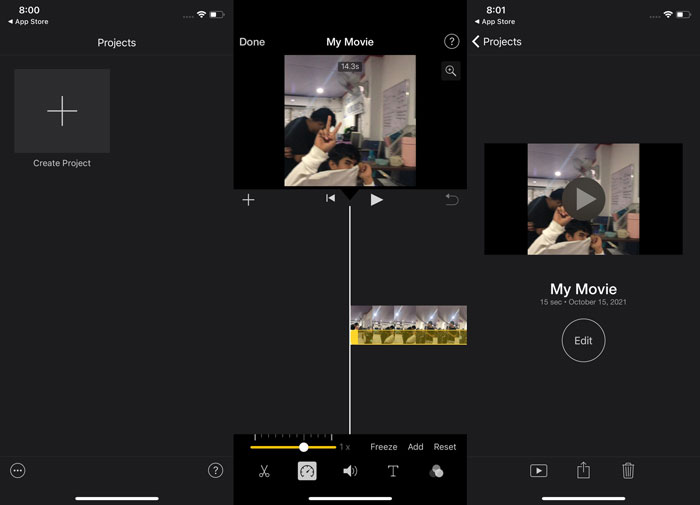
Langkah 1: Mulailah mengedit film Anda di iMovie di iPhone atau iPad. Anda mungkin akan disajikan ringkasan singkat tentang antarmuka pengguna sebelum melanjutkan. Pada halaman Projects, klik tanda plus untuk menambahkan klip video baru—selanjutnya, pilih Movie dari menu New Projects.
Langkah 2: Pilih video dari camera roll sebelum berlanjut ke bagian Create Movie. Alat kecepatan yang menyerupai speedometer dapat ditemukan dengan mengetuk klip video di timeline lalu menunggu hingga alat pengeditan muncul sebelum menggunakannya. Putar mundur atau percepat cuplikan video dengan menggeser penggeser kuning di bagian bawah. Dibandingkan kecepatan aslinya, cuplikan dapat dipercepat hingga dua kali lipat atau diperlambat hingga seperdelapan dari kecepatan semula.
Langkah 3: Klik Done di sudut kiri atas ponsel setelah Anda selesai. Anda dapat menyimpan video yang sudah jadi dengan memilihnya dari menu Share lalu menentukan di mana Anda ingin menyimpannya.
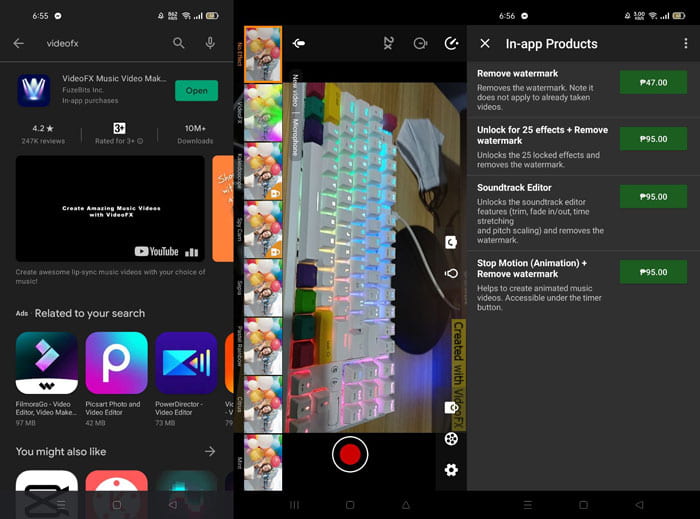
Pendekatan 2. Gunakan Pembuat Video Musik VideoFX
Buat video musik Anda hanya dalam hitungan detik dengan alat VideoFX Music Video Maker. Yang perlu Anda lakukan hanyalah merekam video menggunakan salah satu dari banyak efek yang tersedia, memilih lagu, lalu menyimpannya ke memori internal ponsel Android Anda. Karena Anda dapat menerapkan filter sebelum merekam video, aplikasi ini sangat mudah digunakan. Namun, pengeditan pascaproduksi tidak tersedia; semuanya hanya bisa dilakukan sebelum video direkam. Sebelum mulai merekam, pilih lagu yang akan cocok dengan video Anda. Anda dapat mempercepat atau memperlambat musik, tetapi perubahan harus dilakukan sebelum video direkam. Berikut langkah-langkah yang harus diikuti:
Langkah 1: Unduh dan instal VideoFX ke ponsel Android Anda.
Langkah 2: Karena fitur aplikasi ini hanya berlaku setelah perubahan video, mulailah merekam dengan menekan tombol Record.
Langkah 3: Lalu, klik 2x untuk mengatur kecepatan video yang Anda rekam. Sebelum Anda dapat membuka semua fitur aplikasi, Anda harus membeli akses penuh terlebih dahulu.
Bagian 3. FAQ tentang Memperlambat Video
Bagaimana cara memperlambat video di iPhone?
Kreator konten dan videografer memiliki banyak alat yang dapat digunakan, dan gerak lambat adalah salah satu yang terbaik. Video dengan frame per second yang lebih tinggi akan memberikan pengalaman menonton yang lebih menyenangkan. Meski begitu, video yang diperlambat tidak selalu menjadi pendekatan terbaik untuk setiap video yang Anda buat. Dalam beberapa kasus, gerak lambat tidaklah tepat atau bahkan tidak diperlukan. Akibatnya, satu-satunya pilihan Anda adalah mengembalikan video gerak lambat iPhone ke kecepatan normal.
Bagaimana cara memperlambat video di galeri?
Ponsel Android dan iOS memiliki ikon pengaturan untuk mengetuk untuk mengaktifkan mode gerak lambat atau gerak lambat sebelum merekam video. Anda harus merekam adegan gerak lambat dalam semburan lima hingga sepuluh detik untuk menghindari terlalu banyak rekaman.
Apakah saya kehilangan kualitas jika saya memperlambat video?
Tidak, Anda tidak akan kehilangan kualitas video, tetapi Anda akan melihat resolusi dan kecepatan bingkai video Anda menurun untuk setiap detik yang Anda kurangi pada kecepatan rata-rata. Ketika kecepatan pemutaran video Anda meningkat atau menurun, hanya frame yang akan dibagi. Meningkatkannya akan memiliki efek yang diinginkan. Lima kali lebih cepat, yaitu 60 frame per 1/120 detik. Dengan kata lain, kecuali video memiliki frame rate yang rendah, itu tidak akan berpengaruh.
Kesimpulan
Karena itu, melalui artikel ini, Anda mempelajari berbagai metode yang dimiliki setiap sistem operasi untuk mengatasi masalah semua aplikasi untuk memperlambat video. Ada juga langkah-langkah yang disediakan bagi beberapa pengguna pemula yang belum memiliki latar belakang dalam mengedit video. Dengan merekomendasikan aplikasi yang membantu Anda mengatur kecepatan pemutaran video dan alat pengeditan lainnya yang dibutuhkan seorang editor, unduh software Video Converter Ultimate untuk merasakan pengalaman terbaik sebagai editor profesional.
-
 4 Pemain VOB Terbaik untuk Ponsel Android untuk Penggunaan Berbeda
 Saat Anda mengunduh video VOB dan ingin menontonnya di Android, Anda dapat memilih salah satu yang paling cocok dari 4 pemain VOB teratas berikut dalam artikel ini.
-
 5 Alternatif Windows Media Player Terbaik untuk Ponsel Android
 Karena Anda tidak dapat mengunduh Windows Media Player untuk Android, Anda harus membaca artikel ini dan mempelajari tentang 5 alternatif terbaik untuk Windows Media Player.
-
 5 Pemutar Video Terbaik untuk iPhone yang Tidak Boleh Anda Lewatkan di tahun 2021
 Untuk memutar video dalam semua format dan mendapatkan pengalaman menonton yang lebih baik di iPhone, Anda harus membaca artikel ini dan mempelajari tentang 5 pemutar video terbaik untuk iPhone 12/11/X/8/7/6.
