


 Video Converter Ultimate
 Perekam Layar
 Perbaikan Video
Cara Membuat Video Gerakan Lambat di Windows Movie Player
The video production industry has lately expanded due to the growing demand for video content from internet users. Various video consumption platforms are rapidly rising, especially YouTube, which has been now the second most popular search engine and will continue to do so. Because of this, content creators have explored the extent of video production to be as creative as possible to meet the ever-growing standards of viewers and potential viewers. One of such ways is to slow-motion a clip of their video to add a dramatic effect. However, to do so requires software or an app that is more likely inaccessible to aspiring creators who are just starting in the business. So, this article intends to help by providing the easy steps on how to make a slow-motion video in Windows Movie Maker.

Bagian 1. Cara Membuat Video Gerakan Lambat di Windows Movie Maker
Video gerak lambat adalah salah satu efek dramatis terbaik untuk disertakan dalam berbagai jenis video. Ini bisa untuk menekankan klip, memberikan dampak emosional pada pemirsa, dan banyak tujuan lain yang dapat Anda ciptakan. Untungnya, ini dapat dengan mudah dilakukan menggunakan efek gerak lambat Windows Movie Maker. Itu dapat diunduh di Microsoft Store dengan mudah, dan cukup ikuti tutorial gerakan lambat windows movie maker ini untuk mencapai apa yang ingin Anda lakukan pada video Anda.
Step 1. Open Windows Movie Maker. To upload videos and pictures from your computer, select Add Videos, and Photos or you can just drag and drop videos to the storyboard.
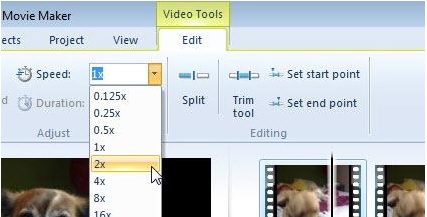
Step 2. Select the video clip and go to the Edit tab under Video Tools.
Step 3. Click the Drop Down under Speed to choose a playback speed depending on how slow or fast you want your video to appear. To check if you got the speed you wanted, press the triangle play button, and once satisfied, click the save icon on the upper left corner of the window.
Windows Movie Maker is an excellent free video editing program, but it lacks certain capabilities compared to other video editing applications. Proceed to the next part to see another video editing software other than Windows Movie Maker with slow-motion effects while still providing strong editing tools.
Bagian 2. Video Converter Ultimate: Alternatif Terbaik dalam Membuat Video Gerakan Lambat
If you find Windows Movie Maker insufficient for your video editing needs and do not want to resort to an online web tool editor or other non-free software, use the Video Converter Ultimate to produce your videos and add a slow-motion effect in just one click.Video Converter Ultimate is one of the best alternatives to every media player, online tool, or even software in adjusting the playback speed of a video. With its capability to increase or decrease the playback speed with one click, it is the internet's most user-friendly software. In addition, it also produces high-quality videos even if you're going to convert normal speed videos to slow motion. To know more about the procedures on how is it going to happen, here are the provided steps to follow:
Step 1. Download the software by clicking the Free Download button. And once the .exe file is downloaded, open it to proceed with the installation. Wait until it finishes and click the Start Now button.
Unduh GratisUntuk Windows 7 atau yang lebih baruUnduhan Aman
Unduh GratisUntuk MacOS 10.7 atau yang lebih baruUnduhan Aman
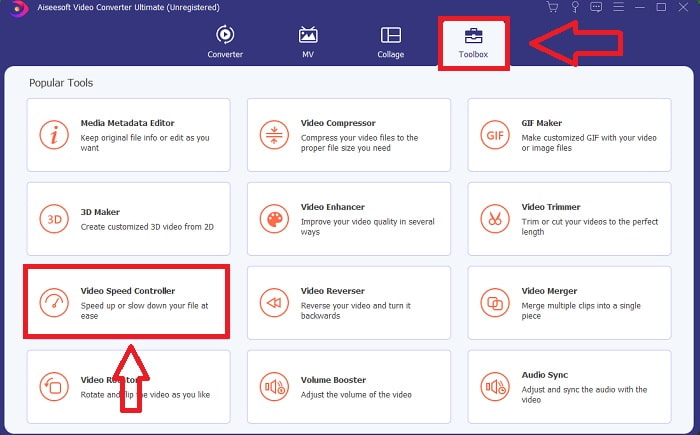
Step 2. After the installation, you can directly proceed to the software by launching it. Click the Toolbox feature on the far right of the tab above, then into the Video Speed Controller option to begin editing.
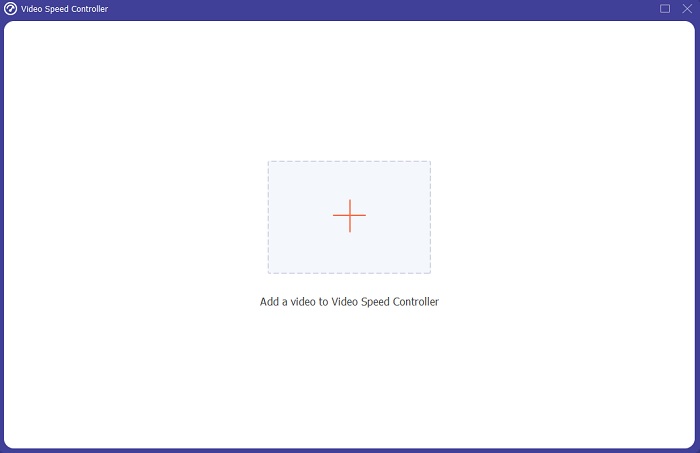
Step 3. A new window will pop up in the middle of the window. Click + to add the video file you wish to edit.
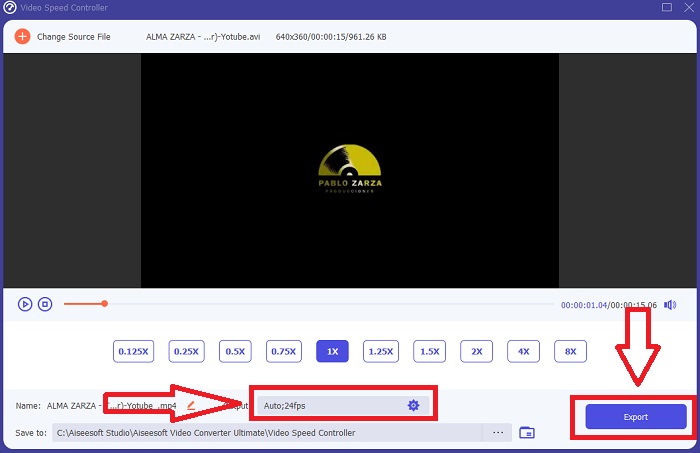
Step 4. Once the video file has been opened, you can choose between the different playback speeds displayed below the video depending on how much you want the slow-motion effect to apply to your video.
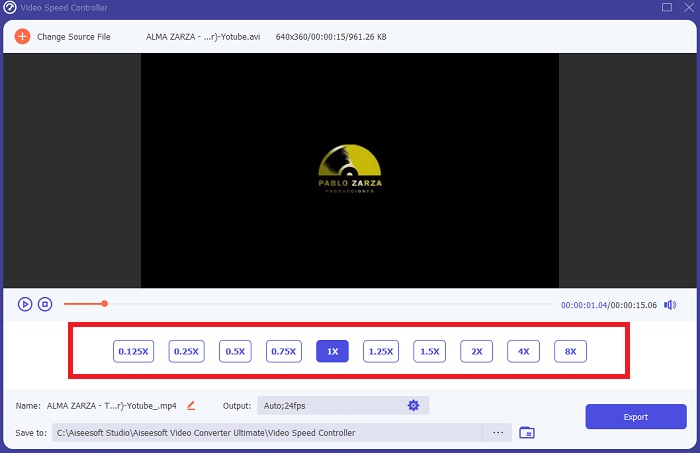
Step 5. You can edit the output of your video in terms of video such as format, resolution, frame rate, and quality, and audio such as sample rate and bitrate in the output settings. Also, you can choose the destination of your video to be exported just below the output setting. To save it, click on the Export button on the lower right corner of the window and wait for it to finish.
Terkait:
Bagian 3. FAQ tentang Membuat Video Gerakan Lambat
Bagaimana cara kerja gerakan lambat?
Video gerak lambat hanyalah teknik memutar ulang rekaman pada kecepatan bingkai yang lebih lambat daripada saat direkam. Namun, ini tidak akan berfungsi dengan sembarang video - atau setidaknya tidak baik. Anda pasti ingin memastikan bahwa Anda merekam pada kecepatan bingkai yang wajar. Jika Anda memotret 120 bingkai per detik dan kemudian memutarnya kembali pada 24 bingkai per detik, klip Anda akan berjalan selama 5 detik karena 120/24 = 5. Video ini telah diperlambat lima kali.
Berapa kecepatan bingkai, dan apa artinya untuk gerakan lambat?
FPS apa yang harus saya gunakan untuk gerakan lambat?
Untuk membuat video gerak lambat, Anda dapat menggunakan berbagai kecepatan bingkai. Pada kenyataannya, kecepatan bingkai apa pun di atas 24-30 FPS dapat digunakan untuk membuat video gerakan lambat, tetapi tampilan dan nuansanya akan berbeda. Secara umum, semakin besar kecepatan bingkai, semakin lambat film Anda. Selain itu, semakin cepat kecepatan bingkai, semakin lama foto gerak lambat Anda akan bertahan. Namun, ini tidak berarti bahwa lebih lambat selalu lebih baik. Itu semua tergantung pada seberapa lambat Anda ingin film Anda terlihat dan berapa lama Anda ingin klip itu bertahan.
Kesimpulan
Berada di industri produksi video atau sekadar membuat konten sebagai hobi berarti mengeksplorasi bagaimana Anda membuat video Anda berbeda dari sebelumnya atau dari yang lain. Itulah mengapa penting untuk menambahkan keserbagunaan ke gudang senjata Anda – Anda tidak akan pernah tahu apa yang akan menarik perhatian pemirsa di setiap hari yang telah berlalu. Salah satu yang paling sederhana adalah mempelajari cara bermain dengan kecepatan lari klip Anda. Gerakan lambat mungkin sudah ada di seluruh internet, tetapi itu selalu tergantung pada bagaimana Anda menggunakannya dan menjadikannya milik Anda sendiri. Jadi, memiliki perangkat lunak di sisi Anda yang Anda yakini dapat mengedit kecepatan pemutaran video Anda dengan mulus kapan saja sangat penting. Artikel ini akan memberikan opsi paling sederhana dan terbaik untuk membiasakan diri dengan perangkat lunak apa yang digunakan untuk membuat video gerak lambat.
-
 4 Pemain VOB Terbaik untuk Ponsel Android untuk Penggunaan Berbeda
 Saat Anda mengunduh video VOB dan ingin menontonnya di Android, Anda dapat memilih salah satu yang paling cocok dari 4 pemain VOB teratas berikut dalam artikel ini.
-
 5 Alternatif Windows Media Player Terbaik untuk Ponsel Android
 Karena Anda tidak dapat mengunduh Windows Media Player untuk Android, Anda harus membaca artikel ini dan mempelajari tentang 5 alternatif terbaik untuk Windows Media Player.
-
 5 Pemutar Video Terbaik untuk iPhone yang Tidak Boleh Anda Lewatkan di tahun 2021
 Untuk memutar video dalam semua format dan mendapatkan pengalaman menonton yang lebih baik di iPhone, Anda harus membaca artikel ini dan mempelajari tentang 5 pemutar video terbaik untuk iPhone 12/11/X/8/7/6.
