


 Video Converter Ultimate
 Screen Recorder
 Riparazione video
Come convertire DivX in MOV sia online che offline: metodi diversi che dovresti conoscere
Il video digitale ha fatto molta strada da quando è stato introdotto commercialmente nel 1986 con il formato Sony D1. Con il miglioramento della tecnologia nel corso degli anni, sono stati introdotti vari formati video. Ogni clip video che guardi sul tuo smartphone, computer, televisore o tablet ha un formato di file specifico. Devi comprendere come funziona ciascun formato video se vuoi che i tuoi video funzionino correttamente su qualsiasi piattaforma. Un formato video per lo sviluppo web, ad esempio, sarà diverso da quello che utilizzi per i social media. Due di questi formati sono DivX e MOV, che presentano differenze che li distinguono da molti altri. In questo articolo, quindi, ci concentriamo specificamente su questi due – li mettiamo a confronto e forniamo i passaggi più semplici per la **conversione da DivX a MOV** per la tua comodità.
Parte 1. DivX VS. MOV
Se consumi molti contenuti video, è probabile che tu abbia già incontrato una grande varietà di formati. Alcuni di essi, come MP4, AVI e MKV, potrebbero esserti familiari, mentre altri potrebbero risultarti sconosciuti. Sebbene non sia del tutto nuovo, DivX esiste da molto tempo; la sola differenza è che poche persone lo hanno effettivamente utilizzato. Abbreviazione di Digital Video Express, DivX è un programma di compressione video con perdita che può ridurre i file video a una frazione delle loro dimensioni originali con una perdita di qualità minima. MOV, invece, è un formato video sviluppato da Apple. È un tipo di contenitore di file che può includere diversi tipi di video e contenuti multimediali. Poiché è stato creato da Apple, può essere utilizzato solo con dispositivi Apple o con lettori video come QuickTime.
I file MOV includono spesso video con bitrate elevati e con poca o nessuna compressione. Sono di qualità eccellente, ma risultano piuttosto pesanti. I file MOV occupano molta più RAM su un computer, poiché sono formati video ad alta qualità.
Parte 2. Il modo migliore per convertire DivX in MOV offline
Convertire i video da un formato all’altro può risultare piuttosto complicato per i principianti, soprattutto se si conoscono poco o per nulla i programmi disponibili e non si ha familiarità con i formati video. Esistono molti modi per farlo, sia offline che online. Ma se parliamo del modo più comodo per tutti, FVC Video Converter Ultimate è la soluzione ideale. Non solo è gratuito da scaricare, ma include anche molte funzioni in grado di soddisfare le tue esigenze di editing. È veloce e supporta vari formati, quindi convertire video DivX in MOV è semplice. Per utilizzare questo software, segui questi semplici passaggi:
Passaggio 1: Per iniziare il processo, fai clic sul pulsante Download gratuito per Windows o Mac, a seconda del tuo sistema operativo. Verrà scaricato sul desktop un file .exe. Una volta terminato, aprilo e avvia l’installazione del software.
Download gratuitoPer Windows 7 o versioni successiveDownload sicuro
Download gratuitoPer MacOS 10.7 o versioni successiveDownload sicuro
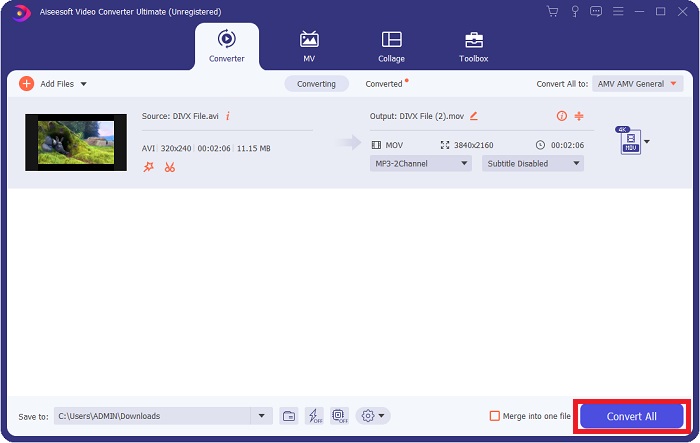
Passaggio 2: Una volta installato, avvia il software e apparirà un’interfaccia che ti porterà alla scheda predefinita, ovvero la funzione Converter.
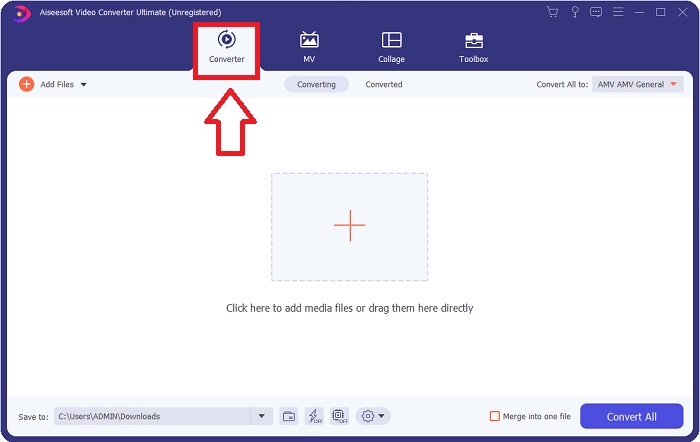
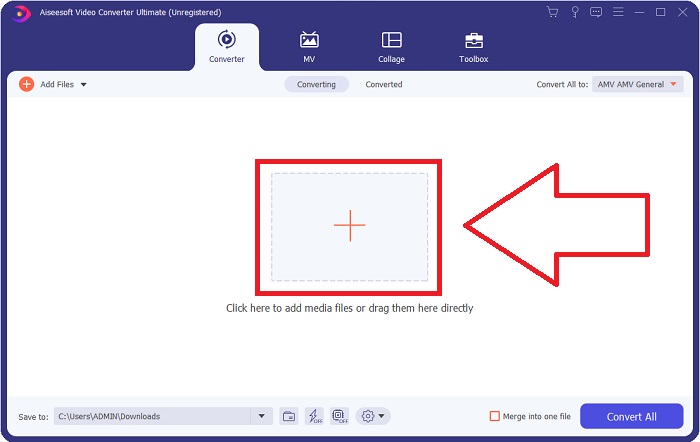
Passaggio 3: Da lì, al centro apparirà un pulsante con il simbolo +. Cliccaci sopra per importare il video che desideri convertire. Puoi anche trascinare e rilasciare i video in quella zona.
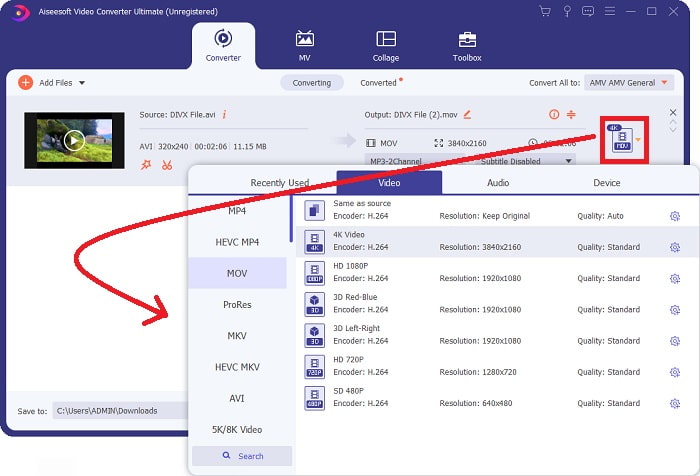
Passaggio 4: Una volta importato il video, sulla destra apparirà un’icona che mostra il formato attuale del tuo file. Accanto a essa c’è una freccia a discesa su cui puoi fare clic per visualizzare tutti i formati disponibili in cui convertire il video. In questo caso, scegli MOV. Nel menu a comparsa sono presenti diverse schede. Puoi scegliere di modificare ulteriormente il video. Puoi selezionare la risoluzione e la qualità audio che si adattano meglio alle tue esigenze. Per ulteriori opzioni, fai clic sull’icona a forma di ingranaggio alla destra della risoluzione o qualità selezionata. Fai clic su Crea nuovo per salvare le modifiche.
Passaggio 5: Se sei soddisfatto di tutte le modifiche apportate, fai clic su Converti tutto nell’angolo in basso a destra della finestra per avviare l’esportazione del video.
Parte 3. Come convertire DivX in MOV online
Metodo 1: freeconvert.com/video-converter
Questo metodo è un'alternativa che puoi utilizzare se non desideri installare software di esportazione. È senza problemi poiché l'unica cosa da fare è andare su questo sito Web e iniziare a modificare il tuo video. Questo strumento web può anche supportare vari formati da convertire in un altro.
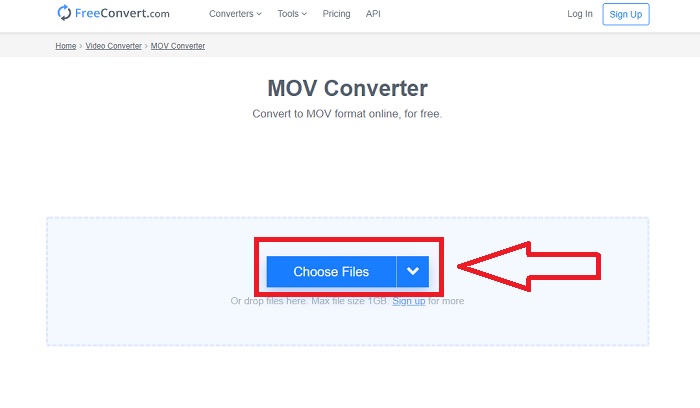
Passaggio 1: Per iniziare, fai clic su Scegli file al centro della pagina. Da lì potrai importare il video che desideri convertire.
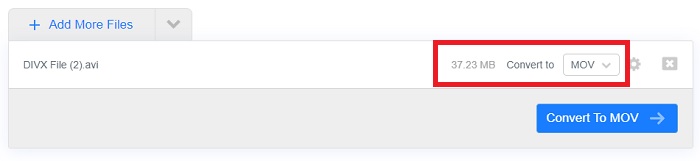
Passaggio 2: Se il file è stato importato correttamente, puoi scegliere in quale formato video vuoi convertirlo facendo clic sulla freccia a discesa. Inoltre, sono disponibili ulteriori opzioni di modifica facendo clic sull’icona a forma di ingranaggio accanto al formato. Per salvare le modifiche, fai clic su Applica impostazioni nell’angolo in basso a destra.
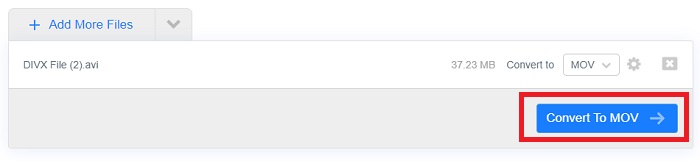
Passaggio 3: Una volta soddisfatto di tutte le modifiche apportate, puoi fare clic su Converti in MOV per iniziare la conversione e attendere che termini. Al termine, fai clic su Scarica MOV per esportare completamente il video convertito.
Metodo 2: onlinefreeconvert.com/divx-to-mov.html
Usa questo strumento web gratuito se non vuoi complicazioni durante la conversione del tuo video. Questo strumento ti offre solo l'opzione per il formato e la risoluzione del file per mantenerlo semplice e facile da usare. Per utilizzare questo convertitore online, continua con i passaggi forniti:
Passaggio 1: Fai clic sul pulsante + al centro della pagina per selezionare i file dal tuo computer, oppure trascina e rilascia il video che desideri convertire.
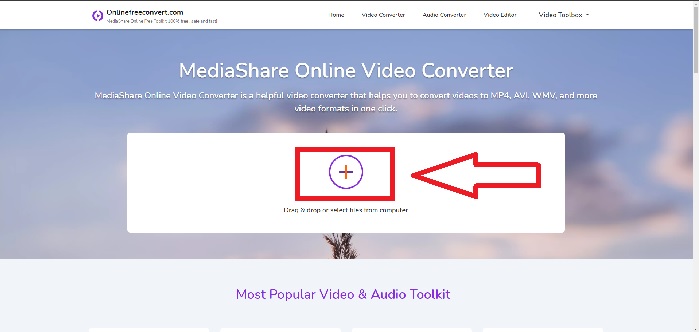
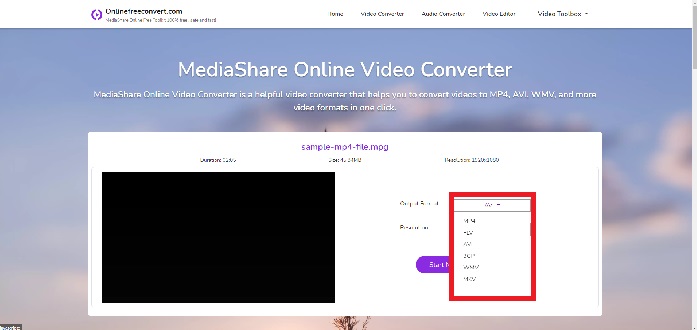
Passaggio 2: Da lì, puoi scegliere quale formato di file e quale risoluzione desideri per il tuo video. A destra del file ci sono due frecce a discesa per effettuare queste scelte.
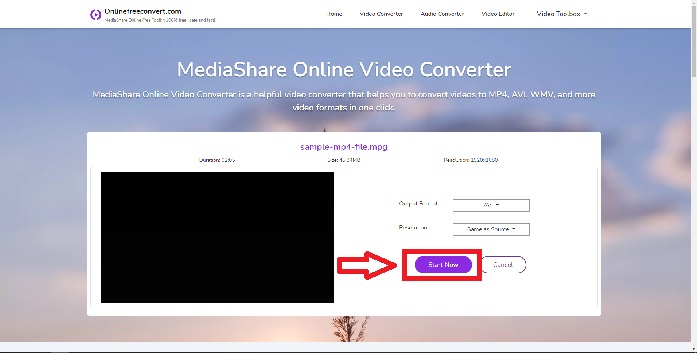
Passaggio 3: Una volta terminato, puoi fare clic sul pulsante Avvia ora sottostante per avviare la conversione, quindi fare clic su Scarica ora per esportare il file sul desktop.
Metodo 3: convertio.co/divx-mov/
Questo strumento web offre più formati di file, in particolare quelli unici tra cui scegliere. Usalo per convertire mentre modifichi anche profili video, frame rate, orientamento e molto altro. Per saperne di più su questo strumento online, ecco i passaggi per aiutarti a navigare:
Passaggio 1: Importa il tuo video facendo clic su Scegli file sull’interfaccia principale della pagina, oppure trascina e rilascia i file. È evidenziato in rosso, quindi è facile da individuare.
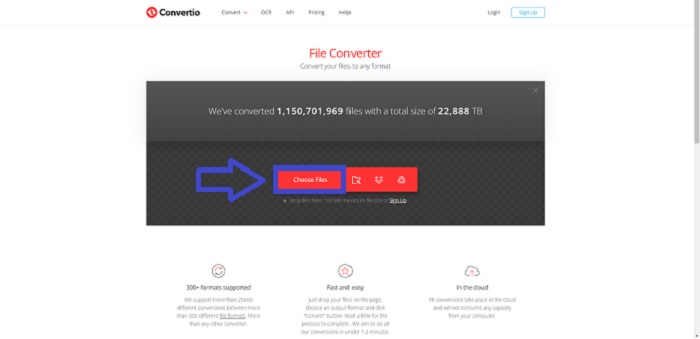
Passaggio 2: Seleziona il formato in cui desideri convertire il tuo video tra quelli disponibili nel menu a discesa. Da lì puoi anche cercare il formato desiderato per risparmiare tempo. A lato apparirà un’icona a forma di ingranaggio per modificare ulteriormente il video. Include molte opzioni tra cui scegliere sia per il video che per l’audio. Fai clic su OK per mantenere le modifiche apportate.
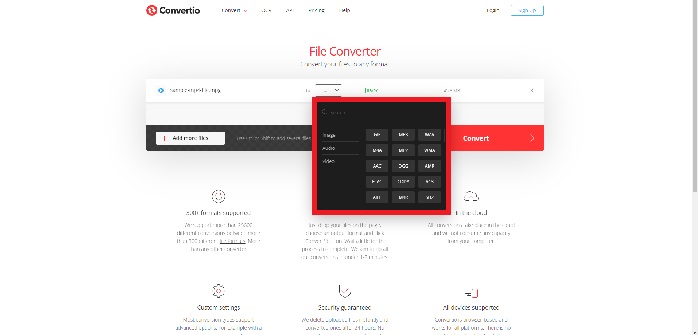
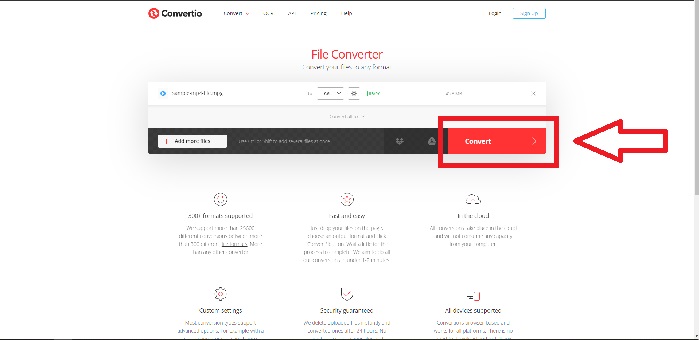
Passaggio 3: Puoi aggiungere altri file da convertire simultaneamente facendo clic su Aggiungi altri file e ripetendo il passaggio 2. Una volta soddisfatto, avvia la conversione facendo clic sul pulsante Converti evidenziato in rosso e attendi che termini. Fai clic su Scarica per esportare il video convertito.
Parte 4. Confronto tra DivX e MOV
| Caratteristica | DIVX | MOV |
| Rilasciato per uso pubblico il | 1986 | 1998 |
| Dispositivo di supporto | Supporto solo per DivX Codec | Supporto solo per Apple |
| Estensione | .divx | .mov |
| Svantaggi | Non è di buona qualità come altri formati | Non altamente comprimibile |
| Dimensione del file | Dimensioni molto piccole | Più grande e richiede più spazio |
| Codec | video | video |
Parte 5. Domande frequenti sulla conversione da DivX a MOV
Perché i formati sono importanti?
Il formato video è importante per l'editing video per una serie di motivi. È possibile determinare la quantità di spazio di archiviazione necessaria per il video che si desidera filmare se si conosce il formato in cui riprende la videocamera. È necessario conoscere il formato del metraggio per determinare se gli strumenti di modifica o correzione del colore possono gestirlo direttamente o se dovrà essere transcodificato.
Quando dovrei usare MOV?
La riproduzione video è di qualità eccezionalmente alta con i file MOV. MOV è l'opzione migliore se stai montando in un ambiente professionale per il cinema e la televisione. Gli editor professionisti preferiscono i codec (compressione/decompressione) supportati da MOV. MOV è vantaggioso poiché può contenere materiali misti come immagini, video e animazioni a 360 gradi. Contiene anche tutte le informazioni video e audio. Questo rende la modifica del file molto più semplice.
DivX è di buona qualità?
DivX è un formato di codifica video che funziona con un particolare tipo di file MPEG-4 ed è stato usato spesso per il ripping dei DVD prima dell’avvento del video in alta definizione. In realtà, dal 2009 DivX Plus supporta la creazione di video HD di qualità massima, H.264, nel contenitore più comune, MKV, utilizzando la versione più recente del software. Per riprodurre i tuoi file DivX, fai clic qui per ottenere potenti lettori DivX disponibili.
Conclusione
La conversione video, in generale, ti offre molte opzioni tra cui scegliere. Può essere online tramite uno strumento Web o un software che è necessario installare per convertire offline. Sebbene ci siano molti di questi che puoi trovare su Internet, può ancora confondere coloro che non sono tecnologicamente alfabetizzati. Ecco perché questo articolo fornisce tutte le migliori opzioni per provare sia online che offline senza problemi. Ma per la massima comodità, Video Converter Ultimate è la strada da percorrere poiché è un convertitore ed editor all-in-one che potresti cercare da molto tempo.
-
 Come convertire AVI in MOV con semplici passaggi e strumenti
 Vuoi sapere come convertire AVI in un MOV riproducibile? Devi seguire questo articolo per sapere come farlo e suggerimenti per avere una conversione di successo.
-
 I migliori 6 convertitori da MP4 a DivX per transcodificare da MP4 a DivX con facilità
 Quando devi eseguire il backup dei file MP4 su un DVD o riprodurli su una smart TV con un'alta qualità, puoi saperne di più sui 6 migliori convertitori gratuiti da MP4 a DivX dall'articolo.
-
 3 modi più semplici per convertire FLV in DivX su desktop o online
 Puoi convertire FLV in DivX gratuitamente? La risposta è sì e semplice. Questa guida ti mostrerà tre metodi gratuiti per eseguire facilmente il lavoro su Windows e Mac.
