


 Video Converter Ultimate
 Screen Recorder
 Riparazione video
 Download sicuro
Come posso convertire un MP4 in WAV online gratuitamente
MP4 è un formato video molto comune che le persone usano nella vita quotidiana. Allo stesso tempo, WAV è anche un'ottima opzione per contenere audio senza perdita di qualità. Ma a volte potresti voler convertire MP4 in WAV per ascoltarlo sui tuoi dispositivi. In questo caso, ciò di cui hai bisogno è un convertitore professionale che possa estrarre la parte audio dal video senza perdere qualità sonora.
Oggi confronteremo nel dettaglio MP4 e WAV e ti presenteremo i migliori convertitori da MP4 a WAV, sia online che offline.

Parte 1. MP4 vs WAV
Ad essere onesti, non c'è molto da confrontare tra MP4 e WAV. Dopotutto, sono due formati diversi utilizzati in situazioni diverse, uno per la memorizzazione di video e l'altro per il salvataggio dell'audio. Ma entrambi sono tipi di file e possono contenere audio digitale. Sulla base di ciò, la tabella seguente elenca alcune delle loro differenze.
| MP4 | WAV | |
| Contiene | Video, audio e sottotitoli | Solo audio |
| Estensione del nome file | .mp4, .m4a, .m4p, .m4b, .m4r e .m4v | .wav e .wave |
| Sviluppato da | Organizzazione internazionale per la standardizzazione | IBM e Microsoft |
| Proprietà | Compresso e con perdite (per la maggior parte del tempo) | Non compresso e senza perdita di dati |
Parte 2. Miglior convertitore online da MP4 a WAV
Ora hai appreso i meriti di questi 2 formati. È ora di trovarti un utile convertitore da MP4 a WAV in grado di soddisfare tutte le tue esigenze di conversione.
Qui ti consigliamo uno strumento di conversione basato sul web chiamato FVC Free Audio Converter, che può aiutarti facilmente a trasformare online e gratuitamente i file video MP4 in WAV. Il vantaggio principale di questo convertitore online è che puoi usarlo su qualsiasi sistema operativo, come Windows e macOS, senza scaricare un pesante pacchetto software. Ti serve solo un browser e una connessione stabile. Poi potrai convertire video MP4, come videoclip musicali e talk show, in file WAV senza alcuna difficoltà.
Download gratuitoPer Windows 7 o versioni successiveDownload sicuro
Download gratuitoPer MacOS 10.7 o versioni successiveDownload sicuro
Segui questi passaggi di seguito e puoi anche eseguire la conversione come un professionista.
Passaggio 1. Clicca sul link qui sopra per visitare il sito ufficiale di FVC Free Audio Converter. Fai clic sul pulsante Add Files to Convert. Quindi dovrai scaricare e installare un piccolo launcher.
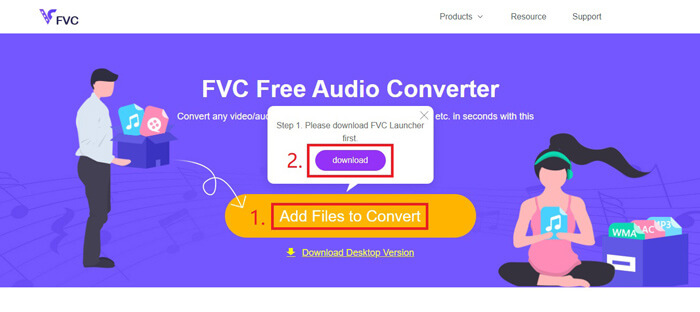
Passaggio 2. Dopo l’installazione, si aprirà immediatamente la finestra Open. A questo punto puoi selezionare il video MP4 che desideri convertire.
Passaggio 3. Poiché quello che ti serve è un file WAV, devi cambiare il formato di output in WAV. Clicca su Convert e scegli una cartella di destinazione in cui salvare il file WAV.
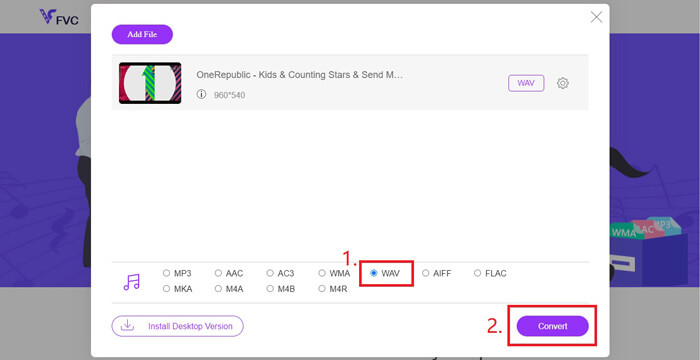
Passaggio 4. Attendi qualche istante e il file convertito verrà salvato automaticamente sul tuo computer.
Parte 3. Converti MP4 in WAV con Audacity
Molte persone chiedono come convertire MP4 in WAV con Audacity. Abbiamo quindi fatto una ricerca e abbiamo scoperto che questo metodo può risultare un po' complesso, perché Audacity non può aprire direttamente i file MP4 senza la libreria opzionale FFmpeg. Per fortuna, abbiamo risolto questo problema usando la funzione di registrazione di Audacity.
Per coloro che non hanno familiarità con Audacity, è un freeware audio open source e multipiattaforma sviluppato da volontari. Normalmente, viene utilizzato per l'editing e la registrazione di audio multitraccia. Per esportare file WAV da MP4 con Audacity, devi seguire i passaggi seguenti.
Passaggio 1. Trova il file video MP4 che vuoi convertire e riproducilo con il lettore multimediale del tuo computer. Per assicurarti che non venga tralasciata nessuna parte, metti in pausa il video appena lo apri e riportalo all’inizio.
Passaggio 2. Ora puoi avviare Audacity. Per prima cosa devi disattivare il microfono facendo scorrere il volume di registrazione su 0. Poi regola il volume del suono di sistema come preferisci. Clicca sul pulsante Record.
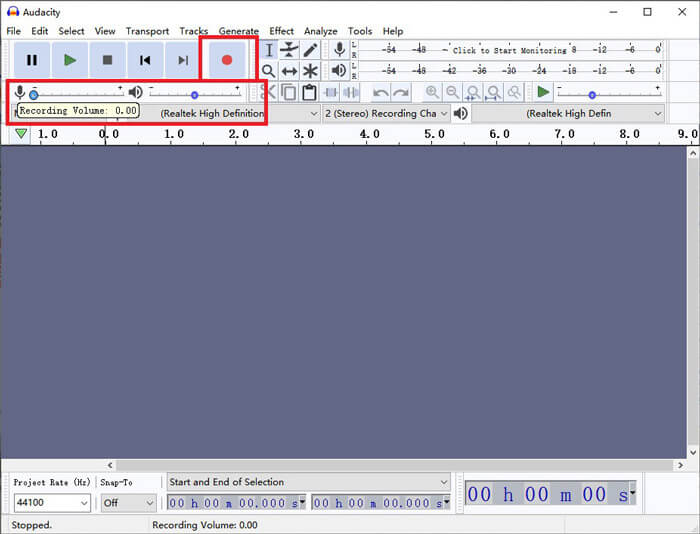
Passaggio 3. Torna al lettore multimediale e riproduci il video MP4. Audacity registrerà la parte audio del video. Quando il video MP4 sarà terminato, potrai chiudere il lettore multimediale.
Passaggio 4. Torna ad Audacity e clicca sull’icona Stop. Successivamente vai su File nella barra dei menu in alto. Seleziona Export e poi scegli Export as WAV.
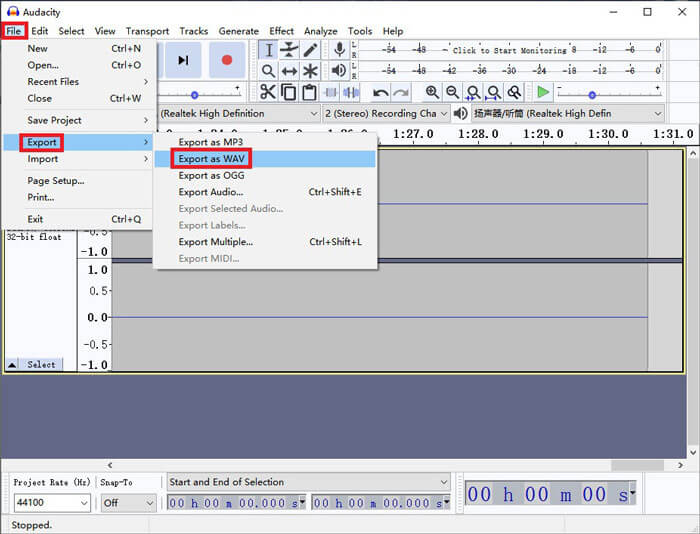
Passaggio 5. Assegna un nome a questo file audio prima di salvarlo sul tuo computer.
Parte 4. Domande frequenti sulla conversione da MP4 a WAV
1. Come posso convertire un MP4 in WAV su iTunes?
Apri iTunes e trova Edit nella barra dei menu in alto. Poi seleziona Preferences. Nella finestra General Preferences, trova Import Settings. Quindi cambia la voce Import Using da AAC Encoder a WAV Encoder. Clicca su OK. Fai clic con il tasto destro sul file video che vuoi convertire e scegli Create WAV Version.
2. Come convertire MP4 in WAV in Windows Media Player?
Apri il file MP4 con Windows Media Player. Clicca sull’icona del Menu per andare alla schermata principale di Windows Media Player. Clicca su Organize e scegli Options. Poi trova la scheda Rip Music e imposta il formato di output su WAV. Qui puoi anche modificare la cartella di destinazione del tuo file audio. Clicca sul pulsante OK per avviare la conversione da MP4 a WAV.
3. Quale è meglio, MP4 o WAV?
Se vuoi confrontare solo la qualità del suono, allora WAV è ovviamente migliore di MP4, perché il file audio in formato WAV è non compresso e senza perdita di qualità. Tuttavia, per lo stesso motivo, un file WAV può essere più grande di un file MP4 pur contenendo lo stesso audio. Se vuoi sapere di più sui video MP4, dovresti almeno confrontarli con altri formati video, come AVI VS MP4 o MOV VS MP4.
Conclusione
Includendo i metodi che abbiamo citato nelle FAQ, ora disponi di 4 modi per convertire MP4 in WAV. Se vuoi semplicemente usare uno strumento di conversione rapido per convertire l’audio, FVC Free Audio Converter svolgerà egregiamente il suo lavoro senza complicazioni aggiuntive.
Se trovi utile questo articolo, puoi condividerlo con i tuoi amici. Sentiti libero di lasciarci le tue opinioni.
-
 Come convertire un MP4 in WMV per Mac / Windows
 Questo post condivide come convertire i video MP4 in formato WMV su Mac o Windows. Ti offriremo anche diverse opzioni, inclusi sia software desktop che convertitori online basati sul web. Pronto a conoscere i migliori strumenti di conversione da MP4 a WMV?
-
 Come convertire un MP4 in MP3 su Windows / Mac / iPhone / Android / Online
 Se desideri estrarre l'audio MP3 da un video MP4, puoi controllare questo articolo e ottenere 8 soluzioni. Esistono modi online e offline per convertire facilmente MP4 in MP3 sul tuo telefono o computer.
-
 Come convertire WMV in MP3 su desktop e online
 Puoi trovare qualsiasi software di conversione video gratuito da FVC studio. È supportato qualsiasi formato video / audio, inclusi MP4, MOV, TS, AVI, WMV, FLAC, MP3, ecc.
