


 Video Converter Ultimate
 Screen Recorder
 Riparazione video
5 ridimensionatori GIF che puoi utilizzare per ridimensionare la tua GIF animata online e offline
Ridimensionare una GIF è un compito semplice con qualsiasi editor, ma non tutti gli editor supportano questo tipo di formato. Invece di provare strumenti diversi e perdere molto tempo, perché non ti fermi a leggere questo articolo? Perché? Perché ti proponiamo i ridimensionatori che puoi usare e riportiamo solo fatti concreti su questi cinque strumenti. Allora, sei pronto a conoscere i ridimensionatori per GIF animate disponibili sulle tue piattaforme? Se è così, dobbiamo ora procedere con una recensione dettagliata di questi cinque ridimensionatori di GIF qui sotto e vedere le differenze tra ciascun tool.

Parte 1. I 5 migliori ridimensionatori di GIF online e offline
1. FVC Video Converter Ultimate [consigliato]
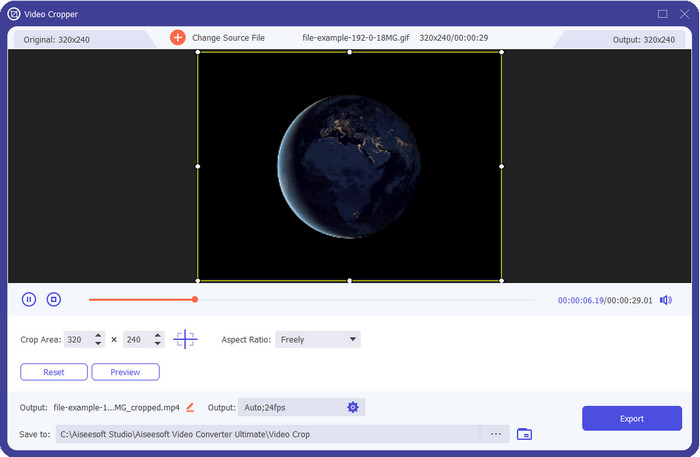
Nessuno degli strumenti qui elencati offre ciò che FVC Video Converter Ultimate può dare alle tue GIF. Forse ti stai chiedendo cosa renda questo strumento così unico. Questo strumento 'ultimate' offre un ridimensionamento GIF completo e poco costoso che ti piacerà utilizzare. È eccellente per ottenere un risultato professionale, simile a quello che può offrirti Photoshop, ma molto più rapido sia per i principianti che per i professionisti. Inoltre, questo strumento può ridimensionare le tue GIF, ma ti permette anche di convertirle in MP4, MOV, AVI, MKV e oltre altri 200 formati per renderle compatibili con altri dispositivi. Supponiamo che tu debba creare una GIF e voglia impostarla come sfondo: allora sei fortunato ad avere questo strumento “ultimate”, perché dispone di un creatore di GIF che ti aiuterà. Se vuoi sapere come creare e impostare le GIF come sfondo, fai clic su questo link. Ad ogni modo, questo strumento è consigliato a tutti gli utenti che vogliono imparare a ridimensionare le GIF in modo semplice e rilassato, senza dover leggere un manuale su come usarlo.
Download gratuitoPer Windows 7 o versioni successiveDownload sicuro
Download gratuitoPer MacOS 10.7 o versioni successiveDownload sicuro
Professionisti
- Ridimensiona la tua GIF in base alla dimensione che desideri trascinando liberamente i punti.
- Ha un'anteprima che puoi guardare per assicurarti che sia la dimensione esatta di cui hai bisogno sulle tue GIF.
- Ha un rendering ultraveloce integrato per un processo di esportazione fulmineo.
- Disponibile in qualsiasi sistema operativo desktop come Windows e Mac.
Contro
- Necessità di essere acquistato.
2. Adobe Photoshop
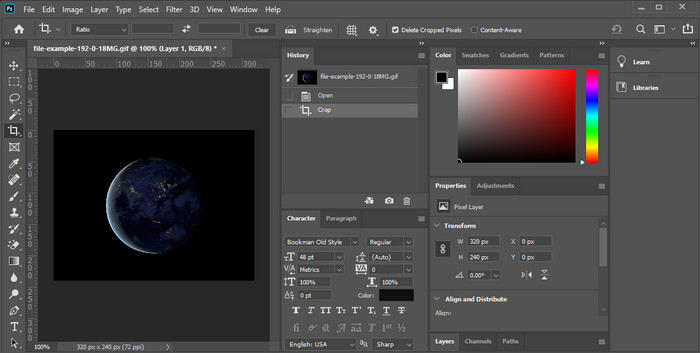
E se volessi un tool di ridimensionamento professionale? Allora Adobe Photoshop è una scelta. Questo programma da scaricare ti aiuta a ridimensionare qualsiasi GIF facilmente in pochi minuti. Più nel dettaglio, questo strumento è la scelta di ogni utente professionale che vuole modificare le proprie immagini, come le GIF, per renderle migliori e più accattivanti. Sebbene lo strumento sia professionale, rimane comunque difficile da usare per chi non è portato per la tecnologia. Inoltre, se vuoi solo ridimensionare la tua GIF, questo è uno strumento costoso per il compito da svolgere. Ma se desideri usare PhotoShop per ridimensionare le GIF e aggiungere qualche dettaglio in più, allora questo tool ti sarà d’aiuto; tuttavia, imparare a usarlo richiederà più tempo rispetto agli altri strumenti.
Professionisti
- È la scelta migliore per l'editing di immagini professionale.
- Strumento professionale per uso professionale.
- Funzionalità di modifica avanzate per GIF.
Contro
- Costoso.
- Difficile da usare se sei nuovo nell'area dell'editing.
3. GIFGIF
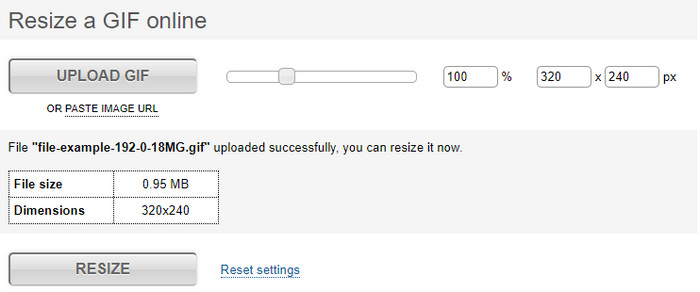
GIFGIFs dispone di una delle librerie di GIF più ampie, che puoi utilizzare per salvare GIF predefinite sul tuo drive, e offre un editor semplice per ridimensionare GIF di grandi dimensioni. Questo strumento è a disposizione degli utenti da tempo per aiutarli a regolare le proprie GIF, se necessario, tramite servizi online. Sebbene questo ridimensionatore web sia gratuito e online, non presenta pubblicità nell’interfaccia che possano disturbarti, il che è ottimo. Ma il problema principale del suo ridimensionatore è che dovrai indicare l’esatta dimensione o rapporto dell’immagine che vuoi ottenere. Questo problema è più stressante delle pubblicità, perché dovrai provare e riprovare per assicurarti che il ridimensionamento sia esattamente quello desiderato. Tuttavia, se hai già un’idea del rapporto d’aspetto di cui hai bisogno, questa è una buona scelta per ridimensionare le tue GIF.
Professionisti
- Libreria integrata per GIF.
- Non ci sono annunci sul Web che possono infastidirti o disturbarti durante il ridimensionamento della GIF.
- Facile e gratuito da usare.
Contro
- Internet è necessario per completare l'attività di ridimensionamento delle GIF.
- Difficile sapere se è la dimensione esatta di cui hai bisogno.
4.RedKetchup.io
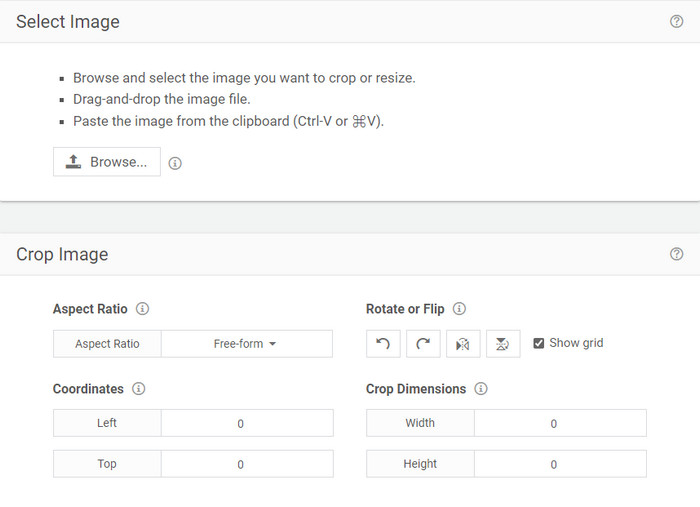
RedKetchup.io offre un modo semplice e interattivo per ridimensionare GIF animate entro un limite specifico che desideri. Questo strumento web permette agli utenti di Internet di migliorare l’aspetto delle proprie GIF grazie alle funzioni di editing che mette a disposizione. Inoltre, qui puoi eseguire un ridimensionamento molto più dettagliato rispetto a quello che Ezgif può offrirti. Anche se questo strumento è molto più semplice da usare rispetto al primo, la sua interfaccia manca un po’ di colori per apparire professionale. L’unico colore che vedrai quando accedi a questo strumento è il nome, ed è di colore rosso. Inoltre, lo strumento è gratuito da usare; tuttavia, alcune pubblicità presenti nell’interfaccia possono risultare un po’ fastidiose alla vista.
Professionisti
- Disponibile per l'accesso da parte di chiunque disponga di una connessione a Internet.
- Ridimensionatore GIF molto dettagliato.
- Gratuito ancora, è semplice da usare.
Contro
- Ha annunci fastidiosi sull'interfaccia.
- Dipendente da Internet.
5. Ezgif
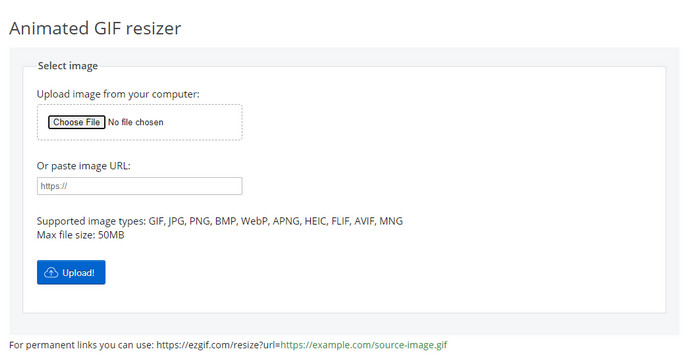
È conosciuto come uno dei migliori creatori di GIF e può anche ridimensionare GIF online in caso di necessità. Ezgif offre un’interfaccia intuitiva per migliorare la tua GIF senza dover fare troppi sforzi. Inoltre, se non sei pratico di tecnologia, questo strumento è un’ottima scelta per questo tipo di utenti. Tuttavia, se non hai una connessione Internet, questo strumento non è una scelta valida per ridimensionare la tua GIF, poiché dipende dalla rete, come gli altri strumenti web qui sotto. Inoltre, le pubblicità sull’interfaccia possono disturbarti mentre ridimensioni le GIF. Se utilizzi questo editor, assicurati di conoscere il valore esatto di larghezza e altezza che vuoi impostare, perché non esiste un’anteprima per verificare se la GIF ridimensionata corrisponde alle tue esigenze e non puoi trascinare il rapporto per adattarlo alle tue preferenze.
Professionisti
- Il miglior creatore di GIF online.
- Ha semplici funzionalità di modifica GIF di cui avrai bisogno.
- Accedi gratuitamente.
Contro
- Non ha un'anteprima per verificare se la dimensione della GIF è corretta.
- Gli annunci sono sull'interfaccia che possono irritarti.
Parte 2. Grafico di confronto sui 5 ridimensionatori GIF
| Caratteristiche | Video Converter Ultimate [Consigliato] | Photoshop | GIFGIF | RedKetchup.io | Ezgif |
| Funzionalità di modifica |  | | | | |
| Senza pubblicità | | |  | | |
| Facile da usare | | | | | |
| Dipendente da Internet | | | | | |
| Economico o gratuito | | | | | |
| Riquadro di anteprima | | | | | |
Parte 3. Domande frequenti su GIF Resizer
Dopo il ridimensionamento, la qualità della GIF cambia?
Per quanto riguarda la qualità, la GIF non dovrebbe essere cambiata drasticamente in una sfocata, ma la qualità cambierà dopo aver ridimensionato la GIF, ma non dovrebbe essere lontana dalla GIF originale. Quindi, se riscontri questo problema, significa che la qualità è cambiata durante l'esportazione e non durante il ridimensionamento della GIF.
La dimensione del file della GIF diventa piccola?
Dopo aver confrontato le due GIF, quella originale e quella ridimensionata, abbiamo riscontrato un cambiamento significativo nella dimensione del file. Anche se si tratta di una piccola modifica, possiamo dire che le sue dimensioni sono diventate più piccole di quella originale.
Posso riportarlo alla GIF originale dopo il ridimensionamento?
Dopo aver ridimensionato la tua GIF, puoi trasformarla nello stato originale se non l'hai ancora esportata. Tuttavia, se esporti la GIF e non sei soddisfatto del risultato, non puoi riportarla alla dimensione GIF originale. Per evitare questo problema, è necessario utilizzare un ridimensionatore GIF con un'anteprima per controllare l'output prima di esportarlo.
Dopo aver convertito JPG in GIF si sposterà?
No, non lo farà, perché i JPEG non si muovono come le GIF animate. Ma puoi trasformare più JPEG in una GIF se li converti invece in una GIF fotografica. Vuoi imparare come si fa? In tal caso, questo articolo ti aiuterà molto a trasformare la tua raccolta di JPEG in una GIF.
Conclusione
Ora che sappiamo quali ridimensionatori di GIF puoi usare, è arrivato il momento di scegliere. Tutti gli strumenti online e offline sono stati testati singolarmente per fornire informazioni accurate sui tool e sulle loro capacità. Ma abbiamo scoperto che Video Converter Ultimate offre il miglior risultato per quanto riguarda il ridimensionamento delle GIF. Sebbene lo strumento sia a pagamento, possiamo affermare con sicurezza che il tuo denaro non andrà sprecato dopo aver acquistato questo strumento “ultimate”. Quindi ora, se hai ancora dei dubbi su ciò di cui stiamo parlando, devi provare e scaricare lo strumento ultimate facendo clic sul pulsante di download.
Download gratuitoPer Windows 7 o versioni successiveDownload sicuro
Download gratuitoPer MacOS 10.7 o versioni successiveDownload sicuro
-
 Come creare una GIF su iPhone da più foto che hai scattato e salvato
 Vuoi sapere come creare GIF su iPhone dalle tue foto? Questo post condivide 3 software che puoi utilizzare per creare GIF sul tuo iPhone.
-
 I 3 migliori convertitori da non perdere per convertire PNG in GIF animate
 Vuoi dare vita al tuo PNG? Quindi prova a convertire il formato animato PNG in GIF con gli utili strumenti disponibili e i passaggi su come farlo.
-
 I 4 migliori modi per trasformare GIF animate in FLV su PC/Mac/Online/Android/iOS
 Vuoi convertire le tue GIF in FLV e condividerle online? In tal caso, diamo un'occhiata ai migliori convertitori da GIF a FLV che puoi utilizzare su PC, Mac, online, Android e iOS.
