


 Video Converter Ultimate
 Screen Recorder
 Riparazione video
Come modificare i metadati dei file MOV su Mac con passaggi senza sforzo
Sappiamo tutti che il formato MOV è uno dei formati di altissimo livello che puoi usare idealmente per la riproduzione video sui dispositivi Apple e per il montaggio. Ma cosa rende unico il MOV? Supporta una compressione video preferibilmente usata dai professionisti. Sebbene possa memorizzare più elementi in un unico file, è comunque possibile che un file MOV presenti tag confusi che potrebbero causare problemi. È utile modificarli in modo appropriato per avere metadati corretti e risolvere subito la situazione. Con lo strumento giusto, questo compito è un gioco da ragazzi. Oggi, quindi, ti presenteremo i modi migliori per modificare all’istante i metadati dei file MOV.

Parte 1. Come modificare i metadati MOV con Ultimate Tag Editor su Mac
FVC Video Converter Ultimate è la soluzione completa ai tuoi problemi di metadati e supporta oltre 1000 formati su Mac e Windows. Con questo strumento puoi rimuovere, modificare o aggiungere all’istante i metadati sul tuo file MOV. Cos’altro offre? Puoi eseguire molteplici modifiche sul tuo MOV, come tagliare, rifilare, unire, ritagliare e mille altre operazioni, anche se non sei un professionista del montaggio. È davvero impressionante avere questo strumento al tuo fianco, e con pochi clic puoi fare ancora molte altre cose. Ma oggi ti presentiamo le istruzioni dettagliate che abbiamo preparato e che puoi seguire per modificare con successo i metadati dei tuoi file MOV.
Passaggio 1. Puoi ottenere l’Ultimate Converter sul tuo Mac o Windows toccando il pulsante di download qui sotto. Procedi con l’installazione facendo clic sul file che hai scaricato e fai clic su Start Now per avviare subito lo strumento.
Download gratuitoPer Windows 7 o versioni successiveDownload sicuro
Download gratuitoPer MacOS 10.7 o versioni successiveDownload sicuro
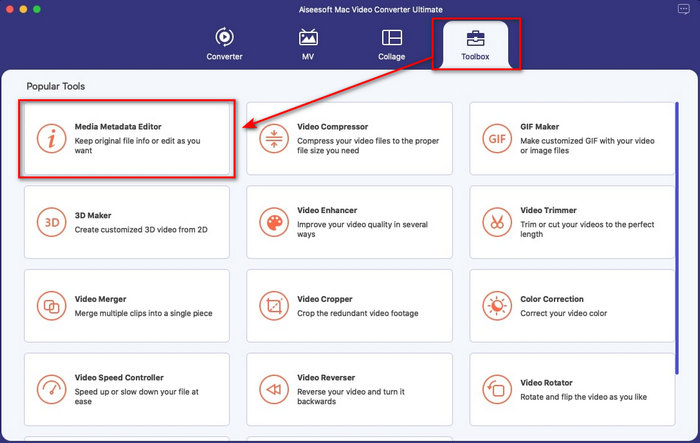
Passaggio 2. L’interfaccia dello strumento apparirà sullo schermo; vai alla sezione Toolbox e apri Media Metadata Editor.
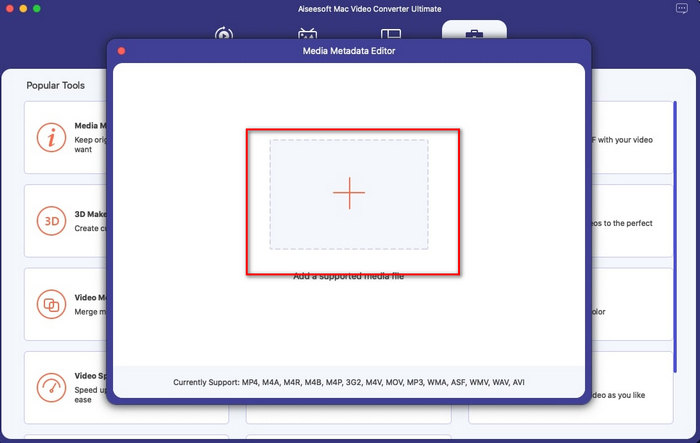
Passaggio 3. Una volta aperto l’editor, si aprirà una finestra ridotta; tocca il pulsante + per aprire la cartella in cui puoi individuare il file e, per inserirlo, fai clic su Open.
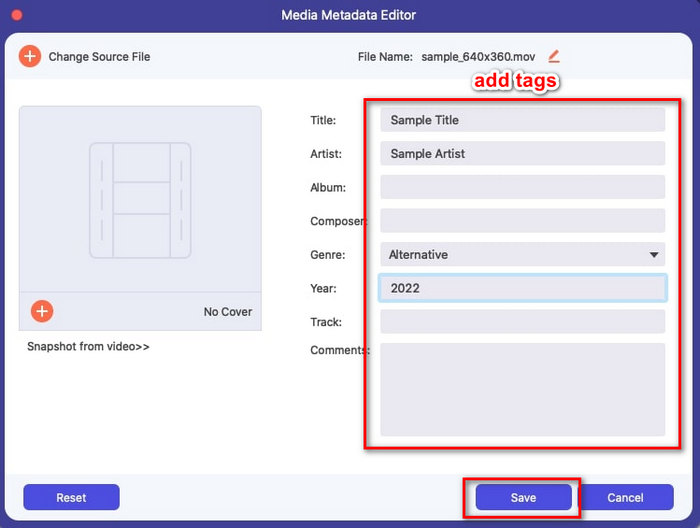
Passaggio 4. A questo punto puoi aggiungere, modificare o rimuovere i tag del tuo file MOV qui nella text box. Quando hai finito, fai clic sul pulsante Save. Hai appena modificato i metadati dei tuoi file MOV in modo rapidissimo.
Correlato:
Parte 2. 3 dei migliori editor di tag MOV per modificare i metadati MOV
VLC Media Player
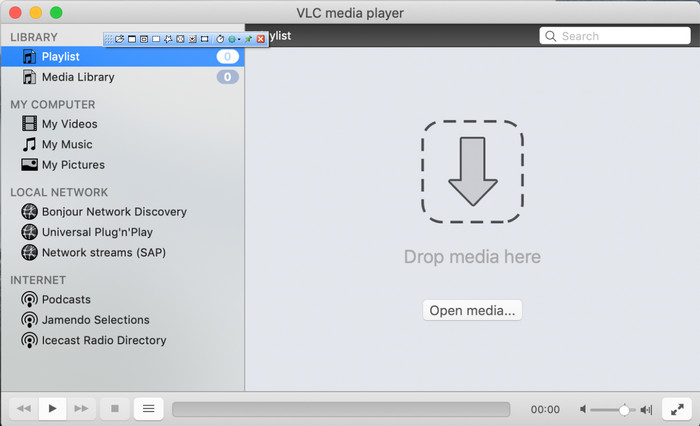
VLC Media Player è un famoso lettore multimediale disponibile su Mac e Windows. Oltre a poter riprodurre diversi formati video, può modificare i metadati dei tuoi file multimediali, compresi quelli MOV. Inoltre, se vuoi visualizzare i metadati del tuo file, puoi facilmente usare VLC per consultarli. Tuttavia, non è efficace come altri editor di metadati dedicati che puoi usare su Mac o Windows. Nonostante ciò, con questo lettore multimediale è comunque possibile modificare i metadati dei file MOV.
Passaggio 1. Scarica il lettore multimediale dal sito ufficiale di VLC, quindi aprilo.
Passaggio 2. Premi Command + I sulla tastiera e verranno visualizzate le informazioni multimediali, dove puoi aggiungere o eliminare i metadati del tuo file MOV.
Passaggio 3. Fai clic su Save Metadata dopo aver applicato i tag al tuo MOV.
iTunes
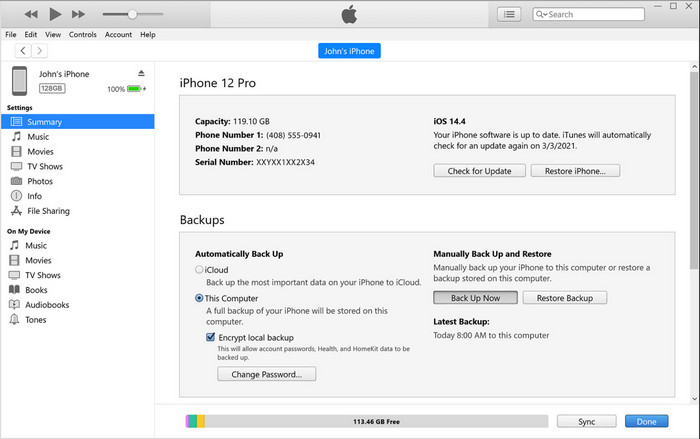
iTunes è la migliore app di streaming integrata a cui puoi accedere su qualsiasi dispositivo Apple. Questo strumento è ricco di funzioni, come il lettore musicale e lo store per musica, film, podcast e molto altro, protetti da DRM per evitare problemi di copyright. Nonostante sia un’ottima app preinstallata, la concorrenza tra gli editor di metadati è troppo agguerrita perché iTunes possa competere. Tuttavia abbiamo voluto comunque includere questa app, perché può modificare i metadati dei file MOV su Mac.
Passaggio 1. Apri e poi importa il file MOV nella libreria di iTunes.
Passaggio 2. Quindi fai clic con il tasto destro sul file .mov che hai aggiunto e seleziona Get Info. Dopo aver fatto clic, avrai diverse opzioni per modificare i metadati, come dettagli, artwork, testi, opzioni, ordinamento e file: regolali in base alle tue esigenze.
Passaggio 3. Premi OK per salvare le modifiche.
MetaZ
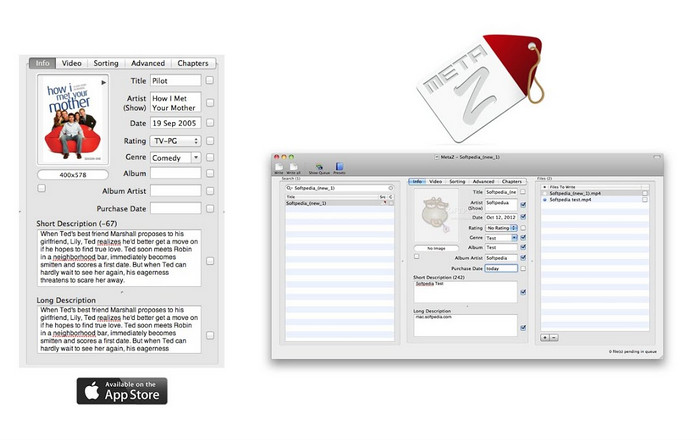
Per macOS X, puoi scaricare gratuitamente Metaz per modificare facilmente i metadati dei tuoi file. Questo editor di metadati può aiutarti a modificare i tag video nella maggior parte dei formati, come il MOV. Con questa app, puoi fare il trucco facilmente e organizzare il MOV nella tua libreria. Tuttavia, ultimamente sono avvenute molte segnalazioni con l'app; gli utenti incontrano molti problemi fastidiosi durante l'utilizzo dell'app. Anche se possono verificarsi problemi, è ancora uno degli editor di metadati MOV più scelti che puoi scaricare sul tuo Mac.
Passaggio 1. Scarica l’app sul tuo Mac, avviala e sullo schermo compariranno tre sezioni dell’interfaccia dello strumento, dove puoi aggiungere il file, modificare i tag e cercare i tag.
Passaggio 2. Trascina e rilascia il file MOV sul lato sinistro; sulla parte destra vedrai che verrà avviata automaticamente la ricerca dei tag per il tuo file MOV in base al titolo, ma puoi modificarli nella sezione centrale se lo desideri.
Passaggio 3. Premi Write e i tag verranno aggiunti al file MOV.
Parte 3. Domande frequenti sull'editor di metadati MOV
Posso utilizzare l'editor di metadati QuickTime per modificare i tag?
Sfortunatamente, non puoi perché questo strumento può solo riprodurre il formato multimediale, modificare i video e registrare. Ma puoi visualizzare liberamente i metadati del tuo file su Quicktime seguendo questi semplici passaggi. Innanzitutto, apri il file MOV su Quicktime e riproducilo. Vedrai diverse opzioni nella parte superiore; fai clic su Finestra e, sotto di essa, premi Visualizza impostazioni, quindi sullo schermo verrà visualizzata una nuova finestra per vedere le piccole informazioni sul tuo file MOV.
La modifica dei tag MOV influisce sulla qualità?
Fortunatamente non lo sarà perché hai regolato i tag, non la risoluzione o la qualità del file MOV. Quindi, se ti preoccupi che la risoluzione del video possa ridursi dopo aver modificato i tag, lo ripeteremo; non lo farà.
L'aggiunta di metadati su MOV aumenterà le dimensioni del file?
In tutti i file, una volta aggiunti i metadati a quel file, vedrai la differenza tra il file che non ha tag e quello che lo ha. Tuttavia, questi tag non sono grandi quanto il contenuto del file. Quindi, se aggiungi metadati al tuo MOV, aspettati che aumenterà un po' di dimensioni perché hai aggiunto informazioni sul file video.
Conclusione
Ora che abbiamo terminato di spiegarti come modificare i metadati dei file MOV, è il momento di scegliere quale tutorial seguire. Se vuoi scaricare uno strumento gratuito sul tuo Mac, puoi scaricare VLC e Metaz per correggere o modificare i metadati dei tuoi MOV. Ma se non vuoi installare altri programmi, puoi usare iTunes per modificare facilmente i metadati. Sebbene questi strumenti siano ottimi da usare, non esiste ancora un programma per Mac con funzioni di editing dei metadati potente quanto quello che può offrirti FVC Video Converter Ultimate. Quindi, se stai ancora decidendo cosa usare, ti consigliamo vivamente di scegliere questo strumento “ultimate” per questo tipo di attività, perché è facile da usare ma ti offre il pacchetto completo di cui puoi aver bisogno in qualsiasi momento.
-
 Che cosa sono i metadati: scopri le informazioni di base sui metadati
 Cosa sono i metadati? È importante? Quali sono le parti dei metadati? Hai la stessa domanda? In questo articolo imparerai le informazioni di base sui metadati.
-
 4 dei migliori visualizzatori di metadati online e offline [Aggiornato 2022]
 Posso controllare i metadati del mio file? Sì, puoi, con l'aiuto di questo post ti presenteremo i diversi visualizzatori di metadati che puoi utilizzare.
-
 I 4 editor di tag WMV più selezionati sul desktop [Aggiornamento 2022]
 Hai bisogno di un editor di tag WMV affidabile per modificare i tag WMV? Bene, questo articolo fornisce una conoscenza sufficiente dello strumento che supporta WMV.
