


 Video Converter Ultimate
 Screen Recorder
 Riparazione video
Scopri come modificare facilmente i metadati OGG con passaggi dettagliati
Con i tag sui tuoi file OGG, il dispositivo che stai attualmente utilizzando può capire cosa c'è nel file. Una volta allegati i metadati, possono aiutarti a organizzarli correttamente determinando i tag per trovarli rapidamente. Quindi, se i tuoi file OGG non hanno metadati, è necessario aggiungerne uno. Sebbene la ricerca di un editor di tag per OGG sia facile, non siamo sicuri che siano perfettamente sicuri da usare. Invece di provarli e fallire, eseguiremo la risoluzione dei problemi per strumento per te. Quindi, continua a leggere questo post per sapere come modificare manualmente i metadati OGG con una garanzia di successo 100%.

Parte 1. Modifica i metadati OGG senza scaricare un programma esterno su Windows
On Windows, you can easily edit OGG metadata without downloading a tool using Properties. However, it is not as effective as the ultimate devoted tool below, but the task can be done with its help. So, if you want to know how to use this metadata editor, you can follow the steps below.
Vantaggi dell'utilizzo delle proprietà su Windows:
◆ Scaricarlo non è essenziale per usarlo in qualsiasi momento e anche se non hai accesso a Internet.
◆ Facile da usare e può essere utilizzato da tutti gli utenti che desiderano modificare i metadati.
◆ Supporta un'ampia gamma di formati OGG, MP3, WAV, WMA e molti altri.
Come modificare facilmente i tag OGG con le proprietà su Windows:
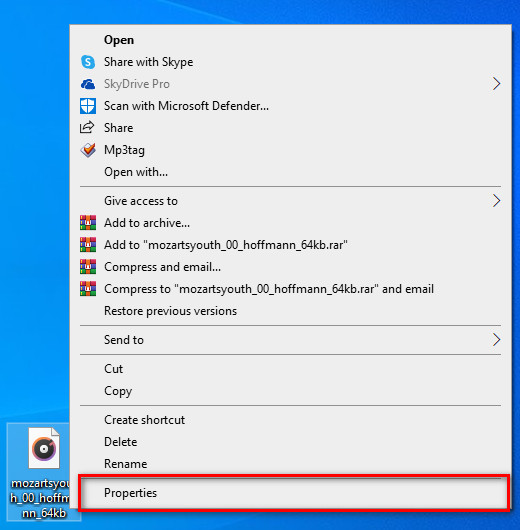
Step 1. Find the OGG file on your desktop, and right-click the file; under it, hit Properties.
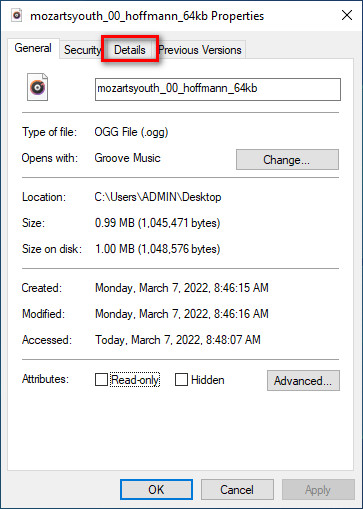
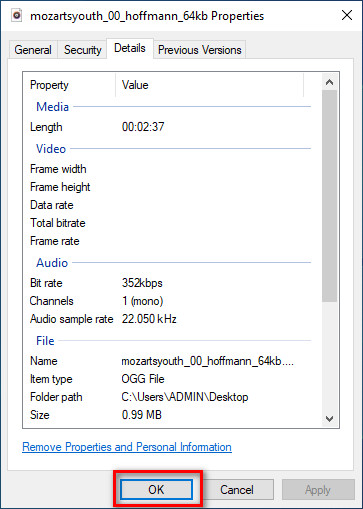
Step 2. After you've clicked the Properties, a panel will show on your screen. Go to the Details, tap every tag and fill it.
Step 3. Press OK to save the changes you've made with Properties.
Suggerimento: questa funzione a volte non salva i metadati che hai aggiunto al file OGG. Quindi, se ciò accade, dovrai rifarlo di nuovo e ricominciare dall'inizio.
Parte 2. Editor di tag OGG più consigliato per modificare i metadati OGG su Windows e Mac [professionalmente]
The best way to edit OGG is to use a powerful yet simplistic tag editor on Windows and Mac, the FVC Video Converter Ultimate. With this tool, you can manually override the metadata of OGG within a few clicks away. Unlike Properties, you won't encounter any problem regarding editing or fixing the tags of your media file. However, you will need to download and purchase the tool to fully access its great features that no other tool can give you.
Oltre alla sua capacità di modifica sui metadati, questo strumento ti consente di convertire il tuo file OGG in un nuovo formato audio mantenendo l'audio di alta qualità memorizzato nel tuo file OGG. Puoi anche eseguire modifiche di base su video e audio, se lo desideri, come tagliare, ritagliare, unire, ritagliare e molti altri, ma può anche eseguire modifiche avanzate; puoi controllare la modifica avanzata nella casella degli strumenti. Forse pensi quale sia l'ultima cosa di questo strumento; Bene, è all'altezza delle aspettative di tutti e il nome ultimate non è solo un nome, ma è anche l'abilità dello strumento. Quindi, se desideri utilizzare lo strumento per modificare i metadati OGG, puoi copiare i passaggi seguenti per avere successo sulla punta del dito.
Vantaggio dell'utilizzo di FVC Video Converter Ultimate [consigliato]:
◆ È un editor di tag professionale che può facilmente manipolare i metadati del tuo file audio anche se non sei un professionista.
◆ Supporta un'ampia gamma di formati da caricare come OGG, MP3, WAV, WMA, AIFF e oltre 1000, inclusi i formati video.
◆ È la scelta migliore per i principianti nella modifica di metadati, risoluzione, qualità, taglio, ecc.
◆ Possibilità di scaricare il software su entrambi i sistemi Windows e Mac, se possibile.
◆ Ulteriori funzioni e caratteristiche sono disponibili su Toolbox per aiutarti con diverse attività relative a video e audio.
Come modificare i tag OGG come un professionista con FVC Video Converter Ultimate:
Step 1. Press the download button below, choose the correct operating system you're using. If downloading is finished, click the software file you've downloaded to install it next to your drive. Set it up according to your preferences; lastly, click Start Now to launch the tool.
Download gratuitoPer Windows 7 o versioni successiveDownload sicuro
Download gratuitoPer MacOS 10.7 o versioni successiveDownload sicuro
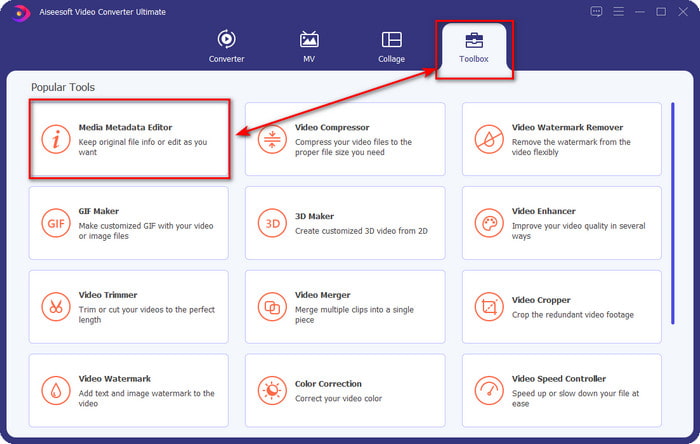
Step 2. After you've opened the software on your desktop, go to the Toolbox section and find the Media Metadata Editor; hit the feature to proceed.
Step 3. Click the + icon to locate the OGG file saved on your desktop drive. Select the .ogg filename and click Open to upload the file to the tool.
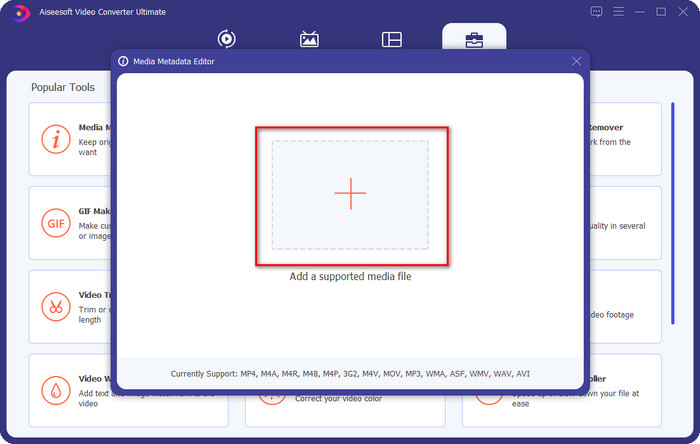
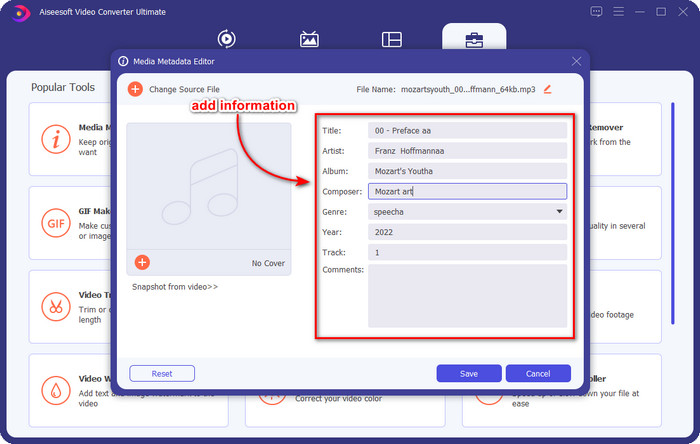
Step 4. Edit or remove the metadata on the mini window that will show on your screen, click every textbox and add the information you want to apply on the OGG. You can also add an image on the OGG audio file if you've desired, but make sure that the image is saved on your desktop.
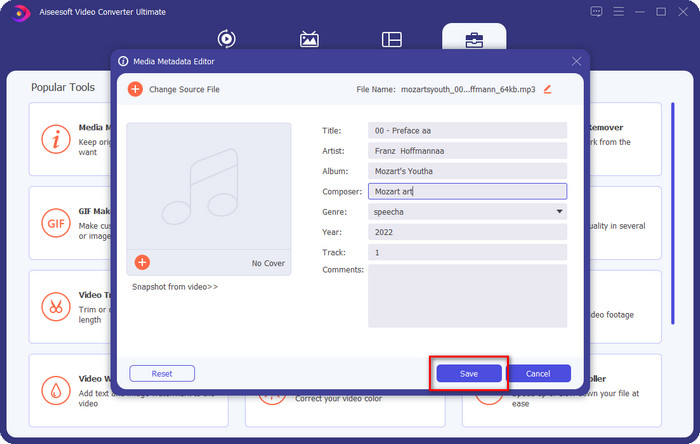
Step 5. If you've done adding the needed information on your OGG file, you can click Save to proceed to save the file with metadata on it. With that, you have now added the edited OGG metadata on your desktop with the assistance of the best OGG metadata editor you can use on both operating systems safely and quickly.
Parte 3. Domande frequenti sulla modifica dei metadati OGG
Posso usare il file OGG su Mac?
OGG files aren't supported on any Apple devices, but you can use a third-party app to play the unplayable OGG file on Mac. Want to know how? If so, click this link as we gathered the facts about OGG and how to play the OGG files on Mac easily.
OGG è più popolare di MP3?
Dal punto di vista della popolarità, MP3 è molto più supportato di OGG perché è molto più flessibile se li confrontiamo. Entrambi sono buoni contenitori audio e hanno diversi punti di forza audio. Ma dal punto di vista della qualità, OGG è di gran lunga migliore di MP3 ma è meno supportato.
Posso registrare OGG di alta qualità?
Absolutely, yes, you can record OGG. But which tool supports the OGG format? If there is any, is it the best OGG recorder I can use? Well, all of these questions do have an answer if you've clicked this link and proceeded on reading it.
Conclusione
Amazing right? It is, with what can you do to edit OGG metadata with the solutions listed above. If you need one, these are the known solutions to solve your OGG file tags. If you don't believe in the information we have written here, you must try them both, and we can assure you success in editing the tags on your OGG. But if you want a pro tool to edit tags on your OGG, you must use the ultimate tool to finish the task. FVC Video Converter Ultimate is undoubtedly the best choice for editing any tags on any media type that you have. If you think that this is the right tool for you, we suggest that you read the steps we provided above to edit the tags easily.
-
 7 Editor di tag musicali popolari su dispositivi Windows, Mac e mobili
 I tag musicali sono comuni da utilizzare per l'arrangiamento della musica nella tua libreria in base ai dati all'interno. E se volessi cambiarlo? Leggi i dettagli di seguito per saperne di più.
-
 4 editor di metadati per audiolibri consigliati nel 2022
 Se non hai idea dell'editor di tag Audiobook, questo articolo ti aiuterà. Conoscilo meglio leggendo ogni dettaglio di seguito e gli strumenti da utilizzare.
-
 I 5 migliori editor di tag MP3 gratuiti disponibili online e offline
 Vuoi sapere come modificare i tag MP3? In tal caso, continua a leggere. Per oggi, ti offriamo 5 dei migliori editor di tag MP3 che puoi utilizzare.
