


 Video Converter Ultimate
 Screen Recorder
 Riparazione video
3 modi per aggiungere uno sfondo alle foto online, su iPhone, Android e computer
Durante la modifica di un’immagine, spesso è necessario rimuovere lo sfondo originale e sostituirlo con uno diverso. Per le immagini con sfondo trasparente, puoi cambiare facilmente lo sfondo utilizzando un editor di immagini. Nella maggior parte dei casi, però, devi prima rimuovere lo sfondo attuale e poi aggiungerne uno nuovo alla foto. Stai cercando una buona app di fotoritocco per aggiungere uno sfondo a una foto?
Questo post racconta 3 metodi efficaci per aggiungere uno sfondo a una foto. Sia che tu voglia aggiungere uno sfondo bianco a una foto direttamente online, aggiungere uno sfondo a una foto su un iPhone o modificare lo sfondo dell'immagine su un dispositivo Android, puoi seguire il metodo specifico per farlo.

Parte 1. Come aggiungere gratuitamente uno sfondo a una foto online
Per aggiungere rapidamente uno sfondo a una foto, puoi provare innanzitutto alcuni editor di immagini online. Qui consigliamo vivamente l’intuitivo Rimozione Sfondo Online Gratis, che ti permette di eliminare lo sfondo originale della tua immagine e sostituirlo con uno diverso. Questo strumento gratuito per cambiare lo sfondo delle immagini supporta tutti i formati più usati come JPG, PNG, GIF e altri. Ti offre un modo semplice per aggiungere uno sfondo bianco a una foto o sostituire lo sfondo attuale con un’altra immagine.
Passaggio 1. Apri il browser web, ad esempio Chrome, Safari, Yahoo, IE o Firefox, e vai su questo sito gratuito per cambiare lo sfondo delle foto. Quando sei sulla pagina, puoi semplicemente fare clic sul pulsante Upload Portrait per selezionare e caricare la tua foto per la modifica successiva.

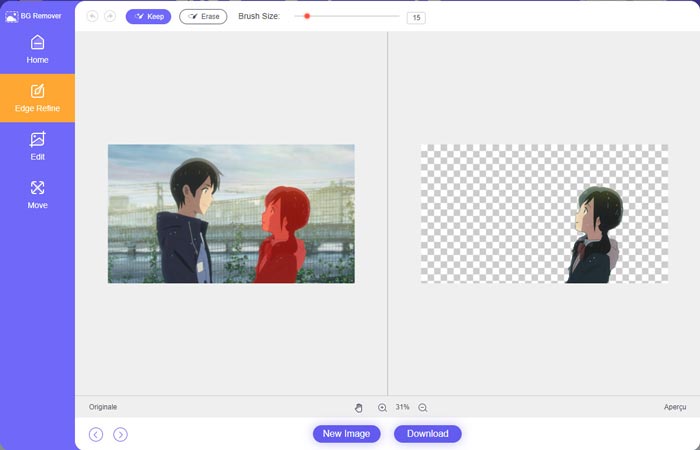
Passaggio 2. Grazie alla tecnologia AI avanzata, verrà automaticamente selezionato il soggetto principale della foto caricata. Poi puoi usare la funzione Keep o Erase per ulteriori modifiche.
Passaggio 3. Fai clic sull’opzione Edit a sinistra e potrai scegliere se cambiare il colore dello sfondo o aggiungere uno sfondo alla foto. In questo passaggio puoi anche utilizzare la funzione Crop per personalizzare le dimensioni dell’immagine in base alle tue esigenze.
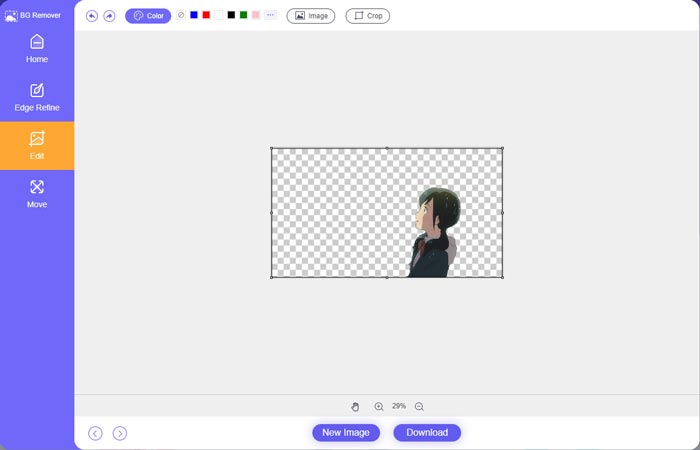
Passaggio 4. Dopo aver aggiunto uno sfondo adatto alla foto, puoi fare clic sul pulsante Download per salvarla sul tuo computer. L’immagine modificata verrà salvata in formato PNG per impostazione predefinita.
Parte 2. Come aggiungere uno sfondo a una foto utilizzando Adobe Photoshop
Adobe Photoshop è uno dei più famosi editor di immagini che offre molte funzionalità per modificare immagini, effetti personalizzati ed eseguire altre operazioni. Se hai Photoshop installato sul tuo computer, puoi scegliere di aggiungere lo sfondo alla foto in Photoshop.
Passaggio 1. Apri il software Photoshop sul tuo computer e aggiungi la foto. Puoi scaricare liberamente l’ultima versione di Photoshop dal sito ufficiale Adobe. Nota che Adobe offre solo una prova gratuita di 7 giorni per usare Photoshop.
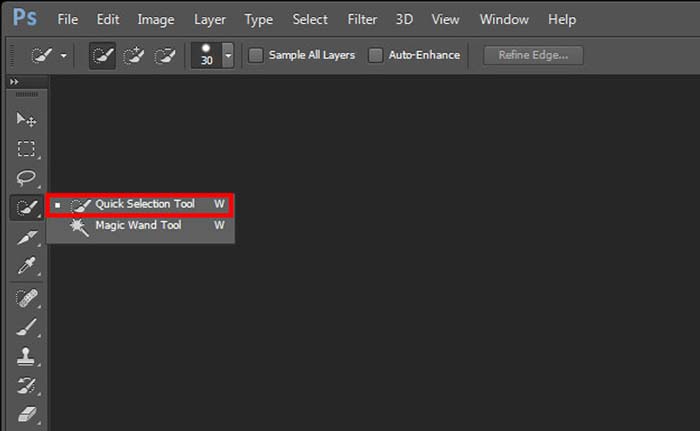
Passaggio 2. Quando la foto è stata caricata in Photoshop, puoi fare clic sull’icona dello Strumento Selezione Rapida o Bacchetta Magica nella barra degli strumenti a sinistra per selezionare lo sfondo che desideri modificare.
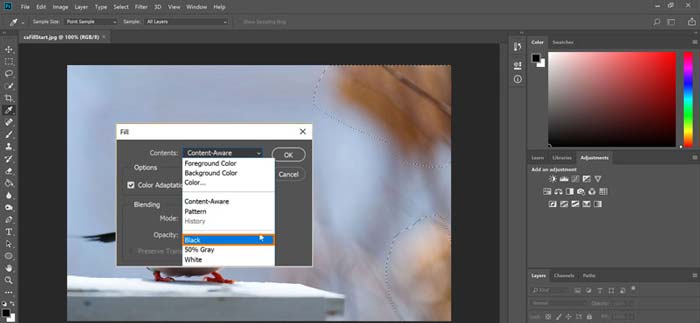
Passaggio 3. Dopo aver selezionato lo sfondo della foto, fai clic con il tasto destro su di esso e scegli l’opzione Riempi (Fill). A questo punto puoi semplicemente aggiungere uno sfondo bianco alla foto o cambiare lo sfondo con un altro colore, come nero, blu, grigio o qualsiasi altro colore di cui hai bisogno.
Passaggio 4. Se desideri aggiungere una nuova immagine come sfondo, devi prima rimuovere lo sfondo selezionato. Puoi premere il tasto Canc sulla tastiera per eliminare lo sfondo attuale. Quindi puoi aggiungere il file immagine in Photoshop e trascinare il suo livello al di sotto del livello di sfondo. In questo modo, puoi sostituire facilmente lo sfondo originale con una nuova immagine.
Passaggio 5. Dopo aver aggiunto uno sfondo a una foto in Photoshop, fai clic sul menu File in alto e quindi seleziona l’opzione Salva con nome (Save As) dall’elenco a discesa. Scegli il formato immagine più adatto per questa foto e salvala sul tuo computer.
Parte 3. Come aggiungere uno sfondo a una foto su iPhone e telefono Android
Quando vuoi aggiungere lo sfondo a una foto su un iPhone, iPad o un telefono Android, devi trovare una buona app per l'editor di sfondo delle immagini.
LightX è un’app di fotoritocco completa, disponibile sia per utenti iOS che Android. Offre un modo pratico per rimuovere gli sfondi indesiderati, aggiungere un nuovo sfondo alle foto, applicare diversi effetti, creare selfie di alta qualità e molto altro direttamente dal telefono. Nell’app LightX sono stati integrati numerosi strumenti avanzati di editing, come miscelazione dei colori, regolazione personalizzata di saturazione, contrasto, tonalità, curve e altro ancora. Puoi scaricarla dall’App Store o dal Google Play Store.
Passaggio 1. Installa e apri l’app LightX sul tuo iPhone, iPad o telefono Android. Concedi all’app l’autorizzazione per accedere alle foto presenti sul dispositivo. Aggiungi la tua foto per procedere con la modifica dello sfondo.
Passaggio 2. Per rimuovere lo sfondo attuale della foto e sostituirlo con qualcos’altro, scorri verso sinistra per far comparire diverse opzioni. Nella sezione Creative, puoi scegliere la funzione Cutout per aggiungere uno sfondo alla foto. A questo punto devi selezionare manualmente il soggetto principale ed eliminare lo sfondo originale.

Passaggio 3. Dopo aver rimosso lo sfondo, tocca Next nell’angolo in alto a destra per proseguire. Poi puoi usare la funzione Crop per ridimensionare l’immagine. Tocca Done per confermare l’operazione. Successivamente, tocca BG Image nella parte inferiore dello schermo per aggiungere uno sfondo diverso alla foto. Puoi regolare liberamente gli effetti del nuovo sfondo in base alle tue esigenze.
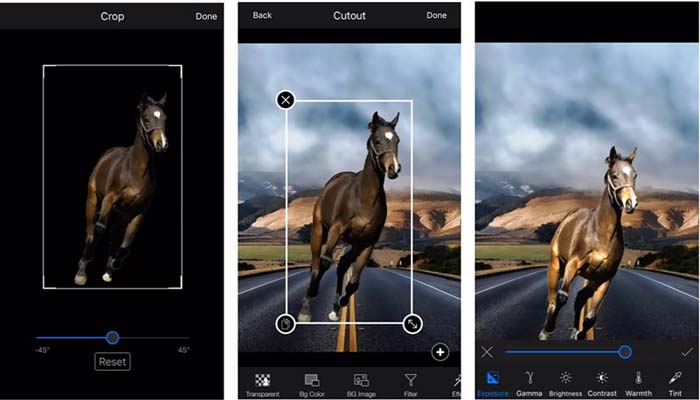
Sia che tu stia utilizzando un dispositivo iOS o Android, puoi seguire passaggi simili per aggiungere uno sfondo a una foto utilizzando l'app LightX. Nota che, come utente iOS, devi pagare $3.99 per questa app di aggiunta in background. Se sei un utente Android, puoi installarlo dal Google Play Store. Per l'aggiornamento a una versione premium, devi pagare lo stesso prezzo.
Correlato:
Cos’è la risoluzione video: analisi approfondita della risoluzione e altro
6 filtri animati di Snapchat preferiti da usare su Snapchat
Parte 4. Domande frequenti su come aggiungere uno sfondo a una foto
Come aggiungere uno sfondo diverso a una foto sul mio Mac?
Puoi usare i primi 2 metodi per cambiare facilmente lo sfondo delle tue foto su Mac. Oltre al Rimozione Sfondo Online Gratis e ad Adobe Photoshop, puoi affidarti anche ad altri editor di immagini per aggiungere un nuovo sfondo alle tue foto.
Come cambiare lo sfondo su un iPhone?
iOS offre un modo semplice per cambiare lo sfondo su un iPhone o un iPad. Puoi andare all'app Impostazioni, toccare l'opzione Sfondo, quindi toccare Scegli un nuovo sfondo.
Posso aggiungere uno sfondo a una foto dal vivo sul mio iPhone?
No. iPhone non ti offre un modo diretto per cambiare lo sfondo di una foto dal vivo. Puoi solo ritagliarlo, applicare filtri, regolare effetti e cambiarlo in un'immagine fissa.
Conclusione
Questo post condivide 3 metodi utili per aggiungere lo sfondo a una foto. Quando hai la necessità di rimuovere lo sfondo della foto originale e aggiungerne uno nuovo, puoi selezionare il tuo editor di immagini preferito per farlo.
-
 I 3 modi migliori per aggiungere filtri alle GIF con i migliori editor GIF [Preferiti]
 Vuoi sapere come aggiungere un filtro alla GIF per migliorarla? In questo blog imparerai facilmente le diverse tecniche per aggiungere filtri alle tue GIF.
-
 3 modi più semplici per aggiungere filigrana a una GIF online e offline
 Aggiungere una filigrana a una GIF può essere facile come 1-2-3 se usi correttamente lo strumento giusto. Gli strumenti sul mercato sono troppo ampi, ma presenteremo i tre strumenti su cui puoi fare affidamento.
-
 5 modi migliori per cambiare l'immagine in GIF animata [Aggiornato 2022]
 Hai bisogno di un'immagine convertitore in GIF? Questo articolo fornirà i cinque migliori convertitori che possiamo trovare sul mercato. Quindi, scopriamo questi strumenti leggendo questo articolo.
