


 Video Converter Ultimate
 Screen Recorder
 Riparazione video
Come modificare i dettagli dei file in Windows 10/11 in modo semplice
Ogni volta che registriamo o scarichiamo un video, un’immagine o un file audio, viene creata una serie di dati che ci aiuta a riconoscere che cosa contiene il file, nota come metadati. Possiamo visualizzare facilmente i tag dei vari file multimediali senza ricorrere a software professionali, usando diverse applicazioni integrate. Tuttavia, correggerli è un’altra cosa, che non tutti i visualizzatori di metadati su Windows possono fare. Se vuoi sapere come modificare i dettagli dei file su Windows 10 o 11, devi leggere questo articolo per ottenere tutte le informazioni essenziali di cui hai bisogno.

Parte 1. Come modificare facilmente i dettagli dei file video in Windows 10 e 11
Utilizzo delle proprietà su Windows
Tutti sanno che le Proprietà in Windows ci consentono di visualizzare i metadati di ogni file senza preoccuparci se è supportato o meno. Questo visualizzatore e editor di tag integrato può aiutarti a portare a termine il compito in base alle tue esigenze, e funziona perfettamente anche senza connessione a Internet. Inoltre, non avrai bisogno di alcun software aggiuntivo; come abbiamo detto, è una funzionalità integrata, accessibile solo sul desktop Windows.
Al contrario, ci sono casi in cui i metadati che hai aggiunto non vengono salvati affatto su questo integrato gratuito. Aspettalo poiché non è uno strumento professionale. Tuttavia, gli utenti continuano a utilizzare queste funzionalità, soprattutto se non modificano i metadati più spesso del solito. Invece di scaricare e risparmiare spazio per il tuo disco, questa è la tecnica ideale che dovresti imparare a usare su Windows. Se vuoi sapere come modificare i dettagli dei file in Windows 10 o 11, puoi seguire i passaggi seguenti.
Passaggio 1. Nella schermata di Windows 10 o 11, trova il file multimediale in Esplora file.
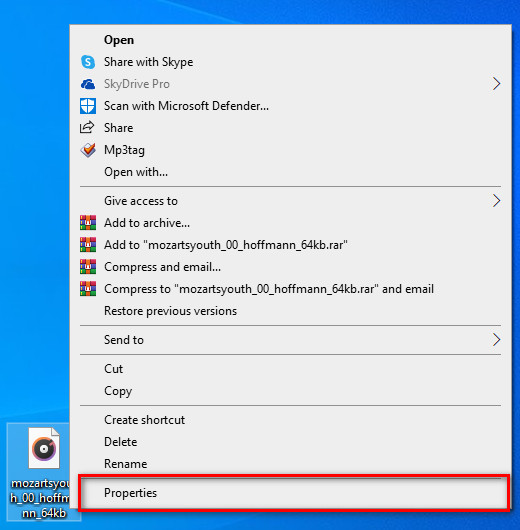
Passaggio 2. Una volta trovato, puoi fare clic con il tasto destro sul file e andare su Proprietà.
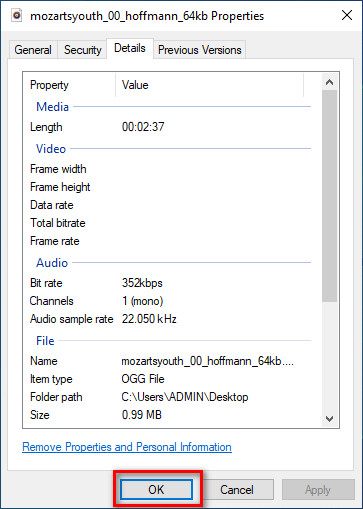
Passaggio 3. Nel pannello, fai clic su Dettagli; in ogni campo puoi aggiungere o modificare i dettagli dei metadati su Windows utilizzando Proprietà. Fai clic su OK per salvare i tag.
Utilizzo di Video Converter Ultimate: la scelta migliore per la modifica dei metadati su Windows 10/11
Aggiungere copertine di album e altre informazioni importanti non si può fare con Proprietà, quindi che cosa dovresti fare se vuoi aggiungerle? Per fortuna abbiamo scoperto che Video Converter Ultimate supporta l’aggiunta di dettagli importanti ai tuoi file e alle copertine degli album per renderli unici. Inoltre, aggiungere i metadati al tuo file non è un’operazione eseguibile solo tramite Proprietà, ma può essere svolta in modo più professionale con l’Ultimate.
Cosa c'è di più? Anche se è il miglior software per la modifica e la visualizzazione dei metadati, la sua capacità è molto maggiore, il che significa che ha più funzionalità. Una delle cose migliori che puoi fare con lo strumento è convertire qualsiasi file video in un formato Windows riproducibile, come WMV, AVI, MP4 e molti altri. Inoltre, può anche convertire più file contemporaneamente pur avendo il processo di conversione più veloce che tu abbia mai sperimentato che l'altro strumento non può offrirti, nemmeno Proprietà. Non è fantastico? C'è ancora altro da dire, ma oggi insegneremo come modificare facilmente i dettagli di file mp3 o qualsiasi formato audio e video con la guida perfetta del software definitivo su Windows e Mac.
Passaggio 1. Fai clic sul pulsante di download per Windows; se utilizzi un Mac, puoi invece fare clic sull’altro pulsante, installare rapidamente il programma e aprirlo per aggiungere i metadati.
Download gratuitoPer Windows 7 o versioni successiveDownload sicuro
Download gratuitoPer MacOS 10.7 o versioni successiveDownload sicuro
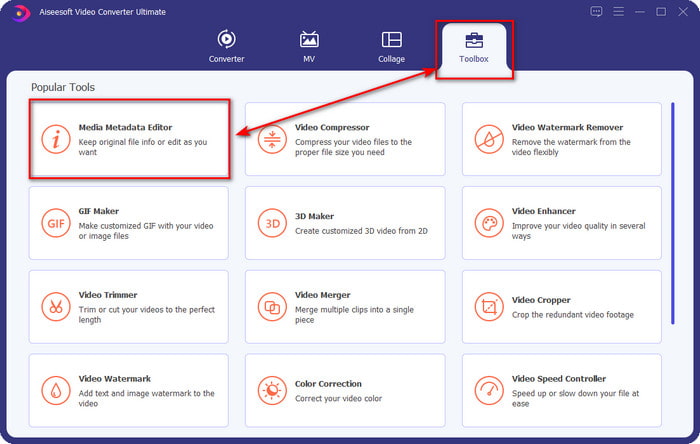
Passaggio 2. Una volta avviato lo strumento, fai clic su Toolbox, quindi vai su Media Metadata Editor.
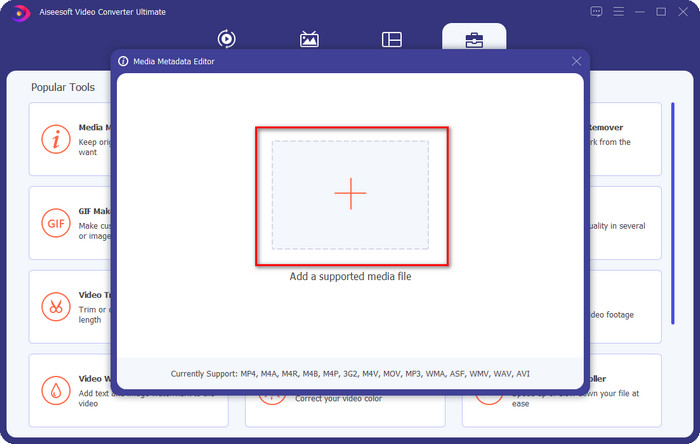
Passaggio 3. Carica qui qualsiasi file multimediale, fai clic sul pulsante aggiungi, seleziona il file nella cartella e premi Apri.
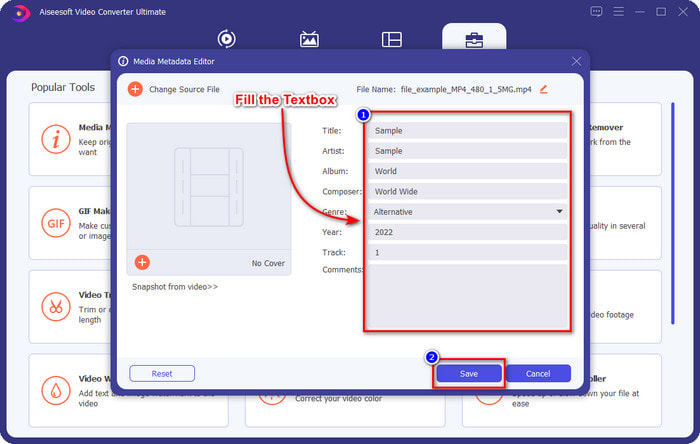
Passaggio 4. Aggiungi i dettagli fondamentali in ogni casella di testo inserendo le informazioni richieste. Dopo aver fatto tutto, devi fare clic sul pulsante Salva per salvare tutte le modifiche apportate con lo strumento. Tutti i dettagli essenziali che non puoi aggiungere tramite Proprietà sono facilmente applicabili con l’aiuto di questo software Ultimate in pochi clic!
Correlato:
Come correggere o modificare i metadati MP4
Come modificare i metadati MP3
Parte 2: quale è una scelta migliore per la modifica dei file di dettagli su Windows 10 e 11
Hai ancora confusione su quale lato dovresti scegliere? In tal caso, questo grafico di confronto di seguito ti aiuterà a capire la differenza tra entrambi gli strumenti in termini di modifica dei metadati e altre funzionalità che possono offrire. Continua a leggere per determinare quale lato dovresti scegliere.
| Video Converter Ultimate: la scelta migliore per la modifica dei metadati su Windows 10/11 | VS | Proprietà su Windows |
 | La scelta migliore per la modifica dei metadati | |
| Aggiungi dettagli importanti sui metadati |  |
| Carica facilmente la copertina dell'album | |
| Altre funzioni oltre a Tag Editor includono un convertitore, un editor video e altro. | |
| Gratuito da usare | |
Parte 3. Domande frequenti su come modificare i dettagli dei file in Windows 10/11
Le proprietà su Windows funzionano sulla versione inferiore di Windows?
Fortunatamente, funzionano tutti allo stesso modo dei passaggi introdotti sopra; Tuttavia, il loro aspetto è cambiato a causa degli aggiornamenti nel corso degli anni. Sebbene il loro aspetto sia diverso, la loro funzionalità complessiva è sempre la stessa dei passaggi sopra menzionati. Controlla le proprietà su Windows e copia i passaggi precedenti se desideri modificare i metadati del tuo file.
C'è un modo per modificare i metadati della musica?
Sì, puoi utilizzare Groove Music, un'altra app integrata in Windows; ma prima di poter utilizzare lo strumento, dovrai scaricarlo perché non è preinstallato su Windows, cercalo nella barra di ricerca e inizierà automaticamente il download. Apri lo strumento, fai clic con il pulsante destro del mouse una volta e vai su Ottieni informazioni; in quest'area, aggiungi i metadati o li rimuovi, quindi fai clic su Salva se hai finito.
L'uso delle proprietà è sufficiente per aggiungere metadati?
Le proprietà sono sufficienti per la regolazione di base dei metadati in quanto supportano le informazioni di base di cui avrai bisogno sul tuo file multimediale. Ma per aggiungere dettagli approfonditi, dovrai installare un software affidabile in grado di gestire facilmente tale attività con qualsiasi mezzo. Tuttavia, Proprietà è un buon editor di tag, ma non è il migliore per la modifica professionale dei metadati.
Conclusione
Sei arrivato alla fine grazie alla tua dedizione nel leggere questo articolo, e ora sai come modificare i dettagli dei file su Windows 10/11. Con queste informazioni, è diventato più chiaro che puoi usare Proprietà se vuoi risparmiare spazio sull’unità di Windows. Anche se questa funzione integrata è semplice, non è affatto da sottovalutare. Ma per un professionista o un principiante che desidera avere più dettagli nei propri metadati, è meglio scegliere lo strumento Ultimate. Video Converter Ultimate ha il vantaggio in questa sfida per il miglior editor di metadati su Windows. Dubiti del software Ultimate? L’unico modo per convincerti a non dubitarne più è scaricarlo sulla tua unità e divertirti a usarlo!
-
 Come visualizzare facilmente i metadati di foto e video su iOS
 Vuoi sapere come vedere i metadati su iPhone e iPad? Quindi leggere questo articolo potrebbe aiutarti a risolvere questo problema senza sforzo.
-
 Le migliori tecniche su come modificare i tag iD3 su iTunes [Suggerimenti efficaci]
 Hai bisogno di sapere come modificare i tag su iTunes? Allora sei nel posto giusto. Come abbiamo discusso i metodi, puoi seguire per modificare i tag usando iTunes.
-
 Come modificare le proprietà dei file WAV su Windows 10/11 e Mac [Risolto]
 Stai cercando un modo per modificare le proprietà dei tuoi file WAV su Windows 10/11? Questa domanda avrà una risposta se continui a leggere questo articolo.
