


 Video Converter Ultimate
 Screen Recorder
 Riparazione video
 Download sicuro
I modi più rapidi e semplici per accorciare i video con i migliori strumenti
Tagliare o accorciare un video è importante perché mette in evidenza solo le clip necessarie del tuo video. Tagliare un video significa togliere l'inizio della fine di un video clip. Questo elemento fondamentale dell'editing è necessario per non perdere l'attenzione del pubblico. Quindi, se vuoi tagliare o accorciare il tuo lungo video, imparerai in questo articolo come accorciare un video.

Parte 1. 2 Metodi per accorciare un video su un rifinitore utilizzando la migliore app
FVC Video Converter Ultimate è il miglior strumento desktop per tagliare il tuo video. Questo strumento ha un’interfaccia software intuitiva ed è gratuito da usare. Questo convertitore offline ti consente di aggiungere segmenti al tuo file video. Inoltre, dispone di una funzione con cui puoi dividere rapidamente il video nelle diverse parti che preferisci. E se cerchi uno strumento che possa unire più formati di file in uno solo, questa applicazione può farlo per te.
Inoltre, questo strumento offre molte funzioni avanzate, come il creatore di GIF, l’unione di video, il rimozione della filigrana dal video, ecc. E ciò che è ancora più interessante è che supporta numerosi formati di file, tra cui MP4, WMV, FLV, AVI, MPG, WebM, MKV e oltre 1000 altri formati. Quindi, se vuoi usare questa app per accorciare il tuo video, ti proponiamo due metodi da seguire.
Metodo 1. Utilizzare Video Trimmer di FVC
Passaggio 1. Per prima cosa, scarica FVC Video Converter Ultimate facendo clic sul pulsante Download qui sotto. Segui la procedura di installazione, quindi avvia l’applicazione.
Download gratuitoPer Windows 7 o versioni successiveDownload sicuro
Download gratuitoPer MacOS 10.7 o versioni successiveDownload sicuro
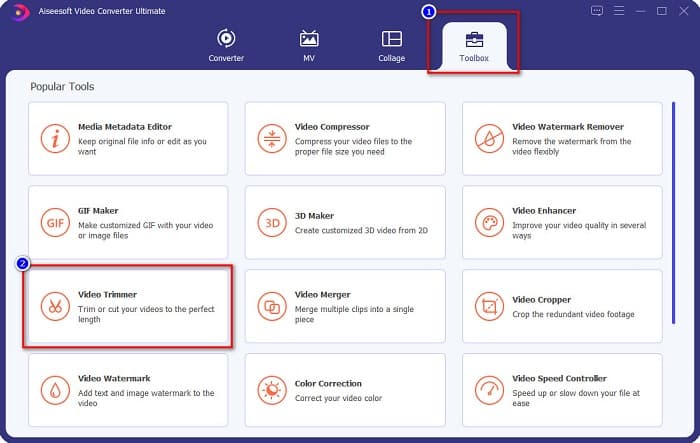
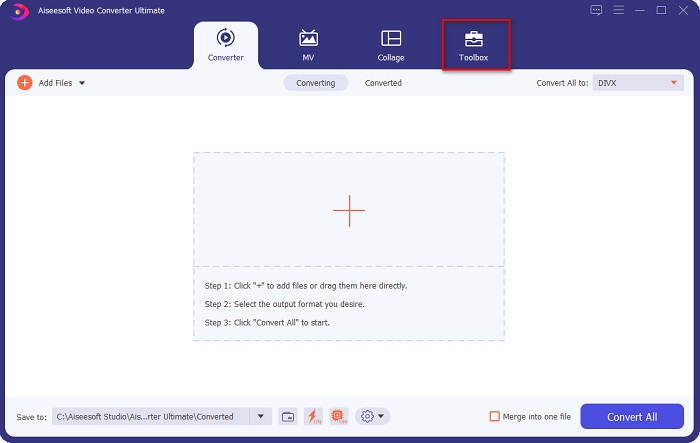
Passaggio 2. Successivamente, seleziona il pannello Toolbox situato nella parte superiore dell’interfaccia del software. Poi, nel pannello Toolbox, fai clic su Video Trimmer.
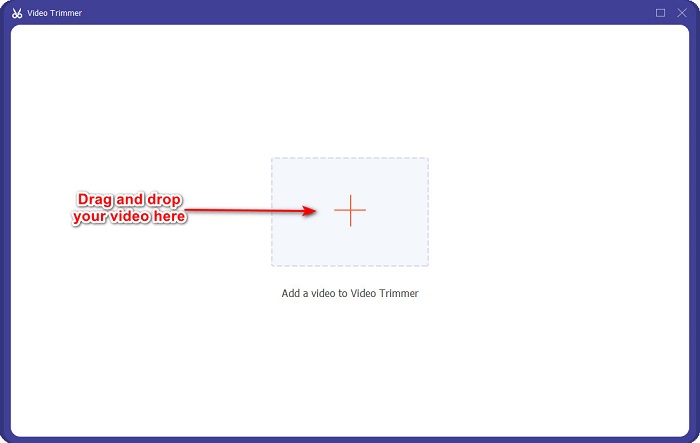
Passaggio 3. Quindi, nella schermata successiva, fai clic sul pulsante con il simbolo + oppure trascina e rilascia il tuo video sul segno +.
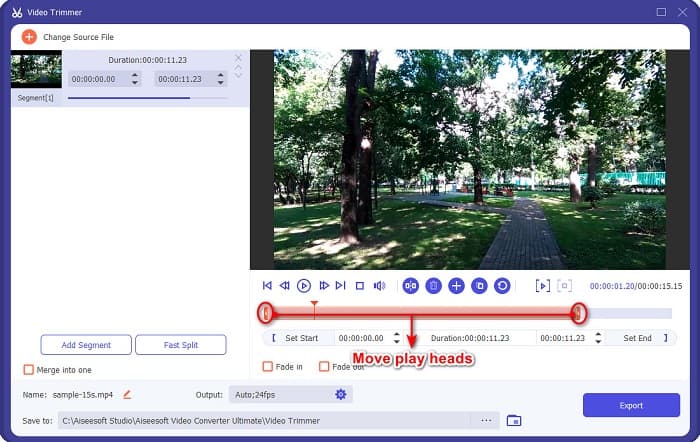
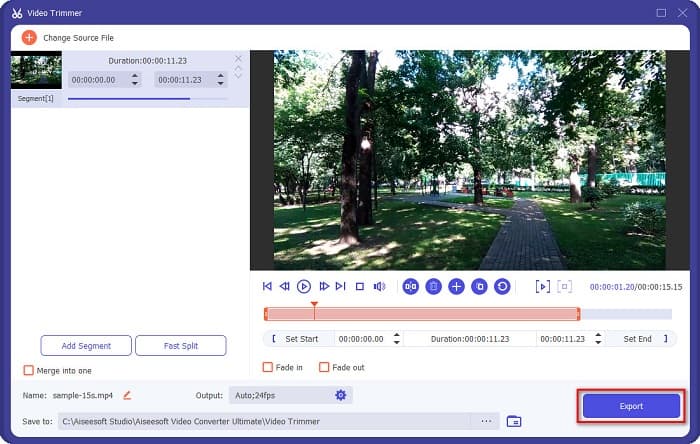
Passaggio 4. Poi sposta i cursori di riproduzione alla lunghezza desiderata. La freccia indica il punto dell’anteprima del video. I cursori di riproduzione indicano la durata del tuo video. Puoi vedere le modifiche temporanee al video nell’anteprima.
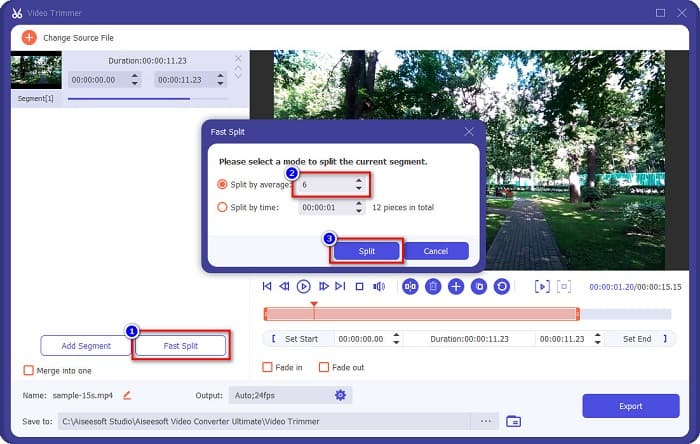
Opzionale. Se vuoi un modo più semplice per dividere il tuo video in segmenti:
1. Fai clic sul pulsante Fast Split.
2. Seleziona il numero di parti in cui vuoi dividere il video, quindi premi Split.
3. Se non vuoi dividere il tuo video, vai al passaggio successivo.
Passaggio 5. Infine, fai clic sul pulsante Export per applicare le modifiche al tuo video. L’output verrà quindi salvato automaticamente nei file del tuo computer.
Metodo 2. Utilizzare il variatore di velocità video di FVC
FVC Video Converter Ultimate ha anche una funzione in cui puoi modificare la velocità del tuo video di 0,125x, 0,25x, 0,5x, 0,75x, 1,25x, 1,5x, 2x, 4x e 8x. E se vuoi ridurre la lunghezza del tuo video, regola il tuo video a una velocità elevata. Per passaggi più dettagliati, segui la guida di seguito.
Passaggio 1. Apri FVC Video Converter Ultimate. Nella schermata principale del software, fai clic sull’opzione Toolbox.
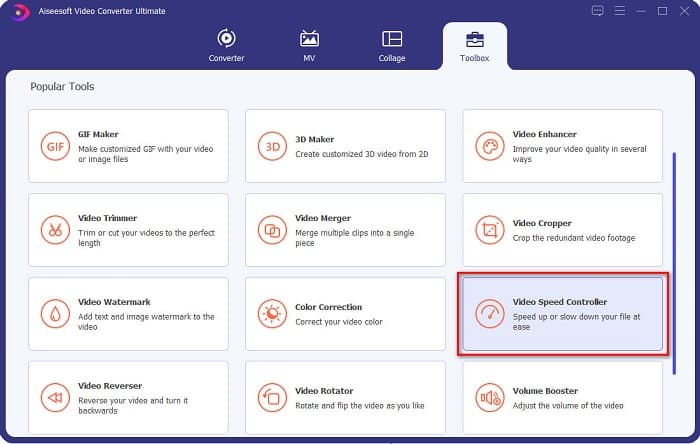
Passaggio 2. Quindi fai clic su Video Speed Controller e procedi al passaggio successivo.
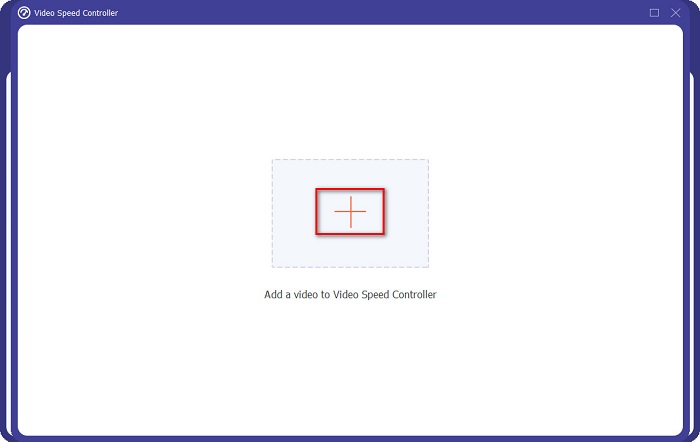
Passaggio 3. Poi fai clic sul pulsante con il simbolo + per caricare il video che vuoi accorciare. Si apriranno le cartelle del computer, dove selezionerai il video e lo caricherai nell’interfaccia del software.
Passaggio 4. Per accorciare il video, seleziona una velocità compresa tra 1,25x e 8x.
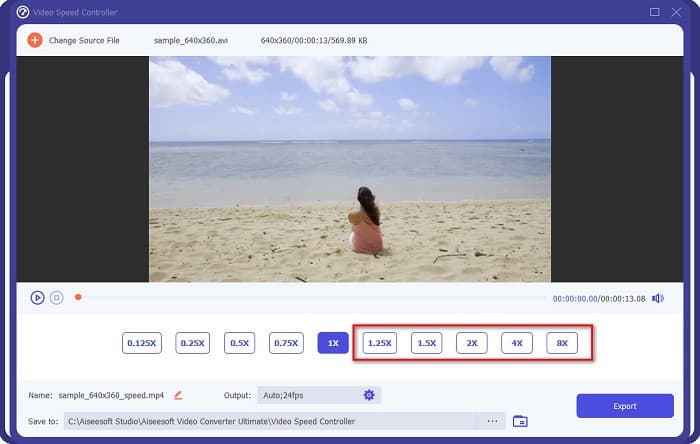
Passaggio 5. Come passaggio finale, fai clic sul pulsante Export per salvare le modifiche al tuo video. L’output verrà quindi salvato automaticamente nei file del tuo computer.
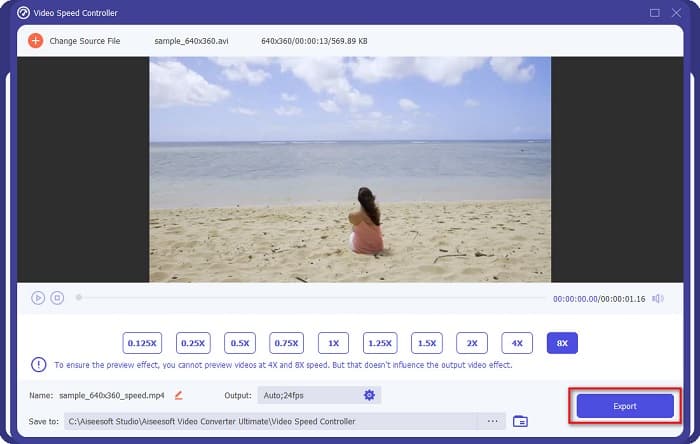
Per una durata del video più breve, seleziona la velocità 8x.
Professionisti
- Supporta numerosi formati di file, inclusi MOV, MKV, AVI, MP4, WMV, WMA, MPEG e oltre 1000 formati.
- Ha un'interfaccia software facile da usare.
- Ti consente di dividere velocemente il tuo video con pochi clic.
- Scaricabile su tutte le piattaforme cross-mediali, come Windows, Mac e Linux.
Contro
- Acquista l'app prima di accedere alle sue altre funzionalità.
Parte 2. 2 Trimmer video online da provare
Se vuoi ritagliare il tuo video senza scaricare nulla, ci sono trimmer video online che puoi usare. Abbiamo elencato i migliori trimmer video online che molte persone usano in questa parte.
Taglia video
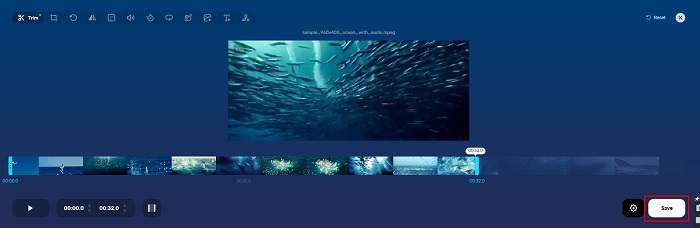
Trim Video è uno strumento online per tagliare video, facile da usare grazie alla sua interfaccia intuitiva. È uno strumento pratico perché non richiede installazione, a differenza di altri strumenti online. Inoltre, offre una funzione che ti permette di ruotare il video di 90, 180 o 270 gradi. Inoltre, non devi dubitare della sicurezza dei tuoi dati, perché questo strumento protegge la privacy. Tuttavia, poiché è un’applicazione basata sul web, contiene annunci pubblicitari che potrebbero distrarti.
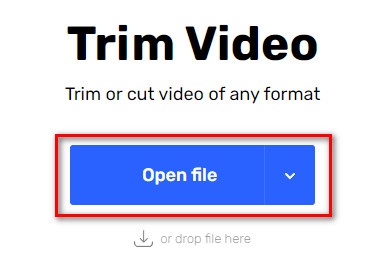
Passaggio 1. Nel tuo browser, cerca un “online video trimmer”. Poi fai clic sul sito Trim Video. Nella schermata principale del software, fai clic sul pulsante Open File.
Passaggio 2. Quindi regola i pulsanti del cursore di riproduzione alla lunghezza desiderata.
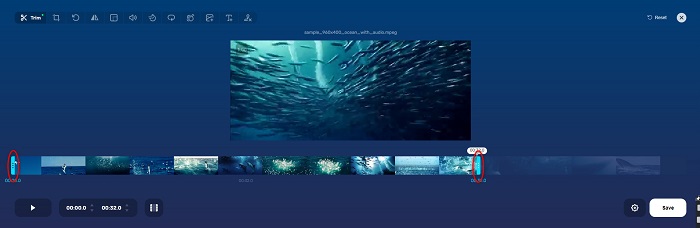
Passaggio 3. Fai clic sul pulsante Save per modificare la durata del tuo video.
Professionisti
- Ha una GUI facile da usare.
- Ha funzionalità per ritagliare e ruotare il tuo video.
- È sicuro da usare.
Contro
- Contiene annunci fastidiosi.
- Ha un processo di caricamento e caricamento lento.
Clideo
Un altro strumento online per tagliare video è Clideo. Questo strumento online ha un’interfaccia semplice, che lo rende facile da usare. Supporta inoltre la maggior parte dei formati standard, come AVI, MP4, VOB, MPG, MOV, ecc. Inoltre, questo strumento garantisce un alto livello di sicurezza, il che significa che i tuoi dati sono al sicuro e non possono essere visualizzati da altre persone. In più, Clideo non contiene annunci pubblicitari che possano distrarti.
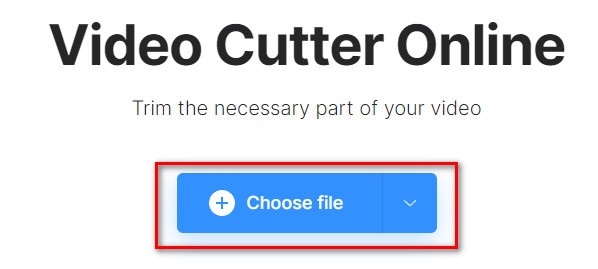
Passaggio 1. Nel browser che utilizzi, cerca il video trimmer Clideo. Nella prima schermata del software, fai clic sul pulsante Choose File. Si apriranno le cartelle del computer, dove selezionerai il video che vuoi accorciare.
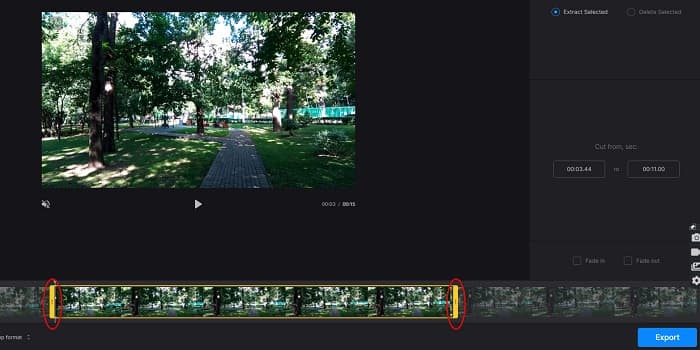
Passaggio 2. Sposta quindi i pulsanti del cursore di riproduzione alla lunghezza che vuoi dare al tuo video.
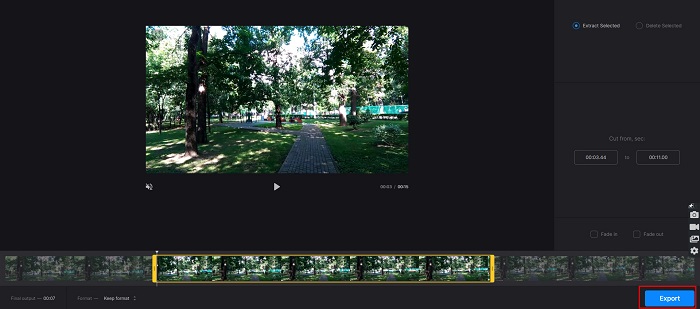
Passaggio 3. Come passaggio finale, fai clic sul pulsante Export per modificare la durata del tuo video.
Professionisti
- Ha un'interfaccia facile da usare.
- È sicuro da usare.
- Non contiene annunci.
Contro
- Potresti riscontrare un processo lento quando la tua connessione Internet è lenta.
Parte 3. Domande frequenti su come abbreviare il video
Come accorciare i video su iPhone?
Innanzitutto, apri l'app Foto e seleziona il video che desideri ritagliare. Quindi tocca Modifica. Dopo, sposta i cursori sulla lunghezza del video desiderata e tocca Fine per salvare le modifiche dal tuo video.
Il taglio del tuo video influisce sulla qualità?
No. La maggior parte degli strumenti di ritaglio non influisce sulla qualità del tuo video. Ma se stai assicurando uno strumento che non influisca sulla qualità quando accorci il tuo video, usa FVC Video Converter Ultimate.
L'accorciamento del tuo video influisce sulla dimensione del file?
Sì. Più corto è il tuo video, minore è la dimensione del file. Al contrario, se il tuo video è lungo, contiene file di dimensioni enormi.
Conclusione
Questo è tutto su come accorciare un video usando un trimmer e un regolatore di velocità video. Tutti gli strumenti elencati offrono ottimi risultati e ti assicurano le migliori prestazioni. Ma se stai cercando il miglior strumento, ricco di funzioni e molto popolare per accorciare i video, FVC Video Converter Ultimate è la scelta migliore per te.
-
 Come tagliare e unire brani online - 4 modi migliori che dovresti sapere
 Quando vuoi tagliare e unire brani online per creare un brano musicale, puoi saperne di più sui 4 migliori strumenti online per ritagliare i brani e combinare i file dall'articolo.
-
 Scopri il miglior rifinitore MP4 con procedura e informazioni
 Vuoi imparare a tagliare video come i vlogger che guardi? Quindi continua a leggere questo post per sapere quali trimmer MP4 puoi utilizzare.
-
 5 taglierine MP3 per tagliare facilmente qualsiasi audio [Aggiornato 2022]
 Hai bisogno di un cutter MP3 per tagliare l'audio? In tal caso, leggi questo articolo perché forniamo gli strumenti su cui puoi fare affidamento che forniscono un taglio facile per l'audio.
