


 Video Converter Ultimate
 Screen Recorder
 Riparazione video
 Download sicuro
Come rimuovere facilmente la filigrana dalle immagini di laurea
Le filigrane sono un pugno nell'occhio ogni volta che le vedi in qualsiasi foto e rovinano la qualità della foto. Vedrai filigrane sulle foto ogni volta che il creatore non vuole che il suo lavoro venga rubato. E se sei uno studente, probabilmente vedrai delle filigrane sulla tua foto di laurea, che indicano il nome dello studio o il fotografo che l'ha scattata.
Se vuoi rimuovere la filigrana dalla tua foto di laurea, hai bisogno di strumenti che ti aiutino a eliminarla. In questo articolo abbiamo elencato i tre strumenti per la rimozione di watermark più utilizzati e imparerai anche i passaggi per rimuovere le filigrane dalle foto di laurea.

Parte 1. Come rimuovere la filigrana dalle immagini di laurea online
Ci sono molti strumenti per la rimozione di filigrane che vedrai su Internet. Tuttavia, non tutti sono gratuiti e facili da usare. Inoltre, in questa parte, saprai come rimuovere le filigrane in modo conveniente ed efficiente.
FVC Free Watermark Remover è un rimuovi filigrane online che ti permette di eliminare facilmente le filigrane dalle tue foto di laurea. Questo strumento online è molto apprezzato perché non è necessario scaricare nulla prima di usarlo. Inoltre, supporta i formati immagine più comuni, come PNG, JPG, JPEG, BMP e altri. E anche se rimuovi la filigrana dalla tua immagine, quando la scaricherai manterrà lo stesso formato originario.
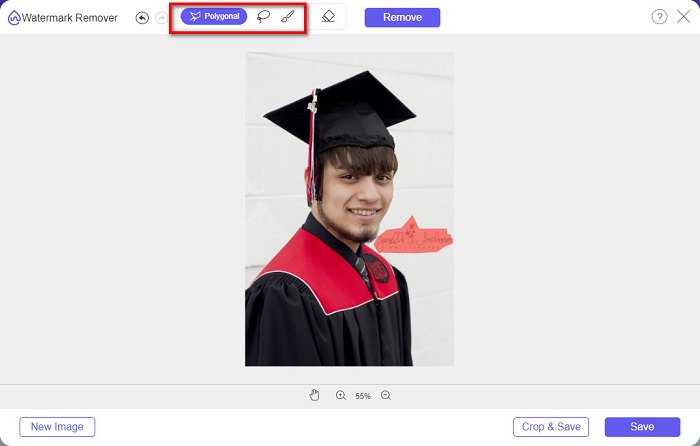
Usando questo dispositivo di rimozione della filigrana, puoi scegliere tra i predefiniti di rimozione nella selezione dell'area della filigrana. Puoi scegliere tra poligonale, lazo o pennello. Inoltre, puoi utilizzare questo strumento per cancellare altre cose non necessarie sulla tua immagine.
Professionisti
- Ha un'interfaccia software operativa veloce.
- È sicuro da usare.
- È 100% gratuito da usare.
- Disponibile su tutti i browser Web, inclusi Google, Firefox e Safari.
Contro
- È dipendente da Internet.
Come sbarazzarsi della filigrana sulle foto di laurea usando FVC Free Watermark Remover:
Passaggio 1. Nel browser che utilizzi, cerca FVC Free Watermark Remover. Puoi fare clic su questo link per andare direttamente alla loro pagina web.
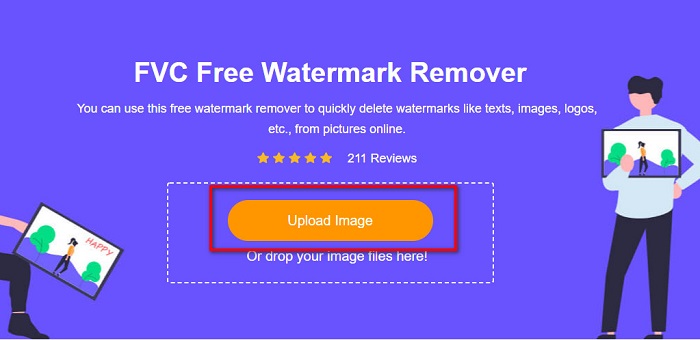
Passaggio 2. Nella schermata principale del software, fai clic sul pulsante Upload Image. Si apriranno le cartelle del tuo computer, dalle quali potrai selezionare la foto di laurea da caricare.
Passaggio 3. Quindi seleziona lo strumento di rimozione che vuoi usare per eliminare la filigrana. Scegli tra Polygonal, Lasso o Brush. Poi seleziona l’area della filigrana che vuoi rimuovere.
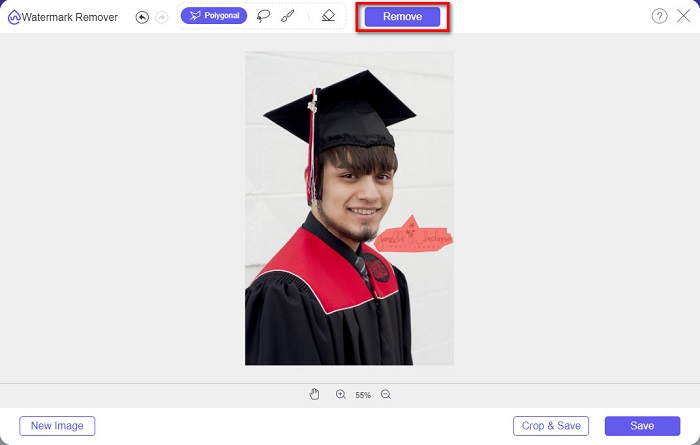
Passaggio 4. Dopo aver selezionato l’area della filigrana, fai clic sul pulsante Remove per cancellare la filigrana.
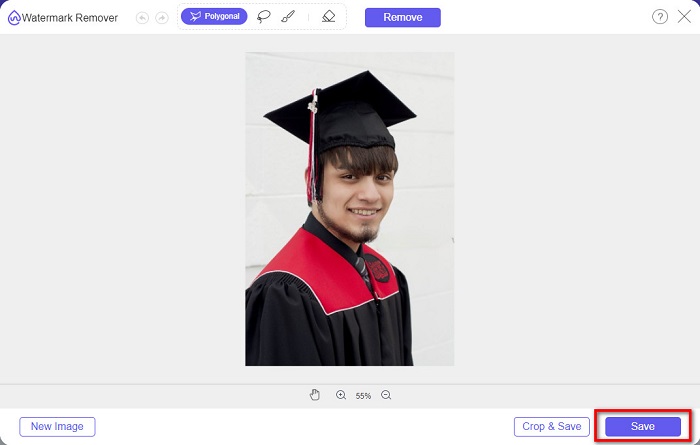
Passaggio 5. Vedrai che la filigrana è stata rimossa. Fai clic sul pulsante Save per scaricare l’immagine sul tuo dispositivo. Inoltre, questo strumento online per la rimozione di watermark funziona anche come rimuovi filigrane per Photobucket.
Parte 2. Come rimuovere la filigrana dalle immagini di laurea usando Inpaint
Le persone a volte ritoccano la filigrana per riportare la foto al suo aspetto originale. Ma come fanno? I professionisti utilizzano un editor di foto e dipingono l'etichetta pixel per pixel, ottenendo un paio di ore di lavoro. Tuttavia, c'è un altro strumento che ti aiuterà a semplificarti la vita. In questa parte imparerai come usare Inpaint e i suoi vantaggi.
Inpaint è un rimuovi filigrane online che ti aiuta ugualmente a eliminare le filigrane dalla tua foto di laurea. Questa applicazione online dispone anche di una versione scaricabile per Windows e Mac. Inoltre, ti consente di rimuovere elementi indesiderati dalla foto, come loghi, testi, oggetti, ecc. Ancora più interessante è la funzione che permette di riparare vecchie foto e riportarle alla qualità originale. Dispone anche di strumenti di rimozione per selezionare l’area della filigrana che vuoi eliminare.
Professionisti
- Ha un'interfaccia software facile da usare.
- Ti consente di eseguire il ritocco facciale digitale.
- Ti consente di riempire le aree nere dei panorami.
- Accessibile su quasi tutti i browser web, come Google e Firefox.
Contro
- Dipende da Internet.
Come rimuovere la filigrana dall'immagine di laurea usando Inpaint:
Passaggio 1. Cerca Inpaint nel tuo browser e vai alla loro pagina web. Poi, nella schermata principale del software, fai clic sul pulsante Upload Image per caricare la tua foto di laurea.
Passaggio 2. Quindi seleziona lo strumento di rimozione che vuoi usare per selezionare l’area della filigrana. Scegli tra marker tool, lasso tool e polygonal lasso tool.
Passaggio 3. Poi, con lo strumento scelto, seleziona l’area della filigrana che vuoi rimuovere.

Passaggio 4. Infine, fai clic sul pulsante Erase per rimuovere la filigrana dalla tua foto di laurea. Poi fai clic sul pulsante Download per scaricare la foto.
Parte 3. Come rimuovere la filigrana dall'immagine di laurea usando Photoshop
Adobe Photoshop è il software di editing più famoso utilizzato da molti professionisti. Ma quello che molti utenti non sanno è che non è solo un software di editing; può anche rimuovere filigrane indesiderate sulla tua foto. Per sapere come rimuovere la filigrana dalla tua foto, leggi questa parte in modo completo.
Adobe Photoshop è il software di fotoritocco più famoso, dotato di numerose funzioni di editing. Molti professionisti utilizzano questa applicazione perché consente di modificare le immagini in modo altamente professionale. Contiene strumenti che ti permettono di ritoccare la foto nei minimi dettagli. Inoltre, produce risultati di alta qualità che puoi condividere su qualsiasi piattaforma social.
Professionisti
- Ha molte funzioni di modifica avanzate da utilizzare.
- Contiene molti strumenti da utilizzare per la modifica.
- Produce output di alta qualità.
- Ti consente di modificare e creare immagini sia per la stampa che per il web.
Contro
- Ha un'interfaccia software difficile da usare.
- È necessario acquistare l'app per scaricarla.
Come rimuovere eventuali filigrane sulla tua foto utilizzando Adobe Photoshop:
Passaggio 1. Scarica Adobe Photoshop sul tuo dispositivo, quindi avvia l’app. Nella schermata principale, apri l’immagine in Photoshop.
Passaggio 2. Seleziona l’area della filigrana. Puoi usare lo strumento Penna (Pen tool), lo strumento Selezione Rapida (Quick Selection tool) o lo strumento Bacchetta Magica (Magic Wand tool).
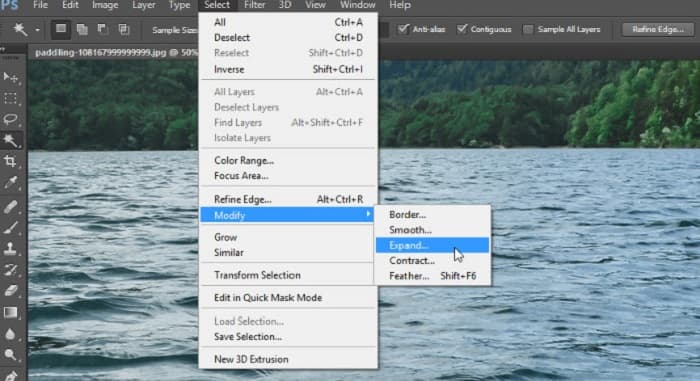
Passaggio 3. Vai su Select > Modify > Expand per includere i pixel di sfondo.
Passaggio 4. Vai su Edit > Fill, quindi seleziona Content-Aware nella sezione Contents.
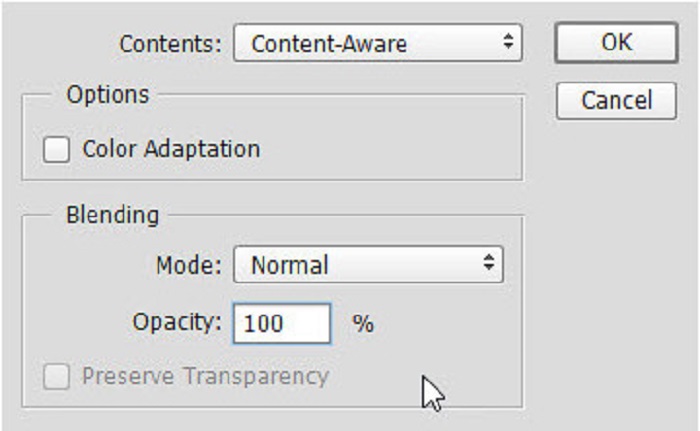
Passaggio 5. Poi premi CTRL+D. Vedrai che la filigrana è stata riempita con lo sfondo. Quindi, per rimuovere il contorno della filigrana, usa lo strumento Timbro Clone (Clone Stamp Tool).
Passaggio 6. Tieni premuto il tasto Alt e ripassa il contorno della filigrana. Una volta terminata la rimozione delle tracce, noterai che la filigrana è scomparsa.
Parte 4. Domande frequenti sulla rimozione della filigrana dall'immagine di laurea
Rimuovere le filigrane dalle foto di laurea rovina la qualità?
Rimuovere la filigrana dalle foto di laurea non rovinerà necessariamente la qualità. Tuttavia, quando rimuovi la filigrana, alcuni strumenti lasciano ancora dei segni.
Puoi rimuovere le filigrane su Canva?
Sì. Canva ha una funzione in cui puoi rimuovere gratuitamente le filigrane. Basta fare clic sul pulsante Rimuovi filigrane per farlo.
Riesci a rimuovere le filigrane su PDF?
Usando gli strumenti mostrati sopra, puoi anche rimuovere qualsiasi filigrana dal tuo file PDF.
Conclusione
Ora che hai imparato come rimuovere le filigrane dalle foto di laurea, puoi farlo da solo e provare gli strumenti presentati sopra. Rimuovere la filigrana diventa semplice utilizzando un rimuovi watermark. Tuttavia, molte persone consigliano di utilizzare FVC Free Watermark Remover perché è pratico e facile da usare.
-
 Come rimuovere facilmente la filigrana Lumion su Windows e Mac
 Hai bisogno di rimuovere la filigrana Lumion per presentarla in modo professionale? Bene, ci sono strumenti che puoi usare per aiutarti a sbarazzarti della filigrana che lascia.
-
 Come rimuovere facilmente la filigrana Weibo su video e immagini
 Hai problemi a rimuovere Weibo Watermark su video e immagini esportati? In tal caso, è necessario un dispositivo di rimozione della filigrana che elenchiamo di seguito che potrebbe aiutarti.
-
 Scopri come rimuovere Movavi Watermark gratuitamente $91; Must Have! $93;
 L'esportazione di un video o di un'immagine su Movavi lascerà una filigrana, ma è possibile rimuoverla? Per insegnare come rimuovere la filigrana gratuitamente, leggi questo.
