


 Video Converter Ultimate
 Screen Recorder
 Riparazione video
 Download sicuro
Da MP4 a M4V - 4 convertitori efficienti da MP4 a M4V da non perdere mai
Puoi semplicemente cambiare l'estensione del file da MP4 a M4V direttamente? Quali sono le differenze tra MP4 e M4V? Quando rinomini un MP4 in M4V, probabilmente puoi riprodurre i file M4V con la maggior parte del lettore multimediale senza alcun problema. Ma cambiare un'estensione di file non converte effettivamente il file in M4V. Scopri di più sui 4 convertitori efficienti da MP4 a M4V dall'articolo e scegli quello desiderato di conseguenza.

Passaggio 1: 4 metodi per convertire MP4 in M4V su Windows / Mac
Metodo 1: come convertire gratuitamente MP4 in M4V online
When you want to convert MP4 to M4V online for free without any limitation, FVC Free Online Video converter is a versatile video converter to convert most of the video formats, tweak the video/audio settings, and even remain the original video quality with ease.
- 1. Converti MP4 in M4V, AVI, MKV e altri ancora con la qualità originale.
- 2. Modifica la frequenza dei fotogrammi, il codec video, la qualità video, il codec audio e altro ancora.
- 3. Fornire un'interfaccia semplice e intuitiva per convertire i file video in pochi clic.
- 4. Consentono di convertire i video senza filigrana, limiti di dimensione, ecc.
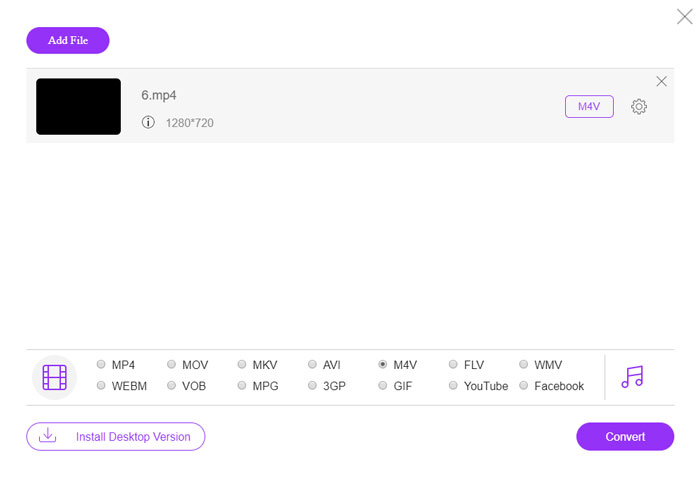
Step 1. Go to the online MP4 to M4V converter, you can click the Add Files to Convert button to load the MP4 files you want to convert. You have to download the video converter installer for the first time.
Scarica la Versione Desktop per convertire i file in batch.

Step 2. Choose the M4V file format from the user interface. When you need to tweak the video settings, you can video encorder, resolution, video bitrate, frame rate, sample rate and more other settings as desired.

Step 3. After that, you can click the Convert button to convert MP4 to M4V. It might take a few seconds to get the desired file, which you can save the video to your computer or share to social media websites.
Metodo 2: come convertire un MP4 in M4V con VLC Media Player
VLC Media Player è un convertitore open source da MP4 a M4V che ti consente di convertire i video su Windows e Mac. Funziona per la maggior parte dei formati e codec, che puoi convertire video tra diversi formati. Ecco il processo dettagliato che dovresti conoscere.
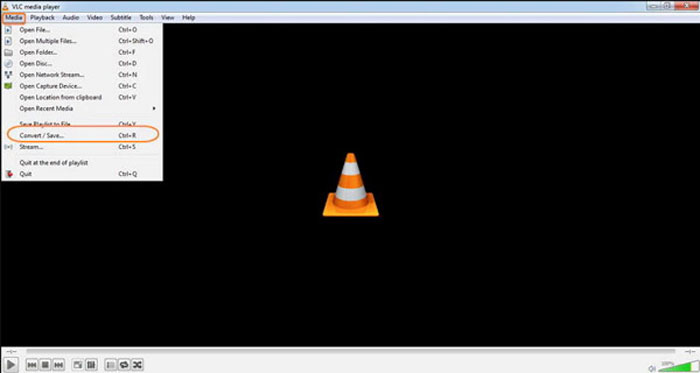
Step 1. Open VLC Media Player on your computer, choose the Media menu and select the Convert/Save option to enter the Media dialog box. After that, you can click on the Add button to browse for the files.
Step 2. Once you have imported the videos, you can click the Convert/Save button or just hit enter on your keyboard. After that, you can choose the M4V as the output format and adjust the other parameters.
Step 3. Select a destination filename, the one that is converted and saved. Hit the Browse option to select a location. Just provide a name like final and click on Save before clicking the Start button to convert MP4 to M4V.
Metodo 3: come convertire un MP4 in M4V tramite FFmpeg
FFmpeg è un convertitore da MP4 a M4V che ti consente di transcodificare il video con codec. Se hai familiarità con il codec, puoi modificare i file video con la qualità originale. Scopri maggiori dettagli sul metodo per convertire MP4 in M4V come di seguito.
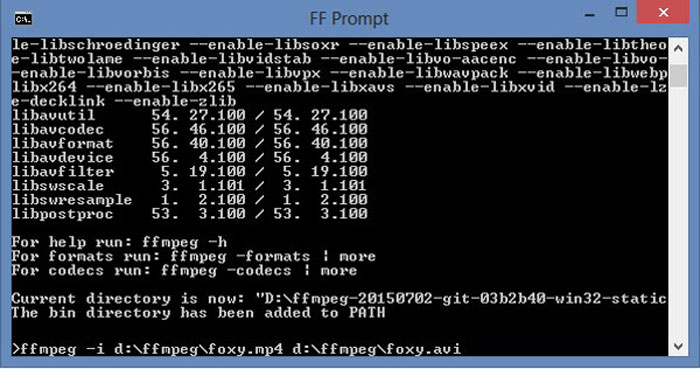
Step 1. Open the command prompt window on your Windows PC and install FFmpeg with command line to install the free video converter. It has a whole series of command line to transcode the video.
Step 2. Enter the following command to convert MP4 to M4V. Moreover, you can also tweak the video codec, frame rate and more other settings to get the desired video.
ffmpeg \-i input.mp4 \
-vcodec copia \
-acodec copia \
output.m4v
Metodo 4: come convertire un MP4 in M4V con HandBrake
HandBrake è un altro convertitore open source da MP4 a M4V. Non solo ti consente di transcodificare i file video, ma rimuove anche la protezione DRM su Windows e Mac. Naturalmente, puoi anche estrarre i file video dal disco DVD in base alle tue esigenze.
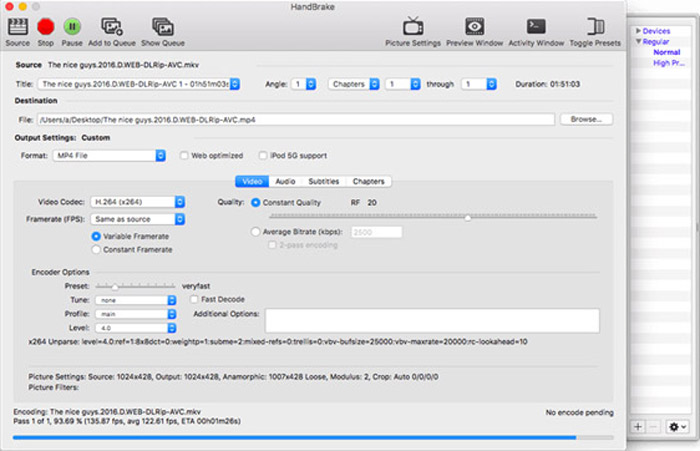
Step 1. Download and install the HandBrake, you can launch the program on your computer. Choose the Source option at the top to select the MP4 videos into the program.
Step 2. Navigate to Output Settings option, set the format as MP4 files. Of course, you can also adjust the video codec, quality, FPS, bitrate, preset and more other encoder options.
Step 3. After that, you can click the Start button to convert MP4 to M4V with ease. When you get the desired M4V files, you can simply save the videos to iTunes or transfer to iOS devices.
MP4 contro M4V
Rilasciato dal Moving Picture Experts Group (MPEG) nel 2001, il formato MP4 può aiutarti a salvare video, audio, sottotitoli e dati di immagine in tracce separate. È l'abbreviazione di MPEG-4 Part 14. Inoltre, è uno dei formati più popolari utilizzati per lo streaming e la condivisione di video.
L'M4V è sviluppato da Apple, che utilizza anche MPEG 4. I file M4V vengono spesso utilizzati per archiviare i video scaricati dall'Apple iTunes Store, come video musicali, episodi TV, ecc. Potresti trovare alcuni file M4V protetti da copia poiché utilizza Protezione del copyright di FairPlay DRM di Apple.
Passaggio 2: domande frequenti sulla conversione da MP4 a M4V
1. Quali sono le differenze tra MP4 e M4V?
Come accennato in precedenza, la principale differenza tra MP4 e M4V è la restrizione DRM Fairplay. Il formato di file M4V è un formato contenitore video sviluppato da Apple per codificare i file video nel suo iTunes Store. Quando devi riprodurre i video per dispositivi iOS o MacBook, puoi invece convertire MP4 in M4V.
2. Puoi usare gli stessi metodi per convertire M4V in MP4?
No. Because the DRM protection of the iTunes store, you cannot convert M4V to MP4 directly. You can simply change MP4 to M4V file extension, which is workable for most of the media players. But the DRM protection of M4V only enables you to play the videos with the authorized device only. You need to use the professional video converter to remove the protection instead.
3. Posso convertire un MP4 in M4V con QuickTime Player su Mac?
Sì. Poiché QuickTime Player non supporta M4V come formato di output, quando devi convertire un MP4 in M4V con QuickTime Player, devi installare alcuni plugin per ottenere il video desiderato sul tuo MacBook gratuitamente con facilità.
Conclusione
Quando devi importare video nella libreria di iTunes per altri dispositivi iOS, dovresti invece convertire MP4 in M4V. Scopri maggiori dettagli sui 4 metodi utilizzati più di frequente per convertire facilmente i file M4V. Se hai solo bisogno di convertire video MP4 online con la qualità video originale, FVC Free Online Video Converter è l'opzione migliore che dovresti prendere in considerazione.
-
 Come convertire M4V in MP4 con / senza DRM
 Questo post è la guida dettagliata per convertire M4V in MP4 per qualsiasi giocatore. Puoi cambiare M4V in MP4, anche i file M4V protetti, in modo da poter riprodurre video M4V senza limiti.
-
 Qual è la differenza tra MP3 e MP4
 MP3 o MP4, che è meglio? Qual è la differenza tra MP3 e MP4? Questo articolo confronterà MP3 con MP4 da tutti gli aspetti che puoi immaginare.
-
 Come convertire un MP4 in WMV per Mac / Windows
 Questo post condivide come convertire i video MP4 in formato WMV su Mac o Windows. Ti offriremo anche diverse opzioni, inclusi sia software desktop che convertitori online basati sul web. Pronto a conoscere i migliori strumenti di conversione da MP4 a WMV?

