


 Video Converter Ultimate
 Screen Recorder
 Riparazione video
 Download sicuro
Un'eccezionale applicazione per il ridimensionamento delle immagini: FastStone Photo Resizer
Cercare su internet un programma per ridimensionare le foto è facile. Soprattutto oggi, ci sono molti software di fotoritocco disponibili online. Quando si tratta di ridimensionare e convertire le immagini, puoi trovare molti strumenti eccellenti sia online che offline. Ma se hai difficoltà a sceglierne uno, ti aiuteremo a selezionarlo. FastStone è una piattaforma di editing di immagini che puoi usare per ridimensionare le tue foto. E in questo post ti forniremo tutti i dettagli su FastStone e su come usare il ridimensionatore di foto FastStone.

Parte 1. Recensione di FastStone Photo Resizer
FastStone Photo Resizer è un'applicazione di modifica delle immagini indispensabile. Puoi usarlo sul desktop di Windows e scaricarlo facilmente. Inoltre, ha un'interfaccia pulita e facile da usare, che lo rende uno strumento intuitivo. FastStone Photo Resizer supporta vari formati di immagine, come JPEG, BMP, PNG, TIFF e GIF. Contiene anche molte funzioni di modifica che puoi utilizzare per convertire, rinominare, ritagliare, aggiungere testo, cambiare colore, aggiungere filigrana e altro.
Inoltre, offre l'elaborazione batch, in cui è possibile elaborare contemporaneamente due o più immagini. E se vuoi visualizzare in anteprima la conversione che stai effettuando, FastStone ti consente di farlo. Puoi scaricare il ridimensionatore di immagini FastStone gratuitamente sul tuo computer Windows, ma devi acquistare l'app per utilizzare le sue funzionalità esplicite. Segui il tutorial qui sotto se vuoi sapere come ridimensionare le immagini usando FastStone.
Professionisti
- Offre una varietà di funzioni e strumenti di modifica.
- Ha un prezzo basso.
- Ha un'interfaccia utente semplice.
- Ha un semplice processo di condivisione dei file.
Contro
- Ha solo un supporto limitato e una struttura di aiuto.
- Non è gratuito da usare.
- Disponibile solo su software Windows
Come utilizzare FastStone Photo Resizer per ridimensionare le immagini:
Passaggio 1. Per prima cosa, scarica e installa FastStone Photo Resizer sul tuo desktop Windows. Dopo aver installato l’app, avviala sul desktop. Quindi, nell’interfaccia principale dell’app, fai clic sul pulsante Batch Convert nel Menu per caricare l’immagine che desideri ridimensionare.
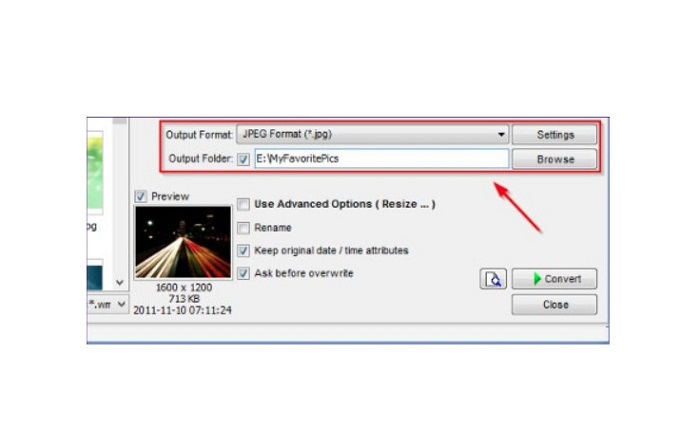
Passaggio 2. Dopo aver importato la tua o le tue immagini, appariranno sull’interfaccia. Quindi fai clic sulla freccia a discesa Output Format per selezionare il formato di output del file che preferisci. Per scegliere la cartella di destinazione del tuo output, fai clic sul pulsante Browse accanto a Output Folder.
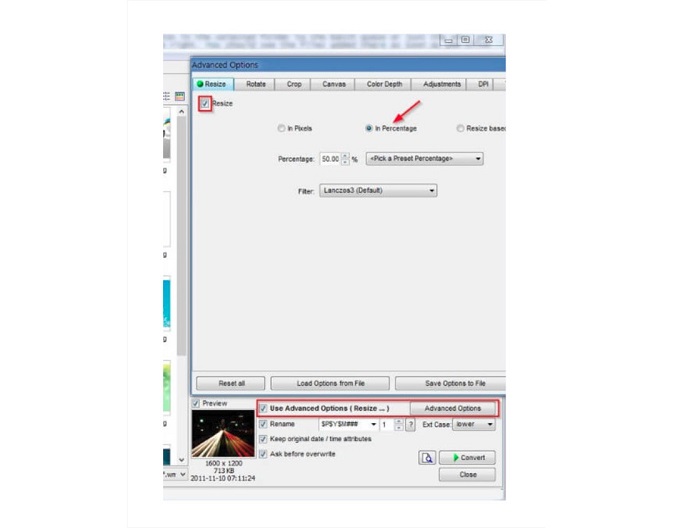
Passaggio 3. Successivamente, fai clic su Advanced Options e si aprirà una nuova scheda. Poi, nella scheda Resize, seleziona l’opzione In Percentage per modificare le dimensioni dell’immagine in base alla percentuale. Puoi scegliere un filtro facendo clic sulla freccia a discesa accanto a Filter.
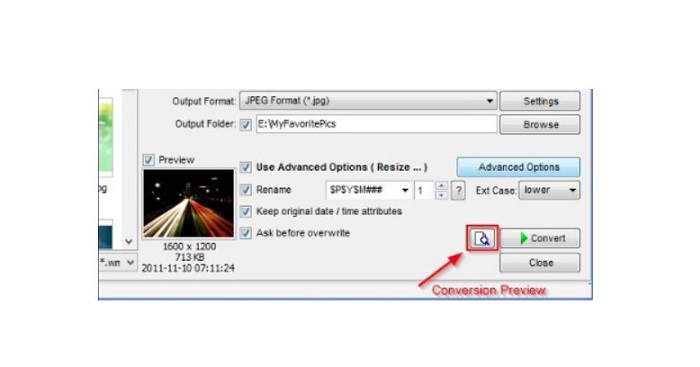
Passaggio 4. Quindi puoi visualizzare l’anteprima dell’immagine e confrontarla con il file originale facendo clic sull’icona Preview accanto al pulsante Convert.
Passaggio 5. Infine, fai clic sul pulsante Convert per avviare il processo di ridimensionamento. L’app convertirà anche il tuo file immagine nel formato che hai selezionato nel passaggio precedente. Dopo che FastStone avrà ridimensionato la tua immagine, apparirà una nuova finestra in cui vedrai l’immagine di output e le sue dimensioni.
E questa è la fine del tutorial FastStone Photo Resizer. Seguendo i passaggi precedenti, puoi facilmente ridimensionare l'immagine utilizzando FastStone.
Parte 2. Alternative a FastStone Photo Resizer
FastStone Photo Resizer è accessibile solo su desktop Windows. E un'altra battuta d'arresto è che devi acquistare l'app prima di accedere alle sue altre funzionalità di modifica. Quindi, se preferisci utilizzare un'app di rifinitura video disponibile su dispositivi Windows, Mac o Linux e disponibile online, leggi attentamente questa sezione.
Upscaler di immagini senza FVC
FVC Free Image Upscaler è una delle applicazioni di ridimensionamento immagini più utilizzate, accessibile online e su tutti i browser, tra cui Google, Firefox e Safari. Questo strumento online può anche aiutarti con le immagini sfocate. Se hai una foto sfocata o di bassa qualità, puoi usare questo tool online per metterla a fuoco e migliorarne la qualità. Inoltre, puoi ingrandire la tua immagine di 2x, 4x, 6x e 8x. Ciò che rende impressionante FVC Free Image Upscaler è che utilizza un processo basato su tecnologia IA, che rileva automaticamente le parti sfocate della tua immagine e poi le migliora.
Inoltre, supporta tutti i formati di immagine, come PNG, JPG, JPEG e BMP. Inoltre, non è necessario registrarsi o accedere a un account per utilizzare questo strumento. E se vuoi controllare l'anteprima del tuo output prima di salvarlo, puoi farlo mentre usi questa applicazione. Inoltre, è sicuro da usare e comodo da usare. E nonostante sia un'applicazione dipendente da Internet, ha un'interfaccia di elaborazione veloce in cui non avrai difficoltà a caricare le immagini da ridimensionare.
Passaggio 1. Apri il browser e digita FVC Free Image Upscaler nella barra di ricerca. Fai clic sul link fornito per andare direttamente alla pagina principale.
Passaggio 2. Avvia il programma sul desktop facendo clic sul pulsante Upload Photo. Dopo aver avviato l’app, fai clic sul pulsante Upload Photo per caricare l’immagine che desideri ridimensionare/mettere a fuoco.
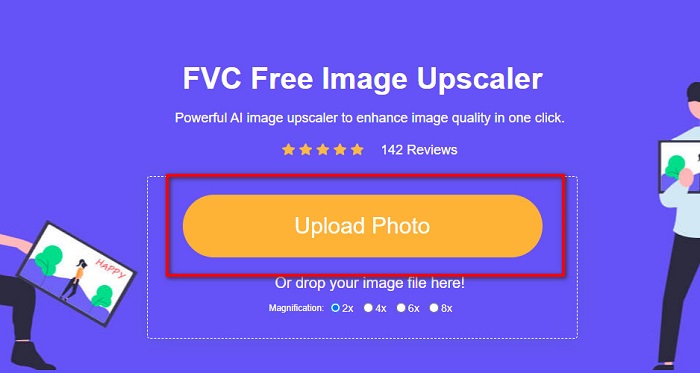
Passaggio 3. Poi vedrai i preset di ingrandimento tra cui puoi scegliere. Puoi selezionare tra 2x, 4x, 6x o 8x.
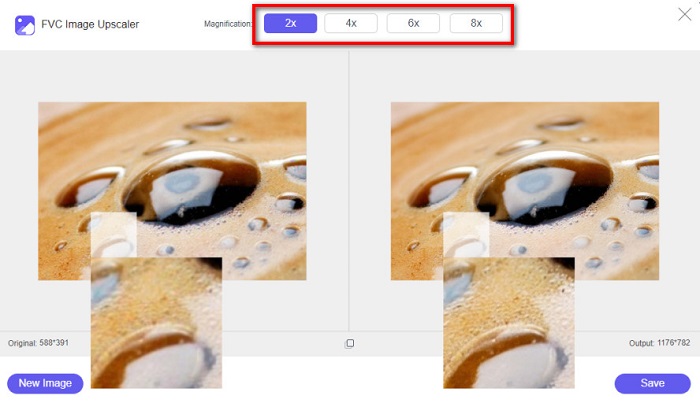
Passaggio 4. Sposta il cursore per vedere l’anteprima della tua immagine. Se sei soddisfatto del risultato, fai clic sul pulsante Save nell’angolo in basso a destra dell’interfaccia.
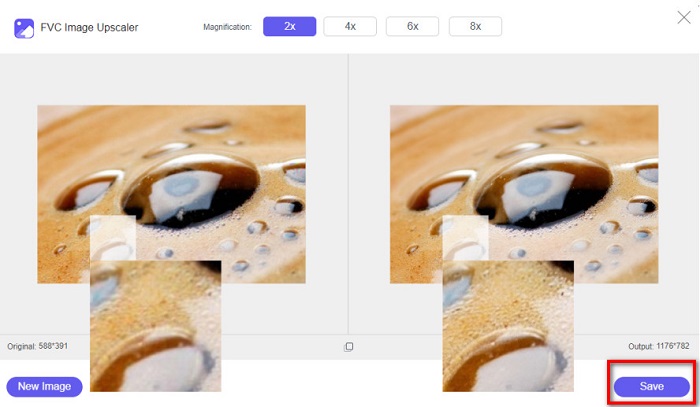
Image Resizer.com
Un altro fantastico ridimensionatore di immagini online che puoi usare è Image Resizer.com. Image Resizer.com ti permette di ridimensionare la tua immagine regolando le dimensioni della foto. Inoltre, ha una funzione per ritagliare o ruotare l’immagine. È anche uno strumento adatto ai principianti perché ha un’interfaccia facile da usare. Tuttavia, contiene molte fastidiose pubblicità che potrebbero distrarti.
Passaggio 1. Nel browser, cerca Image Resizer.com. Nell’interfaccia principale, fai clic sul pulsante Select Image per caricare la foto che desideri ridimensionare.
Passaggio 2. Nella schermata successiva puoi modificare le dimensioni dell’immagine per misure effettive o in percentuale. Poi digita la Width and Height che preferisci per la tua foto.
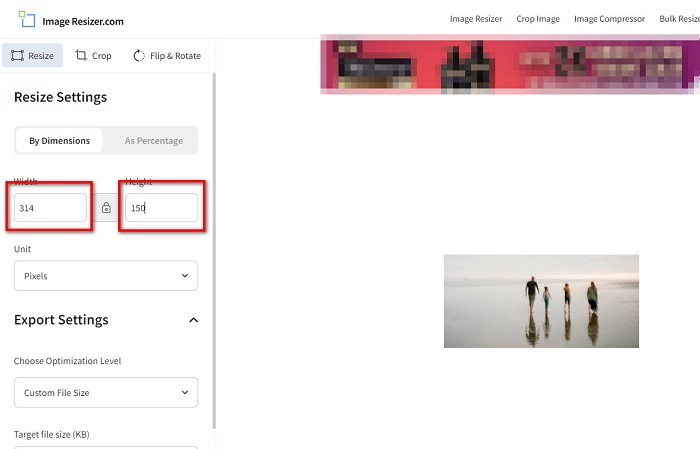
Passaggio 3. Quando hai terminato di ridimensionare l’immagine, fai clic sul pulsante Resize Image per completare il processo.
Parte 3. Domande frequenti su FastStone Photo Resizer
Quanto costa FastStone Photo Resizer?
È possibile acquistare la versione completa di FastStone Photo Resizer per $19.95 (licenza a vita)
Il visualizzatore FastStone è gratuito?
FastStone Image Viewer è un visualizzatore di immagini utilizzato per Microsoft Windows. Puoi utilizzare FastStone Image Viewer gratuitamente e gratuitamente.
FastStone Photo Resizer rovina la qualità delle foto?
No. Quando ottimizzi la tua immagine usando FastStone Photo Resizer, non perderai la qualità dell’immagine.
Conclusione
FastStone Photo Resizer è un’ottima applicazione se vuoi ridimensionare le tue immagini sul desktop Windows. Inoltre, offre molte funzioni di editing ed è anche uno strumento facile da usare. Ma se ti stai chiedendo se esista un FastStone Photo Resizer per Mac, la risposta è no. Quindi, se vuoi un ridimensionatore di foto disponibile su tutte le piattaforme, usa subito FVC Free Image Upscaler.
-
 Guida completa di Immglar – Soluzione per i designer di foto
 Imglarger è uno degli strumenti di soluzione di immagini più eminenti. Fai clic su questa pagina per conoscere le descrizioni complete, i pro e i contro, il prezzo e le alternative di Immglar.
-
 La migliore app per ridimensionare foto online, offline, Android e iPhone
 Quali sono le migliori app per ridimensionare le foto? Fai clic sulla pagina per scoprire le prime cinque app di ridimensionamento delle foto più potenti che puoi utilizzare per migliorare o ridimensionare il tuo file.
-
 6 modi per ridimensionare un'immagine sul Web e offline [100% funzionante]
 Con il tutorial che aggiungiamo qui, ora puoi facilmente ridimensionare un'immagine in base alla tua dimensione preferita. Scopri come farlo qui!
