


 Video Converter Ultimate
 Screen Recorder
 Riparazione video
 Download sicuro
Metodi di uso comune per convertire Xvid in MP4 online e offline
Are you encountering some problems when playing your Xvid videos? Then we offer the best solutions for you. The best solution you can do is to convert your Xvid to other great formats, like MP4. This way, you won’t get into trouble streaming your videos. This article will give you a free Xvid to MP4 converter you can use. This tool will help you convert your video files easily and instantly. If we caught your interest in this kind of discussion, read the following parts and cherish your time learning new things!

Parte 1: il modo più semplice per convertire Xvid in MP4 su Mac e Windows
Use Video Converter Ultimate to convert Xvid to MP4. You can use this converter on both a Mac and a Windows computer. It converts data 30 times faster than other converters. Additionally, because it supports batch conversion, you can convert numerous Xvid files into a single MP4 format. You may easily and quickly convert files with this feature. Additional video file types supported by this utility include AVI, FLV, MKV, MOV, VOB, WMV, M4V, and more than 100 more. It is available for Xvid and MP4 users. Additionally, because of its user-friendly design and basic conversion techniques, this converter may be used by both novice and experienced users. To learn more about what to anticipate when using the Video Converter Ultimate, see the extra features listed below.
Funzioni
◆ Converti vari formati di file video, come Xvid, MP4, DIVX, M4V, FLV, AVI, MKV, WMV, SWF e altri.
◆ Converti più file video contemporaneamente.
◆ Offre un processo di conversione ultraveloce, 30 volte più veloce di altri convertitori.
◆ Offre strumenti di editing video, tra cui un potenziatore video, un compressore, un trimmer, un ritaglio, un invertitore, ecc.
Segui i passaggi dettagliati di seguito per convertire Xvid in MP4 sul tuo Mac o Windows utilizzando FVC Video Converter Ultimate.
Step 1: Download Video Converter Ultimate on your Mac or Windows by clicking the Download button below. After that, when you are done installing it, launch the application.
Download gratuitoPer Windows 7 o versioni successiveDownload sicuro
Download gratuitoPer MacOS 10.7 o versioni successiveDownload sicuro
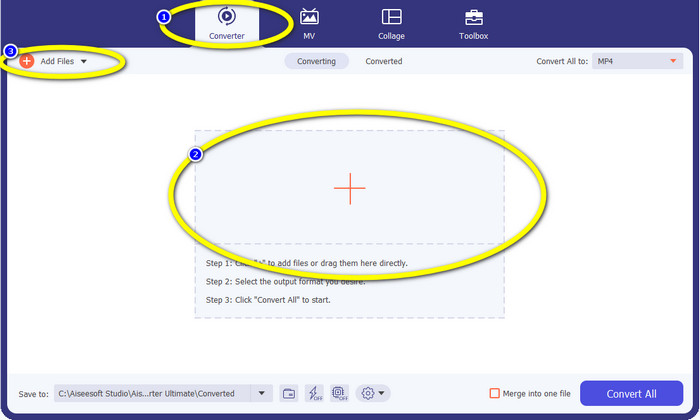
Step 2: When the interface is already on your screen, select the Converter option and click the + icon to add the Xvid file. Another way to add a video file is to click the Add Files button.
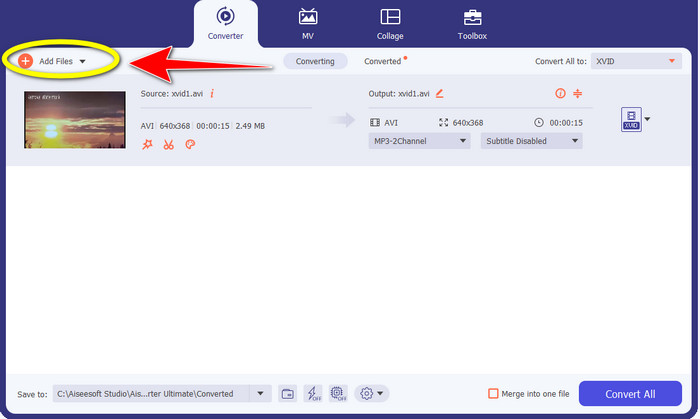
Step 3: This application lets you convert multiple files. So to add another Xvid video you want to convert, click the Add Files button on the upper left of the interface.
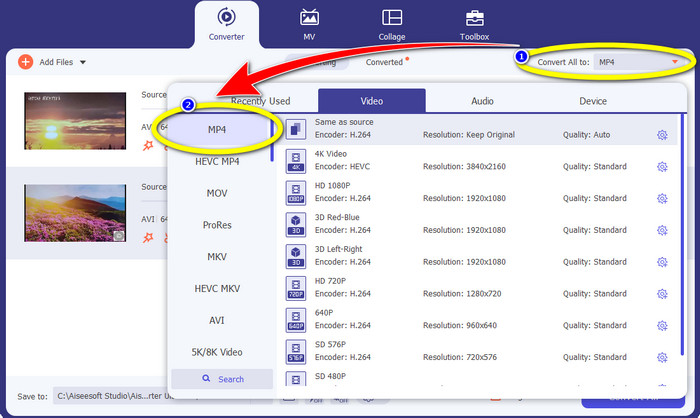
Step 4: Afterwards, to convert them into one MP4 file, click the Convert All to button. Select the MP4 file from the format options and choose your desired video quality.
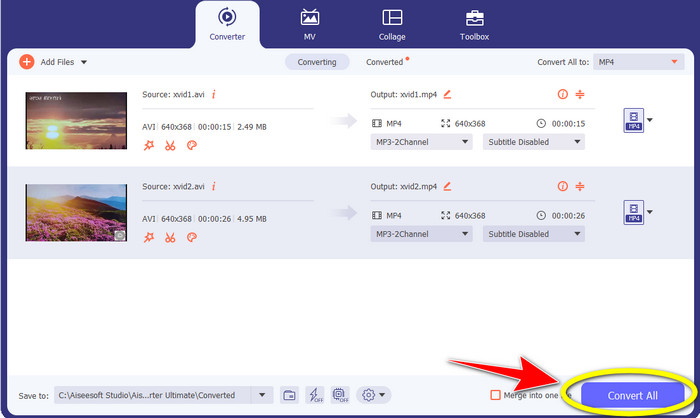
Step 5: After selecting the desired output format, you can proceed to the conversion process by clicking the Convert All button. Then, save your MP4 video on your device.
Parte 2: come convertire Xvid in MP4 su VLC
In this part, you will learn how to convert Xvid to MP4 in VLC. For additional information, VLC Media Player can convert multiple video files besides playing videos. It supports video file formats, such as MP4, TS, WEM, OGG, and more. Moreover, it can convert audio files like MP3, FLAC, etc. In this case, VLC is also a reliable application for converting various files. However, this software is not suitable for beginners. It has a hard-to-understand interface, which makes it more complicated to utilize. Also, it takes too much time when downloading and installing it on your computers.
Step 1: Download and install the VLC Media Player on your computer. Then, launch the application.
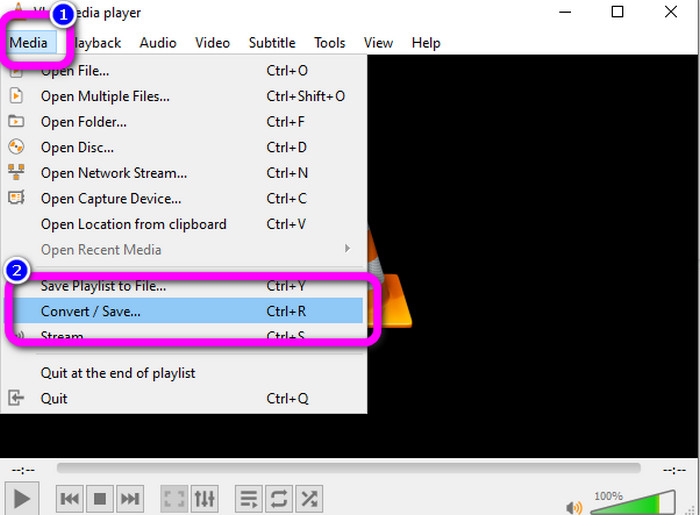
Step 2: Go to the upper part of the interface and select the Media option. Then, click the Convert/Save button.
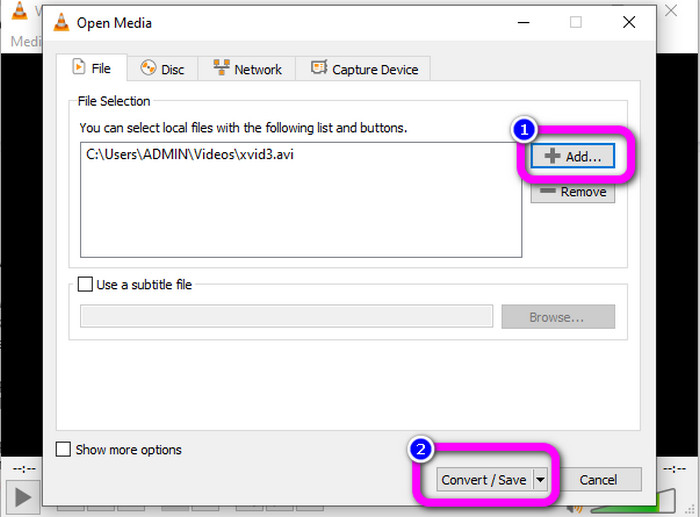
Step 3: Press the Add button to insert the Xvid video file. When the file is already added, click the Convert / Save button.
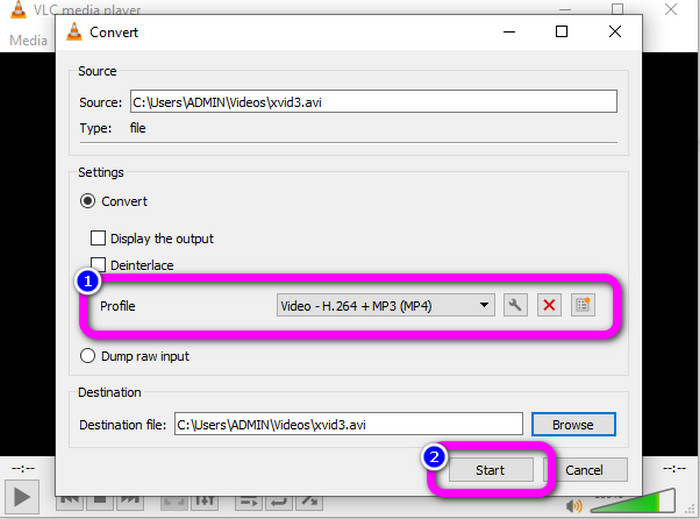
Step 4: For the last step, click the Profile to see the format options and select the MP4 file format. Set your destination file and proceed to the conversion process by clicking the Start button.
Parte 3: semplici passaggi per convertire Xvid in MP4 sul freno a mano
Il freno a mano è un altro strumento offline di cui ti puoi fidare per convertire il tuo file Xvid in formato MP4. Inoltre, questo strumento offre un processo di conversione batch, in cui devi solo inserire una cartella composta da diversi video e convertirli contemporaneamente. Tuttavia, non è facile da usare. Molte opzioni sono fonte di confusione per i principianti. Segui la semplice guida qui sotto per convertire Xvid in MP4 usando un freno a mano.
Step 1: Download the Handbrake on your computer. Launch it after the installation process.
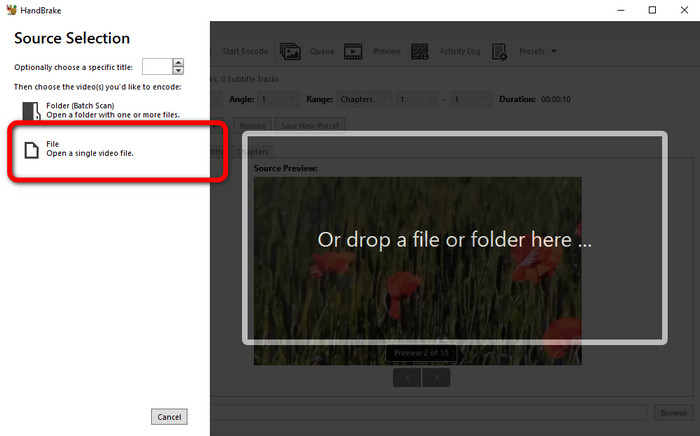
Step 2: Open the File button to add the Xvid video file.
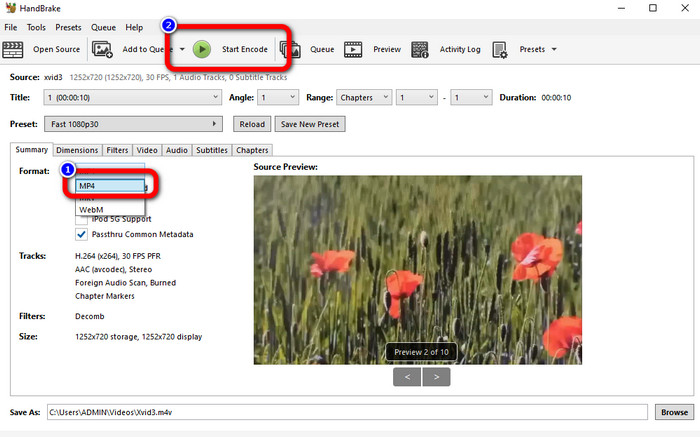
Step 3: Go to the Format option and select the MP4 file format. Then, click the Start Encode button to convert your Xvid file to MP4 format.
Parte 4: processo per convertire Xvid in MP4 online
FVC Free Video Converter Online is a great tool to convert Xvid to MP4 online. It offers a user-friendly interface which is perfect for beginners. You can only convert files in just three simple steps. In addition, you can also convert multiple files at once because it allows you to do a batch conversion process. This tool supports various video file formats, such as FLV, AVI, MKV, WMA, MOV, VOB, and more. If you want to use FVC Free Video Converter Online, use the simple instructions below.
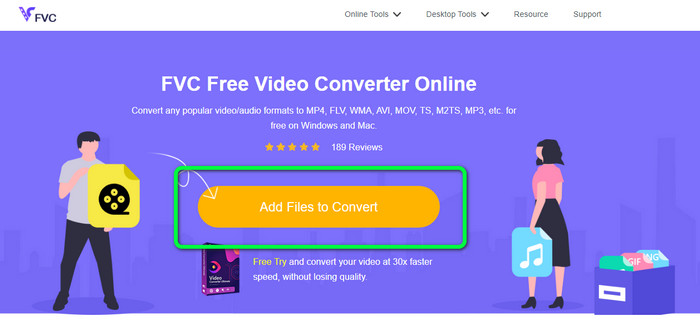
Step 1: Go to the FVC Free Video Converter Online website. On the main page, select the Add Files to Convert button to upload the Xvid video file you want to convert.
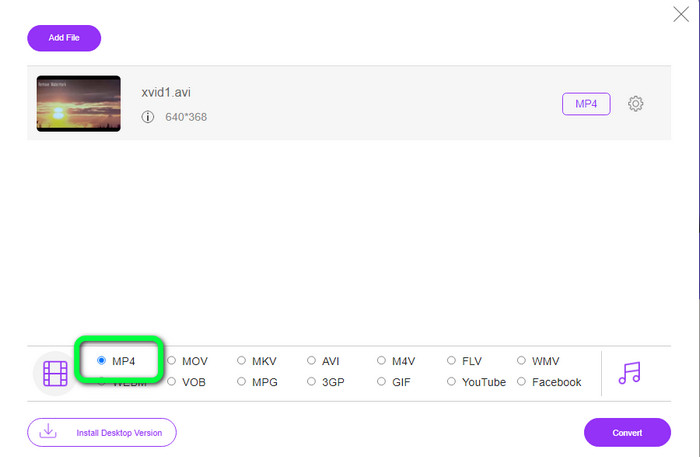
Step 2: As you can see on the lower part of the interface, there are format options. Select the MP4 as your output file format.
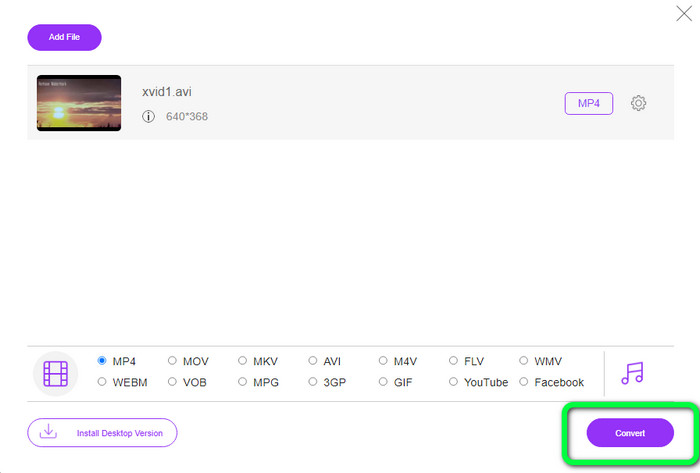
Step 3: Hit the Convert button to convert your Xvid file to MP4 format. Wait for the conversion process and save your final video.
Parte 5: ottimo metodo per convertire Xvid in MP4 utilizzando Android
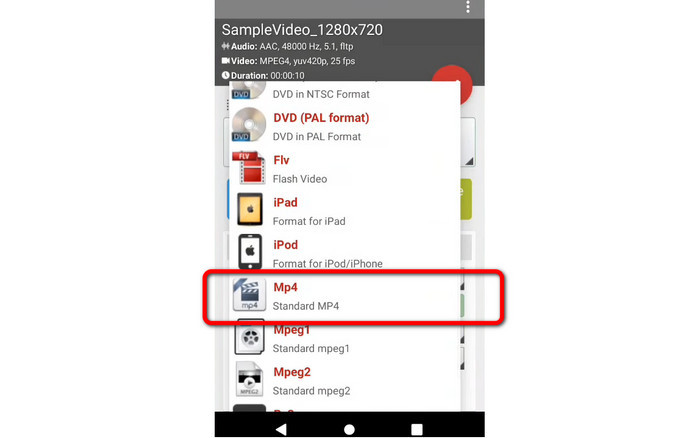
If you want an Xvid to MP4 converter for Android, you can use the Video Format Factory. You can easily change a video file to other formats using this application. However, converting your videos is time-consuming because the conversion process is slow. See the steps below to convert Xvid to MP4.
Step 1: Download and install the Video Format Factory on your Android.
Step 2: After launching the application, select the Video button to insert the Xvid file.
Step 3: Select the Convert Option and select the MP4 format from the format options. Then start the conversion process by clicking the Checkmark.
Ulteriori letture:
Easy-to-learn Methods on How to Convert Xvid to DivX
Excellent Techniques to Convert XviD to 3GP Quickly
Parte 6: Domande frequenti sulla conversione di Xvid in MP4
1. Qual è il formato file Xvid?
Il formato file Xvid è un codec video che segue lo standard di codifica MPEG-4. Questo codec comprime i file video utilizzando il formato MPEG-4 Part 2 A SP.
2. Xvid è di buona qualità?
Sì. Questo file è la continuazione di Project Mayo. Il suo obiettivo è sviluppare un codec MPEG-4 open source di alta qualità.
3. MP4 è compresso?
Sì. Esiste un file MP4 compresso. Diversi codec di video possono essere inclusi in un file MP4. Tra i codec video più popolari per MP4 ci sono H.264, H.265 e MPEG-4. Con la compressione H.264, un video di un'ora può essere compresso in circa 1 GB utilizzando il codec video MP4.
Conclusione
With all the information above, you already know how to convert Xvid to MP4 online, offline, and using Android devices. But the best converters you can use are Video Converter Ultimate and FVC Free Video Converter Online. These two converters offer you an intuitive interface that is suitable for all users.
-
 Come convertire MPG in M4V su Mac e utilizzare lo strumento online
 Sei un nuovo utente Mac e non sai come convertire MPG in M4V? Allora puoi leggere questo articolo per saperne di più e scoprire come convertire i file usando il tuo Mac
-
 Metodi di successo per convertire subito DIVX in MP4
 Come posso convertire DIVX in MP4? Se stai cercando la soluzione migliore, sei nell'articolo giusto. Ti mostreremo come convertire facilmente DIVX in MP4
-
 Come convertire F4V in MP4 con i metodi più efficaci
 I tuoi video F4V non sono di buona qualità? Quindi trasformalo in un file MP4. Questo post offrirà il modo migliore su come convertire F4V in MP4 online e offline
