


 Video Converter Ultimate
 Screen Recorder
 Riparazione video
 Download sicuro
Soluzioni per tagliare video online [Tutorial passo dopo passo]
Come rendere più breve un video lungo? Se non conosci i metodi migliori che puoi utilizzare, hai un motivo in più per leggere questa guida. Durante la lettura dell’articolo ti forniremo tutte le informazioni essenziali per ridurre la durata del tuo video. Inoltre, ti presenteremo software di montaggio video online e offline che puoi utilizzare. In questo modo avrai più possibilità di raggiungere il tuo obiettivo. Dunque, senza ulteriori preamboli, leggi questo post e scopri come tagliare video online.

Parte 1. Metodi eccellenti per tagliare video online
1. Video
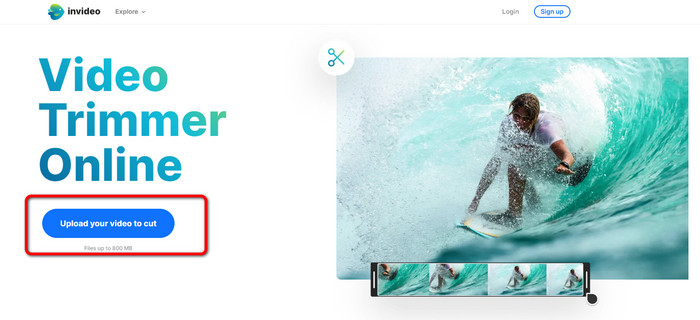
Uno degli utili strumenti di editing video che puoi trovare online è il video trimmer InVideo. Questo software basato sul web offre un layout facile da usare. Dopo aver visitato il sito Web, non è necessario installare lo strumento. Tutto quello che devi fare è aggiungere il video e puoi già procedere al taglio. Inoltre, poiché ha un layout semplice, ci sarà anche un metodo comprensibile. In questo modo, che tu sia un utente professionista o non professionista, puoi utilizzare InVideo. Inoltre, InVideo è accessibile su quasi tutte le piattaforme web. Puoi utilizzare lo strumento su Google Chrome, Mozilla Firefox, Internet Explorer e altro ancora. Tuttavia, InVideo presenta alcuni inconvenienti. Quando si utilizza la versione gratuita, InVideo non può offrire una qualità video elevata. Inoltre, può offrire solo una bassa qualità video, il che non è soddisfacente. Se desideri una qualità video eccellente, devi acquistare un piano di abbonamento. Segui i passaggi sottostanti per tagliare/tagliare il tuo video utilizzando il rifinitore video InVideo.
Passaggio 1. Apri il browser e vai sul sito ufficiale di InVideo. Se sei già sulla pagina web, fai clic sul pulsante Upload your video to cut. Quando sullo schermo compare la finestra dei file, seleziona il video che desideri rifilare/tagliare e aprilo.
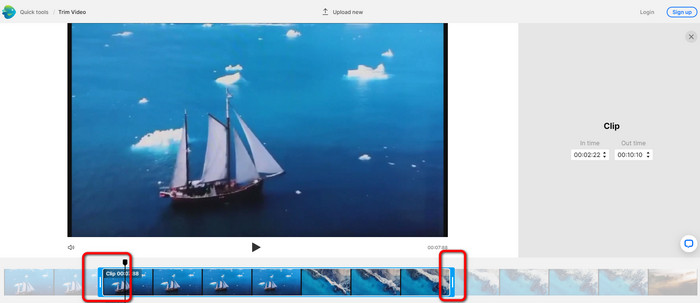
Passaggio 2. Dopo aver selezionato un video, verrai indirizzato alla sezione in cui puoi tagliarlo. Per rifilare il video, sposta i cursori alle due estremità della clip fino al punto temporale desiderato.
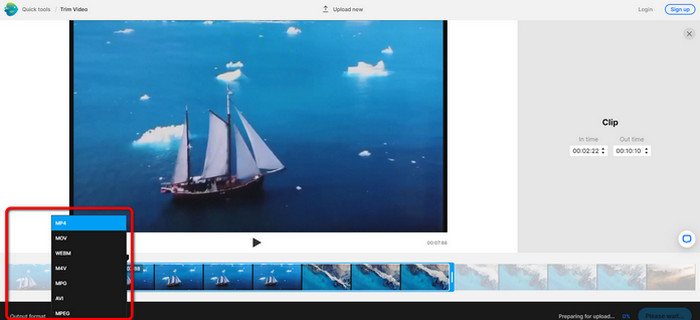
Passaggio 3. Una volta tagliato il video, puoi salvarlo in vari formati. Vai all’opzione Output Format nella parte inferiore sinistra dell’interfaccia. Quando compaiono le opzioni, seleziona il formato di uscita che preferisci. Poi fai clic su Done.
Passaggio 4. Prima di poter salvare il video devi registrare un account su InVideo oppure accedere con un account già esistente. Dopo aver inserito le tue credenziali, il video sarà pronto per il salvataggio in pochi secondi.
2. Ezgif
Un altro video trimmer online gratuito è Ezgif. Offre procedure semplici per accorciare un video. Ezgif è uno strumento online gratuito, quindi non devi preoccuparti di spendere nemmeno un centesimo. Inoltre, puoi accedere allo strumento da qualsiasi browser, come Google, Edge, Firefox, Explorer e altri. Tuttavia, il servizio online supporta solo GIF. Quindi, se vuoi tagliare un video in un altro formato, Ezgif non è lo strumento adatto. Inoltre, durante l’uso compaiono molti annunci pubblicitari fastidiosi sullo schermo, che possono disturbarti mentre monti il video.
Passaggio 1. Vai sul sito di Ezgif e seleziona l’opzione Cut.
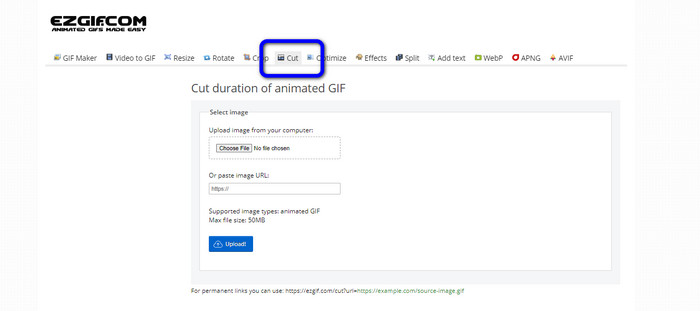
Passaggio 2. Dopodiché fai clic sul pulsante Choose File. Quindi aggiungi il file GIF che vuoi caricare dalla cartella del computer.
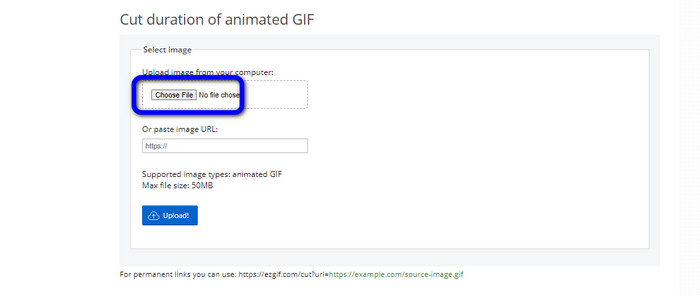
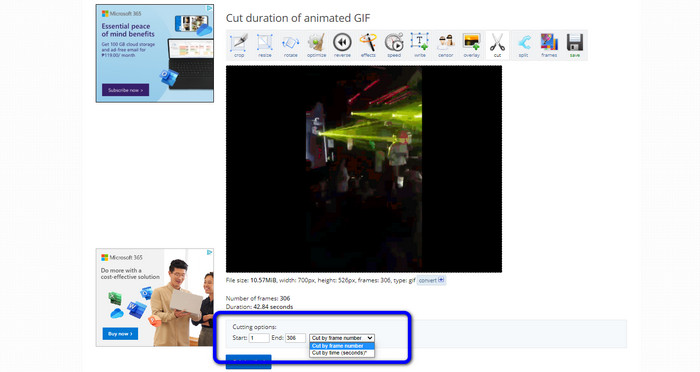
Passaggio 3. Dopo aver caricato il file GIF, puoi già tagliarlo. Ci sono due modi per tagliare il GIF: puoi tagliare per numero di fotogramma oppure per intervallo di tempo. Effettua il taglio in base al metodo che preferisci.
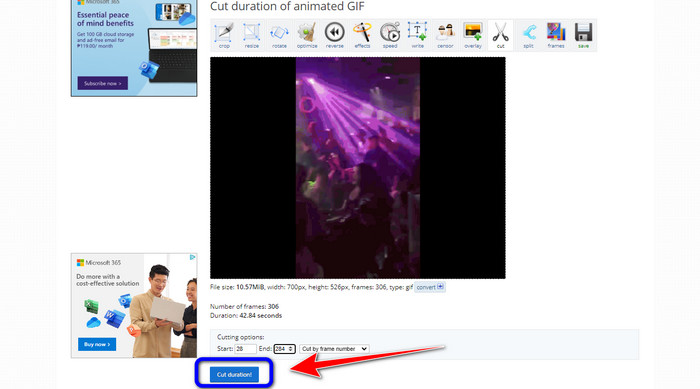
Passaggio 4. Fai clic sul pulsante Cut Duration per avviare il processo di taglio.
Passaggio 5. In seguito verrà mostrata la versione modificata. Fai clic sull’opzione Save per scaricare il risultato finale sul computer.

3. Kapwing
Per tagliare il video puoi utilizzare anche il video trimmer Kapwing. Questo strumento basato sul web è in grado di tagliare un video con un metodo semplice e senza complicazioni. Inoltre, puoi accedervi da vari browser, tra cui Chrome, Mozilla, Edge e altri. Kapwing supporta diversi formati video, come MP4, MOV, AVI, FLV, WEBM e altri, risultando comodo per tutti gli utenti. Tuttavia, Kapwing presenta alcuni svantaggi: mostra annunci pubblicitari invasivi che compaiono continuamente sullo schermo e, nella versione gratuita, ti permette di caricare solo video con qualità fino a 720p. Inoltre, applica fastidiose filigrane dopo il montaggio. Se vuoi ottenere video senza watermark e usufruire di funzionalità aggiuntive, devi acquistare un piano in abbonamento.
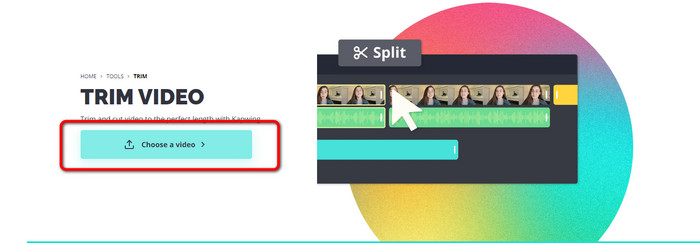
Passaggio 1. Vai sul sito di Kapwing. Quindi fai clic sull’opzione Choose a video per accedere all’interfaccia principale dello strumento.
Passaggio 2. Fai clic sul pulsante Click to upload per inserire il video dalla cartella dei file.
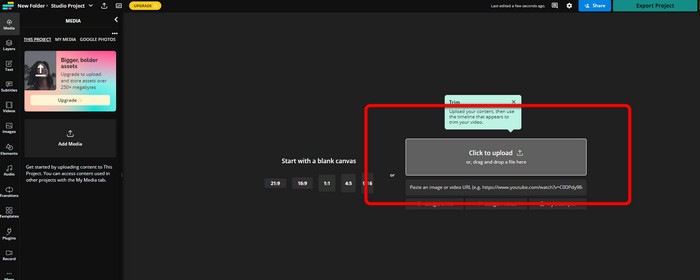
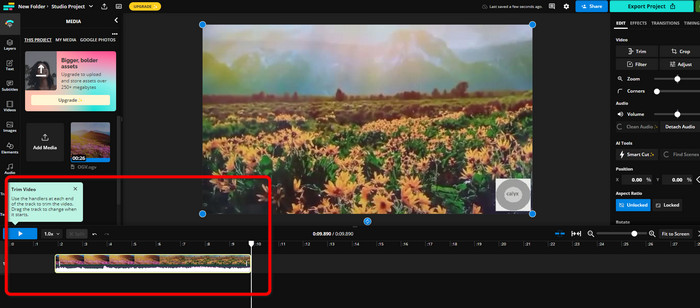
Passaggio 3. Quando il video è già sulla timeline, puoi fare clic sui marker ai lati della clip per iniziare a tagliare il video.
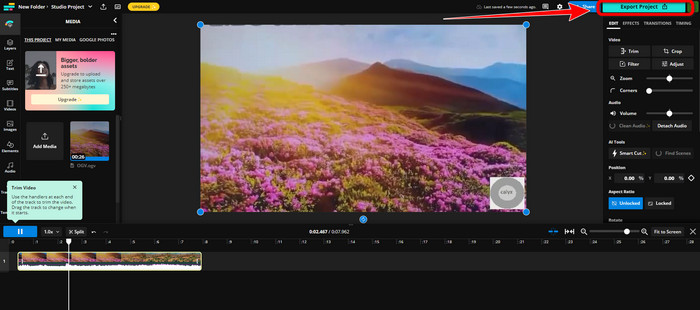
Passaggio 4. Quando hai finito, vai nell’angolo in alto a destra dell’interfaccia e fai clic sul pulsante Export Project. In questo modo potrai salvare il video modificato sul desktop.
Parte 2. Modo alternativo per tagliare i video offline
Usa Video Converter Ultimate per montare i video offline nel modo migliore. Questo strumento rende semplice suddividere e/o tagliare il tuo video. Dispone anche di un’interfaccia intuitiva con una navigazione chiara, ideale per qualsiasi tipo di utente. Il prodotto finale può essere salvato in vari formati, tra cui MOV, AVI, MP4, MKV e altri. Quando tagli i video puoi fare anche molte altre cose: accedendo alle opzioni di Output puoi effettuare diverse regolazioni. Puoi modificare il frame rate, la risoluzione, il codec, la qualità del video, ecc. Inoltre, Video Converter Ultimate non aggiunge filigrane al video modificato. In questo modo potrai guardare il filmato montato senza elementi fastidiosi. Il programma è disponibile sia per utenti Windows che Mac, quindi risulta comodo per entrambi i sistemi operativi. Segui le istruzioni dettagliate qui sotto per iniziare a tagliare il video.
Passaggio 1. Fai clic sul pulsante Download qui sotto per installare Video Converter Ultimate sul tuo computer. Al termine dell’installazione, avvia il programma.
Download gratuitoPer Windows 7 o versioni successiveDownload sicuro
Download gratuitoPer MacOS 10.7 o versioni successiveDownload sicuro
Passaggio 2. Nell’interfaccia fai clic sul menu Toolbox e seleziona lo strumento Video Trimmer.
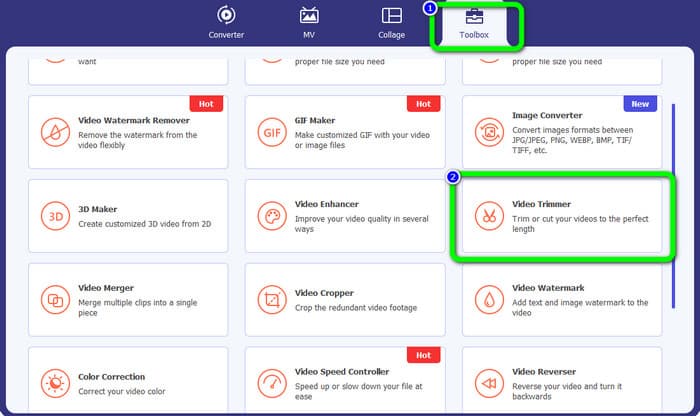
Passaggio 3. Quando appare la nuova interfaccia sullo schermo, fai clic sul segno Plus per inserire il video che desideri modificare.
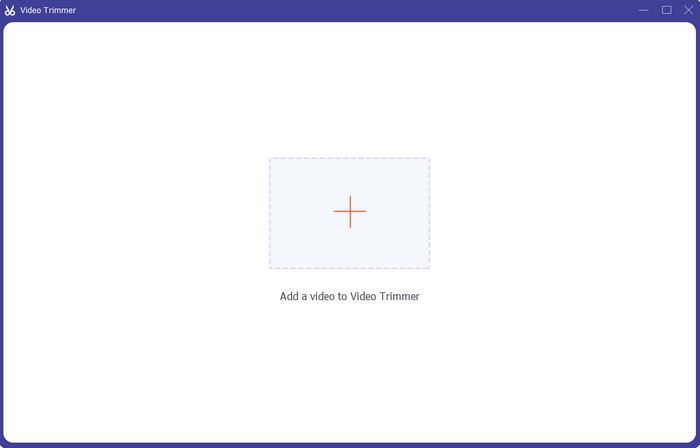
Passaggio 4. A questo punto puoi iniziare a montare il video. Puoi spostare i bordi della clip per definire come vuoi tagliare/rifilare il video, muovendo i lati destro e sinistro in base alle tue esigenze.
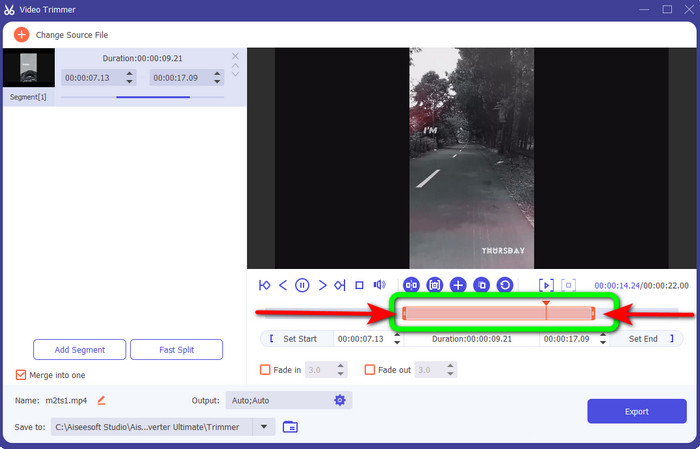
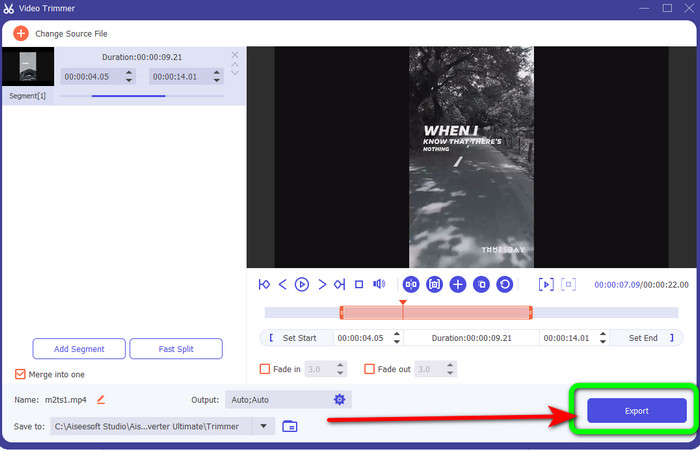
Passaggio 5. Quando sei soddisfatto del risultato, fai clic sul pulsante Export per procedere all’esportazione. Quindi salva il tuo video finale modificato.
Parte 3. Domande frequenti su come tagliare video online
Come tagliare un video su un iPhone?
Dopo l'avvio, tocca il video che desideri modificare nell'app Immagini. Fare clic su Modifica. Modifica l'ora di inizio e di fine trascinando i cursori su ciascun lato della sequenza temporale del video. Usa il pulsante di riproduzione per vedere un'anteprima del tuo video modificato. Scegli Salva video o Salva video come nuovo clip dopo aver selezionato Fatto.
Come tagliare i video in Shotcut?
Trascina il file video sulla timeline dopo averlo importato in Shotcut. Posiziona la testina di riproduzione all'inizio del segmento che desideri tagliare. Quindi premi il tasto di scelta rapida I. Premi il tasto O dopo aver fatto avanzare la testina di riproduzione fino alla conclusione della sezione. Il segmento sarebbe ora separato dal resto del video.
Qual è il miglior software per tagliare i file MP4 offline?
Se vuoi tagliare file MP4 offline, utilizza Video Converter Ultimate. Questo programma, scaricabile gratuitamente, ti permette di tagliare file MP4 in modo semplice e senza difficoltà.
Conclusione
Questi sono i metodi migliori per tagliare video online. Puoi usare tutti gli strumenti di montaggio video menzionati sopra per tagliare un video. Tuttavia, quando utilizzi uno strumento online, può capitare che non funzioni correttamente a causa di una connessione Internet scarsa. In tal caso, usa Video Converter Ultimate. Si tratta di un programma da scaricare che ti consente di modificare i video anche senza connessione Internet.
-
 [4 modi] Come velocizzare facilmente i tuoi video online
 Vuoi velocizzare un video online? Leggi questo articolo per saperne di più sull'accelerazione di un video in diversi modi possibili.
-
 Come tagliare e unire brani online - 4 modi migliori che dovresti sapere
 Quando vuoi tagliare e unire brani online per creare un brano musicale, puoi saperne di più sui 4 migliori strumenti online per ritagliare i brani e combinare i file dall'articolo.
-
 Scopri il miglior rifinitore MP4 con procedura e informazioni
 Vuoi imparare a tagliare video come i vlogger che guardi? Quindi continua a leggere questo post per sapere quali trimmer MP4 puoi utilizzare.
