


 Video Converter Ultimate
 Screen Recorder
 Riparazione video
 Download sicuro
Soluzioni rapide all'errore Video HTML5 non trovato
È davvero frustrante quando compare l’errore video HTML5 non trovato mentre cerchi di riprodurre un video. Ma niente paura: esiste un modo per risolvere il problema e tornare a goderti i contenuti senza intoppi. Invece di lasciare che questa interruzione rovini la tua esperienza di visione, fai un bel respiro e segui i passaggi illustrati in questo articolo. Ti guideremo attraverso l’intero processo di risoluzione dei problemi e ti aiuteremo a eliminare l’errore come un professionista. Quindi non lasciare che un piccolo inconveniente rovini il tuo intrattenimento. In pochissimo tempo tornerai a goderti una riproduzione video fluida, senza fastidiose interruzioni.
Iniziamo a risolvere questo problema e a migliorare la tua esperienza di visione di video online!

Parte 1. Cos'è il video che non riproduce video HTML5 sul browser
Il video HTML5 è un modo moderno per riprodurre video sui browser web. Sostituisce il vecchio metodo di utilizzo di Adobe Flash, che era complicato. Funziona su tutti i browser ed è dotato di controlli integrati come la riproduzione automatica e la regolazione del volume, consentendo agli sviluppatori di creare più facilmente un'esperienza video migliore sui siti Web. Ora è la scelta standard per la riproduzione di video online. Quindi, quale video HTML5 non viene trovato?
Si tratta di un errore che si verifica quando il browser non riesce a trovare il file e il video non viene riprodotto in HTML5. Invece di mostrare il contenuto video previsto, l’utente visualizza un messaggio che indica che il video HTML5 non può essere trovato o non è accessibile.
Parte 2. Come risolvere il problema con il video HTML5 che non viene trovato
Esistono molti motivi per cui il video HTML5 non viene trovato. L'errore si verifica quando si tenta di riprodurre un video. Quindi ecco i metodi per correggere facilmente questo errore:
Metodo 1: aggiornamento dei browser
Assicurarsi che il browser sia aggiornato è un approccio utile per risolvere problemi come bug e problemi tecnici. Inoltre, mantenere la versione più recente del browser è spesso efficace nel prevenire problemi comuni come gli errori di video HTML5 non trovato.
Passaggio 1. Per prima cosa apri Chrome.
Passaggio 2. Poi fai clic sui tre puntini o sul pulsante Personalizza e controlla in alto a destra.
Passaggio 3. Ora fai clic su Guida.
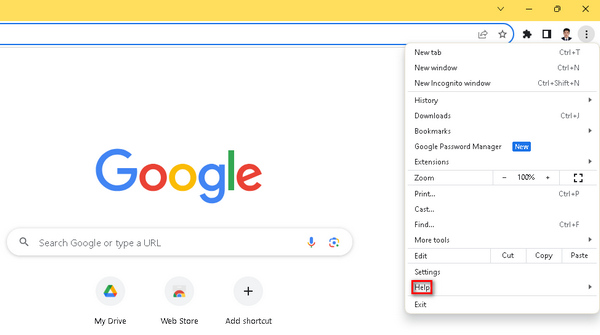
Passaggio 4. Quindi seleziona Informazioni su Google Chrome. Se è disponibile una nuova versione, vedrai l’opzione Aggiorna Google Chrome. In caso contrario, vedrai il pulsante Riavvia.
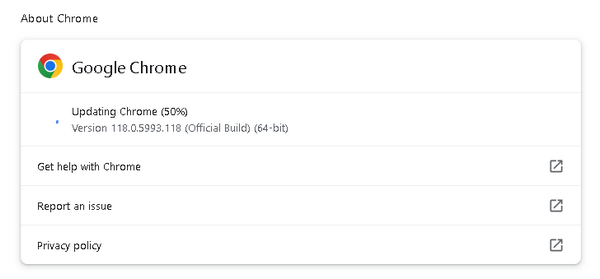
L'aggiornamento di Google Chrome non garantisce la correzione del codice di errore del video HTML5 non trovato. È ancora essenziale considerare la verifica di altri fattori e utilizzare strumenti software per risolverli.
Metodo 2: utilizzare lo strumento di riparazione video
Utilizzare uno strumento video può risolvere in modo efficace l’errore di video HTML5 non trovato. FVC Video Repair, dotato di avanzati algoritmi di intelligenza artificiale, corregge con efficienza i problemi che rendono i video illeggibili in formati come MP4, MOV e 3GP, garantendo risultati di alta qualità. Gli utenti possono visualizzare un’anteprima del video riparato prima di salvarlo, rendendo questo potente strumento una soluzione affidabile per una riproduzione video senza intoppi nei browser web. Inoltre, lo strumento semplifica il processo di troubleshooting, offrendo un modo rapido ed efficace per affrontare i più comuni problemi di riproduzione video e migliorare l’esperienza di visione complessiva. Per usarlo, segui questi passaggi:
Passaggio 1. Per prima cosa scarica il software dal sito ufficiale e installalo sul tuo dispositivo.
Download gratuitoPer Windows 7 o versioni successiveDownload sicuro
Download gratuitoPer macOS 10.7 o versioni successiveDownload sicuro
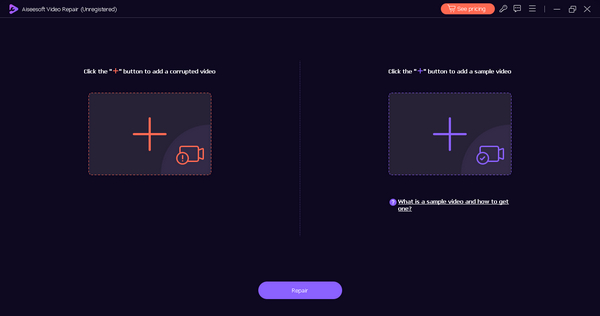
Passaggio 2. Poi avvia lo strumento. Vedrai due pulsanti: sul lato sinistro dello schermo il pulsante Rosso Più e sul lato destro il pulsante Blu Più. Per correggere l’errore di video HTML5 che non viene riprodotto, fai clic sul pulsante rosso più per aggiungere il video e aggiungi il video di esempio facendo clic sul pulsante blu più.
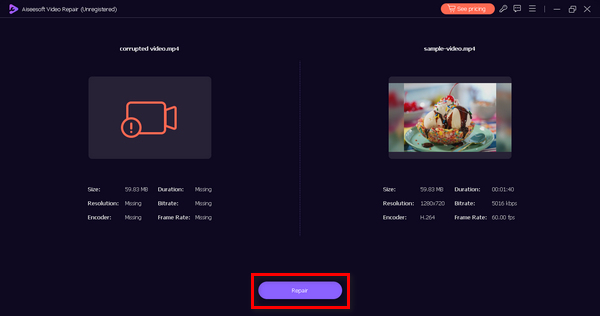
Passaggio 3. Successivamente, fai clic sul pulsante Repair.
Passaggio 4. Infine, fai clic sul pulsante Anteprima per verificare se compare ancora il messaggio video HTML5 non trovato. Se è tutto a posto, potrai quindi salvare il file.
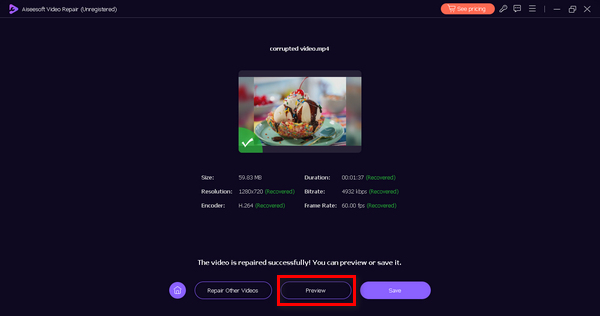
FVC Video Repair è davvero uno strumento versatile. Con le sue ampie capacità di risolvere i problemi video, questo strumento può essere il tuo strumento di riferimento ogni volta che riscontri problemi ed errori con i tuoi video.
Metodo 3: svuotare la cache e i cookie del browser
Svuotare la cache e i cookie del browser è fondamentale per risolvere i problemi di riproduzione dei video HTML5 causati dalla corruzione dei dati. La cache o i cookie danneggiati possono interrompere la funzionalità del sito Web, causando problemi con la riproduzione video. La cache memorizza le risorse del sito Web a lungo termine e i cookie conservano le preferenze dell'utente. Cancellando questi file, elimini i problemi, consentendo al browser di recuperare dati nuovi e privi di errori dal sito Web e di conseguenza risolvere il problema del video HTML5 non trovato. Ecco come pulire la cache e i cookie del browser:
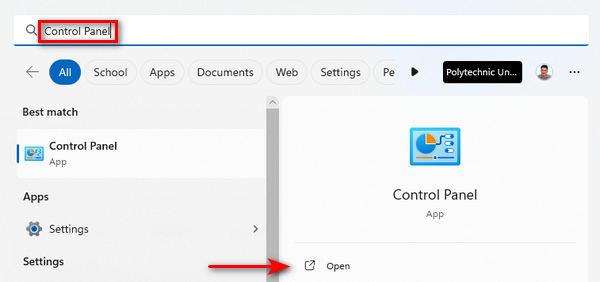
Passaggio 1. Per iniziare, digita Pannello di controllo nella barra di ricerca e aprilo.
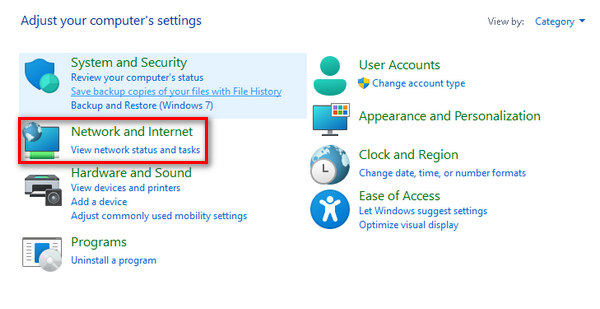
Passaggio 2. All’interno del Pannello di controllo, trova e seleziona le opzioni Rete e Internet.
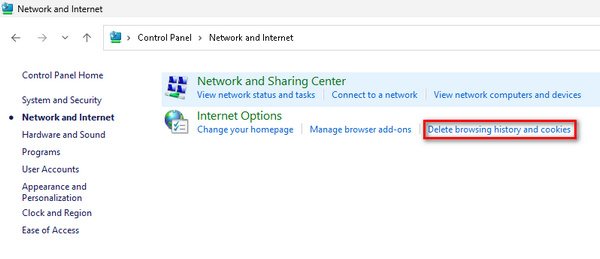
Passaggio 3. Individua Elimina cronologia esplorazioni e cookie e fai clic su di essa.
Passaggio 4. Si aprirà una scheda che ti permetterà di selezionare le voci da eliminare. Dopo averle selezionate, fai clic sul pulsante Elimina per completare il processo.
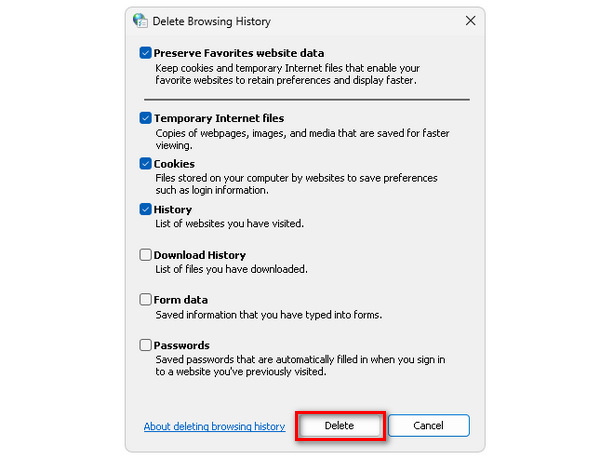
Seguendo questo metodo, non solo previeni il verificarsi degli errori di video HTML5 non trovato, ma anche di altri errori video che creano problemi nei browser. Questa soluzione funziona anche quando il tuo video è bloccato, presenta scatti, o altri difetti.
Parte 3. Domande frequenti sul video HTML5 non trovato
Perché Chrome non riproduce video HTML5?
Chrome potrebbe non riprodurre video HTML5 per diversi motivi, tra cui versioni del browser obsolete, estensioni del browser in conflitto o problemi con il file video o il sito web. Per risolvere il problema, prova ad aggiornare Chrome, a disattivare le estensioni e a verificare eventuali problemi specifici del sito web.
Qual è il video HTML5 che non si trova in Firefox?
Il video HTML5 non trovato in Firefox indica che il browser non è in grado di individuare o riprodurre il video specificato. Le possibili cause includono problemi di compatibilità, problemi di rete o errori con il file video. Per risolvere questo problema, valuta la possibilità di aggiornare Firefox, controllare la connettività di rete o provare una fonte video alternativa.
Come abilito HTML5 in Chrome Android?
L'abilitazione di HTML5 in Chrome su Android è in genere automatica. Tuttavia, puoi garantire il supporto HTML5 mantenendo aggiornata la tua app Chrome tramite Google Play Store. Inoltre, svuotare la cache del browser e svuotare i cookie potrebbe risolvere eventuali problemi relativi alla riproduzione di video HTML5 su Chrome per Android.
Perché i video HTML5 a volte presentano problemi di riproduzione?
I video HTML5 potrebbero presentare problemi di riproduzione dovuti a fattori quali compatibilità del browser, software obsoleto, problemi di rete o errori nel file video. Assicurarti che il browser sia aggiornato, controllare la connettività di rete e verificare l'integrità del file video può aiutare a risolvere i problemi di riproduzione.
Come posso risolvere i problemi dei video HTML5 senza trovare errori sul mio sito web?
Se riscontri errori di video HTML5 non trovato sul tuo sito web, inizia controllando la posizione e l'integrità del file video. Assicurati solo che la cartella del file sia corretta e che il file non sia danneggiato. Inoltre, esamina il codice HTML del tuo sito web per confermare il corretto incorporamento dell'elemento video. Anche i test su browser e dispositivi diversi possono aiutare a identificare e risolvere i problemi di compatibilità.
Conclusione
In realtà risolvere l’errore di video HTML5 non trovato è più semplice di quanto si possa pensare. Che tu stia aggiornando il browser o utilizzando FVC Video Repair, questi semplici passaggi ti permettono di superare qualsiasi interruzione nella riproduzione video. Prendi il controllo, segui queste soluzioni e goditi contenuti video in alta qualità senza interruzioni. Migliora la tua esperienza di intrattenimento in modo semplice grazie a queste efficaci soluzioni!
-
 Cos'è il codice di errore 0xc00d5212 e come risolverlo?
 Se riscontri il codice di errore 0xc00d5212, questa guida fa per te. Seguire questi metodi di risoluzione dei problemi per risolvere l'errore.
-
 Come risolvere rapidamente il codice errore video 23301 [Guida]
 Stai riproducendo un video che improvvisamente mostra "questo file video non può essere riprodotto con codice errore 2330"? Leggi la nostra guida completa per scoprire come risolverlo facilmente.
-
 Codice errore 232011: di cosa si tratta e come risolverlo
 Scopri come risolvere i problemi e risolvere il codice di errore 232011 sul tuo computer con questi suggerimenti semplici ed efficaci. Non lasciare che questo errore interrompa più l'utilizzo del tuo computer!
