


 Video Converter Ultimate
 Screen Recorder
 Riparazione video
 Download sicuro
Acquisisci schermate in VLC Media Player senza sforzo
Acquisire schermate mentre si guardano video è un modo pratico per conservare momenti memorabili o estrarre informazioni utili. Diventa un modo per fissare in un’immagine un preciso istante del video per preservarlo. VLC Media Player è un lettore multimediale facile da usare, disponibile per Windows, macOS e Linux. VLC offre una funzione integrata per catturare fotogrammi con precisione. A differenza di molti altri lettori multimediali, VLC semplifica il processo, richiedendo solo pochi clic o combinazioni di tasti per ottenere l’immagine desiderata. Padroneggiando questa funzione, gli utenti possono creare rapidamente una raccolta di istantanee tratte dai loro video preferiti. In questo articolo vedremo passo dopo passo come fare screenshot con VLC, per aiutare gli utenti a sfruttare al meglio le capacità di cattura schermo di VLC Media Player e arricchire con facilità la propria esperienza multimediale. Continua a leggere per scoprire come acquisire schermate tramite scorciatoie da tastiera e menu, i punti di forza e i limiti di VLC e alcuni software alternativi.

Parte 1. Come acquisire uno screenshot in VLC
Acquisire screenshot in VLC Media Player è facile da eseguire utilizzando i tasti di scelta rapida o le opzioni del menu. Puoi utilizzare entrambi i metodi per acquisire fotogrammi dai tuoi video senza sforzo. Basta premere pochi tasti per catturare e salvare istantanee dei tuoi momenti preferiti. La versatile funzione screenshot di VLC migliora la tua esperienza multimediale, permettendoti di conservare scene memorabili con facilità.
Passaggi per acquisire screenshot in VLC tramite tasti di scelta rapida:
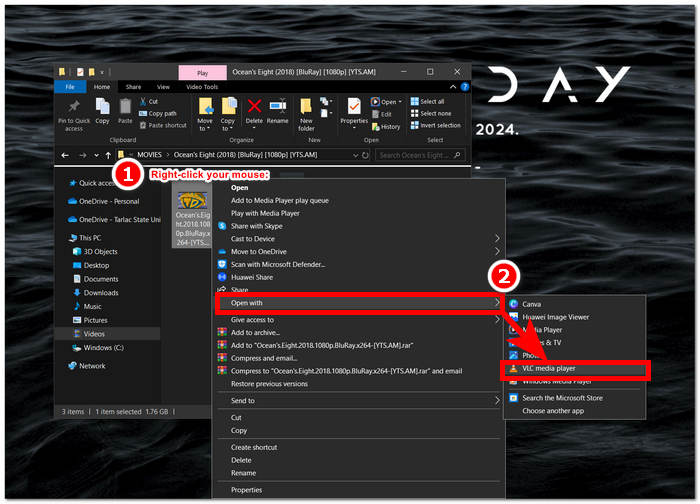
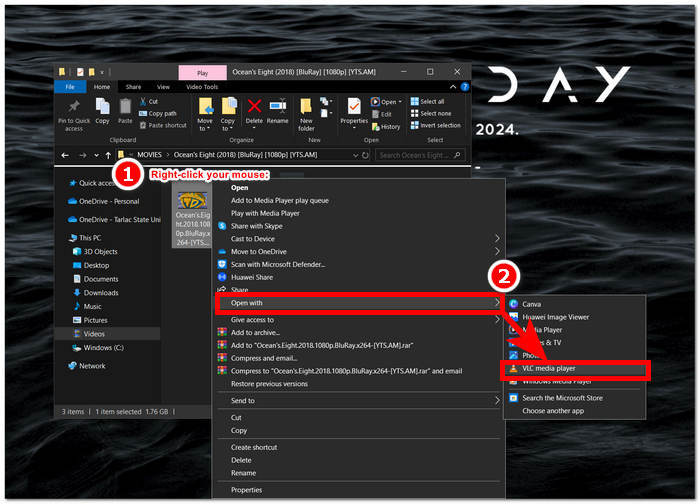
Passaggio 1. Apri il video dal desktop facendo clic con il tasto destro del mouse e scegliendo VLC Media Player.
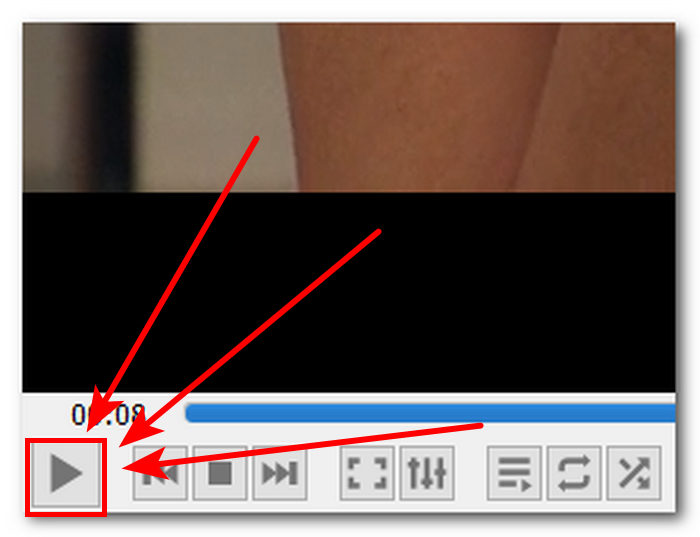
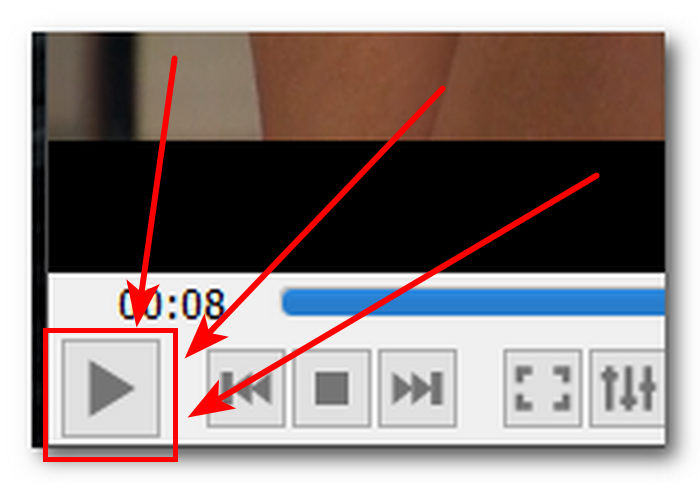
Passaggio 2. Riproduci il video o vai al punto in cui desideri fare lo screenshot e fai clic sul pulsante Pausa.
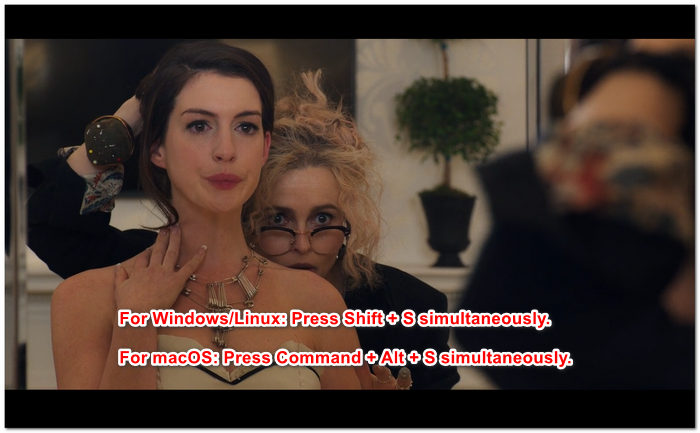
Passaggio 3. Per fare uno screenshot usando i tasti di scelta rapida su Windows/Linux, premi contemporaneamente Shift + S, mentre su macOS premi Command + Alt + S contemporaneamente.
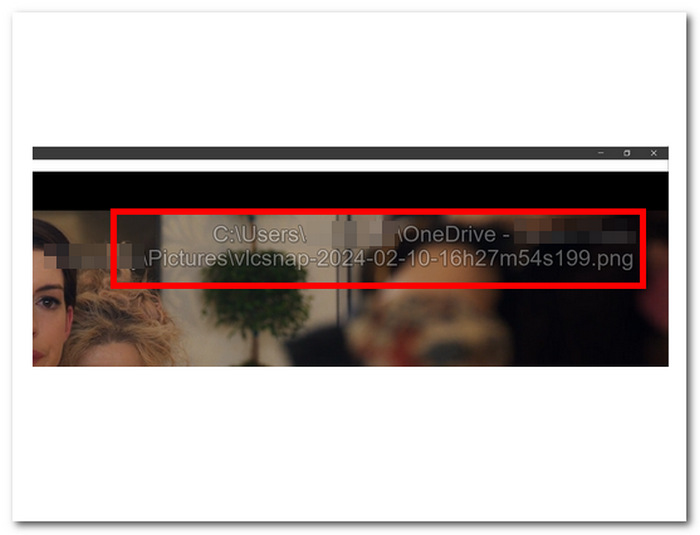
Passaggio 4. Dopo aver premuto i tasti di scelta rapida, nell’angolo destro dello schermo comparirà un testo che indica il percorso della cartella screenshot di VLC. Seguilo e potrai visualizzare tutte le tue schermate.
Passaggi per acquisire screenshot in VLC tramite il menu:
Passaggio 1. Individua e apri il tuo video usando VLC Media Player sul desktop.
Passaggio 2. Fai clic sul pulsante Pausa situato in basso a sinistra per fermarti al punto in cui vuoi fare lo screenshot.
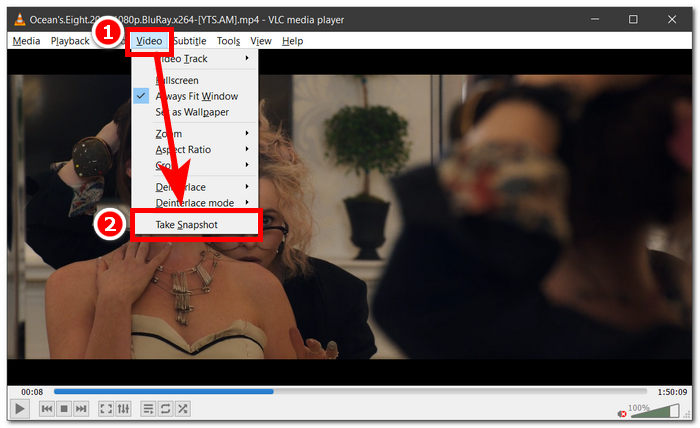
Passaggio 3. Una volta messo in pausa il video, fai clic su Video nelle impostazioni, situato nell’angolo in alto a sinistra del lettore multimediale.
Passaggio 4. Trova la voce Cattura schermata nelle impostazioni e fai clic per acquisire uno screenshot del video.
Non importa quale metodo scegli, perché VLC ti permette di fare screenshot con facilità, consentendo agli utenti di salvare i loro momenti preferiti dai video con il minimo sforzo. Che tu preferisca usare le scorciatoie da tastiera di VLC per gli screenshot o le opzioni del menu, VLC garantisce un’esperienza fluida nella cattura delle istantanee.
Parte 2. I punti di forza e i limiti di VLC Screenshot
Gli screenshot VLC offrono innegabilmente due modi per eseguire lo screenshot di qualsiasi tipo di video riprodotto nel lettore multimediale VLC. VLC Media Player brilla nei suoi punti di forza e potrebbe far dubitare gli utenti dei suoi limiti. Pertanto, abbiamo elencato di seguito alcuni dei punti di forza e dei limiti di VLC Media Player.
Punti di forza degli screenshot con VLC:
◆ Viene fornita un'interfaccia facile da usare e subito disponibile per l'acquisizione di istantanee.
◆ Sono disponibili sia i tasti di scelta rapida che le opzioni di menu per una maggiore comodità.
◆ Sono disponibili impostazioni personalizzabili per regolare il formato e la qualità dell'immagine.
◆ Conserva facilmente i momenti preferiti e migliora l'esperienza multimediale.
Limiti degli screenshot con VLC:
◆ Non sono disponibili strumenti di modifica avanzati per perfezionare le immagini catturate.
◆ Il software di screenshot dedicato può offrire un livello di precisione più elevato rispetto a questo strumento.
◆ Non è possibile acquisire screenshot di DVD o dischi Blu-ray crittografati a causa della protezione del copyright.
◆ Rispetto agli strumenti specializzati per screenshot, il controllo e la personalizzazione sono limitati.
◆ Per esigenze di modifica più complesse, gli utenti potrebbero dover utilizzare software esterno.
◆ Questo strumento è adatto principalmente per i requisiti di base degli screenshot e per attività di modifica non avanzate.
Lo screenshot di VLC Media Player potrebbe aver intrapreso il percorso semplicemente prendendo uno screenshot e non includendo altre funzionalità di cui un utente potrebbe aver bisogno per un altro scopo. Tieni presente che VLC Media Player è un lettore video e non uno strumento software per screenshot. Ecco perché uno screenshot di base è ciò che fa.
Parte 3. Migliore alternativa allo screenshot di VLC
Screen Recorder è un software che permette agli utenti di acquisire schermate dei fotogrammi preferiti di un video. Il programma include funzionalità avanzate e può essere utilizzato come Video Recorder, Audio Recorder e Game Recorder. Questo strumento offre eccellenti capacità di registrazione dello schermo e di screenshot, accessibili sia su computer Windows che Mac. In quanto software potente, mette a disposizione funzioni che vanno oltre le possibilità degli screenshot con VLC Media Player. Funzioni come la Scrolling Window, che consente di catturare in un’unica immagine un post molto lungo (ideale per chi legge siti web e documenti), e la Popup Menu Capture, che permette di acquisire senza difficoltà le finestre di qualsiasi menu.
Passaggio 1. Vai al sito di Screen Recorder per scaricare e installare il software.
Download gratuitoPer Windows 7 o versioni successiveDownload sicuro
Download gratuitoPer macOS 10.7 o versioni successiveDownload sicuro
Passaggio 2. Una volta terminata l’installazione, avvia l’applicazione dal desktop.
Passaggio 3. Nell’interfaccia del programma, fai clic sul pulsante Snapshot per catturare uno screenshot dello schermo.
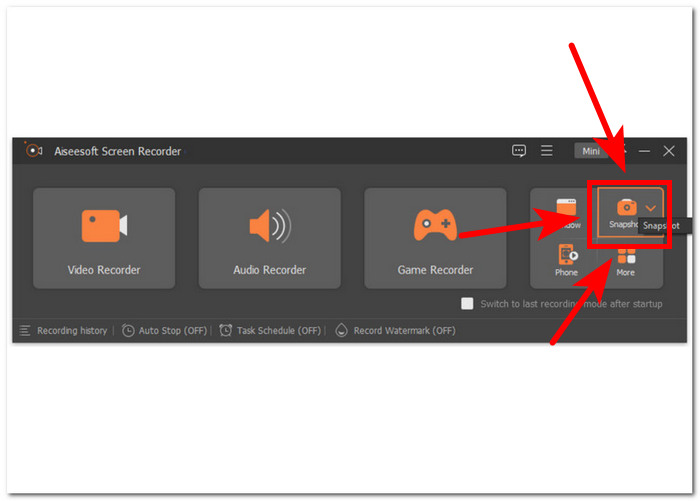
Passaggio 4. Hai la possibilità di scegliere l’area di cattura che preferisci, che si tratti di una finestra attiva o di un’area libera. Una volta selezionata l’area, puoi fare clic su Save per salvare l’istantanea in un formato immagine adatto.
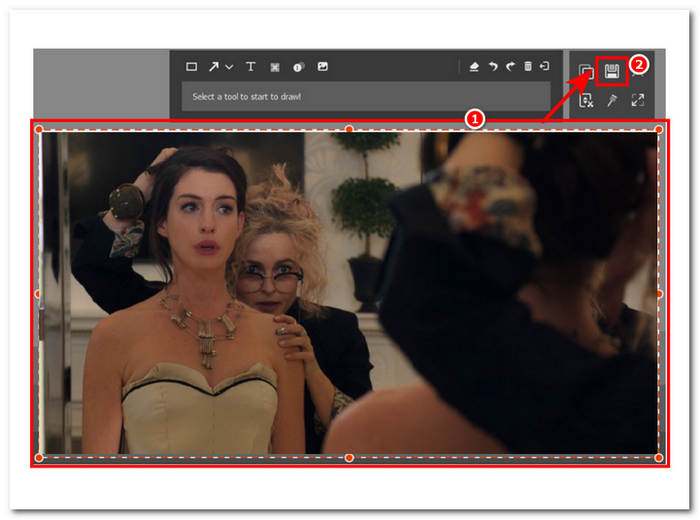
In conclusione, Aiseesoft Screen Recorder è un software versatile quando si considerano attività come la registrazione dello schermo e gli screenshot allo stesso tempo. VLC Media Player e Aiseesoft Screen Recorder offrono il controllo dei tasti di scelta rapida per acquisire facilmente uno screenshot semplicemente utilizzando la tastiera. Entrambi offrono ottimi risultati in termini di acquisizione di uno screenshot, ma Aiseesoft Screen Recorder è molto più che semplice acquisizione di uno screenshot, come dimostra le sue funzionalità presenti nel software.
Parte 4. Domande frequenti su come acquisire screenshot in VLC Media Player
Dov'è la posizione predefinita per gli screenshot di VLC?
Lo screenshot di VLC salva la posizione per impostazione predefinita nella cartella Immagini sul tuo computer. Per modificarlo, vai su Strumenti > Preferenze > Video e scegli una nuova cartella nella directory Istantanee video.
Posso catturare più screenshot di seguito?
Sì, puoi acquisire più screenshot ripetendo la procedura per ogni fotogramma desiderato. Tuttavia, non esiste una funzionalità integrata per acquisire automaticamente più screenshot a intervalli specificati.
VLC supporta l'acquisizione di screenshot di video in streaming?
Sì, puoi acquisire screenshot di video in streaming in VLC Media Player utilizzando lo stesso metodo descritto sopra. Basta mettere in pausa il video nel momento desiderato e scattare un'istantanea. Ricorda però che la qualità dello screenshot può dipendere dalla fonte di streaming e dalla velocità della tua connessione Internet.
Ci sono limitazioni all'acquisizione di screenshot in VLC Media Player?
Una limitazione è che non è possibile acquisire screenshot di DVD o dischi Blu-ray crittografati a causa delle misure di protezione del copyright. Inoltre, la funzione screenshot di VLC potrebbe non funzionare correttamente con alcuni codec video o sorgenti di streaming, causando potenziali problemi di compatibilità.
Posso acquisire screenshot di video in modalità a schermo intero?
Sì, puoi acquisire screenshot dei video mentre vengono riprodotti in modalità a schermo intero in VLC Media Player. Premi semplicemente Maiusc + S sulla tastiera o vai su video > Scatta istantanea dalla barra dei menu mentre il video è in modalità a schermo intero. Ciò consente di acquisire schermate di fotogrammi specifici senza uscire dalla riproduzione a schermo intero.
Conclusione
In conclusione, acquisire screenshot in VLC Media Player è un modo semplice per conservare momenti memorabili o estrarre informazioni importanti dai video. L’interfaccia intuitiva di VLC lo rende un lettore multimediale molto apprezzato dagli utenti di diverse piattaforme. Sia utilizzando le scorciatoie da tastiera che le opzioni di menu, VLC semplifica il processo, permettendo di catturare e salvare senza sforzo le scene preferite. Tuttavia, per chi cerca funzioni più avanzate, come l’editing preciso o la cattura di finestre a scorrimento, software alternativi come Aiseesoft Screen Recorder offrono una soluzione completa. Conoscendo i punti di forza, i limiti e le alternative agli screenshot con VLC, gli utenti possono migliorare la loro esperienza multimediale e gestire in modo efficiente le proprie esigenze di cattura schermo.
-
 Come acquisire facilmente schermate a scorrimento in Windows 10/11
 Sfrutta tutto il potenziale dell'acquisizione dello schermo imparando a usare gli screenshot a scorrimento su Windows 10/11. Scopri questi utili software ed estensioni web da utilizzare.
-
 Come acquisire schermate scorrevoli su Mac in pochi minuti
 Non accontentarti di acquisizioni parziali! Scopri i semplici passaggi per acquisire schermate scorrevoli su Mac. Cattura intere pagine Web o documenti con facilità in pochissimo tempo.
-
 Come eseguire screenshot in Windows Media Player in modo efficiente
 Scopri i metodi più semplici per acquisire screenshot in Windows Media Player senza sforzo. Migliora la tua esperienza di acquisizione dello schermo con la nostra guida completa.
