


 Video Converter Ultimate
 Screen Recorder
 Riparazione video
 Download sicuro
4 modi per acquisire lo schermo in Windows Media Player
Windows Media Player è un lettore molto diffuso che ti consente di visualizzare ogni tipo di contenuto multimediale. Il player include funzioni come la visualizzazione di foto, la riproduzione di musica, la visione di video e l’organizzazione della libreria musicale. L’uso di Windows Media Player aiuta gli utenti a svolgere tutte le attività legate ai media e, in questo articolo, approfondiamo come acquisire schermate in Windows Media Player. Riprodurre una scena memorabile di un film, un estratto di un tutorial o un momento divertente con il lettore ti permette di avere la libertà di catturare schermate e salvarle quando ti è più comodo. Tuttavia, molti utenti potrebbero non conoscere gli strumenti integrati e le tecniche disponibili per catturare schermate all’interno di questo versatile player. Prosegui fino alla fine di questo articolo per scoprire quattro metodi semplici ed efficaci per acquisire schermate in Windows Media Player, che includono l’uso di software, tasti di scelta rapida, lo Strumento di cattura e uno strumento integrato, così da permetterti di catturare quei momenti con facilità.

Parte 1. Come acquisire uno screenshot in Windows Media Player
Catturare una schermata in Windows Media Player è semplice e non dovrebbe portarti via molto tempo, né per farlo né per imparare a farlo. Esistono moltissimi modi per procedere e il metodo consigliato per catturare schermate dei lettori multimediali in Windows 11 o versioni precedenti è l’uso di strumenti software come il Screen Recorder selezionato da FVC. Questo software è uno strumento versatile progettato per soddisfare l’esigenza di catturare lo schermo di ogni tipo di contenuto multimediale, in particolare in Windows Media Player. Con questo software, gli utenti possono svolgere attività sullo schermo e registrare video, audio e giochi in un unico ambiente, a differenza di altri strumenti che si concentrano su una sola funzione specifica. Inoltre, questo software offre funzionalità intuitive che fanno risparmiare tempo. I suoi strumenti di modifica rendono semplice per gli utenti modificare le schermate nel momento stesso in cui le catturano.
Passaggio 1. Inizia scaricando e installando questo strumento di cattura schermate sul tuo computer. Una volta completato il processo di installazione, apri il software.
Download gratuitoPer Windows 7 o versioni successiveDownload sicuro
Download gratuitoPer macOS 10.7 o versioni successiveDownload sicuro
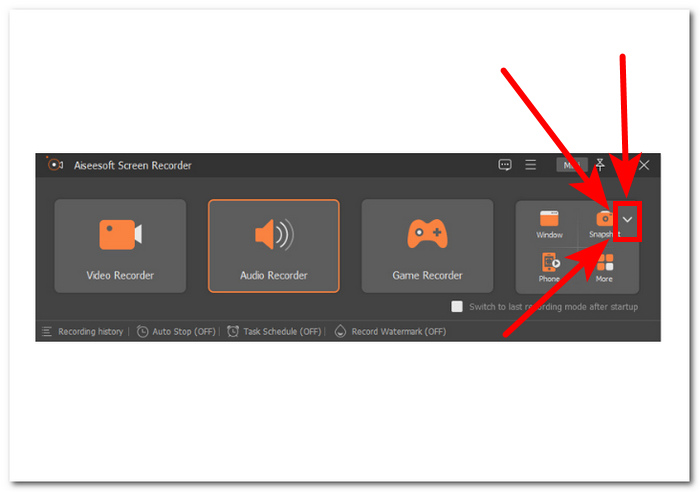
Passaggio 2. Una volta aperto il software, vedrai un’icona con un pulsante a freccia verso il basso Snapshot situato sul lato destro. Fai clic su questo pulsante per procedere.
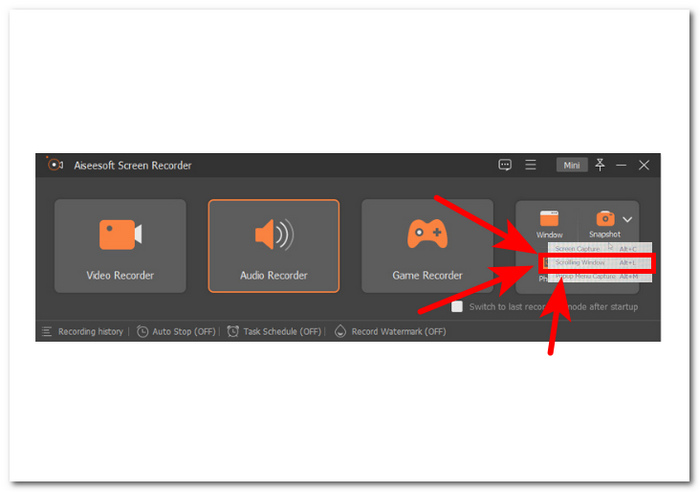
Passaggio 3. Seleziona l’opzione Scrolling Window dal menu a discesa. In alternativa, puoi usare la scorciatoia Alt+L sulla tastiera.
Passaggio 4. Con l’opzione Scrolling Window selezionata, il software acquisirà automaticamente una schermata. Ora puoi scorrere verso il basso per catturare tutte le informazioni di cui hai bisogno. Il software catturerà l’intera lunghezza della pagina o del documento, permettendoti di salvarla o condividerla secondo le tue esigenze.
Screen Recorder consigliato da FVC è uno strumento affidabile che può essere utilizzato per acquisire uno screenshot di un video su Windows Media Player. Questo software è disponibile gratuitamente sia su dispositivi Mac che Windows, garantendo un'ampia base di utenti. Con la sua varietà di funzionalità di registrazione e acquisizione dello schermo, questo strumento di screenshot è perfetto per chiunque abbia bisogno di uno strumento affidabile e multiuso per acquisire lo schermo del proprio computer.
Parte 2. Screenshot in Windows Media Player con scorciatoie di Windows
Se utilizzi Windows Media Player e devi acquisire uno screenshot, non è necessario scaricare strumenti di terze parti. Per acquisire immagini da un video Windows Media Player, puoi utilizzare i tasti di scelta rapida per acquisire rapidamente e facilmente uno screenshot del video che stai guardando. Questo può essere un ottimo modo per acquisire un'immagine fissa da un video per riferimento o condivisione con altri. Utilizza semplicemente i tasti di scelta rapida appropriati e lo screenshot verrà salvato per un facile trasferimento al software di modifica di documenti o immagini.
Passaggio 1. Per iniziare, avvia Windows Media Player sul tuo computer. Seleziona il video di cui vuoi acquisire una schermata.
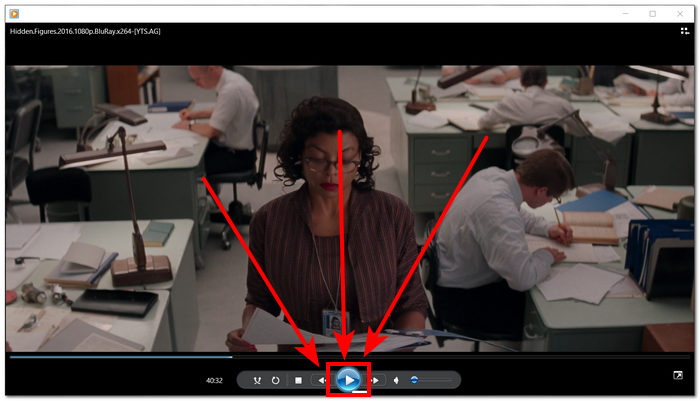
Passaggio 2. Quando arrivi all’esatto fotogramma del video che vuoi catturare come schermata, metti in pausa il video facendo clic sul pulsante Pausa.
Passaggio 3. Cerca il tasto PrtScn sulla tastiera e premilo. In questo modo verrà catturata la schermata e salvata come file immagine. (Come fare uno screenshot senza PrtSc?)
Passaggio 4. La schermata viene salvata automaticamente nella posizione di archiviazione predefinita del tuo computer. Per trovarla, cerca una finestra a comparsa con il messaggio screenshot salvato.
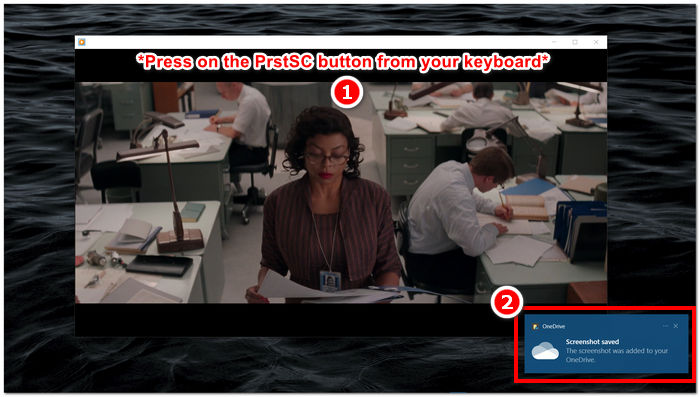
Quando si acquisisce uno screenshot in Windows Media Player, l'utilizzo dei tasti di scelta rapida può far risparmiare tempo agli utenti ed eliminare la necessità di utilizzare uno strumento. Sebbene questo metodo sia efficiente e vantaggioso per chi ha fretta, è importante notare che non consente alcuna modifica dello screenshot.
Parte 3. Come acquisire uno screenshot in Windows Media Player con lo strumento di cattura
Se desideri catturare uno screenshot durante la riproduzione di un video su Windows Media Player, puoi farlo facilmente senza dover installare alcun software aggiuntivo. Lo strumento di cattura di Windows, già integrato in tutti i dispositivi Windows, può essere utilizzato per acquisire screenshot di qualsiasi parte dello schermo, inclusa la finestra di riproduzione video sul lettore multimediale. Questa funzionalità può tornare utile se è necessario acquisire rapidamente un'immagine fissa da un video a scopo di riferimento o di condivisione.
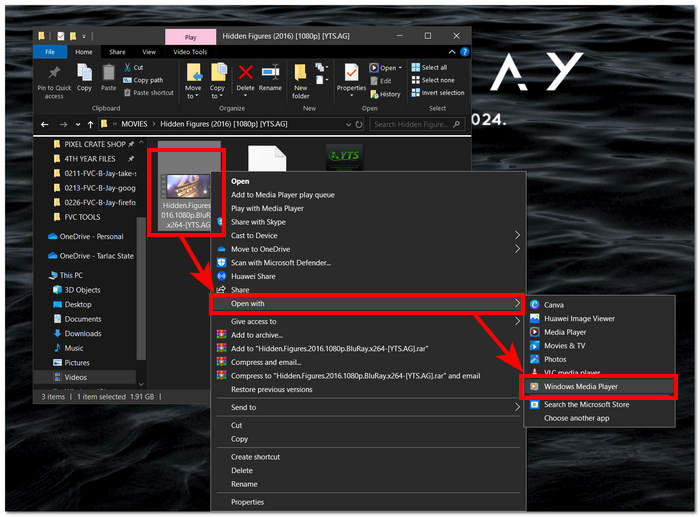
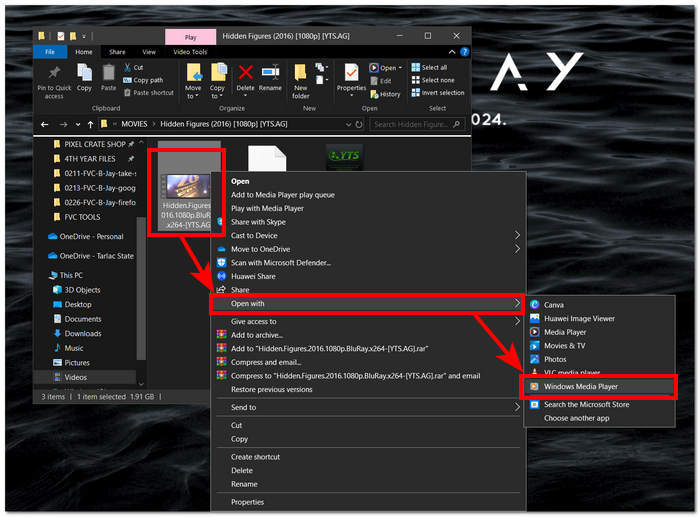
Passaggio 1. Apri con Windows Media Player il video di cui vuoi catturare una schermata.
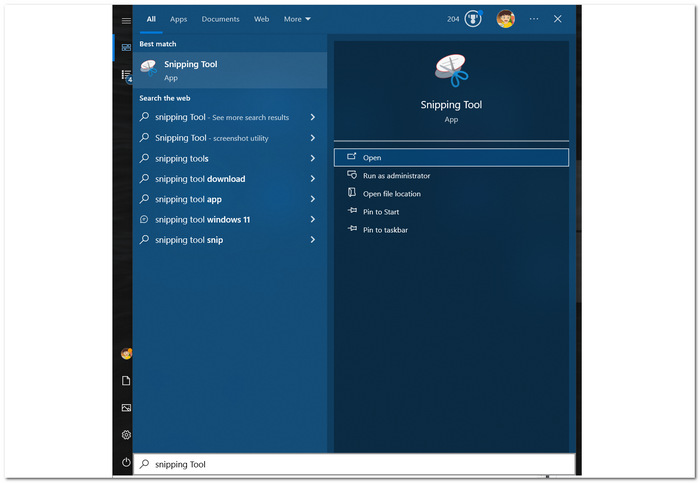
Passaggio 2. Trova lo Strumento di cattura (Snipping Tool) sul tuo dispositivo Windows cercandolo nel menu Start e poi aprilo.
Passaggio 3. Nella sua interfaccia, fai clic su Ritaglio finestra (Window Snip) nella sezione Modalità, quindi seleziona manualmente l’area di cui vuoi catturare la schermata.
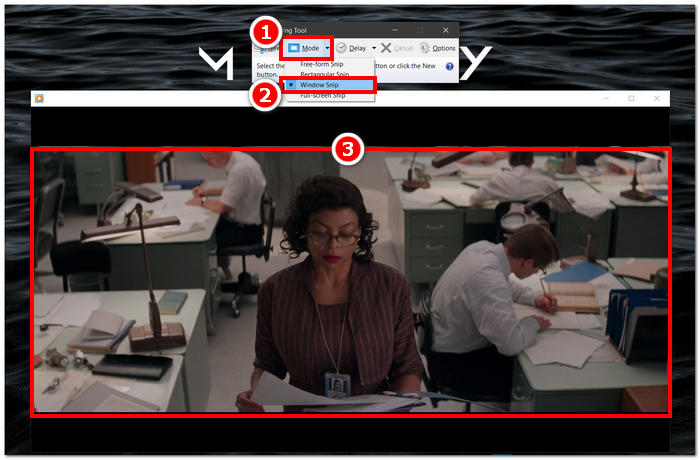
Passaggio 4. Dopo aver fatto clic sull’area, si aprirà una nuova finestra che ti permetterà di annotare e salvare l’immagine sul tuo computer.
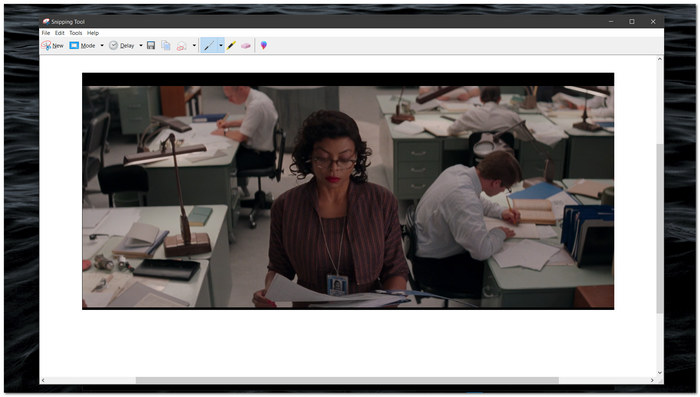
Catturare screenshot mentre guardi video in Windows Media Player è semplice, grazie alle funzionalità native dello Strumento di cattura di Windows. Sfruttando lo strumento di cattura di Windows, gli utenti possono migliorare la propria esperienza multimediale e semplificare il processo di acquisizione e condivisione dei contenuti senza problemi.
Parte 4. Come acquisire uno screenshot in Windows Media Player con il suo strumento integrato
Windows Media Player non è dotato di una funzionalità integrata, pertanto non consente agli utenti di acquisire screenshot all'interno del lettore. Tuttavia, esiste ancora un tasto di scelta rapida che può essere utilizzato, oltre a quelli sopra menzionati, per acquisire schermate in Windows Media Player.
Passaggio 1. Per catturare una schermata di un video in riproduzione in Windows Media Player, apri prima il video nel player.
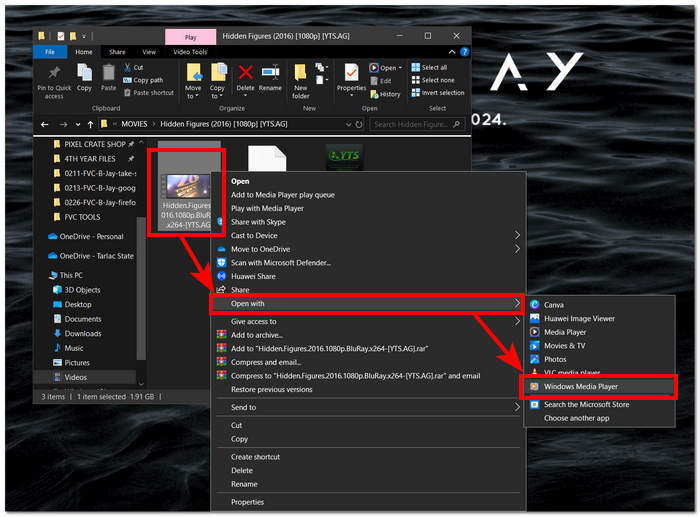
Passaggio 2. Devi innanzitutto mettere in Pausa il player esattamente nel momento che desideri catturare.
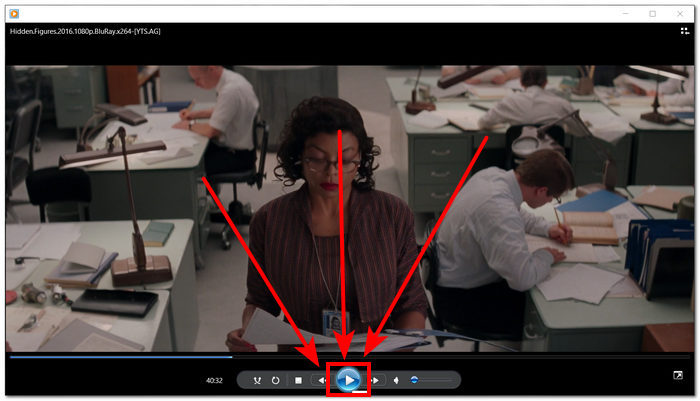
Passaggio 3. Per catturare una schermata di un video in pausa sul tuo computer, puoi usare la combinazione di tasti Logo Windows + Shift + S sulla tastiera.
Passaggio 4. Dopo aver selezionato manualmente la parte che vuoi catturare, l’immagine verrà salvata automaticamente negli appunti. Potrai utilizzarla facilmente incollandola nell’e‑mail, nella piattaforma di messaggistica o nell’app per appunti che preferisci.
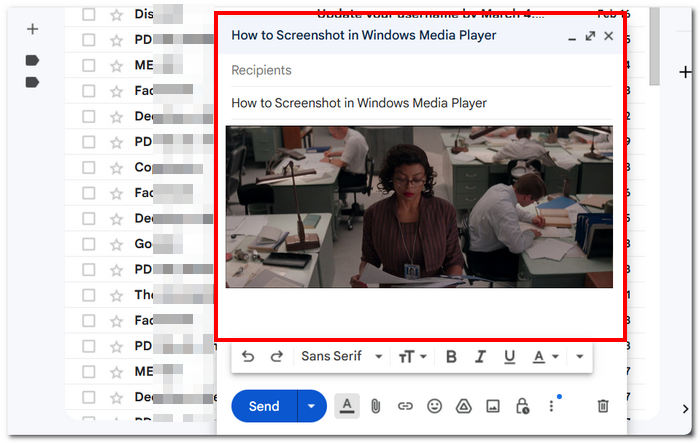
Windows Media Player potrebbe non avere una funzionalità integrata per acquisire screenshot. Tuttavia, a differenza dello screenshot di VLC, si tratta comunque di un lettore multimediale affidabile e potente, considerando che è gratuito e preinstallato sul tuo dispositivo.
Parte 5. Domande frequenti su come eseguire lo screenshot in Windows Media Player
Posso acquisire screenshot in Windows Media Player senza utilizzare software aggiuntivo?
È possibile acquisire screenshot in Windows Media Player senza software aggiuntivo. Windows dispone di uno strumento integrato chiamato Strumento di cattura che ti consente di acquisire screenshot di qualsiasi parte dello schermo, inclusa la finestra di riproduzione video in Windows Media Player.
Posso personalizzare le impostazioni dello Strumento di cattura per ottenere screenshot migliori?
Lo Strumento di cattura offre impostazioni personalizzabili come la modalità predefinita (ad esempio, cattura rettangolare, cattura in formato libero), ritardo prima dell'acquisizione e formato in cui vengono salvati gli screenshot (ad esempio, PNG, JPEG).
Esiste un modo più veloce per acquisire screenshot in Windows Media Player?
Sono disponibili strumenti di screenshot di terze parti che offrono funzionalità più avanzate e metodi più rapidi per acquisire screenshot. Se hai spesso bisogno di acquisire screenshot mentre utilizzi Windows Media Player, puoi esplorare queste opzioni.
Posso acquisire screenshot dei video riprodotti in modalità a schermo intero?
Sì, è possibile utilizzare lo Strumento di cattura per acquisire screenshot anche durante la riproduzione dei video in modalità a schermo intero. Passa semplicemente allo Strumento di cattura e cattura l'area desiderata dello schermo contenente il video.
Qual è il metodo consigliato per acquisire screenshot di alta qualità in Windows Media Player?
Il metodo consigliato per acquisire screenshot di alta qualità in Windows Media Player è utilizzare il metodo software. Questo strumento consente agli utenti di selezionare e catturare aree specifiche dello schermo, inclusa la finestra di riproduzione video, garantendo chiarezza e precisione nello screenshot. Sfruttando le funzionalità dello strumento software, gli utenti possono acquisire facilmente screenshot nitidi e dettagliati senza la necessità di software di terze parti.
Conclusione
Abbiamo esaminato i vari metodi per catturare schermate in Windows Media Player, che vanno dalle soluzioni basate su software agli strumenti integrati come lo Strumento di cattura e i tasti di scelta rapida. Queste tecniche sono alla portata di tutti e permettono agli utenti di conservare e condividere con facilità i momenti significativi delle proprie esperienze multimediali. Con le funzionalità illustrate in questo articolo, gli utenti possono integrare senza problemi l’acquisizione di schermate nell’uso di Windows Media Player e migliorare le proprie interazioni con i contenuti multimediali.
-
 Come acquisire schermate scorrevoli su Firefox senza sforzo
 Impara a scorrere gli screenshot su Firefox per acquisire istantaneamente intere pagine Web. Segui il nostro semplice tutorial passo passo per imparare come utilizzare questa funzione.
-
 Come fare screenshot su Samsung S23 sul palmo della tua mano
 Tutte le cose che devi sapere su come acquisire screenshot su Samsung S23, massimizzando le funzionalità del dispositivo di punta per un'esperienza di acquisizione dello schermo senza interruzioni.
-
 Come eseguire screenshot in Windows Media Player in modo efficiente
 Scopri i metodi più semplici per acquisire screenshot in Windows Media Player senza sforzo. Migliora la tua esperienza di acquisizione dello schermo con la nostra guida completa.
