


 Video Converter Ultimate
 Screen Recorder
 Riparazione video
 Download sicuro
Converti il tuo PPT in MP4 con 3 metodi efficaci
PPT è un ottimo strumento quando si tratta di fare presentazioni, sia a scuola, al lavoro, ecc. A volte, dopo una presentazione, alcuni potrebbero chiedere una copia del materiale PPT come riferimento.
Tuttavia, è importante riconoscere che alcune persone non possono accedere al file perché non hanno l'applicazione o lo strumento software installato sui loro dispositivi. Con questo, la maggior parte dei relatori ha una versione MP4 convertita della presentazione per condividere facilmente il materiale con tutti.
Quindi, se stai cercando un modo per convertire il tuo PPT in MP4 per condividere velocemente il file e renderne i contenuti facilmente accessibili, sei sulla pagina giusta. Continua quindi a leggere questo articolo e immergiti nell’apprendimento dei 3 diversi metodi con cui puoi trasformare il tuo file PPT in un video.

Parte 1: Come convertire PowerPoint in MP4 all'interno di PPT
Utilizzando la presentazione PowerPoint, gli utenti possono convertire facilmente il loro PPT in MP4. È una fantastica funzionalità integrata per praticità e flessibilità.
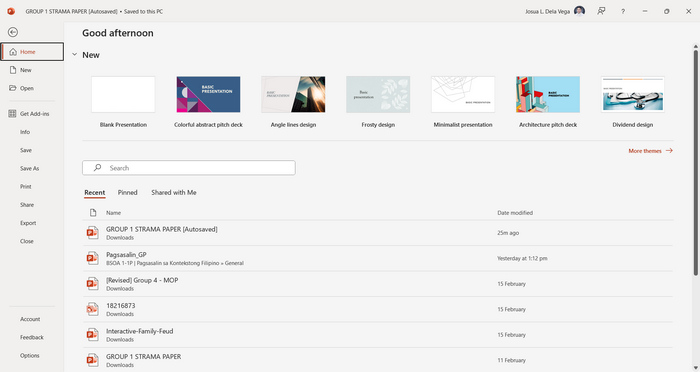
Passaggio 1. Apri la presentazione utilizzando il software PowerPoint sul tuo dispositivo.
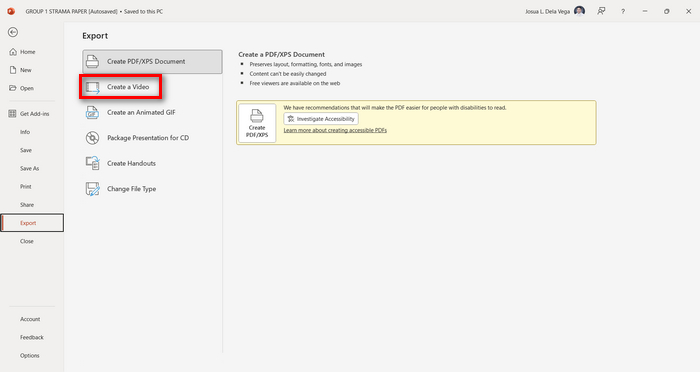
Passaggio 2. Vai alla scheda File, cerca il pulsante Esporta e cliccaci sopra.
Passaggio 3. Una volta nella scheda Esporta, fai clic sull’opzione Crea video.
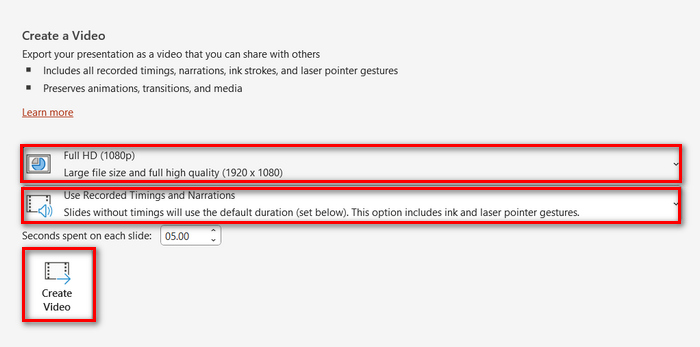
Passaggio 4. Ora imposta la risoluzione video che preferisci. Puoi scegliere tra 480p e 4K. Inoltre, nell’opzione Usa tempi e narrazioni registrati, puoi impostare manualmente la durata delle diapositive. Fatto ciò, clicca sul pulsante Crea video.
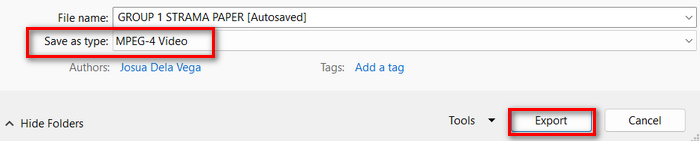
Passaggio 5. Dopo aver cliccato sul pulsante Crea video, si aprirà una nuova finestra in cui puoi controllare il formato del file in uscita e la cartella in cui desideri salvarlo. Una volta impostato tutto, clicca semplicemente sul pulsante Esporta e attendi il completamento dell’operazione.
È sicuramente comodo convertire PowerPoint in MP4 utilizzando la funzione integrata. Tuttavia, manca di opzioni di personalizzazione se vuoi aggiungere della musica di sottofondo. Ciononostante, se il tuo obiettivo è solo la condivisione, allora questo non rappresenta un problema per te.
Parte 2: Convertire PPT in MP4 con audio online gratis
Se hai il file PPT e vuoi convertirlo online, dato che non hai un'app o uno strumento software per presentazioni PowerPoint sul tuo dispositivo, puoi usare MagicSlides. Questo strumento di conversione online ti consente di convertire facilmente PowerPoint in MP4 semplicemente importando il file nel loro sistema.
Passaggio 1. Carica il file PPT che vuoi convertire in MP4 cliccando sul pulsante Carica il file sorgente.
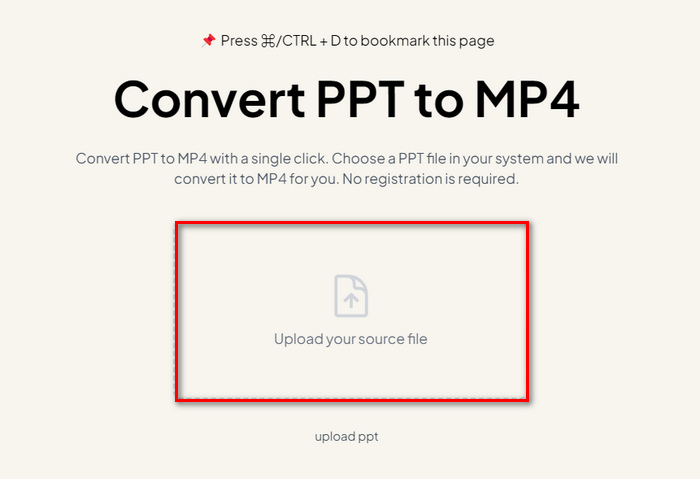
Passaggio 2. Una volta importato il file, fai clic sul pulsante Crea MP4 per avviare il processo di conversione.
Passaggio 3. Quando la conversione è terminata, puoi prima visualizzare in anteprima il file PPT convertito e, quando sei soddisfatto del risultato, clicca semplicemente sul pulsante Download per salvarlo direttamente sul tuo dispositivo.
Sebbene questo strumento offra passaggi molto semplici per convertire PPT in MP4, importare file PPT richiede molto tempo, il che può essere inquietante, soprattutto quando si ha fretta. Inoltre, non ha opzioni di personalizzazione. Ha semplicemente trasformato i file PPT in un video.
Parte 3: Come convertire PPT in MP4 con effetti e audio
Se vuoi convertire il tuo PPT in MP4, ma questa volta con effetti e audio, allora questa soluzione fa decisamente al caso tuo. Con FVC Screen Recorder puoi trasformare la tua presentazione PowerPoint in un file MP4 creativo e interattivo sfruttando le sue funzioni di editing. Inoltre, non devi preoccuparti della qualità del risultato, poiché supporta una risoluzione video fino a 4K. Per utilizzarlo, segui la guida qui sotto:
Passaggio 1. Per prima cosa, scarica il software e installalo sul tuo computer.
Download gratuitoPer Windows 7 o versioni successiveDownload sicuro
Download gratuitoPer macOS 10.7 o versioni successiveDownload sicuro
Passaggio 2. Apri la tua presentazione PowerPoint e assicurati che sia visualizzata a schermo intero.
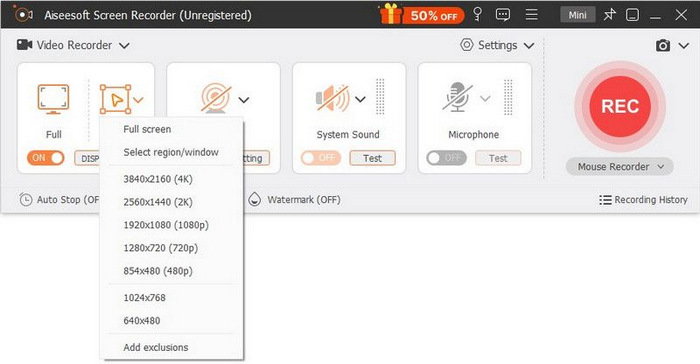
Passaggio 3. Ora, nello strumento di registrazione dello schermo, scegli la funzione Registratore video e imposta l’area di registrazione su Schermo intero.
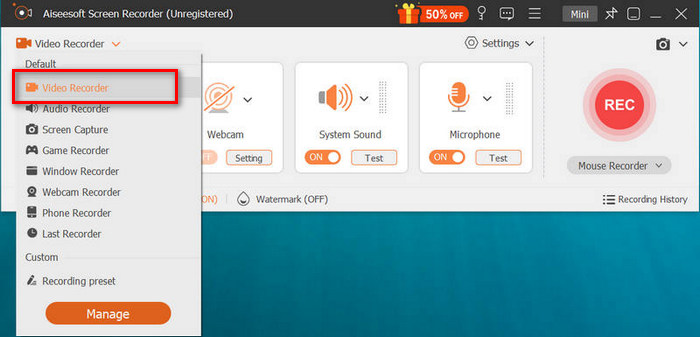
Passaggio 4. Dopodiché, avvia la riproduzione della presentazione di diapositive di PowerPoint. Allo stesso modo, fai clic sul pulsante REC per iniziare a registrare la presentazione.
Passaggio 5. Quando hai finito, fai clic sul pulsante Stop, che ti porterà all’interfaccia di anteprima. Da lì, nell’angolo in basso puoi trovare le funzioni di editing che puoi utilizzare per modificare audio ed effetti durante la conversione del tuo PPT in MP4.

Passaggio 6. Infine, puoi accedere al tuo file cliccando sul pulsante Apri cartella.
Il bello di usare FVC Screen Recorder per convertire PowerPoint in MP4 è che puoi prendere il controllo della tempistica e del ritmo delle diapositive. Inoltre, a differenza di altri strumenti che offrono solo una conversione di base, questo strumento ha delle funzionalità di modifica che possono essere usate per migliorare ulteriormente il file MP4 convertito.
Parte 4: Domande frequenti sulla conversione da PPT a MP4
Quanto tempo ci vuole per convertire PPT in MP4?
Il tempo del processo di conversione dipende dalla dimensione del file da convertire. Ma solitamente, le presentazioni semplici non richiedono molto tempo durante la conversione.
Posso mantenere le animazioni e le transizioni quando converto un PPT in MP4 in PPT?
Sì. La funzionalità integrata consente agli utenti di conservare animazioni e transizioni durante il processo di conversione. Questo per garantire che gli elementi visivi nella presentazione, come transizioni e animazioni, vengano mantenuti durante la conversione in formato MP4. Tuttavia, è importante notare che la compatibilità di animazioni e transizioni può variare a seconda della versione di PowerPoint utilizzata e della complessità degli effetti applicati.
La qualità della mia presentazione PowerPoint verrà preservata se la converto in MP4?
Sì. La presentazione PowerPoint supporta una risoluzione video fino a 4K. Pertanto, scegliere una risoluzione più alta aiuterà a mantenere la qualità della presentazione. Inoltre, quando scegli di convertire il tuo PPT in MP4 utilizzando uno strumento di conversione avanzato che offre opzioni per regolare le impostazioni di bitrate e compressione per ottimizzare ulteriormente la qualità video, puoi garantire un output di qualità.
Conclusione
Convertire il formato PPT in MP4 offre davvero praticità e maggiore accessibilità per condividere il file su diverse piattaforme e dispositivi. Ora che sai come convertirli, è il momento di mettere in pratica queste conoscenze. Inizia a convertire oggi stesso e amplia la portata e l’impatto delle tue presentazioni!
-
 Come ridimensionare un'immagine in PowerPoint [Il modo più rapido per modificare le dimensioni]
 Imparare a ridimensionare le immagini in PowerPoint è essenziale soprattutto se vuoi usarlo nella tua presentazione. Leggi questo articolo per sapere come farlo.
-
 Recensione di Apowersoft Watermark Remover – Funzionalità, vantaggi e svantaggi e prezzo
 Apowersoft Watermark Remover è una delle migliori soluzioni di rimozione di filigrane che supporta online e offline, fai clic qui per saperne di più!
-
 Come risolvere il video che non viene riprodotto in PowerPoint | Guida veloce
 Il tuo video PowerPoint non viene riprodotto? Supera la frustrazione dei video incorporati che non vengono riprodotti ora con le nostre cinque migliori soluzioni per risolverli senza sforzo.
