


 Video Converter Ultimate
 Screen Recorder
 Riparazione video
 Download sicuro
Batch Compress Images: Guida per principianti per una compressione facile
A volte, abbiamo bisogno di comprimere molti file di immagini, ed è fastidioso comprimerli uno per uno ripetutamente. Se ti stai chiedendo se esiste uno strumento che può comprimere simultaneamente le tue immagini, la risposta è sì!
In questo articolo scoprirai 3 modi per comprimere le immagini in blocco. Comprendiamo bene questa esigenza, perché farlo tutto in una volta può davvero far risparmiare tempo ed è molto utile per chi deve comprimere molti file immagine. Cosa aspetti? Cominciamo!

Parte 1. Comprimi in batch le immagini online gratuitamente (il più veloce)
Quando si tratta di compressione batch di immagini, il miglior strumento online per farlo è FVC Free Image Compressor. È completamente gratuito e facilmente accessibile da vari dispositivi, purché tu disponga di una connessione a Internet. Ma anche se questo strumento è gratuito, non bisogna sottovalutare ciò che può fare alle tue immagini. Ti permette di comprimere fino a 40 file immagine con un solo clic e, per quanto riguarda la qualità in uscita, offre un’ottima ottimizzazione e algoritmi avanzati di compressione. Inoltre, questo strumento supporta numerosi formati di file immagine come JPEG, PNG, SVG e GIF animate.
Ecco come comprimere immagini in batch online usando FVC Free Image Compressor:
Passaggio 1. Nel browser, accedi al loro sito ufficiale.
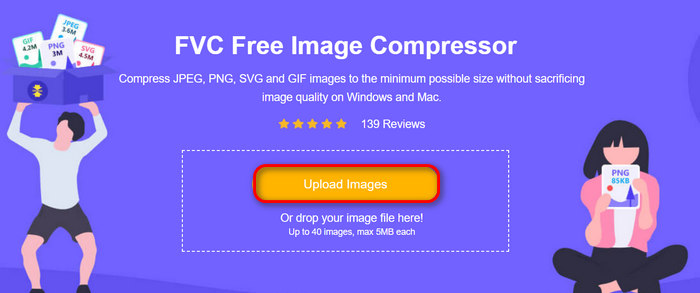
Passaggio 2. Poi fai clic su Upload Images per importare le immagini che desideri comprimere. Puoi selezionare fino a 40 immagini.
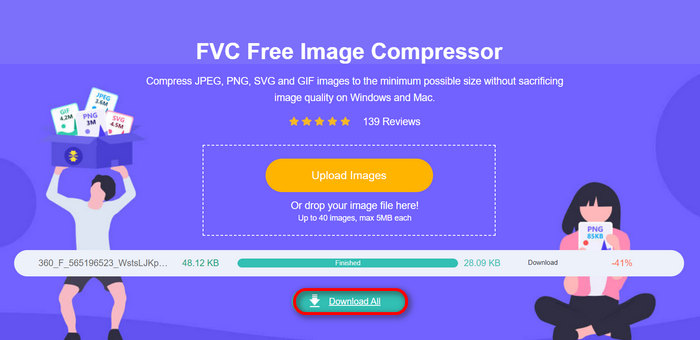
Passaggio 3. Dopo la compressione delle immagini, puoi visualizzarle in anteprima controllandone le nuove dimensioni. Infine, fai clic su Download All per salvare le tue immagini.
Quando si tratta di praticità, semplicità e qualità nella compressione batch delle immagini, FVC Free Image Compressor è uno strumento eccezionale. Inoltre, è completamente gratuito, quindi se hai un budget limitato e vuoi risparmiare tempo nella compressione batch delle tue foto, prova subito questo strumento!
Parte 2. Comprimi in batch le immagini con Photoshop
Quando si tratta di un modo professionale di comprimere in batch le immagini, uno degli strumenti preferiti da quegli utenti è il software Photoshop. Questo strumento è molto apprezzato per le sue caratteristiche impressionanti che lo rendono una scelta eccellente per comprimere simultaneamente un sacco di foto. Ecco una guida passo passo su come comprimere in batch le immagini usando Photoshop:
Passaggio 1. Per prima cosa devi salvare tutte le foto che vuoi comprimere in batch in un’unica cartella.
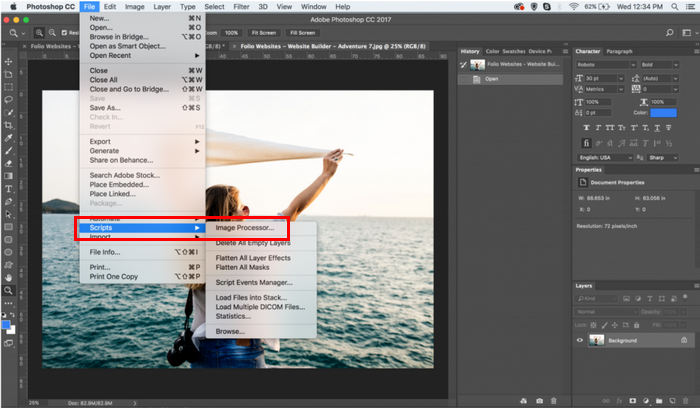
Passaggio 2. Apri Photoshop, vai alla scheda File, fai clic su Script e scegli Image Processor.
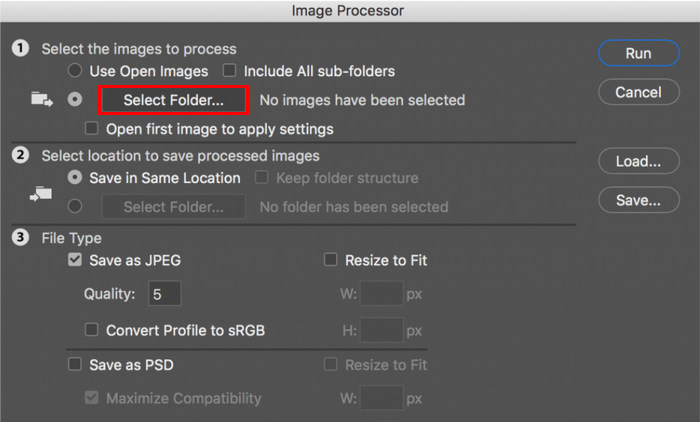
Passaggio 3. Quindi importa le foto che desideri comprimere facendo clic su Select Folder sotto Select the images to process.
Passaggio 4. A questo punto verrà creata automaticamente una nuova cartella all’interno della cartella originale, ed è qui che le immagini compresse verranno archiviate o salvate.
Passaggio 5. Nella sezione File Type, regola le impostazioni per ridimensionare il file immagine. Spunta la casella Resize to Fit e imposta l’altezza e la larghezza massime della foto compressa.
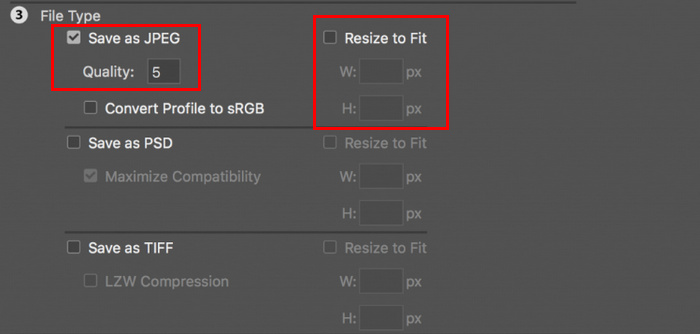
Passaggio 6. Nel campo Quality, inserisci un numero compreso tra 1 e 12. Tieni presente che più alto è il numero, maggiore sarà la dimensione del file. Nel frattempo, se stai comprimendo file in formato JPG, ricordati di spuntare la casella Save as JPEG.
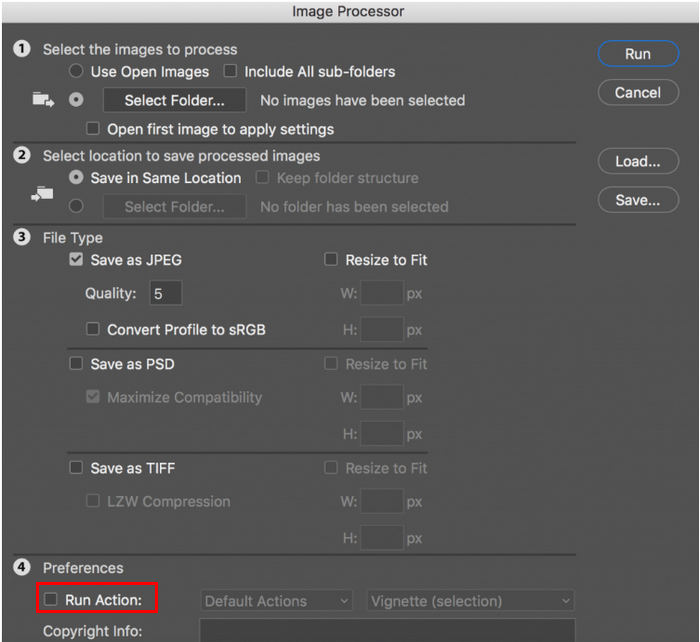
Passaggio 7. Ora fai clic sul pulsante Run Action per visualizzare le azioni disponibili.
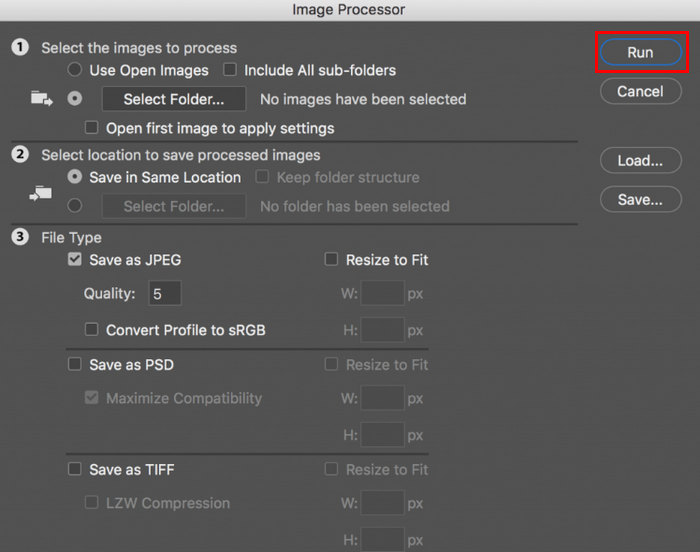
Passaggio 8. Una volta terminato, fai clic sul pulsante Run. Le immagini nella cartella verranno elaborate e salvate nella cartella di destinazione specificata.
Photoshop è davvero un ottimo strumento per la compressione in blocco delle immagini. È ideale per chi ha bisogno di risultati professionali. Tuttavia, questo strumento richiede un abbonamento e c'è una curva di apprendimento enorme che potrebbe impedire agli utenti di utilizzare in modo efficiente lo strumento per comprimere le proprie foto in batch.
Parte 3. Comprimi in batch le immagini su Windows 10
Se utilizzi un sistema operativo Windows 10 sul tuo computer, puoi comprimere in batch le immagini tramite l'app Windows Paint. Questa app di disegno è nota per le sue capacità di disegno e schizzi, ma oltre a ciò, contiene anche eccellenti funzionalità di modifica delle foto come ritaglio, ridimensionamento, ecc.
Ecco come puoi comprimere immagini in batch su Windows 10:
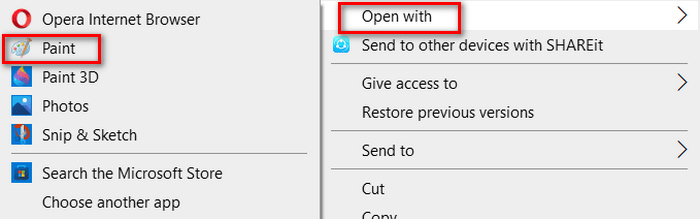
Passaggio 1. Fai clic con il tasto destro sul file immagine che vuoi comprimere, seleziona Apri con e scegli Paint.
Passaggio 2. Vai alla scheda Home e seleziona Resize and Skew.
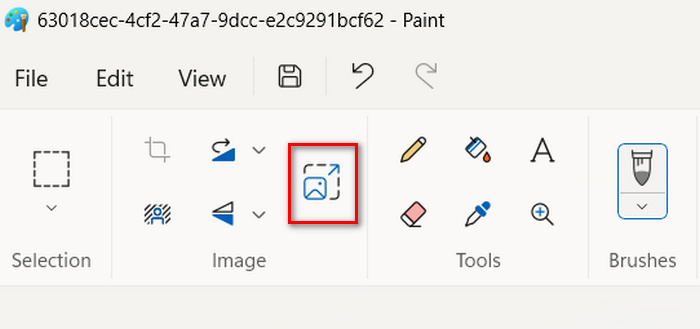
Passaggio 3. Poi fai clic sul pulsante Resize and Skew. Qui puoi ridimensionare l’immagine modificandone la dimensione in percentuale o in pixel. Quando hai ottenuto la dimensione desiderata, fai clic sul pulsante OK.
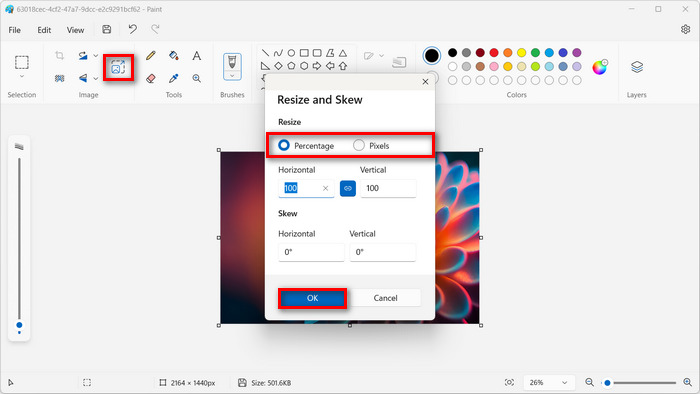
Passaggio 4. Una volta ridimensionata, fai clic su File e scegli Salva per salvare l’immagine compressa.
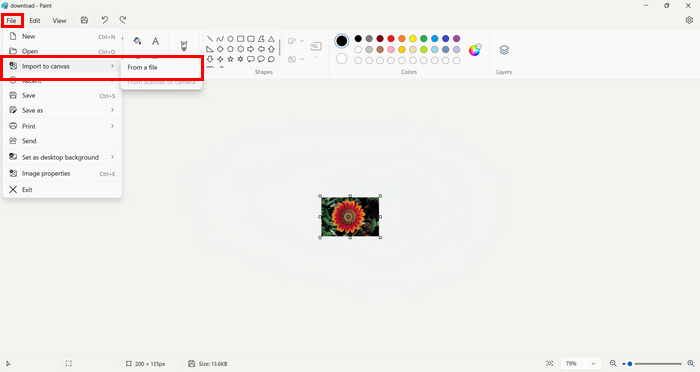
Passaggio 5. Poi torna alla scheda File, fai clic su Import to Canvas e scegli From a File.
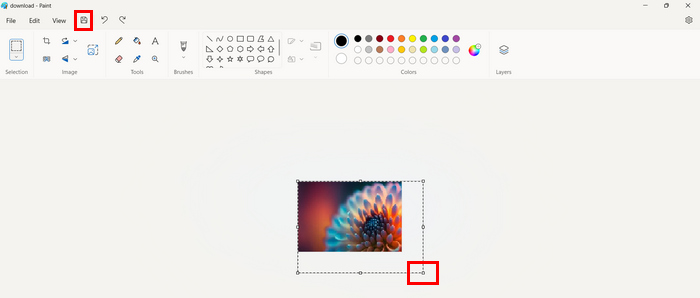
Passaggio 6. Scegli la foto che vuoi comprimere e trascinala per adattarla alla dimensione preimpostata. Questo procedimento non è una tipica compressione batch, ma può rendere il flusso di lavoro più efficiente rispetto ad altri strumenti di compressione immagini. Una volta finito, fai clic sul pulsante Salva.
Windows Paint è in effetti un valido strumento per la compressione delle immagini, ma è carente rispetto a un compressore batch dedicato.
Parte 4. Comprimi in batch le immagini su Mac
Preview è uno strumento di visualizzazione immagini integrato che consente agli utenti Mac di visualizzare diversi file immagine. Ma a parte questo, questo strumento può essere incredibilmente utile nella gestione e modifica delle immagini, specialmente nella compressione batch dei file immagine.
Per fare ciò, seguire i passaggi seguenti:
Passaggio 1. In una finestra del Finder, seleziona tutte le immagini che desideri ridimensionare.
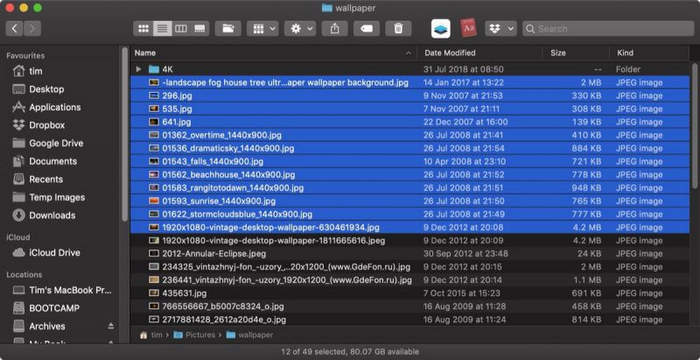
Passaggio 2. Poi fai clic con il tasto destro su di esse, seleziona Apri con e scegli Anteprima.
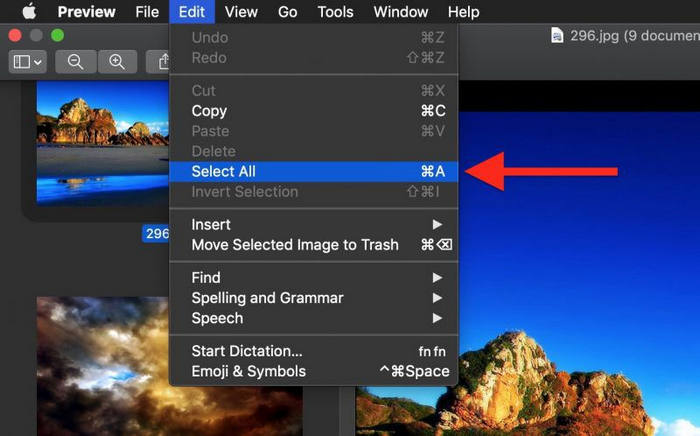
Passaggio 3. Ora seleziona Modifica e scegli Seleziona tutto dalla barra dei menu di Anteprima, oppure usa la scorciatoia da tastiera Command A per selezionare tutte le immagini aperte.
Passaggio 4. Quando tutte le immagini sono selezionate, vai su Strumenti e scegli Regola dimensione.
Passaggio 5. Ora modifica le dimensioni del file immagine inserendo una nuova larghezza e altezza, oltre alla risoluzione. Una volta fatto, una nuova dimensione verrà mostrata in basso. Quando hai finito, fai semplicemente clic su OK.
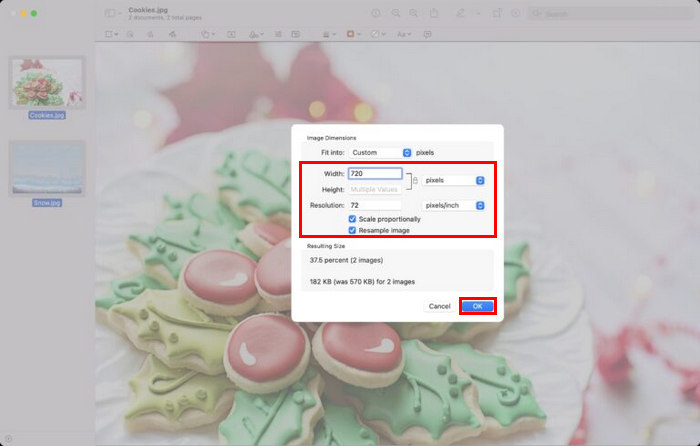
Le immagini vengono ridimensionate e salvate nella posizione originale sostituendo i file originali.
Parte 5. Domande frequenti sulla compressione delle immagini in batch
Qual è il software per comprimere le immagini in blocco?
Il miglior software per comprimere immagini in grandi quantità è Photoshop. Questo strumento ti consente di comprimere più foto contemporaneamente ottenendo comunque un risultato di buona qualità. L’unico inconveniente è che non puoi usufruire di tutte le funzionalità se non sottoscrivi l’offerta premium.
Come faccio a comprimere tutte le immagini in una cartella?
Per comprimere tutte le immagini in una cartella, puoi utilizzare lo strumento FVC Free Image Compressor. Ti basta fare clic sul pulsante Add File e verrai indirizzato alla tua libreria, dove potrai scegliere la cartella in cui si trovano tutte le immagini che desideri comprimere. Poi seleziona tutte le foto nella cartella, ma non superare il limite di 40 file. Una volta fatto, le tue foto verranno compresse automaticamente e salvate in una cartella compressa.
È possibile comprimere più foto senza perdere qualità?
Sì. È possibile comprimere più foto senza perdere qualità. Devi solo utilizzare lo strumento di compressione giusto, come FVC Free Image Compressor e Photoshop. Questi strumenti hanno ottime funzionalità che possono aiutare a mantenere la qualità delle foto compresse.
Conclusione
Con questi metodi, ora puoi comprimere in batch le immagini in modo efficiente ed efficace. Quindi, indipendentemente dalla descrizione degli strumenti in questo articolo, ora sei equipaggiato con vari metodi che potrebbero funzionare perfettamente dalla tua parte. Prova queste tecniche oggi stesso per semplificare la gestione delle immagini e ottimizzare il tuo flusso di lavoro.
-
 Come comprimere JPEG su Windows e Mac [Guida definitiva]
 Cerchi uno strumento efficiente per comprimere i file JPEG sui tuoi dispositivi Windows e Mac? Leggi questo articolo ora e scopri cinque metodi per una compressione senza soluzione di continuità.
-
 3 metodi per ridimensionare l'immagine a 20 KB: compressione senza soluzione di continuità
 Ti preoccupa come raggiungere una dimensione di 20 KB per il tuo file immagine? Questo articolo ti insegnerà 3 metodi su come ridimensionare rapidamente e senza problemi un'immagine a 20 KB.
-
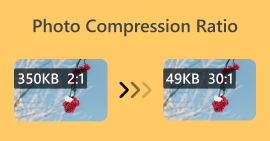 Rapporto di compressione Foto: cosa devo sapere? [Recensione]
 Scopri cos'è il rapporto di compressione delle foto e come influisce sulla qualità dell'immagine. Inoltre, lasciati guidare su come modificare questo rapporto di compressione quando è fatto in modo scorretto.
