


 Video Converter Ultimate
 Screen Recorder
 Riparazione video
 Download sicuro
VLC Rip DVD: come convertire facilmente DVD utilizzando VLC [2024]
Di sicuro, guardare film su un lettore DVD un tempo faceva parte della tua vita? Raccontaci, dove hai visto il tuo primo cartone animato o film quando eri bambino? Un po' nostalgico, vero? Oggi, con Netflix che domina tutte le piattaforme di streaming multimediale, guardare film non è mai stato così facile e accessibile. Per questo motivo, molti dischi vengono ora trascurati, in attesa di marcire nel tempo.
Ora, se stai cercando un modo per salvare le tue collezioni, l’unico modo per farlo è estrarre ognuno dei dischi con l’aiuto di VLC. VLC è un lettore multimediale gratuito che permette agli utenti di riprodurre, convertire e correggere vari tipi di video. Inoltre, questo strumento può effettuare il ripping dei DVD, estraendone i contenuti multimediali. Detto ciò, in questo articolo abbiamo preparato una guida che può aiutarti a rippare DVD con VLC. Oltre a questo, alla fine dell’articolo ti aspetta un’alternativa a VLC che potrebbe offrire funzioni più semplici e più avanzate. Cosa stai aspettando? Scorri in basso e immergiti in questo articolo.

Parte 1. Copiare DVD su VLC
VLC è un'app software per lettori multimediali disponibile per utenti Windows, macOS e Linux. Questo strumento è ampiamente noto per le sue funzionalità sfaccettate, che consentono agli utenti non solo di riprodurre vari video tramite esso, ma anche di copiare DVD rendendoli più accessibili e riproducibili su diversi dispositivi. Ciò che questo strumento fa è estrarre il contenuto dal disco e quindi convertirlo in un file video digitalizzato che può essere facilmente archiviato o condiviso.
Prezzo: 100% gratis
Ecco una guida passo dopo passo su come rippare DVD usando VLC:
Passaggio 1: Per prima cosa, devi scaricare e installare VLC sul tuo dispositivo. Dopodiché, inserisci il disco.
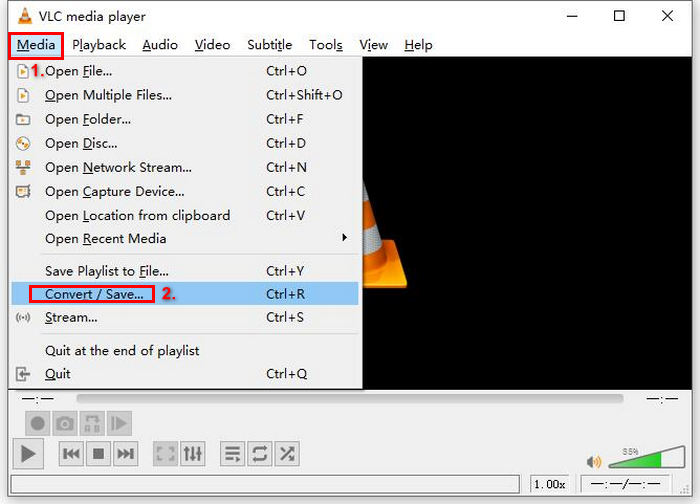
Passaggio 2: Poi vai alla scheda Media e seleziona l’opzione Converti/Salva dall’elenco.
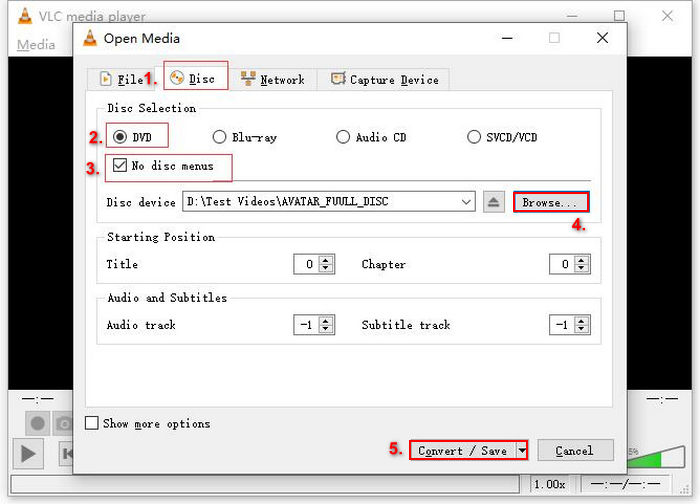
Passaggio 3: Successivamente, fai clic su Disco dalla scheda in alto, abilita l’opzione DVD e seleziona il DVD che vuoi rippare in Dispositivo disco.
Passaggio 4: Ora fai clic sul pulsante Converti/Salva e imposta il formato di output su MKV facendo clic sul menu a tendina del profilo qui sotto.
Passaggio 5: Poi, nella sezione Destinazione in basso, fai clic su Sfoglia, seleziona una cartella e assegna un nome al file di output.
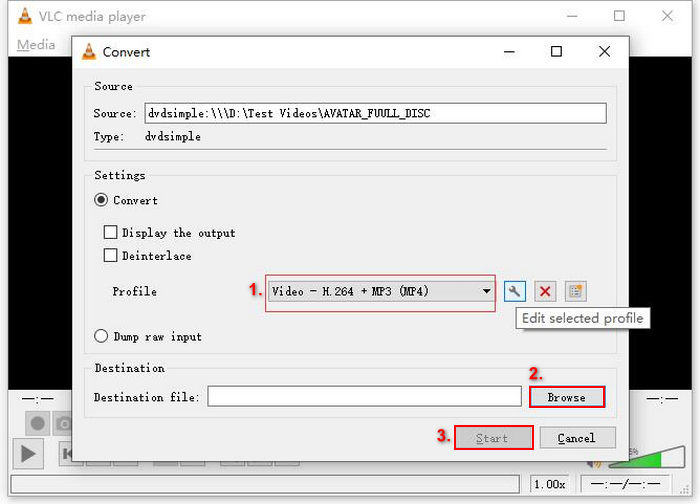
Passaggio 6: Quando è tutto pronto, fai clic sul pulsante Avvia per rippare il DVD con VLC.
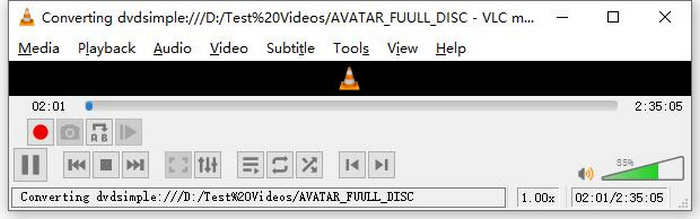
Nota: Puoi vedere la barra di avanzamento della conversione in basso. Ti basta attendere che VLC completi il ripping.
Commento:
Ciò che amiamo di VLC Media Player è che è veramente affidabile e versatile, specialmente per gli utenti che cercano un'opzione gratuita per copiare DVD. Tuttavia, nonostante questa caratteristica, la sua interfaccia può essere un po' tecnica per i principianti, e il processo può sembrare lungo rispetto a software di ripping DVD più specializzati e dedicati. Inoltre, potrebbe avere difficoltà con alcuni dischi protetti da copia, limitando la sua efficacia in quei casi. Tuttavia, è comunque consigliabile copiare DVD su VLC.
Parte 2. Alternative a VLC DVD Ripper
Se stai cercando uno strumento alternativo a VLC per rippare DVD, AnyMP4 DVD Ripper è quello che fa per te. Questa alternativa a VLC DVD Ripper è uno strumento completo che supporta numerosi formati di output video ampiamente utilizzati, tra cui MP4, MOV, AVI, MKV e altri. Con questo, puoi facilmente convertire i DVD in formati digitali per la riproduzione su diversi dispositivi senza perdere qualità. Le sue capacità di ripping dei DVD sono eccezionali, supportando la conversione di qualsiasi DVD, come DVD fatti in casa, commerciali, di allenamento e da 99 titoli.
Download gratuitoPer Windows 7 o versioni successiveDownload sicuro
Download gratuitoPer macOS 10.7 o versioni successiveDownload sicuro
Passaggi per copiare un DVD utilizzando AnyMP4 DVD Ripper:
Passaggio 1: Per prima cosa, devi scaricare e installare lo strumento sul tuo dispositivo. Ricordati di inserire il DVD nel lettore DVD del tuo computer e attendi qualche minuto finché non viene rilevato.
Download gratuitoPer Windows 7 o versioni successiveDownload sicuro
Download gratuitoPer macOS 10.7 o versioni successiveDownload sicuro
Passaggio 2: Ora avvia lo strumento e fai clic su "Load DVD" per caricare il disco.
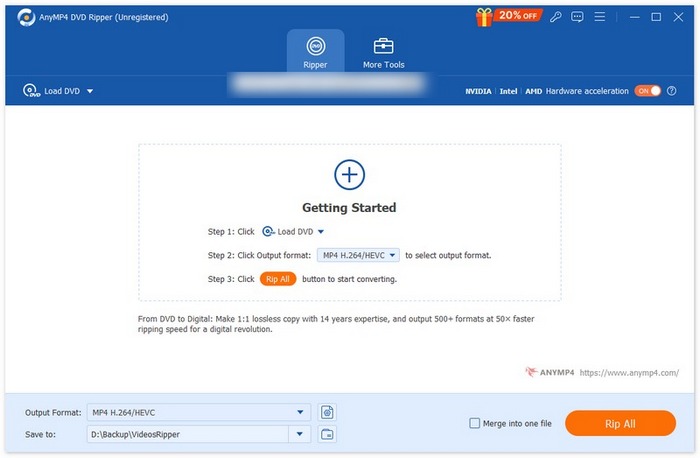
Passaggio 3: Successivamente, fai clic su "Output Format" in basso e scegli il formato video che preferisci dalla scheda "Video". Con questa procedura puoi trasformare il tuo DVD in un file video più accessibile e supportato da vari dispositivi. Una volta fatto, ti basta fare clic sul pulsante "Rip All" per iniziare il ripping del tuo DVD.

Molto più semplice, vero? AnyMP4 DVD Ripper è davvero un'ottima alternativa a VLC DVD Ripper. Grazie alla sua interfaccia, al processo di ripping e ad altre funzionalità, questo strumento è rivoluzionario e decisamente migliore di VLC per il ripping dei DVD.
Parte 3. Domande frequenti sulla copia di DVD su VLC
Qual è il formato migliore per copiare un DVD?
Il formato migliore per copiare un DVD dipende dal dispositivo dell'utente. Tuttavia, MP4 è un formato video ampiamente e comunemente utilizzato. Quindi, quando si copia un DVD, il formato più sicuro che si può scegliere è MP4.
Posso copiare un DVD su Windows 7?
Sì. Puoi copiare un DVD su Windows 7 usando VLC Media Player. VLC supporta una varietà di sistemi operativi, tra cui Windows 7. Quando si tratta di copiare DVD su VLC, basta seguire lo stesso procedimento che faresti su altre versioni di Windows. Ma assicurati che la tua unità DVD sia funzionante e che VLC sia aggiornato per evitare problemi di compatibilità.
Quanto tempo ci vuole per copiare un DVD?
Il tempo necessario per rippare un DVD varia a seconda di diversi fattori. È fondamentale considerare la dimensione del DVD, la velocità del tuo lettore DVD e le impostazioni che scegli per il ripping, ad esempio la risoluzione, il formato, ecc. Di solito il ripping di un DVD standard può richiedere dai 20 minuti a oltre un’ora. I ripping di qualità più alta e i file di dimensioni maggiori richiedono generalmente più tempo per essere elaborati. Se vuoi conoscere la velocità di riproduzione di VLC, controlla qui.
Posso copiare DVD protetti da copia con VLC?
No. È difficile per qualsiasi software copiare DVD protetti da copia a causa della crittografia e delle protezioni della gestione dei diritti digitali.
Conclusione
Ora che sai come rippare DVD usando VLC, non hai più motivo di conservare tutti i tuoi DVD per sempre. Ti basta seguire questa guida e potrai convertire tutti i tuoi dischi in file digitali che puoi riprodurre ovunque e su qualsiasi dispositivo desideri. Nel frattempo, se VLC non funziona nel tuo caso, puoi provare AnyMP4 DVD Ripper come alternativa. Sei pronto? Immergiamoci e iniziamo il ripping.
-
 Come eseguire lo streaming di film in DVD da PC/Mac alla TV tramite Chromecast
 Non sai come guardare i film in DVD sulla TV tramite Chromecast? Questo articolo mostra il modo più semplice per trasmettere i tuoi film in DVD dal PC alla TV tramite Chromecast.
-
 Lettore DVD Android – Come riprodurre video DVD su cellulari Android
 Come riprodurre file DVD su cellulari Android? Ci sono lettori DVD Android? In questo articolo imparerai 3 modi per riprodurre video DVD su cellulari Android con o senza driver esterno.
-
 Le 3 migliori alternative a DVDFab Player per riprodurre video DVD su PC
 Vale la pena acquistare DVDFab Player? Può riprodurre video 4K? E la sua versione a pagamento? Questo articolo introdurrà le sue funzionalità in dettaglio e ci sono le 3 migliori alternative a DVDFab Player tra cui scegliere.
