


 Video Converter Ultimate
 Screen Recorder
 Riparazione video
 Download sicuro
Greenshot Screen Capture: una recensione completa di Screen Capture
Da appassionato utente di internet, catturare schermate per catturare o salvare informazioni da condividere rapidamente è diventato parte integrante della mia esperienza di navigazione. Grazie agli screenshot, posso catturare rapidamente un'immagine a schermo intero o selezionare un'area specifica da catturare, quindi, eseguirla di default sul mio dispositivo desktop è diventato semplicissimo. Continuando a immergermi nell'acquisizione di schermate di vario tipo, ho iniziato a desiderare che i miei screenshot fossero più presentabili e organizzati, cercando uno strumento software che mi permettesse di modificarli all'istante prima di utilizzarli.
Greenshot è uno strumento open source che spunta tutte le caselle. Stavo cercando un software per screenshot che soddisfacesse le mie esigenze di cattura dello schermo. Provare personalmente Greenshot mi permette di condividere una recensione completa e imparziale dello strumento. In questo articolo abbiamo trattato una panoramica del tool, come usarlo per fare screenshot, un confronto con un altro programma e, infine, abbiamo indicato un’alternativa nel caso tu voglia provare un altro software per screenshot completo di funzionalità simili a Greenshot.

Parte 1. Cos'è Greenshot
Devo ammettere che all'inizio non sapevo che esistessero strumenti software per fare screenshot. L'ho scoperto solo quando ho iniziato a cercare modi per migliorare le mie esigenze di cattura dello schermo. Ed è così che è nato Greenshot. Questo strumento software è scaricabile gratuitamente per Windows e recentemente è diventato disponibile anche per gli utenti Mac. Greenshot, come strumento software, è leggero, il che significa che non occupa gran parte dello spazio di archiviazione del dispositivo. Inoltre, come strumento di screenshot, consente agli utenti di catturare l'intero schermo del proprio dispositivo attraverso i suoi cinque tipi di screenshot;
1. Cattura area - ti permette di fare uno screenshot di una specifica parte dello schermo.
2. Cattura ultima area - ti permette di catturare lo schermo nella stessa area, perfettamente allineata al tuo screenshot precedente.
3. Cattura finestra - ti permette di catturare la finestra che è visualizzata sullo schermo.
4. Cattura schermo intero - ti permette di fare uno screenshot dell’intero schermo indipendentemente da quali finestre siano attive.
5. Cattura Internet Explorer - nota anche come cattura pagina web, permette agli utenti di fare uno screenshot di qualsiasi pagina web attualmente aperta nel browser.
Oltre alla generosa quantità di tipi di screenshot che Greenshot può offrire, lo strumento consente anche di modificarli annotandoli ed evidenziandoli, eliminando così la necessità di modificarli e annotarli tramite altri software, con un conseguente risparmio di tempo per l'utente. Come previsto, la praticità si esaurisce nella sua funzionalità integrata di editing semplificato degli screenshot. Greenshot può esportare gli screenshot in diversi modi, ad esempio:
Esporta screenshot come:
• Salva come file,
• Invia a una stampante,
• Copia negli appunti,
• Allega all'e-mail e,
• Invia al software per ufficio.
Parte 2. Come usare Greenshot
Greenshot, un software progettato per funzionare come strumento di screenshot facile da usare, pur non avendo mai avuto esperienza con questo strumento, è efficiente e sorprendentemente facile da usare, adatto sia agli utenti principianti che a quelli professionisti. Per utilizzarlo in modo efficace, basta seguire i passaggi riportati di seguito.
Passaggio 1. Prima di tutto, devi andare sul sito ufficiale di Greenshot, nella pagina di download. Da lì puoi scaricare immediatamente il software e, una volta fatto, installarlo e aprirlo sul tuo dispositivo desktop.
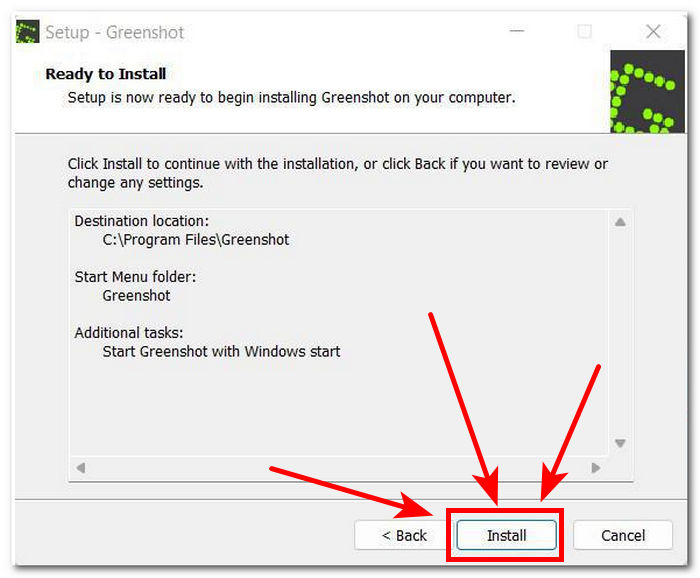
Passaggio 2. Una volta installato correttamente sul tuo desktop, l’icona di Greenshot apparirà nell’angolo in basso a destra dello schermo. Per accedere alle impostazioni di screenshot, fai clic sull’icona e da lì seleziona la funzione di cattura che vuoi usare.
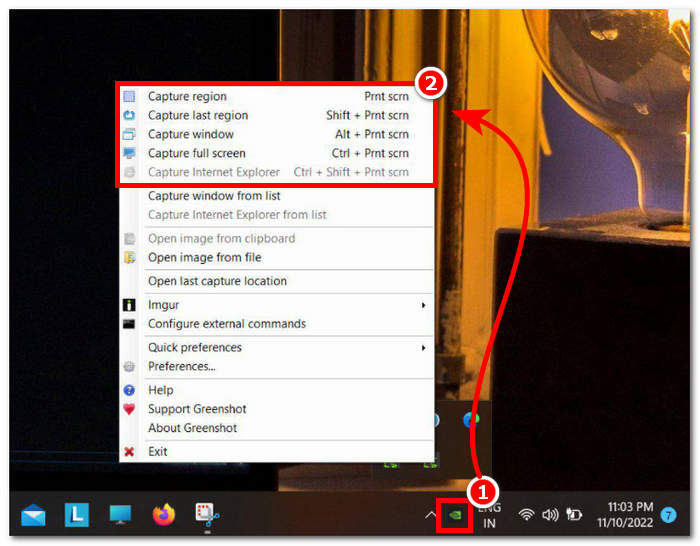
Puoi scegliere qualsiasi screenshot dall'elenco (Cattura area, Cattura ultima area, Cattura finestra, Cattura schermo intero e Cattura Internet Explorer). Dipende dalle tue preferenze ed esigenze.
Passaggio 3. Dopo aver fatto uno screenshot in base alle tue esigenze, procedi ad aprirlo nell’editor di immagini Greenshot. Questo ti permette di effettuare modifiche di livello minimo o medio allo screenshot.
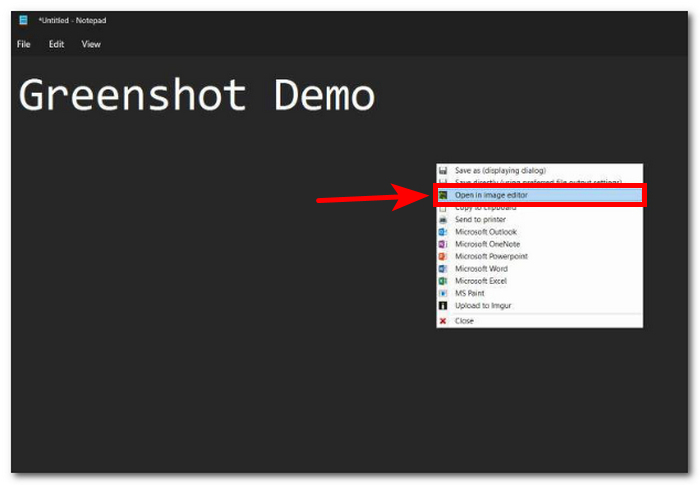
Nell'editor di immagini, gli utenti possono disegnare forme, aggiungere testo ed evidenziazioni, ritagliare, ridimensionare e sovrapporre un grafico o un'immagine.
Passaggio 4. Una volta soddisfatto delle modifiche apportate allo screenshot, puoi esportarlo sul tuo dispositivo cliccando sul pulsante Salva sullo schermo del desktop.

Parte 3. Qual è meglio Greenshot o ShareX?
Quale modo migliore per mostrare le capacità di Greenshot come strumento di screenshot agli utenti se non confrontandolo con altri software di screenshot più performanti? Sebbene online sia disponibile un elenco infinito di promettenti strumenti software, abbiamo scelto ShareX per far luce su come Greenshot possa superare gli altri strumenti di screenshot della concorrenza.
| Colpo verde | VS | CondividiX |
| Strumento software per screenshot leggero, gratuito e open source con licenza GPL, con codici disponibili su BitBucket. | Disponibilità | Gli strumenti software gratuiti e open source sono concessi in licenza GPL e il loro codice sorgente è disponibile su GitHub. |
| Cattura regione, Cattura ultima regione, Cattura finestra, Cattura schermo intero e Cattura pagina web. | Tipo di schermata Offerte | Cattura a schermo intero, Cattura area, Cattura ultima area, Registrazione schermo, Cattura scorrimento e Cattura automatica. |
| Disegnare forme, aggiungere testo, evidenziare elementi, offuscare elementi, ritagliare uno screenshot, ingrandire uno screenshot, aggiungere elementi grafici a uno screenshot e riutilizzare gli elementi disegnati. | Funzionalità di modifica | Editor di immagini di base, aggiungi testo, aggiungi forme, strumento timbro clone, strumento gomma, ridimensionatore di immagini, evidenziazione e freccia. |
| Strumento software per screenshot semplice, molto organizzato e facile da usare. | Interfaccia utente | Interfaccia pulita e strumento compatto. |
| Questo strumento software per screenshot ad alte prestazioni offre una varietà di opzioni di screenshot per diversi utilizzi. | Prestazione | Strumento di screenshot facile da usare e screenshot altamente personalizzabile; tuttavia, a volte lo scorrimento dello screenshot non sempre funziona. |
Confrontando fianco a fianco i due promettenti strumenti per screenshot, abbiamo notato che, in termini di tipo di screenshot offerto dal software, ShareX ha un leggero vantaggio, in quanto include una funzione di registrazione dello schermo di cui Greenshot è sprovvisto. Tuttavia, possiamo solo discutere sull'acquisizione di screenshot come strumento software. In tal caso, affermiamo che Greenshot è di gran lunga migliore, in quanto è uno strumento molto facile da usare e organizzato in modo da non risultare confusionario e complesso, a differenza di ShareX, progettato per un'ampia gamma di attività, a discapito di un software compatto e complesso per gli utenti non esperti di tecnologia.
Parte 4. La migliore alternativa a Greenshot
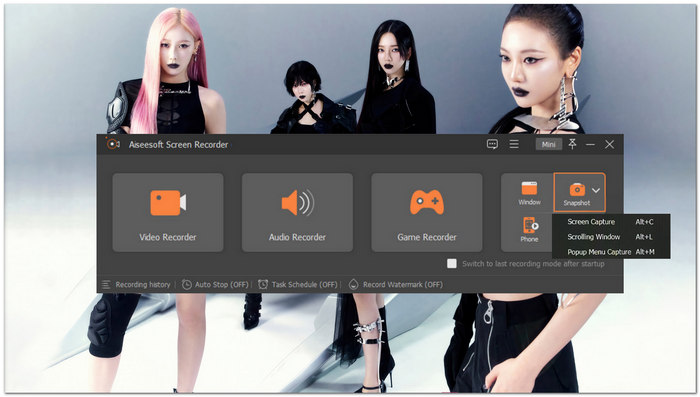
Se stai ancora decidendo se usare o meno Greenshot come strumento per screenshot, nonostante tutte le funzioni e caratteristiche utili elencate sopra, puoi usare un registratore dello schermo selezionato da FVC. Questo software è uno strumento per screenshot leggero e ad alte prestazioni non solo per Windows e Mac, ma anche per dispositivi mobili (Android e iOS). Inoltre, mentre Greenshot è pensato esclusivamente per gli screenshot, il registratore dello schermo selezionato da FVC può essere utilizzato per registrare video, giochi e audio, mantenendo al contempo un’interfaccia molto ordinata e facile da usare. In termini di capacità di screenshot, il registratore dello schermo selezionato da FVC offre le stesse funzioni di Greenshot.
Download gratuitoPer Windows 7 o versioni successiveDownload sicuro
Download gratuitoPer macOS 10.7 o versioni successiveDownload sicuro
Funzioni principali
• Strumento di cattura dello schermo facile da usare.
• Ha doppia funzione come strumento di screenshot video, registratore di giochi e di suoni.
• Elevata risoluzione degli screenshot in uscita.
• È uno strumento di modifica istantanea degli screenshot.
• Strumento software per screenshot leggero e gratuito.
• È composto da quattro tipi di screenshot funzionali.
• Può essere utilizzato sui dispositivi mobili (Android e iOS); puoi usarlo per fare uno screenshot su iPhone e Android.
Parte 5. Domande frequenti su Greenshot
Greenshot è gratuito?
Sì, il software di acquisizione dello schermo Greenshot per Mac e Windows è uno strumento software gratuito da utilizzare in quanto utilizza un codice open source che consente agli utenti di acquisire uno screenshot, apportare modifiche rapide e salvarlo gratuitamente.
Dove salva gli screenshot Greenshot?
Greenshot per Windows 11 o qualsiasi versione di Windows e Mac salva per impostazione predefinita il file dello screenshot nella cartella immagini del dispositivo per facilitarne l'accesso. Tuttavia, è possibile personalizzare la posizione e la cartella da utilizzare tramite le impostazioni degli strumenti software.
Greenshot può caricare screenshot sul cloud?
Greenshot è uno strumento leggero per la cattura dello schermo che supporta il salvataggio degli screenshot non solo sullo storage del desktop, ma anche su storage basati su cloud come Drive, OneDrive, Dropbox e altri.
Conclusione
Il software di cattura screenshot Greenshot è uno strumento utile per gli utenti che cercano modi alternativi per migliorare la propria esperienza di cattura dello schermo. Come strumento per screenshot, copre tutte le funzioni di base che un utente cerca in un software. Tuttavia, nei casi in cui sia necessario un programma che possa fare screenshot e registrare video o audio allo stesso tempo, suggeriamo di provare come alternativa il registratore dello schermo selezionato da FVC, poiché ti evita di dover scaricare un altro software per questo tipo di attività ed è comunque in grado di offrire ciò che Greenshot offre in termini di cattura dello schermo. Per chi inizia, usare Greenshot come primo strumento di screenshot può andare più che bene, e si può anche sorvolare sulla mancanza di funzionalità di registrazione dello schermo; ma quando gli utenti iniziano a preferire uno strumento altamente funzionale, o sono già abituati a usare programmi di registrazione dello schermo su mobile e desktop, allora tendono a passare al registratore dello schermo selezionato da FVC per comodità e per un processo meno macchinoso.
-
 Come fare screenshot su Android [4 metodi semplici]
 Utilizzi un dispositivo Android ma fai fatica a fare uno screenshot utilizzandolo? In questo articolo, scopri 4 modi in cui puoi acquisire facilmente screenshot su Android.
-
 Come acquisire facilmente schermate a scorrimento in Windows 10/11
 Sfrutta tutto il potenziale dell'acquisizione dello schermo imparando a usare gli screenshot a scorrimento su Windows 10/11. Scopri questi utili software ed estensioni web da utilizzare.
-
 Come acquisire schermate scorrevoli su Mac in pochi minuti
 Non accontentarti di catture parziali! Scopri i semplici passaggi per acquisire schermate scorrevoli su Mac. Cattura intere pagine Web o documenti con facilità in pochissimo tempo.
