


 Video Converter Ultimate
 Screen Recorder
 Riparazione video
 Download sicuro
FBX Game Recorder + La migliore alternativa [Recensione approfondita]
Sei un gamer curioso di FBX Game Recorder? Molti giocatori registrano lo schermo mentre giocano, per vari motivi; quindi, se stai tenendo d’occhio FBX, continua a leggere!
In questa recensione, approfondiremo ciò che distingue FBX Game Recorder, le sue caratteristiche principali, le prestazioni, la compatibilità e l'esperienza utente. Scoprirai anche i suoi pro e contro e la migliore alternativa da considerare se questo strumento di registrazione dello schermo non soddisfa appieno le tue esigenze. Quindi, prima di premere il pulsante di registrazione, scopriamo se FBX Game Recorder vale davvero la pena per la tua configurazione di gioco. Iniziamo!

Parte 1. Recensione di FBX Game Recorder
FBX Game Recorder è un software di registrazione dello schermo e streaming live ad alte prestazioni, progettato specificamente per i gamer. Utilizza l'accelerazione hardware avanzata di NVIDIA, AMD e Intel, consentendo agli utenti di registrare o trasmettere in streaming il proprio gameplay in modo fluido, senza cali di frame o ritardi.
A differenza dei registratori di schermo standard, questo strumento è ottimizzato per il gaming. Supporta la registrazione in HD e 4K, la cattura di replay istantanei e il salvataggio dei momenti salienti anche durante il gioco. Poiché funziona silenziosamente in background, non interferisce con le prestazioni del sistema, rendendolo ideale per chi ha bisogno di una registrazione fluida durante il gioco.
Caratteristiche principali:
• Utilizza le tecnologie NVIDIA, AMD e Intel.
• Supporta la registrazione in risoluzione HD e 4K.
• Supporto per lo streaming live.
• Registrazione in background.
• Offre funzionalità di base per l'editing video.
Professionisti
- Registrazione fluida anche durante i giochi ad alte prestazioni.
- L'interfaccia è semplice e molto intuitiva.
- Supporta più opzioni di accelerazione hardware.
- È possibile registrare e trasmettere in streaming live contemporaneamente.
Contro
- Strumenti di modifica avanzati limitati.
- Alcune funzionalità sono accessibili tramite piani a pagamento.
- Nella versione gratuita è presente una filigrana.
- Supporto limitato del sistema operativo.
Verdetto:
Non c’è dubbio che FBX Game Recorder sia un ottimo strumento di registrazione dello schermo per i videogiochi. È facile da usare, leggero e molto performante. Tuttavia, presenta anche alcune limitazioni, come funzioni di registrazione e montaggio dello schermo piuttosto limitate nel piano gratuito. Infine, è sicuramente positivo che supporti Windows, ma altri sistemi operativi come macOS non possono utilizzare questo specifico registratore dello schermo.
Parte 2. FBX Game Recorder è sicuro?
Sì, FBX Game Recorder è sicuro da usare, a patto che lo scarichi dal suo sito web ufficiale. È stato sviluppato da uno sviluppatore affidabile e non ha ricevuto segnalazioni di virus o malware. Assicurati solo di non scaricarlo da siti di terze parti, poiché potrebbero contenere programmi indesiderati. Come altri registratori dello schermo, FBX chiederà l'autorizzazione per accedere allo schermo e all'audio, il che è normale. Nel complesso, è uno strumento sicuro e affidabile per registrare e trasmettere in streaming il tuo gameplay.
Parte 3. Come usare FBX Game Recorder
Ora che sai cos'è FBX Game Recorder, è il momento di scoprire come utilizzarlo per registrare la tua esperienza di gioco.
Passaggio 1. Per prima cosa devi scaricare e installare lo strumento dal suo sito ufficiale.
Passaggio 2. Una volta installato, apri il programma. Da lì, vai alla sezione Impostazioni dello strumento per configurare le scorciatoie da tastiera di FBX. Successivamente, assegna i tasti di scelta rapida per avviare e interrompere la registrazione.
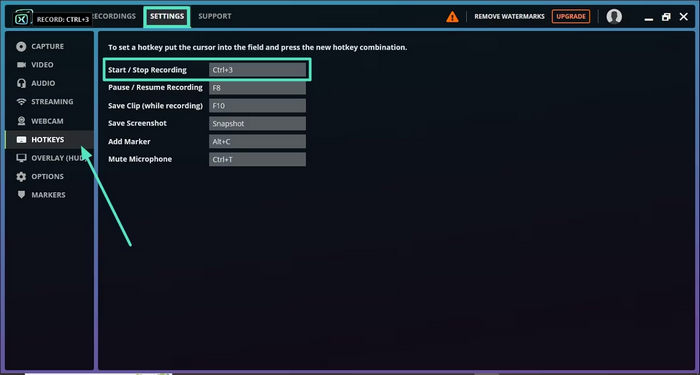
Passaggio 3. Avvia il gioco e premi i tasti di scelta rapida assegnati per iniziare la registrazione; premi di nuovo gli stessi tasti per interromperla.
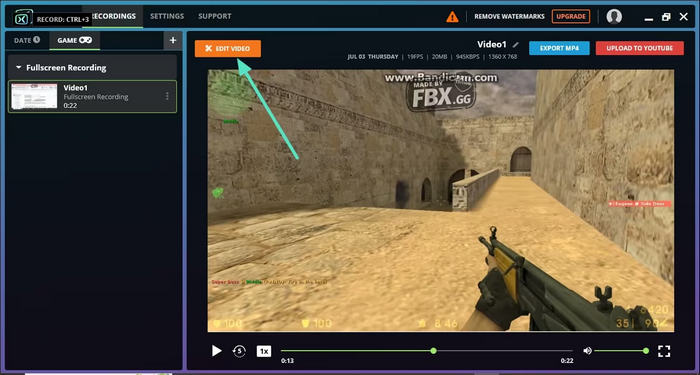
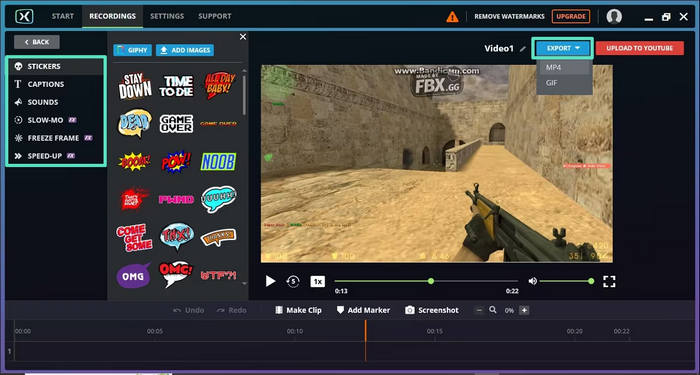
Passaggio 4. Se vuoi essere più creativo con il risultato della tua registrazione, puoi aggiungere effetti, didascalie o modifiche alla velocità al video della tua sessione di gioco.
Passaggio 5. Quando è tutto pronto, fai clic sul pulsante Esporta e scegli il formato file e la risoluzione che preferisci per scaricarlo.
Parte 4. La migliore alternativa a FBX Game Recorder
Ora che sai cos’è FBX e in cosa differisce dagli altri strumenti di registrazione dello schermo, se senti che non è abbastanza, c’è un programma alternativo che puoi provare. FVC Screen Recorder è la migliore alternativa a FBX Screen Recorder. Con questo strumento puoi registrare lo schermo, catturare schermate, modificarle e aggiungere annotazioni. Inoltre, funziona sia su Windows che su macOS, offrendo agli utenti la flessibilità di usarlo indipendentemente dal sistema operativo. Inoltre, questo registratore supporta l’audio di sistema, l’ingresso del microfono e persino la registrazione dalla webcam, il che lo rende un’ottima scelta per riunioni online, video tutorial e registrazioni di gameplay.
Caratteristiche principali:
• Consente di registrare a schermo intero, in una finestra selezionata o in un'area personalizzata.
• Registra videochiamate, riunioni, gameplay e lezioni online
• Consente di aggiungere testo, linee, evidenziazioni e forme durante la registrazione.
• Può registrare sia l'audio del sistema che la voce del microfono.
• Supporta vari formati di output video e audio.
• Registra video in HD.
• Disponibile sia per Windows che per macOS
Passaggi su come utilizzare FVC Screen Recorder:
Passaggio 1. Scarica e installa FVC Screen Recorder sul tuo computer.
Download gratuitoPer Windows 7 o versioni successiveDownload sicuro
Download gratuitoPer macOS 10.7 o versioni successiveDownload sicuro
Passaggio 2. Avvia il programma e seleziona Game Recorder per iniziare a catturare il tuo gameplay di Fortnite.
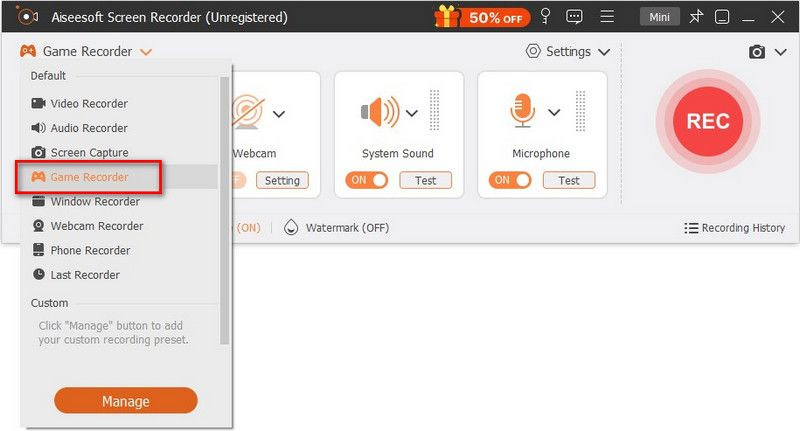
Passaggio 3. Nel pannello Select the Game, fai clic sulla freccia a discesa e scegli Fortnite dall’elenco dei giochi in esecuzione. Puoi anche attivare System Sound, Microphone o entrambi se desideri il suono di gioco e il commento vocale.

Passaggio 4. Quando tutto è pronto, fai clic su REC per iniziare a registrare il tuo gameplay.

Passaggio 5. Quando hai finito, fai clic su Stop, quindi seleziona Export per salvare la clip di Fortnite registrata.
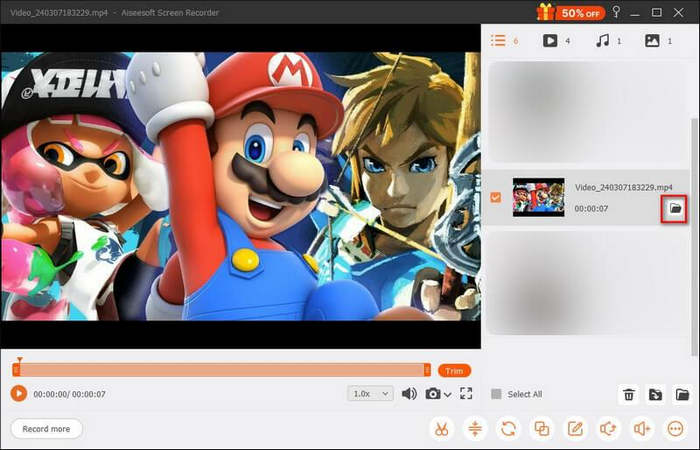
FVC Screen Recorder è la migliore alternativa a FBX Game Recorder perché è semplice, flessibile e funziona sia su Windows che su macOS. A differenza di FBX, non è limitato al gaming, poiché può essere utilizzato anche per altre esigenze di registrazione dello schermo.
Grazie ai suoi controlli semplici e all'uscita HD, FVC Screen Recorder è uno strumento completo e ideale per chiunque desideri registrazioni dello schermo fluide e di alta qualità.
Parte 5. Domande frequenti su FBX Game Recorder
FBX Game Recorder è gratuito?
Sì, FBX Game Recorder offre una versione gratuita che ti consente di registrare il gameplay con funzioni di base. Tuttavia, la versione gratuita aggiunge una filigrana ai tuoi video e limita alcune opzioni avanzate. Per rimuovere queste restrizioni, puoi passare al piano a pagamento.
FBX Game Recorder può registrare in qualità 4K?
Sì, FBX Game Recorder supporta la registrazione in HD e fino a una risoluzione 4K, a seconda delle capacità hardware del sistema. Utilizza l'accelerazione hardware per garantire una registrazione fluida e di alta qualità, senza ritardi.
FBX Game Recorder funziona su macOS?
No, FBX Game Recorder è attualmente disponibile solo per Windows. Se utilizzi un Mac, puoi provare FVC Screen Recorder, che offre funzionalità simili ed è compatibile sia con Windows che con macOS.
Posso effettuare lo streaming live con FBX Game Recorder?
Sì, FBX Game Recorder consente agli utenti di trasmettere in streaming il gameplay direttamente su piattaforme popolari come Twitch, YouTube e Facebook. Offre anche opzioni per personalizzare le impostazioni e la qualità dello streaming.
Conclusione
FBX Game Recorder si distingue come un’ottima scelta per i gamer che desiderano registrazioni fluide e di alta qualità senza influire sulle prestazioni del gioco. L’accelerazione hardware e l’interfaccia semplice lo rendono ideale per catturare i momenti di gioco o per fare live streaming con facilità. Tuttavia, essendo limitato a Windows e privo di alcuni strumenti di montaggio, potrebbe non soddisfare le esigenze di tutti. È qui che entra in gioco FVC Screen Recorder, che offre maggiore flessibilità, supporto multipiattaforma e funzioni aggiuntive come annotazioni, acquisizione da webcam e sorgenti audio multiple. Se cerchi un registratore dello schermo altrettanto potente ma più versatile, FVC Screen Recorder dovrebbe essere nella tua lista.
-
 Scopri come utilizzare lo strumento di cattura su Mac: tutti i passaggi
 Se vuoi sapere come usare lo strumento di cattura su Mac, non perderti questo post. Abbiamo preparato tutto ciò che ti serve sapere e una guida dettagliata con i passaggi da seguire.
-
 Scopri i siti di download gratuiti di giochi per PC: 6 opzioni per te
 Se sei pronto a divertirti con emozionanti giochi per computer ma non sai dove scaricare le risorse, dai un'occhiata a questa guida. Ecco 6 siti per scaricare giochi per PC gratuiti.
-
 Come risolvere il problema della schermata di stampa che non funziona su Windows 10/11
 Hai problemi a catturare screenshot? Ecco come risolvere il problema del tasto Stamp che non funziona su Windows 10/11 con semplici passaggi, come aggiornamenti dei driver e controlli delle impostazioni.
