


 Video Converter Ultimate
 Screen Recorder
 Riparazione video
 Download sicuro
Come unire file M4V? Ecco le 2 soluzioni più veloci
I file M4V, conosciuti anche come file video MPEG-4, vengono di solito scaricati da iTunes. Sono molto simili ai file MP4 perché entrambi usano il formato contenitore MPEG-4. È molto probabile che tu abbia appena scaricato da iTunes alcune clip video M4V incomplete e voglia poi unire i file M4V in un’unica storia completa e senza interruzioni. Come combinare i file M4V? Questo articolo vuole presentarti due metodi per farlo in modo efficiente e senza perdita di qualità dell’immagine.

Parte 1: soluzione più rapida: utilizzare una fusione M4V gratuita online
Per la soluzione più rapida, puoi usare FVC Free Online Video Merger, che non richiede molto tempo per imparare i passaggi e le impostazioni. Ti basta aprire lo strumento nel browser, aggiungere i tuoi file M4V e poi fare un solo clic per unire i file M4V.
Caratteristiche principali
- • Unisci file M4V di qualsiasi quantità e dimensione in un unico file gratuitamente.
- • Interfaccia facile da usare e processi di pre-fusione intuitivi.
- • È possibile salvare i file M4V uniti come altri 9 formati principali.
- • Non lasciare filigrane nei video M4V combinati.
- • Carica i tuoi file di qualsiasi dimensione in appena 1 secondo.
Passaggi per unire file M4V online gratuitamente
Passaggio 1. Clicca qui per caricare FVC Free Online Video Merger. Nella pagina dello strumento online, clicca il pulsante Carica video da unire al centro dello schermo.

Nota: Se usi lo strumento per la prima volta, ti verrà chiesto di scaricare e installare un launcher. Una volta installato il launcher, clicca di nuovo il pulsante Carica video da unire.
Passaggio 2. Ora dovrebbe aprirsi la finestra Apri. Qui devi selezionare i file M4V e poi cliccare il pulsante Apri in fondo alla finestra.
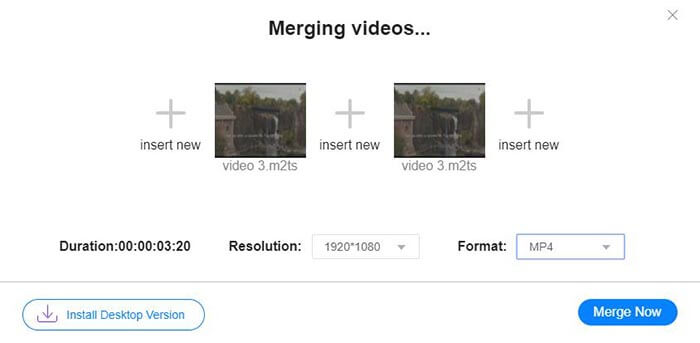
Passaggio 3. Dopo aver caricato i file M4V, puoi regolare la sequenza dei file M4V rimuovendo quelli esistenti e inserendone di nuovi nelle posizioni desiderate.
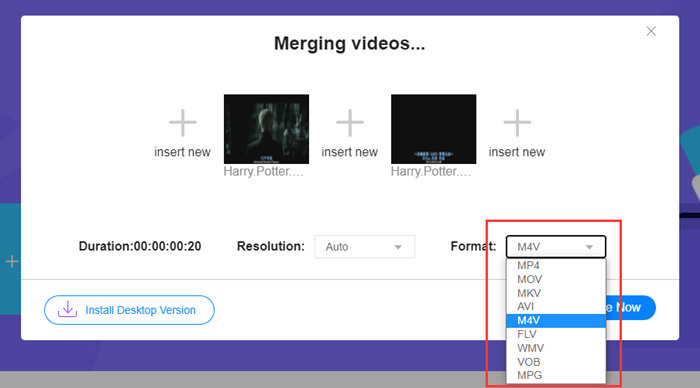
Passaggio 4. Per mantenere il file unito in formato M4V, devi scegliere M4V nell’elenco Formato. Puoi anche scegliere uno qualsiasi dei formati elencati per convertire il video M4V unito.
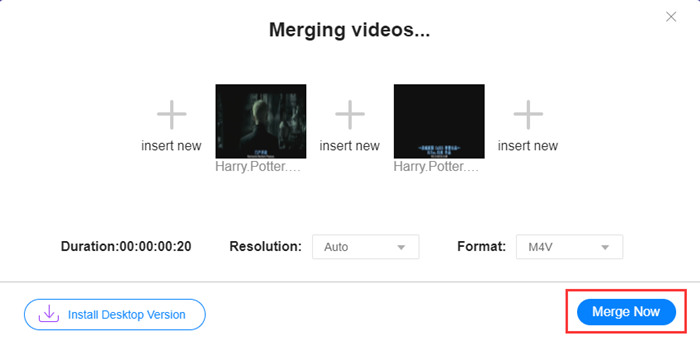
Passaggio 5. Clicca il pulsante Unisci ora per iniziare a combinare i file M4V. Lo strumento ti chiederà poi di scegliere la cartella di destinazione del file di output.
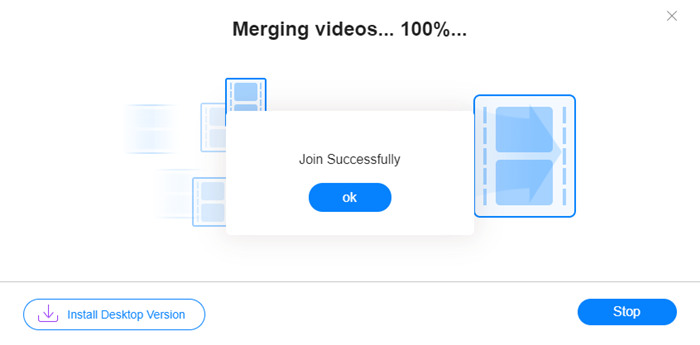
Quando vedi l'avviso di successo di seguito, il video unito viene salvato sul tuo computer.
Hai già imparato il modo più veloce per combinare file M4V. Tuttavia, questo metodo ti permette solo di collegare i video uno dopo l’altro, ma non ti aiuta a tagliare le parti indesiderate alle estremità, il che può causare periodi di schermo nero nel video. Potresti quindi avere bisogno anche del metodo seguente, che ti consente non solo di unire i file M4V, ma anche di tagliarli in modo perfettamente continuo. Puoi anche comprimere i file M4V qui.
Parte 2: un metodo per unire file M4V senza problemi
Per ottenere un video completo e senza interruzioni, limitarsi a unire i file M4V in sequenza non è sufficiente. Devi anche tagliare i segmenti indesiderati all’inizio e alla fine. Questo richiede quindi uno strumento di montaggio video. Hai numerose opzioni tra cui scegliere, ma qui vorremmo consigliarti Video Converter Ultimate. Il motivo è semplice: è facile da usare e le sue funzioni sono abbastanza potenti.
Caratteristiche principali
- • Unisci, taglia, ruota, ritaglia e aggiungi effetti ai video M4V.
- • La tecnologia di accelerazione hardware aiuta a completare l'unione dei file M4V 70 volte più velocemente.
- • Abbondante collezione di filtri ed effetti per abbellire i tuoi video
- • Usa il potenziatore video integrato per migliorare la qualità del tuo video
- • Trasforma i tuoi video in 3D e goditeli con i tuoi occhiali 3D
Download gratuitoPer Windows 7 o versioni successiveDownload sicuro
Download gratuitoPer MacOS 10.7 o versioni successiveDownload sicuro
Passaggi per unire file M4V senza interruzioni
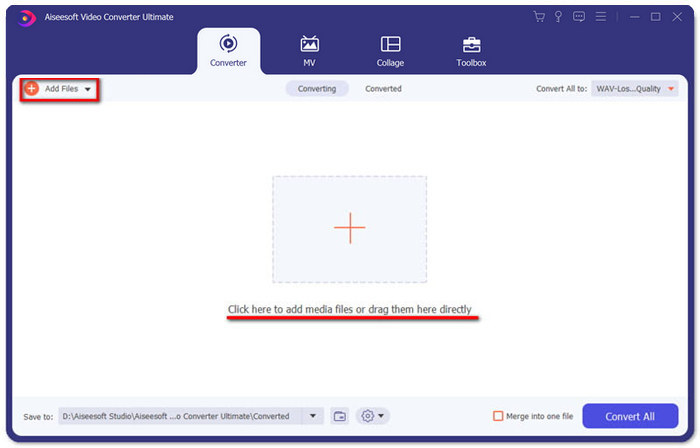
Passaggio 1. Installa e avvia Video Converter Ultimate. Clicca il pulsante Aggiungi file oppure trascina i file nell’interfaccia per aggiungere i video.
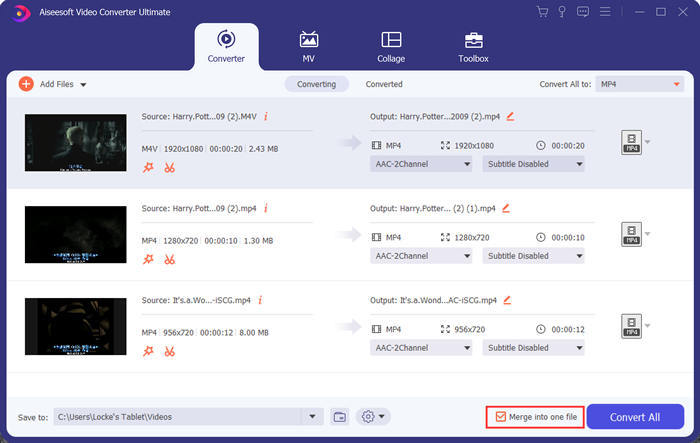
Dopo averli aggiunti, puoi trascinare i file verso l’alto o il basso per sistemarne l’ordine. Inoltre, devi spuntare la casella Unisci in un unico file affinché il programma non converta i video aggiunti separatamente.
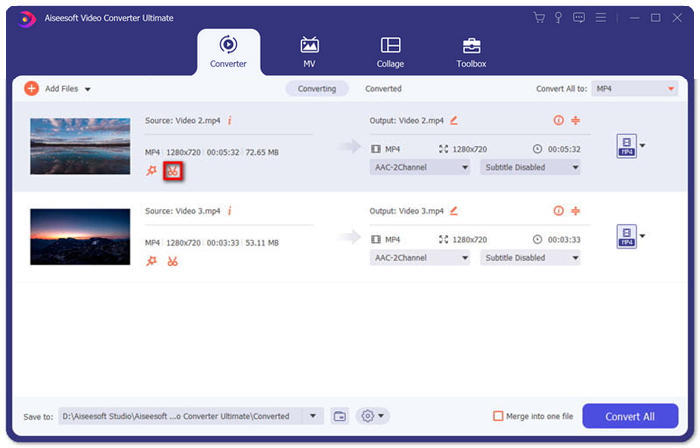
Passaggio 2. Per usare la funzione di taglio, puoi cliccare l’icona Taglia su un video già aggiunto.
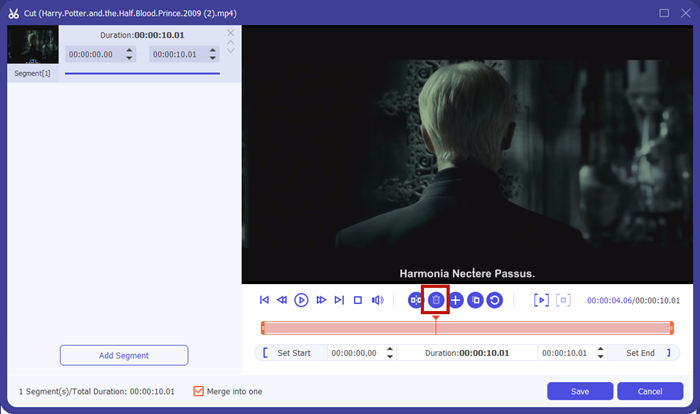
Nell’interfaccia Taglia puoi eliminare facilmente le parti indesiderate di un video. Seleziona semplicemente un segmento impostandone i punti di inizio e fine, quindi clicca l’icona del cestino per rimuoverlo.
Passaggio 3. Tornando all’interfaccia principale, puoi scegliere il file di output. Clicca sulla freccia verso il basso accanto a Converti tutto in. Potrai quindi selezionare M4V o altri formati come formato di output.
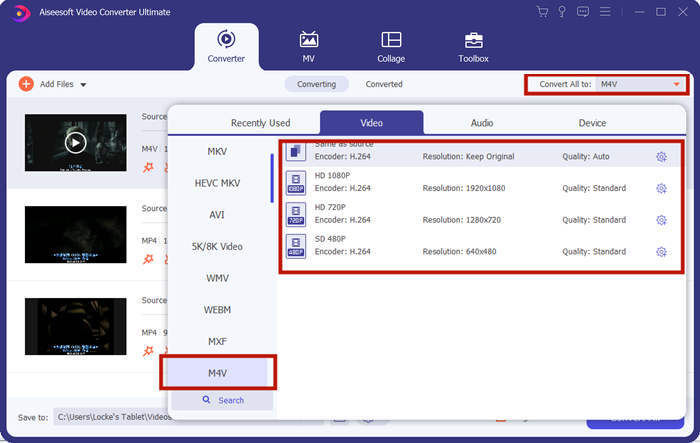
Passaggio 4. Clicca il pulsante Converti tutto nell’angolo in basso a destra del programma e attendi che il programma unisca i file M4V.

Al termine dell'unione, vedrai un avviso di successo. Quindi puoi trovare il file M4V unito nella cartella di destinazione. Sopra ci sono due metodi per unire file video M4V. Abbiamo anche concluso alcune domande più frequenti di seguito.
Parte 3: Domande frequenti sull'unione di file M4V
Che cos'è un file M4V?
M4V, progettato da Apple, a volte viene anche chiamato iTunes Video File. È simile a MP4 perché entrambi sono basati su MPEG-4. La caratteristica più speciale di M4V è che iTunes potrebbe aggiungere la protezione DRM al suo interno per impedire la distribuzione non autorizzata di video di iTunes.
Come aprire un file M4V?
Se non è protetto da DRM, un file M4V può essere riprodotto con VLC, QuickTime, Windows Media Player e molti altri lettori multimediali. A volte è sufficiente anche cambiare l’estensione da .M4V a .MP4 per aprirlo. Tuttavia, un file M4V con protezione DRM può essere riprodotto solo su dispositivi autorizzati.
Posso rimuovere la protezione DRM da un file M4V?
Si, puoi. Puoi trovare innumerevoli programmi di rimozione DRM sul mercato. Eccone alcuni: Convertitore TunesKit DRM M4V, Convertitore multimediale Aimersoft DRM, Rimuovi DRM Requiem, Convertitore Ondesoft iTunes, Convertitore Apple Music.
Conclusione
Questo articolo ha presentato due modi efficaci per unire più file video M4V in uno solo. Per la soluzione più rapida, FVC Free Online Video Merger è la scelta migliore. Puoi usarlo senza scaricare alcun programma. Anche il caricamento dei file può essere completato in pochi istanti. Se però desideri una qualità superiore, o vuoi non solo combinare i file M4V ma anche tagliarli, puoi affidarti a Video Converter Ultimate. Ti offre potenti funzioni di editing con un’interfaccia intuitiva anche per i principianti. Se hai trovato soluzioni migliori, ci farebbe piacere conoscerle: lasciaci semplicemente un commento qui sotto.
-
 Come convertire M4V in MP4 con / senza DRM
 6 modi per convertire gratuitamente M4V in MP4 (rimozione DRM inclusa)
-
 I 5 migliori lettori M4V per riprodurre facilmente file M4V su computer/cellulari
 I 5 migliori lettori M4V per Windows / Mac / Android / iOS che dovresti conoscere
-
 Come estrarre MP3 da M4V con 4 metodi eccellenti che dovresti conoscere
 Convertitore da M4V a MP3 - 4 metodi migliori per estrarre MP3 da file M4V
