


 Video Converter Ultimate
 Screen Recorder
 Riparazione video
 Download sicuro
Il modo più semplice per unire le tracce in Audacity [Guida 2025]
Unire elementi come altri suoni, musica o tracce è essenziale per rendere un progetto audio creativo e unico. Questo processo viene comunemente eseguito utilizzando un'app di editing audio dedicata che ha una funzionalità per unire le tracce in una. Oggi, uno strumento è comunemente utilizzato per unire più tracce, ed è Audacity.
Questo strumento è conosciuto da molti per la sua natura gratuita e open‑source, ma offre anche un ottimo set di funzioni di editing che attirano gli utenti. Quindi, se stai cercando una guida su come unire le tracce in Audacity o un modo alternativo per farlo facilmente, continua a leggere questo articolo.

Parte 1. Come unire le tracce in Audacity
Audacity è un software di editing audio gratuito e ampiamente utilizzato che offre numerose funzionalità di modifica, tra cui la famosa funzione Audacity merge track.
Con questa funzionalità, gli utenti possono facilmente importare vari elementi sonori nella timeline di modifica. Quindi, dalla timeline di modifica, possono allineare le tracce in una singola traccia spostandole manualmente nell'ordine desiderato. A parte questo, questo strumento ha ottime funzionalità di modifica che sono essenziali per rifinire la traccia combinata. Le funzionalità di dissolvenza in entrata e in uscita possono creare una transizione fluida tra le tracce. Nel frattempo, la funzionalità di regolazione del volume farà sì che tutte le tracce suonino bilanciate quando vengono unite.
Ora, perché gli editor audio uniscono le tracce?
Per creare transizioni fluide. Unire più tracce permette di creare passaggi più omogenei, senza tagli evidenti o vuoti tra le diverse tracce audio.
Per semplificare il flusso di lavoro. Combinare più tracce unisce diversi livelli audio in un’unica traccia. Questo processo rende più semplice la gestione e la modifica, senza dover gestire file separati.
Per creare un suono bilanciato. Unendo vari elementi audio, gli editor possono regolare i livelli di volume, sincronizzare il timing e fondere tra loro tracce diverse.
Ecco come unire le tracce su Audacity:
Passaggio 1: Per prima cosa, scarica e installa Audacity sul tuo computer.
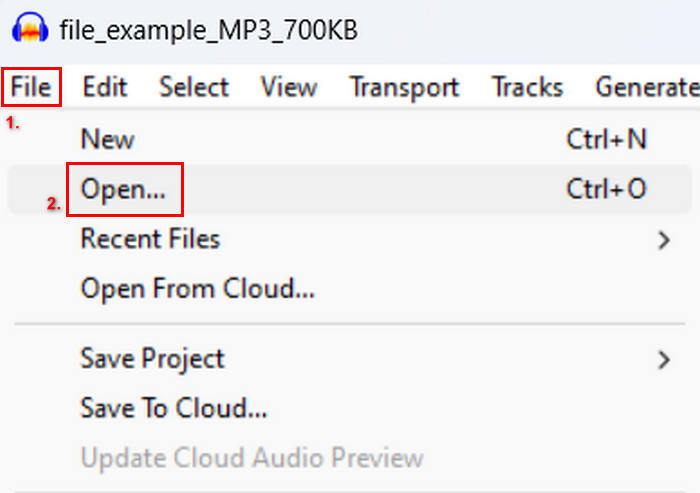
Passaggio 2: Apri il programma, vai alla scheda File, fai clic su Apri e importa le tracce che intendi unire.
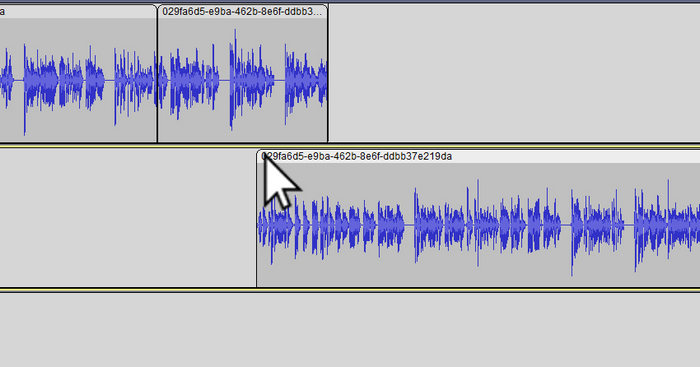
Passaggio 3: Ora che tutte le tue tracce sono state importate nella timeline, la cosa successiva da fare è cliccare sulla testata della Clip della traccia per spostarle e disporle nell’ordine che desideri.
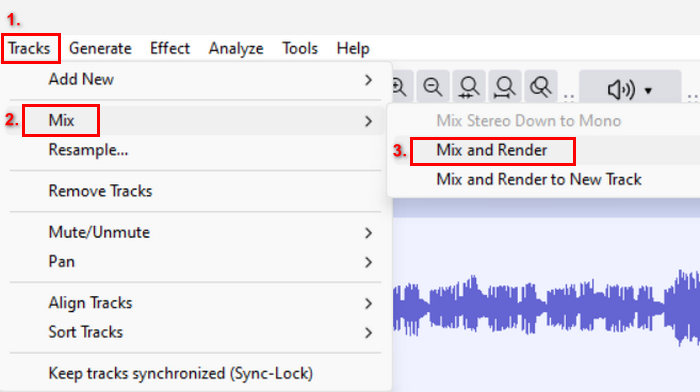
Passaggio 4: Una volta allineate le tracce, fondile in un’unica composizione. Per selezionare le tracce che vuoi unire, tieni premuto Ctrl mentre ci clicchi sopra. Dopodiché, per unire le tracce selezionate in una sola, vai su Tracce, fai clic su Mix e scegli Mix e rendering.
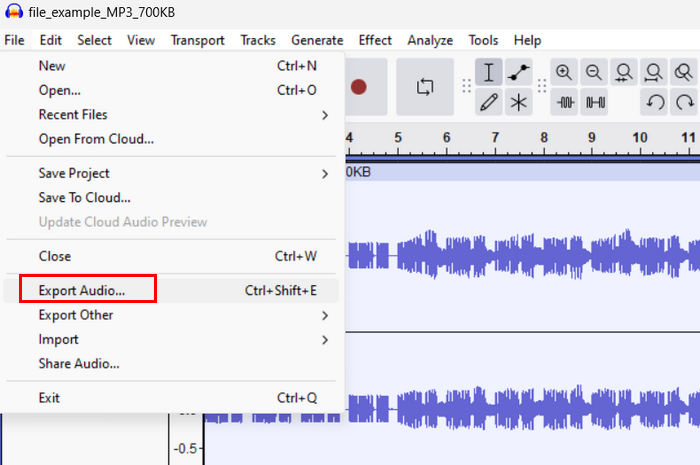
Passaggio 5: Per esportare il file, vai alla scheda File e scegli Esporta audio.
Per garantire transizioni fluide e un suono bilanciato per le tracce combinate, utilizza gli effetti Amplify o Normalize all’interno del programma. Inoltre, usa fade‑in e fade‑out per creare passaggi morbidi tra le tracce, ottenendo un risultato più professionale e rifinito. Consulta qui per imparare come sfumare l’audio in Audacity.
Parte 2. Unisci le tracce con l'alternativa ad Audacity
Se stai cercando un’ottima alternativa perché trovi difficile capire come funziona la funzione di unione delle tracce di Audacity, puoi usare lo strumento selezionato da FVC, Video Converter Ultimate. Si tratta di uno strumento completo che offre un set di funzioni per le esigenze audio e video, come il fusore di tracce audio. Dopo aver importato l’audio che devi unire, questo strumento ti consente di cambiare facilmente l’ordine delle tracce come preferisci e di modificarle subito prima di unirle con un solo clic.
Funzionalità principali:
• Può unire più file audio in 1.000 formati come MP3, AAC, WAV, FLAC, OGG e altri.
• Contiene funzioni di modifica di base come effetti di ritaglio, divisione rapida, dissolvenza in entrata e dissolvenza in uscita.
• Consente di modificare l'uscita audio come l'encoder, la frequenza di campionamento, il bitrate, il canale, ecc.
• Processo di unione veloce.
• Disponibile sia per Windows che per MacOS.
Ecco come unire le tracce con FVC scelto Video Converter Ultimate:
Passaggio 1: per prima cosa, devi scaricare e installare lo strumento sul tuo dispositivo.
Download gratuitoPer Windows 7 o versioni successiveDownload sicuro
Download gratuitoPer MacOS 10.7 o versioni successiveDownload sicuro
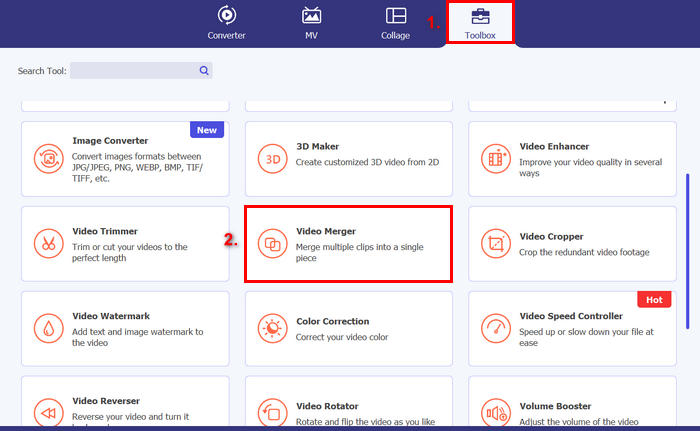
Passaggio 2: Apri il programma, vai alla scheda Toolbox e scegli Video Merger. Dopodiché, fai clic sull’icona Più per importare facilmente i file audio che intendi unire.
Passaggio 3: Ora tutte le tracce audio che hai importato sono visibili in basso. Se devi modificarne la sequenza, trascina semplicemente la clip audio nel punto desiderato. In alternativa, puoi selezionare la clip e fare clic sul pulsante Avanti o Indietro. Successivamente, fai clic sul pulsante Esporta per salvare il tuo progetto.
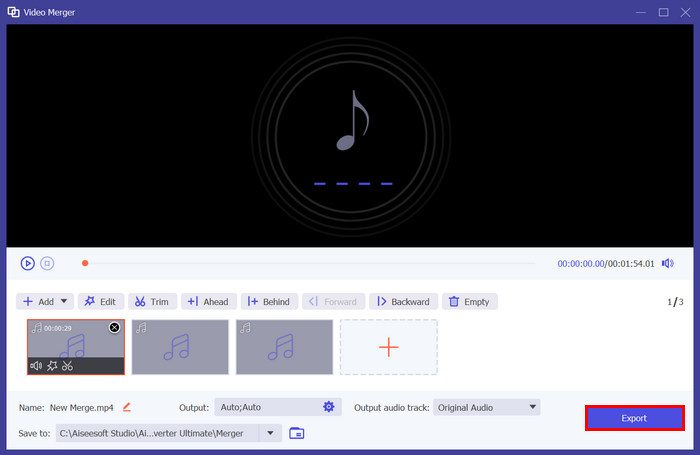
Nota: Se devi cambiare il formato audio o personalizzare alcune impostazioni, vai alle impostazioni di Output. Da lì puoi modificare il formato, il codificatore, il sample rate, il canale e il bitrate delle tue tracce audio. Una volta terminato, fai clic sul pulsante Esporta.
Ecco fatto. Il Video Converter Ultimate scelto da FVC è davvero un'ottima alternativa ad Audacity. Con la sua interfaccia molto intuitiva e user-friendly, anche i principianti possono usare facilmente lo strumento quando uniscono più tracce.
Parte 3. Domande frequenti sull'unione delle tracce in Audacity
Come faccio a importare più file audio in una traccia in Audacity?
Per importare più file audio in Audacity, vai alla scheda File, fai clic su Apri e seleziona i file audio che vuoi unire. Ogni file apparirà in una traccia separata sulla timeline. Da lì puoi allineare manualmente e unire le tracce utilizzando l’opzione Mix e rendering nel menu Tracce.
Come faccio a spostare l'audio da una traccia all'altra in Audacity?
Ci sono due modi per spostare una traccia quando si uniscono più tracce in Audacity. Per spostare una singola traccia, fai clic e trascina la maniglia della clip della traccia e posizionala nell'ordine che desideri. Nel frattempo, per spostare più tracce, seleziona tutte le tracce che desideri spostare utilizzando lo strumento di selezione. Quindi, trascina una qualsiasi maniglia della clip all'interno dell'area selezionata per spostare tutte le clip scelte simultaneamente.
Quante tracce ha Audacity?
Audacity non ha un limite fisso sul numero di tracce che puoi modificare. Con questo, puoi creare e importare tutte le tracce che vuoi. Tuttavia, quando lavori con un certo numero di tracce, devi considerare la capacità del tuo computer perché le prestazioni possono dipendere dalla potenza di elaborazione e dalla memoria del tuo sistema.
Conclusione
Ora che sai come unire le tracce in Audacity, puoi creare facilmente transizioni fluide e un audio bilanciato per i tuoi progetti. Inoltre, puoi esplorare altre funzioni come fade‑in, fade‑out e regolazioni del volume per ottenere un suono migliore. Nel frattempo, se desideri un’opzione più semplice o più avanzata, prova Video Converter Ultimate selezionato da FVC. È facile da usare e offre maggiori possibilità di personalizzazione per i tuoi file audio.
-
 Come usare Audacity per invertire l'audio su Windows 10/11
 Se stai modificando un file audio in Audacity e ti stai chiedendo come invertirne tutto o una parte, leggi qui e scopri come invertire facilmente l'audio in Audacity.
-
 Come sfumare l'audio in Audacity: 4 modi diversi [2025]
 Scopri i passaggi su come sfumare l'audio in Audacity in modo efficace e qualche nozione in più sugli effetti di dissolvenza in entrata/uscita di Audacity. Allacciati le cinture ora e tuffiamoci dentro.
-
 Come dividere l'audio in Audacity con grande precisione [Guida]
 Stai cercando di imparare come dividere le tracce in Audacity? Sei sulla pagina giusta! In questo articolo, scopri come puoi separare una traccia in due con grande facilità.
