


 Video Converter Ultimate
 Screen Recorder
 Riparazione video
 Download sicuro
Come convertire file FLV in video iPhone senza perdere qualità
È risaputo che iPhone e iPad sono dotati di display di ultima generazione. È quindi naturale che guardare film sugli iDevice sia un’attività molto diffusa. Tuttavia, gli utenti iOS si scontrano sempre con un limite di formato quando riproducono i film. Ad esempio, i file FLV, piuttosto comuni, non sono supportati dal software nativo di Apple. Ecco perché proponiamo questa guida, per aiutarti a convertire FLV in video per iPhone facilmente, da desktop o online.

Parte 1: il miglior software gratuito per convertire i video FLV in iPhone
In modo nativo, l’iPhone supporta M4V, una parte di MP4, MOV e una parte di AVI. Questo rende difficile convertire FLV nel formato per iPhone. FVC Free FLV Converter è uno strumento potente. Offre preimpostazioni per convertire direttamente i file multimediali nel formato iPhone. Ancora più importante, è completamente gratuito.
Caratteristiche principali del miglior convertitore gratuito da FLV a video per iPhone
- 1. Converti facilmente i file FLV in formato video iPhone.
- 2. Includi molti preset per iPhone, iPad e altro.
- 3. Offri funzionalità bonus estese, come il miglioramento del video.
Download gratuitoPer Windows 7 o versioni successiveDownload sicuro
Download gratuitoPer macOS 10.7 o versioni successiveDownload sicuro
Come convertire FLV in video iPhone in batch Ba
Passaggio 1: aggiungi file FLV
Avvia il miglior convertitore gratuito da FLV a video per iPhone dopo averlo installato sul computer. Quindi fai clic sul pulsante Add File(s) per aprire la finestra di dialogo dei file. Trova e seleziona tutti i file FLV che vuoi riprodurre su iPhone e fai clic su Open. Il convertitore supporta la conversione in batch.

Passaggio 2: imposta il formato di output
Dopo il caricamento dei FLV, li vedrai tutti nell’area libreria. Vai nell’area inferiore, fai clic e amplia l’opzione Output format. Seleziona Apple iPhone nell’elenco e scegli il modello del tuo dispositivo. Il software ottimizzerà di conseguenza i parametri. Imposterà il formato di output per tutti i file FLV. Se desideri modificare un parametro specifico, fai clic sull’icona Gear per aprire la finestra del profilo.

Passaggio 3: converti FLV in video iPhone
Successivamente, fai clic sul pulsante Open Folder, seleziona la cartella di destinazione e conferma. Per impostazione predefinita, il software salverà i video per iPhone nella tua libreria video, ma puoi modificarla in base alle tue preferenze. Infine, fai clic sul pulsante Convert per iniziare a convertire i FLV in video per iPhone.

Inoltre, il programma supporta anche la conversione di video FLV per Xbox, PS4, Samsung, Apple TV e altri dispositivi popolari.
Parte 2: Come convertire FLV in formato iPhone online
Alcune persone non amano installare software sul proprio disco rigido. A volte, potresti aver bisogno di convertire FLV in video per iPhone solo occasionalmente. In questi casi, un’app di conversione video online, come FVC Free Online Video Converter, è una scelta pratica. Può soddisfare le tue esigenze senza installare alcun software. Inoltre, non richiede alcun pagamento o registrazione. A differenza di altre app web, non ha nemmeno limiti di dimensione dei file, quindi puoi caricare un numero illimitato di file FLV da convertire.
Passo 1: apri https://www.free-videoconverter.net/free-online-video-converter/ in un browser per visualizzare la home page. Premi il pulsante Add Files to Convert e scarica il launcher.

Passo 2: al termine del download, il launcher si aprirà automaticamente. Quindi fai clic sul pulsante Add File nell’angolo in alto a sinistra e carica i file FLV che intendi riprodurre su iPhone.
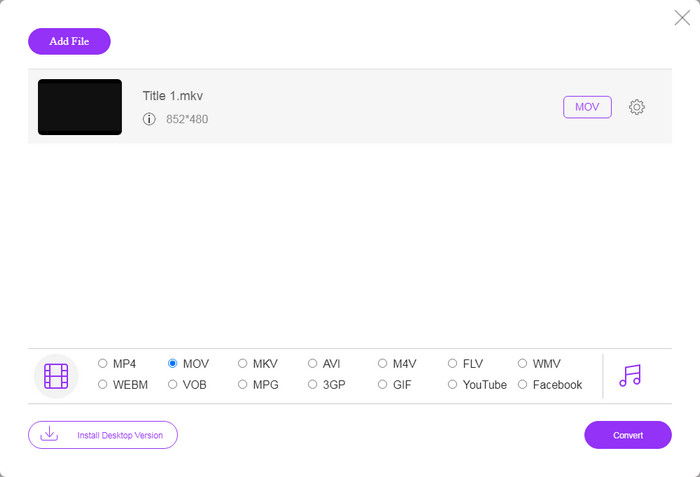
Passo 3: individua l’area dei formati in basso e seleziona MOV, che è il formato video più compatibile per i dispositivi iOS. Fai clic sul pulsante Convert e l’app web effettuerà online la conversione da FLV al formato per iPhone. Attendi che il processo sia completato e scarica il risultato sul tuo disco rigido.
Se desideri ripristinare le opzioni, fai clic sull'icona Impostazioni e le troverai nella finestra di dialogo Impostazioni, come risoluzione, codec, ecc.
Parte 3: Domande frequenti sulla conversione di video FLV in iPhone
Riesci a riprodurre file FLV su iPhone senza convertirli?
L’unico modo per riprodurre file FLV su iPhone senza convertirli è installare un lettore FLV di terze parti, come VLC per iOS. In questo modo potrai guardare facilmente i tuoi film preferiti.
Dove vengono salvati i video su iPhone?
I video che registri e trasferisci su iPhone verranno salvati nell'app Foto. Se scarichi un video utilizzando un'app, verrà salvato nell'app. Ad ogni modo, non puoi accedere al file system su iPhone o iPad.
Quali tipi di file vengono utilizzati da iPhone per i video?
Su iPhone, H.264 è l'unico codec video supportato. Quando si tratta di formati video, MOV e MP4 sono strettamente correlati. Per la registrazione video su iOS, Apple utilizza il nuovo codec video H.265 o HEVC.
Conclusione
Ora dovresti capire come aprire e riprodurre file FLV su iPhone. Apparentemente, non puoi aprire direttamente i video FLV su iPhone. Il modo migliore è convertire i tuoi file in un formato supportato da iPhone, come MOV. Quindi puoi riprodurre i video senza problemi. FVC Free FLV Converter è uno dei migliori convertitori video gratuiti da FLV a iPhone. Non è solo facile da usare, ma è anche in grado di produrre un'eccellente qualità di output. Più domande? Si prega di scrivere sotto.
-
 3 semplici metodi per convertire FLV in AVI su desktop e online
 1. Converti facilmente i video FLV in altri formati multimediali. 2. Supporta quasi tutti i formati video, come AVI, MP4, MKV, ecc. 3. Elabora in batch centinaia di file FLV per conversione.
-
 I 3 migliori modi per convertire FLV in WMV su Windows e Mac
 Cerchi il modo migliore per convertire FLV in WMV senza perdere qualità su PC o Mac? Sei fortunato perché qui condividiamo tre metodi per svolgere facilmente il lavoro.
-
 Guida concreta per caricare i tuoi video FLV su YouTube
 Carica FLV su YouTube ma non è riuscito? Puoi risolvere questo problema da solo e convertire FLV in codec supportati da YouTube seguendo la nostra guida passo passo.
