


 Video Converter Ultimate
 Screen Recorder
 Riparazione video
 Download sicuro
Come convertire MOV in GIF: una guida completa per aumentare la presenza online
Mantenere l'attenzione del pubblico nel frenetico mondo digitale di oggi richiede la creazione di contenuti visivi accattivanti. Le GIF animate sono ampiamente utilizzate per la loro capacità di trasmettere concetti complessi, sentimenti e messaggi di marca in modo divertente e memorabile. Ma non tutti i formati video sono accessibili tramite più piattaforme e dispositivi. Per fare ciò, puoi utilizzare un convertitore da MOV a GIF.
Un’animazione leggera e di alta qualità, facilmente condivisibile sul tuo sito web, sui social media e nelle app di messaggistica, può essere creata convertendo i tuoi file MOV in GIF animate. Puoi migliorare ulteriormente l’efficacia promozionale delle tue GIF aggiungendo testo, filtri e elementi di branding. Convertire da MOV a GIF può sembrare complicato, ma esistono diversi software di conversione online e offline che semplificano il processo. Questo articolo ti mostrerà come convertire MOV in GIF e illustrerà più nel dettaglio i vantaggi di questa operazione.

Parte 1. Converti MOV in GIF offline
Sebbene gli strumenti offline richiedano un'installazione una tantum, offrono maggiore flessibilità e controllo sui processi di conversione dei file. È importante scegliere un fornitore di software affidabile e mantenere il software aggiornato per garantire prestazioni e sicurezza ottimali. Detto questo, abbiamo fornito qui un elenco di programmi per aiutarti a convertire MOV in GIF su Mac, Windows e iPhone. Dai un'occhiata per saperne di più.
FVC Free Video Converter è in grado di convertire file video MOV in file immagine GIF. Rende questo processo semplice grazie a un’interfaccia intuitiva che permette di selezionare il file MOV e specificare le impostazioni di output per il file GIF. Durante la conversione da MOV a GIF con FVC Free Video Converter, puoi definire dimensioni e qualità del file GIF, oltre al frame rate e ad altre impostazioni. Il software offre anche una funzione di anteprima che ti consente di vedere il risultato prima di salvarlo. Nel complesso, FVC Free Video Converter è uno strumento utile per chiunque desideri convertire video MOV in immagini GIF per vari scopi. Scopri di più su questo programma consultandone le funzioni principali.
Funzioni principali:
◆ Converti più video contemporaneamente.
◆ Conversione ad alta velocità con tecnologie di accelerazione.
◆ Progettato per essere facile da usare da parte degli utenti.
Passaggio 1. Scarica il programma sul tuo computer
Per imparare a convertire MOV in GIF, scarica e installa FVC Free Video Converter sul tuo computer. Puoi ottenere questo programma facendo clic sul pulsante Download gratuito qui sotto. Puoi scegliere tra il programma di installazione per Mac o per Windows.
Download gratuitoPer Windows 7 o versioni successiveDownload sicuro
Download gratuitoPer MacOS 10.7 o versioni successiveDownload sicuro
Passaggio 2. Aggiungi il file o i file MOV desiderati
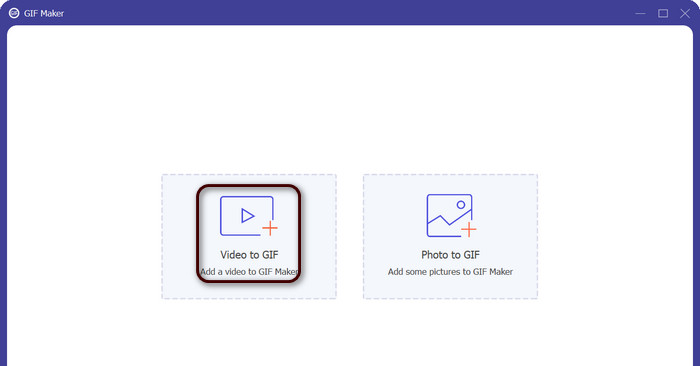
Avvia il programma per visualizzarne l’interfaccia principale. Da qui, vai alla scheda Toolbox e fai clic sullo strumento GIF Maker. Quindi premi il pulsante Video to GIF per aggiungere i file MOV che desideri convertire.
Passaggio 3. Modifica il video
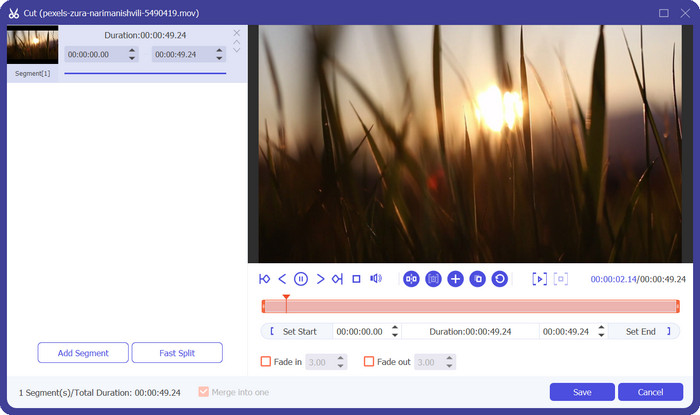
Se desideri tagliare alcune parti del video, fai clic sul pulsante Cut. Ora utilizza la barra di scorrimento oppure inserisci un preciso orario di inizio e fine per selezionare la porzione di video che vuoi usare per la GIF. Poi personalizza le impostazioni della GIF, tra cui dimensioni di output, frame rate e qualità. Puoi anche aggiungere testo o sticker alla GIF facendo clic sul pulsante Edit.
Passaggio 4. Converti MOV in GIF
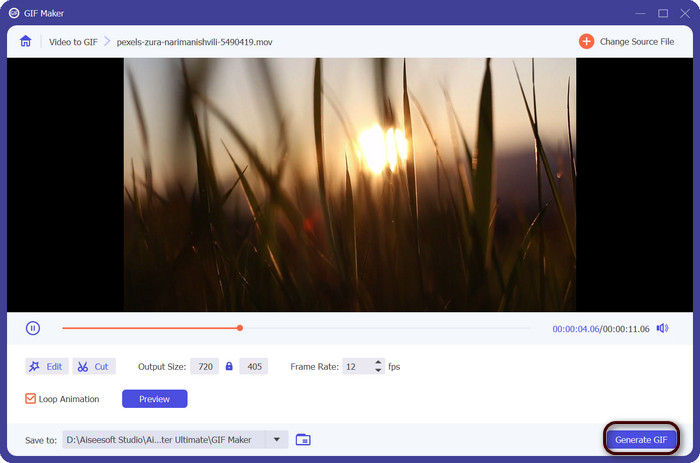
Visualizza l’anteprima della GIF per assicurarti che abbia l’aspetto desiderato. Fai clic sul pulsante Generate GIF per creare la tua GIF. Il file GIF verrà salvato sul computer nel percorso che hai specificato nelle impostazioni di output.
2. FFmpeg
FFmpeg è uno strumento software versatile e potente che offre a sviluppatori, professionisti dei media e hobbisti una varietà di funzionalità per lavorare con file audio e video. Con la sua compatibilità multipiattaforma, puoi utilizzare FFmpeg su diversi sistemi operativi, rendendolo una soluzione ideale per progetti che richiedono flessibilità e versatilità. Una delle caratteristiche distintive di FFmpeg è la sua capacità di gestire vari formati di file audio e video, inclusi formati popolari come MP4, MOV, AVI e altri. Scopri come trasformare MOV in GIF utilizzando le seguenti istruzioni.
Funzioni principali:
◆ Conversione e transcodifica.
◆ Supporto per un'ampia gamma di formati video e audio.
◆ Streaming e trasmissione.
◆ Interfaccia della riga di comando.
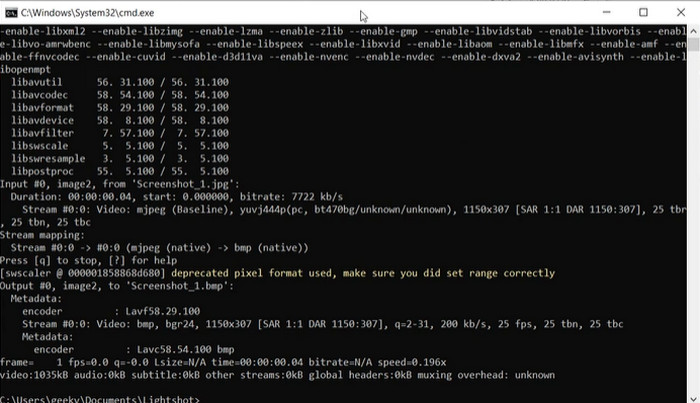
Passaggio 1. Avvia un prompt dei comandi o una finestra del terminale sul tuo computer. Poi vai nella directory in cui si trova il tuo file MOV per iniziare la conversione da MOV a GIF con FFmpeg.
Passaggio 2. Inserisci il seguente comando: ffmpeg -i input.mov output.gif. Sostituisci input.mov con il nome del tuo file MOV e output.gif con il nome desiderato per il file GIF. Facoltativamente, puoi personalizzare l’output aggiungendo ulteriori flag al comando. Ad esempio, puoi impostare il frame rate della GIF aggiungendo il flag -r, in questo modo: ffmpeg -i input.mov -r 10 output.gif. In questo modo il frame rate sarà impostato a 10 fotogrammi al secondo.
Passaggio 3. Premi Invio per eseguire il comando. FFmpeg convertirà il tuo file MOV in una GIF e il file risultante verrà salvato nella stessa directory del file di origine. Ecco come trasformare un MOV in una GIF.
3. Photoshop
Photoshop di Adobe Systems è un software standard del settore per l'editing e la progettazione di immagini digitali. Numerosi professionisti nel campo della fotografia, della progettazione grafica e dell'arte si affidano ad esso per generare e modificare foto digitali, grafica e opere d'arte. Fortunatamente, i numerosi strumenti di Photoshop semplificano la trasformazione di video MOV in GIF. Alcuni dei punti salienti includono quanto segue:
Funzioni principali:
◆ Funzione timeline video per l'importazione di file video.
◆ Esporta GIF in diverse dimensioni e risoluzioni.
◆ Crea animazioni fotogramma per fotogramma con un pannello di animazione.
Passaggio 1. Apri Photoshop sul tuo computer e vai su File > Import > Video Frames to Layers. Nella finestra Importa Video in Livelli, seleziona il file MOV e fai clic su Open.
Passaggio 2. Nella finestra di dialogo Video Layer, seleziona From Beginning to End se vuoi usare l’intero video oppure Selected Range Only se desideri usarne solo una parte. Quindi fai clic su OK.
Passaggio 3. Photoshop importerà i fotogrammi del video come livelli. Vai su Window > Timeline per aprire il pannello Animazione. Nel pannello di animazione, fai clic sul pulsante Create Frame Animation.
Passaggio 4. Fai clic sull’icona del menu nell’angolo in alto a destra del pannello di animazione e seleziona Make Frames From Layers. Nel pannello di animazione puoi regolare la durata di ciascun fotogramma facendo clic sul tempo sotto ogni fotogramma e inserendo un nuovo valore.
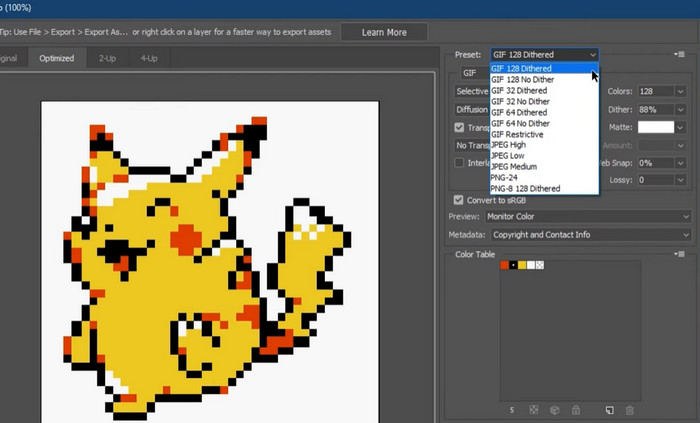
Passaggio 5. Quando sei soddisfatto della GIF, vai su File > Export > Save for Web (Legacy). Nella finestra Save for Web scegli GIF come tipo di file. Regola le impostazioni in base alle tue preferenze, come dimensioni, tavolozza dei colori e opzioni di ottimizzazione. Fai clic su Save per salvare la GIF. Ecco come esportare un MOV in GIF con Photoshop.
Parte 2. Converti MOV in GIF online
L'utilizzo di programmi online per convertire i file offre un modo conveniente e accessibile per convertire i file senza dover installare alcun software o navigare in interfacce complicate. Se sei curioso di sapere quale programma utilizzare, puoi dare un'occhiata ai migliori convertitori online da MOV a GIF qui sotto.
1. Convertitore video online gratuito
Free Video Converter Online di FVC offre un’interfaccia semplice e intuitiva che consente agli utenti di convertire rapidamente i propri file video. Gli utenti possono selezionare il file di input e scegliere il formato e la qualità di output desiderati. Lo strumento permette inoltre di personalizzare varie impostazioni, tra cui risoluzione video, bitrate e frame rate.
Passaggio 1. Apri un browser web e vai al sito di FVC Free Video Converter Online.
Scarica la Versione Desktop per convertire i file in batch.
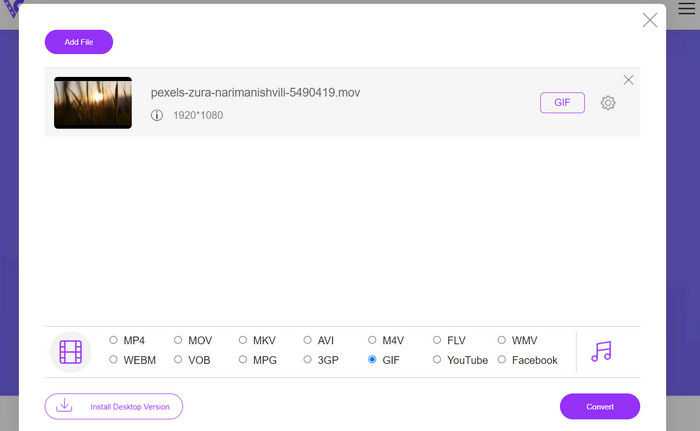
Passaggio 2. Ora fai clic sul pulsante Add Files to Convert per caricare il file video MOV che desideri convertire. In alternativa, puoi trascinare e rilasciare il file nell’area dedicata.
Passaggio 3. Seleziona il formato di output spuntando il pulsante di scelta GIF. Premi il pulsante Convert per avviare il processo di conversione.
2. CloudConvert
CloudConvert è un'applicazione Web per la conversione di file online che consente agli utenti di convertire vari tipi di file, inclusi video, immagini, documenti e altro. Offre una vasta gamma di opzioni di conversione, supportando oltre 200 formati di file, inclusi formati popolari come MP4, MOV, GIF e altri.
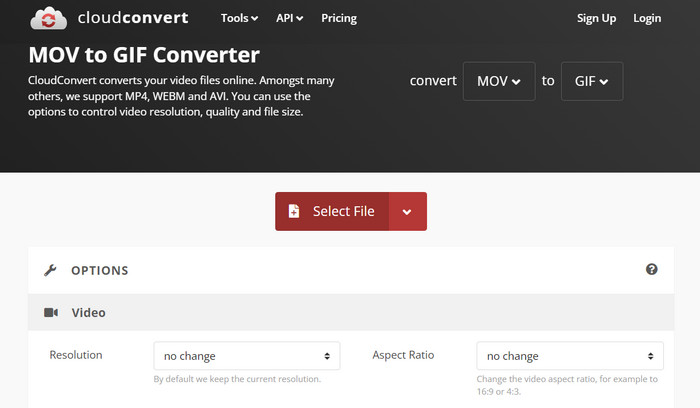
Passaggio 1. Per usare CloudConvert per la conversione da MOV a GIF, apri un browser web e vai al sito di CloudConvert. Fai clic sul pulsante Select Files per caricare il tuo file MOV.
Passaggio 2. Una volta caricato il file, seleziona GIF come formato di output dal menu a tendina. Facoltativamente, puoi personalizzare le impostazioni di output, come il frame rate e le dimensioni dell’immagine.
Passaggio 3. Fai clic sul pulsante Convert per avviare il processo di conversione. Al termine, potrai scaricare il file GIF convertito sul tuo computer. Così funziona questo strumento online gratuito per convertire MOV in GIF.
3. EZGIF
EZGIF è un'app Web flessibile che offre un'ampia gamma di opzioni per lavorare con le GIF. Il programma è una risorsa gratuita per creare, modificare e ottimizzare GIF da file video, foto e persino altre GIF. La capacità di EZGIF di trasformare rapidamente i file video in GIF è uno dei suoi punti di forza più interessanti. Gli utenti possono caricare video in formati come MP4, AVI o MOV e convertirli in GIF con impostazioni come frame rate e dimensioni dell'immagine che possono modificare a proprio piacimento. Usa EZGIF per la conversione da MOV a GIF seguendo i passaggi seguenti.
Passaggio 1. Avvia il browser e vai su EZGIF per convertire il tuo video in una GIF animata.
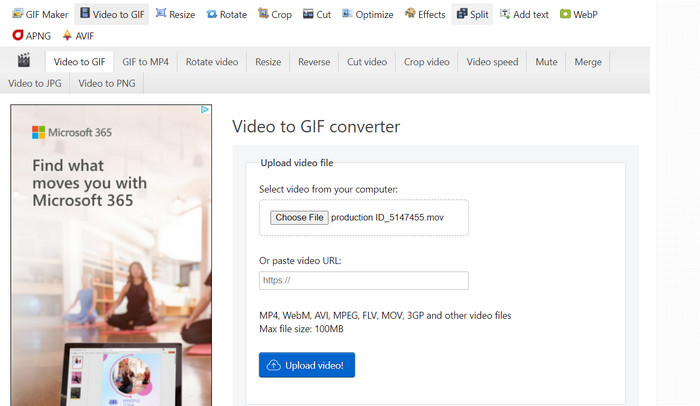
Passaggio 2. Per trasformare un MOV in GIF, fai semplicemente clic su Choose File e individua il file che vuoi modificare.
Passaggio 3. Dopo aver caricato il file, utilizza i cursori disponibili per impostare i tempi di inizio e fine della GIF. È anche possibile modificare le dimensioni e la didascalia della GIF. Per avviare la conversione, seleziona l’opzione Convert to GIF.
Ulteriori letture
[Gratis e Online] 4 metodi per convertire MOV in MP4
Ripetere in loop i GIF con il miglior strumento per GIF animate su Windows e Mac
MOV contro GIF
Il formato MOV può essere utilizzato per memorizzare un film, un programma TV, un breve video clip o un filmato amatoriale. In realtà viene salvato nel formato QuickTime File Format (QTFF), introdotto da Apple nel 1991. I file MOV vengono spesso utilizzati quando le persone vogliono salvare un video di alta qualità.
GIF è un formato di immagine comune per la grafica web. Oltre a salvare piccole immagini e immagini che contengono testo, GIF può anche contenere e visualizzare animazioni di base sui siti Web. È un formato senza perdita di dati e la compressione GIF non degrada la nitidezza dell'immagine.
Parte 3. Domande frequenti su MOV in GIF
Quali impostazioni devo usare quando converto un MOV in una GIF?
Le impostazioni da utilizzare durante la conversione di un MOV in GIF dipenderanno dalle tue esigenze specifiche. In genere, ti consigliamo di regolare la frequenza dei fotogrammi, le dimensioni dell'immagine e la profondità del colore per ottimizzare la GIF per l'uso previsto.
Posso convertire una parte di un file MOV in una GIF?
Sì, la maggior parte degli strumenti ti consente di selezionare una parte specifica di un file MOV da convertire in GIF. Questo può essere utile solo se vuoi
Quali sono alcuni usi comuni per le GIF create da file MOV?
Le GIF create da file MOV possono essere utilizzate per una vasta gamma di scopi, inclusi post sui social media, animazioni di siti Web e campagne di email marketing.
Conclusione
Convertire MOV in GIF può essere utile per vari scopi, dalla creazione di contenuti coinvolgenti per i social media alla presentazione delle funzionalità di un prodotto o alla realizzazione di tutorial. Sono disponibili molti strumenti per effettuare questa conversione, che vanno da soluzioni online come EZGIF e CloudConvert ad applicazioni desktop più avanzate come Photoshop e Adobe After Effects.
-
 5 modi migliori per cambiare l'immagine in GIF animata [Aggiornato 2023]
 Hai bisogno di un'immagine convertitore in GIF? Questo articolo fornirà i cinque migliori convertitori che possiamo trovare sul mercato. Quindi, scopriamo questi strumenti leggendo questo articolo.
-
 Converti facilmente MOV in WMV usando questi incredibili convertitori
 Vuoi convertire il tuo file MOV in file WMV? Ecco i semplici modi per convertire facilmente MOV in WMV utilizzando questi convertitori online e offline che consigliamo di utilizzare.
-
 La migliore guida su come tagliare le GIF per ravvivare i tuoi contenuti
 Non perderti questa guida da non perdere. Scopri come ritagliare e tagliare le GIF per attirare l'attenzione del tuo pubblico con fantastici ritagli di GIF online e offline.
