


 Video Converter Ultimate
 Screen Recorder
 Riparazione video
 Download sicuro
Unisci i file WAV senza problemi con strumenti software e suggerimenti
Che tu sia un principiante nel montaggio audio o un professionista, per combinare file WAV è necessario usare gli strumenti e le tecniche giuste per assicurarsi che due diversi file WAV vengano combinati ed esportati con qualità senza perdita. D’altra parte, cercare lo strumento adatto può richiedere tempo e impegno. Tuttavia, con l’aiuto di questo articolo esploreremo i vari strumenti, con i passaggi per usarli in modo efficace e alcuni suggerimenti per iniziare e rendere il processo più semplice ed efficiente.

Parte 1. Combina file WAV senza perdita di dati in pochi secondi [con accelerazione GPU]
Quando vuoi combinare due file WAV in un unico file da esportare, il modo migliore e più semplice per farlo è usare Video Converter Ultimate, selezionato da FVC. Questo software di Aiseesoft è accessibile a ogni tipo di utente, poiché è completamente gratuito da scaricare dal sito ufficiale. Lo strumento include funzioni per il montaggio video e audio, con la possibilità di unire più file WAV in un unico file. Inoltre, il software integra una tecnologia di elaborazione ad alta velocità che rende l’unione e l’esportazione dei file WAV molto più efficiente per l’utente. Per navigare facilmente il compito di unire i file WAV, segui la guida qui sotto.
Passaggio 1. Scarica e installa il programma per unire file WAV sul tuo desktop, quindi procedi ad aprirlo.
Download gratuitoPer Windows 7 o versioni successiveDownload sicuro
Download gratuitoPer MacOS 10.7 o versioni successiveDownload sicuro
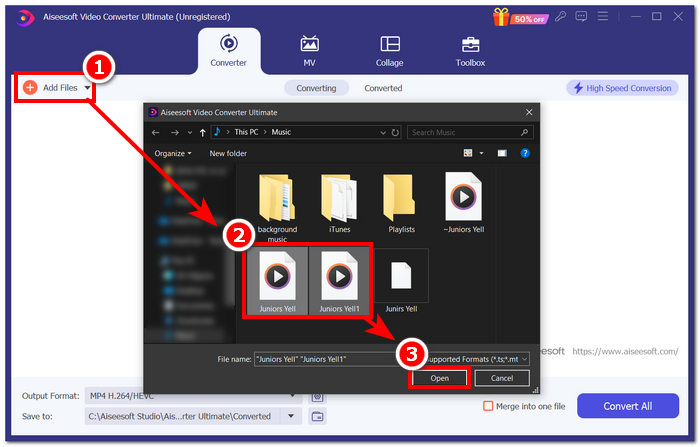
Passaggio 2. Una volta nell’interfaccia del software, fai clic sul pulsante Add Files nell’angolo in alto a sinistra. Poi apri e seleziona i file WAV che vuoi unire in un solo file e quindi fai clic sul pulsante Open.
Passaggio 3. Dopo aver caricato i file WAV che vuoi unire nel software, per farlo metti un segno di spunta sulla voce Merge into one file, che si trova accanto al pulsante Convert All nella parte inferiore destra dell’interfaccia del programma.
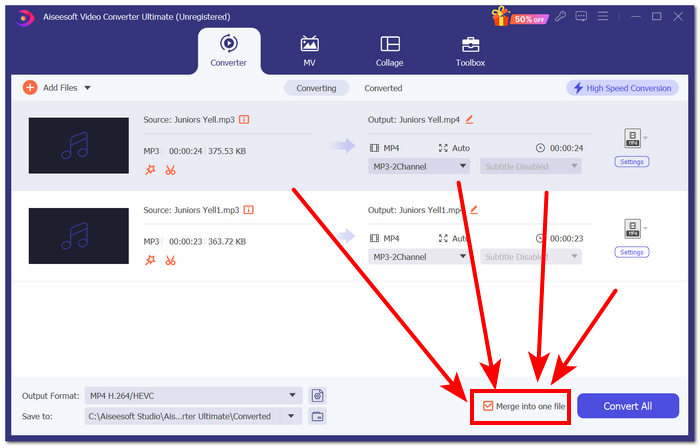
Passaggio 4. Fai clic sul pulsante Convert All per avviare il processo di unione ed esportarli automaticamente nella tua cartella Download.

Suggerimenti
• È possibile unire più file WAV contemporaneamente nello strumento software.
• Nell'angolo inferiore sinistro dell'interfaccia del software, puoi controllare il formato di output nel formato di file più desiderato prima di esportarlo.
• Puoi anche modificare la destinazione del file WAV unito accedendo e scegliendo la cartella designata situata nell'angolo inferiore sinistro dell'interfaccia del software.
• Per sfruttare al massimo la tecnologia di elaborazione ad alta velocità durante l'unione e l'esportazione del file WAV, abilitare l'impostazione Conversione ad alta velocità situata nell'angolo in alto a destra dell'interfaccia del software.
• Inoltre, questo strumento supporta vari formati e puoi combinare file MP4, MKV, FLV, MP3, FLAC e molti altri formati tra loro.
Parte 2. Combina i file WAV online
Quando ritieni che unire i tuoi file WAV tramite uno strumento basato su software sia piuttosto difficile, una soluzione online potrebbe essere quella di cui hai bisogno. Descript è uno strumento basato sul Web che funziona come strumento di editing audio, video e trascrittore in uno. Unire i file WAV è relativamente facile poiché lo strumento basato sul Web utilizza l'intelligenza artificiale per unire automaticamente i file WAV di input nel momento in cui li carichi e consente agli utenti di visualizzarli in anteprima prima di scaricarli.
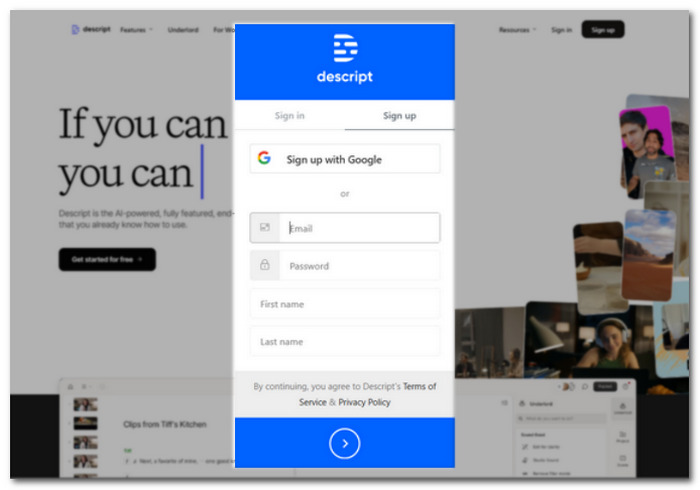
Passaggio 1. Vai al sito ufficiale di Descript e crea un account così potrai usare il software per combinare i tuoi file WAV.
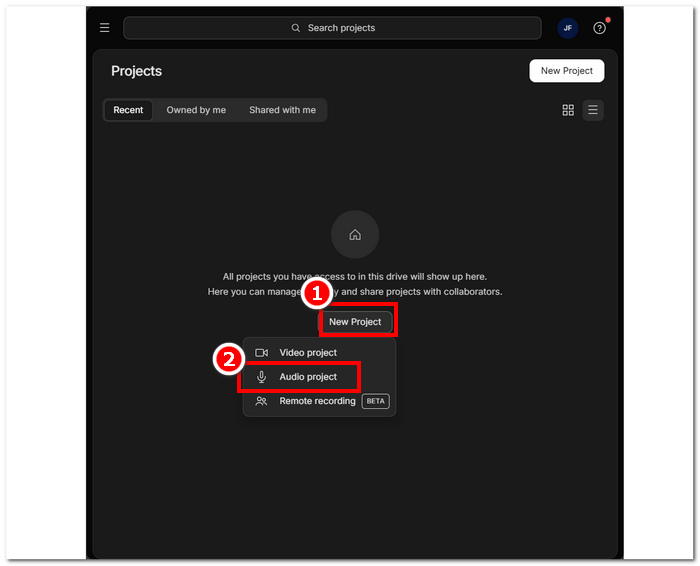
Passaggio 2. Una volta effettuato l’accesso all’interfaccia dello strumento, fai clic su New Project > Audio Project.
Passaggio 3. Carica i file WAV che desideri combinare e unire in un unico file nel campo Upload a file previsto nell’interfaccia dello strumento.
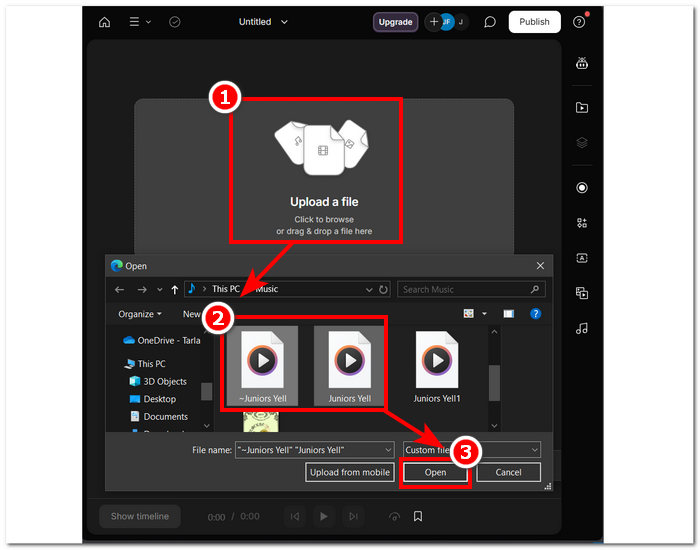
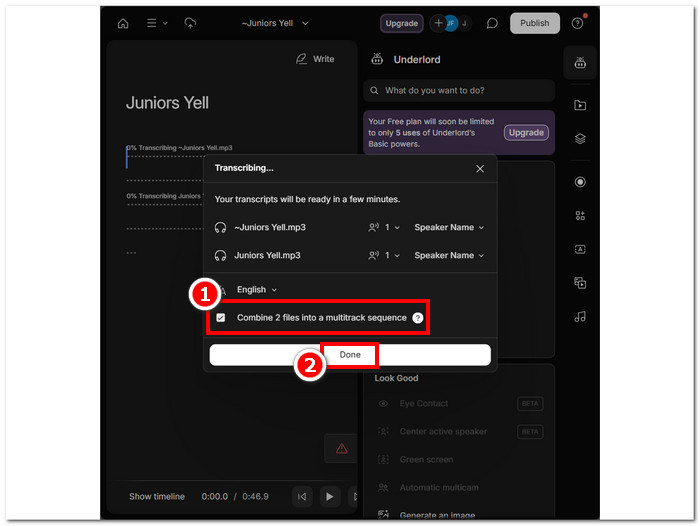
Passaggio 4. Mentre i file WAV vengono caricati nell’interfaccia dello strumento, apparirà una finestra che ti permetterà di decidere se vuoi combinarli automaticamente. Metti un segno di spunta per consentire il processo di combinazione tramite IA, quindi fai clic sul pulsante Done.
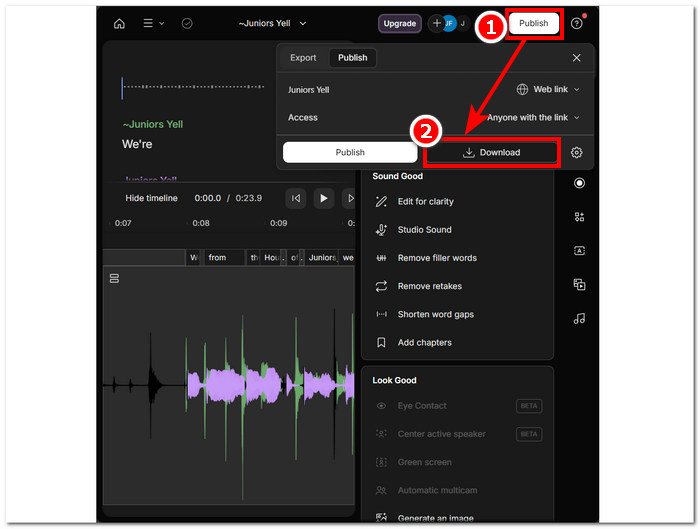
Passaggio 5. Attendi che lo strumento finisca di unire i file WAV. Una volta terminato, puoi riprodurre il risultato finale per verificare se l’IA ha fatto un ottimo lavoro nel combinare i file WAV ed effettuare eventuali modifiche se necessario. Quando sei soddisfatto, fai clic su Publish > Download per scaricare sul desktop i tuoi file WAV uniti.
Suggerimenti
• Prima di scaricare i file WAV combinati, assicurati di controllare attentamente la traccia audio per evitare tagli.
• Prendere familiarità con lo strumento può aiutare ad accelerare efficacemente il processo di unione dei file WAV.
Parte 3. Combina i file WAV con Audacity
Come editor audio open source, Audacity può anche unire tracce come i file WAV gratuitamente, senza costi aggiuntivi. Questo software, scaricabile gratuitamente, aiuta da anni gli utenti nei loro lavori di montaggio audio e ha reso molto più semplice unire file WAV. Audacity consente di aggiungere più file WAV in una sola volta e supporta anche l’importazione di diversi formati audio. Inoltre, offre una funzione rapida per allineare perfettamente ogni traccia alla fine della precedente, rendendo molto più facile l’unione senza doversi preoccupare di sovrascrivere nulla. Pertanto, seguire la guida completa qui sotto ti aiuterà a usare il software in modo più efficace.
Passaggio 1. Scarica il software Audacity sul tuo desktop. Una volta installato, aprilo e carica i file WAV che desideri unire in un unico file.
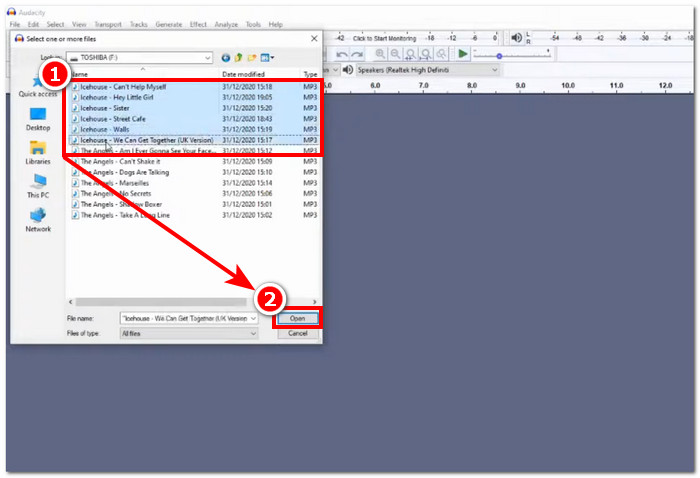
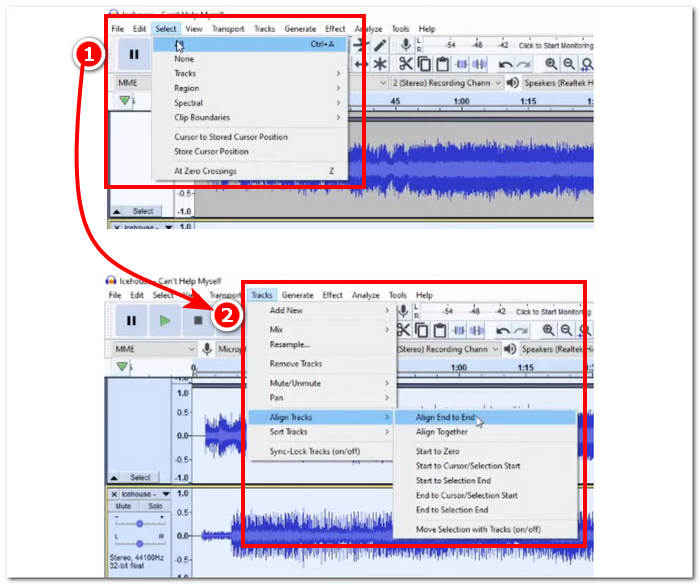
Passaggio 2. Quando i file WAV sono caricati nell’interfaccia dello strumento, inizia selezionando tutte le tracce facendo clic su Select > All nel menu in alto. Successivamente, per allineare le tracce WAV selezionate, fai clic sulla sezione Track e, sotto Align Tracks, seleziona Align End to End.
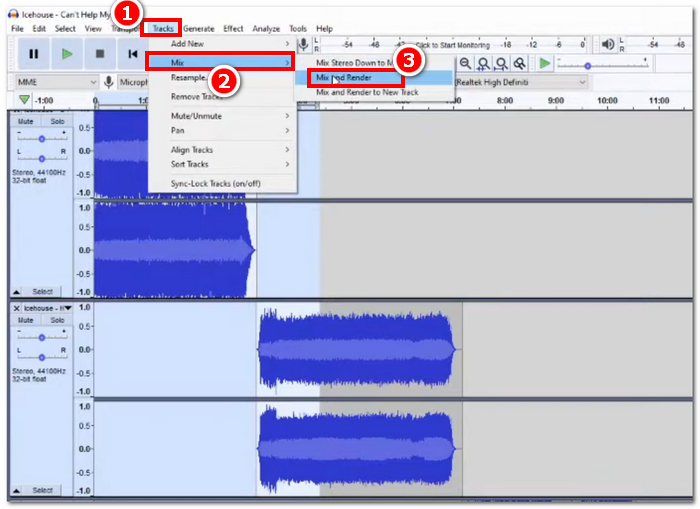
Passaggio 3. Una volta che i file WAV sono allineati dalla fine di ogni traccia, fai clic sulla sezione Track e, sotto la funzione Mix, seleziona Mix and Render per avviare il processo di unione.
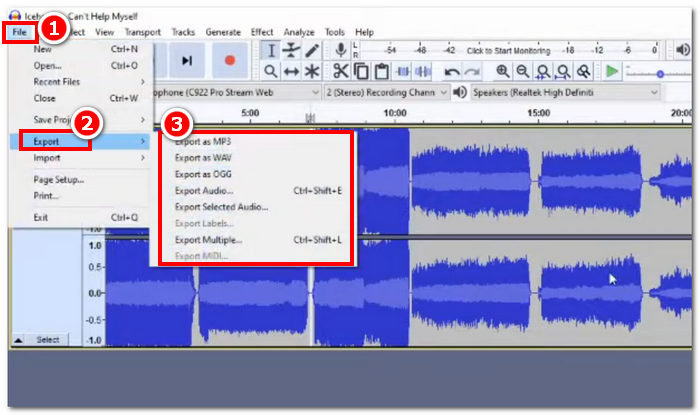
Passaggio 4. Quando il processo di unione è terminato, puoi esportare il tuo file WAV facendo clic su File > Export e scegliendo liberamente il formato di output desiderato tra quelli disponibili.
Suggerimenti
• Quando esporti i tuoi file WAV combinati, scegli di esportare come WAV, poiché mantiene la qualità audio originale.
Parte 4. Combina file WAV usando FFmpeg
Un altro strumento software open source per la manipolazione di audio e video è FFmpeg. Questo potente framework multimediale può essere utilizzato come convertitore e per l'editing multimediale, come file video, audio e altri file multimediali. Nella gestione di attività come l'unione di file WAV, il software inserisce un codice specifico nel prompt dei comandi per avviare il processo di unione chiamato concatenazione di file WAV in un singolo file di output. Di seguito è riportata una guida dettagliata su come utilizzare FFmpeg come unione di file WAV.
Passaggio 1. Vai al sito web di FFmpeg e installa il programma in base al dispositivo che stai usando.
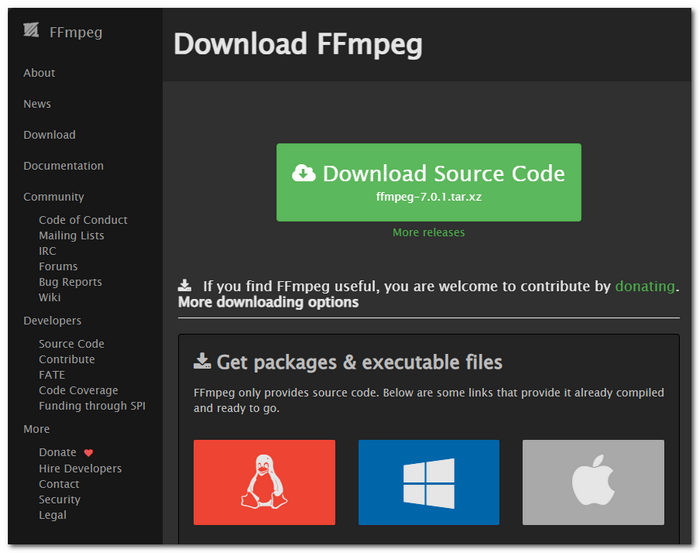
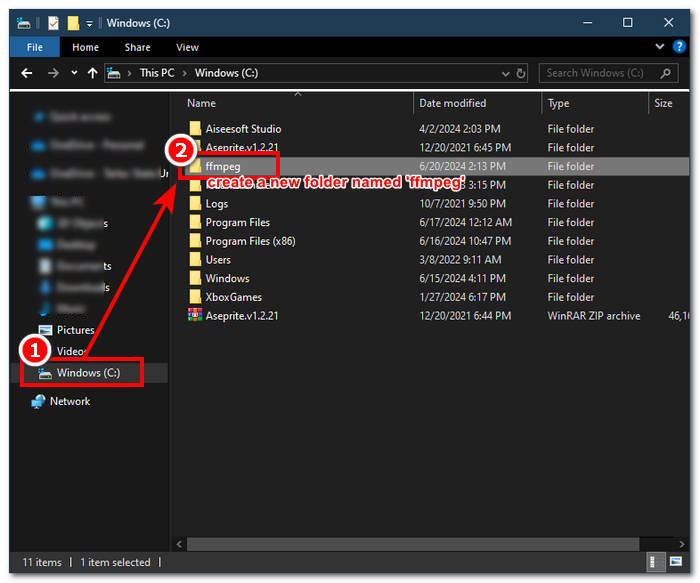
Scarica il file zip dal sito web e crea una nuova cartella nel percorso di sistema per archiviare tutti gli eseguibili FFmpeg, spostando anche il file zip nella cartella.
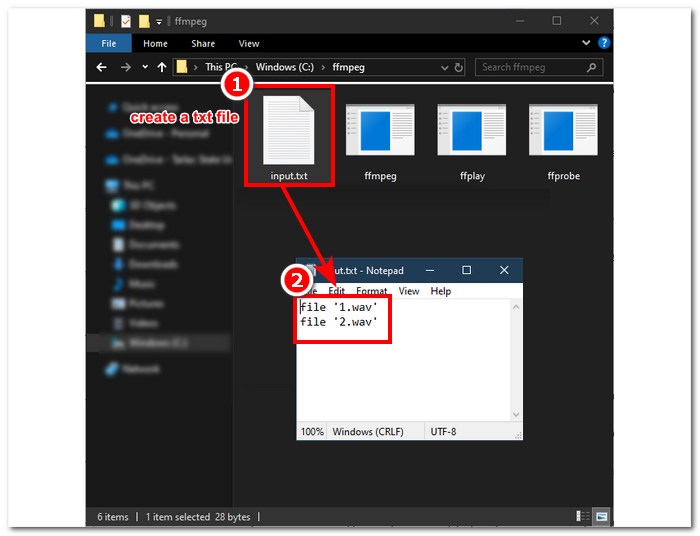
Passaggio 2. Sposta i tuoi file WAV nella cartella ffmpeg che hai appena creato e prepara i file WAV rinominandoli in ‘input1.wav’ e ‘input2.wav’ nella directory.

Nota: quindi, nella stessa cartella, crea un file chiamato ‘input.txt’ e inserisci il seguente contenuto:;
file 'input1.wav'
file 'input2.wav'
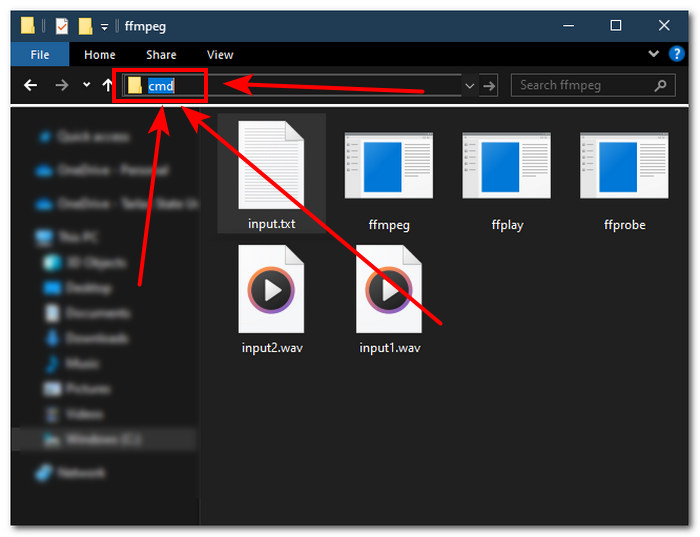
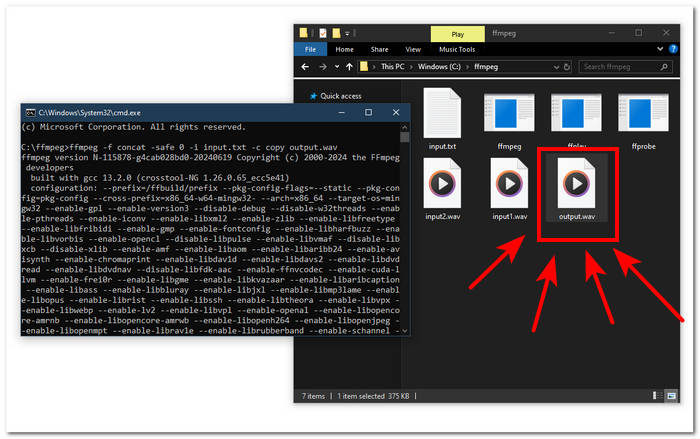
Passaggio 3. Avvia il prompt dei comandi di FFmpeg digitando ‘cmd’ nel campo del percorso della cartella, situato nella parte superiore della finestra, e premi Invio.
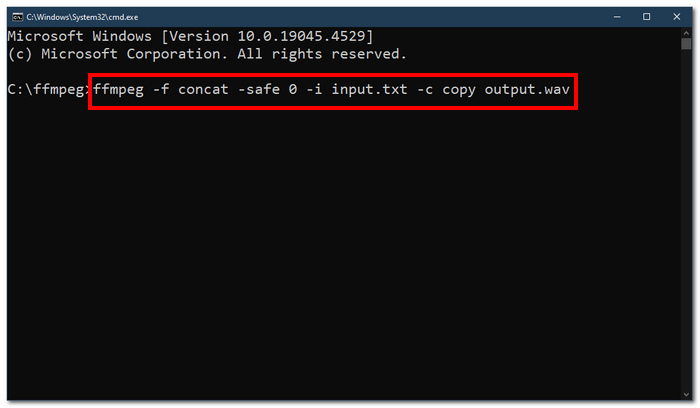
Passaggio 4. Una volta nel prompt dei comandi di FFmpeg, inserisci il seguente comando e premi Invio:;
ffmpeg -f concat -safe 0 -i input.txt -c copy output.wav
Passaggio 5. Nella tua cartella apparirà un nuovo file WAV, il che significa che hai unito con successo i tuoi file WAV in un unico file.
Suggerimenti
• Poiché lo strumento è basato sulla riga di comando, è importante avere familiarità e conoscere la riga di comando di base per una navigazione efficace dello strumento.
• Mantieni tutte le cartelle e i file relativi a FFmpeg in un'unica cartella per organizzarli e facilitarne l'accesso.
• Guarda tutorial e leggi guide su Internet quando vuoi svolgere attività diverse dall'unione di file WAV.
Parte 5. Domande frequenti su come combinare i file WAV
È possibile mixare file WAV?
Sì, puoi mixare file WAV utilizzando software di terze parti creati appositamente per unire file WAV, come Video Converter Ultimate e Audacity, scelti da FVC.
VLC può unire file audio?
Il lettore multimediale VLC non è in grado di unire file WAV poiché è concepito esclusivamente per lo streaming e la conversione di file multimediali.
Come unire file video in Windows Media Player?
Windows Media Player non supporta la modifica dei file WAV, né tantomeno l'unione dei file WAV. Windows Media Player è un software creato per i dispositivi Windows, progettato per riprodurre contenuti multimediali.
Qual è il modo più semplice per combinare file audio?
Il modo più semplice per unire file WAV è utilizzare Video Converter Ultimate di FVC; questo software è progettato con una tecnologia di elaborazione ad alta velocità per essere comodo per gli utenti con meno esperienza in attività di editing audio, come l'unione di file WAV.
La combinazione di file WAV può influire sulla qualità audio?
Sì, gli strumenti software possono influenzare pesantemente la qualità di un file WAV a seconda della qualità del software che stai utilizzando. Può avere la qualità più scadente quando si utilizza uno strumento poco affidabile. Quando si utilizzano strumenti software affidabili e fidati come FVC-picked Video Converter Ultimate, Audacity e altri, può aiutare a mantenere la qualità originale.
Conclusione
Per concludere, unisci i file WAV usando i software indicati per combinarli in modo efficace ed esportarli con qualità senza perdita. Vale la pena ricordare che trovare gli strumenti giusti e imparare a usarli è una parte fondamentale del processo. Pertanto, dall’uso di programmi completi come Video Converter Ultimate, selezionato da FVC, fino allo strumento avanzato da riga di comando FFmpeg, l’articolo ha elencato i passaggi e i suggerimenti utili, così che tutto ciò che devi fare è seguirli correttamente per un processo di unione semplice e senza complicazioni.
-
 Come posso convertire un MP4 in WAV online gratuitamente
 Stai cercando di convertire un MP4 in WAV? Non sai quale convertitore può aiutarti perfettamente senza pagare un centesimo? Leggi questo post e tutte le tue domande riceveranno risposta.
-
 Recensione dei 10 migliori lettori musicali MP3 gratuiti
 Qual è il miglior lettore musicale MP3? Come metto la musica su un lettore MP3? Come scaricare il lettore musicale MP3? Questo post offre una recensione dettagliata dei 10 migliori lettori MP3 gratuiti per PC Windows e Mac.
-
 8 migliori lettori MOV per PC e Mac per riprodurre file video MOV QuickTime
 Scopri di più sugli 8 migliori lettori MOV disponibili per Windows e Mac. È possibile scegliere quello desiderato e appropriato per riprodurre file MOV con la qualità originale.
