


 Video Converter Ultimate
 Screen Recorder
 Riparazione video
 Download sicuro
Come comprimere un MP3: riduci le dimensioni del file
MP3, il formato audio più popolare oggi, è noto per la sua facilità di distribuzione e ampia compatibilità. Innumerevoli creatori di contenuti e blogger scelgono di utilizzare il formato MP3 per condividere le loro composizioni musicali e canzoni. Tuttavia, a volte potresti imbatterti in file troppo grandi e molto lenti da scaricare, e tali file potrebbero occupare molta memoria del tuo computer, rallentando il funzionamento del tuo dispositivo. In questo caso, hai bisogno di uno strumento professionale che ti aiuti a ridurre le dimensioni dei tuoi file.
Al giorno d’oggi esistono molti compressori professionali sul mercato e potresti chiederti come scegliere quello giusto per te. In questo articolo ti consigliamo quattro strumenti che ti aiuteranno a comprimere un MP3 in situazioni diverse. Speriamo che la lettura dei nostri contenuti ti sia utile.

Parte 1. Comprimi un MP3 con un compressore audio professionale
Se stai cercando anche uno strumento professionale per comprimere file MP3, dai un’occhiata a Video Convert Ultimate, un software tutto‑in‑uno per l’editing di file multimediali. Come suggerisce il nome, ti permette di convertire file in oltre cento formati diversi e, durante il processo, puoi modificarli secondo le tue preferenze. Inoltre, nella sua casella degli strumenti trovi molte altre funzioni, tra cui compressore audio, compressore video, rimozione di watermark, miglioramento video, ecc. È apprezzato dagli utenti di tutto il mondo e la sua sicurezza è garantita. Siamo certi che rimarrai colpito dall’elevata efficienza e dalla qualità dei file elaborati. In più, la sua interfaccia semplice è un altro dei motivi per cui abbiamo scelto di consigliartelo.
Download gratuitoPer Windows 7 o versioni successiveDownload sicuro
Download gratuitoPer MacOS 10.7 o versioni successiveDownload sicuro
Se vuoi comprimere un MP3 con FVC Video Convert Ultimate, segui i passaggi sottostanti.
Passaggio 1. Scarica e installa FVC Video Convert Ultimate sul tuo computer.
Passaggio 2. Avvialo e fai clic su Toolbox. Sullo schermo apparirà un’ampia gamma di strumenti. Trova Audio Compressor tra questi e cliccaci sopra.
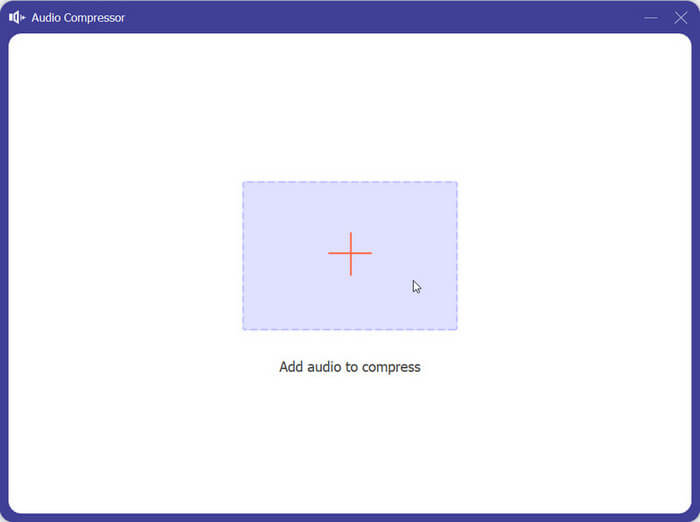
Passaggio 3. Dopo essere entrato nella finestra di Audio Compressor, fai clic sul pulsante Più sullo schermo per aggiungere il file MP3 che desideri comprimere.
Passaggio 4. Modifica il valore di Size in base alle tue esigenze. La percentuale di compressione del file ti verrà mostrata direttamente.
Passaggio 5. Clicca sul menu a tendina accanto a Save to per scegliere la cartella in cui salvare il file compresso. Infine, fai clic su Compress per applicare le modifiche.
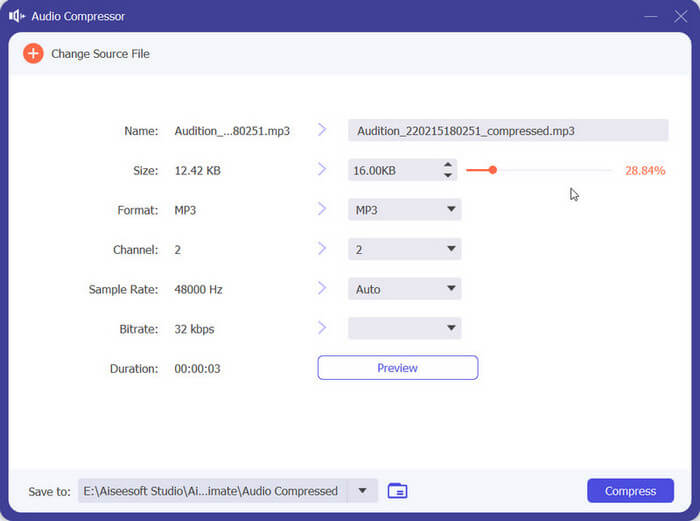
Naturalmente, nessuno strumento è perfetto. Questo strumento ha i suoi difetti. Non puoi visualizzare in anteprima l'effetto audio compresso prima di esportare il file. Tuttavia, ti mostra direttamente la percentuale di compressione e gestisce i file in modo abbastanza efficiente, quindi puoi rimpicciolire i tuoi file MP3 se non sei soddisfatto.
Parte 2. Comprimi MP3 in Audacity
Se desideri un software davvero completo per l’editing audio, Audacity sarà la scelta migliore. È uno strumento progettato per registrare ed editare musica. Oltre a permetterti di registrare podcast, doppiaggi e promemoria vocali, puoi anche modificare la durata del file audio, aggiungere effetti speciali, ridurre le dimensioni dei file MP3, convertire formati e molto altro. Questo registratore vocale ed editor è completamente gratuito ed è attualmente compatibile con Windows, macOS e Linux. Queste caratteristiche lo rendono uno dei protagonisti della nostra lista di raccomandazioni.
Ecco le operazioni da eseguire per comprimere i file MP3 con Audacity.
Passaggio 1. Scarica Audacity sul tuo dispositivo dalla sua fonte ufficiale.
Passaggio 2. Dopo aver aperto lo strumento sul computer, carica l’audio MP3 che devi modificare.
Passaggio 3. Fai clic su Edit > Preference. Poi seleziona Quality.
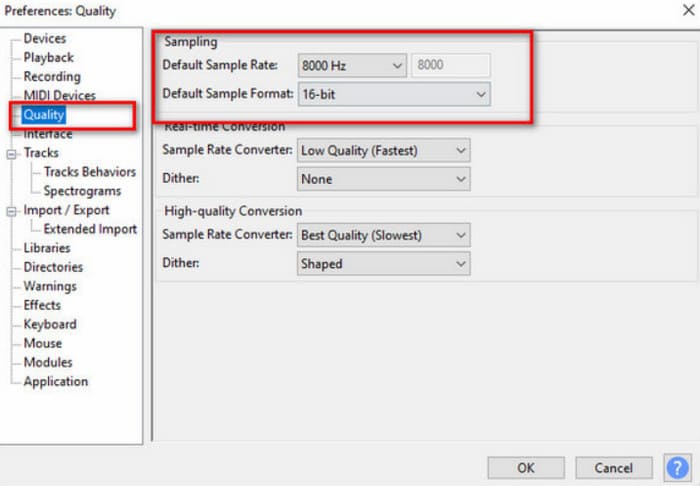
Passaggio 4. Per comprimere l’audio aggiunto, riduci il valore di Default Sample Rate e modifica il Default Sample Format.
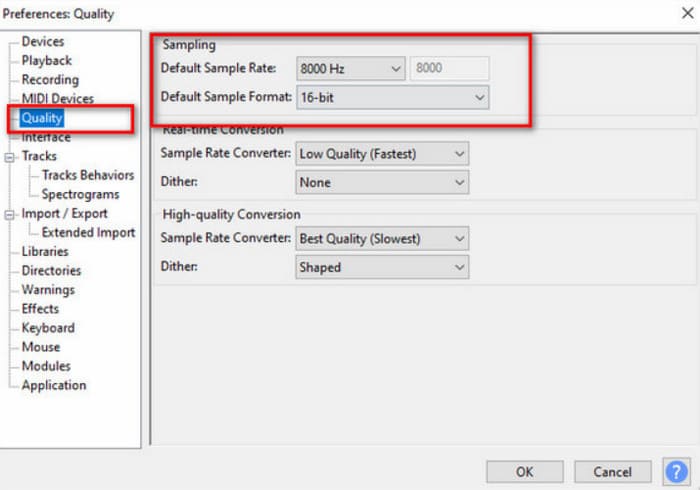
Lo svantaggio più ovvio di Audacity è la mancanza di semplicità nell'uso dell'interfaccia. Potrebbe non essere molto amichevole per i principianti, ed è difficile trovare le funzionalità di cui hai bisogno e capire esattamente come usarle.
Parte 3. Comprimi MP3 con QuickTime su Mac
Sviluppato da Apple, QuickTime Player viene utilizzato principalmente per la riproduzione di file audio e video in vari formati. Spesso è il lettore multimediale predefinito sui sistemi macOS. Pur non offrendo tante funzioni avanzate quanto alcuni editor multimediali professionali, resta una scelta affidabile per le attività di riproduzione e modifica di base. Puoi persino registrare lo schermo con QuickTime. Se vuoi uno strumento per comprimere file MP3 su Mac perfettamente compatibile con macOS, prova QuickTime Player. Di solito non hai bisogno di ulteriori download o installazioni: ti basta trovarlo sul dispositivo e aprirlo.
In questa sede forniremo un'introduzione passo dopo passo su come comprimere file MP3 con QuickTime.
Passaggio 1. Apri QuickTime Player sul tuo computer.
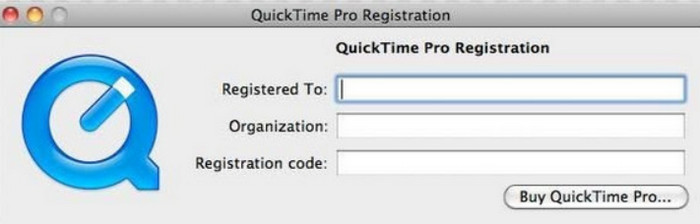
Passaggio 2. Fai clic su File e scegli Open File per caricare il tuo file MP3.
Passaggio 3. Quindi torna di nuovo alla scheda File. Cliccaci sopra e scegli Export nel menu a tendina. Qui puoi selezionare l’opzione di esportazione che preferisci.
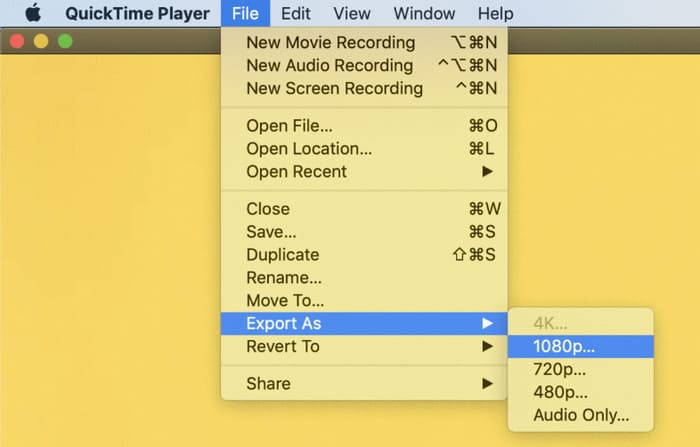
Sebbene Quick Time Player ti supporti nella compressione dei file audio, potrebbe offrire un controllo limitato sulle impostazioni di compressione rispetto al software di compressione audio dedicato. Ciò può comportare una minore flessibilità nella regolazione di parametri come bitrate, frequenza di campionamento o opzioni codec.
Parte 4. Comprimi MP3 online
Se vuoi godere di una compressione MP3 più leggera, uno strumento online sarebbe una scelta migliore rispetto al software desktop. FreeConvert MP3 Compressor vale la pena di essere provato in quanto è uno degli strumenti di editing multimediale online più popolari. Anche se è uno strumento online, non è da meno quando si tratta di gestire file MP3 di grandi dimensioni. Puoi ottenere l'audio elaborato in pochi secondi. La sua facilità d'uso è uno dei motivi principali per cui lo consigliamo. Se vogliamo comprimere un file MP3 senza perdere qualità, non dobbiamo fare salti di pagina. Tutto può essere fatto su una singola pagina web. Per proteggere la tua privacy, i file caricati verranno eliminati entro poche ore.
Per comprimere MP3 online con FreeConvert MP3 Compressor, segui i passaggi sottostanti.
Passaggio 1. Accedi al sito FreeConvert MP3 Compressor dal tuo browser.
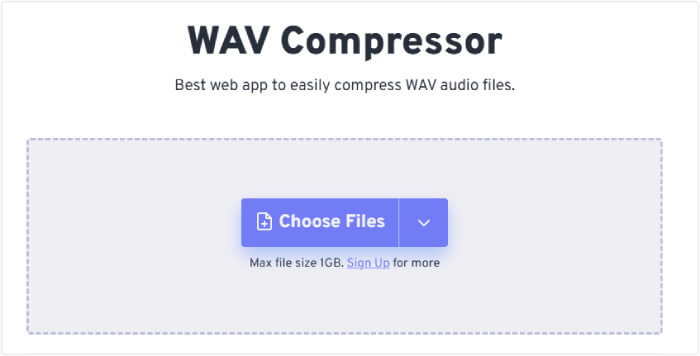
Passaggio 2. Fai clic su Choose Files per caricare il tuo audio MP3.
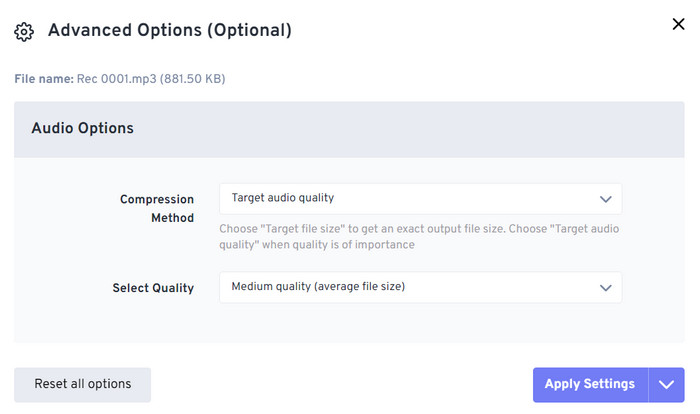
Passaggio 3. Dopo aver aggiunto il file, fai clic su Advanced settings (option). Si aprirà una piccola finestra. Puoi modificare la Compression Method. Quindi fai clic su Apply Settings.
Passaggio 4. Fai clic su Compress per avviare il processo.
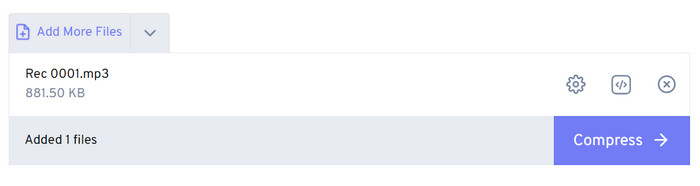
Passaggio 5. Infine, fai clic su Download per scaricare il file MP3 compresso.
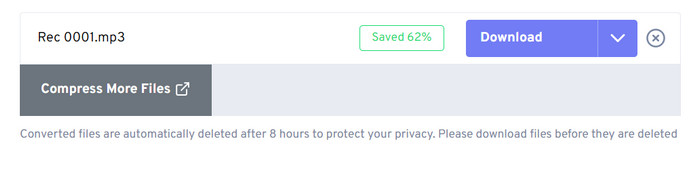
Sebbene FreeConvert MP3 Compressor funzioni bene sotto tutti gli aspetti, gli utenti possono usarlo solo per comprimere file audio fino a 1 GB. Se vogliamo usarlo per file MP3 più grandi, dobbiamo pagare.
Parte 5. Domande frequenti sulla compressione di un MP3
La compressione dei file MP3 ne riduce la qualità?
Questo processo può causare una perdita di qualità audio, soprattutto se il livello di compressione è alto. Livelli di compressione più alti causeranno una qualità audio inferiore, mentre livelli di compressione più bassi manterranno una migliore qualità audio. Dovremmo trovare un equilibrio tra la riduzione delle dimensioni del file e il mantenimento di una qualità audio accettabile quando comprimiamo file MP3.
È possibile decomprimere gli MP3?
Una volta compresso un file MP3, non è possibile decomprimerlo completamente riportandolo allo stato originale. Il processo di compressione comporta l'eliminazione di alcuni dati audio. Se stai cercando di migliorare la qualità audio di un file MP3, faresti meglio a iniziare con il file sorgente di migliore qualità possibile prima di convertirlo in MP3.
Quali sono le conseguenze di una compressione eccessiva di un file audio?
Comprimere troppo un file audio può portare a una perdita di qualità audio, facendo apparire il suono distorto. Può anche introdurre rumore e distorsione nel segnale audio. Per evitare questi problemi, è importante trovare un equilibrio tra la riduzione delle dimensioni del file e il mantenimento di una qualità audio accettabile quando si comprimono file audio.
Conclusione
Se vuoi comprimere i tuoi file MP3, siamo certi che in questo articolo troverai la risposta che stai cercando. Abbiamo descritto nel dettaglio quattro strumenti che puoi utilizzare. Che tu preferisca usare un programma desktop, completare la compressione online, o che utilizzi un computer Windows o un Mac, potrai farlo seguendo le nostre indicazioni. Se temi di commettere errori durante il processo, segui la nostra guida passo dopo passo, che può aiutarti a evitare la maggior parte dei problemi. Abbiamo anche risposto ad alcune delle domande più frequenti sulla compressione degli MP3. Speriamo che queste risposte ti siano utili.
-
 Come rimuovere lo sfondo dall'immagine: strumenti senza problemi
 Scopri sei strumenti per rimuovere lo sfondo da qualsiasi immagine senza sforzo. Dì addio alle modifiche complicate e cancella facilmente gli sfondi delle immagini oggi stesso!
-
 Photo KB/MB Size Reducer: 3 strumenti di compressione indispensabili
 Non hai idea di quale riduttore di dimensioni di kb per le tue esigenze di conversione? In questa recensione, imparerai 3 strumenti che possono aiutarti a ridurre facilmente la tua immagine.
-
 3 modi migliori per comprimere SVG [online e offline]
 Vuoi comprimere i file SVG ma non sai come fare? In questo articolo, ti consiglieremo 3 strumenti e ti insegneremo un processo passo dopo passo su come usarli facilmente.
