


 Video Converter Ultimate
 Screen Recorder
 Riparazione video
 Download sicuro
Creare suonerie su iPhone usando GarageBand e Alternative
Stanco di svegliarti sempre con le solite suonerie anonime sul tuo iPhone? Anche se l’iPhone limita l’accesso a quelle suonerie di tendenza, questo non ti impedisce di provarci. Dal momento che le suonerie sono diventate parte della nostra vita, che si tratti di una semplice notifica o della sveglia, la possibilità di usarle o cambiarle riflette in qualche modo la nostra personalità e i nostri gusti. Dunque, chi non vorrebbe essere avvisato o svegliato con il tono che preferisce, giusto? Per quanto possa sembrare complicato, abbiamo finalmente trovato un modo per creare una suoneria con GarageBand. Scopri come creare, trasformare un tono esistente e impostarlo sul tuo iPhone usando GarageBand e un’alternativa già da oggi, e inizia a mostrare la tua personalità e i tuoi gusti attraverso suonerie accattivanti.

Parte 1. Come creare una suoneria in GarageBand
Prima di mostrarti come creare una suoneria in GarageBand, è importante sapere prima cos'è GarageBand. GarageBand è una workstation audio digitale sviluppata da Apple esclusivamente per iOS, macOS e iPadOS. Pertanto, è molto intuitiva e può essere utilizzata gratuitamente sul suddetto sistema operativo.
Passaggio 1. Apri GarageBand sul tuo Mac oppure scaricalo prima sul tuo iPhone o su qualsiasi dispositivo Apple di tua scelta.
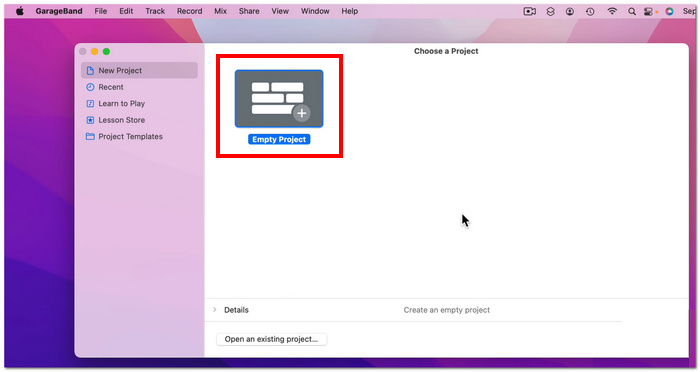
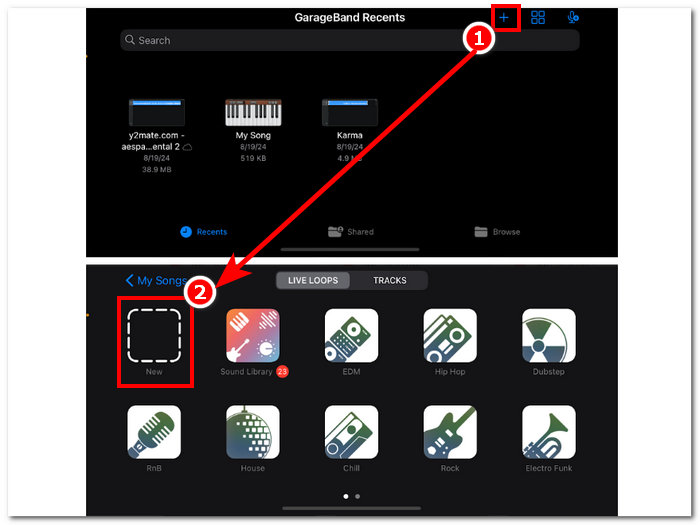
Passaggio 2. Nell’interfaccia dell’app, tocca il pulsante + e procedi scegliendo l’opzione Nuovo progetto.
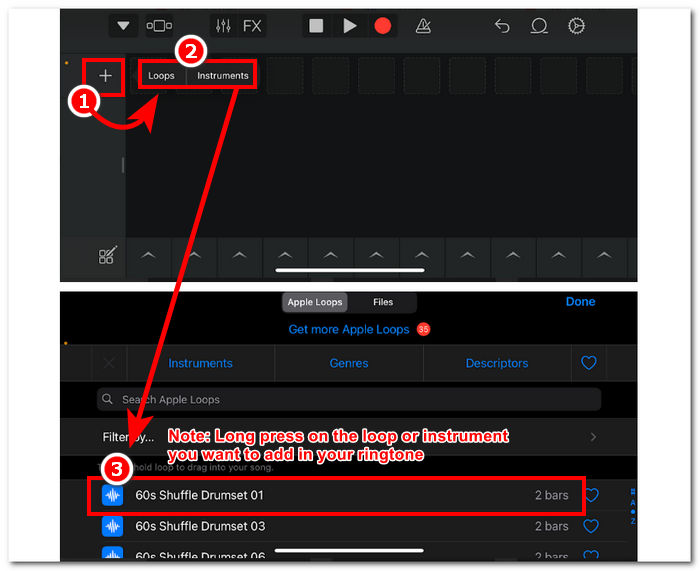
Passaggio 3. Verrai quindi reindirizzato alla timeline di GarageBand, dove potrai aggiungere lo Strumento o il Loop che desideri inserire nella tua suoneria; ti basta toccare il pulsante +, quindi tenere premuto a lungo sul loop o sullo strumento specifico che vuoi aggiungere alla timeline.
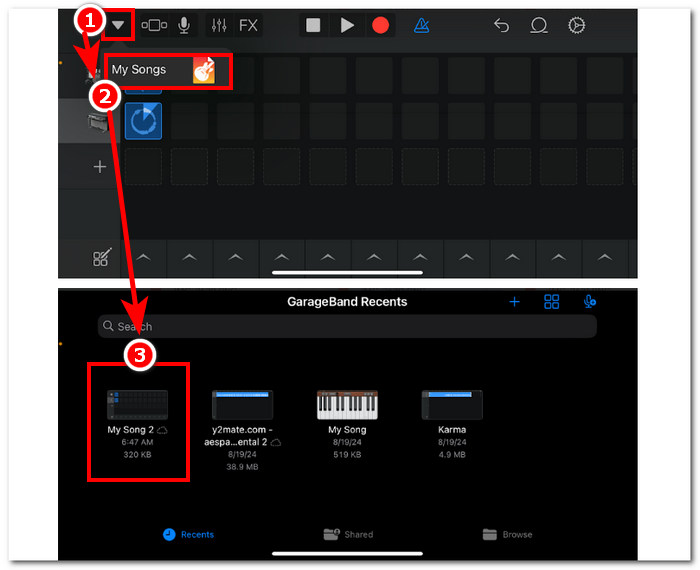
Passaggio 4. Infine, per salvare la nuova suoneria creata, tocca la freccia verso il basso nell’angolo in alto a sinistra dello schermo e poi tocca Le mie canzoni. I tuoi file verranno salvati automaticamente nell’archivio del tuo dispositivo.
Parte 2. Come trasformare una canzone esistente in una suoneria su GarageBand
Per trasformare una canzone emozionante nella tua suoneria, abbiamo optato per la musica di Apple Music, poiché alcune limitazioni impediscono l'uso della musica su un iPhone, come la cosiddetta protezione DRM.
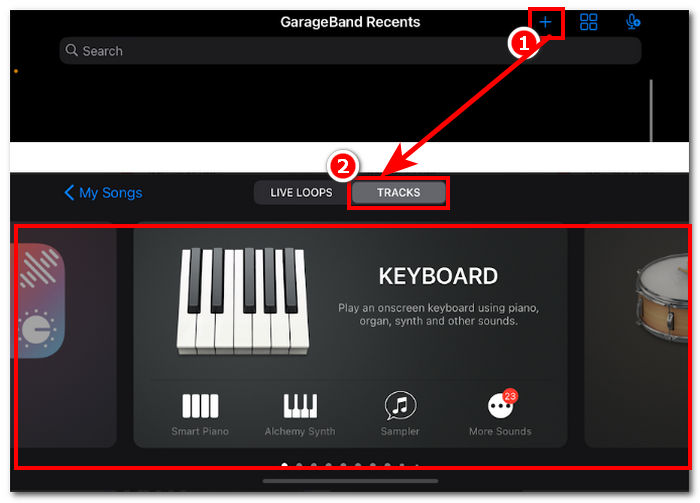
Passaggio 1. Apri l’app GarageBand sul tuo iPhone, tocca il pulsante + e seleziona lo strumento che preferisci.
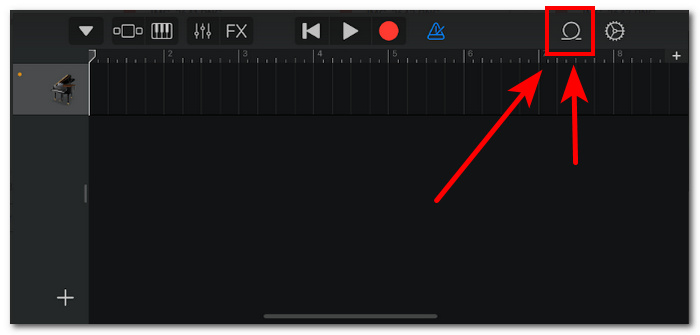
Passaggio 2. Una volta nella visualizzazione multitraccia dell’app, tocca l’icona Loop nell’angolo in alto a destra dello schermo.
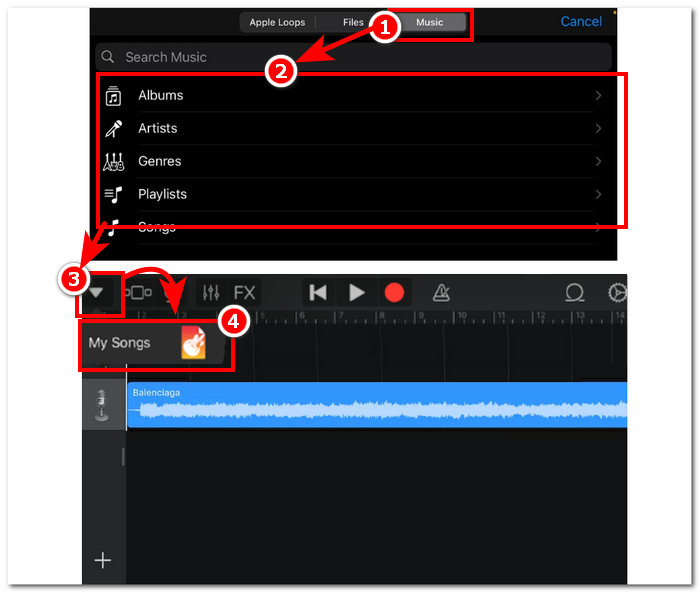
Passaggio 3. Nella sezione dei loop, tocca la sezione Musica e lì scegli il brano che vuoi trasformare in suoneria. Aggiungilo alla timeline semplicemente toccandolo o tenendolo premuto a lungo. Una volta nella timeline, tocca la freccia verso il basso e vai su Le mie canzoni.
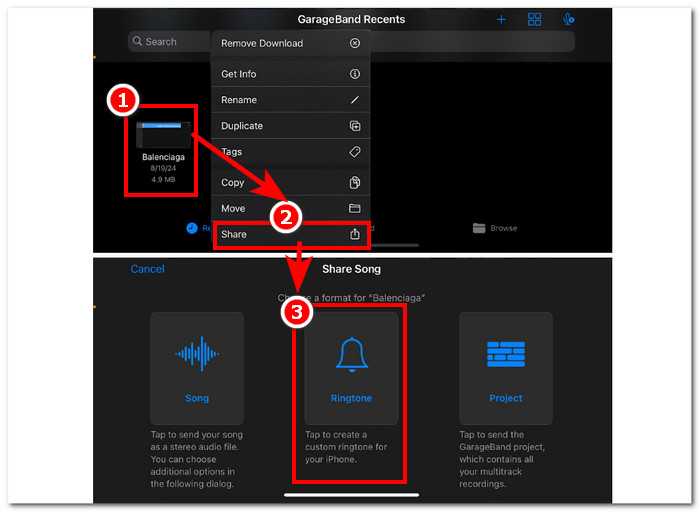
Passaggio 4. Tieni premuta a lungo la suoneria che hai appena creato, tocca Condividi e seleziona Suoneria per impostarla come suoneria personalizzata sul tuo iPhone.
Parte 3. Alternativa a GarageBand per creare una suoneria
Uno strumento basato su software è l’opzione migliore se vuoi creare una suoneria e personalizzarla per darle un tocco unico. Con il supporto di fino a 1000 formati di file, FVC-picked Video Converter Ultimate è un programma tutto-in-uno che non serve solo a creare suonerie, ma può anche convertire, modificare, migliorare e comprimere video e audio. È perfetto per personalizzare una suoneria, a differenza di GarageBand, che è un po’ limitato nelle funzioni di personalizzazione. Inoltre, la tecnologia di elaborazione ad alta velocità è ben integrata nel sistema di FVC-picked Video Converter Ultimate per garantire qualità audio senza perdita e velocità di conversione elevate.
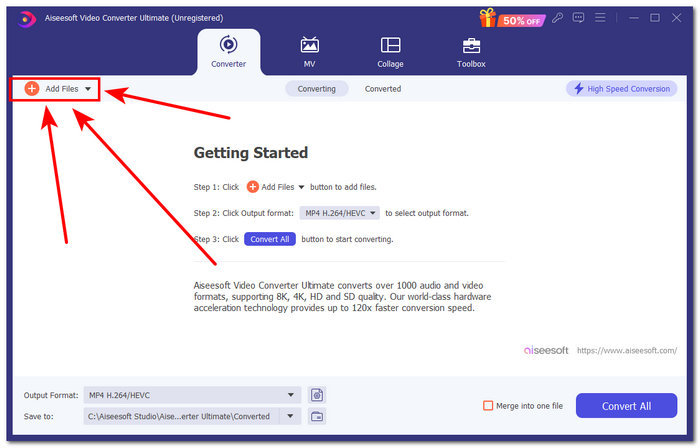
Passaggio 1. Usando il tuo Mac, scarica e installa FVC-picked Video Converter Ultimate. Apri il programma sul dispositivo, carica l’audio/brano che vuoi creare e personalizzare come suoneria cliccando sul link Aggiungi file nella parte in alto a sinistra dell’interfaccia.
Download gratuitoPer Windows 7 o versioni successiveDownload sicuro
Download gratuitoPer MacOS 10.7 o versioni successiveDownload sicuro
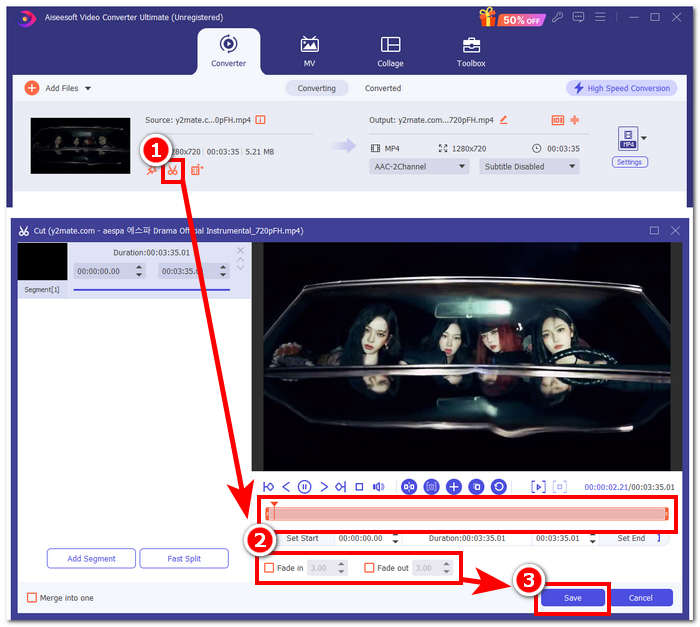
Passaggio 2. Clicca sull’icona a forma di forbici vicino alla miniatura del tuo file audio. Sullo schermo si aprirà una nuova finestra che ti permetterà di aggiungere effetti di dissolvenza e tagliare il file audio. Quando sei soddisfatto della personalizzazione, clicca semplicemente sul pulsante Salva per completare il processo.
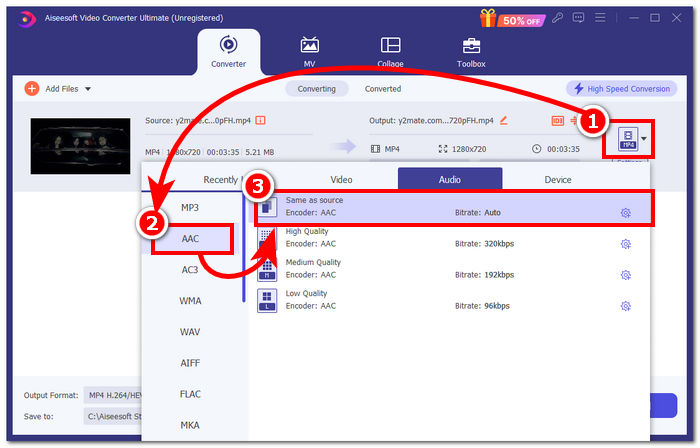
Passaggio 3. Dopo aver apportato le modifiche all’audio, cambia il suo formato da MP4 o MP3 in AAC, che è il formato usato dagli iPhone per le suonerie.
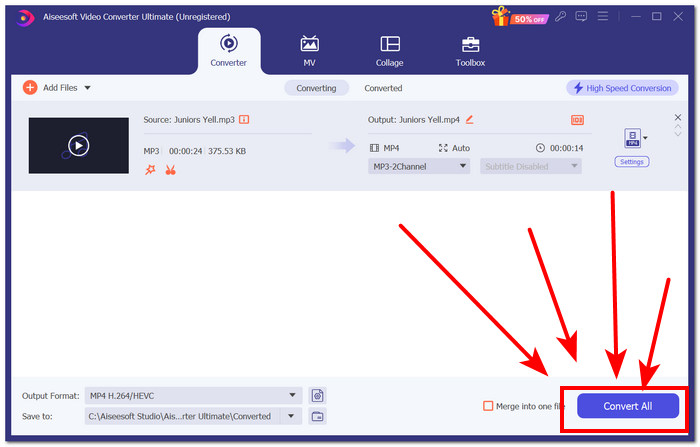
Passaggio 4. Clicca sul pulsante Converti tutto e la tua suoneria sarà automaticamente salvata sul dispositivo. Al termine della conversione, potrai trovare la suoneria nella cartella dei download.
Parte 4. Come impostare la suoneria su iPhone da file con GarageBand
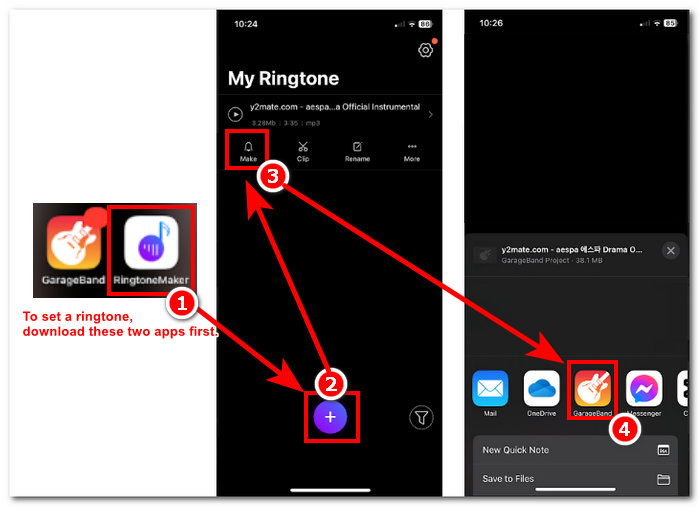
Impostare una canzone come suoneria usando GarageBand dai tuoi File può essere un bel processo. Ciò significa che devi prima scaricare la canzone e poi farla passare attraverso l'app RingtoneMaker, che devi installare sul tuo dispositivo.
Passaggio 1. Scarica sul dispositivo il brano che preferisci.
Puoi cercare una canzone su YouTube e scaricarla utilizzando uno strumento online per scaricare da YouTube a MP3.
Passaggio 2. Per trasformare un brano in suoneria, avvia l’app RingtoneMaker e importa semplicemente il brano scaricato nell’app. Dopo il caricamento, tocca il pulsante Crea suoneria e procedi selezionando l’app GarageBand.
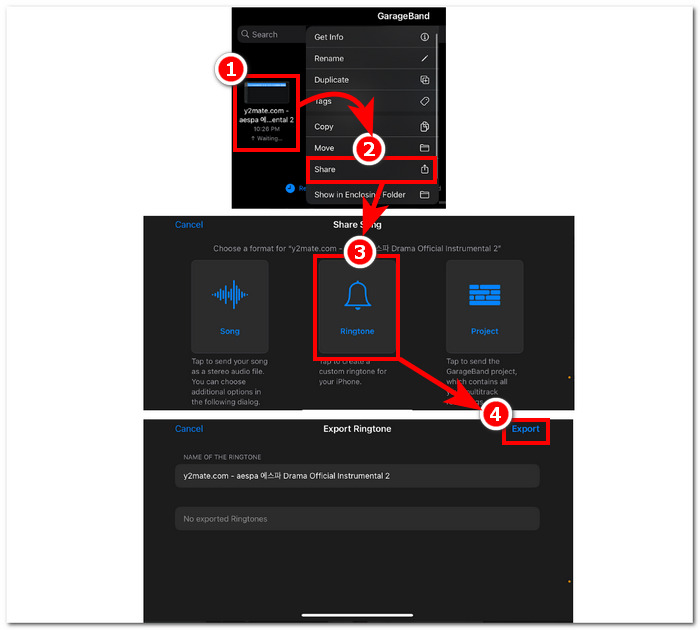
Passaggio 3. Dopo essere stato reindirizzato all’app GarageBand, trova il brano che hai importato e toccalo. Poi segui questo percorso di navigazione: Condividi > Suoneria > Esporta. Proprio così, hai trasformato con successo un brano esistente in una suoneria.
Parte 5. Domande frequenti su come creare una suoneria in GarageBand
GarageBand è adatto ai principianti?
Sì, GarageBand è un buon, se non migliore, creatore di suonerie per l'ecosistema Apple. La sua semplice interfaccia è perfetta per tutti i tipi di utenti, dai principianti ai professionisti. Gli strumenti integrati creati esclusivamente per creare toni accattivanti e alla moda e un'ampia gamma di tutorial disponibili online lo rendono uno strumento adatto ai principianti.
La suoneria Garage è gratuita?
Sì, GarageBand è gratuito da usare e scaricare su tutti i dispositivi Apple. Consente agli utenti di usare le sue funzionalità per creare, comporre ed esportare senza alcun costo aggiuntivo o abbonamento.
Esiste un'app gratuita per suonerie?
Sì, ci sono molte app per suonerie che puoi provare. Alcune opzioni sono RingtoneMaker, Sedge, Audiko e la lista continua. Quindi, usare tutti i tipi di app e software è una scelta degli utenti. Consigliamo agli utenti di fare le loro ricerche sul tipo di app per suonerie che desiderano.
Conclusione
Apple ha posto una certa limitazione su come gli utenti possono creare e impostare le loro suonerie usando la loro applicazione GarageBand. In qualche modo svolge il suo lavoro in modo efficace, specialmente quando si imposta una canzone che è già scaricata sul tuo iPhone. Tuttavia, potrebbe non avere alcune funzionalità di personalizzazione come quelle che Video Converter Ultimate, scelto da FVC, può fare per renderlo più personale. Tuttavia, è comunque efficace ed è l'unico modo in cui un utente iOS può creare una suoneria sul proprio dispositivo.
-
 Migliore procedura dettagliata Come convertire WAV in suoneria in pochissimo tempo
 Stai cercando di convertire WAV in una suoneria senza sforzo? I nostri strumenti intuitivi portano a termine il lavoro! Goditi la conversione audio di alta qualità in un attimo, senza problemi tecnici. Provali oggi!
-
 Come trasformare un promemoria vocale in una suoneria su iPhone e Android
 Se vuoi trasformare un promemoria vocale in una suoneria, leggi questo articolo. Che tu sia un utente iPhone o un utente Android, puoi trovare soluzioni nei nostri contenuti.
-
 5 taglierini MP3 per tagliare facilmente qualsiasi audio [aggiornato al 2024]
 Hai bisogno di un taglierino MP3 per tagliare l'audio? In tal caso, leggi questo articolo perché forniamo gli strumenti su cui fare affidamento per un facile taglio dell'audio.
