


 Video Converter Ultimate
 Screen Recorder
 Riparazione video
 Download sicuro
Come convertire i tuoi file TS in formato FLV senza perdita di qualità
This guide focuses on how to convert TS to FLV. Generally speaking, there are two kinds of video formats, commonly used and others. FLV is one of the commonly used video formats developed for internet, while TS belongs the latter kind. TS, standing for Video Transport Stream, is used to store MPEG-2 video data. They are often seen on DVDs. Anyway, let's start the journey now.

Parte 1: I 3 modi più semplici per convertire TS in FLV sul desktop
Modo 1: converti TS in FLV con il convertitore FLV gratuito
As its name indicated, FVC Free FLV Converter is just the FLV converter you need to turn TS to FLV, so that you can watch your files or share them on social media. It is total free to use with no watermark or other limit. It even provides some features you can only find in paid software.
Caratteristiche principali del miglior convertitore FLV
- 1. Converti facilmente tra FLV e altri formati video.
- 2. Proteggi la qualità video e audio durante la conversione.
- 3. Gestire in batch più file video TS contemporaneamente.
Download gratuitoPer Windows 7 o versioni successiveDownload sicuro
Download gratuitoPer macOS 10.7 o versioni successiveDownload sicuro
Come convertire gratuitamente i file TS in FLV
Step 1: Import TS files
Avvia il miglior convertitore FLV dopo averlo installato sul tuo computer. Quindi fare clic sul pulsante Aggiungi file per importare tutti i file TS dal DVD o dal computer. Quindi i video appariranno nell'area della libreria.

Step 2: Set output format
If you need to edit the videos, click the Edit button to open the video editor window. If not, go to the bottom, click and expand the Output format option. Then search for FLV in the General Video tab and select it.

Step 3: Convert TS to FLV
Next, set a specific folder to save the FLV output files by hitting the Browse button. Finally, click on the Convert button at bottom right corner to begin converting TS to FLV.

Modo 2: come convertire TS in FLV tramite VLC
VLC è un altro modo per convertire TS in FLV gratuitamente poiché è un progetto open source. È disponibile per PC, Mac e Linux. I costi sono ovviamente. La qualità dell'output non è molto buona e la procedura è complessa. Se non ti dispiace, esegui i passaggi seguenti.
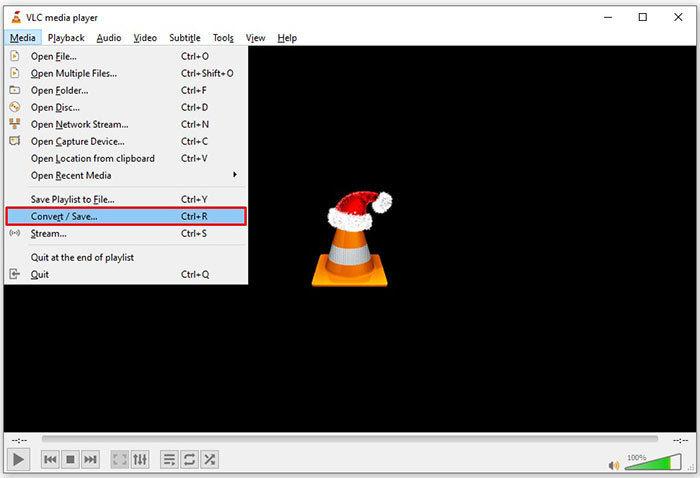
Step 1: Open VLC, click Media menu and choose Convert/Save. The open-media dialog will pop up.
Step 2: Click the Add button and add a TS file into VLC. Hit Convert/Save button to move on.
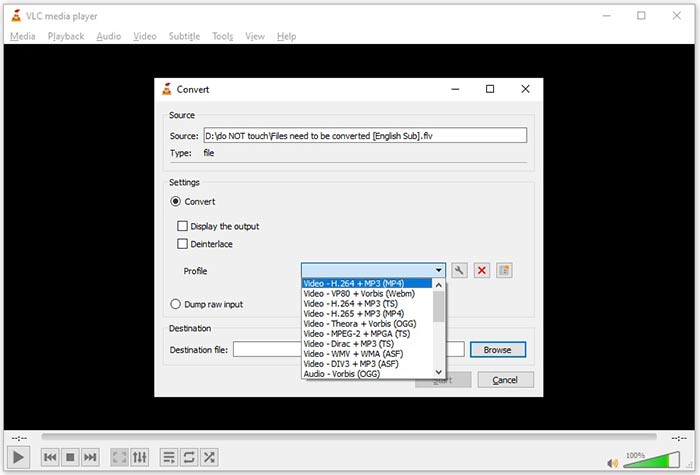
Step 3: Open the Profile option and choose the output format. If you cannot find FLV in Profile, click the Profile Edit button, enter FLV in Profile Name box, select FLV and click Create. Then select FLV from Profile.
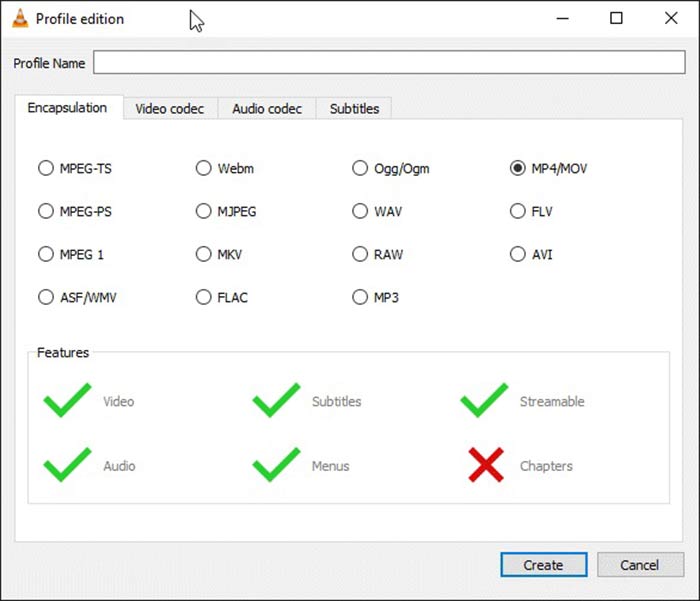
Step 4: Hit the Browse button to set the destination folder and click the Start button.
Modo 3: come convertire TS in FLV tramite FormatFactory
FormatFactory è un programma di conversione file gratuito per PC. Ti consente di convertire i file TS in FLV senza pagare un centesimo. Tuttavia, supporta solo la conversione con perdita. Significa che la qualità del tuo video verrà ridotta. Inoltre, non è disponibile su Mac o Linux.
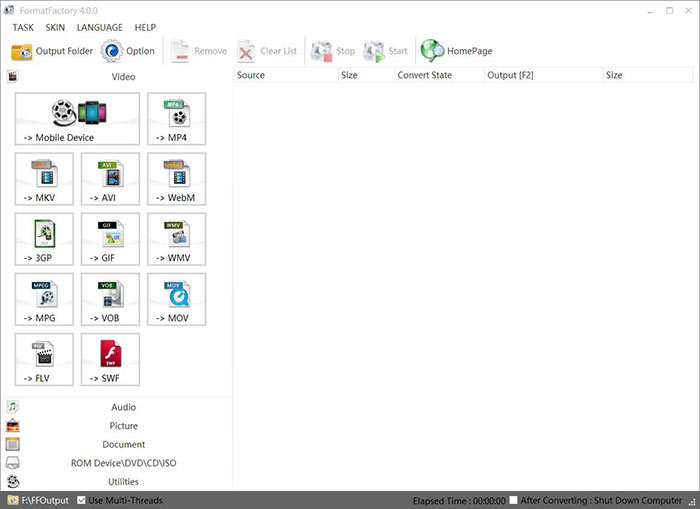
Step 1: Run the free TS to FLV converter, go to the Video section and select FLV.
Step 2: Click the Add File button and import the TS video files from your computer. Hit OK to confirm it.
Step 3: Next, click on the Start button to initiate converting TS to FLV on PC. It takes a while since the freeware is very slow. When it is done, you can go to the directory under Output section to find the FLV files.
Parte 2: Come convertire TS in FLV online
VLC and other video converting software all need you to install on your hard disk. It takes space of your internal memory. You may wonder whether you can convert TS to FLV without installing software. The answer is FVC Free Online Video Converter. It works online and is free of charge. Although does not provide bonus features, it is enough to meet you basic need on video converting.
Step 1: Open https://www.free-videoconverter.net/free-online-video-converter/ in a web browser and click the Add Files to Convert button to download the launcher.

Step 2: Once downloading is done, the launcher will pop up. Click the Add File button to upload the TS files. This web app supports batch conversion. Go to the bottom and select FLV at the bottom.
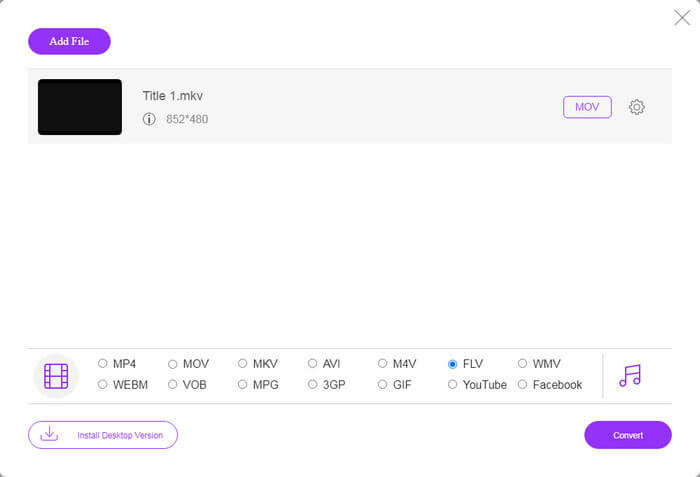
Step 3: If you are ready, click on the Convert button to trigger the TS to FLV conversion. The app works fast, but the real time is determined by your internet connection. Wait for the converting to finish and download the FLV output.
Don't Miss:
- • Guida completa su come convertire TS in MP4
- • Come convertire file TS in MP3, AIFF, ALAC, FLAC e altri formati audio su Windows / Mac
Parte 3: Domande frequenti sulla conversione di TS in FLV
Perché non posso convertire TS in altri formati?
TS è il formato di file video per DVD. La maggior parte dei DVD commerciali sono crittografati e protetti da copyright. Ciò ti impedisce anche di convertire i file TS se non disponi del software di conversione video appropriato.
Posso aprire TS in Windows Media Player?
Windows Media Player non può aprire file DVD o TS, quindi non puoi riprodurre TS in WMP. In alternativa, puoi utilizzare un lettore video di terze parti, come VLC. Oppure è necessario installare un pacchetto di codec aggiuntivo per WMP.
Come guardare i file TS?
Solo pochi lettori multimediali supportano i file TS, come VLC. I lettori multimediali integrati su PC e Mac, Windows Media Player e QuickTime Player, non sono compatibili con TS. Un altro modo per guardare i file TS è masterizzarli su DVD.
Conclusione
Ora dovresti imparare almeno quattro modi per convertire i file TS in video FLV per la condivisione online o la riproduzione su dispositivi digitali. Come formato video per i film in DVD, TS non è ampiamente utilizzato su computer o dispositivi mobili. Ha senso che la maggior parte dei lettori multimediali non possa aprirlo. Convertitore FLV gratuito FVC; tuttavia, ti aiuta a cambiare facilmente TS in FLV. Più domande? Per favore scrivili sotto questo post e ti risponderemo.
-
 3 semplici passaggi per masterizzare file / cartelle video _TS su DVD su Mac / Windows
 Come posso convertire e masterizzare file TS su disco DVD? Questa guida passo passo ti mostrerà come copiare file e cartelle TS su DVD su Windows / Mac in modo da poter guardare i file TS su lettore DVD o TV.
-
 6 semplici modi per convertire TS in AVI / MKV / MOV / WMV su Windows / Mac
 Vuoi convertire rapidamente i file TS in AVI / MKV / MOV / WMV? Questo articolo mostra convertitori video online e offline con guida completa. Forse puoi ottenere il miglior convertitore TS gratuito qui.
-
 Comprimi file video TS - Come comprimere file TS in dimensioni più piccole
 Quando si desidera salvare i file video TS ad alta definizione sui dispositivi, è necessario ottenere ulteriori informazioni su come comprimere i file video TS in dimensioni inferiori da questo articolo.
