


 Video Converter Ultimate
 Screen Recorder
 Riparazione video
 Download sicuro
Come convertire gratuitamente i tuoi file video FLV in formato 3GP
Questo articolo ti mostrerà i modi migliori per convertire FLV in 3GP. Secondo le ricerche, sul mercato esistono tonnellate di formati di file video. Gli sviluppatori li hanno rilasciati per scopi diversi. FLV, ad esempio, acronimo di Flash Video, viene utilizzato per archiviare contenuti visivi da riprodurre in Adobe Flash Player su internet.
3GP, invece, è il formato multimediale creato da Third Generation Partnership Project per risparmiare banda e utilizzo di dati sui dispositivi mobili. In altre parole, faresti meglio a convertire FLV in 3GP e guardare i video sul telefono.

Parte 1: il modo migliore per convertire FLV in 3GP sul desktop
FVC Free FLV Converter è un potente convertitore video. Come indica il nome, ti permette di convertire FLV in 3GP senza spendere un centesimo. Inoltre, offre molte funzionalità utili, come il montaggio video e audio. Ancora più importante, l’interfaccia intuitiva ti permette di trovare rapidamente ciò che ti serve.
Caratteristiche principali del miglior convertitore FLV gratuito
- 1. Converti video FLV in qualsiasi formato multimediale, come 3GP.
- 2. Gestire in batch più file video contemporaneamente.
- 3. Transcodifica i file FLV per la riproduzione su dispositivi mobili.
Download gratuitoPer Windows 7 o versioni successiveDownload sicuro
Download gratuitoPer macOS 10.7 o versioni successiveDownload sicuro
Come convertire gratuitamente FLV in 3GP
Avvia il miglior convertitore FLV gratuito dopo averlo installato sul tuo computer. È compatibile con Windows 10/8/7 e Mac OS X. Fai clic sul pulsante Add File(s) per aprire la finestra di dialogo di selezione file. Seleziona i file FLV che vuoi convertire e fai clic su Open. I video appariranno quindi nell’area della libreria.

Passaggio 2: Imposta il formato di output
Fai clic e apri il menu a discesa Profile format in basso e verrà visualizzata la finestra dei profili. Inserisci 3GP nella casella Search Profile e premi il tasto Enter sulla tastiera. Quindi seleziona il formato di output. Se desideri riprodurre i video sul tuo dispositivo mobile, seleziona il produttore e scegli direttamente il modello corretto.

Passaggio 3: Convertire FLV in 3GP
Imposta una cartella specifica in cui salvare l’output cliccando sul pulsante Open Folder in basso. Infine, fai clic sul pulsante Convert per avviare la conversione da FLV a 3GP. Dopo alcuni minuti troverai i file 3GP sul tuo disco rigido.

Parte 2: Come convertire FLV in 3GP online
Le app di conversione video online sono un altro modo molto diffuso per convertire FLV in 3GP gratuitamente. Tuttavia, la maggior parte di esse presenta vari svantaggi, come limiti di dimensione dei file, watermark, problemi di sicurezza e altro ancora. Per fortuna, FVC Free Online Video Converter può aiutarti a risolvere il problema. È completamente gratuito e senza alcuna limitazione. La qualità di output è eccellente.
Passaggio 1: Visita https://www.free-videoconverter.net/free-online-video-converter/ in un browser web e fai clic sul pulsante Add Files to Convert per scaricare il launcher. Non occuperà spazio sul disco del tuo computer.
Scarica la Versione Desktop per convertire i file in batch.
Passaggio 2: Fai clic sul menu Add File e carica i file FLV che desideri convertire. L’app web ti consente di convertire in blocco più video contemporaneamente.
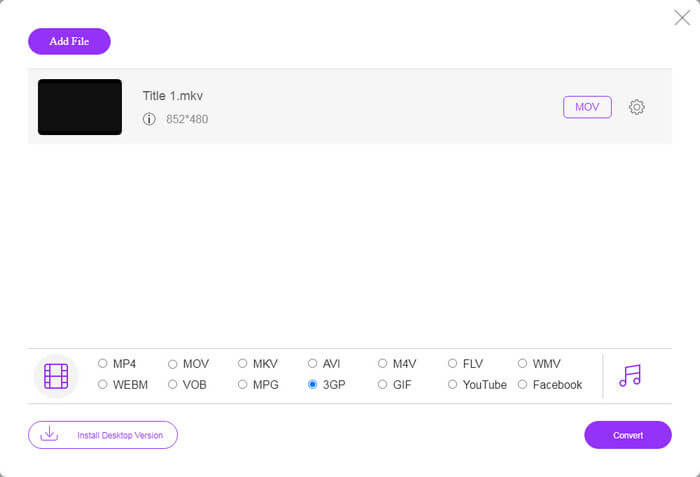
Passaggio 3: Vai in basso e seleziona 3GP nella sezione dei profili. Fai clic sul pulsante Convert per avviare la conversione da FLV a 3GP online. Se la tua connessione è veloce, terminerà in pochi secondi. Poi scarica i file 3GP sul tuo disco rigido.
Da non perdere:
Parte 3: Come convertire FLV in 3GP con VLC
A volte, il freeware è potente quanto il software professionale. VLC, ad esempio, è un popolare lettore multimediale open source. È in grado di convertire gratuitamente FLV in 3GP su Windows, Mac e Linux. Naturalmente, la spesa è ovvia, come difficile da usare. Pertanto, condividiamo i passaggi seguenti:
Passaggio 1: Esegui il convertitore gratuito da FLV a 3GP sul tuo computer. Prima devi installarlo. Il sito ufficiale fornisce un programma di installazione sicuro.
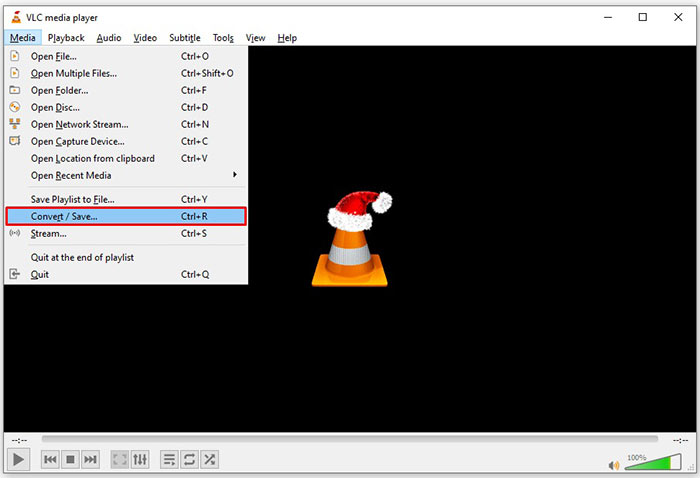
Passaggio 2: Vai al menu Media sulla barra in alto e scegli Convert/Save. Si aprirà così la finestra di dialogo per i media.
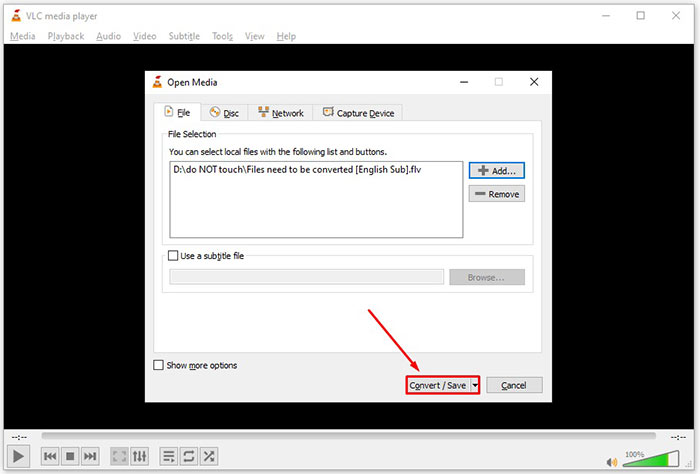
Passaggio 3: Fai clic sul pulsante Add, trova il file FLV che devi convertire e selezionalo, quindi fai clic su Open. Premi il pulsante Convert/Save per passare alla finestra successiva.
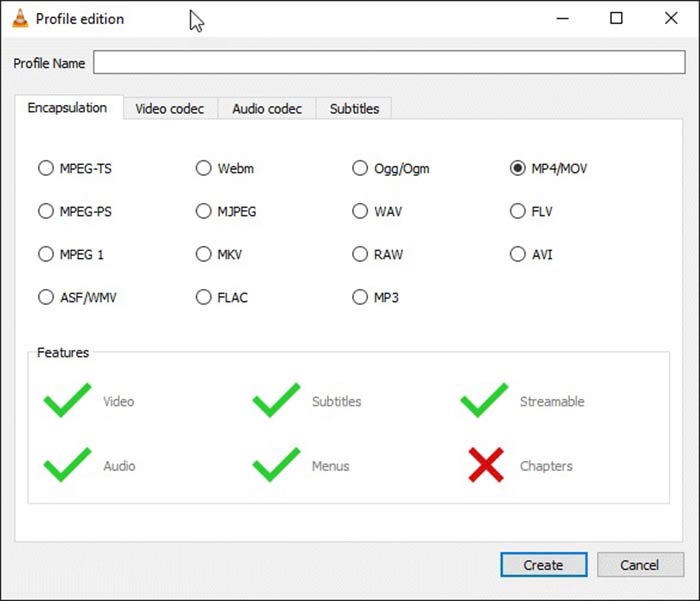
Passaggio 4: Apri l’elenco a discesa accanto a Profile e scegli 3GP o un formato video correlato. Se desideri modificare il codec video o altri parametri, fai clic sul pulsante Profile Edit accanto al menu a discesa e aggiungi 3GP.
Passaggio 5: Fai clic sul pulsante Browse e scegli una cartella specifica in cui salvare il file 3GP di output nella sezione Destination.
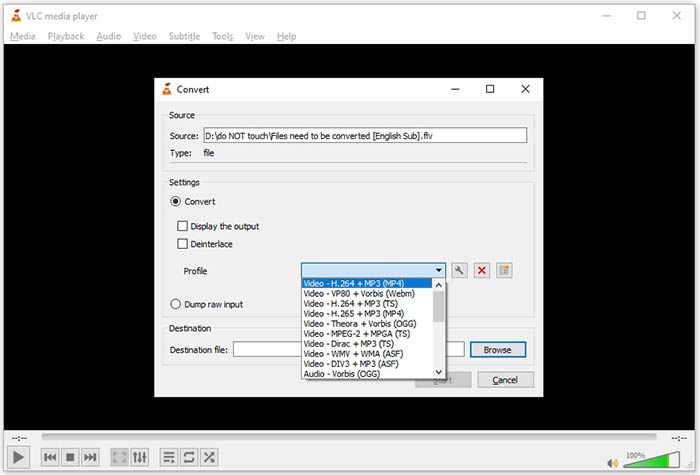
Passaggio 6: Non appena fai clic sul pulsante Start, VLC inizierà a convertire FLV in 3GP.
Ci vuole un momento per completare la conversione poiché VLC fa il lavoro registrando il video originale. Significa che il processo dura quanto la lunghezza del tuo video FLV.
FLV contro 3GP
Adobe Flash Player utilizzava FLV per fornire contenuti video come film e programmi TV. Al giorno d'oggi, Adobe non sviluppa più il lettore e consiglia agli utenti di disinstallarlo per motivi di sicurezza. Tuttavia, puoi ancora utilizzare il formato FLV su molti programmi non Adobe/Macromedia.
Il 3rd Generation Partnership Project (3GPP) ha prodotto il formato 3GP/3GPP come formato contenitore multimediale. In realtà è basato sul formato del file multimediale ISO. Lo usiamo spesso per salvare flussi video/audio che vengono trasmessi tra telefoni cellulari 3G e online.
Parte 4: Domande frequenti sulla conversione di FLV in 3GP
La conversione da FLV a 3GP danneggerà la qualità video?
In generale, la conversione video perderà qualità. Tuttavia, un potente programma di conversione video è in grado di risolvere questo problema e ottimizzare la qualità del video utilizzando una tecnologia avanzata.
Quanto tempo ci vuole per convertire un video FLV?
È determinato da diversi fattori, come la lunghezza del video, il software di conversione video che utilizzi, le prestazioni dell'hardware e altro ancora. Se stai utilizzando un convertitore video web, la tua connessione Internet è un elemento essenziale.
Perché FLV non viene riprodotto sul mio iPhone?
iPhone supporta MOV, una parte di MP4, ASF e AVI. Pertanto, non puoi aprire FLV direttamente su iPhone. Tuttavia, ci sono modi per guardare FLV su dispositivi mobili. Se il tuo file FLV è ospitato da servizi Internet, come Google Drive, è disponibile il lettore multimediale integrato. Inoltre, puoi utilizzare un altro lettore multimediale, come VLC.
Conclusione
Questa guida ti ha spiegato tre modi gratuiti per convertire i file video FLV in formato 3GP su computer o online. Se ti prepari a guardare video FLV su dispositivi mobili, è meglio convertirli in 3GP o altri formati video ottimizzati per dispositivi mobili con FVC Free FLV Converter. Non è solo facile da usare, ma è anche in grado di proteggere la qualità del tuo video. Più domande? Si prega di lasciare un messaggio qui sotto.
-
 Come convertire i tuoi file video FLV in MP4 senza pagare un centesimo
 Questa guida condivide quattro metodi gratuiti per convertire i tuoi file video FLV in formato MP4 su Windows 10/8/7 / XP e Mac OS X, così puoi goderti i video su qualsiasi dispositivo.
-
 Come convertire i tuoi video FLV in file audio MP3 sul desktop e online
 Come convertire un FLV in un file MP3? Tutto quello che devi fare è leggere attentamente questo articolo, trovare il tuo metodo preferito e seguire la nostra guida passo passo per ottenere ciò che desideri.
-
 I 3 migliori modi per convertire FLV in MOV
 Come convertire FLV in MOV? Come posso convertire FLV in MOV su Mac? Esiste un modo gratuito per convertire FLV in MOV online? Questo post condivide 3 convertitori da FLV a MOV per cambiare i file FLV in MOV.

