


 Video Converter Ultimate
 Screen Recorder
 Riparazione video
 Download sicuro
Come convertire e caricare qualsiasi file video FLV su YouTube
“Ho appena caricato un file video con estensione .flv, ma ho ricevuto un messaggio di avviso che diceva formato file non valido, come posso caricare un FLV su YouTube?” FLV non è solo un’estensione di file, ma anche un contenitore video. Significa che un file video FLV può contenere vari codec video e audio, e alcuni di essi non sono supportati da YouTube. Questo articolo ti dirà tutto ciò che devi sapere su come caricare un FLV su YouTube senza problemi.

Parte 1: quali codec video e audio sono supportati da YouTube
Secondo Google, YouTube preferisce il formato di trasmissione così come i flussi MPEG-2 compatibili con DVD con estensione .mpg. I codec supportati da YouTube includono:
- MPEG-2
- Codec audio: MPEG Layer II o Dolby AC-3
- Bitrate audio: 128 kbps o superiore
- MPEG-4
- Video codec: H.264
- Codec audio: AAC
- Bitrate audio: 128 kbps o superiore
Inoltre, YouTube supporta solo contenitori WAV con audio MP3 o PCM, MOV con audio AAC e audio FLAC. YouTube supporta WMV, AVI, MOV, MP4 e FLV con i codec giusti.
Quando si tratta di FLV, YouTube accede ai video codificati con il codec video Adobe-FLV1 insieme all'audio MP3 e AAC. Se il tuo video FLV contiene audio non compresso o audio ADPCM, YouTube non lo accetterà.
Inoltre, ci sono più regole per caricare FLV su YouTube:
- Frequenza fotogrammi consigliata: da 24 a 60
- Consiglia risoluzione: 1080p
- Durata minima: 33 secondi
Parte 2: i modi più semplici per convertire FLV in YouTube
Modo 1: converti FLV in YouTube sul desktop
Se riscontri l’errore durante il caricamento di un FLV su YouTube, la prima cosa da fare è cercare un convertitore FLV, come ad esempio FVC Free FLV Converter. Ti permette di regolare i codec video e audio così come altri parametri, in modo da poter adeguare i tuoi file FLV alle regole di YouTube. Inoltre utilizza l’accelerazione hardware e il multi‑threading per migliorare le prestazioni.
Caratteristiche principali del miglior convertitore FLV per YouTube
- 1. Regola facilmente i codec video e audio di FLV.
- 2. Elabora in batch video FLV illimitati contemporaneamente.
- 3. Proteggi automaticamente la qualità video durante la conversione.
Download gratuitoPer Windows 7 o versioni successiveDownload sicuro
Download gratuitoPer macOS 10.7 o versioni successiveDownload sicuro
Come convertire FLV per YouTube sul desktop
Passaggio 1: Aggiungi i file FLV
Avvia il miglior convertitore FLV dopo averlo installato sul tuo computer. Fai clic sul menu Aggiungi file in alto a sinistra e aggiungi i file FLV che desideri caricare su YouTube.

Passaggio 2: Modifica i codec
Fai clic sul menu a discesa accanto a Formato di output in basso per aprire la finestra del profilo. Inserisci FLV nella casella Cerca profilo e premi il tasto Invio sulla tastiera. Quindi seleziona il formato FLV con i codec video e audio appropriati.
Se il tuo video FLV è troppo lungo, è meglio dividerlo in più clip e poi caricarle su YouTube. Puoi fare clic sul menu Modifica per aprire la finestra dell’editor video.

Passaggio 3: Converti FLV per YouTube
Poi vai in basso e fai clic sul pulsante Apri cartella. Seleziona una cartella specifica in cui salvare i video di output. Infine, fai clic sul pulsante Converti per iniziare subito a convertire FLV per YouTube.

Modo 2: converti FLV in YouTube online
Se non ti piace installare un software di conversione video sul disco rigido, FVC Free Online Video Converter è una buona soluzione alternativa. È gratuito e senza alcun limite, come ad esempio la filigrana. Inoltre, non ha restrizioni sulla dimensione dei file. Ecco i passaggi:
Passaggio 1: Visita https://www.free-videoconverter.net/free-online-video-converter/ in un browser e fai clic sul pulsante Aggiungi file da convertire per ottenere il launcher.

Passaggio 2: Fai clic sul pulsante Aggiungi file per caricare diversi file FLV. Poi premi l’icona Ingranaggio per aprire la finestra del profilo. Qui puoi regolare il Codificatore video e il Codificatore audio. Premi OK per confermare.

Passaggio 3: Scegli un formato supportato da YouTube in basso e fai clic sul pulsante Converti per avviare la conversione del FLV per YouTube. Quando è finito, scarica i file di output.
Da non perdere:
Parte 3: Come caricare FLV su YouTube
Dopo la conversione, puoi caricare i tuoi file FLV su YouTube sul tuo computer ora. Condividiamo i passaggi qui, in modo che tu non ti perda.
Passaggio 1: Vai alla homepage di YouTube e accedi al tuo account.
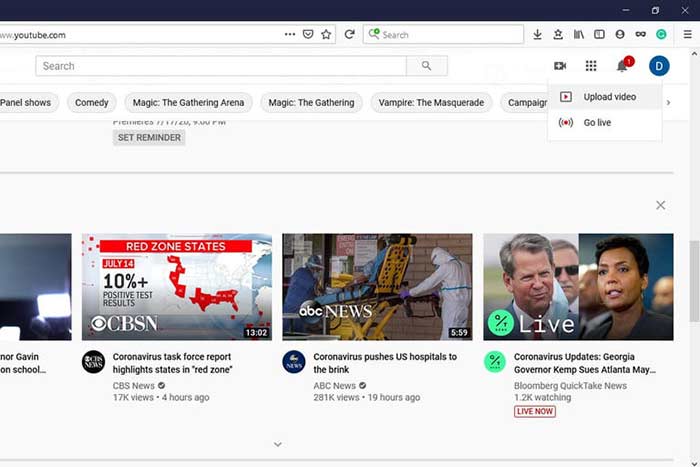
Passaggio 2: Fai clic sull’icona della Videocamera e seleziona Carica video per entrare nella pagina di caricamento.
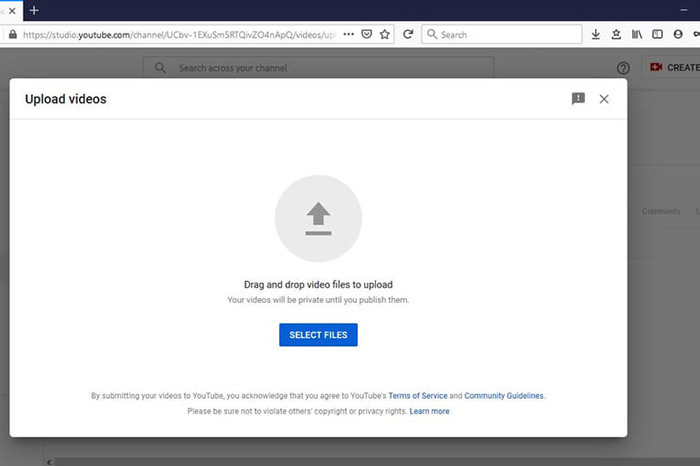
Passaggio 3: Premi il grande pulsante Seleziona file nella pagina, quindi apri i file FLV convertiti per YouTube. In alternativa, trascina e rilascia i file FLV nella pagina per caricarli.
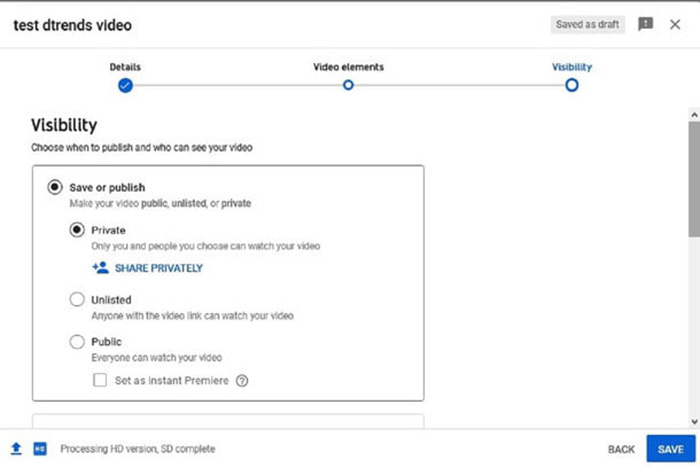
Passaggio 4: Poi scegli le impostazioni di privacy. Per impostazione predefinita è Pubblico, ma puoi cambiarlo in Privato, Programmato o Non in elenco.
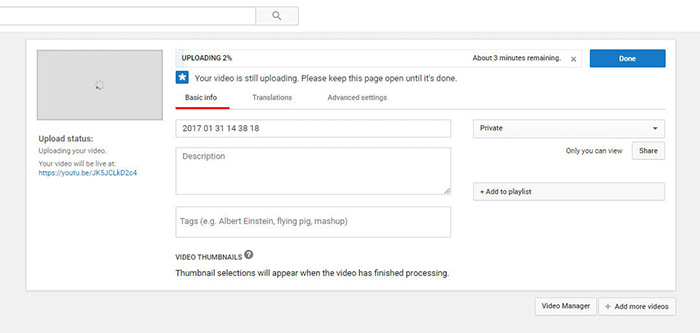
Passaggio 5: Fai clic sul pulsante Salva o Pubblica dopo aver completato le impostazioni. Verrai quindi portato alla pagina Dashboard. Qui puoi vedere i file FLV caricati sul tuo account YouTube.
Parte 4: Domande frequenti su FLV su YouTube
Puoi caricare FLV su YouTube?
Sì e no. YouTube supporta il formato video FLV, ma come contenitore video, puoi caricare solo file FLV con codec video e audio supportati; altrimenti, sarà un fallimento.
Posso scaricare video di YouTube in FLV?
Se il video di YouTube offre il pulsante di download, puoi fare clic su di esso e selezionare FLV come formato di output.
Quale formato video è il migliore per YouTube?
MP4 è il miglior formato video per YouTube. Google consiglia di utilizzare MP4 con codec video H.256 e codec audio AAC. Questo perché produce alta qualità con file di dimensioni inferiori. Inoltre, su YouTube sono supportati anche MOV, WMV, AVI, FLV e 3GPP.
Conclusione
Questa guida ti ha spiegato quali formati video accetta YouTube e come caricare FLV su YouTube senza errori. FVC Free FLV Converter può aiutarti a convertire FLV per YouTube e permetterti di regolare facilmente i codec video e audio. Non richiede nemmeno alcuna abilità tecnica, quindi i principianti possono padroneggiare rapidamente. Se riscontri altri problemi durante il caricamento di video su YouTube, lascia un messaggio sotto questo post.
-
 Come convertire i tuoi file video FLV in MP4 senza pagare un centesimo
 Questa guida condivide quattro metodi gratuiti per convertire i tuoi file video FLV in formato MP4 su Windows 10/8/7 / XP e Mac OS X, così puoi goderti i video su qualsiasi dispositivo.
-
 Come convertire i tuoi video FLV in file audio MP3 sul desktop e online
 Come convertire un FLV in un file MP3? Tutto quello che devi fare è leggere attentamente questo articolo, trovare il tuo metodo preferito e seguire la nostra guida passo passo per ottenere ciò che desideri.
-
 3 modi gratuiti per convertire FLV in WAV
 Come posso convertire un file FLV? VLC può convertire YouTube FLV in WAV? Questo post dice 3 modi gratuiti per convertire FLV in WAV senza perdita di qualità.
