


 Video Converter Ultimate
 Screen Recorder
 Riparazione video
Come ritagliare una GIF con l'aiuto dei migliori GIF Croppers
Scegliere le GIF giuste per il messaggio è fondamentale per trasmettere il tono corretto rispetto a ciò di cui stai parlando. Tuttavia, alcune GIF devono essere ritagliate per mostrare la vera intenzione della GIF. Inoltre, se provi a ritagliare le tue GIF, la qualità non dovrebbe essere compromessa e il file dovrebbe mantenere gli stessi fps. A volte scegliere il ritagliatore giusto per tagliare la tua GIF può essere un po’ difficile, perché non tutti gli strumenti offrono la funzione di ritaglio. E alcuni degli strumenti che permettono di ritagliare fanno perdere qualità e fps alle GIF. In questo articolo puoi scegliere il miglior ritagliatore di GIF: tutti gli strumenti elencati sono già stati testati da noi per fornirti prove concrete. Inoltre, ti proponiamo il miglior ritagliatore di GIF disponibile su tutte le piattaforme e ti spieghiamo come usarlo. Continua a leggere questo articolo per saperne di più.

Parte 1. Il miglior ritagliatore GIF che supporta i sistemi operativi Windows e Mac
1. Video gratuito FVC su GIF Maker
Questo strumento è disponibile su tutte le piattaforme, come Windows e Mac. È il miglior ritagliatore di GIF animate sviluppato da FVC: si tratta di FVC Free Video to GIF Maker. Questo software permette agli utenti di esplorare e migliorare le GIF già create oppure, se lo desiderano, di crearne di nuove. Quindi, se vuoi ritagliare la tua GIF, questo strumento ti aiuta a farlo anche senza connessione a Internet. Ritaglia la tua GIF per renderla più riconoscibile in modo semplice ed efficace. Per sapere come ritagliare la tua GIF, segui i passaggi riportati di seguito.
Passaggio 1. Installa lo strumento sull’unità e imposta le preferenze in base alle tue esigenze.
Download gratuitoPer Windows 7 o versioni successiveDownload sicuro
Download gratuitoPer MacOS 10.7 o versioni successiveDownload sicuro
Passaggio 2. Dopo aver avviato il programma, sullo schermo verrà visualizzata una mini-interfaccia come questa.
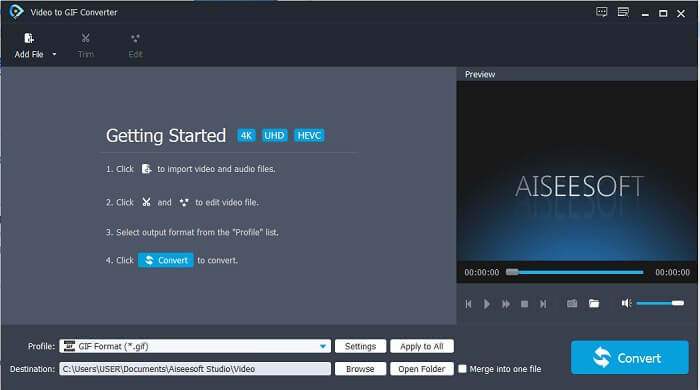
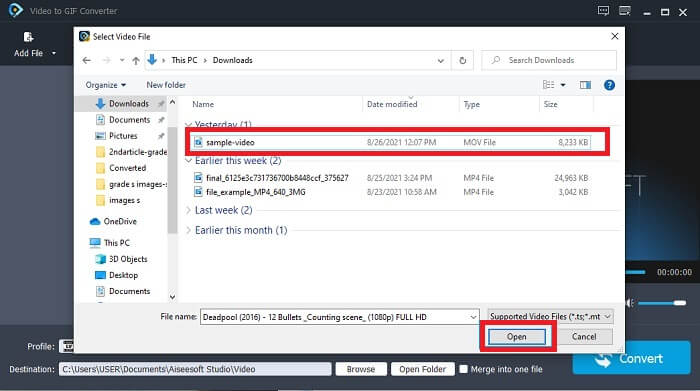
Passaggio 3. Fai clic su Add File oppure trascina e rilascia il file video all’interno dell’interfaccia del programma.
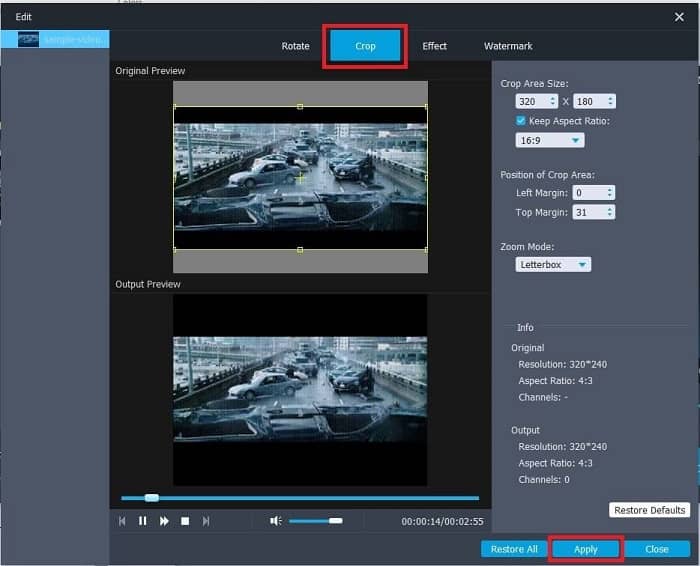
Passaggio 4. Clicca su Edit per migliorare la tua GIF. Vai su Crop e regola le dimensioni della GIF. Puoi anche modificare Aspect Ratio e Zoom Mode. Fai clic su Apply per salvare le modifiche effettuate.
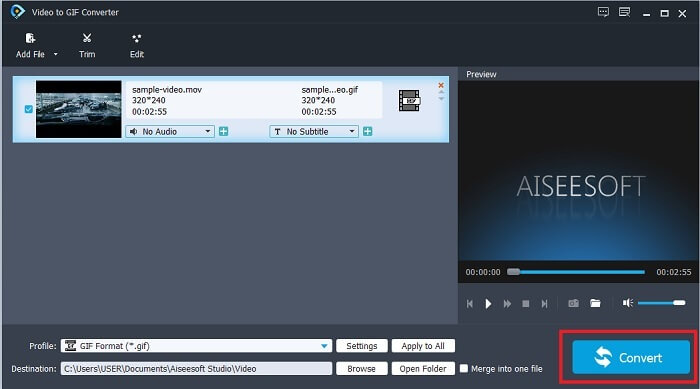
Passaggio 5. Clicca su Convert per avviare la conversione del video in GIF. Al termine della conversione, puoi controllare il file finale nell’esplora risorse digitando il nome del video.
Professionisti
- Tutte le funzionalità minori sono disponibili qui.
- È molto meglio dello strumento online e anche di alcuni strumenti scaricabili.
- Crea facilmente la tua GIF con questo strumento.
Contro
- Non è possibile utilizzare le funzionalità principali fornite dalla versione Ultimate.
- Supporta video di formato inferiore anziché la versione premium.
2. Convertitore video definitivo
La versione gratuita di questo strumento può fare il lavoro semplice, ma la sua versione premium è il miglior ritagliatore GIF. Video Converter Ultimate non è solo di nome, ma anche questo strumento è il massimo per convertire qualsiasi video in un file GIF. A differenza della sua versione gratuita e dello strumento sottostante, questo strumento può rendere la tua semplice GIF più splendida. Trasforma la tua GIF in una straordinaria aggiungendo effetti che questo strumento può solo fornire. Fornisce anche la conversione di un video in GIF, come MP4 in GIF, l'unione di video in uno, creatore 3D e molti altri. Quindi, usa questo strumento come il tuo ritaglio personale e non ti deluderà mai. Inoltre, continua a leggere i passaggi seguenti per sapere come ritagliare la tua GIF per inviare un messaggio più specifico al tuo destinatario.
Passaggio 1. Prima di usare questo strumento, devi scaricarlo. Installalo sull’unità, modifica le preferenze secondo le tue necessità e clicca su Finish per avviarlo sullo schermo.
Download gratuitoPer Windows 7 o versioni successiveDownload sicuro
Download gratuitoPer MacOS 10.7 o versioni successiveDownload sicuro
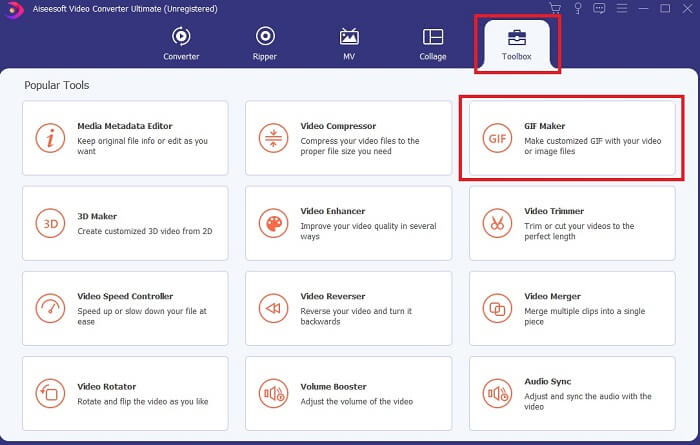
Passaggio 2. Quando lo strumento è stato completamente installato sull’unità, sullo schermo apparirà un’interfaccia semplice da gestire come questa. Clicca sulla barra degli strumenti e, nella Toolbar, fai clic su GIF Maker.
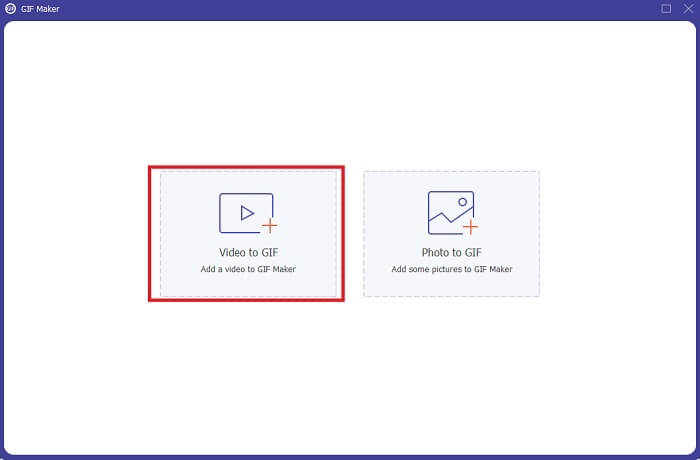
Passaggio 3. Per aggiungere il video, clicca su Video to GIF e individua la GIF che vuoi ritagliare o modificare. Dopo aver selezionato il video, clicca su Open per avviare il GIF Maker.
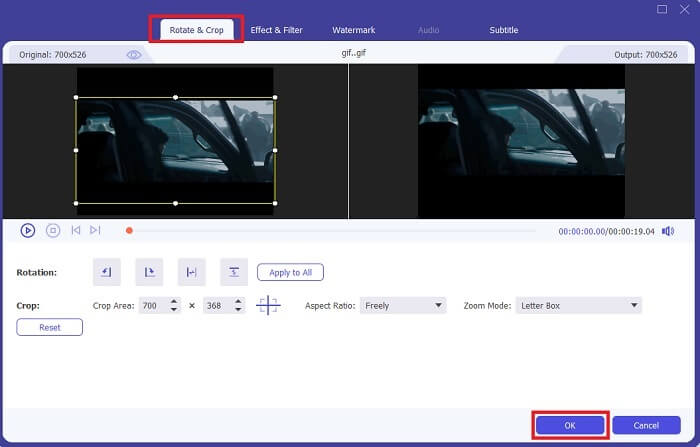
Passaggio 4. Clicca sul pulsante con l’immagine di una stella per iniziare a modificare. Clicca su Rotate & Crop per cominciare a ritagliare la GIF. Puoi anche aggiungere effetti e filtri, filigrana e sottotitoli. Quando hai terminato le regolazioni, fai clic su OK per salvare le modifiche.
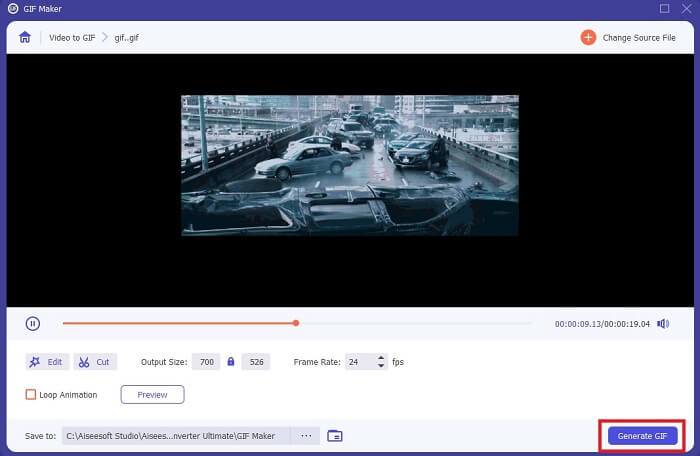
Passaggio 5. Cambia la posizione in cui desideri salvare il risultato finale per trovarlo più facilmente. Clicca su Generate GIF per avviare la conversione. Quando la conversione è completamente terminata, trova il file finale nella posizione scelta oppure nel file manager.
Professionisti
- Il tuo strumento da usare se vuoi migliorare la tua GIF in una molto più interattiva. Usa la tua immaginazione per ravvivare le cose nelle tue GIF.
- Può trasformare la tua GIF in un output impressionante utilizzando le principali funzionalità che fornisce che l'altra versione premium non può fornire.
- Più di un milione di utenti scelgono questo strumento come strumento di prima scelta per la versione premium.
Contro
- Per utilizzare lo strumento, devi prima fornire il pagamento, ma di sicuro non è così costoso. Quindi, non devi aspettarti niente di meno se hai acquistato questo strumento.
- Scarica lo strumento prima di avviarlo. Anche se non disponi di Internet, puoi comunque utilizzare questo strumento perché non dipende da Internet.
Parte 2. I 5 migliori ritagliatori di GIF a cui puoi accedere tramite Internet
1. iLoveIMG
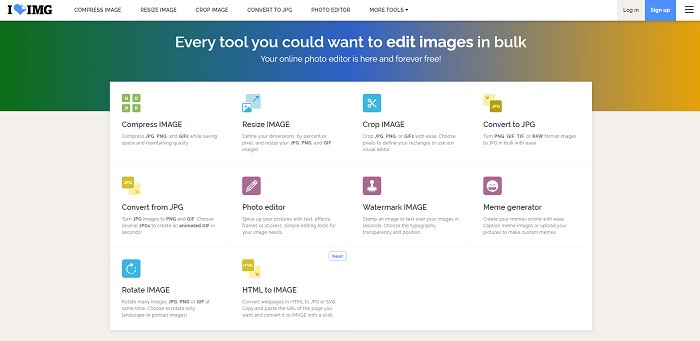
Ritaglia la tua GIF con l’aiuto di questo ritagliatore di GIF online. iLoveIMG è conosciuto come uno dei migliori ritagliatori online per GIF, JPG e PNG. Anche se lo strumento non può convertire i video in formato GIF, perché si concentra solo sul miglioramento di GIF, JPG e PNG, l’interfaccia del sito va oltre le aspettative: non è solo semplice, ma anche molto interattiva. Quindi non aspettarti di annoiarti mentre usi il sito. Come valutazione, merita un 7 su 10, che è ottimo per un’applicazione web.
Professionisti
- Ideale per migliorare GIF, JPG e PNG.
- L'interfaccia del sito è straordinariamente bella.
- Non c'è bisogno di scaricare.
Contro
- È possibile che si verifichi una perdita di dati se la connessione è stata interrotta.
- Non puoi convertire il formato video in un formato GIF.
2. Ketchup rosso
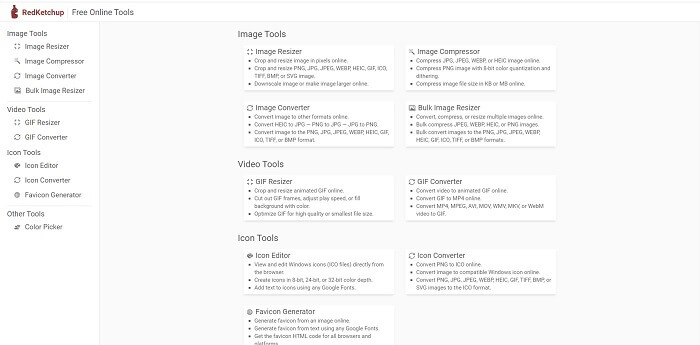
Se iLoveIMG non fa per te, allora dovresti provare questo ritagliatore di GIF online. RedKetchup è molto informativo grazie alle descrizioni che fornisce per ciascuno degli strumenti di modifica disponibili. Questo rende più facile capire come funziona una funzione, se non ne hai familiarità. Inoltre, puoi convertire le tue immagini in GIF, PNG, JPG, WEBP e altro ancora. Supporta più formati rispetto a iLoveIMG, ma il lato negativo di questo strumento è che l’interfaccia della pagina web è piuttosto noiosa. Lo sfondo dell’intero sito è solo bianco e l’unico elemento colorato è il nome e l’icona RedKetchup.
Professionisti
- Supporta più formati di immagine rispetto a iLoveIMG.
- Ogni caratteristica dello strumento ha una breve descrizione in modo che l'utente possa comprenderne le funzioni.
- È uno strumento online gratuito.
Contro
- La pagina web di questo strumento è così noiosa da guardare a causa del suo colore monotono.
- È possibile che il file non venga salvato correttamente se la tua connessione Internet è instabile.
3. Kapwing
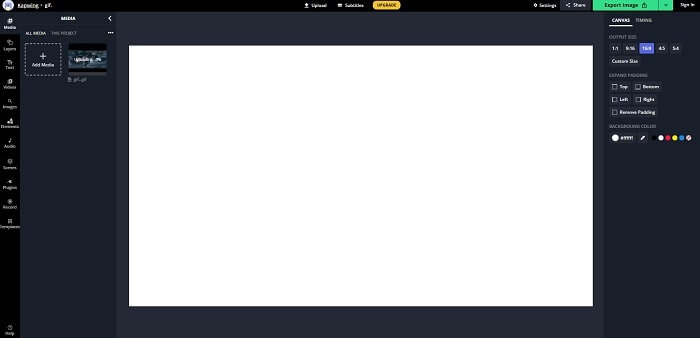
Questo strumento offre quasi le stesse funzionalità di Photoshop, ma online. È il miglior ritagliatore di fotogrammi GIF disponibile sul web. Kapwing è noto per permetterti di creare le migliori GIF da condividere con i tuoi amici. A differenza dei primi due strumenti sopra citati, questo supporta alcuni formati video per convertirli in GIF. Anche se imparare a usare questo strumento richiederà un po’ di tempo, ne varrà la pena. Tuttavia, se desideri creare una GIF semplice, questo strumento è perfetto per farlo. Questo strumento ha quasi le stesse funzioni di Photoshop, ma è online. È il miglior ritagliatore di fotogrammi GIF online. Kapwing è noto per creare le GIF migliori da condividere con i tuoi amici. A differenza dei primi due strumenti sopra, questo supporta alcuni formati video per convertirli in GIF. Anche se imparare a usarlo ti porterà via un po’ di tempo, ne varrà la pena. Ma se vuoi creare una GIF semplice, questo strumento è il migliore per farlo.
Professionisti
- L'interfaccia del sito Web dello strumento ti darà quasi la stessa atmosfera con Photoshop.
- Converti il tuo video in un formato GIF.
- Sono fornite funzionalità di modifica di base.
Contro
- L'elaborazione dell'output finale del video dipenderà sempre dalla velocità di Internet. Quindi è necessario avere molta pazienza per produrre l'output finale.
- Dovrai registrarti per rimuovere la filigrana dall'output. Quindi, aspettati una mail su ogni aggiornamento che dice e alcuni annunci fastidiosi. Perché hai permesso loro di accedere al tuo account.
4. GIFGIF
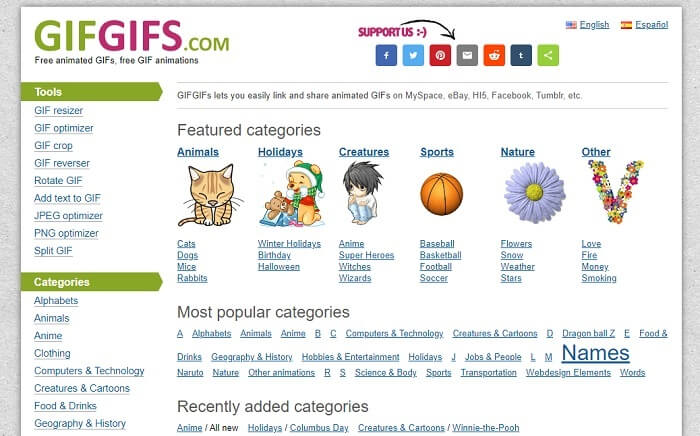
Puoi ritagliare le tue GIF con questo ritagliatore di GIF senza perdita di qualità. GIFGIFs ti offre le migliori GIF già pronte disponibili online. Puoi scegliere tra le categorie proposte, come alfabeto, sport, anime, abbigliamento, ecc. Inoltre, questo strumento non solo fornisce le migliori funzioni per migliorare le GIF, ma ti permette anche di ottimizzare JPG e PNG.
Professionisti
- È una buona scelta per migliorare la tua GIF in una migliore.
- Supporta l'ottimizzazione di JPEG, PNG e GIF.
- Scegli le GIF già realizzate nelle sezioni della sua categoria.
Contro
- Non fornisce una barra di ricerca, quindi è difficile trovare la GIF perfetta che desideri utilizzare.
- L'interfaccia è a posto. Non è niente di speciale o dovremmo dire che non è buono ma non cattivo.
5. VEED.IO
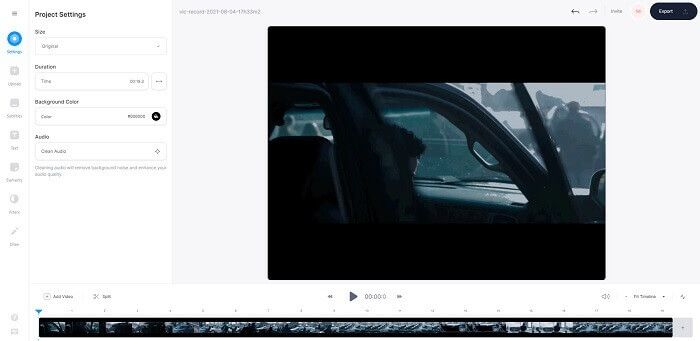
Scegli questo come il tuo ritagliatore GIF gratuito di prima scelta online, ma può anche essere aggiornato a una versione premium se lo desideri. VEED.IO è uno dei migliori strumenti online per migliorare le tue GIF. Ma la versione gratuita dello strumento supporta solo 50 MB di dimensione del file GIF e per aggiungere più dimensioni del file è necessario acquistare la versione premium dello strumento.
Professionisti
- Fornisce un'ottima funzione di modifica per migliorare la tua GIF.
- Interfaccia utente semplice.
- Puoi anche aggiungere i sottotitoli se lo desideri.
Contro
- Non fornisce un creatore 3D per migliorare le tue immagini 2D.
- In alcune occasioni il software si arresta in modo anomalo quando si tenta di ingrandire la sequenza temporale.
Parte 3. Domande frequenti su GIF Cropper
Esiste un formato migliore del formato GIF?
Anche se è risaputo che GIF è il miglior formato di immagine in movimento sul web. Ma lo sapevi che esiste un formato migliore piuttosto che GIF? Questo è l'APNG. Questo formato fornisce una tavolozza di colori in più rispetto alla GIF ed è anche migliore nella compressione. Ma puoi anche usare WEBP, MNG, FLIF e AVIF.
Qual è il motivo per cui vengono create le GIF?
Alla fine del 1987, un uomo di nome Steve Wilhite si chiese se fosse possibile creare un file di immagine di piccole dimensioni per la visualizzazione al computer, e proprio in quel periodo nacque la GIF. Per saperne di più sulle GIF, puoi cliccare qui.
Qual è il migliore? JPG o GIF?
Il formato JPG fornisce un'immagine più dettagliata perché supporta un'ampia gamma di colori, quindi è il migliore per scattare fotografie. La GIF fornisce una piccola quantità di tavolozza di colori ma è buona per creare un'immagine statica.
Conclusione
Per concludere, devi scegliere il miglior ritagliatore di GIF che ti offra il tipo di ritaglio di cui hai bisogno, senza influire sulla qualità della GIF stessa, anche dopo il taglio. È però evidente che dovresti scegliere lo strumento definitivo sviluppato da FVC, perché ti mette a disposizione le migliori funzioni da aggiungere alle tue GIF per renderle più straordinarie rispetto alle altre. Quindi, ritagliare le GIF è più facile che mai se utilizzi Video Converter Ultimate.
-
 Tutorial per comprimere GIF e ridurre le dimensioni del file con alta qualità
 Ecco 2 semplici modi per comprimere GIF sul tuo computer o telefono cellulare. Puoi utilizzare FVC Free Online Video Compressor e Photoshop per ridurre le dimensioni del file GIF in diversi aspetti.
-
 GIF Player - 5 migliori lettori GIF per PC Windows, Mac, Android e iPhone
 Quale programma apre i file GIF? Come si visualizzano le GIF su Android? IPhone ha un lettore GIF per aprire le GIF? Questo post condivide i 5 migliori lettori GIF per te.
-
 Come convertire video AVI in file GIF animati su Windows/Mac
 Vuoi selezionare i segmenti AVI interessanti per creare meme GIF? Questo articolo ti dirà i 2 metodi migliori per ritagliare i video AVI e convertire gratuitamente AVI in file GIF animati.
