


 Video Converter Ultimate
 Screen Recorder
 Riparazione video
Il miglior convertitore da MPG a GIF per convertire MPG in GIF [versione gratuita e premium]
Il modo migliore per esprimere i tuoi sentimenti ai tuoi cari è creare un messaggio significativo. Ma vuoi sapere cosa è molto meglio esprimere in un modo diverso? Puoi usare una GIF. Conosciuto anche come Graphics Interchange Format, queste sono le immagini che invii ma vengono aggiornate. Queste immagini in movimento sono create per esprimere semplicemente i tuoi sentimenti verso qualcuno, direttamente o indirettamente. Sapevi che la maggior parte delle app di messaggistica supporta GIF e il nostro messenger integrato? Ma in alcune vecchie versioni del telefono, non fornisce questo formato. Sebbene GIF sia divertente, non sempre ti fornirà l'emozione che vuoi esprimere.
Quindi, sei qui per sapere qual è il modo migliore per convertire il tuo formato MPG in GIF. Non è emozionante creare la tua GIF? Invece di cercare cosa dovresti usare, perché non provi a creare una GIF tutta tua aggiungendole il tuo tocco personale? Il modo migliore per sapere come fare è leggere questo articolo, perché fornisce informazioni sufficienti, passaggi e strumenti per portare a termine il lavoro. Dunque, senza ulteriori giri di parole, passiamo ai dettagli importanti di questo articolo. Continua a leggere per saperne di più su questi elenchi di convertitori.

Parte 1. 4 Il miglior strumento per convertire MPG in formato GIF PC o Mac
1. Convertitore video FVC Ultimate
Se vuoi condividere un messaggio divertente senza dover digitare troppi dettagli, allora questo strumento ti sarà utile. Questo strumento ti permette di convertire mpg in gif animata ed è stato sviluppato da FVC. FVC Video Converter Ultimate consente all’utente di convertire qualsiasi tipo di formato in un formato riproducibile che preferisce utilizzare. Forse ti stai chiedendo perché scegliere proprio questo strumento. Ha qualcosa di speciale? Sì, questo strumento è multiuso. Può essere il tuo convertitore e ripper più affidabile, creatore di MV, creatore di collage e molto altro. Significa semplicemente che questo strumento può fare molto di più rispetto a tanti altri. Un’altra funzione sorprendente è la conversione ultrarapida, che ti permette di convertire i video in pochissimo tempo. Per sapere come usare questo strumento, segui attentamente questi passaggi così potrai ottenere una conversione riuscita con la qualità di formato desiderata.
Passaggio 1. Installa lo strumento sul tuo PC o Mac. Segui le istruzioni dopo l’installazione e fai clic su Fine per avviare il programma.
Download gratuitoPer Windows 7 o versioni successiveDownload sicuro
Download gratuitoPer MacOS 10.7 o versioni successiveDownload sicuro
Passaggio 2. Al termine di tutto il processo di installazione, sullo schermo apparirà un’interfaccia ridotta come questa.
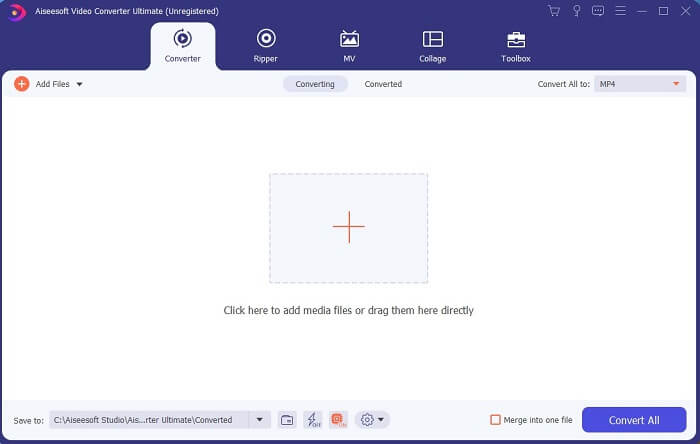
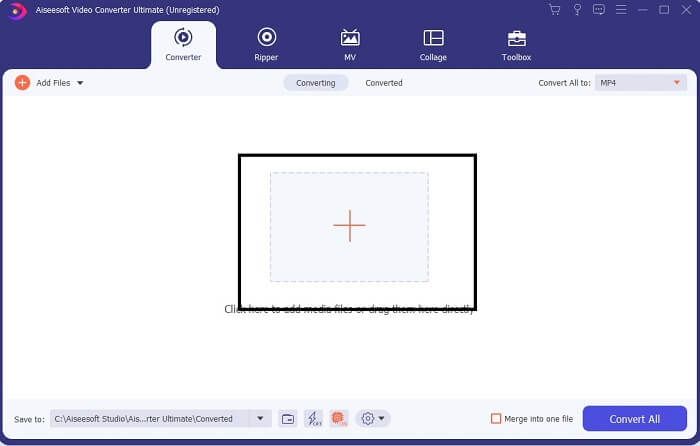
Passaggio 3. Fai clic sul segno più per aggiungere il file e fai clic su Apri per iniziare la conversione, oppure puoi semplicemente trascinare e rilasciare il file video nello strumento. La durata del video non avrà alcuna importanza.
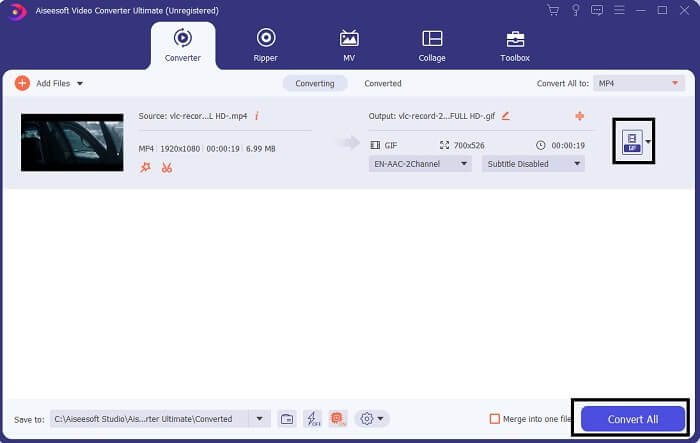
Passaggio 4. Fai clic sul pulsante a discesa nell’angolo in alto a destra dell’interfaccia, scorri verso il basso e seleziona il formato GIF. Scegli la risoluzione che preferisci: Grande, Media o Piccola. Se è tutto pronto, fai clic su Converti tutto per avviare la conversione.
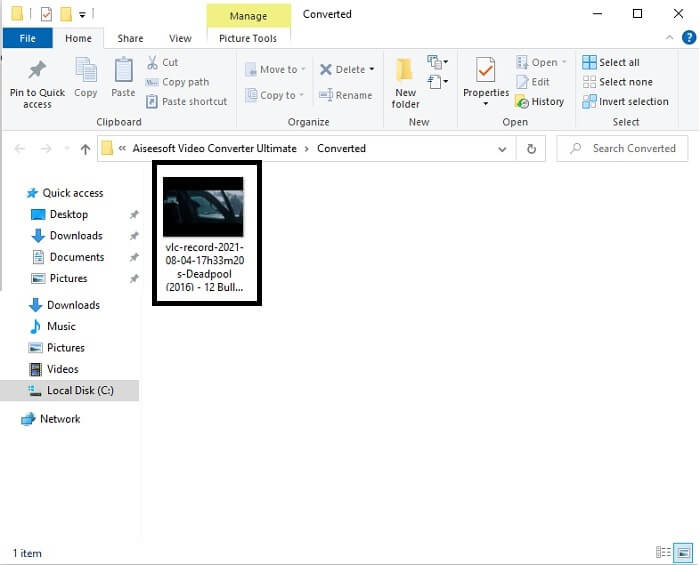
Passaggio 5. Dopo la conversione, si aprirà una finestra del file manager che mostrerà il tuo risultato finale e potrai ora goderti il tuo formato GIF. Puoi anche convertire un file .gif in formato .mpg seguendo gli stessi passaggi ma cambiando il formato.
2. Convertitore video online gratuito FVC
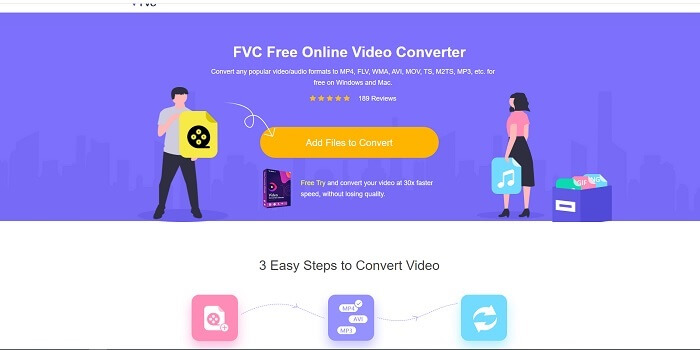
Forse stai pensando, e se non hai soldi posso ancora sperimentare la stessa conversione della prima? La risposta è un grosso SI. FVC offre sempre la migliore esperienza ai suoi clienti che non hanno soldi e anche a coloro che vogliono provare il loro strumento. Tuttavia, questo strumento esegue solo una semplice conversione, quindi non aspettarti troppo poiché la versione premium può fornire. E non può convertire più formati video e audio in un modo più veloce.
Ma il processo di conversione che offre è molto migliore rispetto ad altri convertitori premium e gratuiti. FVC Free Online Video Converter è qui per salvarti la giornata. Come dice il nome, è uno strumento online gratuito che ti permette di convertire al massimo livello. A differenza di molti altri convertitori, questo strumento non ha pubblicità o malware, non richiede registrazione, accesso né i tuoi dati personali prima dell’uso. Se stai cercando un convertitore semplice, allora questo è lo strumento giusto per te. Segui questi passaggi per capire come funziona questo strumento come convertitore.
Passaggio 1. Vai al sito ufficiale facendo clic su questo link.
Passaggio 2. La pagina web dovrebbe apparire così. Poi fai clic su Add Files to Convert per avviare questo strumento online.
Scarica la Versione Desktop per convertire i file in batch.
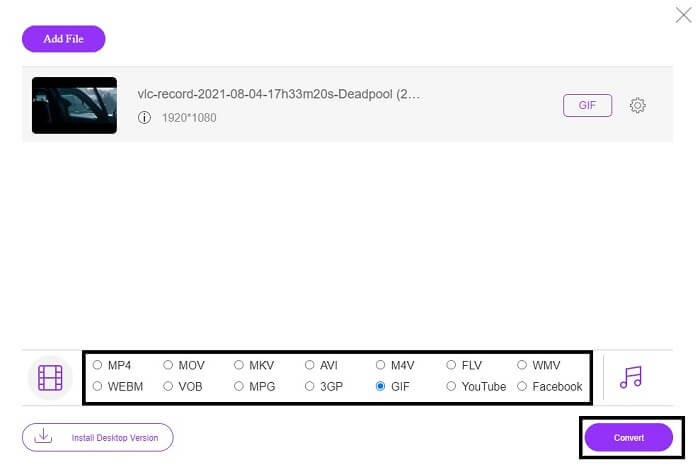
Passaggio 3. Scegli il video che desideri convertire. Dopo aver selezionato il video, seleziona il formato file GIF. Per informazioni aggiuntive, puoi scegliere anche altri formati video e audio; potrai verificarli in seguito se vuoi.
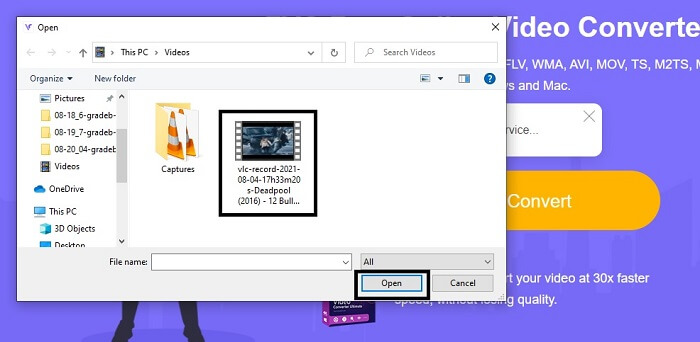
Passaggio 4. Scegli dove vuoi salvare il risultato finale. Poi, se è tutto pronto, fai clic su Convert per iniziare la conversione. Ci vorranno solo pochi secondi per completarla.
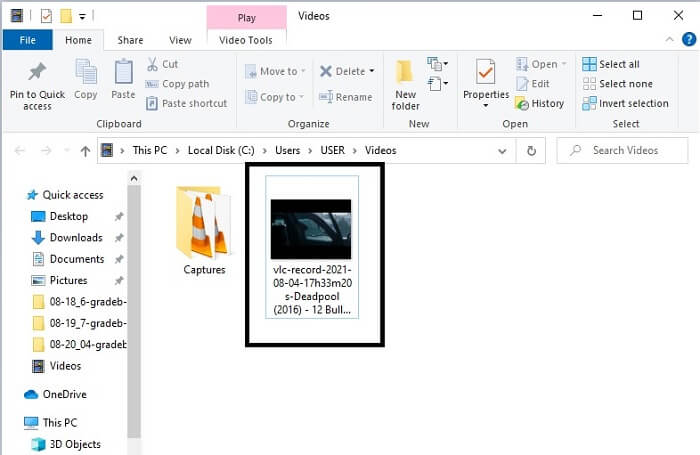
Passaggio 5. Per controllare l’esito positivo della conversione, puoi individuare il file GIF convertito nel tuo file manager o nell’esplora risorse. Fai clic su di esso e goditelo.
3. VLC Media Player
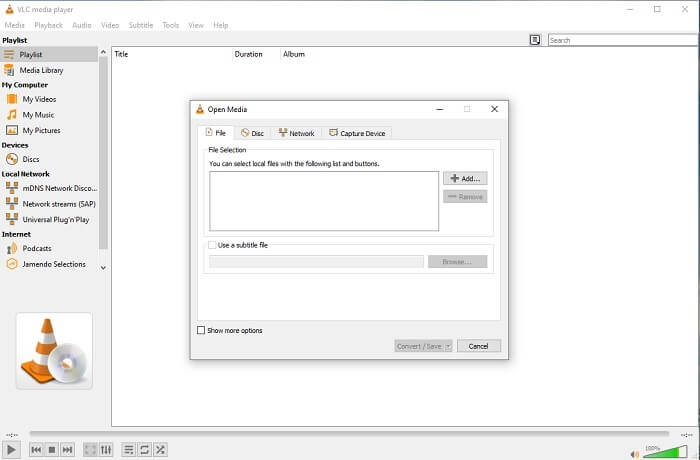
Questo strumento è noto per essere uno dei lettori multimediali più potenti. Ma sapevi che anche il lettore VLC può convertire MPG in GIF? Tuttavia, i formati di output disponibili sono piuttosto limitati ai formati più comuni. Nonostante sia conosciuto come uno dei migliori lettori multimediali, la funzione di conversione non è la scelta migliore per te. Se desideri un convertitore più valido, dovresti scegliere lo strumento online qui sopra piuttosto che questo programma. Se però vuoi solo guardare i video, allora VLC Media Player deve essere la tua scelta, perché l’altro strumento non offre un lettore video, dato che il suo scopo principale è la conversione.
4. Zamzar
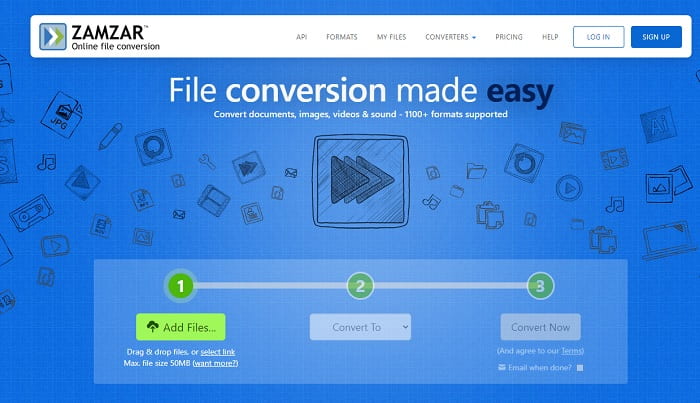
Un altro strumento online che fornisce un'ottima conversione è Zamzar. Come qualsiasi altro convertitore online, condividono la stessa interfaccia e fornisce anche istruzioni puntuali su come convertirlo. Ma il processo di conversione e download è diverso. Sebbene sia la versione gratuita, puoi convertire solo una dimensione massima del file di 50 MB. Perché dopo aver convertito il video, devi passare alla fase di download. È un sacco di seccature per coloro che lasciano la loro conversione e aspettano solo che il prodotto venga riprodotto.
Parte 2. Grafico di confronto
| Funzione/i strumento | FVC Video Converter Ultimate | Convertitore online gratuito FVC | Lettore multimediale VLC | Zamzar |
| Converter |  | | | |
| Strumento di modifica | |  | | |
| Convertitore potente | | | | |
| Registrazione necessaria | | | | |
| Piattaforme | App basata su desktop | App basata sul Web | App basata su desktop | App basata sul Web |
| Fascia di prezzo | $25.00 1 Mese/1 PZ $55.20 Acquisto una tantum per 1 PC $119.00 A vita 5 PC | È uno strumento online gratuito | È uno strumento online gratuito | Strumento online gratuito Ma prevede anche un premio mensile. Per la base: $9 Per il professionista: $16 Per affari: $25 |
MPG contro GIF
Realizzato dal Moving Picture Experts Group (MPEG), MPG è un formato video digitale comune per archiviare informazioni su video, audio e metadati. È molto utile quando si creano filmati da condividere su Internet. Questi file in MPG di solito contengono la compressione video/audio MPEG-1 o MPEG-2.
GIF è un formato di immagine comune per la grafica web. Oltre a salvare piccole immagini e immagini che contengono testo, GIF può anche contenere e visualizzare animazioni di base sui siti Web. È un formato senza perdita di dati e la compressione GIF non degrada la nitidezza dell'immagine.
Parte 3. Domande frequenti su MPG in GIF
C'è un modo per usare Photoshop e convertire i video in GIF?
Sì, puoi convertire MPG in GIF con Photoshop. Ma non solo il formato MPG: puoi anche scegliere altri formati e convertirli in GIF. Un’altra funzione speciale è che puoi anche migliorare la GIF per renderla migliore. Clicca qui per sapere come convertire MP4 in GIF.
Qual è il miglior strumento di registrazione dello schermo per registrare GIF?
Il miglior strumento di registrazione dello schermo che puoi usare per questo lavoro è FVC Screen Recorder. Questo strumento non è solo ideale per registrare video, ma dispone anche di un registratore audio integrato e di un registratore di gameplay per un’esperienza di gioco di qualità superiore. Tuttavia, questo strumento richiede un pagamento prima dell’utilizzo. Non preoccuparti, perché esiste anche uno strumento online che può effettuare le registrazioni.
Perché è stata creata la GIF?
È stato creato per visualizzare un’immagine risparmiando spazio di archiviazione. Il creatore della GIF è Steve Wilhite, un informatico americano, con l’aiuto del colosso tecnologico CompuServe, alla fine del 1987. Clicca qui per ulteriori informazioni sulle GIF.
Conclusione
Finalmente, ora che sai come creare una GIF su te stesso, è meglio provarlo e divertirti. Solo usando questo semplice strumento, puoi fare la differenza. Invece di cercare sul Web, ora sei un creatore di GIF certificato. Inoltre, ora puoi esprimere i tuoi sentimenti a modo tuo con il tuo tocco personale e la tua esperienza sviluppata solo leggendo questo articolo. Spero che tu possa goderti la vita di una GIF migliore che crei e condividere la tua migliore GIF con il mondo.
-
 [Guida] Come convertire video M4V in GIF animate su Windows/Mac
 Se vuoi creare file GIF animati dai tuoi video M4V preferiti, puoi conoscere 2 modi semplici ed efficienti per convertire i video M4V in GIF con impostazioni personalizzate.
-
 Da WebM a GIF: 3 convertitori gratuiti da WebM a GIF per creare le tue GIF
 WebM è una GIF? Come trasformare un video in una GIF? Esiste un convertitore gratuito da WebM a GIF? Questo post condivide 3 modi gratuiti per aiutarti a convertire WebM in GIF.
-
 Come convertire video MKV in GIF animate senza Photoshop/FFmpeg
 Dopo aver scaricato e visto film MKV sul tuo computer, potresti voler condividere alcuni momenti meravigliosi con gli amici o su Internet come GIF. In questo articolo, puoi conoscere i 2 modi più semplici per convertire MKV in GIF.

