


 Video Converter Ultimate
 Screen Recorder
 Riparazione video
 Download sicuro
Come convertire BMP in PNG e JPGUsando convertitori online e offline
Il formato Bitmap o BMP non è ottimale per le immagini a colori con sfumature o gradienti. Oggi non lo si usa quasi più per le foto. Tecnicamente parlando, il BMP è un formato obsoleto con compressione quasi nulla. Pertanto, se vuoi aprire immagini BMP senza limitazioni, devi convertire i BMP in formati di immagine di uso comune. Puoi convertire tra diversi formati di immagine in numerosi modi. In questo post illustreremo i metodi più semplici e diretti. Quindi, se vuoi sapere come convertire BMP in JPG o PNG, leggi questo articolo. Presenteremo degli eccezionali convertitori di immagini che possono aiutarti.

Parte 1. BMP vs. JPG vs. PNG
| Formato del file | BMP | JPG | PNG |
| Estensione nome file | .bmp | .jpg | .png |
| Sviluppato da | Microsoft | Gruppo misto di esperti fotografici | Gruppo di sviluppo PNG |
| Descrizione | UN BMP file è l'abbreviazione di bitmap ed è pronunciato bump. Microsoft ha creato il formato di file BMP per il suo sistema operativo Windows. Serve per mantenere la risoluzione delle immagini digitali su vari schermi e gadget. È possibile archiviare fotografie bidimensionali sia a colori che in bianco e nero. I file BMP non sono più compatibili solo con i dispositivi basati su Windows nei tempi moderni. Ora sono compatibili con un gran numero di dispositivi Mac e Android. | Il JPG il formato del file immagine è il più efficace per la compressione delle immagini. Gli utenti utilizzano ampiamente i file JPG. Viene anche chiamato file JPEG o JPG. Il Joint Experts Group è il nome completo di JPEG. Inoltre, la maggior parte delle immagini bitmap ha l'estensione file .jpg. L'obiettivo principale è ridurre le dimensioni dei file. Poiché JPG è un formato con perdita, una compressione eccessiva ha un impatto sulla qualità delle immagini. | Grafica di rete portatile, a PNG estensione per la famiglia raster, che esegue la compressione senza perdita di dati. È stato sviluppato per sostituire GIF, il Graphics Interchange Format, e non è brevettato. Possono essere basati su una tavolozza e in genere immagini in scala di grigi che offrono trasparenza. PNG è una compressione senza perdita. Implica che mantenga informazioni, dettagli e qualità. |
Parte 2. Metodi online per convertire BMP in JPG/PNG
Converti BMP in JPG/PNG utilizzando FVC Free Image Converter
Per convertire gratis online BMP in JPG, puoi usare FVC Free Image Converter. Questo strumento online offre la procedura più semplice per convertire BMP in PNG o JPG. Grazie alla sua interfaccia intuitiva, può essere usato sia da utenti esperti che da principianti. Puoi convertire le immagini in soli tre passaggi. Inoltre, puoi caricare qualsiasi immagine in vari formati di file. Supporta formati in input come PNG, JPG, BMP, GIF, TIFF e altri ancora. Inoltre, il convertitore di file immagine FVC supporta la conversione in batch. Ti consente di convertire numerose immagini contemporaneamente. Questo è molto più efficiente e pratico rispetto ad altri convertitori di immagini sul mercato. È comodo per tutti gli utenti, perché puoi convertire fino a 40 file immagine alla volta.
FVC Free Image Converter garantisce un'immagine di alta qualità. Dopo la conversione, l'immagine avrà ancora lo stesso aspetto dell'originale. Inoltre, non vedrai annunci fastidiosi sullo schermo, anche se si tratta di un convertitore di immagini online. In questo modo, puoi concentrarti maggiormente sulla conversione delle tue immagini. Questo convertitore è disponibile in quasi tutti i browser. Include Chrome, Safari, Edge, Firefox e altro. Puoi seguire i semplici passaggi seguenti per convertire BMP in formato JPG e PNG.
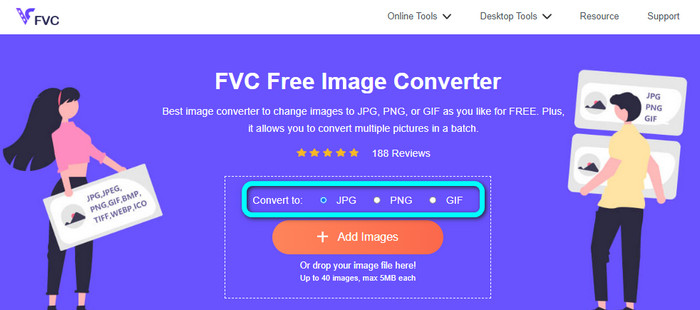
Passaggio 1: Apri il browser e visita il sito web di FVC Free Image Converter. Cerca l’opzione Convert to e seleziona il formato desiderato. Puoi fare clic su JPG oppure su PNG.
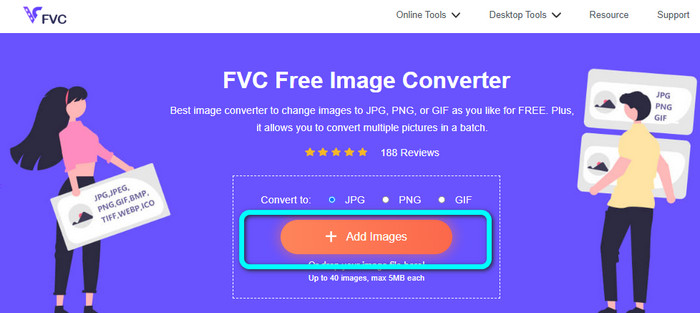
Passaggio 2: Aggiungi l’immagine BMP facendo clic sul pulsante Add Images. I file del tuo computer verranno visualizzati sullo schermo. Scegli il file immagine BMP che vuoi convertire.
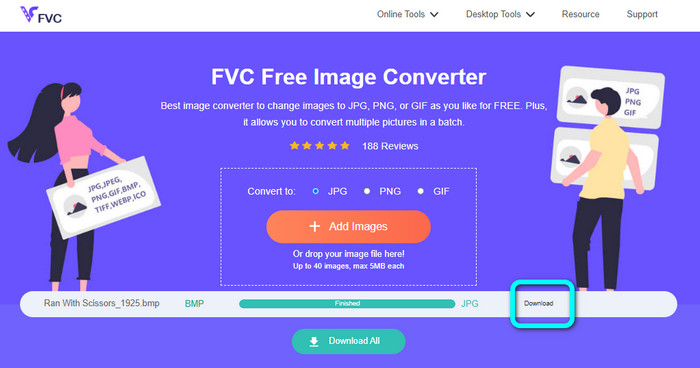
Passaggio 3: Dopo il caricamento, la foto verrà convertita automaticamente. Quindi, per l’ultimo passaggio, fai clic sul pulsante Download per salvare l’immagine sul desktop.
Converti BMP in JPG/PNG usando Convertio
Convertio è un altro strumento online per convertire BMP in JPG o PNG. È un convertitore di file che ti consente di trasformare vari formati. Include BMP, JPG, PNG, GIF, SVG e molti altri. Con l’aiuto di questo strumento è facile convertire numerose immagini. Offre anche la conversione in batch. In questo modo puoi convertire BMP in JPG in serie per risparmiare più tempo. Inoltre, Convertio garantisce la tua privacy. Dopo la conversione delle immagini, i tuoi dati verranno eliminati automaticamente dopo 24 ore. Puoi anche accedere a questo convertitore da diversi browser: è utilizzabile su Google, Mozilla, Edge, ecc.
Tuttavia, Convertio ha degli svantaggi. Puoi caricare solo un'immagine fino a 100 MB. Se desideri caricare file di dimensioni illimitate, acquista un piano di abbonamento. È inoltre necessaria una connessione Internet per utilizzare questo convertitore.
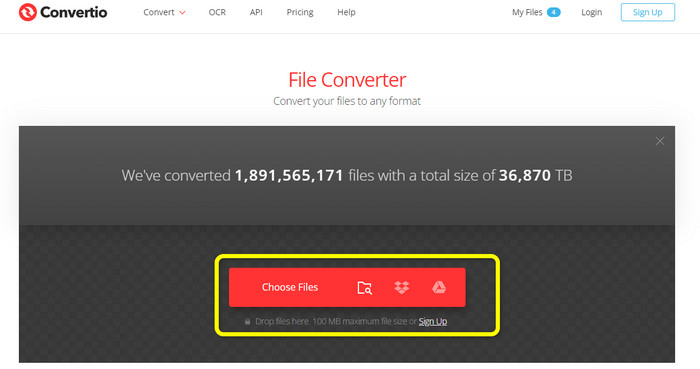
Passaggio 1: Visita il sito web di Convertio. Fai clic sul pulsante Choose Files per aggiungere il file immagine BMP.
Passaggio 2: Seleziona il formato di file JPG o PNG tra le opzioni disponibili. Se vuoi aggiungere altre immagini, fai clic sul pulsante Add more files.
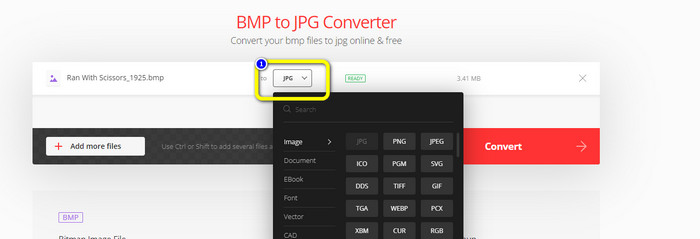
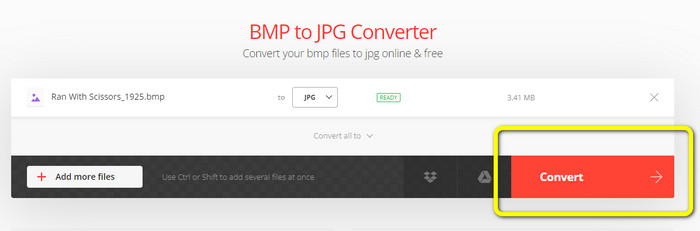
Passaggio 3: Dopo aver scelto il formato di file desiderato, fai clic sul pulsante Convert. Attendi il completamento della conversione e scarica le immagini sul tuo computer.
Parte 3. Metodi offline per convertire BMP in JPG/PNG
Puoi anche utilizzare Video Converter Ultimate per convertire BMP in JPG. Questo convertitore offline offre un metodo di conversione semplice da comprendere. Ha anche un’interfaccia intuitiva, che lo rende adatto a tutti gli utenti, in particolare ai principianti. Video Converter Ultimate supporta la conversione in batch, il che significa che puoi convertire più immagini contemporaneamente. Inoltre, offre una velocità di conversione elevata. Grazie a questa funzione, puoi convertire molti file in un attimo. Supporta anche vari formati di immagine, tra cui JPG, BMP, PNG, GIF, TIFF e altri. Oltre alla conversione, puoi modificare la qualità della foto dalle impostazioni di output. In questo modo puoi adattare la qualità dell’immagine alle tue preferenze. Inoltre, puoi usare questo convertitore scaricabile sia su computer Mac che Windows. Segui le istruzioni qui sotto per convertire il tuo file BMP in formato JPG o PNG.
Passaggio 1: Scarica Video Converter Ultimate sul tuo Mac o Windows. Avvia il programma dopo il completamento dell’installazione. Ti abbiamo anche fornito il convertitore facendo clic sul pulsante Download qui sotto.
Download gratuitoPer Windows 7 o versioni successiveDownload sicuro
Download gratuitoPer MacOS 10.7 o versioni successiveDownload sicuro
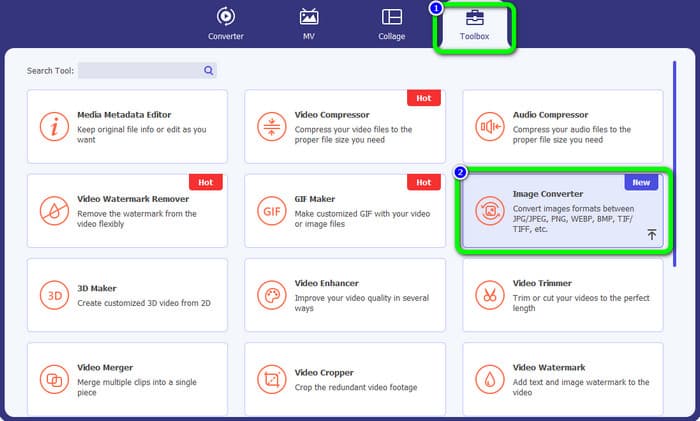
Passaggio 2: Vai al pannello Toolbox e seleziona lo strumento Image Converter. Apparirà un’altra interfaccia.
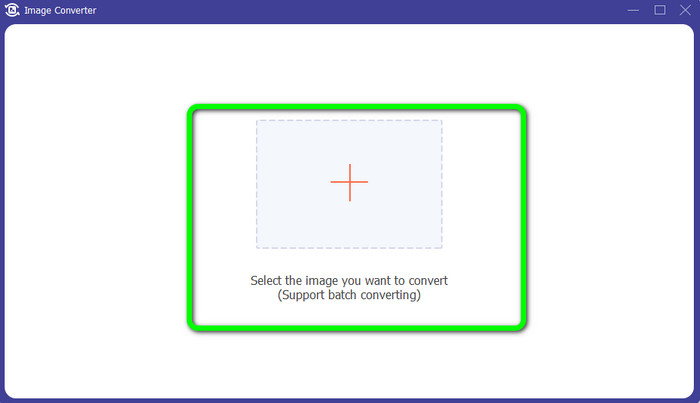
Passaggio 3: Fai clic sul simbolo Plus. Quindi scegli dalla cartella il foto BMP che vuoi convertire.
Passaggio 4: Fai clic sul pulsante Add Source File per aggiungere altri file. Poi vai alle opzioni di formato per selezionare il formato di output desiderato. Puoi scegliere i formati PNG e JPG.
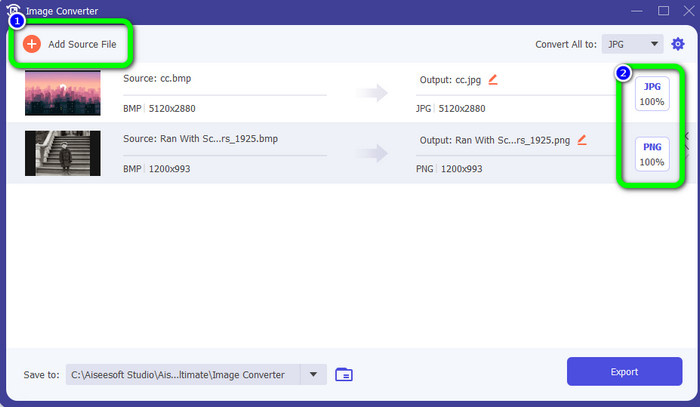
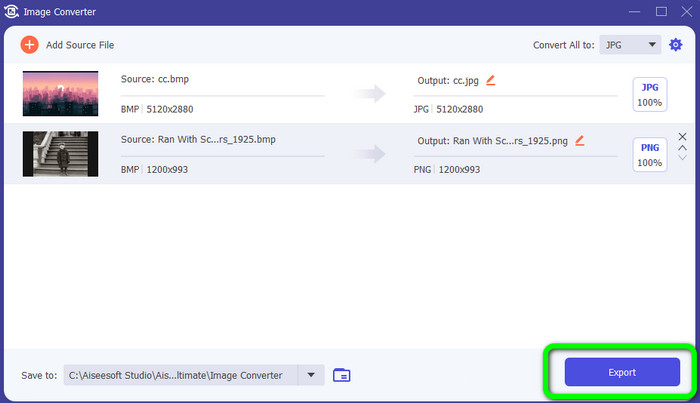
Passaggio 5: Per il passaggio finale, fai clic sul pulsante Export. Attendi la fine del processo di conversione. Quindi apri le immagini convertite dalla tua cartella.
Parte 4. Domande frequenti sulla conversione di BMP in JPG/PNG
1. Come convertire in batch BMP in PNG?
Se vuoi effettuare una conversione in batch, usa FVC Free Image Converter. Per prima cosa seleziona il formato PNG dall’opzione Convert to. Successivamente, fai semplicemente clic sul pulsante Add Images. Puoi aggiungere più file immagine: lo strumento permette di caricare fino a 40 immagini alla volta. Dopo il caricamento, il tool convertirà automaticamente i file immagine. Per concludere il processo, fai clic sul pulsante Download All per salvarli sul desktop.
2. È possibile animare un file BMP?
Sfortunatamente no. L'animazione spesso non è compatibile con i file BMP. Invece di usare Flash, pensa a usare il formato di file GIF. Può creare animazioni brevi e dirette che possono essere condivise e salvate.
3. Quale è più grande, un file BMP o un file JPEG?
Un BMP sarà più grande date foto comparabili. Ma un BMP può essere grande solo fino a 4 GB a causa delle restrizioni sulle dimensioni. La dimensione di un JPEG è illimitata. Ad esempio, alcune immagini satellitari sono disponibili in formato JPEG.
Conclusione
Poiché un file BMP ha una dimensione maggiore, è necessario convertirlo in altri formati come JPG e PNG. Puoi esserne contento, perché questo articolo ha fornito eccellenti metodi per convertire BMP in formati JPG e PNG. Tuttavia, se preferisci un modo semplice e gratuito per convertire le immagini, utilizza FVC Free Image Converter.
-
 Modi completi per convertire JPG in PNG online e offline
 Cerchi metodi utili per convertire il formato di file JPG in PNG? Questa guida ha la risposta di cui hai bisogno. Per scoprire questi metodi, leggi l'articolo
-
 Converti JPEG in JPG in modo efficiente [Cinque metodi elencati]
 Vieni e ottieni i tutorial più semplici sulla conversione del formato di file immagine JPEG in JPG. Fai clic su questa guida e inizia a imparare i tuoi metodi preferiti
-
 I 5 principali tutorial per convertire rapidamente PNG in JPG
 Se hai bisogno di convertire il tuo file PNG in formato JPG, puoi imparare i modi migliori qui. Imparerai anche la differenza tra i formati di file PNG e JPG
